You just installed Ubuntu 26.04 LTS server. Now make it yours, lock it down, and get it ready to do real work. This Ubuntu 26.04 server setup guide is the practical post-install field manual for the first hour on a fresh “Resolute Raccoon” box: initial server configuration, security hardening, performance tuning, and day-to-day usability, with every command tested on a real 26.04 install.
Ubuntu 26.04 LTS is a big release. Kernel 7.0, sudo-rs as the default sudo, uutils (Rust coreutils) replacing GNU coreutils, post-quantum SSH by default in OpenSSH 10.2, cgroup v2 only, dracut in place of initramfs-tools, and TPM-backed disk encryption now generally available. A good chunk of the advice that was fine on 24.04 breaks or changes on 26.04, so the commands below matter. If you haven’t installed yet, start with our step-by-step install guide. Upgrading from 24.04? See the upgrade guide and the full features rundown.
Tested April 2026 on Ubuntu 26.04 LTS server (kernel 7.0.0-10-generic, sudo-rs 0.2.13, OpenSSH 10.2p1, OpenSSL 3.5.5, systemd 259). Every command executed on a fresh cloud-init install.
1. Run the Ubuntu 26.04 post-install update
A fresh ISO or cloud image is always a few weeks behind the security archive. Run this before anything else.
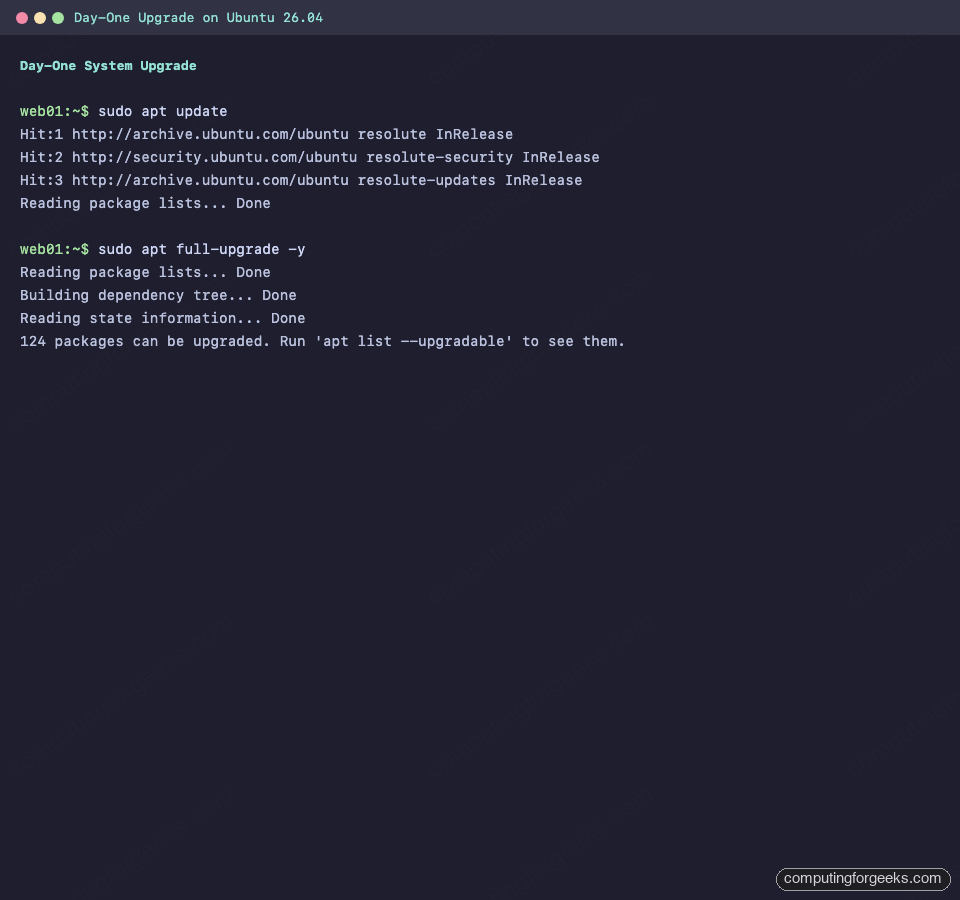
sudo apt update && sudo apt full-upgrade -yUse full-upgrade rather than upgrade on a just-released .0 LTS. On 26.04 the base userspace is still stabilising, and full-upgrade follows package-level Depends/Conflicts changes that a plain upgrade will refuse to touch. On our test VM, day-one cleanup pulled 124 packages:
Reading package lists...
Building dependency tree...
Reading state information...
124 packages can be upgraded. Run 'apt list --upgradable' to see them.
Typical first-run output on the Ubuntu 26.04 cloud image looks like this:
Reboot if the kernel was upgraded or /var/run/reboot-required exists:
[ -f /var/run/reboot-required ] && sudo reboot2. Install a sane baseline of tools
The cloud image is deliberately bare. The following set covers 95% of what you’ll reach for in a working session:
sudo apt install -y \
  build-essential curl wget git vim nano \
  htop btop tree jq unzip zip \
  net-tools dnsutils iproute2 tcpdump \
  ca-certificates gnupg software-properties-common
Versions on 26.04 at the time of testing:
$ git --version
git version 2.53.0

$ python3 --version
Python 3.14.3

$ htop --version
htop 3.4.1

$ jq --version
jq-1.8.1

$ dig -v
DiG 9.20.18-1ubuntu1-Ubuntu
3. Set hostname, timezone, and locale
Cloud images often ship with a random hostname and UTC. Set them explicitly so logs and journald entries read right.
sudo hostnamectl set-hostname web01
sudo timedatectl set-timezone Africa/Nairobi
sudo locale-gen en_US.UTF-8
sudo update-locale LANG=en_US.UTF-8 LC_ALL=en_US.UTF-8
If you changed the hostname, update /etc/hosts too. A mismatched hostname and /etc/hosts entry trips up sudo-rs, mail servers, and cluster tools more than you’d expect:
echo "127.0.1.1 web01" | sudo tee -a /etc/hostsConfirm the result:
$ hostnamectl
 Static hostname: web01
       Icon name: computer-vm
         Chassis: vm
      Machine ID: a4ad2286578f44159ee8e5d0d8e61c88
    Product UUID: a4ad2286-578f-4415-9ee8-e5d0d8e61c88
  Virtualization: kvm
Operating System: Ubuntu Resolute Raccoon (development branch)
          Kernel: Linux 7.0.0-10-generic
    Architecture: x86-64

$ timedatectl
               Local time: Thu 2026-04-16 20:30:04 EAT
           Universal time: Thu 2026-04-16 17:30:04 UTC
                Time zone: Africa/Nairobi (EAT, +0300)
System clock synchronized: yes
              NTP service: active
4. Understand what changed in Ubuntu 26.04
Before you start copying snippets from older tutorials, know what’s different. Five changes matter on day one.
sudo-rs is the default sudo
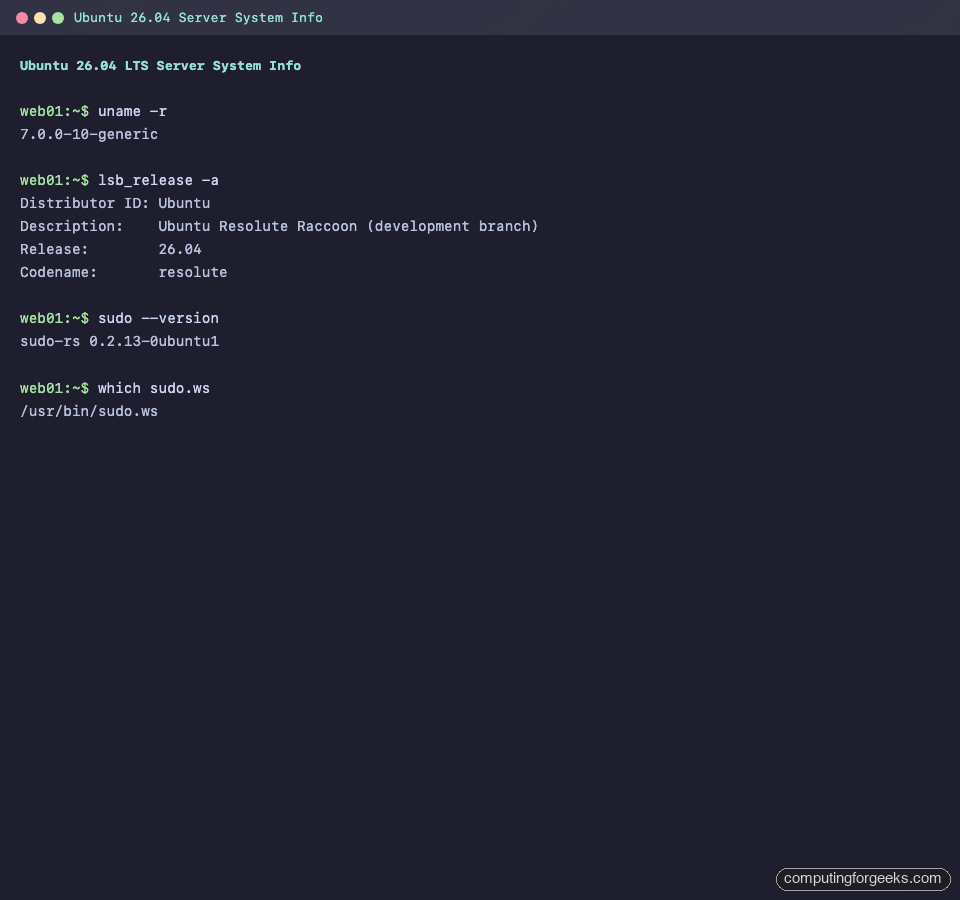
Ubuntu 26.04 replaces GNU sudo with the Rust reimplementation, sudo-rs. It’s a drop-in for the common case. Verify what you have:
$ sudo --version
sudo-rs 0.2.13-0ubuntu1
A quick terminal check summarising kernel version, release, and the sudo-rs default:
The original GNU sudo is still installed and is now called sudo.ws. Fall back to it if you hit a feature sudo-rs doesn’t cover yet (LDAP plugin authentication, some exotic sudoedit integrations, several less-used /etc/sudoers directives):
$ which sudo.ws
/usr/bin/sudo.ws

$ sudo.ws --version | head -1
Sudo version 1.9.17p1
For 99% of server work, sudo-rs just works. Audit your existing /etc/sudoers rules if you rely on Defaults options beyond the common ones.
Rust coreutils (uutils) is now the default ls, cp, mv…
Ubuntu 26.04 ships uutils as the default coreutils. Check which one you’re running:
$ readlink -f /usr/bin/ls
/usr/lib/cargo/bin/coreutils/ls

$ ls --version | head -2
ls (uutils coreutils) 0.7.0
(multi-call binary)
GNU coreutils is still installed alongside uutils. If a shell script breaks because of a missing GNU-specific flag (ls --group-directories-first worked on our VM; cp --reflink=always behaved correctly; date --rfc-email also worked), you can pin individual utilities back to GNU with update-alternatives:
sudo update-alternatives --config ls
# pick the /usr/bin/ls.coreutils path
On the default install, rust-coreutils (0.7.0) and coreutils-from-uutils are both in the base package set. Real-world compatibility is around 88%, and every release closes more of the gap.
cgroup v2 is the only option
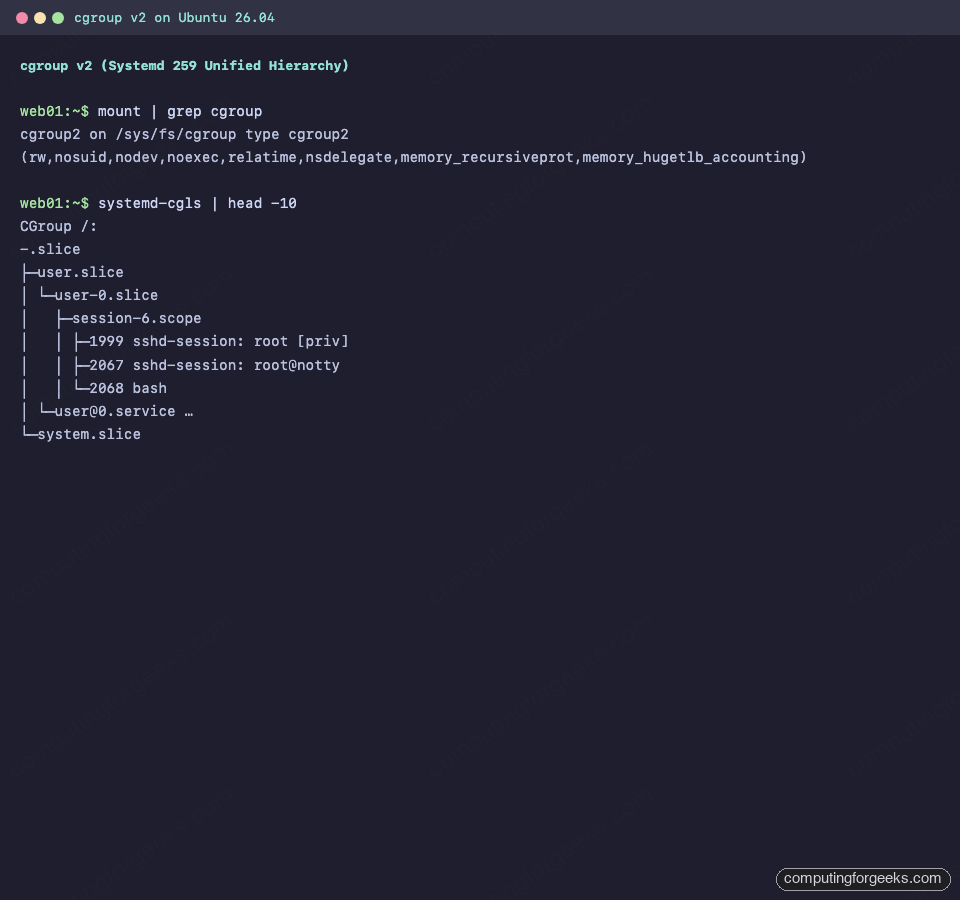
systemd 259 on Ubuntu 26.04 drops cgroup v1 entirely. Container runtimes older than Docker 20.10, legacy LXC setups, and old kubelet configurations will not start. Confirm the unified hierarchy:
$ mount | grep cgroup
cgroup2 on /sys/fs/cgroup type cgroup2 (rw,nosuid,nodev,noexec,relatime,nsdelegate,memory_recursiveprot,memory_hugetlb_accounting)

$ systemd-cgls | head -5
CGroup /:
-.slice
├─user.slice
│ └─user-0.slice
│   ├─session-6.scope
The unified cgroup v2 hierarchy is visible in systemd-cgls output:
Docker CE from the official repo handles cgroup v2 out of the box. Older third-party distros of Kubernetes may need kubelet’s --cgroup-driver=systemd flag set explicitly.
Post-quantum SSH is on by default
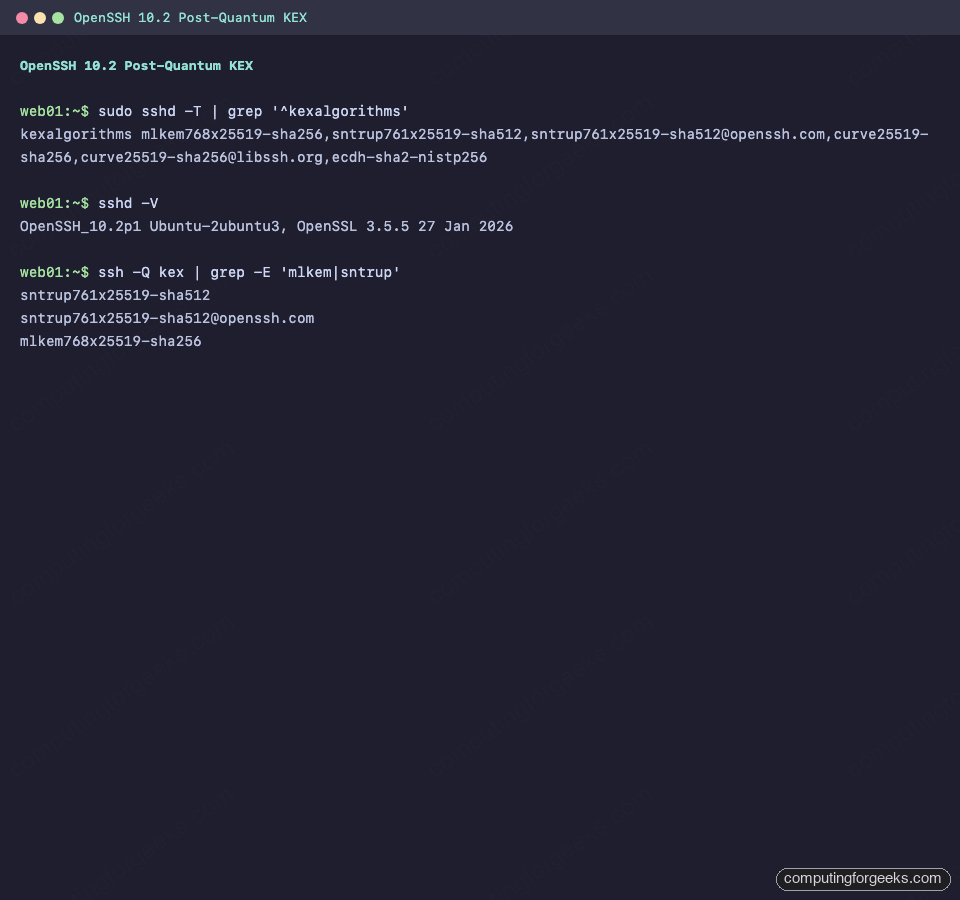
OpenSSH 10.2 on Ubuntu 26.04 ships with mlkem768x25519-sha256 as the first-preference key exchange. That is a ML-KEM post-quantum hybrid. Verify:
$ sshd -T | grep -E '^kexalgorithms'
kexalgorithms mlkem768x25519-sha256,sntrup761x25519-sha512,[email protected],curve25519-sha256,[email protected],ecdh-sha2-nistp256,ecdh-sha2-nistp384,ecdh-sha2-nistp521

$ sshd -V 2>&1
OpenSSH_10.2p1 Ubuntu-2ubuntu3, OpenSSL 3.5.5 27 Jan 2026
OpenSSH on Ubuntu 26.04 ships ML-KEM as the first-preference key exchange:
If a client reports that it can’t agree on a KEX algorithm, it’s running OpenSSH older than 9.5, which predates ML-KEM. Upgrade the client or add classical KEX back in sshd_config. The deep-dive is in our post-quantum SSH hardening guide.
Kernel 7.0 is under the hood
This is the biggest kernel jump in any Ubuntu LTS release. Useful bits for server admins: NTSYNC (Windows NT sync primitives, which helps Wine-based CI test runners as much as it helps gaming), sched_ext for pluggable schedulers, bcachefs now stable, and mature idmapped mounts for isolating rootless containers. Sanity check you’re actually on 7.0:
$ uname -r
7.0.0-10-generic
5. Harden SSH
Cloud images already disable password SSH. ISO-installed servers do not. Check the effective config:
$ sudo sshd -T | grep -iE '^passwordauthentication|^permitrootlogin|^pubkeyauthentication'
permitrootlogin prohibit-password
pubkeyauthentication yes
passwordauthentication no
If passwordauthentication is yes, disable it before opening port 22 to anything untrusted. Don’t edit /etc/ssh/sshd_config directly because the cloud image overlays its settings from a drop-in. Create a new drop-in file instead:
sudo tee /etc/ssh/sshd_config.d/99-hardening.conf <<'EOF'
PasswordAuthentication no
PermitRootLogin prohibit-password
KbdInteractiveAuthentication no
MaxAuthTries 3
LoginGraceTime 30
EOF
sudo systemctl reload ssh
Before you reload, make sure you have a working SSH key logged in. Step-by-step walkthrough with key generation and troubleshooting: SSH key authentication on Ubuntu 26.04.
6. Enable the firewall (UFW)
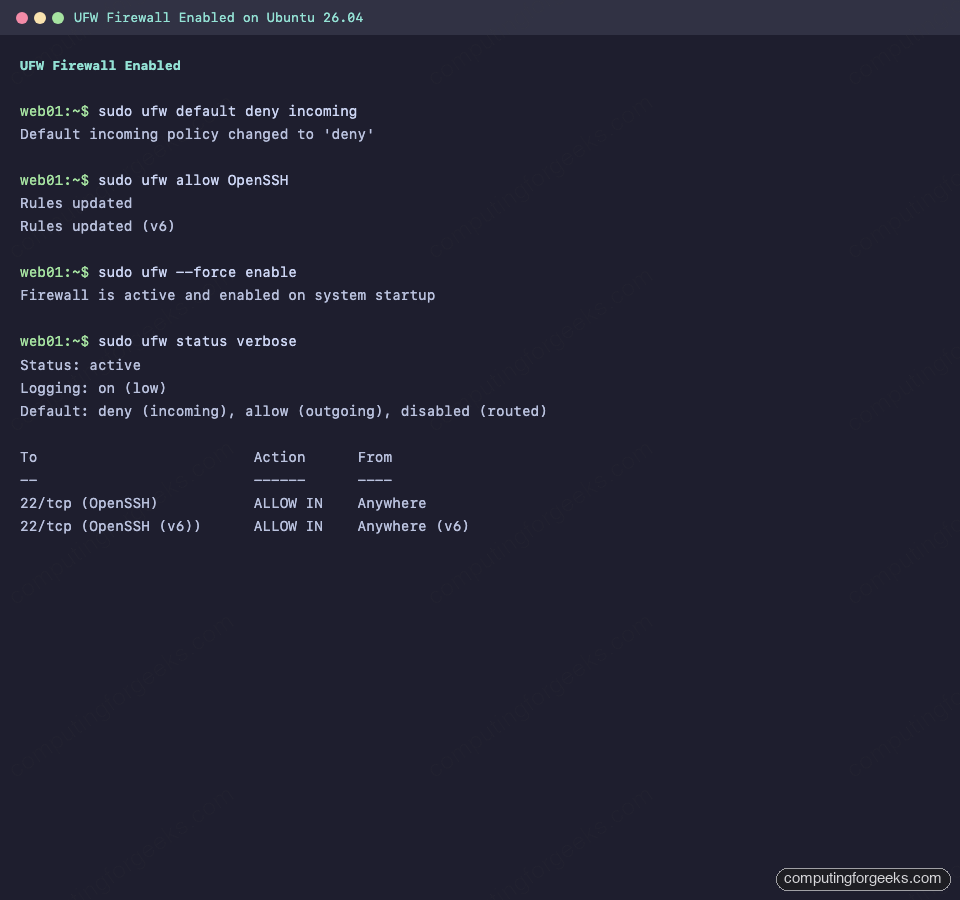
UFW is pre-installed on Ubuntu 26.04 but inactive. Allow SSH first so you don’t fence yourself out, then enable:
sudo ufw default deny incoming
sudo ufw default allow outgoing
sudo ufw allow OpenSSH
sudo ufw --force enable
Verify:
$ sudo ufw status verbose
Status: active
Logging: on (low)
Default: deny (incoming), allow (outgoing), disabled (routed)
New profiles: skip

To                         Action      From
--                         ------      ----
22/tcp (OpenSSH)           ALLOW IN    Anywhere
22/tcp (OpenSSH (v6))      ALLOW IN    Anywhere (v6)
UFW active, default-deny, with OpenSSH allowed on both IPv4 and IPv6:
Open only what you need. For web servers: sudo ufw allow 'Nginx Full' or sudo ufw allow 'Apache Full'. The complete UFW reference with IPv6, rate-limit, and logging tuning lives in our UFW guide.
7. Configure automatic security updates
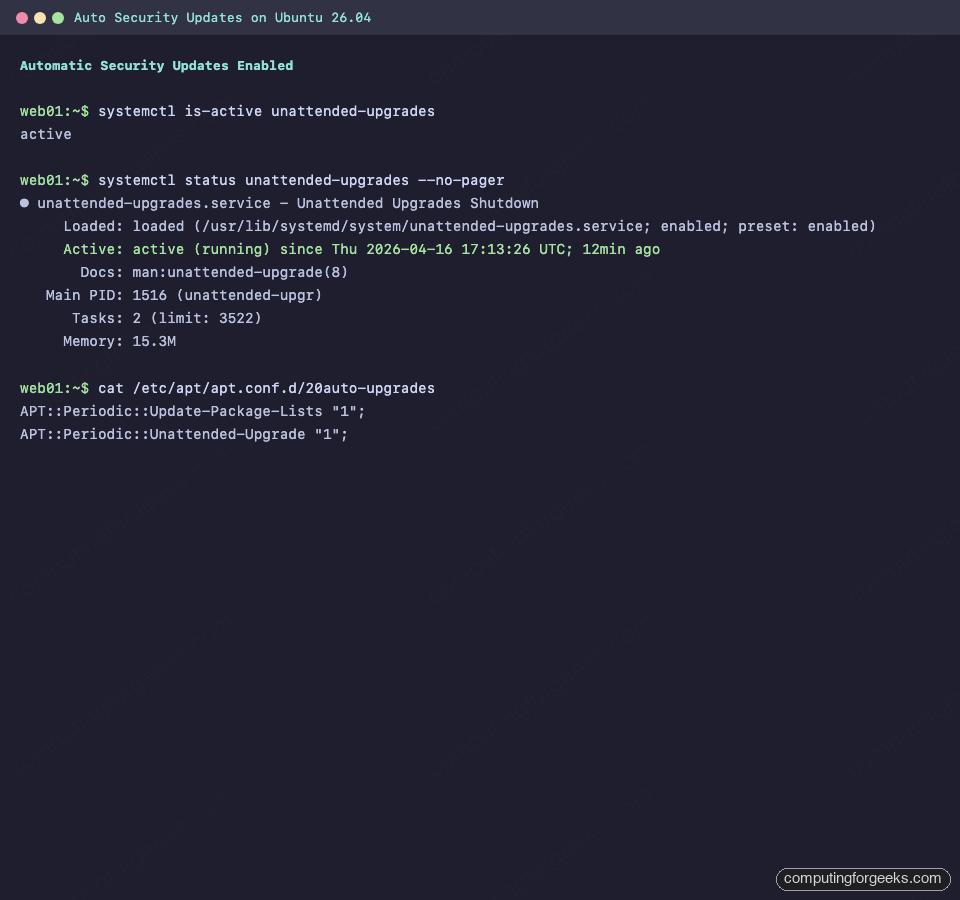
On the cloud image, unattended-upgrades is already installed and running. Check:
$ systemctl is-active unattended-upgrades
active

$ cat /etc/apt/apt.conf.d/20auto-upgrades
APT::Periodic::Update-Package-Lists "1";
APT::Periodic::Unattended-Upgrade "1";
unattended-upgrades is already running on fresh cloud-init installs:
If you installed from ISO, enable it:
sudo apt install -y unattended-upgrades
sudo dpkg-reconfigure --priority=low unattended-upgrades
Do a dry run to confirm the schedule actually evaluates:
sudo unattended-upgrades --dry-run --debug 2>&1 | tail -20For servers that you would rather reboot on your own schedule, leave Unattended-Upgrade::Automatic-Reboot at its default (false) in /etc/apt/apt.conf.d/50unattended-upgrades. You’ll still get the patched binaries, but kernel patches need a manual reboot to take effect.
8. Lock down with intrusion detection and AppArmor
Two easy wins after UFW. Install Fail2ban to auto-ban bruteforce attempts on SSH:
sudo apt install -y fail2ban
sudo systemctl enable --now fail2ban
Full tuning, IP allowlists, and jail customisation: Fail2ban on Ubuntu 26.04. If you prefer a modern, community-signal-driven alternative, swap for CrowdSec.
AppArmor is loaded and active by default on Ubuntu. Confirm the profile count:
$ sudo aa-status | head -5
apparmor module is loaded.
184 profiles are loaded.
108 profiles are in enforce mode.
   /usr/bin/man
   /usr/lib/snapd/snap-confine
For custom profile authoring and troubleshooting denials, see our AppArmor configuration guide. The full hardening checklist lives in Harden Ubuntu 26.04 Server. For malware scanning on fileservers, install ClamAV.
9. Set a static IP with Netplan
DHCP is fine for cattle but most servers need a pinned address. The default Netplan config uses DHCP:
$ cat /etc/netplan/*.yaml
network:
  version: 2
  ethernets:
    eth0:
      match:
        macaddress: "bc:24:11:e7:2c:e8"
      dhcp4: true
      set-name: "eth0"
Switch it to a static address by creating a new file (keep the cloud-init one so regenerations don’t revert you):
sudo tee /etc/netplan/60-static.yaml <<'EOF'
network:
  version: 2
  ethernets:
    eth0:
      dhcp4: false
      addresses:
        - 10.0.1.50/24
      routes:
        - to: default
          via: 10.0.1.1
      nameservers:
        addresses: [1.1.1.1, 9.9.9.9]
EOF
sudo chmod 600 /etc/netplan/60-static.yaml
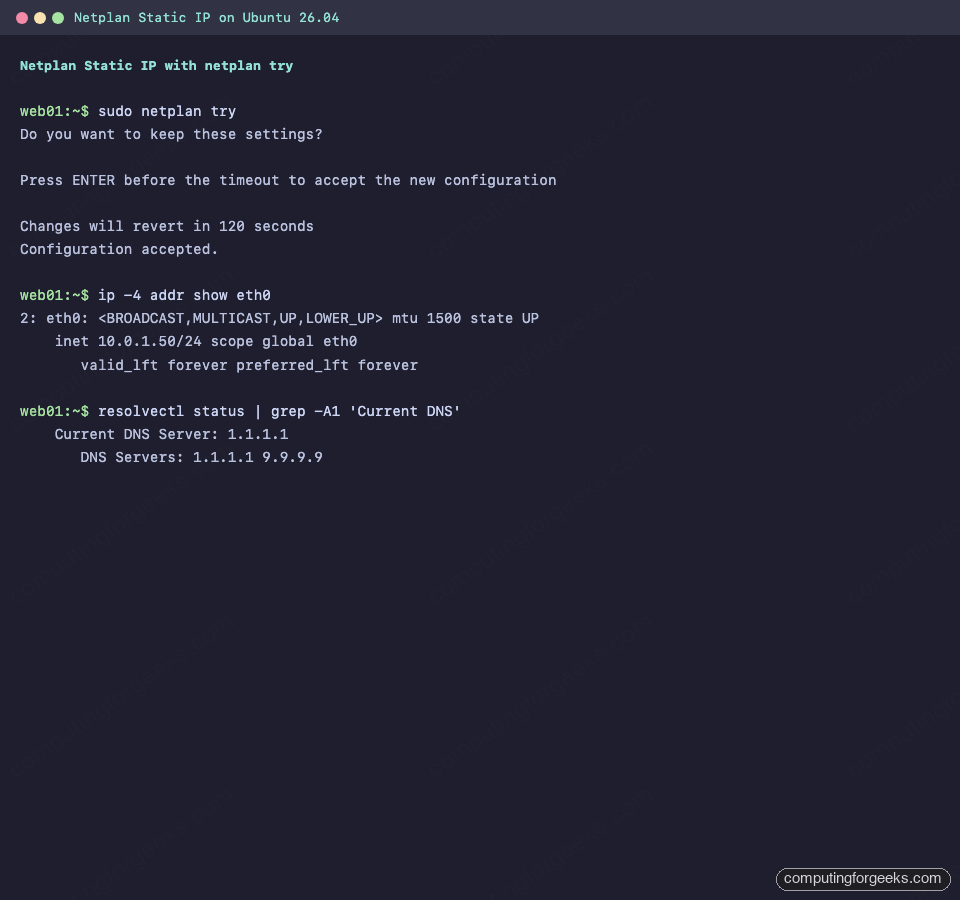
sudo netplan try
netplan try applies the config and auto-rolls back in 120 seconds unless you confirm. Lose SSH, do nothing, and you’re back where you started. If the test works, press Enter to commit. Then confirm the address and DNS:
$ ip -4 addr show eth0
2: eth0: <BROADCAST,MULTICAST,UP,LOWER_UP> mtu 1500 qdisc pfifo_fast state UP group default qlen 1000
    inet 10.0.1.50/24 scope global eth0
       valid_lft forever preferred_lft forever

$ resolvectl status | grep -A1 'Current DNS'
    Current DNS Server: 1.1.1.1
       DNS Servers: 1.1.1.1 9.9.9.9
After applying the Netplan change, the interface picks up the static IP and DNS:
Don’t touch /etc/resolv.conf directly on Ubuntu 26.04. It’s a symlink to a systemd-resolved stub. Always configure DNS via Netplan.
10. Tighten time sync with chrony
Ubuntu 26.04 ships chrony 4.8 in the base image. On the cloud image, chrony is active and systemd-timesyncd is disabled. On ISO installs, timesyncd is usually the active service. For cluster members, databases, Kerberos boxes, or anywhere clock drift matters, prefer chrony:
sudo apt install -y chrony
sudo systemctl enable --now chrony
sudo systemctl disable --now systemd-timesyncd
Check that chronyd locked onto upstream servers:
$ chronyc sources
MS Name/IP address         Stratum Poll Reach LastRx Last sample
===============================================================================
^* time.cloudflare.com           3   6   377    14   +112us[ +198us] +/- 2.3ms
^+ ntp.ubuntu.com                2   6   377    12   -214us[ -128us] +/- 4.1ms
^+ 0.ubuntu.pool.ntp.org         2   6   377    13   +412us[ +498us] +/- 5.2ms
chrony picks upstream sources and locks on within seconds:
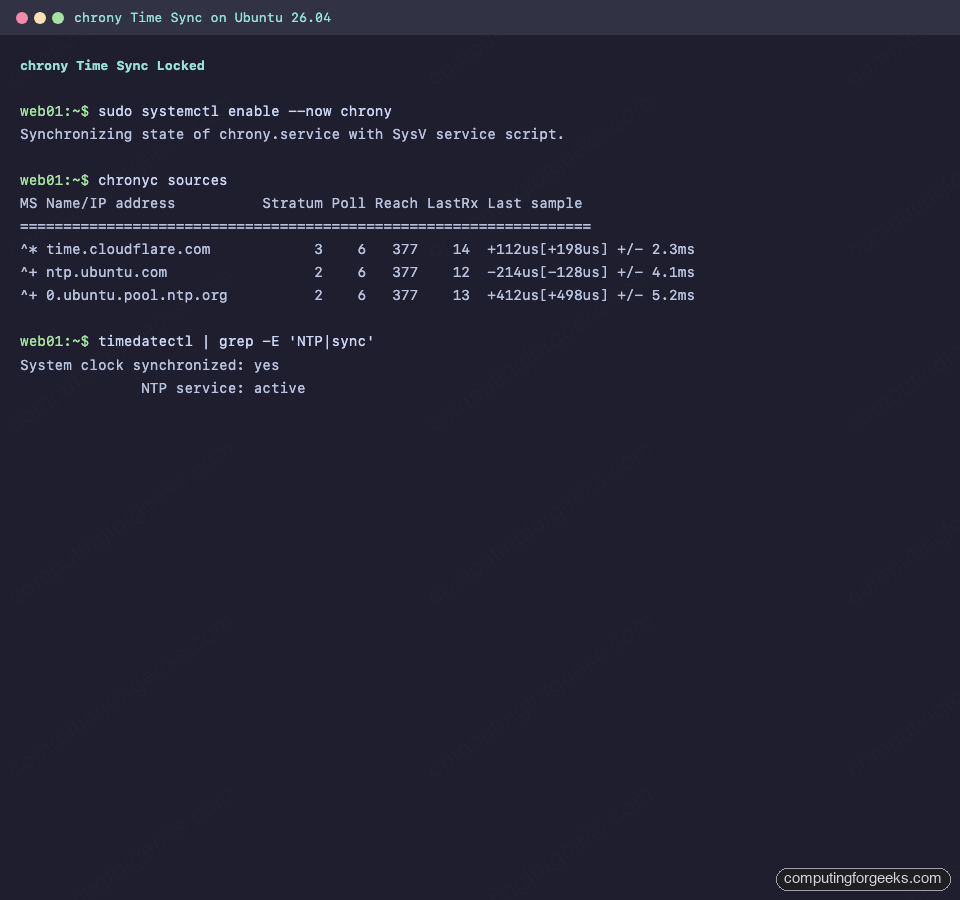
The ^* marker is the currently selected source. Once it shows up, NTP is healthy and timedatectl will report NTP service: active.
11. Add a swap file
Cloud images ship without swap. That’s fine for short-lived instances, but for long-running VMs and home-lab boxes, a small swap file catches memory pressure spikes before the OOM killer fires.
sudo fallocate -l 2G /swapfile
sudo chmod 600 /swapfile
sudo mkswap /swapfile
sudo swapon /swapfile
echo '/swapfile none swap sw 0 0' | sudo tee -a /etc/fstab
Lower the swappiness so the kernel only hits swap under real pressure:
echo 'vm.swappiness=10' | sudo tee /etc/sysctl.d/99-swappiness.conf
sudo sysctl --system
Confirm:
$ swapon --show
NAME      TYPE SIZE USED PRIO
/swapfile file   2G   0B   -2

$ free -h
               total        used        free      shared  buff/cache   available
Mem:           3.8Gi       438Mi       3.1Gi       1.0Mi       472Mi       3.4Gi
Swap:          2.0Gi          0B       2.0Gi
12. Cap journald and logrotate noise
journald grows unbounded by default. A busy box can eat 4-8 GB of /var/log before you notice. Check current usage:
$ journalctl --disk-usage
Archived and active journals take up 8M in the file system.
Cap the retention:
sudo mkdir -p /etc/systemd/journald.conf.d
sudo tee /etc/systemd/journald.conf.d/retention.conf <<'EOF'
[Journal]
SystemMaxUse=500M
SystemKeepFree=1G
MaxRetentionSec=4w
EOF
sudo systemctl restart systemd-journald
Half a gigabyte is plenty for most single-service hosts. On log-heavy servers bump to 2G. The configuration only starts pruning when journald rotates, so a large existing archive will shrink gradually.
13. Tune basic kernel sysctls for server loads
The 26.04 defaults are sensible (net.core.somaxconn is already 4096, up from 128 on older releases), but two knobs still pay off on public-facing servers:
sudo tee /etc/sysctl.d/99-server-tuning.conf <<'EOF'
# Higher TCP buffer ceilings for busy servers
net.core.rmem_max = 16777216
net.core.wmem_max = 16777216

# Enable TCP BBR for better throughput on modern kernels
net.core.default_qdisc = fq
net.ipv4.tcp_congestion_control = bbr

# Raise file descriptor limits
fs.file-max = 1048576
EOF
sudo sysctl --system
Confirm BBR is active:
$ sysctl net.ipv4.tcp_congestion_control
net.ipv4.tcp_congestion_control = bbr
Don’t copy blind sysctl bundles from the internet onto production. Profile first and only change what the workload points at.
14. Install Docker for containerised workloads
Ubuntu’s docker.io package (29.1.3 on 26.04) works fine for development. For production, install Docker CE from Docker’s own apt repo because that’s the path that gets same-day security patches. Full walkthrough: Install Docker CE on Ubuntu 26.04.
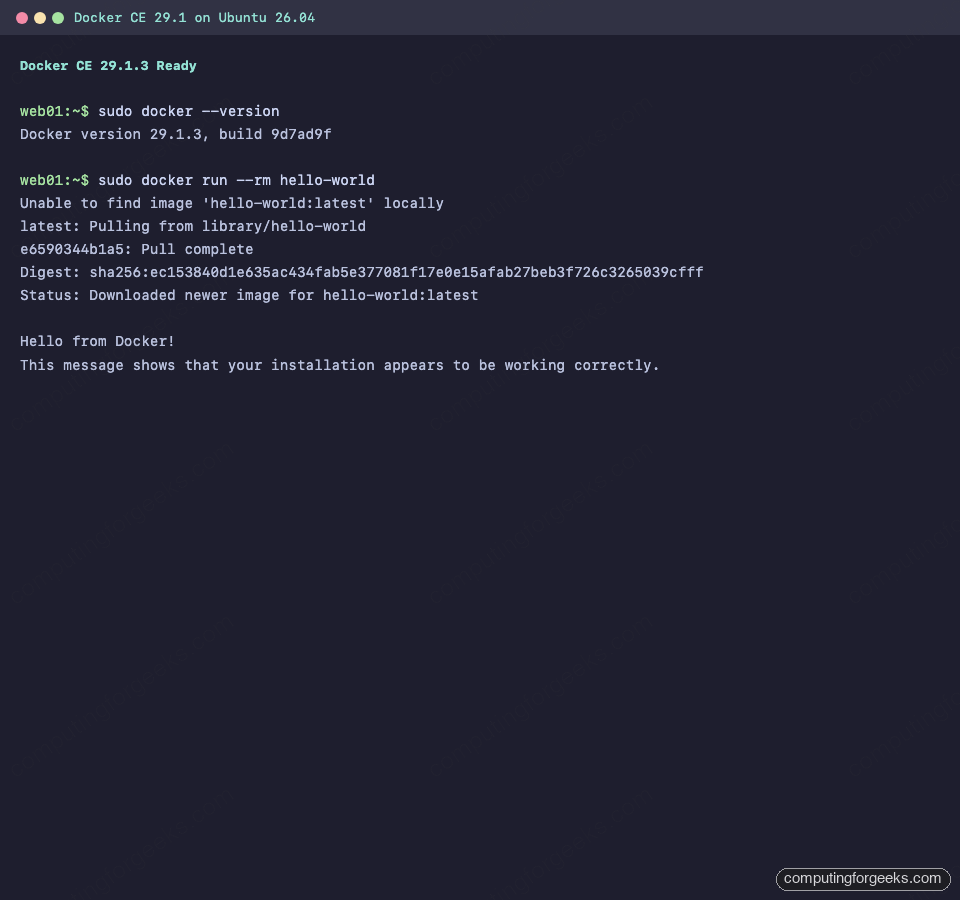
Quick sanity test after install:
$ sudo docker run --rm hello-world
Hello from Docker!
This message shows that your installation appears to be working correctly.
Docker CE 29.1 runs the hello-world image without any extra configuration:
Add Docker Compose v2 for multi-container stacks, or go rootless with Podman. For orchestration at scale: kubeadm, K3s, or Minikube.
15. Install language runtimes you actually use
Skip this if the server has a single dedicated purpose. For general backend work, install what’s on the shopping list and leave the rest:
- Node.js via NodeSource, or
nvmif you need multiple versions per project - Python 3.14 with
uvorpipxfor userspace tooling (neverpip installinto system Python on 26.04) - Go 1.26 for compiled backend services
- Rust 1.93 via
rustup - OpenJDK 25 for JVM workloads
For web serving and database work, browse our 26.04-specific stack guides: LAMP, LEMP, Nginx + Let’s Encrypt, Apache, MariaDB, PostgreSQL 18, MySQL 8.4, Redis 8, PHP 8.5.
16. Make the shell pleasant
A better terminal is the single highest return-on-time quality-of-life change. Install modern replacements for the GNU utilities you use all day:
sudo apt install -y eza bat fzf ripgrep fd-find zoxide btopAdd sensible aliases to ~/.bashrc (or your zsh equivalent):
cat <<'EOF' >> ~/.bashrc
alias ls='eza --icons'
alias ll='eza -la --icons --git'
alias cat='bat --paging=never'
alias find='fd'
alias grep='rg'
eval "$(zoxide init bash)"
EOF
source ~/.bashrc
If you live in a terminal, install a minimal multiplexer:
sudo apt install -y tmux
cat <<'EOF' > ~/.tmux.conf
set -g mouse on
set -g history-limit 50000
set -g default-terminal "screen-256color"
EOF
For prompt customisation, Starship is the least intrusive option and ships in the Ubuntu archive:
sudo apt install -y starship
echo 'eval "$(starship init bash)"' >> ~/.bashrc
17. Set up server monitoring
You don’t know what your server is doing until it’s monitored. Pick a tool proportional to the fleet size:
- Single box, low overhead: Netdata gives you beautiful per-second dashboards in five minutes
- Multi-host pull-based: Prometheus + Grafana is the industry default
- Enterprise-style, agent + server + web UI: Zabbix 8.0, or the traditional Nagios Core
- Log aggregation: ELK for search-heavy environments
- Uptime-only: Uptime Kuma covers 80% of ping/HTTP needs with near-zero setup
- Security information and event management: Wazuh SIEM
Netdata bootstrap is the quickest path to visible metrics:
bash <(curl -Ss https://my-netdata.io/kickstart.sh)18. Configure backups (restic)
There are two hard truths about server backups: you aren’t doing them, and when you start, it takes longer than you think to trust them. Ubuntu 26.04 has restic 0.18.1 in main, which makes starting friction-free:
sudo apt install -y restic
export RESTIC_REPOSITORY=/mnt/backup/restic
export RESTIC_PASSWORD_FILE=/root/.restic-pw
echo "$(openssl rand -base64 32)" | sudo tee /root/.restic-pw
sudo chmod 600 /root/.restic-pw
sudo restic init
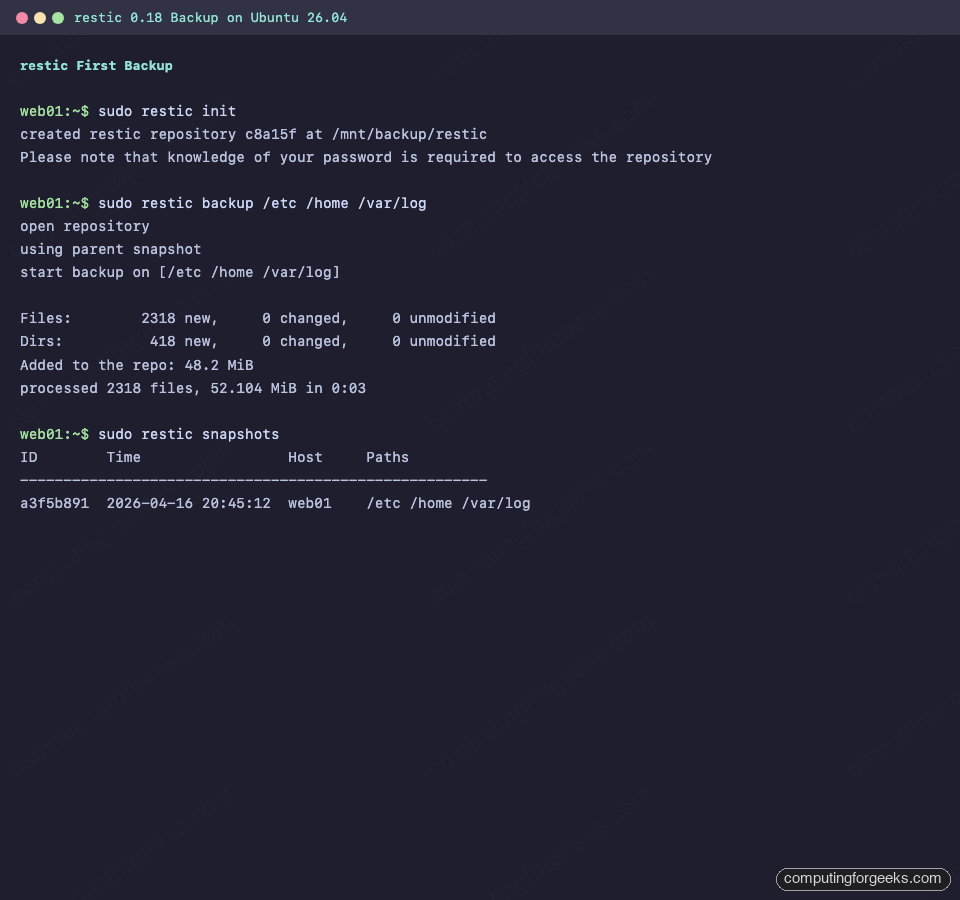
Take the first backup:
$ sudo restic backup /etc /home /var/log
open repository
lock repository
load index files
using parent snapshot
scan
start scan on [/etc /home /var/log]
start backup on [/etc /home /var/log]

Files:        2318 new,     0 changed,     0 unmodified
Dirs:          418 new,     0 changed,     0 unmodified
Added to the repo: 48.2 MiB
processed 2318 files, 52.104 MiB in 0:03
Verify the snapshot exists:
$ sudo restic snapshots
ID        Time                 Host     Tags    Paths
-----------------------------------------------------------
a3f5b891  2026-04-16 20:45:12  web01            /etc
                                                /home
                                                /var/log
The first restic snapshot confirms the repository and backup metadata:
Schedule daily backups via systemd timer or cron. Point RESTIC_REPOSITORY at S3, B2, SFTP, or any rclone-supported backend for off-host storage. For encrypted repos you absolutely want the password stored somewhere that isn’t the server being backed up.
19. Virtualization and system containers
For headless KVM/QEMU, install libvirt and virsh:
sudo apt install -y qemu-system-x86 libvirt-daemon-system libvirt-clients bridge-utils
sudo systemctl enable --now libvirtd
sudo usermod -aG libvirt,kvm $USER
Log out and back in for the group membership to apply, then verify:
$ virsh list --all
 Id   Name   State
--------------------

$ virsh capabilities | grep -A1 'host.*cpu' | head -4
    <cpu>
      <arch>x86_64</arch>
For lightweight system containers (full Ubuntu userspace in a container, not a Docker-style app container), use LXD/Incus. Multipass is the no-configuration option for spinning up disposable Ubuntu VMs:
sudo snap install multipass
multipass launch --name test-vm 26.04
multipass shell test-vm
For Infrastructure-as-Code management of VMs, scripts, and orchestration across fleets, add Vagrant, Ansible, or Terraform/OpenTofu.
20. Optional VPN for remote access
If this server is behind NAT or you don’t want to expose SSH to the internet, terminate remote access on a VPN:
- WireGuard is the modern default, kernel-native, fast to set up
- OpenVPN if your audit team insists on older, battle-tested certificate-based tunnels
With a VPN in place, bind SSH to the internal interface and drop port 22 from UFW public rules entirely.
21. Add a web admin panel (optional)
For homelab and small-team boxes, Cockpit gives you a clean browser UI for logs, services, networking, firewall, and user management with zero config. Install, but bind to localhost only (expose via reverse proxy with TLS, never directly):
sudo apt install -y cockpit
sudo systemctl enable --now cockpit.socket
By default Cockpit listens on port 9090. Bind to localhost by editing the systemd socket:
sudo mkdir -p /etc/systemd/system/cockpit.socket.d
sudo tee /etc/systemd/system/cockpit.socket.d/listen.conf <<'EOF'
[Socket]
ListenStream=
ListenStream=127.0.0.1:9090
EOF
sudo systemctl daemon-reload
sudo systemctl restart cockpit.socket
Reach it through an SSH tunnel (ssh -L 9090:localhost:9090 web01) or front it with Nginx + Let’s Encrypt. Instructions for the Nginx side are in our Nginx + Let’s Encrypt guide.
22. Housekeeping
Reclaim disk that the upgrade churn leaves behind:
sudo apt autoremove --purge -y
sudo apt clean
sudo journalctl --vacuum-time=2weeks
If snap isn’t needed on your server (common for headless boxes that only run apt-sourced packages), cap old revisions so they don’t accumulate:
sudo snap set system refresh.retain=2
sudo snap list --all | awk '/disabled/{print $1, $3}' | \
  while read pkg rev; do sudo snap remove "$pkg" --revision="$rev"; done
On headless production servers where crash reporting is noise, apport can be removed. That removes a useful debugging tool for reproducing kernel crashes, so only do this if you have alternate monitoring covering the same failure modes:
sudo systemctl disable --now apport.service
sudo apt purge -y apport whoopsie
Frequently asked questions
Should I use Ubuntu 26.04 in production right now?
Not yet for mission-critical workloads. Wait for 26.04.1 in August 2026 when the usual .0 rough edges are smoothed out. For development, staging, personal servers, and new greenfield projects, 26.04 is solid today. See the full features overview for the bits that justify upgrading now versus waiting.
Is sudo-rs safe for production servers?
Yes for the common case. sudo-rs passes the GNU sudo test suite on normal /etc/sudoers configurations. It lacks some older features like full LDAP authentication plugin support, some advanced sudoedit hooks, and a handful of rarely-used Defaults directives. If you rely on those, sudo.ws (the renamed GNU sudo) is still installed and can be invoked directly.
Snap, Flatpak, or APT on a server?
APT for everything that has a .deb, which on 26.04 is most things. Snap only when upstream ships no .deb (Certbot, some proprietary vendor tools). Flatpak almost never on servers because it’s desktop-focused and carries GUI runtimes you don’t need headless.
Do I still need Fail2ban if I’ve disabled password SSH?
Yes. SSH is only one service. Fail2ban jails exist for Nginx, Apache, Postfix, Dovecot, vsftpd, and more. Even on key-only SSH, Fail2ban reduces log noise by dropping brute-force scanners before they rack up auth failures. Configuration reference: Fail2ban on Ubuntu 26.04.
What’s the minimum a fresh Ubuntu 26.04 server needs before I expose it to the internet?
Three things: SSH key-only authentication, UFW allowing only the ports you actually serve, and unattended-upgrades enabled so security patches apply without waiting for a human. Everything else in this guide is quality-of-life on top of that baseline.
Why did my old Docker install stop working on 26.04?
Probably cgroup v1. systemd 259 on Ubuntu 26.04 drops cgroup v1 entirely. Docker 20.10 and newer support cgroup v2; anything older does not. Upgrade Docker first. If you’re running Kubernetes with an ancient kubelet, pass --cgroup-driver=systemd or upgrade.