

Grafana turns raw metrics into dashboards you actually want to look at. On Ubuntu 26.04 LTS, the official Grafana APT repository ships the latest OSS version with no manual dependency wrangling.
This guide covers the full setup: installing Grafana 13 from the official repo, connecting Prometheus as a data source, importing a Node Exporter dashboard with real metrics, configuring Nginx as a reverse proxy, and tuning Grafana for production workloads. Every command was tested on a fresh Ubuntu 26.04 system with all services verified running.
Current as of April 2026. Grafana OSS 13.0.0 on Ubuntu 26.04 LTS (Resolute Raccoon), Prometheus 2.53.5, Node Exporter 1.10.2
Prerequisites
Before starting, confirm your system meets these requirements:
- Ubuntu 26.04 LTS server with root or sudo access (initial server setup guide)
- Minimum 1 GB RAM, 1 vCPU (Grafana is lightweight until you load heavy dashboards)
- Tested on: Ubuntu 26.04 LTS, kernel 7.0.0-10-generic, Grafana 13.0.0, Prometheus 2.53.5
- Port 3000 (Grafana default) or 80/443 if using a reverse proxy
Add the Grafana APT Repository
Grafana maintains its own APT repository with the latest stable releases. The Ubuntu universe repos carry an older version, so always use the official source. Start by importing the GPG signing key:
wget -q -O - https://apt.grafana.com/gpg.key | sudo gpg --dearmor -o /usr/share/keyrings/grafana.gpgAdd the stable repository to your sources list:
echo "deb [signed-by=/usr/share/keyrings/grafana.gpg] https://apt.grafana.com stable main" | sudo tee /etc/apt/sources.list.d/grafana.listRefresh the package index to pick up the new repository:
sudo apt-get updateInstall Grafana OSS
With the repository configured, install the open-source edition:
sudo apt-get install -y grafanaThis pulls in Grafana 13.0.0 along with its bundled dependencies. The package creates a grafana system user and sets up the systemd service automatically.
Enable and start the Grafana server service:
sudo systemctl enable --now grafana-serverVerify it is running:
systemctl status grafana-serverThe output confirms Grafana is active and listening:
● grafana-server.service - Grafana instance
     Loaded: loaded (/usr/lib/systemd/system/grafana-server.service; enabled; preset: enabled)
     Active: active (running) since Tue 2026-04-14 10:08:29 UTC; 5min ago
       Docs: http://docs.grafana.org
   Main PID: 3220 (grafana)
      Tasks: 14 (limit: 3522)
     Memory: 98.2M (peak: 104.5M)
        CPU: 12.456s
     CGroup: /system.slice/grafana-server.service
             └─3220 /usr/share/grafana/bin/grafana server ...
Check the installed version:
grafana server -vYou should see:
Version 13.0.0 (commit: e9de482b, branch: release-13.0.0)Confirm Grafana is listening on port 3000:
ss -tlnp | grep 3000Expected output:
LISTEN 0 4096 *:3000 *:* users:(("grafana",pid=3220,fd=30))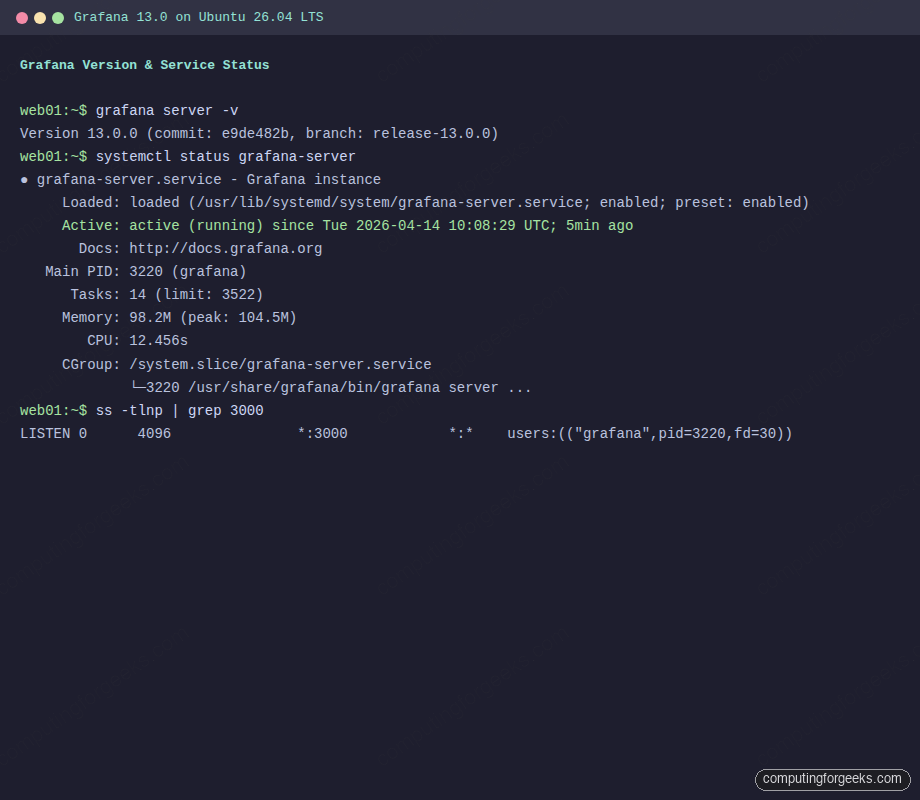
Configure the Firewall
If UFW is active, open port 3000 for direct Grafana access. If you plan to use Nginx as a reverse proxy (covered later), you only need ports 80 and 443 instead.
sudo ufw allow 3000/tcp comment "Grafana"
sudo ufw reload
Access the Grafana Web Interface
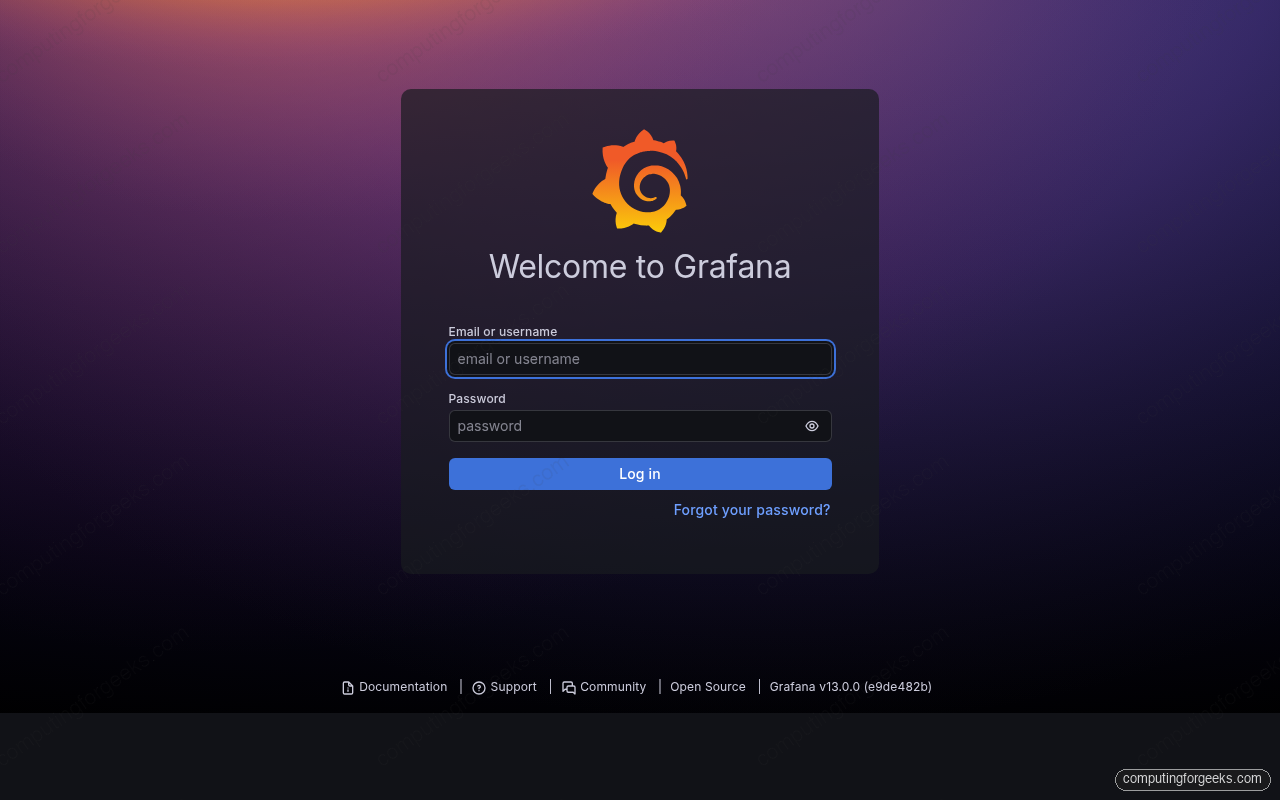
Open a browser and navigate to http://10.0.1.50:3000. The default login credentials are admin / admin. Grafana prompts you to change the password on first login.
You can also change the admin password from the command line or via the API. The API method is useful for automation:
curl -X PUT -H "Content-Type: application/json" \
  -d '{"password":"YourSecurePassword"}' \
  http://admin:admin@localhost:3000/api/admin/users/1/password
The response confirms the password update:
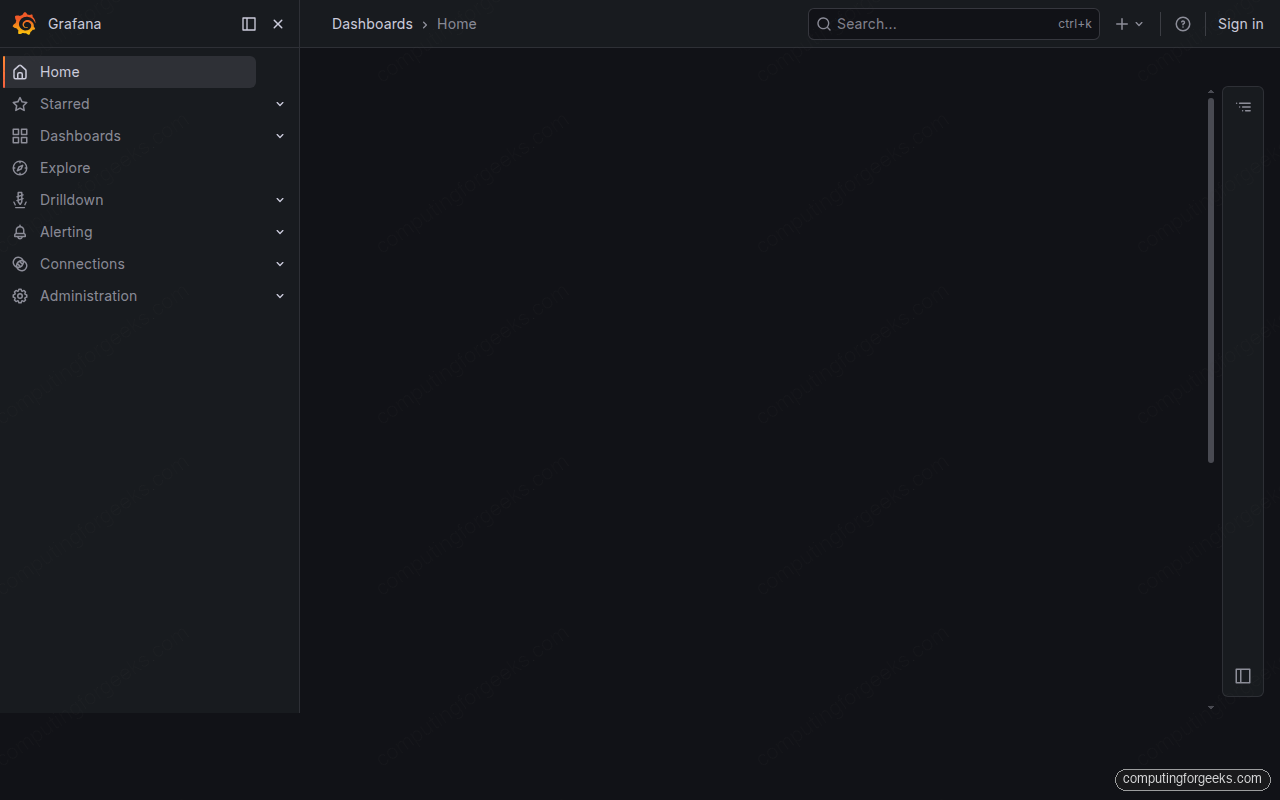
{"message":"User password updated"}After logging in, you land on the Grafana home page with the navigation sidebar on the left. From here you can create dashboards, manage data sources, configure alerting, and browse the plugin marketplace.
Install and Configure Prometheus as a Data Source
Grafana needs a data source to query metrics from. Prometheus is the most common pairing. On Ubuntu 26.04, Prometheus and the Node Exporter are available directly from the default repositories.
Install both packages:
sudo apt-get install -y prometheus prometheus-node-exporterEnable and start the services:
sudo systemctl enable --now prometheus prometheus-node-exporterVerify both are running:
systemctl is-active prometheus prometheus-node-exporterBoth should return active. The Ubuntu package ships with a default configuration that already scrapes the local Prometheus instance on port 9090 and Node Exporter on port 9100.
Confirm Prometheus is collecting metrics by querying its API:
curl -s http://localhost:9090/api/v1/targets | python3 -m json.tool | head -20Add Prometheus to Grafana via API
With Prometheus running, register it as a Grafana data source. The API approach is faster than clicking through the UI and works well for scripted setups:
curl -s -X POST -H "Content-Type: application/json" \
  -H "Authorization: Basic $(echo -n 'admin:YourSecurePassword' | base64)" \
  -d '{
    "name": "Prometheus",
    "type": "prometheus",
    "url": "http://localhost:9090",
    "access": "proxy",
    "isDefault": true
  }' http://localhost:3000/api/datasources
A successful response includes the datasource ID and a confirmation message:
{"datasource":{"id":1,"uid":"...","name":"Prometheus","type":"prometheus",
"url":"http://localhost:9090","access":"proxy","isDefault":true,...},
"id":1,"message":"Datasource added","name":"Prometheus"}
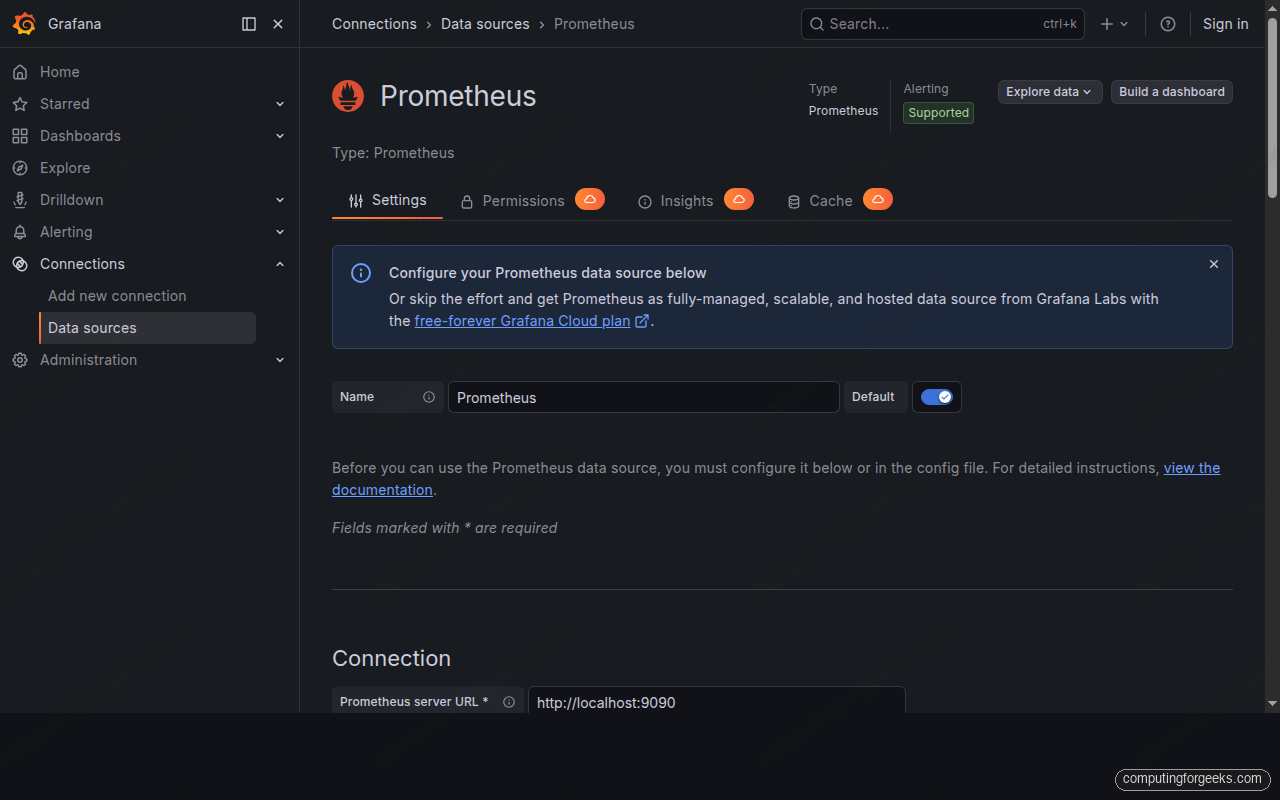
The Prometheus data source settings page shows the connection details. The green “Data source is working” banner appears after Grafana successfully queries the Prometheus API.
Import a Dashboard with Real Metrics
Building dashboards from scratch takes time. The Grafana community maintains thousands of pre-built dashboards. The “Node Exporter Full” dashboard (ID 1860) is one of the most popular, covering CPU, memory, disk, and network metrics from Node Exporter.
Download the dashboard JSON from Grafana.com:
curl -s https://grafana.com/api/dashboards/1860/revisions/latest/download -o /tmp/node-exporter-full.jsonImport it into Grafana using the API. This Python one-liner prepares and sends the import payload:
python3 -c "
import json, urllib.request
with open('/tmp/node-exporter-full.json') as f:
    dash = json.load(f)
dash['id'] = None
dash['uid'] = None
payload = json.dumps({
    'dashboard': dash,
    'overwrite': True,
    'inputs': [{'name': 'DS_PROMETHEUS', 'type': 'datasource',
                'pluginId': 'prometheus', 'value': 'Prometheus'}],
    'folderId': 0
}).encode()
req = urllib.request.Request('http://localhost:3000/api/dashboards/import',
    data=payload,
    headers={'Content-Type': 'application/json',
             'Authorization': 'Basic YWRtaW46WW91clNlY3VyZVBhc3N3b3Jk'})
resp = urllib.request.urlopen(req)
print(json.loads(resp.read().decode())['title'])
"
The script prints “Node Exporter Full” on success. Give Prometheus a few minutes to collect data, then open the dashboard from the Grafana sidebar under Dashboards.
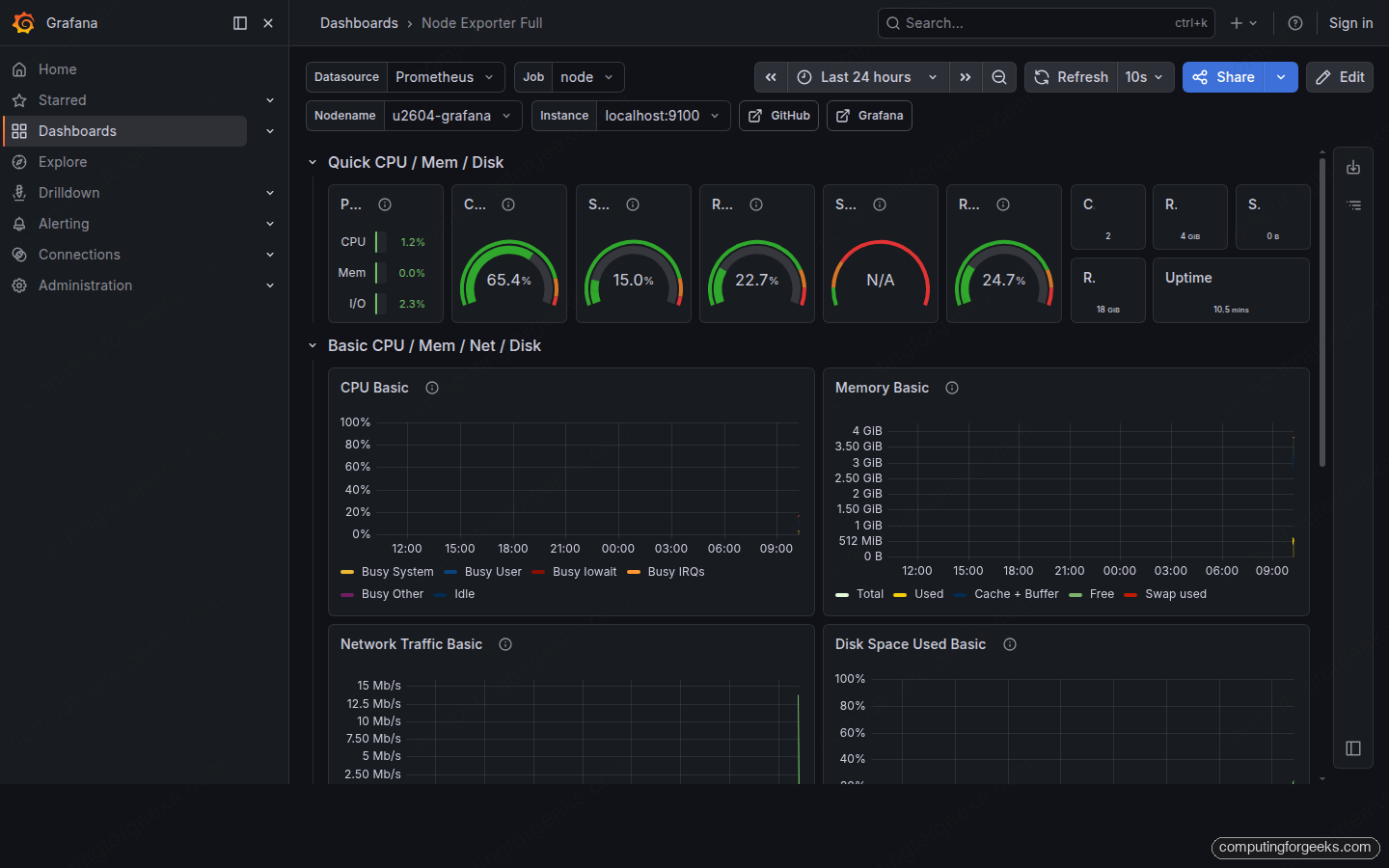
The dashboard shows real-time gauges for CPU, memory, and disk usage, along with network traffic graphs and filesystem breakdowns. All data comes from the Node Exporter scraping the local system.
Grafana CLI Essentials
Grafana ships with a built-in CLI for plugin management and admin tasks. As of version 13, the preferred invocation is grafana cli (the older grafana-cli still works but prints a deprecation warning).
List installed plugins:
sudo grafana cli plugins lsGrafana 13 bundles these plugins by default:
installed plugins:

grafana-metricsdrilldown-app @ 2.0.1
grafana-pyroscope-app @ 2.0.1
grafana-exploretraces-app @ 2.0.0
grafana-lokiexplore-app @ 2.0.3
Install a new plugin (for example, the Pie Chart panel):
sudo grafana cli plugins install grafana-piechart-panel
sudo systemctl restart grafana-server
Reset the admin password if you get locked out:
sudo grafana cli admin reset-admin-password NewPassword123Configure SMTP for Alert Notifications
Grafana can send email alerts when metrics cross thresholds. The SMTP configuration lives in /etc/grafana/grafana.ini under the [smtp] section.
Open the configuration file:
sudo vi /etc/grafana/grafana.iniFind and update the SMTP block with your mail server details:
[smtp]
enabled = true
host = smtp.example.com:587
user = [email protected]
password = your-smtp-password
from_address = [email protected]
from_name = Grafana Alerts
startTLS_policy = MandatoryStartTLS
Restart Grafana to apply the changes:
sudo systemctl restart grafana-serverTest the email configuration from the Grafana UI under Alerting > Contact points > Test. This catches authentication errors before you rely on it for real alerts. If you need a monitoring solution with built-in alerting that does not require a separate Prometheus backend, Zabbix on Ubuntu 26.04 is worth evaluating.
Set Up Nginx as a Reverse Proxy
Running Grafana behind Nginx gives you SSL termination, proper domain routing, and the ability to run Grafana on standard ports 80/443.
Install Nginx:
sudo apt-get install -y nginxCreate the Grafana site configuration:
sudo vi /etc/nginx/sites-available/grafana.confAdd the following server block. Replace grafana.example.com with your actual domain:
server {
    listen 80;
    server_name grafana.example.com;

    location / {
        proxy_pass http://127.0.0.1:3000;
        proxy_set_header Host $host;
        proxy_set_header X-Real-IP $remote_addr;
        proxy_set_header X-Forwarded-For $proxy_add_x_forwarded_for;
        proxy_set_header X-Forwarded-Proto $scheme;
    }

    location /api/live/ {
        proxy_pass http://127.0.0.1:3000;
        proxy_http_version 1.1;
        proxy_set_header Upgrade $http_upgrade;
        proxy_set_header Connection "upgrade";
        proxy_set_header Host $host;
    }
}
The /api/live/ location block handles WebSocket connections for Grafana’s live streaming features. Without it, real-time dashboard updates will not work through the proxy.
Enable the site and test the Nginx configuration:
sudo ln -sf /etc/nginx/sites-available/grafana.conf /etc/nginx/sites-enabled/
sudo nginx -t
The config test should report “syntax is ok” and “test is successful.” Reload Nginx:
sudo systemctl reload nginxTell Grafana it is running behind a reverse proxy by setting the root URL in /etc/grafana/grafana.ini:
sudo vi /etc/grafana/grafana.iniUpdate the [server] section:
[server]
domain = grafana.example.com
root_url = %(protocol)s://%(domain)s/
serve_from_sub_path = false
Restart Grafana to pick up the proxy settings:
sudo systemctl restart grafana-serverFor production use, add SSL/TLS with Let’s Encrypt. Install certbot and obtain a certificate for your domain, then update the Nginx block to listen on 443 with the certificate paths.
Performance Tuning
Grafana works fine out of the box for small teams. Once you cross 10+ concurrent users or load dashboards with 50+ panels querying high-cardinality data, these settings start to matter.
Database Backend
Grafana defaults to SQLite, which stores everything in /var/lib/grafana/grafana.db. SQLite handles single-server setups well, but it struggles under concurrent writes from multiple users editing dashboards simultaneously. For teams larger than 5 or high-availability setups, switch to PostgreSQL or MySQL.
To use PostgreSQL, update /etc/grafana/grafana.ini:
[database]
type = postgres
host = 127.0.0.1:5432
name = grafana
user = grafana
password = your-db-password
ssl_mode = disable
Create the database before restarting Grafana. Grafana runs its own migrations on first connect.
Concurrent Query Limits
By default, Grafana allows up to 50 concurrent data source queries per dashboard load. Heavy dashboards with many panels can spike this quickly, causing slow renders. Set a lower per-datasource limit in grafana.ini to protect Prometheus from being overwhelmed:
[dataproxy]
max_conns_per_host = 25
Caching
Grafana 13 ships with query caching built in (no enterprise license needed for basic caching). Enable it in grafana.ini to avoid hitting Prometheus for the same query within a short window:
[caching]
enabled = true
backend = memory
max_ttl = 5m
The memory backend works for single-instance deployments. For multi-instance setups behind a load balancer, use Redis or Memcached instead so all instances share the same cache.
Log Rotation
Grafana writes logs to /var/log/grafana/grafana.log and rotates them daily by default. In high-traffic environments, logs can grow fast. Reduce the retention in grafana.ini:
[log]
mode = file
level = warn
max_days = 7
Setting the level to warn instead of the default info cuts log volume significantly while still capturing errors that need attention.
After making changes, restart Grafana and consider containerizing your Grafana deployment if you want to scale horizontally. For quick per-second system metrics without any configuration, Netdata complements Grafana well as a lightweight real-time dashboard.






