

Most NoSQL setups make you pick a data model up front. OrientDB does not. It is a Java multi-model database that stores graph, document, key-value, and full-text data in one engine, speaks SQL, and supports ACID transactions. That makes it a useful single tool when one project needs both a document store and a graph of relationships between those documents.
This guide is a tested walkthrough to install OrientDB on Ubuntu and run it as a proper background service. It covers the Java requirement (where Ubuntu 26.04 trips you up), the systemd unit, the firewall, the console, and reaching OrientDB Studio over HTTPS, plus backups and the errors you are likely to hit. Everything below was run in June 2026 on Ubuntu 26.04, 24.04, and 22.04 with OrientDB Community 3.2.x.
Prerequisites
You need a server or VM running one of the current Ubuntu releases, a user with sudo, and outbound internet to pull the JDK and the OrientDB archive.
- Tested on: Ubuntu 26.04 (Resolute Raccoon), Ubuntu 24.04.4 LTS, Ubuntu 22.04.5 LTS
- OrientDB Community 3.2.x (the install detects the latest release at run time)
- 2 GB RAM minimum for a test box, 4 GB or more for anything real
- Ports 2424 (binary protocol) and 2480 (HTTP and Studio) free
Pick a root password for the database now and export it as a shell variable. Every command that needs it reads the variable, so you change one line instead of editing each step:
export ODB_ROOT='StrongRoot@2026'That value only lives in the current shell session. If you reconnect or switch to a root shell, export it again before continuing.
Install Java
OrientDB runs on the JVM, so Java comes first. On Ubuntu 24.04 and 22.04 the distribution default-jdk-headless package is the right one, and it pulls a JDK that OrientDB is happy with. Refresh the package index and install it:
sudo apt update
sudo apt install -y default-jdk-headless curl wget
Confirm the version. On 24.04 you get OpenJDK 21, on 22.04 you get OpenJDK 11, and both run OrientDB without any flags:
java -versionIf you are setting up a comparison stack alongside this one, the OpenJDK install guide covers picking and switching between JDK versions in more detail.
Ubuntu 26.04: do not use the default JDK
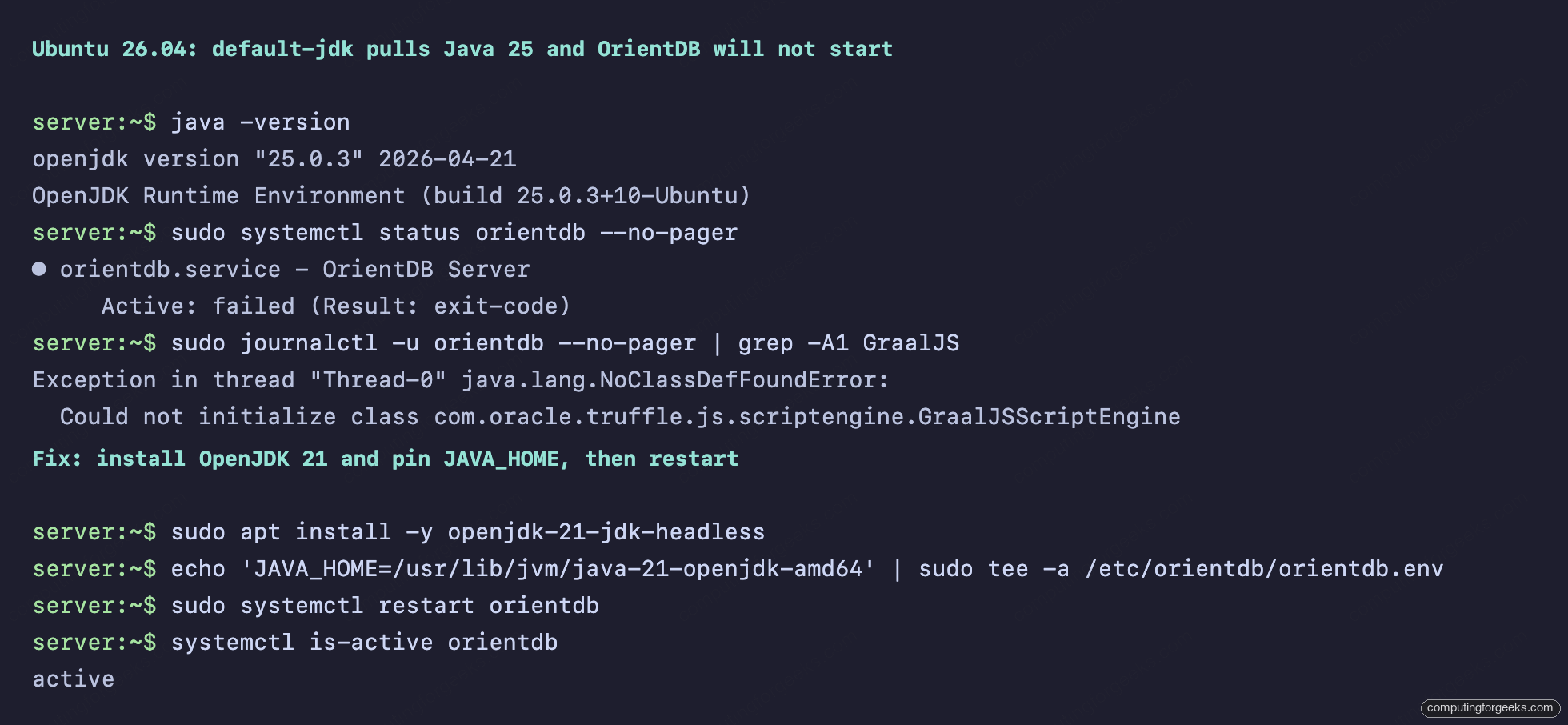
This is the one place the three releases diverge, and it is worth knowing before you waste an hour. On Ubuntu 26.04, default-jdk-headless installs OpenJDK 25. OrientDB 3.2.x will not start on it. The server dies during startup when it initializes its bundled GraalJS script engine, and the service lands in a failed state:
Exception in thread "Thread-0" java.lang.NoClassDefFoundError:
  Could not initialize class com.oracle.truffle.js.scriptengine.GraalJSScriptEngine
The fix is to install OpenJDK 21 and point OrientDB at it. On 26.04, add the 21 JDK:
sudo apt install -y openjdk-21-jdk-headlessYou pin it with JAVA_HOME in the service environment file in a later step, so OrientDB uses 21 even though the system default stays at 25. The screenshot below shows the failure on the default JDK and the working state after switching to 21.
The full picture across the three releases:
| Ubuntu release | default-jdk-headless installs | OrientDB 3.2.x | What to do |
|---|---|---|---|
| 22.04 LTS | OpenJDK 11 | Starts cleanly | Use the default JDK |
| 24.04 LTS | OpenJDK 21 | Starts cleanly | Use the default JDK |
| 26.04 | OpenJDK 25 | Fails to start | Install OpenJDK 21, set JAVA_HOME |
OpenJDK 21 is the safe target on any of the three. If you prefer to standardize, install openjdk-21-jdk-headless everywhere and pin JAVA_HOME on all of them.
Download OrientDB
Do not hardcode a version. The OrientDB community archives live on Maven Central, named by release tag, so detect the latest release from the GitHub API and reuse it in the download URL:
export RELEASE=$(curl -s https://api.github.com/repos/orientechnologies/orientdb/releases/latest | grep tag_name | cut -d '"' -f 4)
echo "Latest OrientDB release: $RELEASE"
wget "https://repo1.maven.org/maven2/com/orientechnologies/orientdb-community/$RELEASE/orientdb-community-$RELEASE.tar.gz"
Extract the archive:
tar xzf orientdb-community-$RELEASE.tar.gzCreate a dedicated user and place the files
Running a database as root is a habit worth dropping. Move the extracted tree to /opt/orientdb, create a system user, and hand it ownership:
sudo mv orientdb-community-$RELEASE /opt/orientdb
sudo groupadd -r orientdb
sudo useradd --system -g orientdb -d /opt/orientdb orientdb
sudo chown -R orientdb:orientdb /opt/orientdb
The archive already ships a sample demodb database under /opt/orientdb/databases, which is handy for trying out queries before you load your own data.
Run OrientDB as a systemd service
OrientDB reads its root password and JVM options from environment variables, so keep them out of the unit file in a separate, locked-down environment file. Create it with your exported password:
sudo install -d -m 750 /etc/orientdb
printf 'ORIENTDB_ROOT_PASSWORD=%s\nORIENTDB_OPTS_MEMORY=-Xms512M -Xmx512M\n' "${ODB_ROOT}" | sudo tee /etc/orientdb/orientdb.env
sudo chown root:orientdb /etc/orientdb/orientdb.env
sudo chmod 640 /etc/orientdb/orientdb.env
The ORIENTDB_OPTS_MEMORY line matters. By default OrientDB grabs a 2 GB heap and then warns that there is no room left for its disk cache on a small box. Setting a smaller heap clears that warning and leaves memory for caching. Raise it on a production server with more RAM.
Ubuntu 26.04 only: append the JDK 21 path so OrientDB ignores the system default of Java 25:
echo 'JAVA_HOME=/usr/lib/jvm/java-21-openjdk-amd64' | sudo tee -a /etc/orientdb/orientdb.envNow create the unit file:
sudo nano /etc/systemd/system/orientdb.serviceAdd the following. It runs the server as the orientdb user, loads the environment file, and restarts on failure:
[Unit]
Description=OrientDB Server
After=network.target

[Service]
User=orientdb
Group=orientdb
Environment=ORIENTDB_HOME=/opt/orientdb
EnvironmentFile=/etc/orientdb/orientdb.env
ExecStart=/opt/orientdb/bin/server.sh
Restart=on-failure
LimitNOFILE=65536

[Install]
WantedBy=multi-user.target
Reload systemd, then enable and start the service so it survives reboots:
sudo systemctl daemon-reload
sudo systemctl enable --now orientdb
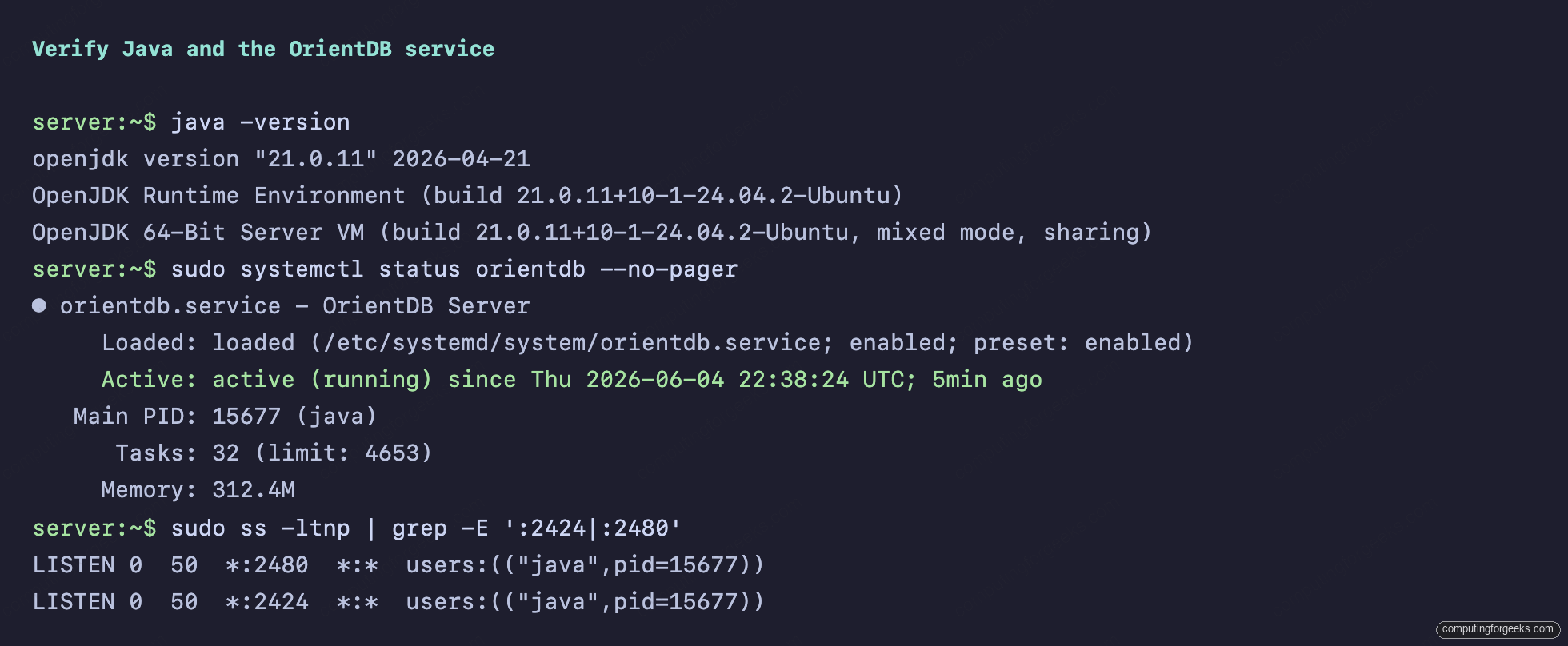
Check that it came up and is listening on both ports:
systemctl status orientdb --no-pager
sudo ss -ltnp | grep -E ':2424|:2480'
An active service with both 2424 and 2480 in the listen list means the server is ready:
Open the firewall
If UFW is active, allow the binary protocol and the HTTP port. The binary port is what application drivers connect on, and the HTTP port serves the REST API and Studio:
sudo ufw allow 2424/tcp
sudo ufw allow 2480/tcp
When you front Studio with nginx later in this guide, you can drop the rule for 2480 and expose only 443 instead. The UFW firewall guide and this list of common UFW commands cover the rest of the rules you will want on a public server.
Use the OrientDB console
The bundled console is the fastest way to confirm the server works and to create your first database. Start it:
sudo /opt/orientdb/bin/console.shConnect to the server, create a graph database, add a vertex class, insert a couple of records, and read them back. OrientDB SQL looks familiar but works on a graph:
CONNECT remote:localhost root $ODB_ROOT
CREATE DATABASE remote:localhost/companydb root $ODB_ROOT plocal graph
CREATE CLASS Person EXTENDS V
CREATE PROPERTY Person.name STRING
INSERT INTO Person SET name='Alice'
INSERT INTO Person SET name='Bob'
SELECT name FROM Person
Each statement reports success, and the final query returns the two records you inserted in a table:
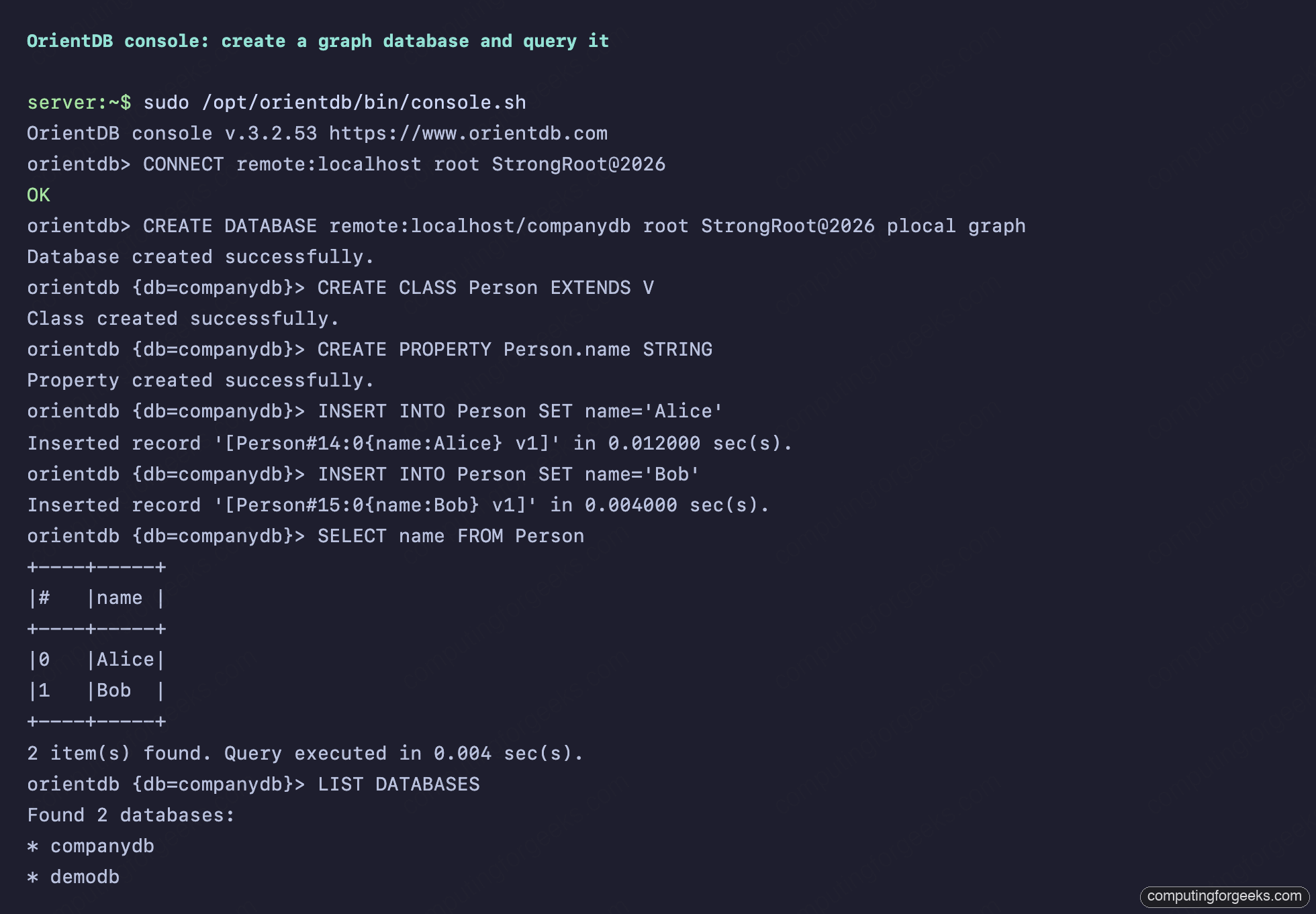
Type exit to leave the console. The database you created persists under /opt/orientdb/databases.
Reach OrientDB Studio over HTTPS
Studio is the web UI bundled with the server. It listens on plain HTTP on port 2480, which is fine on localhost but not something to expose directly. Put it behind nginx with a Let’s Encrypt certificate so the credentials and queries travel encrypted. The pattern here is the same one used to put a database UI behind nginx with TLS.
Point a DNS A record for your hostname at the server, then set two variables so the rest of the block is copy-paste:
export DOMAIN="orientdb.example.com"
export EMAIL="[email protected]"
Install nginx and certbot, then issue a certificate. This uses the HTTP-01 challenge, which works with any DNS provider as long as port 80 is reachable:
sudo apt install -y nginx certbot
sudo certbot certonly --standalone --pre-hook "systemctl stop nginx" --post-hook "systemctl start nginx" \
  -d "${DOMAIN}" --non-interactive --agree-tos -m "${EMAIL}"
If the server sits on a private network with no inbound port 80, use the DNS-01 challenge with your provider’s certbot plugin instead (for example python3-certbot-dns-cloudflare), which proves ownership through a DNS record and needs no inbound traffic.
Create the nginx site file:
sudo nano /etc/nginx/sites-available/orientdbPaste the server config below. It redirects HTTP to HTTPS and proxies everything to the Studio port. Leave the SERVER_NAME_HERE placeholder as-is; a sed command below fills it in from your variable so you do not edit four spots by hand:
server {
    listen 80;
    server_name SERVER_NAME_HERE;
    return 301 https://$host$request_uri;
}
server {
    listen 443 ssl http2;
    server_name SERVER_NAME_HERE;

    ssl_certificate     /etc/letsencrypt/live/SERVER_NAME_HERE/fullchain.pem;
    ssl_certificate_key /etc/letsencrypt/live/SERVER_NAME_HERE/privkey.pem;

    location / {
        proxy_pass http://127.0.0.1:2480;
        proxy_set_header Host $host;
        proxy_set_header X-Real-IP $remote_addr;
        proxy_set_header X-Forwarded-For $proxy_add_x_forwarded_for;
        proxy_set_header X-Forwarded-Proto $scheme;
    }
}
Substitute your real hostname from the variable, enable the site, and reload:
sudo sed -i "s/SERVER_NAME_HERE/${DOMAIN}/g" /etc/nginx/sites-available/orientdb
sudo ln -sf /etc/nginx/sites-available/orientdb /etc/nginx/sites-enabled/orientdb
sudo rm -f /etc/nginx/sites-enabled/default
sudo nginx -t && sudo systemctl reload nginx
Open https://your-domain/studio/index.html in a browser. The login screen asks for a database, a user, and a password. It is now served over TLS:
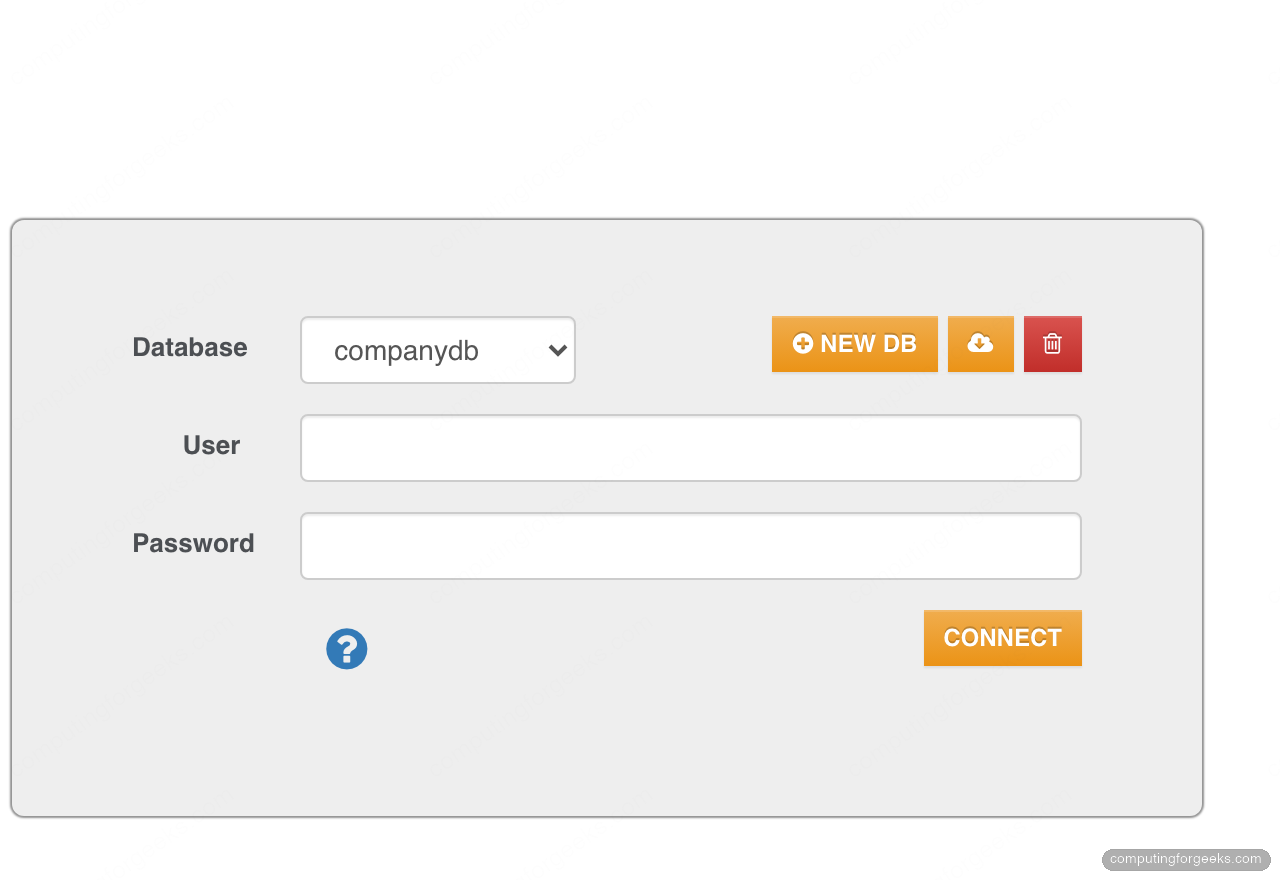
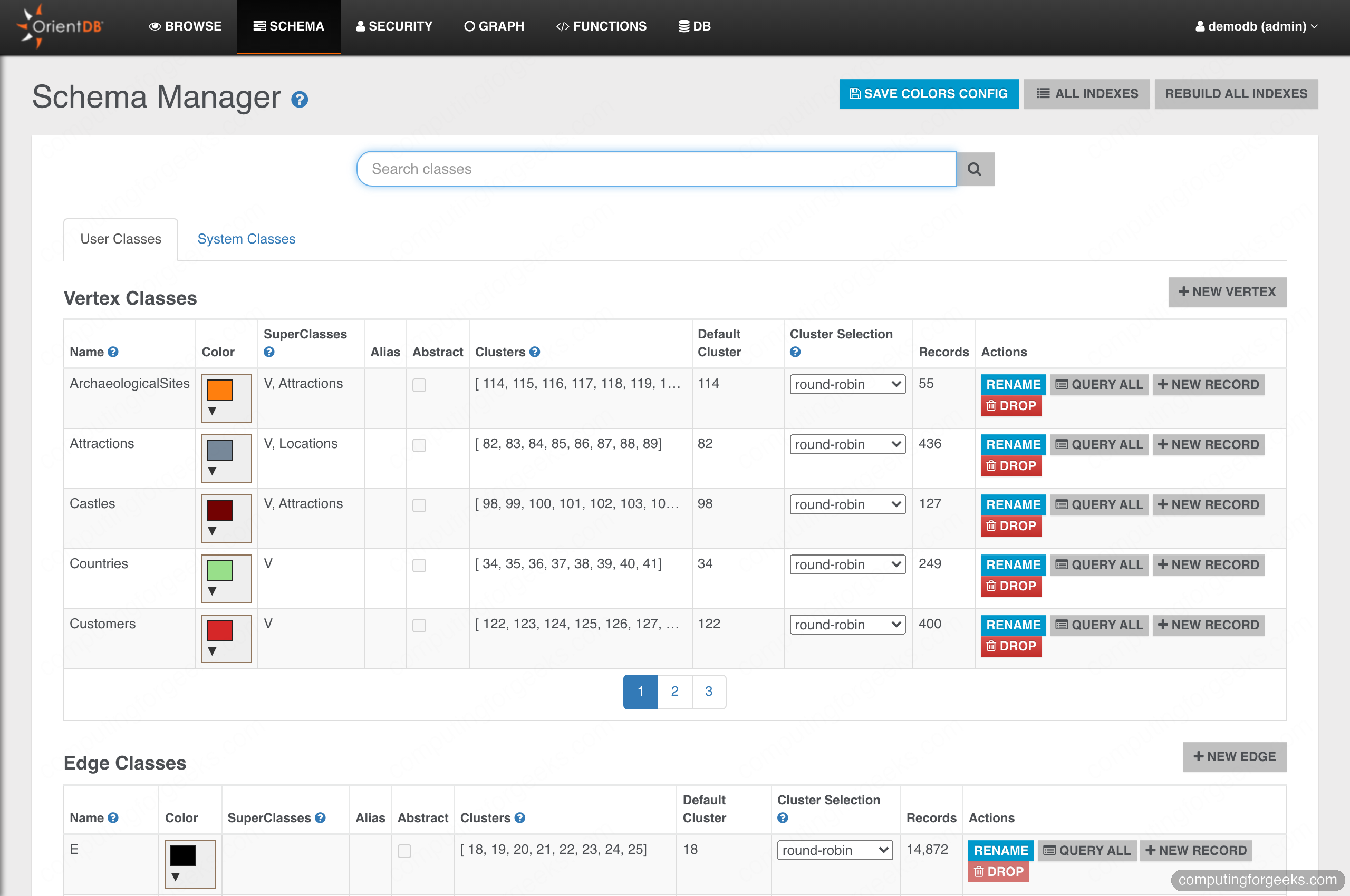
Select the bundled demodb and sign in with user admin and password admin to explore without touching your own data. The Schema Manager lists every vertex and edge class with live record counts, which is the quickest way to understand a database you did not build:
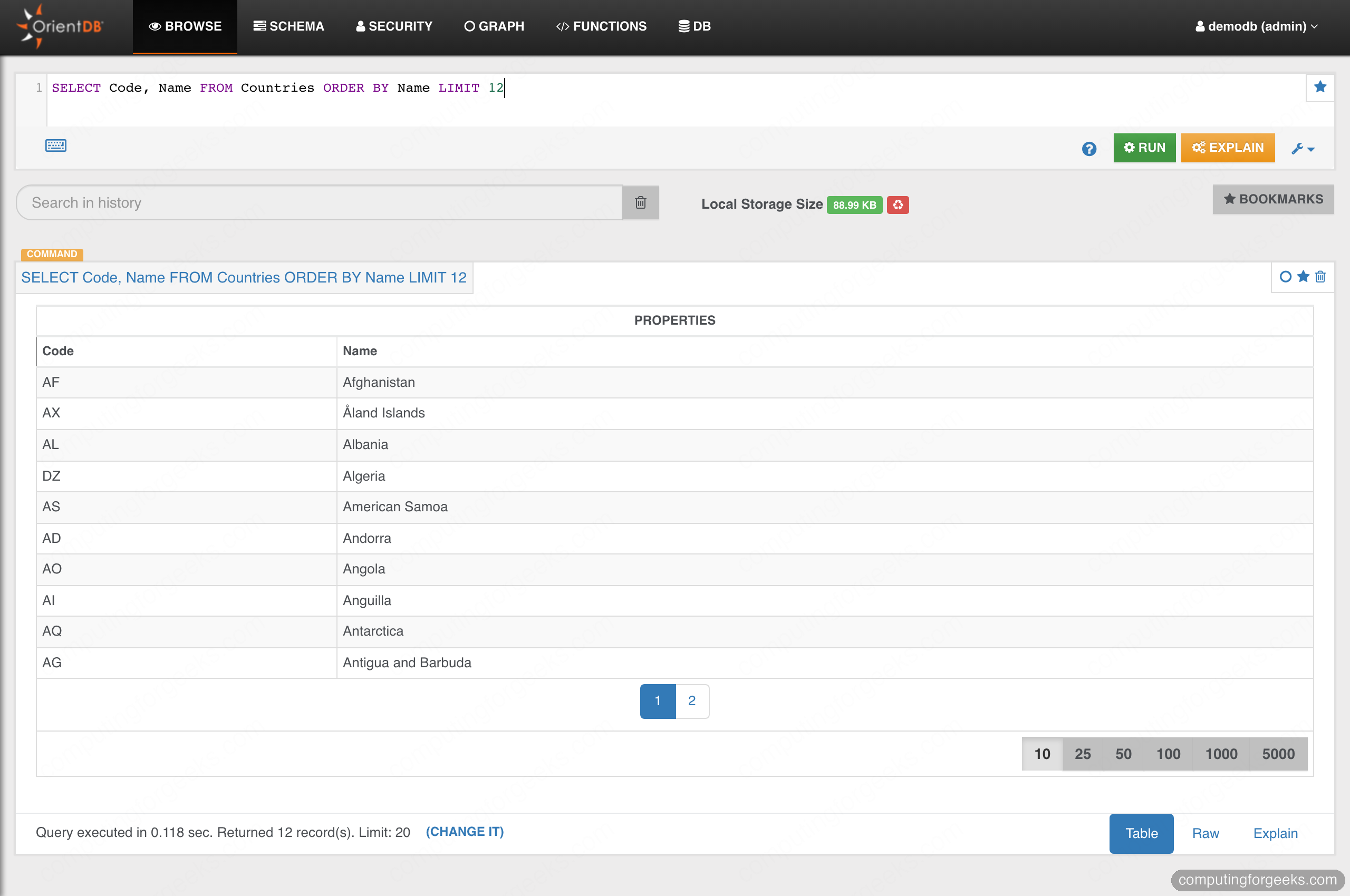
The Browse tab runs SQL and renders results as a table. Here is a simple query against the sample country data:
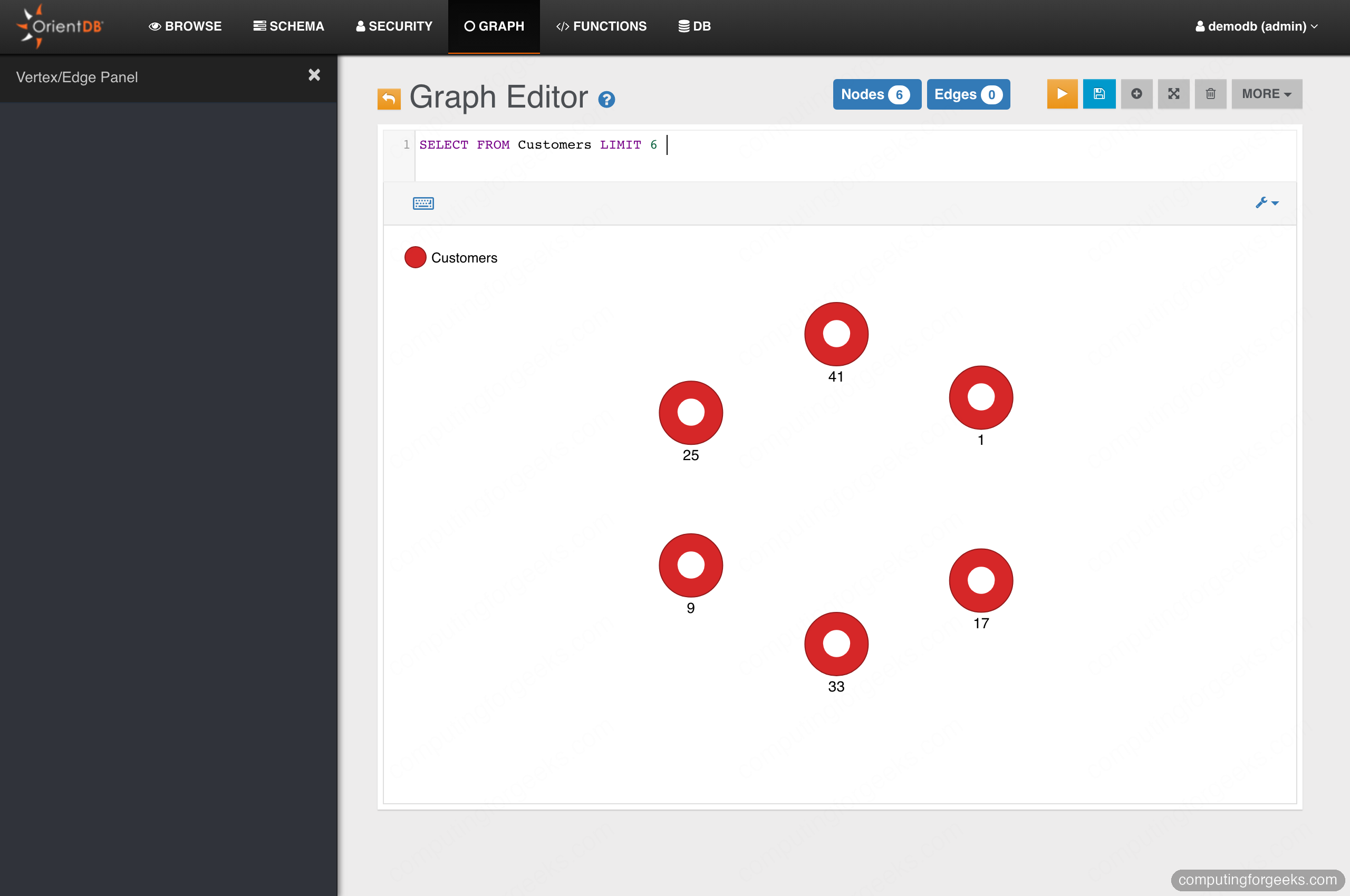
The Graph tab is where the multi-model nature shows. Run a query that returns vertices and Studio draws them as nodes you can expand to follow their relationships:
Secure your OrientDB server
A fresh install has a few sharp edges. Close them before the server holds anything you care about.
- Change the sample passwords. The bundled
demodbships withadmin/admin, and the console warns you about it on every login. Drop the sample database in production, or change its users withUPDATE OUser SET password = 'newpass' WHERE name = 'admin'from inside that database. - Keep the service off root. The systemd unit above already runs as the
orientdbuser. If you ever start the server by hand, do it as that user, not root. - Restrict server-side scripting. OrientDB warns that authenticated clients can run code through allowed languages. Review the
<listener>and<servlet>entries in/opt/orientdb/config/orientdb-server-config.xmland disable anything you do not use. - Do not expose 2480 publicly. Once nginx fronts Studio, remove the UFW rule for 2480 and keep the binary port 2424 open only to the hosts that run your application.
Back up and restore databases
The portable way to back up a running OrientDB database is a logical export. It writes a compressed JSON file that you can import into any OrientDB instance, which also makes it the right tool for migrations. From the console, connected to the database:
CONNECT remote:localhost/companydb root $ODB_ROOT
EXPORT DATABASE /var/backups/companydb-export.json.gz
The export prints each cluster as it is written and finishes with a record count, so you know it captured everything:
Done. Exported 12 of total 12 records. 0 records were detected as broken
Database export completed in 103ms
To restore, create an empty database and import the file into it:
CREATE DATABASE remote:localhost/companydb_restored root $ODB_ROOT plocal graph
IMPORT DATABASE /var/backups/companydb-export.json.gz
For a binary, point-in-time backup rather than a logical dump, OrientDB also ships backup.sh in the bin directory. Run it without arguments to see the syntax (backup.sh <dburl> <user> <password> <destination>) and schedule it from cron for regular snapshots.
Troubleshooting
These are the failures that actually came up while testing this on all three Ubuntu releases.
NoClassDefFoundError: GraalJSScriptEngine
The server fails to start and the journal shows the GraalJS error shown earlier. You are on Java 24 or newer, almost always because Ubuntu 26.04 installed OpenJDK 25. Install openjdk-21-jdk-headless, set JAVA_HOME to the 21 path in /etc/orientdb/orientdb.env, and restart the service.
Not enough physical memory available for DISKCACHE
This warning appears when the default 2 GB heap leaves no room for the disk cache on a small server. It is not fatal, but the cache drops to 256 MB and performance suffers. Set ORIENTDB_OPTS_MEMORY to a smaller heap in the environment file, as shown in the systemd step, and the warning clears.
Address already in use on 2424 or 2480
Something is already bound to the port, often a previous OrientDB run started by hand. Find it and stop it before the service can claim the port:
sudo ss -ltnp | grep -E ':2424|:2480'With the service running, your databases reachable from the console, and Studio behind TLS, you have a working OrientDB server on Ubuntu. For a different take on document storage, compare the workflow here with a MongoDB install on Ubuntu, then pick the model that fits the data you actually have.






I have copied database folder from one server to anther server. db is showing in browser but not able to connect. using user id password of new user.
can you help me to remove password from the database