Ubuntu 26.04 ships OpenJDK 25 as the default JDK. That’s the latest non-LTS release, and it’s what you get when you install default-jdk. If you need a long-term support version for production workloads, OpenJDK 21 and 17 are both available in the official repos. This guide covers installing all three, switching between them, and setting up Maven and Gradle for build tooling.
Beyond the JDK itself, you’ll see how to set JAVA_HOME, use update-alternatives to switch Java versions on the fly, write a program that uses modern Java features like records and pattern matching, and build a Maven project from scratch. For those who prefer vendor-backed binaries, there’s also a section on Eclipse Temurin (Adoptium) as an alternative.
Current as of April 2026. OpenJDK 25.0.3-ea, Maven 3.9.12, Gradle 4.4.1 on Ubuntu 26.04 LTS
Prerequisites
You’ll need a running Ubuntu 26.04 LTS system with root or sudo access and a working internet connection. If you’re starting fresh, the Ubuntu 26.04 initial server setup guide covers the basics.
- Tested on: Ubuntu 26.04 LTS (Resolute Raccoon), kernel 7.0.0
- OpenJDK versions available: 25, 21, 17, 11, 8
- Build tools: Maven 3.9.12, Gradle 4.4.1
Install OpenJDK 25 (Default JDK)
The default-jdk metapackage in Ubuntu 26.04 pulls in OpenJDK 25. This is the simplest way to get Java on your system.
Update the package index first:
sudo apt updateInstall the default JDK:
sudo apt install -y default-jdkVerify the installation by checking both the runtime and compiler versions:
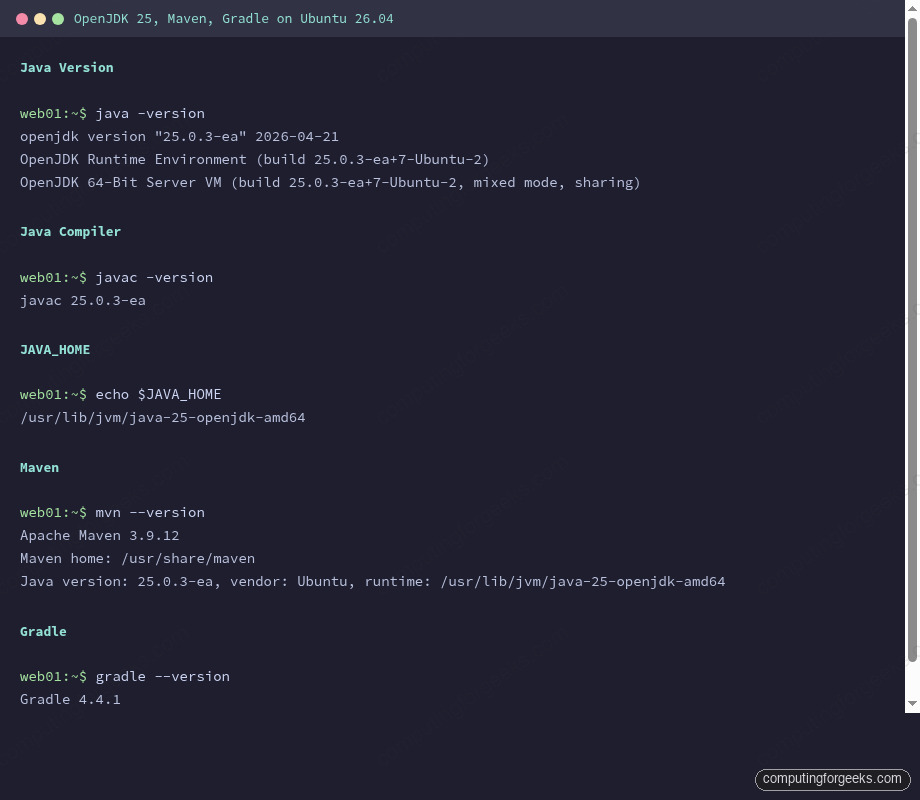
java -versionThe output confirms OpenJDK 25 is installed:
openjdk version "25.0.3-ea" 2026-04-21
OpenJDK Runtime Environment (build 25.0.3-ea+7-Ubuntu-2)
OpenJDK 64-Bit Server VM (build 25.0.3-ea+7-Ubuntu-2, mixed mode, sharing)
Check the compiler:
javac -versionYou should see:
javac 25.0.3-eaJDK vs JRE on Ubuntu 26.04
Ubuntu 26.04 still provides separate JRE packages (default-jre, openjdk-25-jre), but for development work, the JDK is what you want. The JDK includes the JRE plus the compiler (javac), debugger, and other development tools. If you’re deploying a Java application on a server and only need to run it (not compile), default-jre is enough and has a smaller footprint.
Install OpenJDK 21 LTS and OpenJDK 17 LTS
OpenJDK 25 is a feature release with a short support window. For production applications, OpenJDK 21 (LTS until September 2028) or OpenJDK 17 (LTS until September 2026) are safer choices. Both are in the Ubuntu repos.
Install OpenJDK 21:
sudo apt install -y openjdk-21-jdkInstall OpenJDK 17:
sudo apt install -y openjdk-17-jdkAll three JDKs can coexist on the same system. The update-alternatives system manages which one is active.
Switch Between Java Versions
With multiple JDKs installed, update-alternatives lets you choose which version is the system default. List the available options:
update-alternatives --list javaThis shows all registered Java installations:
/usr/lib/jvm/java-17-openjdk-amd64/bin/java
/usr/lib/jvm/java-21-openjdk-amd64/bin/java
/usr/lib/jvm/java-25-openjdk-amd64/bin/java
To switch to OpenJDK 21, for example:
sudo update-alternatives --set java /usr/lib/jvm/java-21-openjdk-amd64/bin/java
sudo update-alternatives --set javac /usr/lib/jvm/java-21-openjdk-amd64/bin/javac
Confirm the switch took effect:
java -versionOutput now shows OpenJDK 21:
openjdk version "21.0.11-ea" 2026-04-21
OpenJDK Runtime Environment (build 21.0.11-ea+8-Ubuntu-1)
OpenJDK 64-Bit Server VM (build 21.0.11-ea+8-Ubuntu-1, mixed mode, sharing)
Switch back to OpenJDK 25 when you’re done:
sudo update-alternatives --set java /usr/lib/jvm/java-25-openjdk-amd64/bin/java
sudo update-alternatives --set javac /usr/lib/jvm/java-25-openjdk-amd64/bin/javac
For interactive selection with a numbered menu, use sudo update-alternatives --config java instead. This is handy when you don’t want to type the full path.
Set JAVA_HOME
Many Java tools and frameworks (Maven, Gradle, Tomcat, Spring Boot) expect the JAVA_HOME environment variable to be set. Without it, you’ll hit cryptic errors during builds.
Add JAVA_HOME to /etc/environment so it’s available system-wide:
echo 'JAVA_HOME="/usr/lib/jvm/java-25-openjdk-amd64"' | sudo tee -a /etc/environmentLoad the new variable into your current session:
source /etc/environmentVerify it’s set:
echo $JAVA_HOMEExpected output:
/usr/lib/jvm/java-25-openjdk-amd64If you switch to a different JDK version with update-alternatives, remember to update JAVA_HOME accordingly. A mismatch between JAVA_HOME and the active java binary is a common source of confusion.
Write and Compile a Java Program
OpenJDK 25 supports all the modern Java features, including records (introduced in Java 16) and pattern matching with switch expressions (finalized in Java 21). Here’s a small program that uses both.
Create the source file:
sudo vi /tmp/ModernJava.javaAdd the following code:
record ServerInfo(String name, String os, int cores) {}

public class ModernJava {
    static String describeServer(Object obj) {
        return switch (obj) {
            case ServerInfo s when s.cores() >= 8 -> s.name() + " is a high-core server with " + s.cores() + " cores";
            case ServerInfo s -> s.name() + " runs " + s.os() + " with " + s.cores() + " cores";
            case String s -> "Got a string: " + s;
            default -> "Unknown type";
        };
    }

    public static void main(String[] args) {
        var server = new ServerInfo("web01", "Ubuntu 26.04", 4);
        System.out.println(describeServer(server));

        var bigServer = new ServerInfo("db01", "Ubuntu 26.04", 16);
        System.out.println(describeServer(bigServer));

        System.out.println(describeServer("hello"));
        System.out.println("Java " + System.getProperty("java.version") + " is working.");
    }
}
Compile and run it:
cd /tmp && javac ModernJava.java && java ModernJavaThe output shows records and pattern matching working correctly on OpenJDK 25:
web01 runs Ubuntu 26.04 with 4 cores
db01 is a high-core server with 16 cores
Got a string: hello
Java 25.0.3-ea is working.
The record keyword creates an immutable data class with auto-generated constructors, getters, equals(), hashCode(), and toString(). The switch expression uses pattern matching to destructure objects by type and apply guards (when s.cores() >= 8). Both features make Java code significantly more concise than the traditional approach.
Install Maven
Maven is the most widely used Java build tool. Ubuntu 26.04 includes Maven 3.9.12 in its repos.
sudo apt install -y mavenCheck the version:
mvn --versionMaven confirms it’s using OpenJDK 25:
Apache Maven 3.9.12
Maven home: /usr/share/maven
Java version: 25.0.3-ea, vendor: Ubuntu, runtime: /usr/lib/jvm/java-25-openjdk-amd64
Default locale: en, platform encoding: UTF-8
OS name: "linux", version: "7.0.0-10-generic", arch: "amd64", family: "unix"
Build a Simple Maven Project
Create a basic project structure to verify the full Maven toolchain works:
mkdir -p /tmp/hello-app/src/main/java/com/exampleCreate the POM file:
sudo vi /tmp/hello-app/pom.xmlAdd the following project definition:
<project>
  <modelVersion>4.0.0</modelVersion>
  <groupId>com.example</groupId>
  <artifactId>hello-app</artifactId>
  <version>1.0-SNAPSHOT</version>
  <properties>
    <maven.compiler.source>25</maven.compiler.source>
    <maven.compiler.target>25</maven.compiler.target>
    <project.build.sourceEncoding>UTF-8</project.build.sourceEncoding>
  </properties>
</project>
Create the main class:
sudo vi /tmp/hello-app/src/main/java/com/example/App.javaAdd this code:
package com.example;
public class App {
    public static void main(String[] args) {
        System.out.println("Hello from Maven on Java " + System.getProperty("java.version"));
    }
}
Build the project:
cd /tmp/hello-app && mvn packageMaven downloads dependencies on the first run, then compiles and packages the JAR. You should see BUILD SUCCESS at the end.
Run the compiled application:
java -cp target/hello-app-1.0-SNAPSHOT.jar com.example.AppOutput:
Hello from Maven on Java 25.0.3-eaInstall Gradle
Gradle is the other major Java build tool, favored by Android and Kotlin projects. The Ubuntu repos include Gradle 4.4.1.
sudo apt install -y gradleVerify the installation:
gradle --versionThe output confirms Gradle is using the OpenJDK 25 runtime:
Gradle 4.4.1

Build time:   2012-12-21 00:00:00 UTC
Revision:     none

Groovy:       2.4.21
Ant:          Apache Ant(TM) version 1.10.15 compiled on January 13 2026
JVM:          25.0.3-ea (Ubuntu 25.0.3-ea+7-Ubuntu-2)
OS:           Linux 7.0.0-10-generic amd64
The repo version of Gradle is quite old. If your project requires a newer version (Gradle 8.x), use the Gradle Wrapper instead. Most modern Java projects include a gradlew script that downloads the correct Gradle version automatically.
Alternative: Install Eclipse Temurin (Adoptium) JDK
If you prefer vendor-backed, TCK-certified builds of OpenJDK, Eclipse Temurin from the Adoptium project is a solid option. Temurin builds go through additional testing and come with longer support commitments. They’re functionally identical to the Ubuntu OpenJDK packages but follow their own release schedule.
Install the prerequisites:
sudo apt install -y wget apt-transport-https gpgAdd the Adoptium GPG key:
wget -qO - https://packages.adoptium.net/artifactory/api/gpg/key/public | gpg --dearmor | sudo tee /usr/share/keyrings/adoptium.gpg > /dev/nullAdd the repository. The codename for Ubuntu 26.04 may not be available yet, in which case use the noble (24.04) repo which is compatible:
echo "deb [signed-by=/usr/share/keyrings/adoptium.gpg] https://packages.adoptium.net/artifactory/deb $(awk -F= '/^VERSION_CODENAME/{print $2}' /etc/os-release) main" | sudo tee /etc/apt/sources.list.d/adoptium.listUpdate the package list and install Temurin 21 LTS:
sudo apt update && sudo apt install -y temurin-21-jdkIf the resolute codename isn’t supported yet by Adoptium, replace it with noble in the sources list. Temurin is available for JDK 8, 11, 17, and 21 LTS versions. After installation, it registers automatically with update-alternatives, so you can switch to it using the same commands shown earlier.
The choice between Ubuntu’s OpenJDK and Temurin comes down to support model. Ubuntu backports security patches on their own schedule tied to the distro lifecycle. Adoptium follows Oracle’s quarterly Critical Patch Update schedule. For most use cases, either is fine. If you’re running a Java application in Docker containers, Temurin’s official container images are another convenient option.
Available OpenJDK Versions
Ubuntu 26.04 repos include JDK packages for multiple Java generations. Here’s the full list, which is useful when you need a specific version for legacy application compatibility:
| Package | Java Version | Support Status | Use Case |
|---|---|---|---|
openjdk-25-jdk | 25 (latest) | Non-LTS, short-term | Trying new features, development |
openjdk-21-jdk | 21 LTS | Supported until Sep 2028 | Production applications |
openjdk-17-jdk | 17 LTS | Supported until Sep 2026 | Legacy apps, Spring Boot 2.x |
openjdk-11-jdk | 11 LTS | End of life | Legacy only, migrate off |
openjdk-8-jdk | 8 LTS | End of life | Legacy only, migrate off |
For new projects, OpenJDK 21 is the pragmatic choice: it’s LTS with years of support ahead, and most frameworks (Spring Boot 3.x, Quarkus, Micronaut) target it. OpenJDK 25 is worth using in development to test upcoming language features before they land in the next LTS (Java 29, expected September 2027).
If you’re also setting up Python or Nginx on the same server, those guides cover the Ubuntu 26.04 specifics as well.