Running WordPress on a vanilla Ubuntu 26.04 box is still the fastest path to a fast, private site without a monthly hosting bill. Resolute Raccoon ships Nginx 1.28, MariaDB 11.8, and PHP 8.5 in the default archive, which means no third-party PPAs to chase and no version drift between what you install and what upstream actually tests. One 40 GB VM, one Let’s Encrypt cert, and you have a site that survives reboots, brute-force noise, and the occasional bad plugin.
This guide walks through the full build on Ubuntu 26.04 LTS (Resolute Raccoon): the LEMP stack, a production-ready Nginx virtual host, the WordPress 6.9.4 web installer with real browser screenshots, a first pass at themes and plugins, a padlocked HTTPS site, and a backup script that dumps the database and archives wp-content every night. Every command below was run on a freshly cloned VM and every output is real.
Tested April 2026 on Ubuntu 26.04 LTS (kernel 7.0.0-14), WordPress 6.9.4, Nginx 1.28.3, MariaDB 11.8.6, PHP 8.5.4 with OPcache, Certbot 4.0.0 (DNS-01 via Cloudflare)
Prerequisites
Before starting, line up the following:
- Ubuntu 26.04 LTS server, 2 vCPU and at least 2 GB RAM. A 40 GB disk leaves room for uploads and backup snapshots.
- A sudo-capable user with SSH access. Root works, but the article uses
sudowhere relevant. - A domain or subdomain pointed at the server with an A record (the guide uses
wp.computingforgeeks.com). HTTP-01 validation needs port 80 reachable from the internet; DNS-01 works on private IPs too, which is what this build uses. - Working DNS. Resolve the hostname before you run certbot, not after.
If you are still building the box, the post-install checklist for Ubuntu 26.04 Server covers SSH hardening, the unattended-upgrades baseline, and swap sizing first. Do that pass before exposing anything web-facing.
Step 1: Set reusable shell variables
Every command in this guide uses shell variables for the site domain, database name, credentials, and admin email so you can paste the exact commands on your own box after changing one block. Export the variables once at the top of your SSH session:
export SITE_DOMAIN="wp.example.com"
export WP_ROOT="/var/www/${SITE_DOMAIN}"
export DB_NAME="wordpress_db"
export DB_USER="wp_user"
export DB_PASS="ChangeMe#Strong2026"
export ADMIN_EMAIL="[email protected]"
Swap wp.example.com for your actual hostname and pick a real database password. The variables hold only for the current shell session, so if you reconnect or hit sudo -i re-run the export block before continuing. If you prefer to make them permanent for root, append the same lines to /root/.bashrc.
Confirm the variables are set before running anything else:
echo "Site:   ${SITE_DOMAIN}"
echo "Root:   ${WP_ROOT}"
echo "DB:     ${DB_NAME} / ${DB_USER}"
echo "Admin:  ${ADMIN_EMAIL}"
Every sudo in the rest of the guide uses sudo -E or explicit quoting where needed so the exported values reach the privileged shell. If a command complains about an empty variable, run the export block again.
Step 2: Install the LEMP stack
WordPress 6.9 needs PHP 8.1 or newer. Ubuntu 26.04’s main repo ships PHP 8.5, which is a comfortable match. Update the package index and pull Nginx, MariaDB, and the PHP-FPM extensions WordPress actually touches:
sudo apt update
sudo apt -y install nginx mariadb-server mariadb-client \
  php8.5-fpm php8.5-mysql php8.5-curl php8.5-gd php8.5-mbstring \
  php8.5-xml php8.5-zip php8.5-intl php8.5-bcmath php8.5-imagick \
  php8.5-soap unzip curl wget ufw
The imagick extension gives you proper thumbnail resizing; the bcmath and intl extensions quiet plugin compatibility warnings from the likes of WooCommerce. OPcache ships inside php8.5-fpm on Ubuntu 26.04, so there is no separate package to add.
Enable every service so they come back after a reboot and confirm they actually started:
sudo systemctl enable --now nginx mariadb php8.5-fpm
systemctl is-active nginx mariadb php8.5-fpm
A healthy box returns three active lines. Confirm the versions too, so later troubleshooting has a baseline:
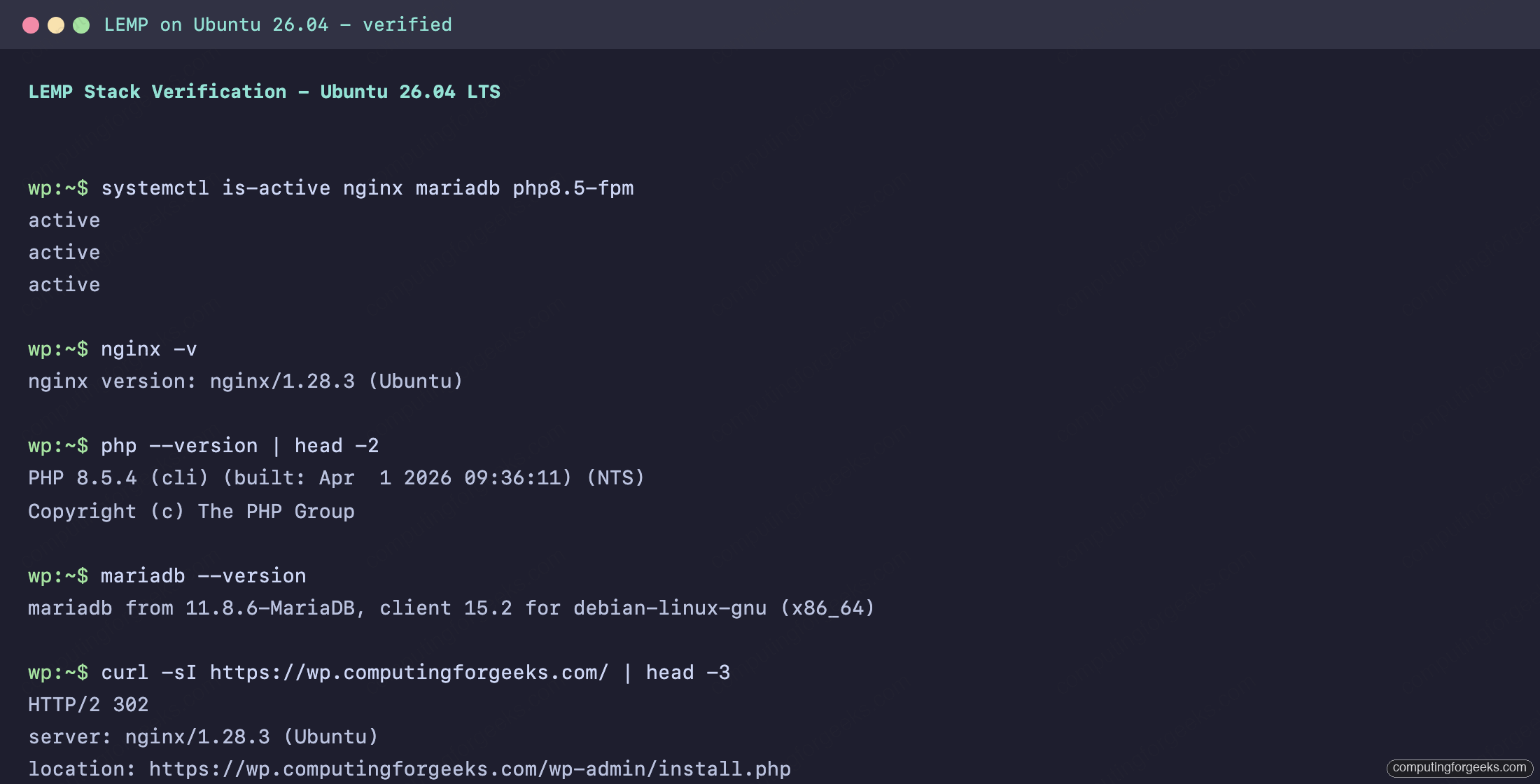
If any service is inactive, check journalctl -u <name>.service -n 50 before continuing. A half-started PHP-FPM is the usual culprit behind 502 Bad Gateway later in the setup. For the deeper install reference on each component, see the dedicated guides: Nginx on Ubuntu 26.04 with Let’s Encrypt, MariaDB 11.8 on Ubuntu 26.04, and PHP 8.5 with PHP-FPM. Readers who want the whole LEMP install in one go can also follow the LEMP stack reference for Ubuntu 26.04.
Step 3: Create the WordPress database
MariaDB on Ubuntu 26.04 ships with Unix-socket auth for the root user, which means you can open a client session without typing a password:
sudo mariadbFrom the prompt, create the database and application user scoped to that database only. Do not reuse the MariaDB root account for WordPress. The block below reads ${DB_NAME}, ${DB_USER}, and ${DB_PASS} straight from your shell so you only type the values once:
sudo mariadb -e "CREATE DATABASE IF NOT EXISTS ${DB_NAME} DEFAULT CHARACTER SET utf8mb4 COLLATE utf8mb4_unicode_ci;"
sudo mariadb -e "CREATE USER IF NOT EXISTS '${DB_USER}'@'localhost' IDENTIFIED BY '${DB_PASS}';"
sudo mariadb -e "GRANT ALL PRIVILEGES ON ${DB_NAME}.* TO '${DB_USER}'@'localhost';"
sudo mariadb -e "FLUSH PRIVILEGES;"
The utf8mb4 collation is what lets WordPress store emoji, accented characters, and four-byte Unicode without mangling; it is not optional on modern themes. Verify the user can log in with the chosen password:
mariadb -u"${DB_USER}" -p"${DB_PASS}" -e "SHOW DATABASES;" | grep "${DB_NAME}"A single line with the database name confirms the user, the password, and the grant all line up.
Step 4: Download and lay out WordPress
WordPress.org always serves the latest stable release at /latest.tar.gz, which keeps this guide version-agnostic. Fetch the tarball, extract it into the webroot path defined by ${WP_ROOT}, and set ownership to the web user so Nginx and PHP-FPM can read the files:
cd /tmp
wget https://wordpress.org/latest.tar.gz
tar -xzf latest.tar.gz
sudo mkdir -p "${WP_ROOT}"
sudo cp -R /tmp/wordpress/. "${WP_ROOT}/"
sudo chown -R www-data:www-data "${WP_ROOT}"
sudo find "${WP_ROOT}" -type d -exec chmod 755 {} \;
sudo find "${WP_ROOT}" -type f -exec chmod 644 {} \;
Keeping the webroot named after the domain (/var/www/${SITE_DOMAIN}) makes multi-site hosting and backup paths easier to reason about later. If you later decide to host a second site on the same box, re-export SITE_DOMAIN with the new hostname and every command from here on lands in the right place.
Step 5: Configure wp-config.php
Copy the sample config into place, then inject the database credentials from the shell variables you already exported:
sudo -u www-data cp "${WP_ROOT}/wp-config-sample.php" "${WP_ROOT}/wp-config.php"
sudo sed -i \
  -e "s/database_name_here/${DB_NAME}/" \
  -e "s/username_here/${DB_USER}/" \
  -e "s|password_here|${DB_PASS}|" "${WP_ROOT}/wp-config.php"
WordPress also expects eight unique auth salts. Pull fresh ones from api.wordpress.org, drop the sample block, then use sed’s r command to read the salts file in next to the $table_prefix line. Use the r form rather than i because the salts file has eight lines, and the i insert command does not accept multi-line text from command substitution:
curl -s https://api.wordpress.org/secret-key/1.1/salt/ | sudo tee /tmp/wp-salts.txt > /dev/null
sudo sed -i "/AUTH_KEY/,/NONCE_SALT/d" "${WP_ROOT}/wp-config.php"
sudo sed -i "/table_prefix/r /tmp/wp-salts.txt" "${WP_ROOT}/wp-config.php"
sudo rm /tmp/wp-salts.txt
The salts invalidate all existing cookies if they leak, which is what you want. If you ever suspect a compromise, regenerate them and every session is instantly logged out.
Step 6: Nginx virtual host
Open a new site file named after the domain. The filename itself comes from ${SITE_DOMAIN} so the same command works for any build:
sudo nano "/etc/nginx/sites-available/${SITE_DOMAIN}"Paste the block below as-is. It uses the literal placeholder SITE_DOMAIN_HERE for server_name and root; a single sed call right after the save substitutes your real domain everywhere:
server {
    listen 80;
    listen [::]:80;
    server_name SITE_DOMAIN_HERE;
    root /var/www/SITE_DOMAIN_HERE;
    index index.php index.html;

    client_max_body_size 64M;

    location / {
        try_files $uri $uri/ /index.php?$args;
    }

    location ~ \.php$ {
        include snippets/fastcgi-php.conf;
        fastcgi_pass unix:/run/php/php8.5-fpm.sock;
        fastcgi_param SCRIPT_FILENAME $document_root$fastcgi_script_name;
        include fastcgi_params;
    }

    location ~ /\.ht { deny all; }
    location = /favicon.ico { log_not_found off; access_log off; }
    location = /robots.txt  { log_not_found off; access_log off; allow all; }

    location ~* \.(css|gif|ico|jpeg|jpg|js|png|webp|svg|woff2?)$ {
        expires max;
        log_not_found off;
    }
}
Save the file and let the shell substitute the real domain from ${SITE_DOMAIN}:
sudo sed -i "s/SITE_DOMAIN_HERE/${SITE_DOMAIN}/g" "/etc/nginx/sites-available/${SITE_DOMAIN}"Activate the site, drop Nginx’s default welcome page so it does not shadow your config, test the syntax, and reload:
sudo ln -sf "/etc/nginx/sites-available/${SITE_DOMAIN}" "/etc/nginx/sites-enabled/${SITE_DOMAIN}"
sudo rm -f /etc/nginx/sites-enabled/default
sudo nginx -t
sudo systemctl reload nginx
The nginx -t step is worth its own habit. It catches 95% of virtual-host typos before they become 503s on a live server.
Step 7: Open the firewall
UFW is the easiest way to keep an Ubuntu 26.04 box tight. Allow SSH first (skip this and you will lock yourself out when the rule set takes effect), then HTTP and HTTPS:
sudo ufw allow OpenSSH
sudo ufw allow 80/tcp
sudo ufw allow 443/tcp
sudo ufw --force enable
sudo ufw status
For a public-facing WordPress site, pair UFW with Fail2ban on Ubuntu 26.04 so repeated /wp-login.php brute-force attempts get banned at the firewall level. One afternoon of a fresh WordPress install logged to the open internet will teach you why that step is not optional.
Step 8: Obtain a Let’s Encrypt TLS certificate
This build uses the Cloudflare DNS-01 challenge, because the test VM sits on a private LAN and HTTP-01 would never reach it. If your server is public, skip the DNS plumbing and use certbot --nginx with HTTP-01 instead.
Install certbot along with the Cloudflare DNS plugin:
sudo apt install -y certbot python3-certbot-nginx python3-certbot-dns-cloudflareDrop your Cloudflare API token into a credentials file and lock it down so only root can read it. Replace YOUR_CLOUDFLARE_API_TOKEN with a scoped token that has Zone → DNS → Edit on your domain:
echo "dns_cloudflare_api_token = YOUR_CLOUDFLARE_API_TOKEN" | sudo tee /etc/letsencrypt/cloudflare.ini > /dev/null
sudo chmod 600 /etc/letsencrypt/cloudflare.ini
Now request the certificate. ${SITE_DOMAIN} feeds -d, and ${ADMIN_EMAIL} is where Let’s Encrypt sends renewal failure alerts. The propagation wait is padding for DNS caches; 30 seconds is enough for Cloudflare:
sudo certbot certonly --dns-cloudflare \
  --dns-cloudflare-credentials /etc/letsencrypt/cloudflare.ini \
  --dns-cloudflare-propagation-seconds 30 \
  -d "${SITE_DOMAIN}" \
  --non-interactive --agree-tos -m "${ADMIN_EMAIL}"
Certbot prints the full paths to the cert and key when it finishes. Expect output like the following with your own domain:
Successfully received certificate.
Certificate is saved at: /etc/letsencrypt/live/wp.example.com/fullchain.pem
Key is saved at:         /etc/letsencrypt/live/wp.example.com/privkey.pem
This certificate expires on 2026-07-15.
Let’s Encrypt certs are valid for 90 days. Certbot also installs a systemd timer that renews anything within 30 days of expiry, so you do not need a separate cron entry.
Step 9: Wire SSL into Nginx
Replace the HTTP-only site file from Step 6 with one that terminates TLS on 443 and redirects plain HTTP. Open the same file for editing:
sudo nano "/etc/nginx/sites-available/${SITE_DOMAIN}"Replace the contents with the following. Reuse the same SITE_DOMAIN_HERE placeholder pattern so one sed call rewires the whole file. HSTS, X-Frame-Options, and content-sniffing protection are cheap hardening every WordPress install should have:
server {
    listen 80;
    listen [::]:80;
    server_name SITE_DOMAIN_HERE;
    return 301 https://$host$request_uri;
}

server {
    listen 443 ssl;
    listen [::]:443 ssl;
    http2 on;
    server_name SITE_DOMAIN_HERE;
    root /var/www/SITE_DOMAIN_HERE;
    index index.php index.html;

    ssl_certificate /etc/letsencrypt/live/SITE_DOMAIN_HERE/fullchain.pem;
    ssl_certificate_key /etc/letsencrypt/live/SITE_DOMAIN_HERE/privkey.pem;
    ssl_protocols TLSv1.2 TLSv1.3;
    ssl_prefer_server_ciphers on;
    ssl_session_cache shared:SSL:10m;

    add_header Strict-Transport-Security "max-age=31536000" always;
    add_header X-Frame-Options SAMEORIGIN;
    add_header X-Content-Type-Options nosniff;
    add_header Referrer-Policy "strict-origin-when-cross-origin";

    client_max_body_size 64M;

    location / {
        try_files $uri $uri/ /index.php?$args;
    }

    location ~ \.php$ {
        include snippets/fastcgi-php.conf;
        fastcgi_pass unix:/run/php/php8.5-fpm.sock;
        fastcgi_param SCRIPT_FILENAME $document_root$fastcgi_script_name;
        include fastcgi_params;
    }

    location ~ /\.ht { deny all; }
    location = /favicon.ico { log_not_found off; access_log off; }
    location = /robots.txt  { log_not_found off; access_log off; allow all; }

    location ~* \.(css|gif|ico|jpeg|jpg|js|png|webp|svg|woff2?)$ {
        expires max;
        log_not_found off;
    }
}
Substitute the placeholder, test, reload, and check that the redirect works end to end:
sudo sed -i "s/SITE_DOMAIN_HERE/${SITE_DOMAIN}/g" "/etc/nginx/sites-available/${SITE_DOMAIN}"
sudo nginx -t
sudo systemctl reload nginx
curl -sI "https://${SITE_DOMAIN}/" | head -3
A healthy response starts with HTTP/2 302 redirecting to /wp-admin/install.php. That is WordPress noticing it has no database tables yet and sending you to the installer.
Step 10: Run the WordPress web installer
Open the site in a browser. WordPress detects the empty database, picks up the locale, and asks which language to set up in:
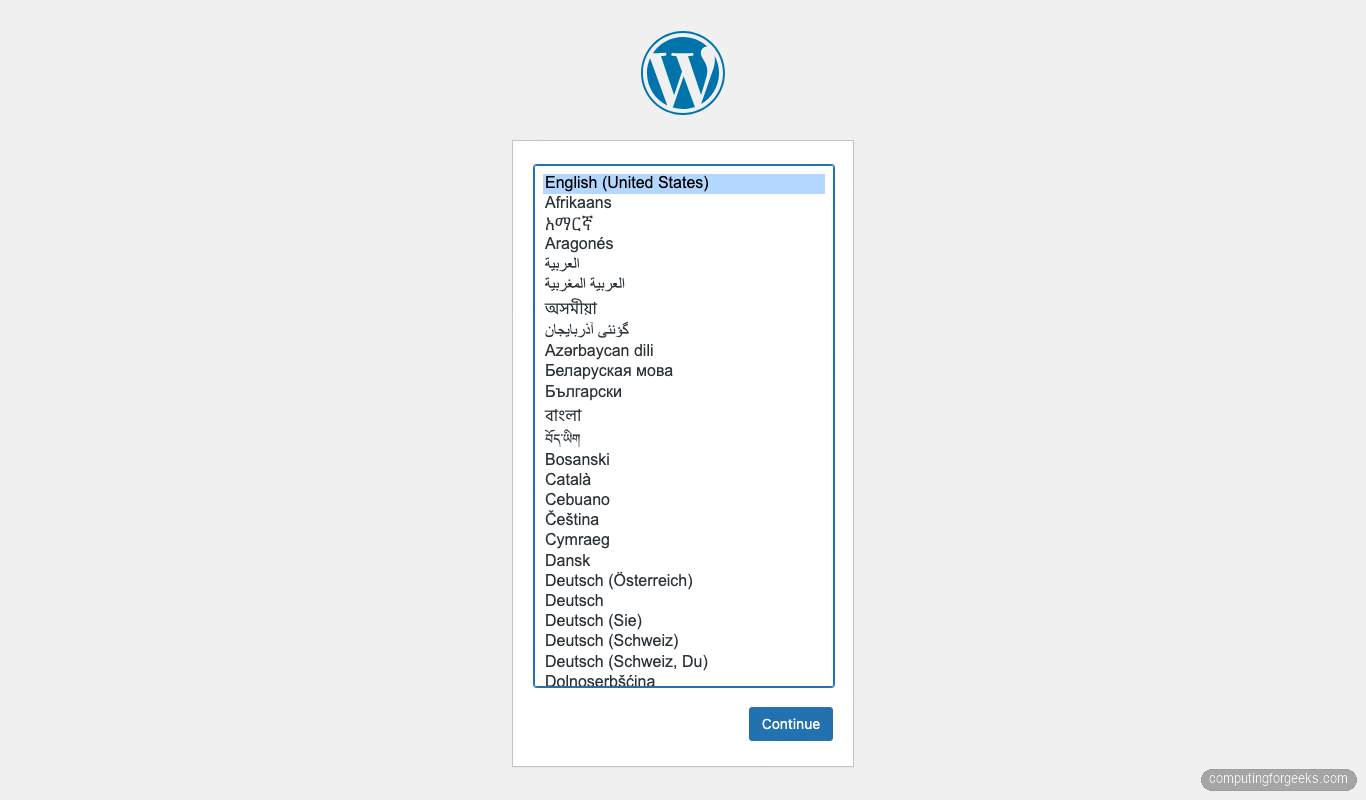
Pick a language and click Continue. The next screen collects the site title, admin username, admin password, and admin email:
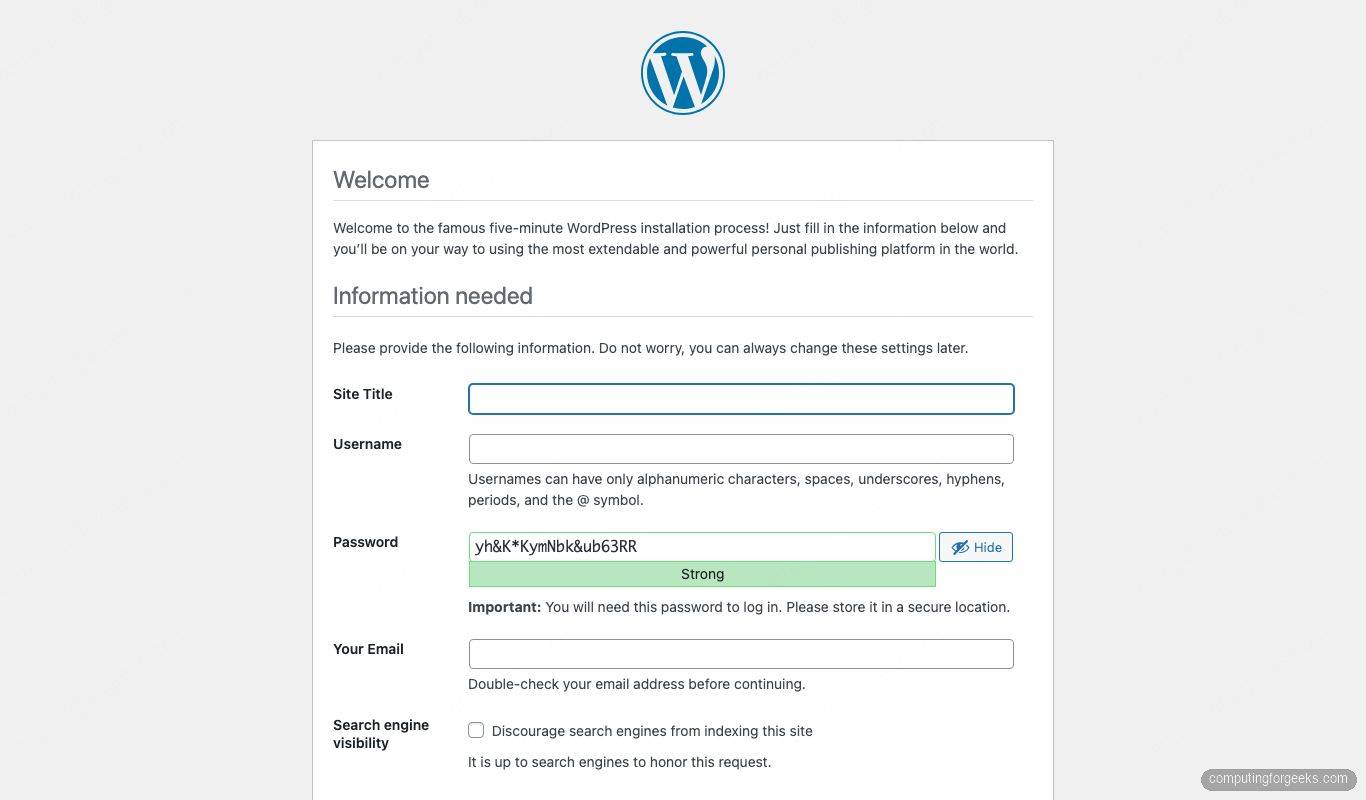
Two hard rules here:
- Never pick
adminas the username. Every WordPress brute-force bot tries it first. - Use the generated password or a real password manager entry. Weak passwords on the admin account are the single most common cause of compromised WordPress sites.
Click Install WordPress. The database tables populate in a second or two and the success screen appears:
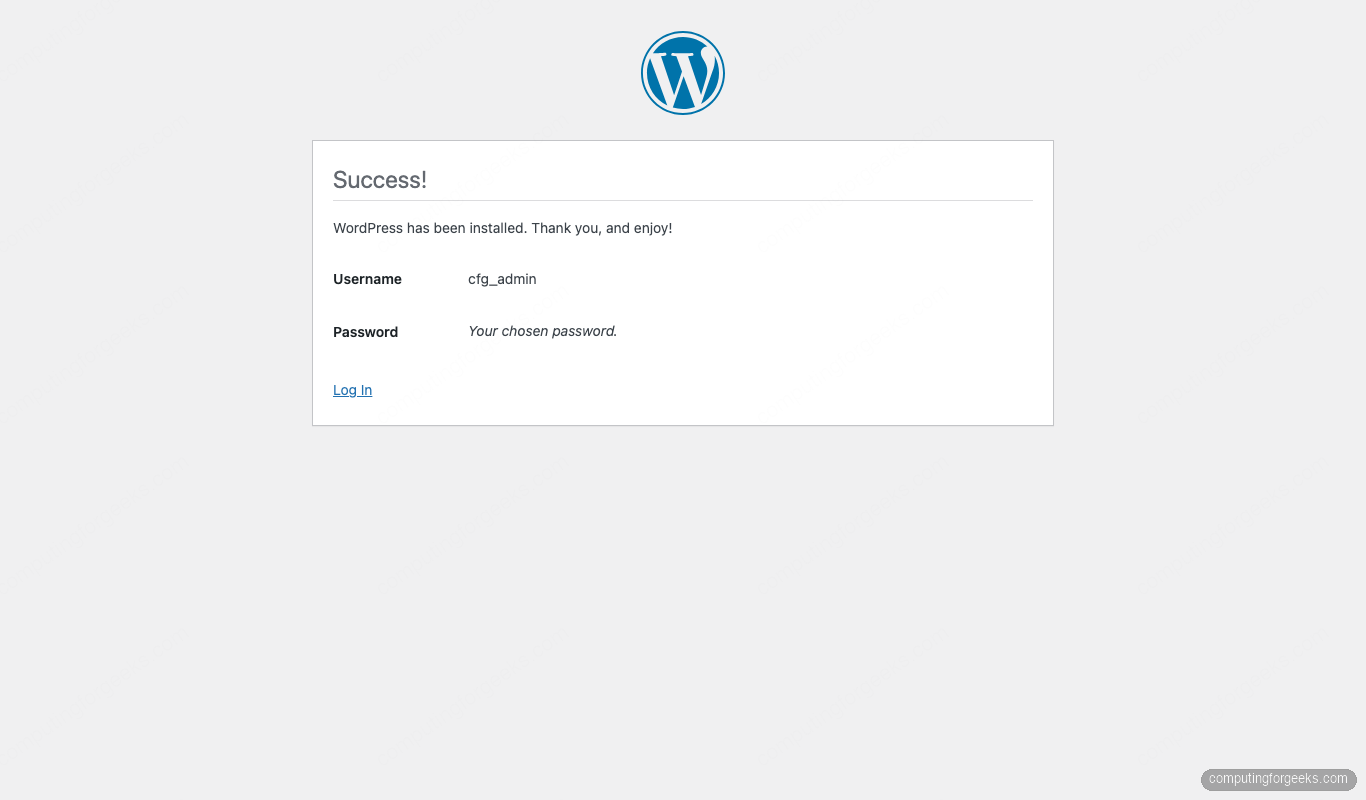
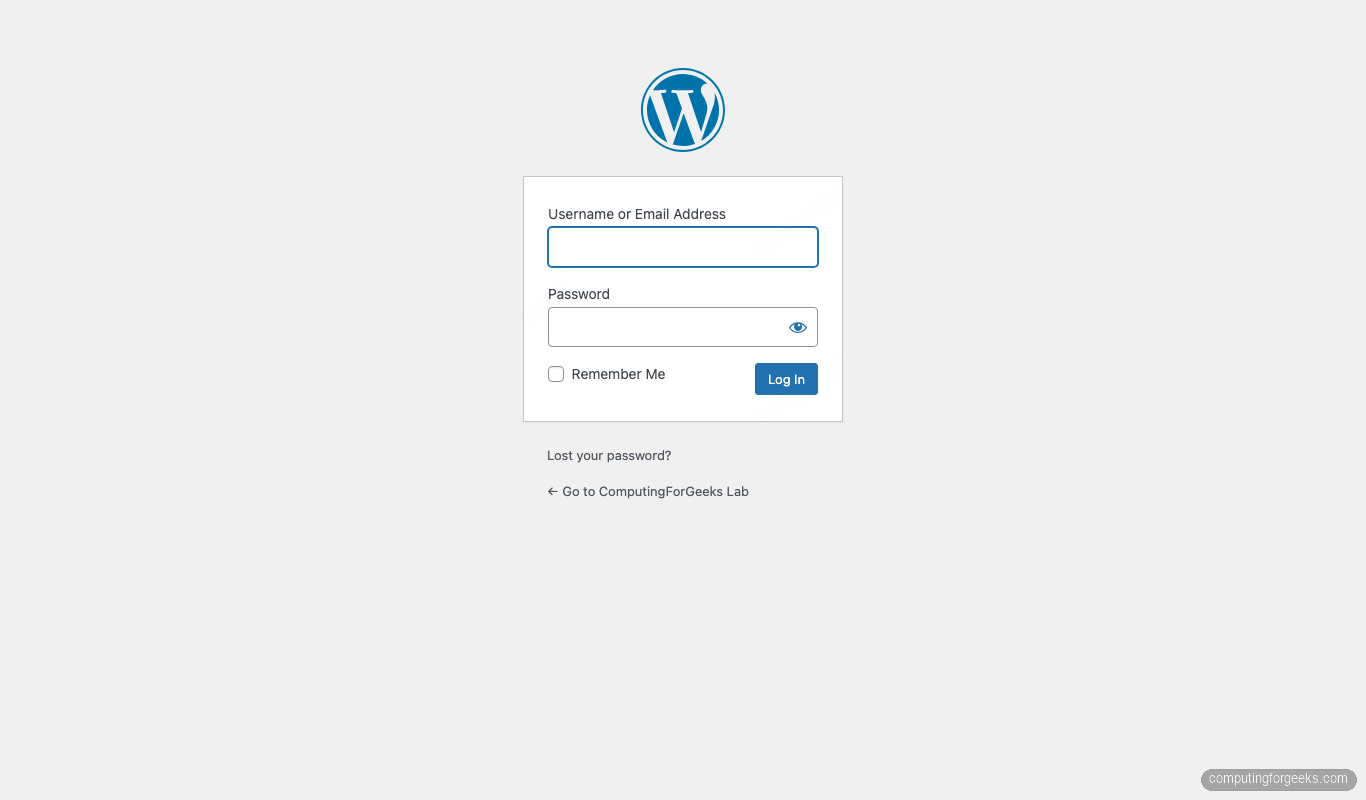
Click Log In and sign in with the admin credentials you just created. WordPress drops you at the login form:
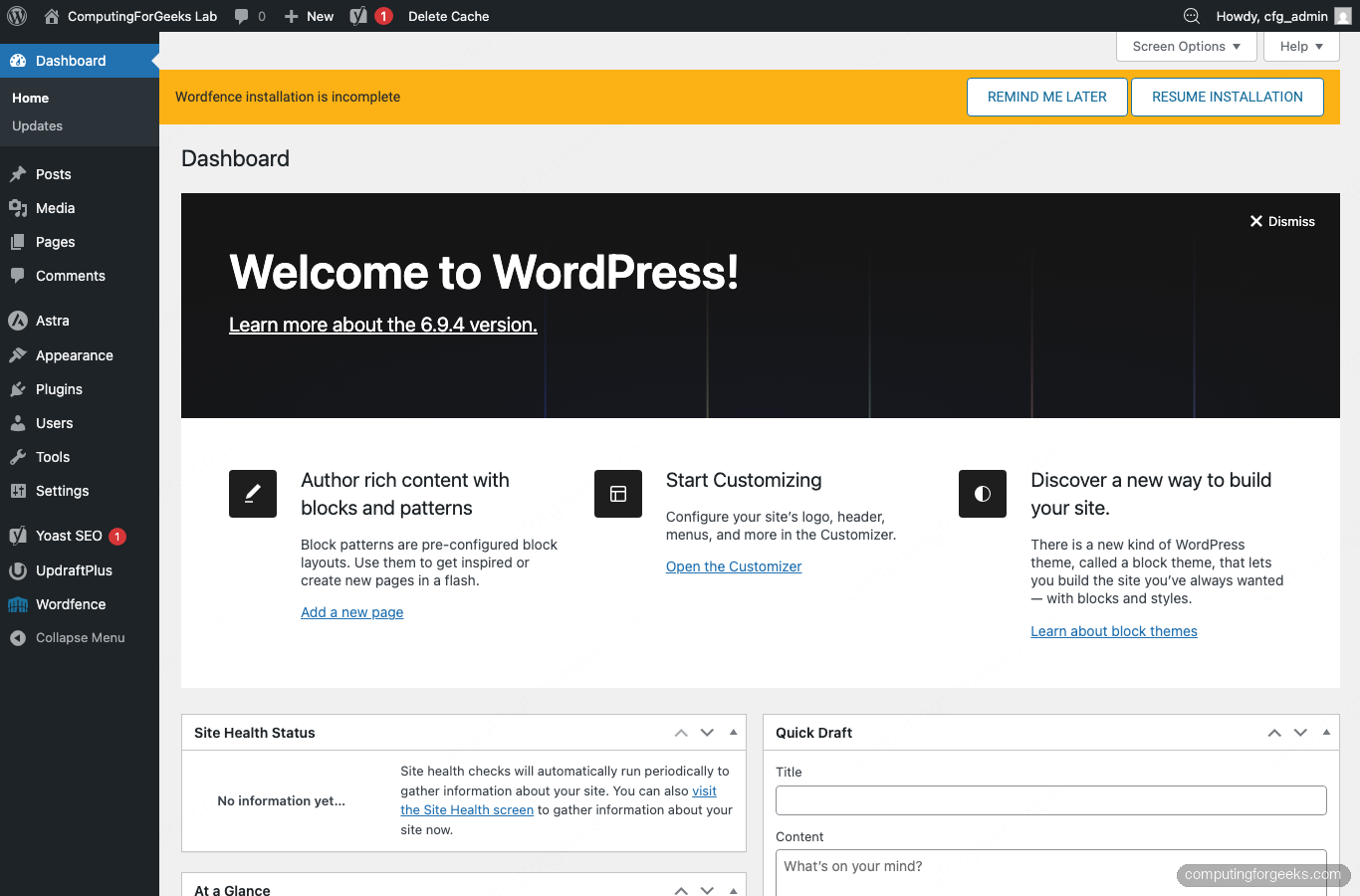
After signing in you land on the admin dashboard. This is also the first time the site talks to wordpress.org over HTTPS to check for updates and theme data, which is a useful end-to-end sanity check for outbound connectivity:
Post-install: permalinks, theme, and plugins
A fresh WordPress install always ships with three things that need tuning before any content goes out the door: permalinks, the theme, and the plugin baseline.
Permalinks
The default permalink structure is ?p=123, which is bad for SEO and bad for humans. Go to Settings → Permalinks and switch to Post name:
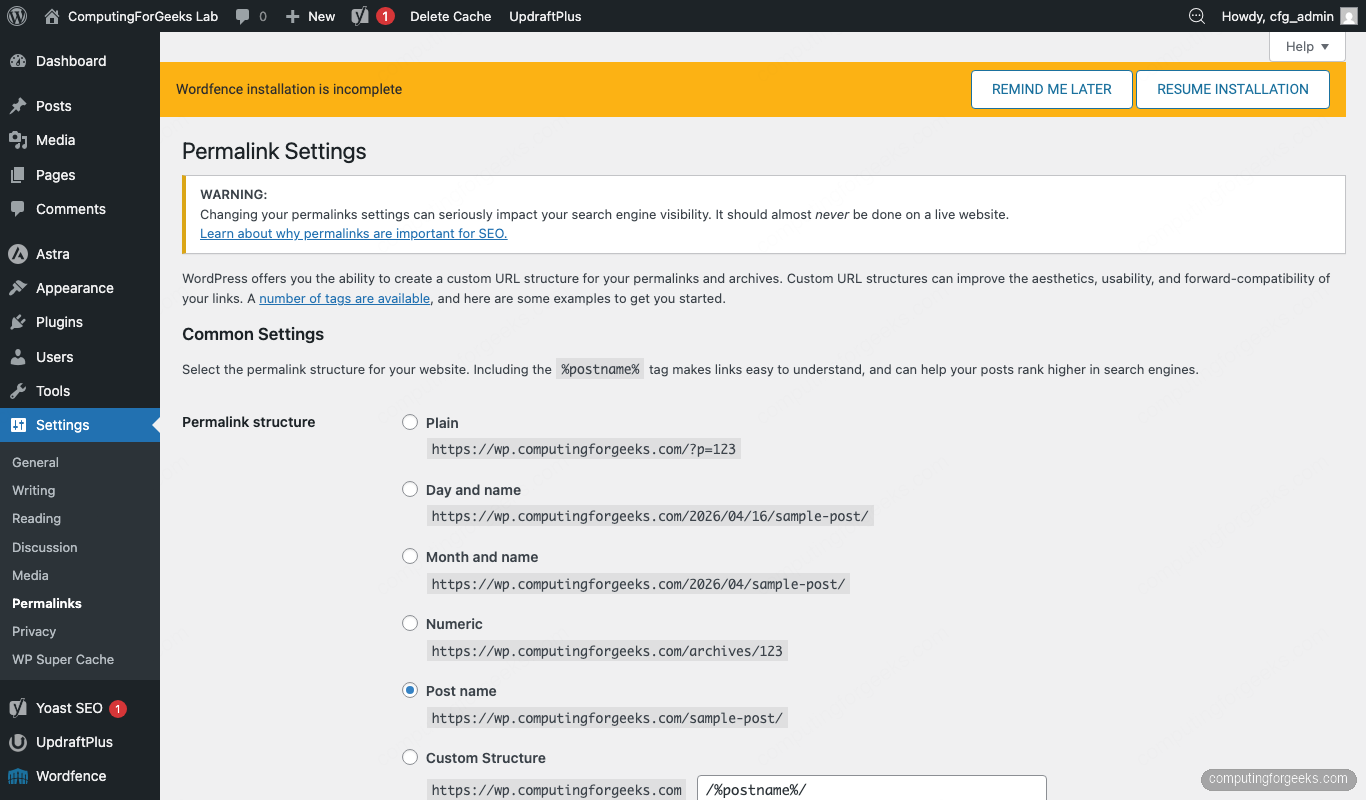
Hit Save Changes. The Nginx try_files rule from Step 5 is what makes the pretty URLs actually work; if you ever see 404s after enabling them, that rule is the first thing to check.
Swap the theme
The default Twenty Twenty-Five theme is fine for a personal blog, but a faster, feature-rich starter like Astra is usually a better base for a production site. Install it from Appearance → Themes → Add New Theme:
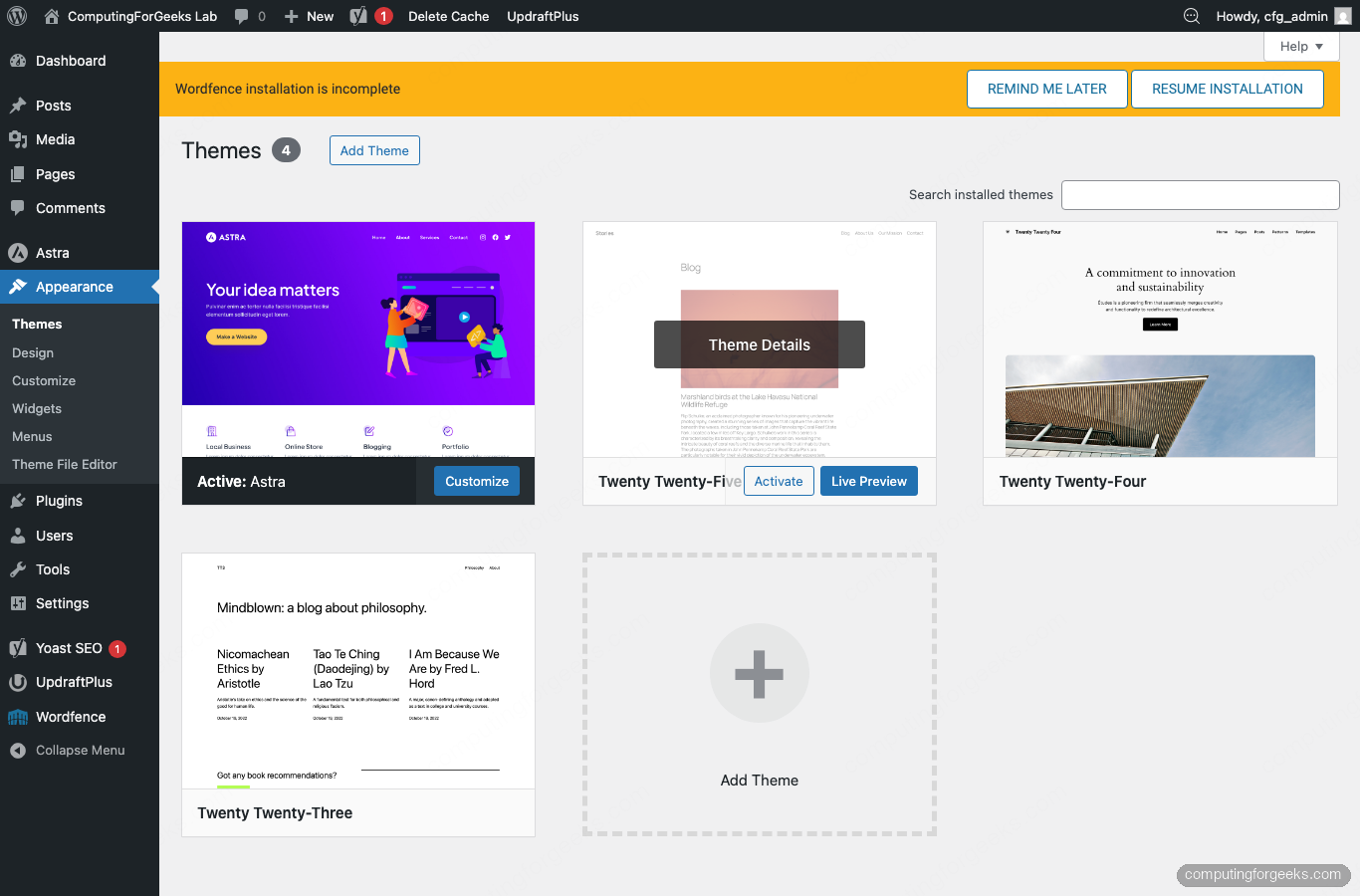
Astra’s free tier covers custom colours, typography, header and footer builders, and WooCommerce integration. If you want a visual editor on top, pair it with Elementor or the Spectra block addon pack; neither is required.
Install the plugin baseline
Four plugins cover what every WordPress site needs on day one. Install them from Plugins → Add New:
- Wordfence Security: firewall, malware scanner, and login-attempt limiter. Complements Fail2ban, does not replace it.
- WP Super Cache: writes pre-rendered HTML to disk so most requests bypass PHP entirely. Single biggest performance win a small site can make.
- Yoast SEO: generates the XML sitemap, structured data, and per-post meta fields that search engines look for.
- UpdraftPlus: schedules database and file backups to remote storage. The home-grown backup script below covers the server side; UpdraftPlus handles off-box copies.
Confirm they are all active on the Plugins page:
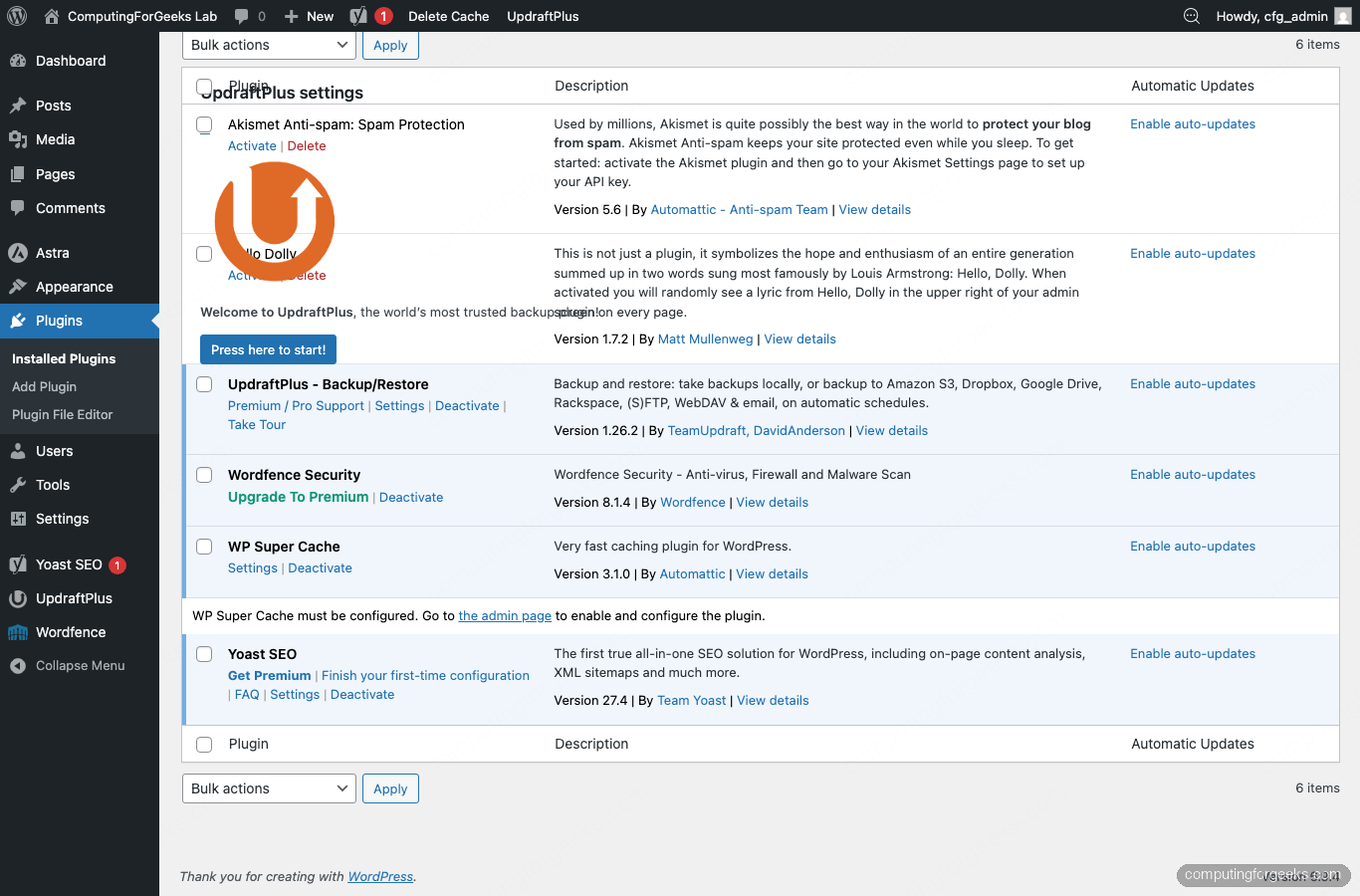
Do not go plugin-shopping beyond this on day one. Every plugin is code you did not write running inside your admin context; keep the attack surface small and audit each addition. For active malware scanning beyond Wordfence, the WPScan command-line scanner is a solid external check to run after launch.
Verify the front-end
Open the site in a private window with the padlock icon showing in the URL bar. Astra renders the two default posts in a card layout and the footer credits the theme:
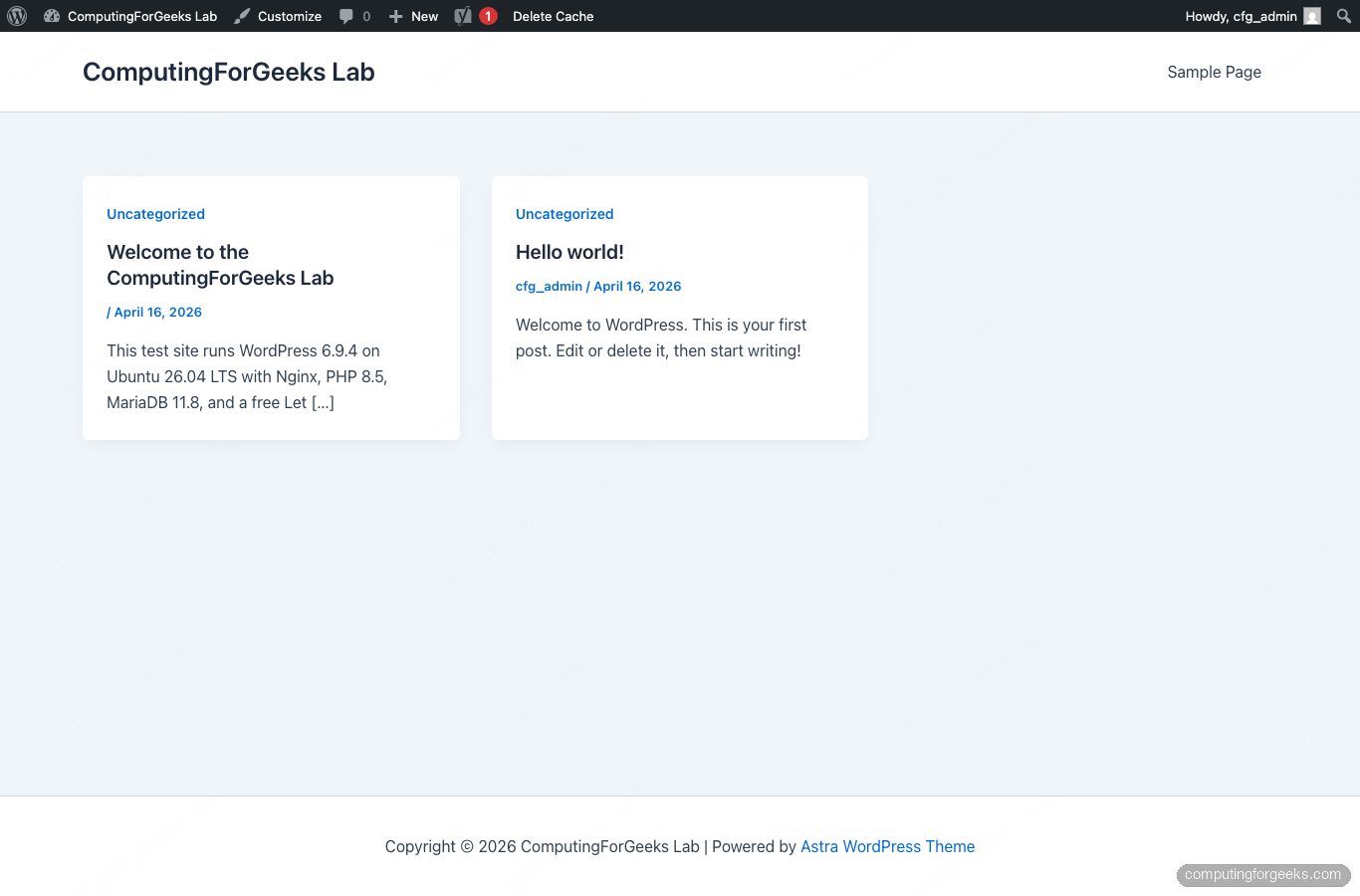
If you see a mixed-content warning instead of a padlock, the siteurl and home WordPress options are still pointing to http://. Fix both at once from the CLI using the same ${SITE_DOMAIN} variable:
sudo -u www-data wp --path="${WP_ROOT}" option update siteurl "https://${SITE_DOMAIN}"
sudo -u www-data wp --path="${WP_ROOT}" option update home "https://${SITE_DOMAIN}"
Automated database and file backups
The UpdraftPlus plugin handles off-site copies with a couple of clicks; its settings page is reachable from Settings → UpdraftPlus Backups:
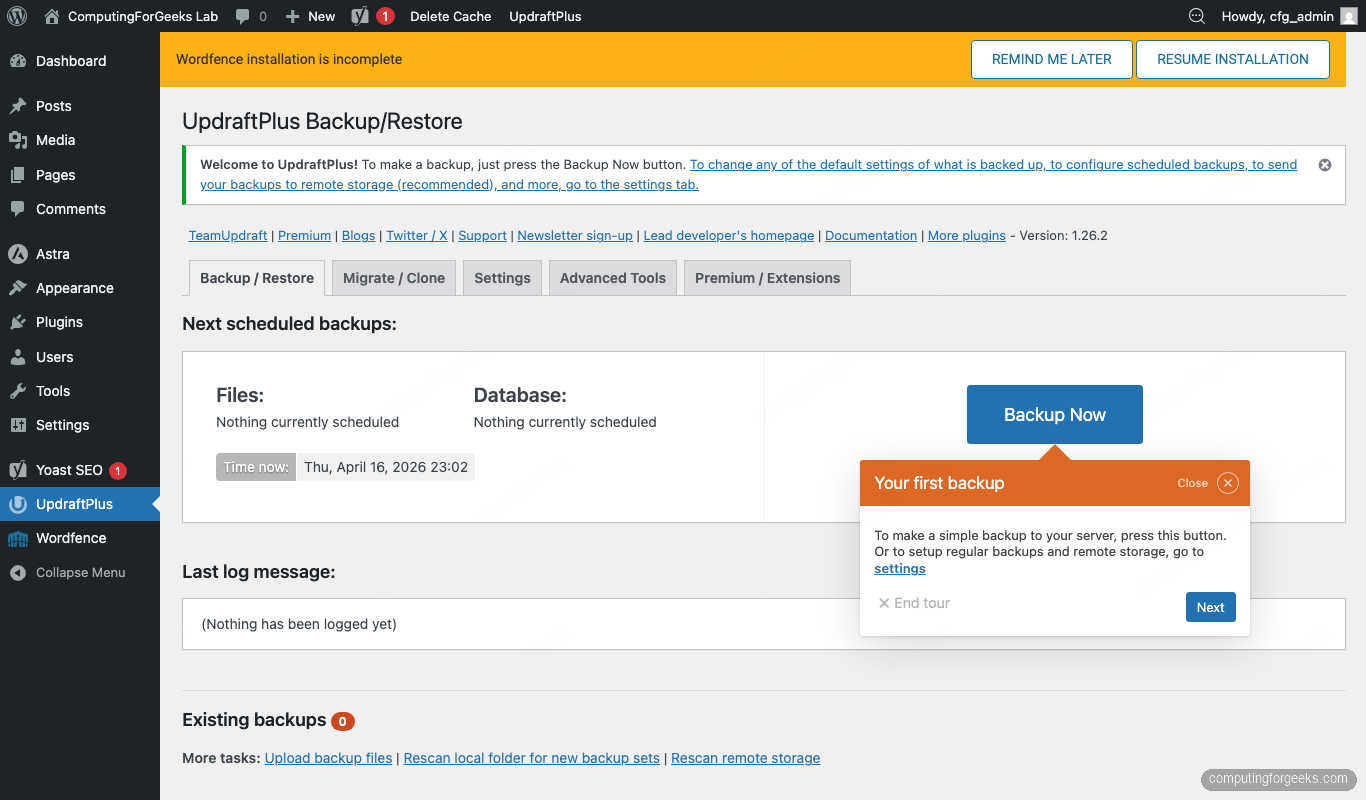
A server-side script is still worth having. It runs regardless of whether PHP is healthy (a broken WordPress cannot back itself up), it does not depend on plugin licensing, and it fits in a cron entry. Create the script as root:
sudo nano /usr/local/bin/wp-backup.shPaste the following. The SITE variable at the top is the one knob you change to point the script at a different site; everything else derives from it. The script reads the DB credentials straight from wp-config.php so there is only one password to rotate, and it retains the last 14 days of snapshots:
#!/bin/bash
set -euo pipefail

# Change this one line to back up a different WordPress site on the same host
SITE="wp.example.com"

WP_ROOT="/var/www/${SITE}"
BACKUP_ROOT="/var/backups/wordpress/${SITE}"
RETENTION_DAYS=14
STAMP="$(date +%Y%m%d-%H%M%S)"

DB_NAME="$(grep -oP "define\s*\(\s*'DB_NAME'\s*,\s*'\K[^']+" ${WP_ROOT}/wp-config.php)"
DB_USER="$(grep -oP "define\s*\(\s*'DB_USER'\s*,\s*'\K[^']+" ${WP_ROOT}/wp-config.php)"
DB_PASS="$(grep -oP "define\s*\(\s*'DB_PASSWORD'\s*,\s*'\K[^']+" ${WP_ROOT}/wp-config.php)"

mkdir -p "${BACKUP_ROOT}/${STAMP}"

echo "[$(date +%H:%M:%S)] Dumping database ${DB_NAME}"
mariadb-dump --single-transaction --quick --routines --triggers \
  -u"${DB_USER}" -p"${DB_PASS}" "${DB_NAME}" \
  | gzip -9 > "${BACKUP_ROOT}/${STAMP}/${DB_NAME}.sql.gz"

echo "[$(date +%H:%M:%S)] Archiving wp-content"
tar --exclude="${WP_ROOT}/wp-content/cache" \
    --exclude="${WP_ROOT}/wp-content/upgrade" \
    -czf "${BACKUP_ROOT}/${STAMP}/wp-content.tar.gz" \
    -C "${WP_ROOT}" wp-content

echo "[$(date +%H:%M:%S)] Retention: deleting snapshots older than ${RETENTION_DAYS} days"
find "${BACKUP_ROOT}" -mindepth 1 -maxdepth 1 -type d -mtime +${RETENTION_DAYS} -print -exec rm -rf {} \;

echo "[$(date +%H:%M:%S)] Done. Latest backup: ${BACKUP_ROOT}/${STAMP}"
du -sh "${BACKUP_ROOT}/${STAMP}"/*
Before saving, remember to update the SITE line at the top of the script to match your ${SITE_DOMAIN}. The --single-transaction flag tells mariadb-dump to run the dump inside a consistent snapshot, so writes hitting the database during the backup are handled correctly. Lock the script down and run it once to confirm it works:
sudo sed -i "s|^SITE=.*|SITE=\"${SITE_DOMAIN}\"|" /usr/local/bin/wp-backup.sh
sudo chmod 700 /usr/local/bin/wp-backup.sh
sudo mkdir -p "/var/backups/wordpress/${SITE_DOMAIN}"
sudo /usr/local/bin/wp-backup.sh
The output lists both artefacts with real sizes, which is a useful sanity check that neither the dump nor the tar silently truncated:
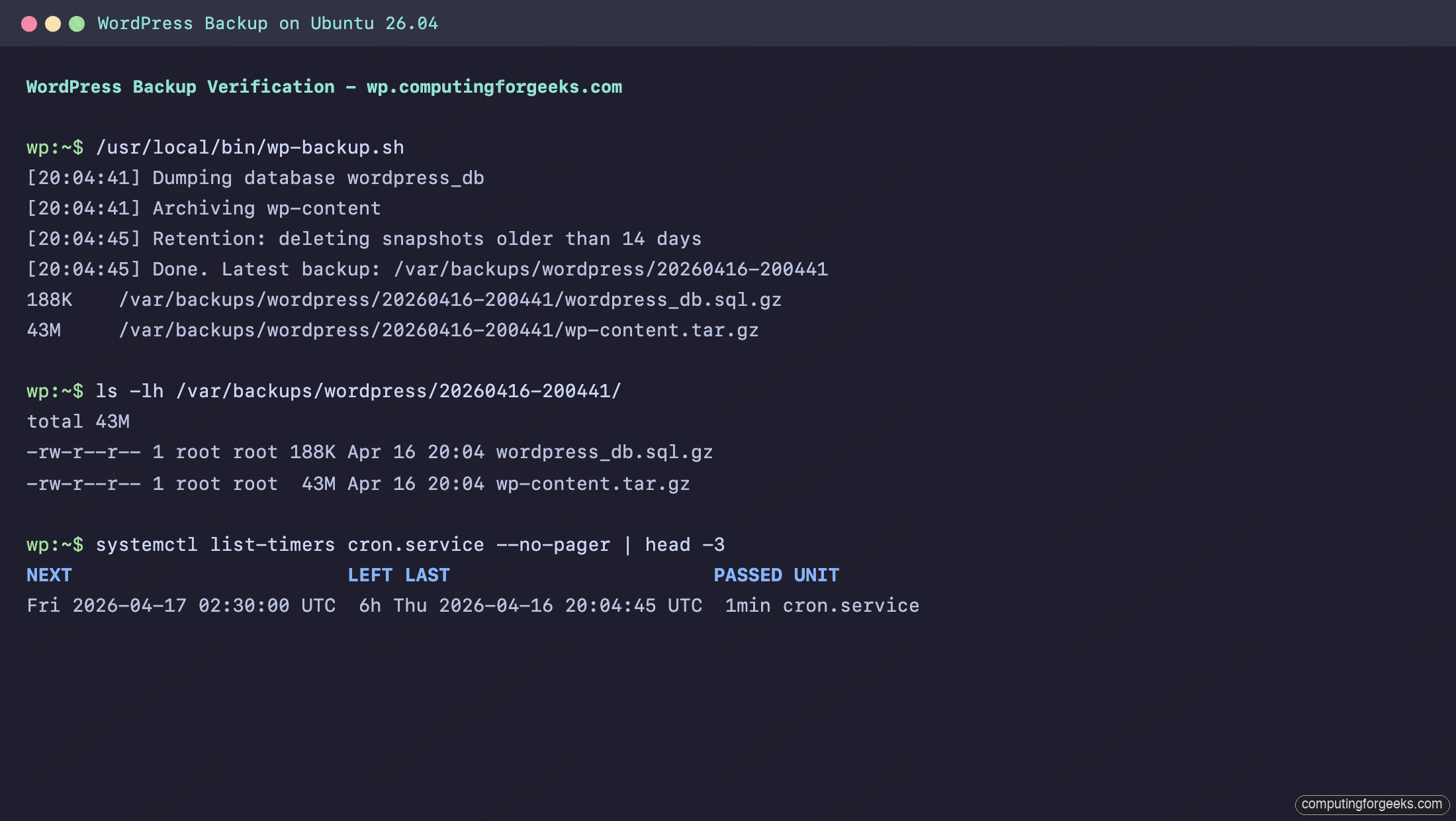
Schedule it via a drop-in file in /etc/cron.d/ so it runs every morning at 02:30 server time:
echo '30 2 * * * root /usr/local/bin/wp-backup.sh >> /var/log/wp-backup.log 2>&1' | sudo tee /etc/cron.d/wp-backup
sudo chmod 644 /etc/cron.d/wp-backup
Copy the snapshots off the server too. A backup that lives on the same disk as the site is a copy, not a backup. rclone to S3/Backblaze/Dropbox is one option; rsync to a home NAS is another. Whichever you pick, test the restore path once a quarter by taking the newest snapshot and spinning it up on a throwaway VM.
Hardening and production notes
The install above is solid, but three more things are worth doing before the site goes public:
Turn off file editing from the admin. An attacker who gets into wp-admin can otherwise rewrite plugin PHP from the browser. Add the following to wp-config.php just above the /* That's all, stop editing! */ line:
define('DISALLOW_FILE_EDIT', true);
define('WP_AUTO_UPDATE_CORE', 'minor');
Restrict xmlrpc. WordPress ships an XML-RPC endpoint that most modern sites do not need and brute-forcers love. Either block it at the Nginx level with location = /xmlrpc.php { deny all; }, or, if you do need the Jetpack app, limit access to known source IPs.
Harden the OS. Run through the Ubuntu 26.04 server hardening guide for the SSH, sudo, AppArmor, and audit configuration that turns a WordPress VM into something you are not embarrassed to leave unattended. Pair it with Fail2ban from earlier for an actual defence-in-depth story.
Frequently asked questions
What are the minimum server specs for WordPress on Ubuntu 26.04?
A 2 vCPU box with 2 GB RAM and a 20 GB disk handles a personal or small business site with room to spare. For a traffic-heavy site (WooCommerce, membership, 10K+ daily pageviews) bump to 4 vCPU / 4 GB RAM and keep the database on a separate disk or a managed service.
Do I need Apache instead of Nginx?
No. Nginx handles WordPress just as well as Apache and uses less RAM under load. Apache still has a role when a project depends on per-directory .htaccess rules from a third-party plugin, in which case see the Apache-based WordPress install for Ubuntu.
Can I run multiple WordPress sites on one Ubuntu 26.04 server?
Yes. Repeat Step 5 (new Nginx site file) and Step 2 (new database and user) for each site. Point each site’s Nginx root at its own directory under /var/www/, and use a separate Let’s Encrypt cert per hostname. For a managed approach with a control panel, WordOps on Ubuntu wraps this whole setup. For a single multi-tenant install, the WordPress Multisite guide is the right reference.
How do I restore a backup?
Stop writes to the site, then restore the database dump and the content archive. The commands below reuse the same ${SITE_DOMAIN}, ${WP_ROOT}, and ${DB_NAME} variables from the top of the guide, so set STAMP to whichever snapshot you want and paste:
STAMP="20260416-200441"
cd "/var/backups/wordpress/${SITE_DOMAIN}/${STAMP}"
gunzip -c "${DB_NAME}.sql.gz" | sudo mariadb "${DB_NAME}"
sudo tar -xzf wp-content.tar.gz -C "${WP_ROOT}/"
sudo chown -R www-data:www-data "${WP_ROOT}"
Flush any cached data (sudo -u www-data wp --path="${WP_ROOT}" cache flush) and load the site in a private window to confirm. Test this flow before you need it.
Why is my site throwing “Error establishing a database connection”?
The credentials in wp-config.php do not match what MariaDB expects, or MariaDB is not running. Check systemctl status mariadb first, then re-test the credentials with mariadb -u wp_user -p wordpress_db. If the manual login fails, the password in wp-config.php has drifted from the one you set in Step 2.
Should I use Cloudflare in front of the site?
For a public site, yes. Cloudflare adds DDoS absorption, bot filtering, and a free global cache without any application changes. Keep the origin on Let’s Encrypt, enable Full (strict) SSL mode at Cloudflare, and turn on the Automatic HTTPS Rewrites page rule so internal links default to HTTPS.