Most production web stacks on Ubuntu run Nginx over Apache these days. Nginx handles static content and reverse proxying more efficiently, consumes less memory per connection, and scales better under high concurrency. Paired with MariaDB and PHP-FPM, you get a LEMP stack that powers everything from WordPress sites to custom PHP applications.
This guide walks through a complete LEMP installation on Ubuntu 26.04 LTS (Resolute Raccoon) with Nginx 1.28.3, MariaDB 11.8.6, and PHP 8.5.4. Every command has been tested on a fresh install, and the article ends with production tuning tips for worker processes, PHP-FPM pools, and MariaDB buffer sizing.
Verified working: April 2026 on Ubuntu 26.04 LTS (Resolute Raccoon), Nginx 1.28.3, MariaDB 11.8.6, PHP 8.5.4
Prerequisites
Before starting, make sure you have:
- Ubuntu 26.04 LTS server with root or sudo access (initial server setup guide)
- At least 1 GB RAM and 10 GB disk space
- SSH access to the server
- Tested on: Ubuntu 26.04 LTS (kernel 7.0.0), Nginx 1.28.3, MariaDB 11.8.6, PHP 8.5.4
Update System Packages
Start with a package index refresh to make sure you pull the latest versions from the Ubuntu repositories.
sudo apt update && sudo apt upgrade -yOn a fresh 26.04 install, expect around 100 packages to upgrade. This takes a minute or two depending on your connection speed.
Install Nginx
Nginx is available directly from the Ubuntu 26.04 default repositories. The version shipped with Resolute Raccoon is 1.28.3, which includes HTTP/3 support and improved QUIC handling.
sudo apt install -y nginxVerify the installed version:
nginx -vYou should see the version confirmed:
nginx version: nginx/1.28.3 (Ubuntu)Check that the service is running:
systemctl status nginxThe output should show active (running):
● nginx.service - A high performance web server and a reverse proxy server
     Loaded: loaded (/usr/lib/systemd/system/nginx.service; enabled; preset: enabled)
     Active: active (running) since Tue 2026-04-14 00:24:58 UTC; 9s ago
       Docs: man:nginx(8)
    Process: 2537 ExecStartPre=/usr/sbin/nginx -t -q -g daemon on; master_process on; (code=exited, status=0/SUCCESS)
    Process: 2538 ExecStart=/usr/sbin/nginx -g daemon on; master_process on; (code=exited, status=0/SUCCESS)
   Main PID: 2566 (nginx)
      Tasks: 3 (limit: 3522)
Nginx is enabled by default on Ubuntu 26.04, so it will start automatically on reboot.
Install MariaDB
Ubuntu 26.04 ships MariaDB 11.8.6, a significant jump from the 10.x series in older Ubuntu releases. The 11.x branch brings improved optimizer performance, better JSON handling, and native vector search support.
sudo apt install -y mariadb-server mariadb-clientConfirm the version:
mariadb --versionExpected output:
mariadb from 11.8.6-MariaDB, client 15.2 for debian-linux-gnu (x86_64) using EditLine wrapperThe service starts automatically after installation. Verify it:
systemctl status mariadbLook for active (running) and the status message “Taking your SQL requests now…”:
● mariadb.service - MariaDB 11.8.6 database server
     Loaded: loaded (/usr/lib/systemd/system/mariadb.service; enabled; preset: enabled)
     Active: active (running) since Tue 2026-04-14 00:25:25 UTC; 11s ago
       Docs: man:mariadbd(8)
             https://mariadb.com/kb/en/library/systemd/
   Main PID: 3396 (mariadbd)
     Status: "Taking your SQL requests now..."
      Tasks: 14 (limit: 23249)
Secure the MariaDB Installation
Set a root password for MariaDB. On Ubuntu 26.04, MariaDB uses unix_socket authentication by default, which means root can connect without a password when logged in as the system root user. For applications that connect with a password, set one explicitly:
sudo mariadbInside the MariaDB shell, set the root password:
ALTER USER 'root'@'localhost' IDENTIFIED BY 'YourStrongPassword';
FLUSH PRIVILEGES;
EXIT;
Test the new password by logging in with it:
mariadb -u root -pEnter your password at the prompt. If you get the MariaDB shell, the password is working correctly.
Install PHP 8.5 with PHP-FPM
Ubuntu 26.04 includes PHP 8.5.4, which brings property hooks, asymmetric visibility, and the new Pipe operator. Install PHP-FPM along with the most commonly needed extensions:
sudo apt install -y php-fpm php-mysql php-cli php-curl php-gd php-mbstring php-xml php-zipThis pulls in php8.5-fpm and all the listed extensions. Verify the PHP version:
php --versionOutput:
PHP 8.5.4 (cli) (built: Apr  1 2026 09:36:11) (NTS)
Copyright (c) The PHP Group
Built by Ubuntu
Zend Engine v4.5.4, Copyright (c) Zend Technologies
    with Zend OPcache v8.5.4, Copyright (c), by Zend Technologies
Confirm PHP-FPM is running:
systemctl status php8.5-fpmThe status should show “Ready to handle connections”:
● php8.5-fpm.service - The PHP 8.5 FastCGI Process Manager
     Loaded: loaded (/usr/lib/systemd/system/php8.5-fpm.service; enabled; preset: enabled)
     Active: active (running) since Tue 2026-04-14 00:26:22 UTC; 6s ago
       Docs: man:php-fpm8.5(8)
   Main PID: 13719 (php-fpm8.5)
     Status: "Ready to handle connections"
      Tasks: 3 (limit: 3522)
Check that the PHP-FPM socket exists. Nginx communicates with PHP-FPM through this Unix socket rather than TCP, which reduces overhead:
ls -la /run/php/php8.5-fpm.sockYou should see the socket file owned by www-data:
srw-rw---- 1 www-data www-data 0 Apr 14 00:26 /run/php/php8.5-fpm.sockList the enabled PHP modules to confirm everything installed correctly:
php -m | grep -iE 'mysql|curl|gd|mbstring|xml|zip'All requested extensions should appear:
curl
gd
libxml
mbstring
mysqli
mysqlnd
pdo_mysql
SimpleXML
xml
xmlreader
xmlwriter
zip
Configure Nginx to Process PHP Files
By default, Nginx serves static files but does not know how to handle PHP. You need to edit the default server block to pass .php requests to PHP-FPM via the Unix socket.
Open the default site configuration:
sudo vi /etc/nginx/sites-available/defaultReplace the entire contents with:
server {
    listen 80 default_server;
    listen [::]:80 default_server;

    root /var/www/html;
    index index.php index.html index.htm;

    server_name _;

    location / {
        try_files $uri $uri/ =404;
    }

    location ~ \.php$ {
        include snippets/fastcgi-php.conf;
        fastcgi_pass unix:/run/php/php8.5-fpm.sock;
    }

    location ~ /\.ht {
        deny all;
    }
}
The key line is fastcgi_pass unix:/run/php/php8.5-fpm.sock, which tells Nginx to forward PHP requests to the FPM process manager over a Unix socket. The snippets/fastcgi-php.conf include handles the FastCGI parameter mapping.
Test the configuration for syntax errors:
sudo nginx -tA clean test returns:
nginx: the configuration file /etc/nginx/nginx.conf syntax is ok
nginx: configuration file /etc/nginx/nginx.conf test is successful
Reload Nginx to apply the changes:
sudo systemctl reload nginxConfigure the Firewall
If UFW is installed (it is by default on Ubuntu 26.04), allow HTTP and HTTPS traffic. Nginx registers application profiles with UFW during installation.
sudo ufw allow 'Nginx Full'
sudo ufw allow OpenSSH
sudo ufw enable
Verify the firewall rules:
sudo ufw statusThe output confirms both Nginx and SSH are allowed:
Status: active

To                         Action      From
--                         ------      ----
Nginx Full                 ALLOW       Anywhere
OpenSSH                    ALLOW       Anywhere
Nginx Full (v6)            ALLOW       Anywhere (v6)
OpenSSH (v6)               ALLOW       Anywhere (v6)
Test PHP Processing
Create a PHP info page to confirm Nginx passes requests to PHP-FPM correctly:
echo '<?php phpinfo(); ?>' | sudo tee /var/www/html/info.phpOpen http://10.0.1.50/info.php in your browser. You should see the full PHP information page showing PHP 8.5.4 with all the extensions you installed. The Server API line should read FPM/FastCGI, confirming that Nginx is routing through PHP-FPM rather than CGI.
Remove the info page after testing, since it exposes sensitive server details:
sudo rm /var/www/html/info.phpCreate a Test Database
With all three components running, test the full stack by creating a database, populating it with sample data, and querying it from PHP. Log into MariaDB:
sudo mariadbCreate a database, a dedicated user, and a table with sample records:
CREATE DATABASE lemp_test;
CREATE USER 'lemp_user'@'localhost' IDENTIFIED BY 'YourStrongPassword';
GRANT ALL PRIVILEGES ON lemp_test.* TO 'lemp_user'@'localhost';
FLUSH PRIVILEGES;

USE lemp_test;
CREATE TABLE servers (
    id INT AUTO_INCREMENT PRIMARY KEY,
    hostname VARCHAR(100) NOT NULL,
    ip_address VARCHAR(45) NOT NULL,
    os VARCHAR(100),
    created_at TIMESTAMP DEFAULT CURRENT_TIMESTAMP
);

INSERT INTO servers (hostname, ip_address, os) VALUES
    ('web01', '10.0.1.50', 'Ubuntu 26.04 LTS'),
    ('db01', '10.0.1.51', 'Ubuntu 26.04 LTS'),
    ('app01', '10.0.1.52', 'Rocky Linux 10');

SELECT * FROM servers;
EXIT;
The query returns the three sample records:
+----+----------+------------+-------------------+---------------------+
| id | hostname | ip_address | os                | created_at          |
+----+----------+------------+-------------------+---------------------+
|  1 | web01    | 10.0.1.50  | Ubuntu 26.04 LTS  | 2026-04-14 00:26:54 |
|  2 | db01     | 10.0.1.51  | Ubuntu 26.04 LTS  | 2026-04-14 00:26:54 |
|  3 | app01    | 10.0.1.52  | Rocky Linux 10    | 2026-04-14 00:26:54 |
+----+----------+------------+-------------------+---------------------+
Test PHP and MariaDB Together
Create a PHP script that connects to MariaDB and queries the test table. This validates the full LEMP chain: Nginx receives the request, passes it to PHP-FPM, and PHP queries MariaDB.
sudo vi /var/www/html/db_test.phpAdd the following PHP code:
<?php
$host = "localhost";
$user = "lemp_user";
$pass = "YourStrongPassword";
$db   = "lemp_test";

$conn = new mysqli($host, $user, $pass, $db);
if ($conn->connect_error) {
    die("Connection failed: " . $conn->connect_error);
}
echo "<h2>LEMP Stack Database Test</h2>";
echo "<p>Connected to MariaDB successfully.</p>";

$result = $conn->query("SELECT * FROM servers");
echo "<table border='1'><tr><th>ID</th><th>Hostname</th><th>IP</th><th>OS</th><th>Created</th></tr>";
while ($row = $result->fetch_assoc()) {
    echo "<tr><td>{$row['id']}</td><td>{$row['hostname']}</td><td>{$row['ip_address']}</td><td>{$row['os']}</td><td>{$row['created_at']}</td></tr>";
}
echo "</table>";
$conn->close();
?>
Open http://10.0.1.50/db_test.php in a browser. The page should display “Connected to MariaDB successfully” along with the servers table data. Once verified, remove the test file:
sudo rm /var/www/html/db_test.phpAll Services at a Glance
Confirm all three LEMP components are active and enabled to start on boot:
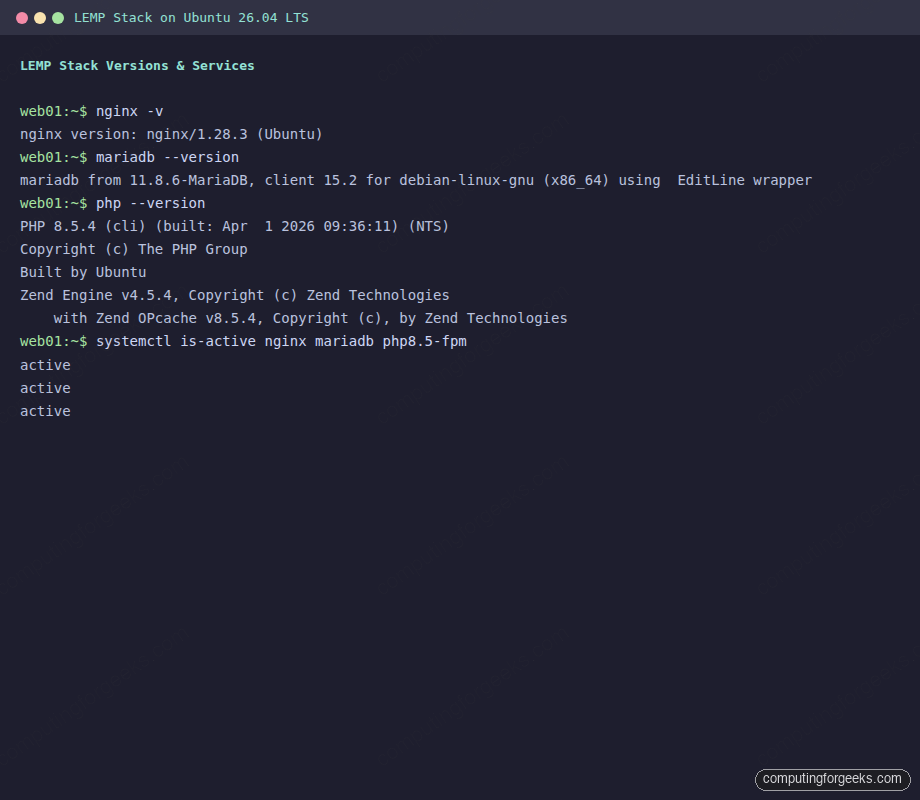
systemctl is-active nginx mariadb php8.5-fpmAll three should return active:
active
active
active
Check that they are enabled for boot:
systemctl is-enabled nginx mariadb php8.5-fpmEach should return enabled.
Performance Tuning for Production
The default settings work for testing, but production workloads need tuning. Here are the key parameters for each component.
Nginx Worker Tuning
The default worker_processes auto in /etc/nginx/nginx.conf matches the number of CPU cores, which is correct for most cases. On a 2-core server, Nginx spawns 2 workers. The worker_connections directive defaults to 768, which limits each worker to 768 simultaneous connections.
For a server handling more traffic, increase worker_connections in the events block:
sudo vi /etc/nginx/nginx.confFind the events block and adjust:
events {
    worker_connections 2048;
    multi_accept on;
}
With multi_accept on, each worker accepts all new connections at once instead of one at a time. On a 2-core server with 2048 connections per worker, Nginx can handle roughly 4096 concurrent connections.
PHP-FPM Pool Sizing
The default PHP-FPM pool at /etc/php/8.5/fpm/pool.d/www.conf uses pm = dynamic with pm.max_children = 5. For a server with 4 GB RAM, a rough formula for max_children is:
max_children = (Total RAM - System overhead) / Average PHP process size
Each PHP-FPM worker typically uses 30 to 50 MB. On a 4 GB server with ~1 GB reserved for the OS, MariaDB, and Nginx, that leaves about 3 GB for PHP. At 40 MB per process, you can set pm.max_children = 75. Adjust the pool config:
sudo vi /etc/php/8.5/fpm/pool.d/www.confUpdate the process manager settings:
pm = dynamic
pm.max_children = 75
pm.start_servers = 10
pm.min_spare_servers = 5
pm.max_spare_servers = 20
pm.max_requests = 500
The pm.max_requests = 500 setting recycles workers after 500 requests, which prevents memory leaks from accumulating. Restart PHP-FPM after changes:
sudo systemctl restart php8.5-fpmMariaDB Buffer Pool
The InnoDB buffer pool is the single most impactful MariaDB setting. It caches table data and indexes in memory, reducing disk I/O. The default is 128 MB, which is too small for anything beyond trivial databases.
Set it to about 50 to 70 percent of available RAM dedicated to MariaDB. On a 4 GB server where MariaDB is the primary consumer, 1 to 2 GB is reasonable:
sudo vi /etc/mysql/mariadb.conf.d/50-server.cnfUnder the [mariadbd] section, add or modify:
innodb_buffer_pool_size = 1G
innodb_log_file_size = 256M
innodb_flush_log_at_trx_commit = 2
Setting innodb_flush_log_at_trx_commit = 2 gives a significant write performance boost at the cost of losing up to one second of transactions in a crash. For most web applications, this tradeoff is acceptable. Restart MariaDB to apply:
sudo systemctl restart mariadbYou can verify the buffer pool size took effect with:
mariadb -u root -p -e "SHOW VARIABLES LIKE 'innodb_buffer_pool_size';"Where to Go from Here
With LEMP running, you can deploy PHP applications like WordPress, Laravel, or custom frameworks. For container-based workflows, see our Docker CE installation guide for Ubuntu 26.04. If you need SSL with Let’s Encrypt on Nginx, that is covered separately. For PostgreSQL as an alternative to MariaDB, see our PostgreSQL 18 guide. If you prefer the Apache-based LAMP stack instead, we have a LAMP stack guide for Ubuntu 26.04 as well.