MariaDB 11.8.6 now ships in Ubuntu 26.04’s main archive. That’s a first. Previous Ubuntu releases kept MariaDB in the universe repository, which meant Canonical didn’t directly maintain the packages. With 26.04 (Resolute Raccoon), MariaDB gets the same level of support and security patching as core system components. You can install it with a single apt install and skip the third-party repo dance entirely.
This guide walks through installing MariaDB 11.8.6, securing the instance, creating databases and users, configuring remote access, and backing up data with mariadb-dump. MariaDB 11.8 is a short-term release that brings improvements to the optimizer, JSON functions, and InnoDB performance. If you’re setting up a fresh Ubuntu 26.04 LTS server with a database backend, this gets you running in under ten minutes.
Last verified: April 2026 | Ubuntu 26.04 LTS, MariaDB 11.8.6 from main archive
Prerequisites
Before you begin, make sure you have the following:
- Ubuntu 26.04 LTS server with root or sudo access (initial server setup guide)
- Tested on: Ubuntu 26.04 LTS (Resolute Raccoon), kernel 6.14, MariaDB 11.8.6-5
- At least 1 GB RAM (2 GB recommended for production workloads)
- Firewall configured with UFW
Install MariaDB Server
Update the package index and install MariaDB. Since 11.8.6 lives in the main archive, no external repositories are needed.
sudo apt updateInstall the MariaDB server package:
sudo apt install -y mariadb-serverAPT pulls in the client, core server files, and several compression plugins (LZ4, LZO, LZMA, Snappy, BZip2) automatically. The service starts and enables itself on boot through systemd presets.
Confirm the installed version:
mariadb --versionYou should see 11.8.6 confirmed:
mariadb from 11.8.6-MariaDB, client 15.2 for debian-linux-gnu (x86_64) using EditLine wrapperVerify the service is active:
sudo systemctl status mariadbThe output should show active (running) with the status message “Taking your SQL requests now…”:
● mariadb.service - MariaDB 11.8.6 database server
     Loaded: loaded (/usr/lib/systemd/system/mariadb.service; enabled; preset: enabled)
     Active: active (running) since Tue 2026-04-14 00:27:43 UTC; 8s ago
       Docs: man:mariadbd(8)
             https://mariadb.com/kb/en/library/systemd/
   Main PID: 2829 (mariadbd)
     Status: "Taking your SQL requests now..."
      Tasks: 15 (limit: 23249)
     Memory: 93.3M (peak: 97.9M)
        CPU: 1.494s
     CGroup: /system.slice/mariadb.service
             └─2829 /usr/sbin/mariadbd
Secure the MariaDB Installation
Run the interactive security script to lock down the defaults. This removes anonymous users, disables remote root login, and drops the test database.
sudo mariadb-secure-installationAnswer the prompts as follows:
- Enter current password for root: press Enter (no password set by default)
- Switch to unix_socket authentication: Y (recommended, root authenticates via system socket)
- Change the root password: Y (set a strong password for socket fallback)
- Remove anonymous users: Y
- Disallow root login remotely: Y
- Remove test database: Y
- Reload privilege tables: Y
With unix_socket authentication, root connects to MariaDB through the local socket without a password. This is the default and recommended approach on Ubuntu because it ties database access to the OS user, not a stored credential.
Create a Database User and Test Database
Production applications should never connect as root. Create a dedicated user with a strong password.
Connect to MariaDB as root (uses unix_socket, no password needed when running as root):
sudo mariadbCreate the user and grant full privileges:
CREATE USER 'dbadmin'@'localhost' IDENTIFIED BY 'Str0ng!Pass#2026';
GRANT ALL PRIVILEGES ON *.* TO 'dbadmin'@'localhost' WITH GRANT OPTION;
FLUSH PRIVILEGES;
Verify the user was created:
SELECT User, Host, plugin FROM mysql.user WHERE User NOT IN ('mariadb.sys');The output lists all database users and their authentication method:
+----------+-----------+-----------------------+
| User     | Host      | plugin                |
+----------+-----------+-----------------------+
| root     | localhost | unix_socket           |
| mysql    | localhost | mysql_native_password |
| dbadmin  | localhost | mysql_native_password |
+----------+-----------+-----------------------+
Now create a test database and populate it with sample data. Still in the MariaDB shell:
CREATE DATABASE inventory;
USE inventory;

CREATE TABLE products (
    id INT AUTO_INCREMENT PRIMARY KEY,
    name VARCHAR(100) NOT NULL,
    category VARCHAR(50),
    price DECIMAL(10,2),
    stock INT DEFAULT 0,
    created_at TIMESTAMP DEFAULT CURRENT_TIMESTAMP
);

INSERT INTO products (name, category, price, stock) VALUES
    ('ThinkPad X1 Carbon', 'Laptops', 1899.99, 45),
    ('Dell PowerEdge R760', 'Servers', 8499.00, 12),
    ('Ubiquiti Dream Machine Pro', 'Networking', 379.00, 88),
    ('Samsung 990 Pro 2TB', 'Storage', 179.99, 220),
    ('APC Smart-UPS 1500VA', 'Power', 649.00, 34);
Query the data to confirm everything was inserted correctly:
SELECT * FROM products;All five rows should appear with auto-generated IDs and timestamps:
+----+----------------------------+------------+---------+-------+---------------------+
| id | name                       | category   | price   | stock | created_at          |
+----+----------------------------+------------+---------+-------+---------------------+
|  1 | ThinkPad X1 Carbon         | Laptops    | 1899.99 |    45 | 2026-04-14 00:28:17 |
|  2 | Dell PowerEdge R760        | Servers    | 8499.00 |    12 | 2026-04-14 00:28:17 |
|  3 | Ubiquiti Dream Machine Pro | Networking |  379.00 |    88 | 2026-04-14 00:28:17 |
|  4 | Samsung 990 Pro 2TB        | Storage    |  179.99 |   220 | 2026-04-14 00:28:17 |
|  5 | APC Smart-UPS 1500VA       | Power      |  649.00 |    34 | 2026-04-14 00:28:17 |
+----+----------------------------+------------+---------+-------+---------------------+
Run a filtered query to test ordering and WHERE clauses:
SELECT name, price, stock FROM products WHERE price > 500 ORDER BY price DESC;Only products above $500 are returned, sorted by price:
+---------------------+---------+-------+
| name                | price   | stock |
+---------------------+---------+-------+
| Dell PowerEdge R760 | 8499.00 |    12 |
| ThinkPad X1 Carbon  | 1899.99 |    45 |
| APC Smart-UPS 1500VA|  649.00 |    34 |
+---------------------+---------+-------+
Exit the MariaDB shell:
EXIT;Test Connection with the New User
Verify that the dbadmin user can connect using TCP (the -h 127.0.0.1 flag forces a TCP connection instead of the unix socket):
mariadb -u dbadmin -p -h 127.0.0.1 -e "SELECT CONNECTION_ID(), CURRENT_USER(), VERSION();"After entering the password, the output confirms a successful TCP connection:
+-----------------+-------------------+----------------------------------+
| CONNECTION_ID() | CURRENT_USER()    | VERSION()                        |
+-----------------+-------------------+----------------------------------+
|              36 | dbadmin@localhost  | 11.8.6-MariaDB-5 from Ubuntu     |
+-----------------+-------------------+----------------------------------+
Configure Remote Access
By default, MariaDB 11.8.6 on Ubuntu 26.04 binds to 127.0.0.1 only. If you need remote clients (application servers, monitoring tools) to connect, change the bind address.
Open the server configuration file:
sudo vi /etc/mysql/mariadb.conf.d/50-server.cnfFind the bind-address line under the [mysqld] section and change it to 0.0.0.0 to listen on all interfaces, or set it to a specific IP:
[mysqld]
bind-address = 0.0.0.0
Restart MariaDB to apply the change:
sudo systemctl restart mariadbThen create a user that can connect from remote hosts. Replace 10.0.1.0/255.255.255.0 with your application subnet:
sudo mariadb -e "CREATE USER 'appuser'@'10.0.1.%' IDENTIFIED BY 'App!Secure#2026';
GRANT ALL PRIVILEGES ON inventory.* TO 'appuser'@'10.0.1.%';
FLUSH PRIVILEGES;"
This grants the appuser account access to the inventory database from any host in the 10.0.1.0/24 subnet. Avoid using '%' as the host wildcard in production because it allows connections from any IP.
Configure the Firewall
If UFW is active, open port 3306 for MariaDB. Restrict the source to your application network:
sudo ufw allow from 10.0.1.0/24 to any port 3306 proto tcp comment "MariaDB"Verify the rule was added:
sudo ufw status numberedIf you only need local connections (web server and database on the same host), skip this step. MariaDB bound to 127.0.0.1 is not reachable from the network regardless of firewall rules.
Back Up Databases with mariadb-dump
Regular backups are non-negotiable. The mariadb-dump utility creates logical SQL dumps that you can restore on any MariaDB or MySQL instance.
Dump a single database:
mariadb-dump -u dbadmin -p inventory > /backup/inventory_$(date +%F).sqlDump all databases at once:
mariadb-dump -u dbadmin -p --all-databases > /backup/all_databases_$(date +%F).sqlThe dump file contains standard SQL statements that recreate tables and insert data. A quick look at the header confirms the MariaDB version used:
-- MariaDB dump 10.19-11.8.6-MariaDB, for debian-linux-gnu (x86_64)
--
-- Host: localhost    Database: inventory
-- ------------------------------------------------------
-- Server version	11.8.6-MariaDB-5 from Ubuntu
Restore from a dump file when needed:
mariadb -u dbadmin -p inventory < /backup/inventory_2026-04-14.sqlFor production systems, consider automating backups with a cron job and compressing dumps with gzip or zstd to save disk space.
Check MariaDB Status and Logs
A few commands you'll reach for regularly when managing MariaDB.
Check the server version from the command line:
mariadbd --versionThis returns the full server version string:
mariadbd Ver 11.8.6-MariaDB-5 from Ubuntu for debian-linux-gnu on x86_64View active connections and global status from inside the shell:
sudo mariadb -e "SHOW GLOBAL STATUS LIKE 'Threads_connected'; SHOW GLOBAL STATUS LIKE 'Questions'; SHOW GLOBAL VARIABLES LIKE 'max_connections'; SHOW GLOBAL VARIABLES LIKE 'innodb_buffer_pool_size';"Key variables to watch: Threads_connected shows active connections, Questions is the total query count since startup, and innodb_buffer_pool_size (default 128 MB) controls how much RAM InnoDB uses for caching.
Check the MariaDB logs through journald:
sudo journalctl -u mariadb --no-pager -n 20Look for any [ERROR] or [Warning] lines. On a healthy install, you'll see InnoDB initialization, buffer pool loading, and the "ready for connections" message.
List all databases on the server:
sudo mariadb -e "SHOW DATABASES;"After a clean install with the inventory database created earlier:
+--------------------+
| Database           |
+--------------------+
| information_schema |
| inventory          |
| mysql              |
| performance_schema |
| sys                |
+--------------------+
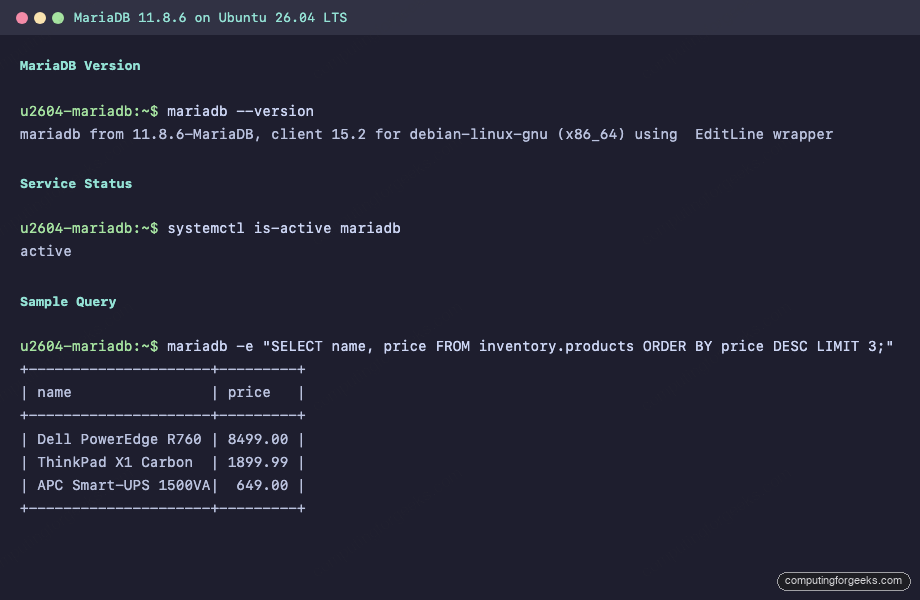
The screenshot below shows MariaDB 11.8.6 running on a fresh Ubuntu 26.04 LTS server with version confirmation, active service status, and a sample query against the inventory database.
Migrating from MySQL 8.4 to MariaDB 11.8
Ubuntu 26.04 ships both MySQL 8.4.8 and MariaDB 11.8.6 in its repositories. They conflict with each other, so only one can be installed at a time. If you're currently running MySQL and want to switch, here's what to know.
MariaDB 11.8 reads MySQL 8.4 data files directly. The InnoDB format is compatible, and mariadb-upgrade handles the system table differences. The migration path on Ubuntu 26.04:
- Dump all databases with
mysqldump --all-databasesas a safety net - Stop MySQL:
sudo systemctl stop mysql - Remove MySQL packages:
sudo apt remove mysql-server mysql-client - Install MariaDB:
sudo apt install mariadb-server - MariaDB picks up the existing data directory at
/var/lib/mysql/ - Run
sudo mariadb-upgradeto update system tables
Key differences between MySQL 8.4 and MariaDB 11.8 on Ubuntu 26.04:
| Item | MySQL 8.4 | MariaDB 11.8 |
|---|---|---|
| Package version | 8.4.8 | 11.8.6 |
| Archive | main | main |
| Default auth plugin | caching_sha2_password | mysql_native_password |
| Root auth | auth_socket | unix_socket |
| JSON support | Native JSON type | JSON as LONGTEXT alias |
| Config path | /etc/mysql/mysql.conf.d/ | /etc/mysql/mariadb.conf.d/ |
| Client binary | mysql | mariadb (mysql symlink exists) |
| Dump tool | mysqldump | mariadb-dump (mysqldump symlink exists) |
| Thread pool | Enterprise only | Built-in |
One thing that catches people: MySQL 8.4 defaults to caching_sha2_password for authentication, while MariaDB uses mysql_native_password. If your application's database driver doesn't support caching_sha2_password, MariaDB may actually be easier to set up. If your app depends on MySQL-specific features like the native JSON type or window function syntax that diverged after the MariaDB fork, test thoroughly before switching. For most web application stacks (WordPress, Laravel, Django), MariaDB is a drop-in replacement.
If you prefer PostgreSQL over MySQL-compatible databases, see our guide on installing PostgreSQL 18 on Ubuntu 26.04. For containerized deployments where MariaDB runs inside Docker, the official mariadb:11.8 image works well with the same configuration principles covered here. Our MariaDB on Ubuntu 24.04 guide covers the older LTS release if you need it.