Ubuntu 26.04 LTS ships with both MySQL 8.4 and MariaDB 11.8 in its default repositories. If you need MySQL specifically (for compatibility with an existing stack, Oracle support contracts, or features like MySQL HeatWave), this guide walks through a production-ready installation on Ubuntu 26.04. For MariaDB on Ubuntu 26.04, we have a separate guide.
MySQL 8.4 is the current Long-Term Support release, which means it gets bug fixes and security patches through at least April 2032. The version in Ubuntu 26.04 repos (8.4.8) includes improvements to the InnoDB storage engine, the performance_schema, and uses caching_sha2_password as the default authentication plugin. Full details are in the official MySQL 8.4 release notes.
Tested April 2026 | Ubuntu 26.04 LTS, MySQL 8.4.8
Prerequisites
Before starting, make sure you have:
- Ubuntu 26.04 LTS server with root or sudo access (initial server setup guide)
- Tested on: Ubuntu 26.04 LTS (Resolute Raccoon), MySQL 8.4.8-0ubuntu1
- At least 1 GB RAM (MySQL allocates 128 MB for InnoDB buffer pool by default)
Install MySQL 8.4 on Ubuntu 26.04
MySQL 8.4 is available directly from the Ubuntu 26.04 universe repository. No external PPA or Oracle repo needed.
Update the package index and install the server:
sudo apt update
sudo apt install -y mysql-server
This pulls in mysql-server, mysql-client, and mysql-common as dependencies. The installer automatically starts the MySQL service and enables it on boot.
Confirm the installed version:
mysql --versionYou should see version 8.4.8 confirmed:
mysql Ver 8.4.8-0ubuntu1 for Linux on x86_64 ((Ubuntu))Verify the service is running:
systemctl status mysqlThe output should show active (running):
● mysql.service - MySQL Community Server
     Loaded: loaded (/usr/lib/systemd/system/mysql.service; enabled; preset: enabled)
     Active: active (running) since Tue 2026-04-14 00:44:24 UTC
   Main PID: 2694 (mysqld)
     Status: "Server is operational"
      Tasks: 35 (limit: 3522)
     Memory: 478.3M
     CGroup: /system.slice/mysql.service
             └─2694 /usr/sbin/mysqld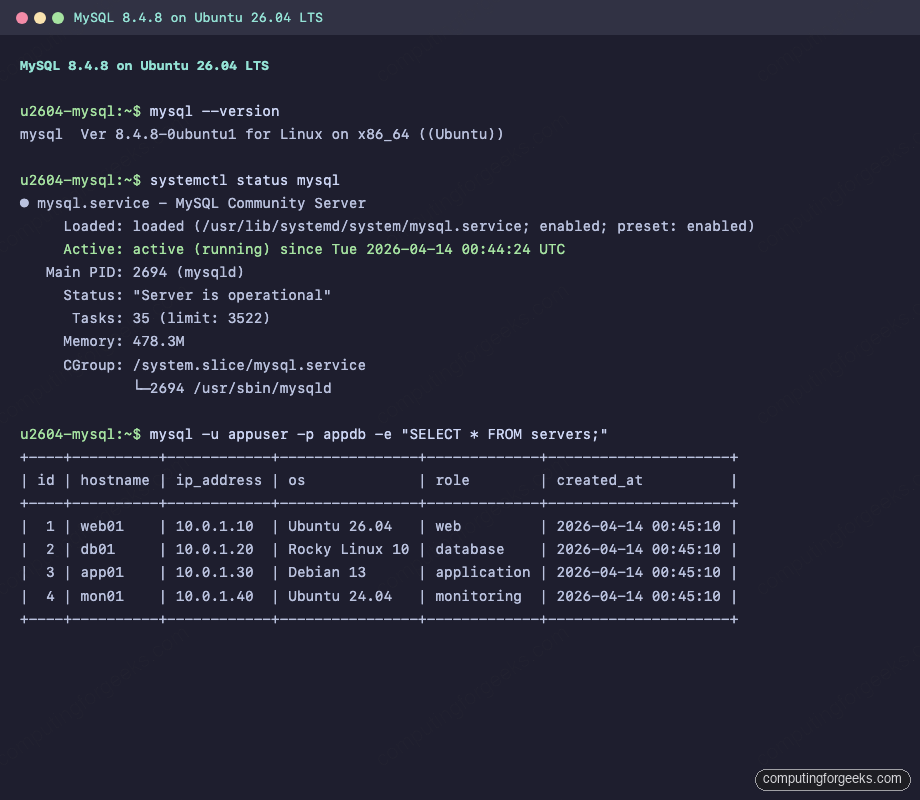
On Ubuntu 26.04, the root MySQL account uses auth_socket authentication by default. This means you connect as root on the OS and MySQL trusts the socket, with no password prompt. This is actually more secure than password auth for local administration because it ties MySQL access to the OS user.
Run the Secure Installation Script
MySQL ships with a hardening script that removes test databases, anonymous users, and remote root login. Run it:
sudo mysql_secure_installationThe script walks through several prompts:
- VALIDATE PASSWORD component: Press
yto enable password strength enforcement. Choose level 2 (STRONG) for production - Remove anonymous users:
y - Disallow root login remotely:
y - Remove test database:
y - Reload privilege tables:
y
The root user keeps auth_socket authentication regardless of the VALIDATE PASSWORD settings. The password policy applies to new users you create.
Create a Database and User
Never run applications as the MySQL root user. Create a dedicated database and user for each application.
Connect to the MySQL shell:
sudo mysqlCreate the database, user, and grant privileges:
CREATE DATABASE appdb;
CREATE USER 'appuser'@'localhost' IDENTIFIED BY 'Str0ng!Pass#2026';
GRANT ALL PRIVILEGES ON appdb.* TO 'appuser'@'localhost';
FLUSH PRIVILEGES;
Verify the user was created with the correct authentication plugin:
SELECT user, host, plugin FROM mysql.user;The output confirms caching_sha2_password for application users:
+------------------+-----------+-----------------------+
| user             | host      | plugin                |
+------------------+-----------+-----------------------+
| appuser          | localhost | caching_sha2_password |
| debian-sys-maint | localhost | auth_socket           |
| mysql.infoschema | localhost | caching_sha2_password |
| mysql.session    | localhost | caching_sha2_password |
| mysql.sys        | localhost | caching_sha2_password |
| root             | localhost | auth_socket           |
+------------------+-----------+-----------------------+
Exit the root MySQL shell with exit.
Test with Sample Data
Connect as the new user and create a table to confirm everything works:
mysql -u appuser -p appdbEnter the password when prompted, then create a table and insert some rows:
CREATE TABLE servers (
  id INT AUTO_INCREMENT PRIMARY KEY,
  hostname VARCHAR(64) NOT NULL,
  ip_address VARCHAR(45),
  os VARCHAR(64),
  role VARCHAR(32),
  created_at TIMESTAMP DEFAULT CURRENT_TIMESTAMP
);

INSERT INTO servers (hostname, ip_address, os, role) VALUES
  ('web01', '10.0.1.10', 'Ubuntu 26.04', 'web'),
  ('db01', '10.0.1.20', 'Rocky Linux 10', 'database'),
  ('app01', '10.0.1.30', 'Debian 13', 'application'),
  ('mon01', '10.0.1.40', 'Ubuntu 24.04', 'monitoring');
Query the data back:
SELECT * FROM servers;You should see all four rows:
+----+----------+------------+----------------+-------------+---------------------+
| id | hostname | ip_address | os             | role        | created_at          |
+----+----------+------------+----------------+-------------+---------------------+
|  1 | web01    | 10.0.1.10  | Ubuntu 26.04   | web         | 2026-04-14 00:45:10 |
|  2 | db01     | 10.0.1.20  | Rocky Linux 10 | database    | 2026-04-14 00:45:10 |
|  3 | app01    | 10.0.1.30  | Debian 13      | application | 2026-04-14 00:45:10 |
|  4 | mon01    | 10.0.1.40  | Ubuntu 24.04   | monitoring  | 2026-04-14 00:45:10 |
+----+----------+------------+----------------+-------------+---------------------+
Configure Remote Access
By default, MySQL only listens on 127.0.0.1. If your application server is on a different host, you need to change the bind address.
Open the MySQL configuration file:
sudo vi /etc/mysql/mysql.conf.d/mysqld.cnfFind the bind-address line and change it to 0.0.0.0 (all interfaces) or a specific IP:
bind-address            = 0.0.0.0
mysqlx-bind-address     = 0.0.0.0
Restart MySQL to apply the change:
sudo systemctl restart mysqlNow create a user that can connect from a remote host. In the MySQL shell (sudo mysql):
CREATE USER 'appuser'@'%' IDENTIFIED BY 'Str0ng!Pass#2026';
GRANT ALL PRIVILEGES ON appdb.* TO 'appuser'@'%';
FLUSH PRIVILEGES;
The % wildcard allows connections from any host. In production, replace % with a specific IP (like '10.0.1.10') to limit access to just your application server.
Confirm the grants:
SHOW GRANTS FOR 'appuser'@'%';Expected output:
+----------------------------------------------------+
| Grants for appuser@%                               |
+----------------------------------------------------+
| GRANT USAGE ON *.* TO `appuser`@`%`                |
| GRANT ALL PRIVILEGES ON `appdb`.* TO `appuser`@`%` |
+----------------------------------------------------+
Configure the Firewall
Ubuntu 26.04 comes with ufw preinstalled. Open port 3306 for MySQL connections:
sudo ufw allow OpenSSH
sudo ufw allow 3306/tcp
sudo ufw enable
Check the firewall status:
sudo ufw statusBoth SSH and MySQL should be listed:
Status: active

To                         Action      From
--                         ------      ----
22/tcp (OpenSSH)           ALLOW IN    Anywhere
3306/tcp                   ALLOW IN    Anywhere
22/tcp (OpenSSH (v6))      ALLOW IN    Anywhere (v6)
3306/tcp (v6)              ALLOW IN    Anywhere (v6)
For tighter security, restrict MySQL access to specific subnets instead of opening it to the world:
sudo ufw allow from 10.0.1.0/24 to any port 3306Enable Binary Logging for Replication
MySQL 8.4 on Ubuntu 26.04 has binary logging enabled by default (you can confirm with SHOW VARIABLES LIKE 'log_bin'). The binlog files are stored at /var/lib/mysql/binlog.*. This is required for point-in-time recovery and replication.
To configure a unique server ID and retention period, open the config:
sudo vi /etc/mysql/mysql.conf.d/mysqld.cnfUncomment and set these values under the [mysqld] section:
server-id               = 1
log_bin                 = /var/log/mysql/mysql-bin.log
binlog_expire_logs_seconds = 2592000
max_binlog_size         = 100M
The binlog_expire_logs_seconds value of 2592000 keeps binary logs for 30 days. Adjust this based on your backup schedule and disk space.
Restart MySQL:
sudo systemctl restart mysqlVerify the binary log status from the MySQL shell:
SHOW BINARY LOG STATUS\GBack Up Databases with mysqldump
The mysqldump utility is the simplest way to create logical backups. It ships with the mysql-client package.
Dump a single database:
sudo mysqldump appdb > /tmp/appdb_backup.sqlThe dump file contains all CREATE TABLE and INSERT statements needed to rebuild the database:
head -10 /tmp/appdb_backup.sqlOutput shows the dump header with the MySQL version:
-- MySQL dump 10.13  Distrib 8.4.8, for Linux (x86_64)
--
-- Host: localhost    Database: appdb
-- ------------------------------------------------------
-- Server version       8.4.8-0ubuntu1
To dump all databases at once:
sudo mysqldump --all-databases > /tmp/all_databases_backup.sqlFor automated daily backups, add a cron job that compresses the dump:
sudo crontab -eAdd the following line to run a backup every day at 2 AM:
0 2 * * * /usr/bin/mysqldump --all-databases | gzip > /var/backups/mysql/all-$(date +\%F).sql.gzCreate the backup directory first:
sudo mkdir -p /var/backups/mysqlTo restore a database from a dump file:
sudo mysql appdb < /tmp/appdb_backup.sqlCheck MySQL Logs
MySQL 8.4 logs errors to /var/log/mysql/error.log by default. This is where you look first when something breaks.
View the most recent log entries:
sudo tail -15 /var/log/mysql/error.logOn a healthy server, you should see startup messages and TLS initialization:
2026-04-14T00:44:23.038837Z 0 [System] [MY-015015] [Server] MySQL Server - start.
2026-04-14T00:44:23.304079Z 0 [System] [MY-010116] [Server] /usr/sbin/mysqld (mysqld 8.4.8-0ubuntu1) starting as process 2694
2026-04-14T00:44:23.322009Z 1 [System] [MY-013576] [InnoDB] InnoDB initialization has started.
2026-04-14T00:44:23.818083Z 1 [System] [MY-013577] [InnoDB] InnoDB initialization has ended.
2026-04-14T00:44:24.237334Z 0 [Warning] [MY-010068] [Server] CA certificate ca.pem is self signed.
2026-04-14T00:44:24.237370Z 0 [System] [MY-013602] [Server] Channel mysql_main configured to support TLS. Encrypted connections are now supported for this channel.
2026-04-14T00:44:24.264730Z 0 [System] [MY-011323] [Server] X Plugin ready for connections. Bind-address: '127.0.0.1' port: 33060
2026-04-14T00:44:24.264805Z 0 [System] [MY-010931] [Server] /usr/sbin/mysqld: ready for connections. Version: '8.4.8-0ubuntu1'  socket: '/var/run/mysqld/mysqld.sock'  port: 3306  (Ubuntu).
The "CA certificate ca.pem is self signed" warning is normal. MySQL generates a self-signed certificate during initialization for encrypted connections. You can replace it with a proper certificate in production.
To enable the slow query log for performance troubleshooting:
sudo vi /etc/mysql/mysql.conf.d/mysqld.cnfUncomment these lines:
slow_query_log          = 1
slow_query_log_file     = /var/log/mysql/mysql-slow.log
long_query_time         = 2
Queries taking longer than 2 seconds will be logged to /var/log/mysql/mysql-slow.log. Restart MySQL after making the change.
Troubleshooting
Error: "Access denied for user 'root'@'localhost'"
This happens when you try mysql -u root -p with a password. On Ubuntu 26.04, root uses auth_socket, not password authentication. Connect with sudo mysql instead. If you need password-based root access (not recommended), change the plugin:
sudo mysql
ALTER USER 'root'@'localhost' IDENTIFIED WITH caching_sha2_password BY 'YourRootPassword';
FLUSH PRIVILEGES;
Error: "Can't connect to local MySQL server through socket '/var/run/mysqld/mysqld.sock'"
This means the MySQL service is not running. Check the service status and logs:
sudo systemctl status mysql
sudo journalctl -u mysql --no-pager -n 30
Common causes include a corrupted InnoDB tablespace, out-of-disk-space, or a config syntax error. The error log at /var/log/mysql/error.log will have the specific reason.
Error: "Authentication plugin 'caching_sha2_password' cannot be loaded" (from older clients)
MySQL 8.4 defaults to caching_sha2_password. Older MySQL clients (5.x) and some libraries (older PHP mysqli, Python mysqlclient) do not support this plugin. Two fixes:
Option 1: Upgrade the client library (recommended). On Ubuntu 26.04 LAMP setups, the bundled PHP and Python clients already support caching_sha2_password.
Option 2: Create the user with the older plugin:
CREATE USER 'legacyuser'@'localhost' IDENTIFIED WITH mysql_native_password BY 'YourPassword';This is a compatibility workaround. Use it only when upgrading the client is not an option.
MySQL 8.4 is a solid LTS choice that will receive updates until 2032. For containerized deployments, check the Docker on Ubuntu 26.04 guide. If your stack needs PostgreSQL instead, see PostgreSQL 18 on Ubuntu 26.04.