Podman runs containers without a daemon. That single difference changes how you think about container security on a server. There is no long-running root process managing your workloads, no socket to protect, and every container can run under a regular user account with zero extra configuration.
This guide walks through installing Podman on Ubuntu 26.04 LTS, running containers, creating pods, setting up rootless mode, generating systemd services with Quadlets, and using podman-compose as a drop-in replacement for Docker Compose. If you are coming from Docker, most commands are identical because Podman implements the same CLI interface. For a broader look at container runtime options, see our Docker vs CRI-O vs containerd comparison.
Last verified: April 2026 | Ubuntu 26.04 LTS (kernel 7.0), Podman 5.7.0, cgroups v2
Prerequisites
You need an Ubuntu 26.04 system with root or sudo access. A fresh Ubuntu 26.04 server setup works best. Minimum 2 GB RAM and 20 GB disk for comfortable container usage.
- Tested on: Ubuntu 26.04 LTS (Resolute Raccoon), kernel 7.0.0-10-generic
- Podman version: 5.7.0 from Ubuntu repositories
- Container runtime: crun with cgroups v2 and systemd
Install Podman on Ubuntu 26.04
Podman ships in the default Ubuntu 26.04 repositories. No external PPAs or third-party repos needed.
Update the package index and install Podman:
sudo apt update
sudo apt install -y podman
Confirm the installed version:
podman --versionThe output shows Podman 5.7.0:
podman version 5.7.0For more detail on the runtime environment, including the storage driver, cgroup version, and OCI runtime:
podman infoKey details from the output:
host:
  arch: amd64
  cgroupManager: systemd
  cgroupVersion: v2
  conmon:
    version: 'conmon version 2.1.13, commit: unknown'
  distribution:
    distribution: ubuntu
    version: "26.04"
  kernel: 7.0.0-10-generic
  os: linux
store:
  graphDriverName: overlay
  graphRoot: /var/lib/containers/storage
version:
  Version: 5.7.0
  GoVersion: go1.25.0
Podman 5.7.0 uses cgroups v2 with systemd as the cgroup manager, the overlay storage driver, and SQLite as the database backend. This is the recommended configuration for Ubuntu 26.04.
Pull and Run Containers
Podman uses the same pull, run, ps, and logs commands as Docker. The only difference is that Podman requires fully qualified image names by default (including the registry).
Pull Nginx, Redis, and Python images:
podman pull docker.io/library/nginx:latest
podman pull docker.io/library/redis:latest
podman pull docker.io/library/python:3-slim
List downloaded images:
podman imagesYou should see all three images:
REPOSITORY                TAG         IMAGE ID      CREATED     SIZE
docker.io/library/python  3-slim      bf5aba7379bc  5 days ago  131 MB
docker.io/library/nginx   latest      a716c9c12c38  6 days ago  165 MB
docker.io/library/redis   latest      646a47c903c5  7 days ago  142 MB
Start an Nginx container on port 8080 and a Redis container on port 6379:
podman run -d --name web-server -p 8080:80 docker.io/library/nginx:latest
podman run -d --name cache-server -p 6379:6379 docker.io/library/redis:latest
Verify both containers are running:
podman psBoth containers should show Up status:
CONTAINER ID  IMAGE                           COMMAND               CREATED        STATUS        PORTS                   NAMES
094e545dffd6  docker.io/library/nginx:latest  nginx -g daemon o...  2 seconds ago  Up 2 seconds  0.0.0.0:8080->80/tcp    web-server
a5738fe0ca8f  docker.io/library/redis:latest  redis-server          2 seconds ago  Up 2 seconds  0.0.0.0:6379->6379/tcp  cache-server
Test the Nginx container by sending a request to port 8080:
curl -s http://localhost:8080 | head -5The Nginx welcome page confirms the container is serving traffic:
<!DOCTYPE html>
<html>
<head>
<title>Welcome to nginx!</title>
<style>
Check the container logs:
podman logs web-serverThe log output shows the Nginx startup sequence, including IPv6 listener configuration:
/docker-entrypoint.sh: /docker-entrypoint.d/ is not empty, will attempt to perform configuration
/docker-entrypoint.sh: Looking for shell scripts in /docker-entrypoint.d/
/docker-entrypoint.sh: Launching /docker-entrypoint.d/10-listen-on-ipv6-by-default.sh
10-listen-on-ipv6-by-default.sh: info: Enabled listen on IPv6 in /etc/nginx/conf.d/default.conf
/docker-entrypoint.sh: Configuration complete; ready for start up
Create Pods (Kubernetes-style Grouping)
Pods are a concept Podman borrows directly from Kubernetes. A pod groups multiple containers that share the same network namespace, meaning they communicate over localhost without exposing ports between each other. This is useful when your application has tightly coupled services (a web frontend and a cache, for example).
Create a pod named webapp with ports for both Nginx and Redis:
podman pod create --name webapp -p 8090:80 -p 6380:6379Add containers to the pod. Notice the --pod flag replaces port mapping since ports are defined at the pod level:
podman run -d --pod webapp --name webapp-nginx docker.io/library/nginx:latest
podman run -d --pod webapp --name webapp-redis docker.io/library/redis:latest
List running pods:
podman pod psThe pod shows 3 containers (the infra container plus the two you added):
POD ID        NAME        STATUS      CREATED        INFRA ID      # OF CONTAINERS
de186c34abe0  webapp      Running     2 seconds ago  ca0205aca0cc  3
The infra container holds the network namespace alive. It is a pause container, similar to what Kubernetes uses. View all containers with their pod associations:
podman ps --podThe PODNAME column shows which pod each container belongs to:
CONTAINER ID  IMAGE                           COMMAND               CREATED       STATUS       PORTS                                         NAMES               PODNAME
ca0205aca0cc                                                        9 seconds ago Up 9 seconds 0.0.0.0:6380->6379/tcp, 0.0.0.0:8090->80/tcp  de186c34abe0-infra  webapp
61e110c7a4e7  docker.io/library/nginx:latest  nginx -g daemon o...  8 seconds ago Up 9 seconds 0.0.0.0:6380->6379/tcp, 0.0.0.0:8090->80/tcp  webapp-nginx        webapp
af06a84d72ad  docker.io/library/redis:latest  redis-server          8 seconds ago Up 8 seconds 0.0.0.0:6380->6379/tcp, 0.0.0.0:8090->80/tcp  webapp-redis        webapp
Inside the pod, Nginx and Redis can reach each other on localhost without any explicit networking setup. This mirrors how Kubernetes pods work and makes local development closer to production when you deploy on Kubernetes later.
Rootless Containers (Non-root User)
One of Podman’s strongest advantages over Docker is native rootless support. Any regular user can run containers without root privileges, without a daemon, and without being added to a special group. The container processes run under the user’s own UID, which means a container breakout still lands in an unprivileged account.
Create a regular user and enable lingering so their containers survive logout:
sudo useradd -m -s /bin/bash devuser
sudo loginctl enable-linger devuser
Switch to the new user and run a container:
su - devuser
podman pull docker.io/library/nginx:latest
podman run -d --name my-nginx -p 9090:80 docker.io/library/nginx:latest
Verify the container is running in rootless mode:
podman psThe output confirms the container is running under the devuser account:
CONTAINER ID  IMAGE                           COMMAND               CREATED                 STATUS                 PORTS                 NAMES
c294359a9f87  docker.io/library/nginx:latest  nginx -g daemon o...  Less than a second ago  Up Less than a second  0.0.0.0:9090->80/tcp  my-nginx
Confirm rootless mode is active:
podman info --format "{{.Host.Security.Rootless}}"This returns true, confirming no root privileges are involved. Exit back to root when done:
exitThe loginctl enable-linger step is important. Without it, all of the user’s containers stop when they log out. With lingering enabled, the user’s systemd instance stays active and containers keep running.
Systemd Integration with Quadlets
Podman 5.x recommends Quadlets over the older podman generate systemd approach for managing containers through systemd. Quadlets use simple INI-style files that systemd’s generator converts into proper service units at boot.
Create a Quadlet file for an Nginx container:
sudo vi /etc/containers/systemd/nginx.containerAdd the following configuration:
[Container]
Image=docker.io/library/nginx:latest
ContainerName=nginx-quadlet
PublishPort=8085:80

[Service]
Restart=always

[Install]
WantedBy=multi-user.target
Reload systemd to pick up the new Quadlet file, then start the service:
sudo systemctl daemon-reload
sudo systemctl start nginx.service
Check the service status:
systemctl status nginx.serviceThe service should show active (running) with the Podman container managed by conmon:
● nginx.service
     Loaded: loaded (/etc/containers/systemd/nginx.container; generated)
     Active: active (running) since Tue 2026-04-14 08:46:10 UTC; 2s ago
   Main PID: 4372 (conmon)
      Tasks: 4 (limit: 3522)
     Memory: 4.2M (peak: 13.1M)
        CPU: 146ms
     CGroup: /system.slice/nginx.service
             ├─libpod-payload-3059b002...
             │ ├─4374 "nginx: master process nginx -g daemon off;"
             │ ├─4400 "nginx: worker process"
             │ └─4401 "nginx: worker process"
Quadlets also work for rootless containers. Place the .container file in ~/.config/containers/systemd/ instead of the system-wide path, and manage it with systemctl --user.
Enable the service to start on boot:
sudo systemctl enable nginx.serviceBuild Custom Container Images
Podman builds images using the same Dockerfile syntax through Buildah (bundled with Podman). You can use either Dockerfile or Containerfile as the filename.
Create a project directory:
mkdir -p /opt/myapp && cd /opt/myappCreate the Containerfile:
sudo vi /opt/myapp/ContainerfileAdd the following build instructions for a Flask application:
FROM docker.io/library/python:3-slim
WORKDIR /app
RUN pip install flask
COPY app.py .
EXPOSE 5000
CMD ["python", "app.py"]
Create the Python application file:
sudo vi /opt/myapp/app.pyAdd a minimal Flask app:
from flask import Flask
app = Flask(__name__)

@app.route('/')
def hello():
    return 'Hello from Podman on Ubuntu 26.04!'

if __name__ == '__main__':
    app.run(host='0.0.0.0', port=5000)
Build the image:
cd /opt/myapp
podman build -t myflask:latest -f Containerfile .
The build output shows each layer being created:
STEP 1/6: FROM docker.io/library/python:3-slim
STEP 2/6: WORKDIR /app
STEP 3/6: RUN pip install flask
Successfully installed flask-3.1.3 werkzeug-3.1.8 jinja2-3.1.6 ...
STEP 4/6: COPY app.py .
STEP 5/6: EXPOSE 5000
STEP 6/6: CMD ["python", "app.py"]
COMMIT myflask:latest
Successfully tagged localhost/myflask:latest
Run the custom image and test it:
podman run -d --name flask-app -p 5000:5000 localhost/myflask:latest
curl http://localhost:5000
The Flask application responds with the expected message:
Hello from Podman on Ubuntu 26.04!Podman Compose (Docker Compose Alternative)
For multi-container applications defined in docker-compose.yml files, podman-compose is available directly from the Ubuntu repositories. If you need the full Docker Compose plugin with Buildx and Swarm support, see our Docker Compose guide for Ubuntu 26.04.
Install podman-compose:
sudo apt install -y podman-composeVerify the installation:
podman-compose --versionThe output confirms version 1.5.0:
podman-compose version 1.5.0Create a sample compose project with Nginx and Redis:
mkdir -p /opt/compose-demo && cd /opt/compose-demoCreate the compose file:
sudo vi /opt/compose-demo/docker-compose.ymlAdd the service definitions:
services:
  web:
    image: docker.io/library/nginx:latest
    ports:
      - "8095:80"
  cache:
    image: docker.io/library/redis:latest
Start the services:
cd /opt/compose-demo
podman-compose up -d
Check the running containers:
podman-compose psBoth services start with correct port mappings:
CONTAINER ID  IMAGE                           COMMAND               CREATED                 STATUS                 PORTS                 NAMES
ff9bfa8513bf  docker.io/library/nginx:latest  nginx -g daemon o...  Less than a second ago  Up Less than a second  0.0.0.0:8095->80/tcp  compose-demo_web_1
2170301496ab  docker.io/library/redis:latest  redis-server          Less than a second ago  Up Less than a second  6379/tcp              compose-demo_cache_1
Stop and remove everything with podman-compose down when finished.
Docker CLI Compatibility
The podman-docker package creates a docker command alias that points to Podman. This is useful when scripts or CI pipelines expect the docker command. For a full Docker CE installation on Ubuntu 26.04, see our dedicated guide.
Install the compatibility package:
sudo apt install -y podman-dockerNow you can use docker commands and they route to Podman:
docker ps
docker images
The output includes a notice confirming the emulation:
Emulate Docker CLI using podman. Create /etc/containers/nodocker to quiet msg.
CONTAINER ID  IMAGE                           COMMAND               CREATED        STATUS        PORTS                  NAMES
094e545dffd6  docker.io/library/nginx:latest  nginx -g daemon o...  2 minutes ago  Up 2 minutes  0.0.0.0:8080->80/tcp   web-server
a5738fe0ca8f  docker.io/library/redis:latest  redis-server          2 minutes ago  Up 2 minutes  0.0.0.0:6379->6379/tcp cache-server
fd34d445e243  localhost/myflask:latest        python app.py         20 seconds ago Up 21 seconds  0.0.0.0:5000->5000/tcp flask-app
Suppress the emulation notice by creating the marker file:
sudo touch /etc/containers/nodockerVolumes and Networks
Podman handles persistent storage and networking with the same commands as Docker. Check what Ubuntu 26.04 brings under the hood that makes this integration smooth.
Create a named volume:
podman volume create app-dataList and inspect volumes:
podman volume ls
podman volume inspect app-data
Volume data lives under /var/lib/containers/storage/volumes/ for root containers and ~/.local/share/containers/storage/volumes/ for rootless:
DRIVER      VOLUME NAME
local       app-data

[
     {
          "Name": "app-data",
          "Driver": "local",
          "Mountpoint": "/var/lib/containers/storage/volumes/app-data/_data",
          "CreatedAt": "2026-04-14T08:47:47.532770561Z"
     }
]
Use volumes when running containers to persist data across restarts:
podman run -d --name db -v app-data:/var/lib/data docker.io/library/redis:latestList available networks:
podman network lsPodman uses Netavark as the network backend on Ubuntu 26.04, providing DNS resolution between containers on the same network:
NETWORK ID    NAME                  DRIVER
2f259bab93aa  podman                bridge
77d32d623a93  compose-demo_default  bridge
Essential Container Management Commands
Here is a quick reference for the commands you will use daily. If you have worked with Nginx on Ubuntu 26.04 or similar services, these patterns will feel familiar.
podman ps -a                     # List all containers including stopped
podman stop web-server           # Stop a container gracefully
podman start web-server          # Start a stopped container
podman restart web-server        # Restart a container
podman rm web-server             # Remove a stopped container
podman rm -f web-server          # Force remove a running container
podman rmi nginx:latest          # Remove an image
podman exec -it web-server bash  # Open a shell inside a container
podman inspect web-server        # View container details (JSON)
podman stats                     # Live resource usage (CPU, memory, I/O)
podman system prune -a           # Remove unused containers, images, volumes
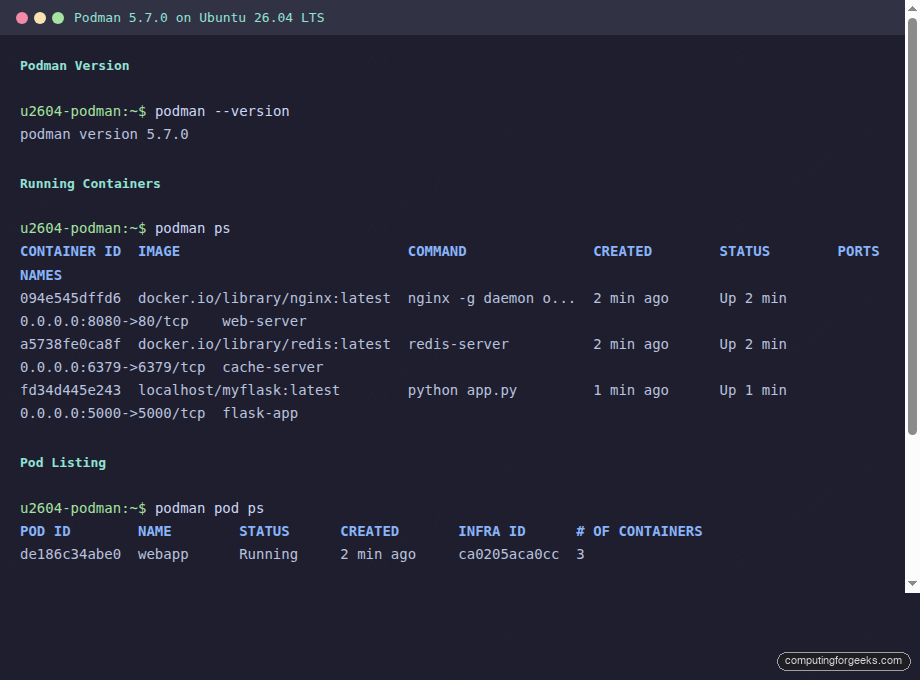
Here is how it looks with containers and pods running on a live Ubuntu 26.04 system:
Podman vs Docker: Feature Comparison
The question most people ask before switching: what exactly is different? Both tools run OCI containers and accept the same CLI commands. The architectural differences matter for security, server management, and how you think about container lifecycle.
| Feature | Podman | Docker |
|---|---|---|
| Architecture | Daemonless, each container is a child process | Client-server, dockerd daemon required |
| Root requirement | Rootless by default, no special group | Requires root or docker group membership |
| Container runtime | crun (default on Ubuntu 26.04) | runc (default) |
| Pod support | Native pods (Kubernetes-style) | No native pod concept |
| Systemd integration | Quadlets, first-class systemd citizen | Requires custom unit files |
| Socket | No persistent socket (optional API socket) | /var/run/docker.sock (attack surface) |
| CLI compatibility | Same commands, podman-docker package for alias | Native docker command |
| Compose | podman-compose or docker-compose with socket | docker compose (built-in plugin) |
| Image format | OCI and Docker formats | OCI and Docker formats |
| Build tool | Buildah (bundled) | BuildKit (bundled) |
| Networking | Netavark (replaces CNI) | libnetwork |
| Storage driver | overlay (default) | overlay2 (default) |
| Restart on boot | Quadlet .container files or systemd user units | –restart=always flag |
| Swarm mode | Not supported | Built-in Docker Swarm |
| Resource overhead | Lower (no daemon process) | Higher (dockerd + containerd) |
The practical difference comes down to this: Docker needs a daemon running at all times, and that daemon runs as root. Podman forks a container process directly, and that process can run as your regular user. For servers where you want minimal attack surface and tight systemd integration, Podman is the better fit. Docker still wins if you need Swarm orchestration or if your toolchain has hard Docker dependencies.
Both tools produce identical OCI images. An image built with Podman runs on Docker, and vice versa. Migration in either direction is straightforward because the CLI is intentionally compatible.