Ansible turns a 40-step server setup into a single command. For infrastructure provisioning (VPCs, VMs, cloud resources), pair Ansible with Terraform or OpenTofu. Whether you’re provisioning a handful of web servers or orchestrating deployments across hundreds of nodes, Ansible handles it without agents, daemons, or custom protocols. On Ubuntu 26.04 LTS with Python 3.14 as the default interpreter, Ansible works out of the box with zero dependency headaches.
This guide walks through installing Ansible on Ubuntu 26.04, setting up inventory and configuration files, writing a real playbook that deploys Nginx, using Ansible Vault for secrets, pulling roles from Galaxy, and working with the modules you’ll actually use in production. Every command was tested on a fresh Ubuntu 26.04 system with Ansible core 2.20.1.
Tested April 2026 on Ubuntu 26.04 LTS, Ansible core 2.20.1 (package 13.1.0), Python 3.14.3
Prerequisites
Before getting started, make sure you have the following in place:
- A server or VM running Ubuntu 26.04 LTS (a completed initial server setup is recommended)
- Root or sudo access
- SSH access to any remote nodes you plan to manage (Ansible uses SSH for communication)
- Tested on: Ubuntu 26.04 LTS, Ansible core 2.20.1, Python 3.14.3
Install Ansible on Ubuntu 26.04
Ubuntu 26.04 ships Ansible in the default universe repository. A single apt command handles the installation along with all Python dependencies.
Update the package index first:
sudo apt updateInstall the full Ansible package:
sudo apt install -y ansibleThis pulls in Ansible core 2.20.1 along with all bundled collections. Verify the installation:
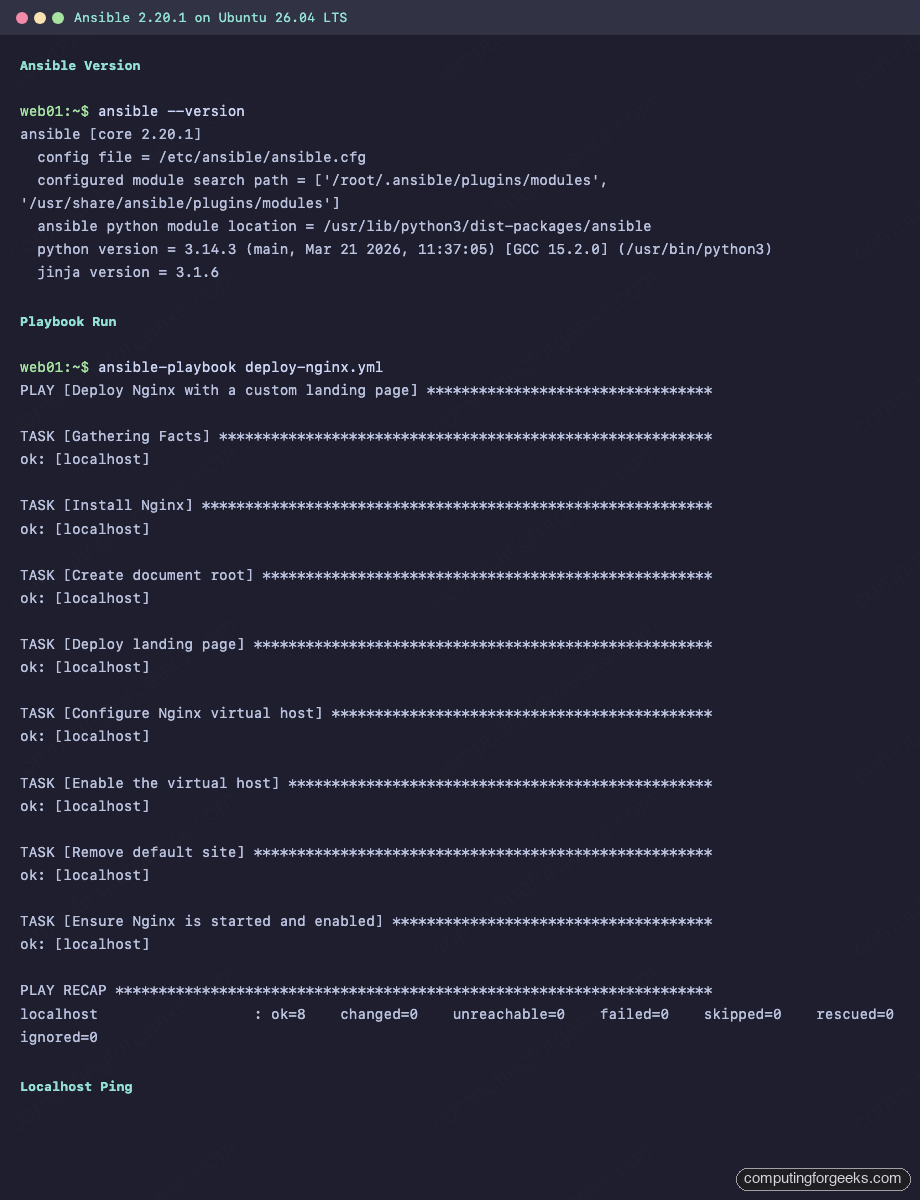
ansible --versionThe output confirms the version, Python interpreter path, and config file location:
ansible [core 2.20.1]
  config file = None
  configured module search path = ['/root/.ansible/plugins/modules', '/usr/share/ansible/plugins/modules']
  ansible python module location = /usr/lib/python3/dist-packages/ansible
  ansible collection location = /root/.ansible/collections:/usr/share/ansible/collections
  executable location = /usr/bin/ansible
  python version = 3.14.3 (main, Mar 21 2026, 11:37:05) [GCC 15.2.0] (/usr/bin/python3)
  jinja version = 3.1.6
  pyyaml version = 6.0.3 (with libyaml v0.2.5)
Notice that config file shows None because no configuration exists yet. That’s the next step.
Quick Connectivity Test
Before configuring anything, confirm Ansible can execute modules against localhost:
ansible localhost -m pingYou should see the classic “pong” response:
[WARNING]: No inventory was parsed, only implicit localhost is available
localhost | SUCCESS => {
    "changed": false,
    "ping": "pong"
}
The warning about no inventory is harmless here because Ansible always has an implicit localhost. This confirms the Python 3.14 interpreter and Ansible modules are working correctly.
Configure Ansible
Ansible looks for its configuration in several locations: ANSIBLE_CFG environment variable, ./ansible.cfg in the current directory, ~/.ansible.cfg, or /etc/ansible/ansible.cfg. For a system-wide setup, create the global config.
sudo mkdir -p /etc/ansibleCreate the main configuration file:
sudo vi /etc/ansible/ansible.cfgAdd the following configuration:
[defaults]
inventory = /etc/ansible/hosts
remote_user = root
host_key_checking = False
retry_files_enabled = False
timeout = 30

[privilege_escalation]
become = True
become_method = sudo
become_user = root
Setting host_key_checking = False prevents SSH from prompting to accept host keys on first connection, which is essential for automation. In highly sensitive environments you may want to leave this enabled and manage known_hosts separately. Disabling retry files keeps your project directories clean.
Run ansible --version again to confirm the config file is picked up:
ansible --version | head -3The output should now show the config path:
ansible [core 2.20.1]
  config file = /etc/ansible/ansible.cfg
  configured module search path = ['/root/.ansible/plugins/modules', '/usr/share/ansible/plugins/modules']
Set Up Inventory with Host Groups
The inventory file defines which servers Ansible manages. You can organize hosts into groups, assign variables per group, and nest groups inside other groups. Create the inventory file:
sudo vi /etc/ansible/hostsAdd your hosts organized by role:
[webservers]
10.0.1.50 ansible_user=root
10.0.1.51 ansible_user=root

[dbservers]
10.0.1.60 ansible_user=root

[all:vars]
ansible_python_interpreter=/usr/bin/python3
The [all:vars] section sets variables that apply to every host. Setting ansible_python_interpreter explicitly avoids the common “python not found” error on systems where only Python 3 is installed (which is the case on Ubuntu 26.04).
Verify the inventory structure:
ansible-inventory --listAnsible parses the INI file and outputs the full host tree as JSON:
{
    "_meta": {
        "hostvars": {
            "10.0.1.50": {
                "ansible_python_interpreter": "/usr/bin/python3",
                "ansible_user": "root"
            },
            "10.0.1.51": {
                "ansible_python_interpreter": "/usr/bin/python3",
                "ansible_user": "root"
            },
            "10.0.1.60": {
                "ansible_python_interpreter": "/usr/bin/python3",
                "ansible_user": "root"
            }
        }
    },
    "all": {
        "children": [
            "ungrouped",
            "webservers",
            "dbservers"
        ]
    },
    "dbservers": {
        "hosts": [
            "10.0.1.60"
        ]
    },
    "webservers": {
        "hosts": [
            "10.0.1.50",
            "10.0.1.51"
        ]
    }
}
Write and Run a Real Playbook
Ad-hoc commands are useful for quick tasks, but playbooks are where Ansible shines. This playbook installs Nginx, deploys a custom landing page, configures a virtual host, and uses a handler to restart the service only when configuration changes.
Create a project directory and the playbook file:
mkdir -p ~/ansible-demo && cd ~/ansible-demoCreate the playbook:
vi deploy-nginx.ymlAdd the following content. Pay attention to the handler at the bottom, which only fires when a task sends a notify signal:
---
- name: Deploy Nginx with a custom landing page
  hosts: localhost
  connection: local
  become: true

  vars:
    server_name: web01.example.com
    doc_root: /var/www/mysite

  handlers:
    - name: Restart Nginx
      ansible.builtin.service:
        name: nginx
        state: restarted

  tasks:
    - name: Install Nginx
      ansible.builtin.apt:
        name: nginx
        state: present
        update_cache: true

    - name: Create document root
      ansible.builtin.file:
        path: "{{ doc_root }}"
        state: directory
        owner: www-data
        group: www-data
        mode: "0755"

    - name: Deploy landing page
      ansible.builtin.copy:
        dest: "{{ doc_root }}/index.html"
        content: |
          <!DOCTYPE html>
          <html>
          <head><title>Deployed by Ansible</title></head>
          <body><h1>Hello from Ansible on Ubuntu 26.04</h1></body>
          </html>
        owner: www-data
        group: www-data
        mode: "0644"

    - name: Configure Nginx virtual host
      ansible.builtin.copy:
        dest: /etc/nginx/sites-available/mysite
        content: |
          server {
              listen 80;
              server_name {{ server_name }};
              root {{ doc_root }};
              index index.html;
              location / {
                  try_files $uri $uri/ =404;
              }
          }
        owner: root
        group: root
        mode: "0644"
      notify: Restart Nginx

    - name: Enable the virtual host
      ansible.builtin.file:
        src: /etc/nginx/sites-available/mysite
        dest: /etc/nginx/sites-enabled/mysite
        state: link
      notify: Restart Nginx

    - name: Remove default site
      ansible.builtin.file:
        path: /etc/nginx/sites-enabled/default
        state: absent
      notify: Restart Nginx

    - name: Ensure Nginx is started and enabled
      ansible.builtin.service:
        name: nginx
        state: started
        enabled: true
A few things worth noting about this playbook. The vars section defines variables that keep the playbook flexible. Change server_name and doc_root to match your environment without touching the tasks. The handler Restart Nginx only runs if one of the tasks with notify: Restart Nginx actually changes something on disk. This is what makes Ansible idempotent: run it ten times, and the handler only fires when there’s a real change.
Dry Run with Check Mode
Before making any changes, run the playbook in check mode to see what would happen:
ansible-playbook deploy-nginx.yml --checkCheck mode simulates the run without modifying the system. Some tasks (like creating symlinks to files that don’t exist yet) will fail in check mode because they depend on earlier tasks actually creating files. This is normal and expected.
Execute the Playbook
Run it for real:
ansible-playbook deploy-nginx.ymlAll tasks complete successfully with the handler firing at the end:
PLAY [Deploy Nginx with a custom landing page] *********************************

TASK [Gathering Facts] *********************************************************
ok: [localhost]

TASK [Install Nginx] ***********************************************************
changed: [localhost]

TASK [Create document root] ****************************************************
changed: [localhost]

TASK [Deploy landing page] *****************************************************
changed: [localhost]

TASK [Configure Nginx virtual host] ********************************************
changed: [localhost]

TASK [Enable the virtual host] *************************************************
changed: [localhost]

TASK [Remove default site] *****************************************************
changed: [localhost]

TASK [Ensure Nginx is started and enabled] *************************************
ok: [localhost]

RUNNING HANDLER [Restart Nginx] ************************************************
changed: [localhost]

PLAY RECAP *********************************************************************
localhost                  : ok=9    changed=7    unreachable=0    failed=0    skipped=0    rescued=0    ignored=0
Confirm the deployed page is serving:
curl http://localhostThe custom landing page is live:
<!DOCTYPE html>
<html>
<head><title>Deployed by Ansible</title></head>
<body><h1>Hello from Ansible on Ubuntu 26.04</h1></body>
</html>
Verify Idempotency
Run the same playbook a second time to prove idempotency:
ansible-playbook deploy-nginx.ymlEvery task shows ok and changed=0, meaning nothing was modified:
PLAY RECAP *********************************************************************
localhost                  : ok=8    changed=0    unreachable=0    failed=0    skipped=0    rescued=0    ignored=0
The handler did not fire because no configuration changed. This is the behavior you want in production: Ansible only touches what needs touching.
Encrypt Secrets with Ansible Vault
Storing passwords and API keys in plain-text YAML files is a non-starter for any real project. Ansible Vault encrypts sensitive data with AES-256 so you can safely commit secrets to version control.
Encrypt an Entire File
Create a secrets file:
vi ~/ansible-demo/secrets.ymlAdd some sensitive variables:
---
db_password: supersecret123
api_key: abc-xyz-token-999
Encrypt the file:
ansible-vault encrypt ~/ansible-demo/secrets.ymlAnsible prompts for a vault password, then replaces the file contents with encrypted ciphertext. Viewing the file now shows only the encrypted blob:
$ANSIBLE_VAULT;1.1;AES256
63383833343564373464363362333431633739653463323965396336613264373964313734623936
6532636532663665373932396262333736616130656630300a646333633039633965663831653266
35316430623361626565376363656132616562653036386132643338353131613732656236663062
6639386430633063350a633562383330303938356536326433653534613035373565626631356535
View and Edit Encrypted Files
Decrypt and view the contents without modifying the file:
ansible-vault view ~/ansible-demo/secrets.ymlThe original YAML is displayed after entering the vault password:
---
db_password: supersecret123
api_key: abc-xyz-token-999
To edit an encrypted file in place, use ansible-vault edit secrets.yml. Ansible decrypts it into your editor, then re-encrypts when you save.
Encrypt Individual Variables
Sometimes you only need to encrypt a single value, not the whole file. Use encrypt_string:
ansible-vault encrypt_string "s3cret_db_password" --name "db_password"This outputs a vault-encrypted variable you can paste directly into any playbook or vars file:
db_password: !vault |
          $ANSIBLE_VAULT;1.1;AES256
          37663766333633613235303437376130303332633434633336306634346566333538646362613762
          3163363066393166356330616439353237363033326533310a326465393730373330306564623633
          62373535373365396561336666636535656166313133323366613830646138636535343038643138
          6339396466613335390a666462353830373333306532353561386132613464346530303737303961
          65633061303334376330613736323835626139333564366131363932646265613938
To use vault-encrypted variables in a playbook run, pass --ask-vault-pass or point to a password file with --vault-password-file.
Install Roles from Ansible Galaxy
Ansible Galaxy is a community hub for pre-built roles. Instead of writing every task from scratch, pull a maintained role and customize it with variables.
Install a popular role, for example geerlingguy.docker for Docker installation:
ansible-galaxy role install geerlingguy.dockerGalaxy downloads and extracts the role to ~/.ansible/roles/:
Starting galaxy role install process
- downloading role 'docker', owned by geerlingguy
- downloading role from https://github.com/geerlingguy/ansible-role-docker/archive/8.0.0.tar.gz
- extracting geerlingguy.docker to /root/.ansible/roles/geerlingguy.docker
- geerlingguy.docker (8.0.0) was installed successfully
List installed roles:
ansible-galaxy role listThe output shows the role name and version:
# /root/.ansible/roles
- geerlingguy.docker, 8.0.0
To use a Galaxy role in a playbook, reference it under roles:
---
- name: Install Docker using Galaxy role
  hosts: webservers
  become: true
  roles:
    - role: geerlingguy.docker
      vars:
        docker_edition: ce
        docker_users:
          - deploy
For projects with multiple role dependencies, create a requirements.yml file and install everything at once with ansible-galaxy install -r requirements.yml.
Common Ansible Modules Reference
Ansible ships with hundreds of modules, but in practice you’ll reach for the same dozen repeatedly. Here are the ones that cover 90% of server provisioning tasks.
apt: Package Management
Install, remove, or update packages on Debian/Ubuntu systems:
- name: Install multiple packages
  ansible.builtin.apt:
    name:
      - nginx
      - curl
      - ufw
    state: present
    update_cache: true
copy and template: File Deployment
The copy module pushes static files or inline content. For files that need variable substitution, use template with Jinja2:
- name: Deploy static config
  ansible.builtin.copy:
    src: files/app.conf
    dest: /etc/app/app.conf
    owner: root
    mode: "0644"

- name: Deploy templated config
  ansible.builtin.template:
    src: templates/nginx.conf.j2
    dest: /etc/nginx/nginx.conf
  notify: Restart Nginx
service: Manage Daemons
Start, stop, enable, or restart systemd services:
- name: Enable and start Nginx
  ansible.builtin.service:
    name: nginx
    state: started
    enabled: true
user and file: System Setup
Create users, set permissions, manage directories:
- name: Create deploy user
  ansible.builtin.user:
    name: deploy
    shell: /bin/bash
    groups: sudo
    append: true

- name: Create application directory
  ansible.builtin.file:
    path: /opt/myapp
    state: directory
    owner: deploy
    group: deploy
    mode: "0755"
Test the user module from the command line:
ansible localhost -m ansible.builtin.user -a "name=deploy shell=/bin/bash state=present"Ansible creates the user and reports what changed:
localhost | CHANGED => {
    "changed": true,
    "comment": "",
    "create_home": true,
    "group": 1000,
    "home": "/home/deploy",
    "name": "deploy",
    "shell": "/bin/bash",
    "state": "present",
    "system": false,
    "uid": 1000
}
command and shell: Run Arbitrary Commands
When no specific module exists for what you need, command runs executables directly. Use shell when you need pipes or redirects:
- name: Check Nginx version
  ansible.builtin.command: nginx -v
  register: nginx_ver
  changed_when: false

- name: Find large log files
  ansible.builtin.shell: find /var/log -name "*.log" -size +100M | head -5
  register: large_logs
  changed_when: false
Setting changed_when: false tells Ansible these are read-only commands, so the play recap stays accurate.
Gather System Facts
Ansible automatically collects system information (facts) at the start of every play. These facts include IP addresses, OS details, hardware specs, and more. You can use them in conditionals and templates.
View all facts for localhost:
ansible localhost -m setup | head -30A small sample of what gets collected:
localhost | SUCCESS => {
    "ansible_facts": {
        "ansible_all_ipv4_addresses": [
            "192.168.1.133"
        ],
        "ansible_apparmor": {
            "status": "enabled"
        },
        "ansible_architecture": "x86_64",
        "ansible_distribution": "Ubuntu",
        "ansible_distribution_version": "26.04",
        "ansible_kernel": "7.0.0-10-generic",
        "ansible_memtotal_mb": 2048,
        "ansible_processor_vcpus": 2
    }
}
Use facts in playbooks with the ansible_ prefix. For example, ansible_distribution returns “Ubuntu” and ansible_os_family returns “Debian”, which is useful for writing playbooks that work across both Debian and RHEL families.
Troubleshooting
“Failed to connect to the host via ssh: Permission denied (publickey)”
This means Ansible can’t authenticate to the remote host. The most common cause is a missing SSH key. Generate one if you haven’t already:
ssh-keygen -t ed25519 -C "ansible-controller"
ssh-copy-id [email protected]
If your key is in a non-default location, specify it in the inventory with ansible_ssh_private_key_file=/path/to/key or in ansible.cfg under [defaults] as private_key_file.
“Missing sudo password” or “become” errors
When connecting as a non-root user, Ansible needs sudo privileges for most tasks. If you see Missing sudo password, either:
- Run the playbook with
--ask-become-pass(or-K) to prompt for the sudo password - Configure passwordless sudo for the Ansible user on the target: add
deploy ALL=(ALL) NOPASSWD: ALLto/etc/sudoers.d/deploy
Never put sudo passwords in inventory files. Use ansible-vault if you must store them, or better yet, configure passwordless sudo for your automation user.
“/usr/bin/python: not found” on Remote Hosts
Ubuntu 26.04 only ships Python 3, but Ansible may default to looking for /usr/bin/python. Set the interpreter explicitly in your inventory:
[all:vars]
ansible_python_interpreter=/usr/bin/python3
Or per-host: 10.0.1.50 ansible_python_interpreter=/usr/bin/python3. This is already configured in the inventory example earlier in this guide, but if you’re managing a mixed fleet of older and newer Ubuntu versions, you may need to set it selectively.