Docker Compose v2 ships as a plugin with Docker CE. No separate binary to download, no Python dependency to manage, no pip install to break. You run docker compose (with a space, not a hyphen) and it just works.
This guide walks through installing Docker Compose on Ubuntu 26.04 LTS, then builds two real multi-container stacks: WordPress with MariaDB and Redis, and a Flask API behind Nginx with PostgreSQL. Both examples include health checks, environment variables via .env files, volume management, and compose lifecycle commands.
Tested April 2026 | Ubuntu 26.04 LTS (kernel 7.0), Docker CE 29.4.0, Docker Compose v5.1.2
Prerequisites
Before you start, make sure you have a running Ubuntu 26.04 system with sudo or root access. If this is a fresh server, run through the initial server setup for Ubuntu 26.04 first.
- Ubuntu 26.04 LTS (tested on kernel 7.0.0-10-generic)
- Root or sudo access
- Internet connectivity for pulling images
- Minimum 2 GB RAM, 20 GB disk (for the example stacks)
Ubuntu 26.04 runs cgroup v2 exclusively with systemd 259. Most modern container images work fine, but very old images (Alpine 3.13 and earlier, some legacy CentOS 7 images) may need updates.
Install Docker CE and Docker Compose
Docker Compose v2 is bundled with the docker-compose-plugin package from Docker’s official repository. If you already followed our Docker CE installation guide for Ubuntu 26.04, Compose is already installed. Otherwise, set up the Docker apt repository and install everything in one pass.
Install the prerequisite packages:
sudo apt update
sudo apt install -y ca-certificates curl gnupg
Add Docker’s official GPG key and repository:
sudo install -m 0755 -d /etc/apt/keyrings
curl -fsSL https://download.docker.com/linux/ubuntu/gpg | sudo gpg --dearmor -o /etc/apt/keyrings/docker.gpg
sudo chmod a+r /etc/apt/keyrings/docker.gpg
echo "deb [arch=$(dpkg --print-architecture) signed-by=/etc/apt/keyrings/docker.gpg] https://download.docker.com/linux/ubuntu $(. /etc/os-release && echo $VERSION_CODENAME) stable" | sudo tee /etc/apt/sources.list.d/docker.list > /dev/null
Install Docker CE along with the Compose plugin and Buildx:
sudo apt update
sudo apt install -y docker-ce docker-ce-cli containerd.io docker-buildx-plugin docker-compose-plugin
Verify Docker and Compose are running:
docker --version
docker compose version
You should see both versions confirmed:
Docker version 29.4.0, build 9d7ad9f
Docker Compose version v5.1.2
The Docker daemon should already be active. Confirm with:
sudo systemctl is-active dockerThe output reads active if everything is working. Check the cgroup driver to confirm v2:
docker info | grep -E "Cgroup|Storage|Server Version"Expected output on Ubuntu 26.04:
 Server Version: 29.4.0
 Storage Driver: overlayfs
 Cgroup Driver: systemd
 Cgroup Version: 2
Example 1: WordPress with MariaDB and Redis
A classic three-tier setup: WordPress for the frontend, MariaDB for the database, and Redis for object caching. This example covers environment variables via .env files, health checks, named volumes, and service dependencies.
Create a project directory:
mkdir -p ~/wordpress-stack && cd ~/wordpress-stackCreate the .env File
Sensitive values like database credentials belong in a .env file, not hardcoded in the compose file. Compose reads .env automatically from the project directory.
vi .envAdd the following variables:
DB_ROOT_PASS=S3cur3R00tP@ss
DB_NAME=wordpress
DB_USER=wpuser
DB_PASS=WpUs3rP@ss2026
Create docker-compose.yml
Open the compose file:
vi docker-compose.ymlAdd the full stack definition with health checks and dependency conditions:
services:
  db:
    image: mariadb:11
    container_name: wp-mariadb
    restart: unless-stopped
    environment:
      MARIADB_ROOT_PASSWORD: ${DB_ROOT_PASS}
      MARIADB_DATABASE: ${DB_NAME}
      MARIADB_USER: ${DB_USER}
      MARIADB_PASSWORD: ${DB_PASS}
    volumes:
      - db_data:/var/lib/mysql
    networks:
      - wp-net
    healthcheck:
      test: ["CMD", "healthcheck.sh", "--connect", "--innodb_initialized"]
      interval: 10s
      timeout: 5s
      retries: 3

  redis:
    image: redis:7-alpine
    container_name: wp-redis
    restart: unless-stopped
    volumes:
      - redis_data:/data
    networks:
      - wp-net
    healthcheck:
      test: ["CMD", "redis-cli", "ping"]
      interval: 10s
      timeout: 3s
      retries: 3

  wordpress:
    image: wordpress:6-apache
    container_name: wp-app
    restart: unless-stopped
    depends_on:
      db:
        condition: service_healthy
      redis:
        condition: service_healthy
    ports:
      - "8080:80"
    environment:
      WORDPRESS_DB_HOST: db
      WORDPRESS_DB_NAME: ${DB_NAME}
      WORDPRESS_DB_USER: ${DB_USER}
      WORDPRESS_DB_PASSWORD: ${DB_PASS}
    volumes:
      - wp_data:/var/www/html
    networks:
      - wp-net

volumes:
  db_data:
  redis_data:
  wp_data:

networks:
  wp-net:
    driver: bridge
Key things to notice: the depends_on block uses condition: service_healthy, so WordPress waits until both MariaDB and Redis pass their health checks before starting. The ${DB_NAME} syntax pulls values from the .env file automatically.
Bring the Stack Up
Start all three services in detached mode:
docker compose up -dCompose pulls the images, creates the network, volumes, and starts containers in dependency order. Check the running services:
docker compose psAll three containers should show as running with health status:
NAME         IMAGE                COMMAND                  SERVICE     CREATED          STATUS                    PORTS
wp-app       wordpress:6-apache   "docker-entrypoint.s…"   wordpress   17 seconds ago   Up 6 seconds              0.0.0.0:8080->80/tcp
wp-mariadb   mariadb:11           "docker-entrypoint.s…"   db          17 seconds ago   Up 16 seconds (healthy)   3306/tcp
wp-redis     redis:7-alpine       "docker-entrypoint.s…"   redis       17 seconds ago   Up 16 seconds (healthy)   6379/tcp
View recent log output from all services:
docker compose logs --tail=5The MariaDB logs should confirm “ready for connections” and WordPress should show Apache starting on port 80:
wp-mariadb  | 2026-04-14  8:43:42 0 [Note] mariadbd: ready for connections.
wp-mariadb  | Version: '11.8.6-MariaDB-ubu2404'  socket: '/run/mysqld/mysqld.sock'  port: 3306
wp-redis    | 1:M 14 Apr 2026 08:43:35.218 * Ready to accept connections tcp
wp-app      | [Tue Apr 14 08:43:46.327088 2026] [mpm_prefork:notice] [pid 1:tid 1] AH00163: Apache/2.4.66 (Debian) PHP/8.3.30 configured -- resuming normal operations
Run Commands Inside Containers
Use docker compose exec to run commands inside a running container. Verify the database was created:
docker compose exec db mariadb -u wpuser -pWpUs3rP@ss2026 -e "SHOW DATABASES;"The output shows the wordpress database exists:
Database
information_schema
wordpress
WordPress is accessible at http://10.0.1.50:8080. Open a browser and you should see the WordPress installation wizard.
Lifecycle Commands
Stop and remove all containers (volumes are preserved):
docker compose downCompose stops containers in reverse dependency order, removes them, and tears down the network:
 Container wp-app Stopping
 Container wp-app Removed
 Container wp-redis Removed
 Container wp-mariadb Removed
 Network wordpress-stack_wp-net Removed
Bring everything back up. Since volumes persist, your data is intact:
docker compose up -dRestart a single service without touching the others:
docker compose restart wordpressTo destroy everything including volumes (this deletes all data):
docker compose down -vExample 2: Flask API with Nginx and PostgreSQL
This example builds a custom Docker image using docker compose build, sets up an Nginx reverse proxy in front of a Python Flask API, and connects to PostgreSQL 17.
mkdir -p ~/flask-stack/app && cd ~/flask-stackWrite the Flask Application
Create the Python application:
vi app/app.pyAdd a simple API with a health endpoint that queries PostgreSQL:
from flask import Flask, jsonify
import psycopg2
import os

app = Flask(__name__)

def get_db():
    return psycopg2.connect(
        host=os.environ["DB_HOST"],
        database=os.environ["DB_NAME"],
        user=os.environ["DB_USER"],
        password=os.environ["DB_PASS"]
    )

@app.route("/")
def index():
    return jsonify({"status": "running", "app": "flask-demo"})

@app.route("/health")
def health():
    try:
        conn = get_db()
        cur = conn.cursor()
        cur.execute("SELECT version();")
        version = cur.fetchone()[0]
        cur.close()
        conn.close()
        return jsonify({"db": "connected", "version": version})
    except Exception as e:
        return jsonify({"db": "error", "detail": str(e)}), 500

if __name__ == "__main__":
    app.run(host="0.0.0.0", port=5000)
Create the Dockerfile
The Flask service uses a custom image. Create the requirements file first:
vi app/requirements.txtAdd the Python dependencies:
flask==3.1.1
psycopg2-binary==2.9.10
gunicorn==23.0.0
Now create the Dockerfile:
vi app/DockerfileKeep it minimal with a slim Python base:
FROM python:3.13-slim
WORKDIR /app
COPY requirements.txt .
RUN pip install --no-cache-dir -r requirements.txt
COPY app.py .
EXPOSE 5000
CMD ["gunicorn", "-w", "2", "-b", "0.0.0.0:5000", "app:app"]
Configure the Nginx Reverse Proxy
Create the Nginx configuration that proxies requests to the Flask container:
vi nginx.confAdd the upstream and server blocks:
upstream flask_app {
    server flask:5000;
}
server {
    listen 80;
    server_name _;
    location / {
        proxy_pass http://flask_app;
        proxy_set_header Host $host;
        proxy_set_header X-Real-IP $remote_addr;
        proxy_set_header X-Forwarded-For $proxy_add_x_forwarded_for;
        proxy_set_header X-Forwarded-Proto $scheme;
    }
}
Docker’s internal DNS resolves the flask hostname to the Flask container’s IP automatically.
Create the Compose File
Set up the environment file:
vi .envAdd the database credentials:
DB_NAME=flaskapp
DB_USER=flaskuser
DB_PASS=Fl@skP@ss2026
Now create the compose file:
vi docker-compose.ymlDefine all three services with the build context for Flask:
services:
  postgres:
    image: postgres:17
    container_name: flask-postgres
    restart: unless-stopped
    environment:
      POSTGRES_DB: ${DB_NAME}
      POSTGRES_USER: ${DB_USER}
      POSTGRES_PASSWORD: ${DB_PASS}
    volumes:
      - pg_data:/var/lib/postgresql/data
    networks:
      - app-net
    healthcheck:
      test: ["CMD-SHELL", "pg_isready -U ${DB_USER} -d ${DB_NAME}"]
      interval: 10s
      timeout: 5s
      retries: 3

  flask:
    build: ./app
    container_name: flask-app
    restart: unless-stopped
    depends_on:
      postgres:
        condition: service_healthy
    environment:
      DB_HOST: postgres
      DB_NAME: ${DB_NAME}
      DB_USER: ${DB_USER}
      DB_PASS: ${DB_PASS}
    networks:
      - app-net

  nginx:
    image: nginx:alpine
    container_name: flask-nginx
    restart: unless-stopped
    depends_on:
      - flask
    ports:
      - "8090:80"
    volumes:
      - ./nginx.conf:/etc/nginx/conf.d/default.conf:ro
    networks:
      - app-net

volumes:
  pg_data:

networks:
  app-net:
    driver: bridge
Notice the build: ./app directive. Instead of pulling a pre-built image, Compose builds the Flask image from the Dockerfile in the app/ directory.
Build and Start the Stack
Build the custom image and start everything:
docker compose up -d --buildThe --build flag forces a rebuild of the Flask image even if a cached version exists. Check the services:
docker compose psAll three containers should be running:
NAME             IMAGE               COMMAND                  SERVICE    CREATED          STATUS                    PORTS
flask-app        flask-stack-flask   "gunicorn -w 2 -b 0.…"   flask      17 seconds ago   Up 6 seconds              5000/tcp
flask-nginx      nginx:alpine        "/docker-entrypoint.…"   nginx      17 seconds ago   Up 6 seconds              0.0.0.0:8090->80/tcp
flask-postgres   postgres:17         "docker-entrypoint.s…"   postgres   17 seconds ago   Up 17 seconds (healthy)   5432/tcp
Test the API through the Nginx proxy:
curl -s http://localhost:8090/The response confirms Flask is running behind Nginx:
{"app":"flask-demo","status":"running"}Hit the health endpoint to verify the PostgreSQL connection:
curl -s http://localhost:8090/healthThe response includes the PostgreSQL version, confirming the database link works:
{"db":"connected","version":"PostgreSQL 17.9 (Debian 17.9-1.pgdg13+1) on x86_64-pc-linux-gnu, compiled by gcc (Debian 14.2.0-19) 14.2.0, 64-bit"}Volume and Network Management
Compose creates named volumes and networks with a project prefix (the directory name). List all volumes:
docker volume lsEach stack gets its own volumes:
DRIVER    VOLUME NAME
local     flask-stack_pg_data
local     wordpress-stack_db_data
local     wordpress-stack_redis_data
local     wordpress-stack_wp_data
List the networks:
docker network lsEach compose project creates an isolated bridge network:
NETWORK ID     NAME                     DRIVER    SCOPE
bf0d65c2b6c6   bridge                   bridge    local
fa0188734325   flask-stack_app-net      bridge    local
d3322f0317bf   host                     host      local
8310049ca519   wordpress-stack_wp-net   bridge    local
Services within the same compose network can reach each other by service name (for example, flask connects to postgres by hostname). Services in different compose projects are isolated from each other by default.
Useful Docker Compose Commands
Here is a quick reference for the commands you will use most often.
Validate the compose file syntax without starting anything:
docker compose configView running processes inside each container:
docker compose topThis shows PID, user, and command for every process:
SERVICE    UID       PID   PPID  C   STIME  TTY  TIME      CMD
wordpress  root      9437  9414  0   08:43  ?    00:00:00  apache2 -DFOREGROUND
wordpress  www-data  9545  9437  0   08:43  ?    00:00:00  apache2 -DFOREGROUND
db         999       9153  9107  0   08:43  ?    00:00:01  mariadbd
redis      999       9156  9108  0   08:43  ?    00:00:00  redis-server *:6379
Follow logs in real time from a specific service:
docker compose logs -f wordpressList all images used by the current compose project:
docker images --format "table {{.Repository}}\t{{.Tag}}\t{{.Size}}"The output shows image sizes, which matters for deployment pipelines:
REPOSITORY          TAG        SIZE
flask-stack-flask   latest     219MB
nginx               alpine     93.5MB
wordpress           6-apache   1.08GB
mariadb             11         465MB
postgres            17         645MB
redis               7-alpine   61.2MB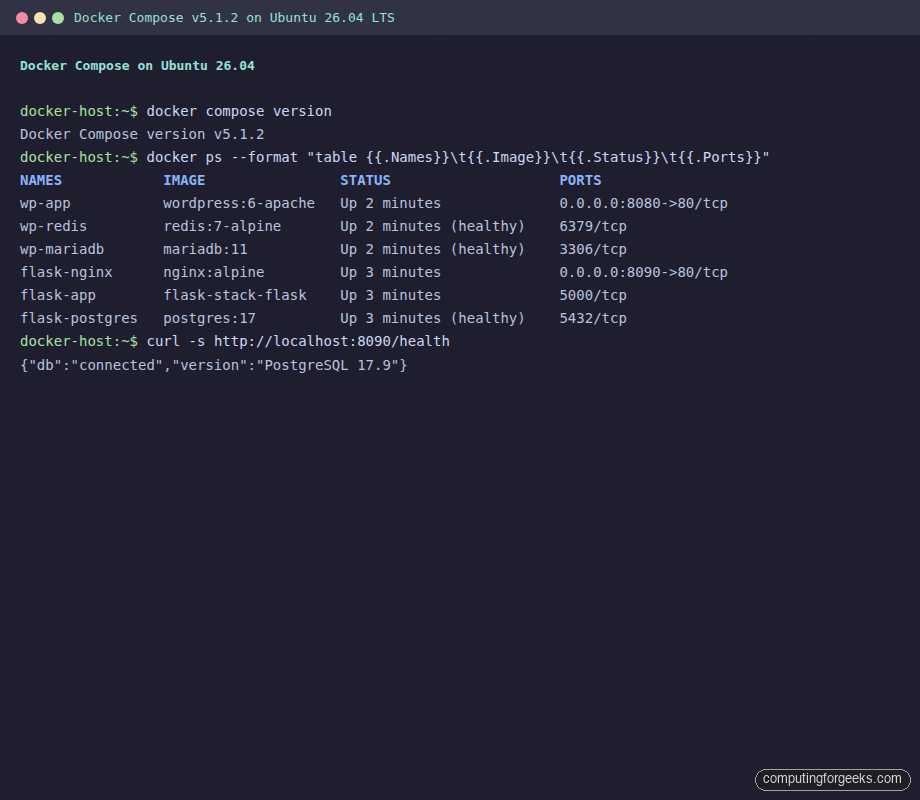
Understanding Health Checks
Health checks are not optional in production compose files. Without them, depends_on only waits for the container to start, not for the service inside it to be ready. The MariaDB container starts in about 2 seconds, but the database engine takes another 5 to 10 seconds to initialize InnoDB and accept connections.
The health check configuration has four parameters:
- test: the command to run inside the container
- interval: how often to run it (10s is reasonable for most services)
- timeout: how long to wait for the command to complete
- retries: how many consecutive failures before marking unhealthy
For MariaDB, the official image ships with healthcheck.sh that checks both connectivity and InnoDB initialization. For PostgreSQL, pg_isready is the standard tool. For Redis, a simple redis-cli ping works.
Check health status of all running containers:
docker ps --format "table {{.Names}}\t{{.Status}}"Healthy containers show “(healthy)” in the status column:
NAMES            STATUS
wp-app           Up 2 minutes
wp-redis         Up 2 minutes (healthy)
wp-mariadb       Up 2 minutes (healthy)
flask-nginx      Up 3 minutes
flask-postgres   Up 3 minutes (healthy)
Production Hardening
The examples above work for development. Production deployments need tighter controls around restart behavior, resource limits, logging, and security. Add these to your service definitions.
Restart Policies
The unless-stopped policy used in the examples restarts containers after crashes and after host reboots, but not if you explicitly stop them with docker compose stop. For a daemonless alternative that runs containers as regular processes, Podman with podman-compose supports the same compose file format. For critical services, use always instead. The key difference: always restarts even after a manual stop when the Docker daemon restarts.
services:
  db:
    image: mariadb:11
    restart: always
    deploy:
      restart_policy:
        condition: on-failure
        delay: 5s
        max_attempts: 3
        window: 120s
Resource Limits
Without memory limits, a single container can consume all host memory and trigger the OOM killer. Set explicit limits under the deploy key:
services:
  wordpress:
    image: wordpress:6-apache
    deploy:
      resources:
        limits:
          cpus: "1.0"
          memory: 512M
        reservations:
          cpus: "0.25"
          memory: 128M
The reservations block guarantees a minimum allocation. The limits block caps maximum usage. If a container exceeds its memory limit, Docker kills it and the restart policy brings it back.
Logging Configuration
Docker’s default json-file logging driver writes unlimited logs. On a busy service, log files grow until the disk is full. Set rotation limits:
services:
  nginx:
    image: nginx:alpine
    logging:
      driver: json-file
      options:
        max-size: "10m"
        max-file: "3"
This caps each service at 30 MB of logs (3 files of 10 MB each). For centralized logging, switch to the syslog or fluentd driver.
Security Options
Drop unnecessary Linux capabilities and disable privilege escalation:
services:
  flask:
    build: ./app
    security_opt:
      - no-new-privileges:true
    read_only: true
    tmpfs:
      - /tmp
The no-new-privileges flag prevents processes inside the container from gaining additional privileges via setuid or setgid binaries. The read_only flag makes the root filesystem read-only, which blocks many common attack vectors. The tmpfs mount gives the application a writable /tmp without exposing the rest of the filesystem.
For database containers, you cannot use read_only: true because they need to write to their data directories. Use no-new-privileges and explicit volume mounts instead.