

Every serious network lab eventually outgrows a simulator. Packet Tracer covers most certification topologies, but the moment you need real IOS output, third-party appliances, or a router image your study guide quotes verbatim, you need an emulator. GNS3 runs real Cisco, Juniper, and Arista images on your own hardware and wires them together with virtual cables, which is why it has been the default network lab platform for over a decade.
This guide installs the GNS3 server on Ubuntu from the official PPA, adds the Dynamips and QEMU/KVM backends, sets up a systemd service, then builds and verifies a first topology in the bundled Web UI. Every step below was run top to bottom on fresh Ubuntu 26.04 LTS and Ubuntu 24.04 LTS servers in July 2026, with GNS3 2.2.59 from the official PPA on both.
Why GNS3 on Ubuntu
GNS3 on Ubuntu runs emulated devices at near native speed because Dynamips, QEMU/KVM, and Docker all execute directly on the Linux kernel. On Windows and macOS, any QEMU or Docker based appliance forces you into the GNS3 VM, which adds a hypervisor layer between the lab and the host. Installing directly on Ubuntu skips that layer and gives the emulated routers every core and every gigabyte you can spare.
The bundled GNS3 Web UI also changes what an Ubuntu server can be. Recent releases ship a browser client on port 3080, so a headless box in a rack, a Proxmox VM, or a cheap cloud instance becomes a full lab you drive from any laptop, no desktop client required. The PPA tracks the stable 2.2 line (its own description says GNS3 v2.x), which is the version this guide targets.
Prerequisites
- Ubuntu 26.04 LTS or 24.04 LTS, server or desktop
- A user with
sudoprivileges and network access to Launchpad PPAs - CPU with VT-x or AMD-V if you plan to run QEMU-based appliances
Size the host from the images you intend to boot, not from the GNS3 packages. The server itself idles under 100 MB of RAM, and VPCS endpoints are nearly free. Dynamips routers take 256 to 512 MB each, while QEMU appliances are the real cost: IOSv wants 512 MB, IOSvL2 768 MB, and a Cat8000v or vMX eats 4 GB or more per node. A 6-router Dynamips topology fits in 4 GB total; a mixed lab with three or four QEMU appliances wants 16 GB. The test servers for this guide ran 2 vCPUs and 8 GB, which is a comfortable floor for CCNA-scale labs, not a recommendation for heavy multivendor topologies. Disk follows the same logic: 20 GB covers the install plus a few appliance images.
Verify hardware virtualization is exposed before you start:
grep -c -E 'vmx|svm' /proc/cpuinfoAny number above zero means KVM acceleration will work. Zero on a VM means nested virtualization is disabled on the hypervisor, which the troubleshooting section covers.
Step 1: Update the system and enable universe
GNS3’s dependencies pull from Ubuntu’s universe repository. It is enabled by default on both LTS releases, but confirming costs one command:
sudo apt update && sudo apt upgrade -y
sudo add-apt-repository -y universe
Install the tooling that lets add-apt-repository handle external PPAs:
sudo apt install -y software-properties-common curlWith that in place, the GNS3 PPA is one command away.
Step 2: Add the official GNS3 PPA
The GNS3 team publishes ppa:gns3/ppa with builds for every current Ubuntu release, including a dedicated suite for each codename. Add it and refresh the index:
sudo add-apt-repository -y ppa:gns3/ppa
sudo apt update
The confirmation names the suite matching your release. On Ubuntu 26.04 that is resolute:
Repository: 'Types: deb
URIs: https://ppa.launchpadcontent.net/gns3/ppa/ubuntu/
Suites: resolute
Components: main
'
Description:
PPA for GNS3 v2.x and supporting packages. Please see http://www.gns3.com for more details.
On 24.04 the suite reads noble instead. Confirm apt now sees the package and which build it will install:
apt-cache policy gns3-serverThe candidate should come from the PPA, tagged with your codename:
gns3-server:
  Installed: (none)
  Candidate: 2.2.59~resolute1
  Version table:
     2.2.59~resolute1 500
        500 https://ppa.launchpadcontent.net/gns3/ppa/ubuntu resolute/main amd64 Packages
Debian users cannot add this PPA cleanly because it ships no Debian suites. On Debian 13 or 12, follow the dedicated GNS3 on Debian install guide instead.
Step 3: Install the GNS3 server
For a headless lab box, install only the server package:
sudo apt install -y --no-install-recommends gns3-serverThis pulls more than the orchestrator. The PPA package hard-depends on vpcs, ubridge, qemu-system-x86, qemu-utils, and libvirt-daemon-system, so the QEMU/KVM backend and the VPCS endpoint simulator arrive automatically even with recommends disabled. Confirm the server version:
gns3server --versionThe current PPA build prints:
2.2.59On an Ubuntu workstation where you also want the Qt desktop client, install the pair without the recommends flag:
sudo apt install -y gns3-gui gns3-serverThe desktop client then starts from the Activities menu or with gns3 in a terminal. On a server, skip gns3-gui and drive everything from a browser.
Step 4: Add Dynamips and check the backends
Dynamips, the classic Cisco IOS emulator, is only a recommended package, so the headless install above skips it. Add it explicitly:
sudo apt install -y dynamipsCheck the build:
dynamips --version | head -1On Ubuntu 26.04 the PPA ships the current stable branch:
Cisco Router Simulation Platform (version 0.2.24-amd64/Linux stable)The two LTS releases do not get identical stacks, which matters when you compare behaviour between hosts. Here is what the same install commands produced on each release in July 2026:
| Component | Ubuntu 26.04 | Ubuntu 24.04 |
|---|---|---|
| gns3-server (PPA) | 2.2.59~resolute1 | 2.2.59~noble1 |
| dynamips (PPA) | 0.2.24 | 0.2.23 |
| QEMU (archive) | 10.2.1 | 8.2.2 |
| Python runtime | 3.14 | 3.12 |
One trap to avoid: older guides tell you to apt install qemu-kvm. On Ubuntu 26.04 that package name is gone and apt aborts with E: Package 'qemu-kvm' has no installation candidate. You do not need it. QEMU already landed as qemu-system-x86 through the gns3-server dependencies, which the version check proves:
qemu-system-x86_64 --version | head -1For container-based appliances such as FRRouting, VyOS, or Open vSwitch, add Docker Engine using the Docker CE install guide. Docker is optional; everything else in this article works without it.
Step 5: Fix user permissions for KVM, libvirt, and ubridge
GNS3 launches emulators as whatever user runs gns3server, and that user needs group access to the KVM device, libvirt, and ubridge. The packages add the installing user to ubridge and libvirt during postinst, but membership in kvm is not automatic. Set all three in one shot, which is safe to repeat:
sudo usermod -aG kvm,libvirt,ubridge $USERLog out and back in so the memberships apply, then verify:
id | tr ',' '\n' | grep -E 'kvm|libvirt|ubridge'All three names should print. Without kvm, QEMU silently falls back to software emulation and every appliance crawls. Without ubridge, links between nodes pass no traffic because ubridge cannot open raw sockets.
While you are here, confirm the ubridge binary carries its file capabilities. The PPA package sets them during install:
getcap /usr/bin/ubridgeThe expected line on both releases:
/usr/bin/ubridge cap_net_admin,cap_net_raw=eipAn empty result here is the classic cause of devices that refuse to start; the fix is in the troubleshooting section.
Step 6: Start the GNS3 server
Run the server in the foreground first to confirm it binds cleanly to port 3080:
gns3server --host 0.0.0.0The startup log names the version, the Python runtime, and the listen address:
2026-07-10 14:17:12 INFO run.py:218 GNS3 server version 2.2.59
2026-07-10 14:17:12 INFO run.py:220 Copyright (c) 2007-2026 GNS3 Technologies Inc.
2026-07-10 14:17:12 INFO run.py:242 Running with Python 3.14.4 and has PID 5075
2026-07-10 14:17:12 INFO run.py:248 Using system certificate store for SSL connections
2026-07-10 14:17:12 INFO web_server.py:349 Starting server on 0.0.0.0:3080
2026-07-10 14:17:12 INFO __init__.py:70 Load controller configuration file /home/ubuntu/.config/GNS3/2.2/gns3_controller.conf
Binding to 0.0.0.0 accepts connections from any interface, which is what a remote lab needs. Drop the flag if you will only ever drive the server from localhost. In a second terminal, hit the version endpoint:
curl -s http://localhost:3080/v2/versionA healthy server answers with JSON:
{
    "local": false,
    "version": "2.2.59"
}
Stop the foreground process with Ctrl+C and make it a service.
Step 7: Run GNS3 server as a systemd service
A terminal session dies with your SSH connection and takes the lab down with it. Create a unit file instead:
sudo vim /etc/systemd/system/gns3server.servicePaste the following, substituting your own username for ubuntu on the User and Group lines:
[Unit]
Description=GNS3 server
After=network-online.target
Wants=network-online.target

[Service]
Type=simple
User=ubuntu
Group=ubuntu
ExecStart=/usr/bin/gns3server --host 0.0.0.0
Restart=on-failure
RestartSec=5
LimitNOFILE=16384

[Install]
WantedBy=multi-user.target
Reload systemd and start the unit at boot:
sudo systemctl daemon-reload
sudo systemctl enable --now gns3server
Confirm it is active with a listener on 3080:
sudo systemctl status gns3server --no-pager
ss -tlnp | grep 3080
The status block should read active (running) with the server as the main process:
● gns3server.service - GNS3 server
     Loaded: loaded (/etc/systemd/system/gns3server.service; enabled; preset: enabled)
     Active: active (running) since Fri 2026-07-10 14:17:21 UTC; 3s ago
   Main PID: 5198 (gns3server)

LISTEN 0      100          0.0.0.0:3080      0.0.0.0:*    users:(("gns3server",pid=5198,fd=16))
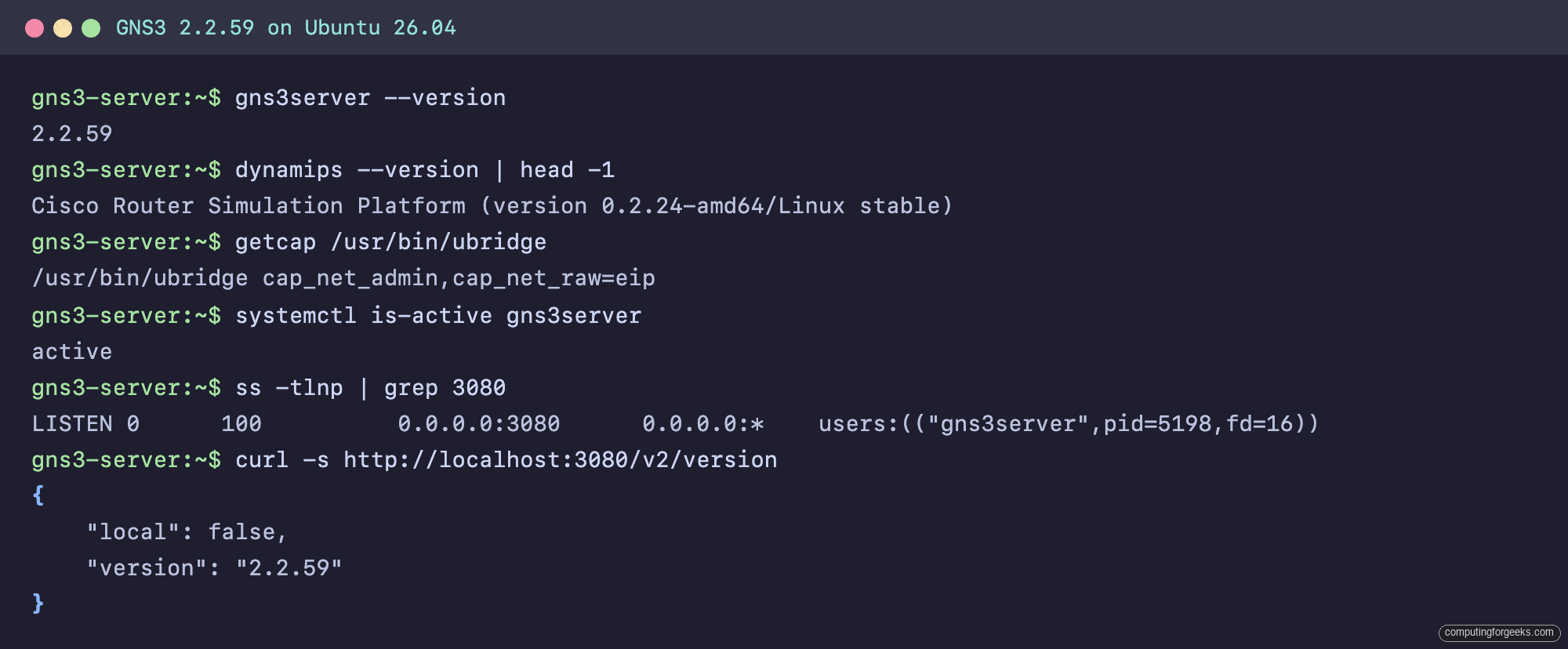
The terminal view of a finished install, from version check to API answer, looks like this:
With the service surviving reboots, the browser side is next.
Step 8: Build a first topology in the GNS3 Web UI
From any machine on the same network, point a browser at the server IP on port 3080. The root URL redirects to the bundled client at /static/web-ui/bundled:
http://10.0.1.50:3080/The Projects page loads first, with buttons for system status, preferences, blank projects, and imports. The footer names the Web UI bundle version, which can trail the server version by a release; that mismatch is normal.
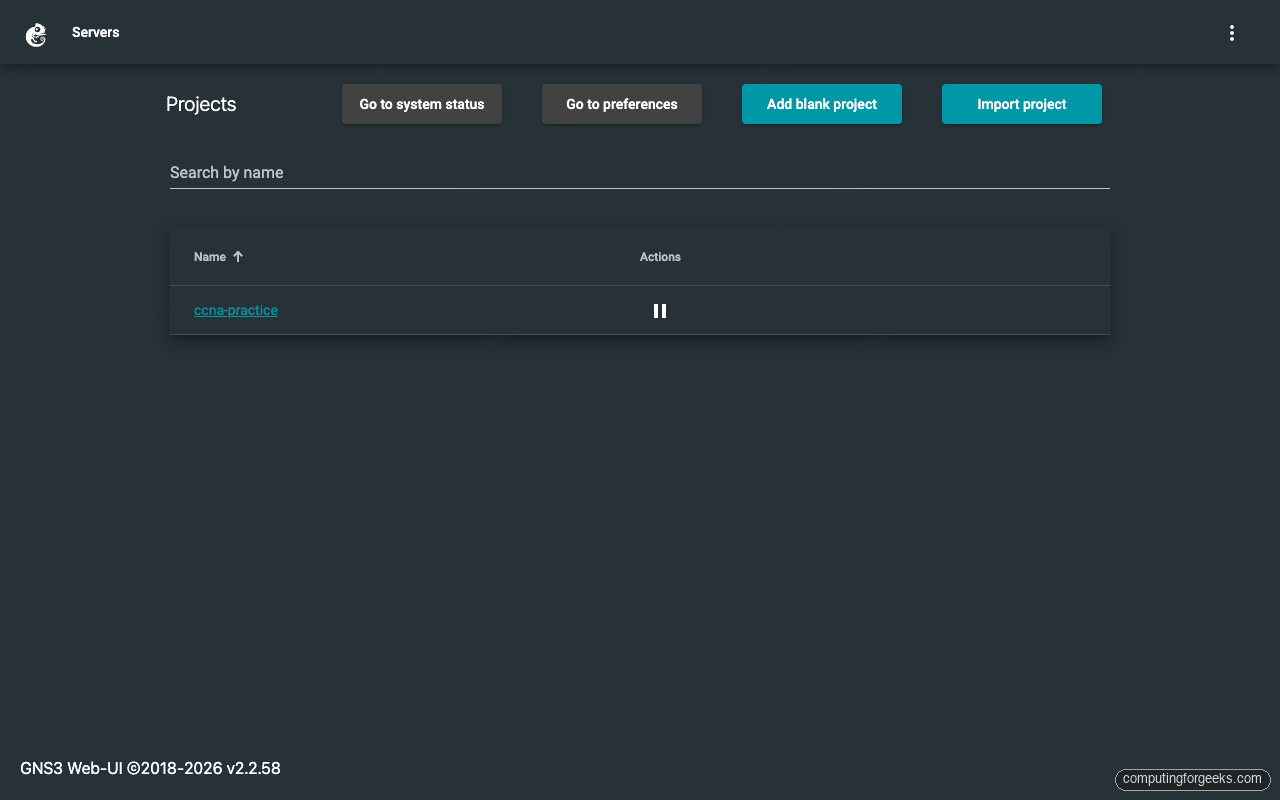
Click Add blank project and name it. On the canvas, the plus button opens the node palette. Even before uploading any Cisco images, the built-in templates are enough to prove the install works: drag in an Ethernet switch and two VPCS nodes, click the link tool, cable each PC to a switch port, and press the green start button in the toolbar. Every node indicator turns green and the port labels appear on the links:
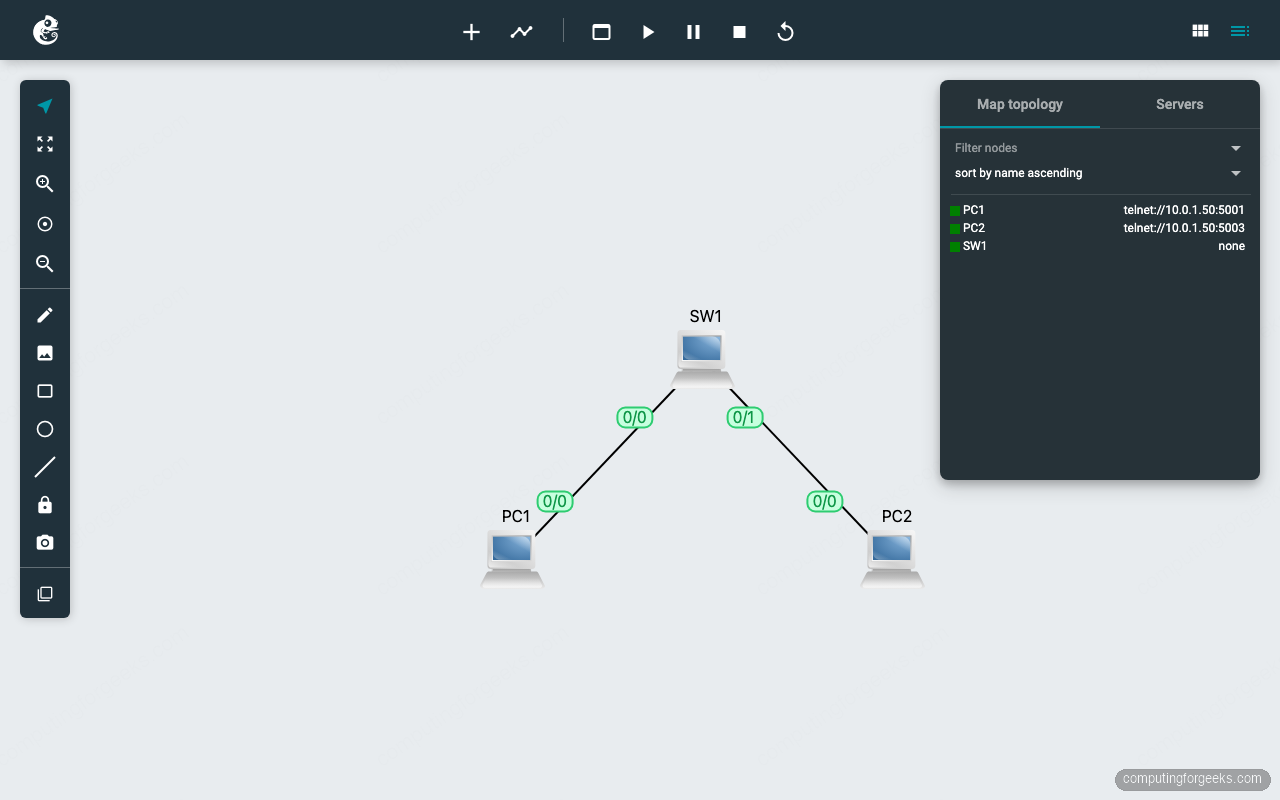
The Map topology panel on the right lists a telnet console for each running node. Connect to PC1 from your workstation and give both endpoints an address:
telnet 10.0.1.50 5001Inside the VPCS prompt, assign an IP and ping the other node through the switch:
VPCS> ip 192.168.1.11/24
Checking for duplicate address...
VPCS : 192.168.1.11 255.255.255.0

VPCS> ping 192.168.1.12

84 bytes from 192.168.1.12 icmp_seq=1 ttl=64 time=0.214 ms
84 bytes from 192.168.1.12 icmp_seq=2 ttl=64 time=0.364 ms
Sub-millisecond replies through an emulated switch confirm ubridge, the compute backend, and the console plumbing all work. From here, real router images slot into the same canvas: Edit the preferences, add an IOS or QEMU template, and build. If your goal is Cisco certification practice, the free CCNA lab collection has 19 ready-made exercises with solutions that run on exactly this setup.
Step 9: Connect the GNS3 Qt desktop client to the server
The Qt client on your laptop can drive the remote server instead of running local compute. This is the standard pattern for shared labs: one well-resourced Ubuntu host runs the emulators, every engineer connects a lightweight GUI to it.
Install gns3-gui on the laptop (same PPA on Ubuntu, installers for Windows and macOS from gns3.com), then open Edit → Preferences → Server → Main server. Uncheck Enable local server first; that unlocks the Remote main server fields below it:
- Host: the LAN IP of your Ubuntu server
- Port:
3080 - Protocol: HTTP
Click Apply. The server version appears in the status bar once the GUI reconnects.
Step 10: Firewall and remote access
The 2.2 server ships with authentication disabled by default. Optional HTTP basic auth exists (the auth, user, and password settings in gns3_server.conf, with the password stored in cleartext), but out of the box, port 3080 open to the internet means anyone can run code on your lab host. Two sane options exist. For a LAN lab, allow SSH first, then only your local subnet on 3080. Enabling ufw without an SSH rule drops your session and locks you out of a remote box:
sudo ufw allow OpenSSH
sudo ufw allow from 10.0.1.0/24 to any port 3080 proto tcp
sudo ufw enable
Substitute your own CIDR and verify with sudo ufw status numbered. For anything reachable from outside, keep GNS3 bound to localhost and put Nginx with TLS and basic auth in front of it, proxying 443 to 127.0.0.1:3080.
Troubleshooting
E: Package ‘qemu-kvm’ has no installation candidate
You are on Ubuntu 26.04 following an older guide. The qemu-kvm package name was dropped from the archive; QEMU now installs as qemu-system-x86, and the GNS3 server package already pulled it in as a dependency. Remove qemu-kvm from your apt command and re-run it. On 24.04 the old name still resolves through a virtual package, which is why the same command works there.
Routers and devices fail to start: ubridge permission error
Group membership alone is not enough; the ubridge binary itself needs file capabilities to open raw sockets. The PPA package sets them, but a pip or source install, or an upgrade that replaced the binary, leaves them missing. Check with getcap /usr/bin/ubridge. If the output is empty, apply them and restart:
sudo setcap cap_net_admin,cap_net_raw=ep /usr/bin/ubridge
sudo systemctl restart gns3server
Re-run getcap and start a node again. The manual command prints =ep where the package sets =eip; the inheritable flag makes no difference here, so both forms work. Thanks to André in the comments for flagging this one.
gns3server: command not found after apt install
A stale pip install gns3-server from the past is shadowing the packaged binary. Run which gns3server, remove the pip copy with pip uninstall gns3-server, and let /usr/bin/gns3server from the PPA take over.
KVM acceleration missing inside a VM
On a Proxmox or libvirt host, the guest needs CPU type host and nested virtualization enabled on the hypervisor. Verify inside the Ubuntu guest with kvm-ok from the cpu-checker package. QEMU still runs without it, but every appliance drops to software emulation speed.
Cannot connect to compute ‘local’ in the startup log
A single Connect call failed 127.0.0.1:3080 line during startup is cosmetic; the controller tried to self-register before the HTTP listener finished binding, and the retry a second later succeeds. Only investigate if it repeats continuously, in which case something else holds port 3080. Check with ss -tlnp | grep 3080.
Where this lab goes next
An empty canvas teaches nothing, so give the server real work. The CCNA labs collection indexes 19 topology exercises with device configs you can paste straight into this install, and the 90-day CCNA study plan schedules them week by week alongside the reading. If you are earlier in the journey, start with the CCNA 200-301 study guide and roadmap.
Beyond certification work, two host-side upgrades pay off quickly: a Linux bridge via Netplan bridged networking lets GNS3 Cloud nodes reach your physical LAN, and right-clicking any link to capture packets pairs naturally with Wireshark on your workstation. Budget disk before pulling appliance images; a couple of vendor VMs will fill a 20 GB root volume faster than you expect.





did not work
Hi. What’s the issue?, any errors?
I am having issues with the network devices
I have installed vJunos Switch and VJunos router and neither stay up when I turn them on.
vJunos devices require significant memory to boot fully. Make sure you have allocated at least 4 GB RAM per vJunos instance in the GNS3 template settings. Also check that KVM/QEMU is properly configured (not running in TCG mode) by verifying
kvm-okoutput. If the device powers on but drops after a few seconds, the console log (right-click > Console) will show the specific failure, usually a memory or CPU check error.Thank you. It works fine for me.
I have to set some permissions:
setcap cap_net_admin,cap_net_raw=ep /usr/bin/ubridge
Than Router and other devices start to boot.
Good catch. The gns3-server PPA package normally sets those caps via its postinst, so this fix is usually needed after a pip/source install or an upgrade that replaced the binary without re-applying caps. Verify with getcap /usr/bin/ubridge.