

Prometheus is the monitoring backbone of most Kubernetes and cloud-native stacks. On Ubuntu 26.04 LTS with kernel 7.0, Node Exporter exposes the full cgroup v2 metrics that weren’t available in older releases, making resource tracking across containers and systemd slices significantly more granular.
This guide walks through installing Prometheus 3.11.2, Node Exporter 1.11.1, and Alertmanager 0.32.0 from official binaries on Ubuntu 26.04 LTS. You’ll set up systemd services, configure scrape targets, write alerting rules for CPU and memory thresholds, run PromQL queries, and tune TSDB retention. Every command has been tested on a clean Ubuntu 26.04 VM with real output captured.
Tested April 2026 on Ubuntu 26.04 LTS (kernel 7.0.0), Prometheus 3.11.2, Node Exporter 1.11.1, Alertmanager 0.32.0
Prerequisites
Before starting, make sure your Ubuntu 26.04 server is configured with a static IP and updated packages.
- Ubuntu 26.04 LTS server with root or sudo access
- At least 1 GB RAM and 10 GB free disk space
- Tested on: Ubuntu 26.04 LTS (Resolute Raccoon), kernel 7.0.0-10-generic
- Firewall (ufw) access to ports 9090 (Prometheus), 9100 (Node Exporter), 9093 (Alertmanager)
Create the Prometheus System User
Prometheus should run under its own unprivileged account. Create a system user with no home directory and no login shell.
sudo useradd --no-create-home --shell /bin/false prometheusCreate the directories Prometheus needs for its configuration and time-series data.
sudo mkdir -p /etc/prometheus /var/lib/prometheus
sudo chown prometheus:prometheus /var/lib/prometheus
Download and Install Prometheus
Grab the latest Prometheus release from GitHub. The version detection command pulls the current tag automatically so this guide stays valid when new versions ship.
PROM_VER=$(curl -sL https://api.github.com/repos/prometheus/prometheus/releases/latest | grep tag_name | head -1 | sed 's/.*"v\([^"]*\)".*/\1/')
echo "Latest Prometheus version: $PROM_VER"
At the time of writing, this returns 3.11.2. Download and extract the archive.
cd /tmp
wget https://github.com/prometheus/prometheus/releases/download/v${PROM_VER}/prometheus-${PROM_VER}.linux-amd64.tar.gz
tar xzf prometheus-${PROM_VER}.linux-amd64.tar.gz
Copy the binaries to /usr/local/bin and set ownership.
sudo cp prometheus-${PROM_VER}.linux-amd64/prometheus /usr/local/bin/
sudo cp prometheus-${PROM_VER}.linux-amd64/promtool /usr/local/bin/
sudo chown prometheus:prometheus /usr/local/bin/prometheus /usr/local/bin/promtool
Confirm the installed version.
prometheus --versionThe output should show the version and build details:
prometheus, version 3.11.2 (branch: HEAD, revision: f0f0fdd679dc)
  build user:       root@d2684485c347
  build date:       20260413-11:53:40
  go version:       go1.26.2
  platform:         linux/amd64
  tags:             netgo,builtinassets
Configure Prometheus
Create the main configuration file. This initial setup defines two scrape jobs: Prometheus monitoring itself and a Node Exporter target that you’ll install next.
sudo vi /etc/prometheus/prometheus.ymlAdd the following configuration:
global:
  scrape_interval: 15s
  evaluation_interval: 15s

rule_files:
  - "alert_rules.yml"

alerting:
  alertmanagers:
    - static_configs:
        - targets:
          - localhost:9093

scrape_configs:
  - job_name: "prometheus"
    static_configs:
      - targets: ["localhost:9090"]

  - job_name: "node_exporter"
    static_configs:
      - targets: ["localhost:9100"]
Set ownership on the configuration directory.
sudo chown -R prometheus:prometheus /etc/prometheusValidate the configuration before starting the service. A typo in YAML will silently break scraping.
promtool check config /etc/prometheus/prometheus.ymlYou should see success for both the config and the rule file reference:
Checking /etc/prometheus/prometheus.yml
  SUCCESS: 1 rule files found
 SUCCESS: /etc/prometheus/prometheus.yml is valid prometheus config file syntax
Create the Prometheus Systemd Service
Create a unit file that starts Prometheus with 30-day retention and listens on all interfaces.
sudo vi /etc/systemd/system/prometheus.servicePaste the following service definition:
[Unit]
Description=Prometheus Monitoring System
Documentation=https://prometheus.io/docs/
Wants=network-online.target
After=network-online.target

[Service]
User=prometheus
Group=prometheus
Type=simple
ExecStart=/usr/local/bin/prometheus \
  --config.file=/etc/prometheus/prometheus.yml \
  --storage.tsdb.path=/var/lib/prometheus/ \
  --storage.tsdb.retention.time=30d \
  --web.listen-address=0.0.0.0:9090

Restart=always
RestartSec=5

[Install]
WantedBy=multi-user.target
The --storage.tsdb.retention.time=30d flag keeps 30 days of data. For production servers with heavy cardinality, you may want to lower this or add --storage.tsdb.retention.size to cap disk usage.
Enable and start the service.
sudo systemctl daemon-reload
sudo systemctl enable --now prometheus
Verify Prometheus is running:
sudo systemctl status prometheusThe output should show active (running):
● prometheus.service - Prometheus Monitoring System
     Loaded: loaded (/etc/systemd/system/prometheus.service; enabled; preset: enabled)
     Active: active (running) since Tue 2026-04-14 09:39:05 UTC; 2s ago
       Docs: https://prometheus.io/docs/
   Main PID: 2638 (prometheus)
      Tasks: 7 (limit: 3522)
     Memory: 32M (peak: 32M)
        CPU: 312ms
Install Node Exporter
Node Exporter exposes hardware and OS metrics (CPU, memory, disk, network) as Prometheus-compatible endpoints. On Ubuntu 26.04 with kernel 7.0, the cgroup v2 collectors are fully supported out of the box.
Create a dedicated system user for Node Exporter.
sudo useradd --no-create-home --shell /bin/false node_exporterDetect and download the latest release.
NE_VER=$(curl -sL https://api.github.com/repos/prometheus/node_exporter/releases/latest | grep tag_name | head -1 | sed 's/.*"v\([^"]*\)".*/\1/')
echo "Latest Node Exporter version: $NE_VER"
This returned 1.11.1 during testing. Download and install the binary.
cd /tmp
wget https://github.com/prometheus/node_exporter/releases/download/v${NE_VER}/node_exporter-${NE_VER}.linux-amd64.tar.gz
tar xzf node_exporter-${NE_VER}.linux-amd64.tar.gz
sudo cp node_exporter-${NE_VER}.linux-amd64/node_exporter /usr/local/bin/
sudo chown node_exporter:node_exporter /usr/local/bin/node_exporter
Create the systemd unit file for Node Exporter.
sudo vi /etc/systemd/system/node_exporter.serviceAdd the following content:
[Unit]
Description=Prometheus Node Exporter
Documentation=https://prometheus.io/docs/guides/node-exporter/
Wants=network-online.target
After=network-online.target

[Service]
User=node_exporter
Group=node_exporter
Type=simple
ExecStart=/usr/local/bin/node_exporter

Restart=always
RestartSec=5

[Install]
WantedBy=multi-user.target
Start and enable it.
sudo systemctl daemon-reload
sudo systemctl enable --now node_exporter
Check that it’s active:
sudo systemctl status node_exporterYou should see the service running on port 9100:
● node_exporter.service - Prometheus Node Exporter
     Loaded: loaded (/etc/systemd/system/node_exporter.service; enabled; preset: enabled)
     Active: active (running) since Tue 2026-04-14 09:39:29 UTC; 2s ago
       Docs: https://prometheus.io/docs/guides/node-exporter/
   Main PID: 2860 (node_exporter)
      Tasks: 4 (limit: 3522)
     Memory: 6.1M (peak: 6.1M)
Test the metrics endpoint directly. This confirms Node Exporter is serving data.
curl -s http://localhost:9100/metrics | head -5You should see Prometheus-formatted metric lines like these:
# HELP go_gc_duration_seconds A summary of the pause duration of garbage collection cycles.
# TYPE go_gc_duration_seconds summary
go_gc_duration_seconds{quantile="0"} 2.9265e-05
go_gc_duration_seconds{quantile="0.25"} 3.4919e-05
go_gc_duration_seconds{quantile="0.5"} 4.7765e-05
Configure Alerting Rules
Alerting rules evaluate PromQL expressions at each evaluation_interval and fire alerts when conditions hold true for a specified duration. The prometheus.yml already references alert_rules.yml, so create it now.
sudo vi /etc/prometheus/alert_rules.ymlAdd rules for high CPU, high memory, and instance down detection:
groups:
  - name: system_alerts
    rules:
      - alert: HighCPUUsage
        expr: 100 - (avg by(instance) (rate(node_cpu_seconds_total{mode="idle"}[5m])) * 100) > 80
        for: 5m
        labels:
          severity: warning
        annotations:
          summary: "High CPU usage on {{ $labels.instance }}"
          description: "CPU usage is above 80% for more than 5 minutes (current: {{ $value }}%)"

      - alert: HighMemoryUsage
        expr: (1 - node_memory_MemAvailable_bytes / node_memory_MemTotal_bytes) * 100 > 85
        for: 5m
        labels:
          severity: warning
        annotations:
          summary: "High memory usage on {{ $labels.instance }}"
          description: "Memory usage is above 85% for more than 5 minutes (current: {{ $value }}%)"

      - alert: InstanceDown
        expr: up == 0
        for: 2m
        labels:
          severity: critical
        annotations:
          summary: "Instance {{ $labels.instance }} is down"
          description: "{{ $labels.instance }} has been unreachable for more than 2 minutes"
Set ownership and validate the rules file.
sudo chown prometheus:prometheus /etc/prometheus/alert_rules.yml
promtool check rules /etc/prometheus/alert_rules.yml
The output confirms all three rules are valid:
Checking /etc/prometheus/alert_rules.yml
  SUCCESS: 3 rules found
Reload Prometheus to pick up the new rules without restarting.
sudo systemctl reload prometheusInstall Alertmanager
Alertmanager handles deduplication, grouping, and routing of alerts fired by Prometheus. Without it, alerts are evaluated but never delivered.
Create a system user and directories.
sudo useradd --no-create-home --shell /bin/false alertmanager
sudo mkdir -p /etc/alertmanager /var/lib/alertmanager
sudo chown alertmanager:alertmanager /var/lib/alertmanager
Download the latest release.
AM_VER=$(curl -sL https://api.github.com/repos/prometheus/alertmanager/releases/latest | grep tag_name | head -1 | sed 's/.*"v\([^"]*\)".*/\1/')
echo "Latest Alertmanager version: $AM_VER"
cd /tmp
wget https://github.com/prometheus/alertmanager/releases/download/v${AM_VER}/alertmanager-${AM_VER}.linux-amd64.tar.gz
tar xzf alertmanager-${AM_VER}.linux-amd64.tar.gz
sudo cp alertmanager-${AM_VER}.linux-amd64/alertmanager /usr/local/bin/
sudo cp alertmanager-${AM_VER}.linux-amd64/amtool /usr/local/bin/
sudo chown alertmanager:alertmanager /usr/local/bin/alertmanager /usr/local/bin/amtool
Create the Alertmanager configuration. This basic setup uses a webhook receiver, which you can replace with email, Slack, or PagerDuty in production.
sudo vi /etc/alertmanager/alertmanager.ymlAdd the following:
global:
  resolve_timeout: 5m

route:
  group_by: ['alertname', 'severity']
  group_wait: 30s
  group_interval: 5m
  repeat_interval: 4h
  receiver: 'default'

receivers:
  - name: 'default'
    webhook_configs:
      - url: 'http://localhost:5001/'
        send_resolved: true
Set ownership on the config file.
sudo chown alertmanager:alertmanager /etc/alertmanager/alertmanager.ymlCreate the systemd service.
sudo vi /etc/systemd/system/alertmanager.servicePaste the service definition:
[Unit]
Description=Prometheus Alertmanager
Documentation=https://prometheus.io/docs/alerting/alertmanager/
Wants=network-online.target
After=network-online.target

[Service]
User=alertmanager
Group=alertmanager
Type=simple
ExecStart=/usr/local/bin/alertmanager \
  --config.file=/etc/alertmanager/alertmanager.yml \
  --storage.path=/var/lib/alertmanager/

Restart=always
RestartSec=5

[Install]
WantedBy=multi-user.target
Start Alertmanager.
sudo systemctl daemon-reload
sudo systemctl enable --now alertmanager
Verify all three services are active:
systemctl is-active prometheus node_exporter alertmanagerAll three should return active:
active
active
active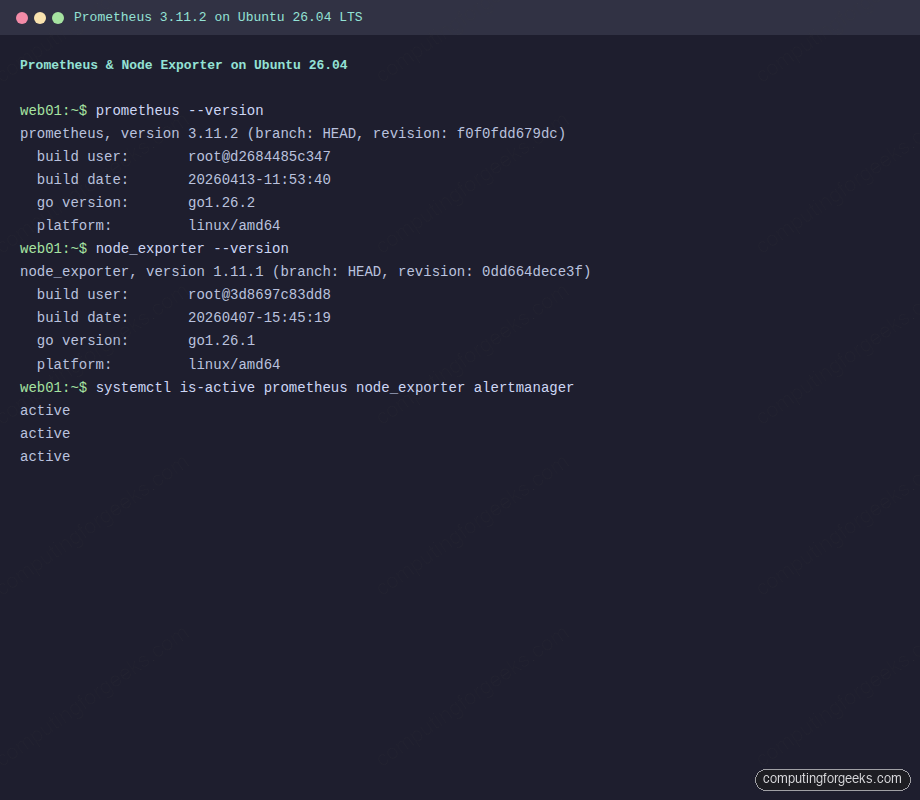
Open Firewall Ports
If ufw is enabled, allow access to the Prometheus, Node Exporter, and Alertmanager ports.
sudo ufw allow 9090/tcp comment 'Prometheus'
sudo ufw allow 9100/tcp comment 'Node Exporter'
sudo ufw allow 9093/tcp comment 'Alertmanager'
Confirm the rules were added:
sudo ufw status | grep -E '909[03]|9100'You should see the three ports listed as ALLOW from Anywhere.
Verify Prometheus Targets
Open http://10.0.1.50:9090/targets in your browser (replace with your server’s IP). Both the prometheus and node_exporter targets should show a green UP state.
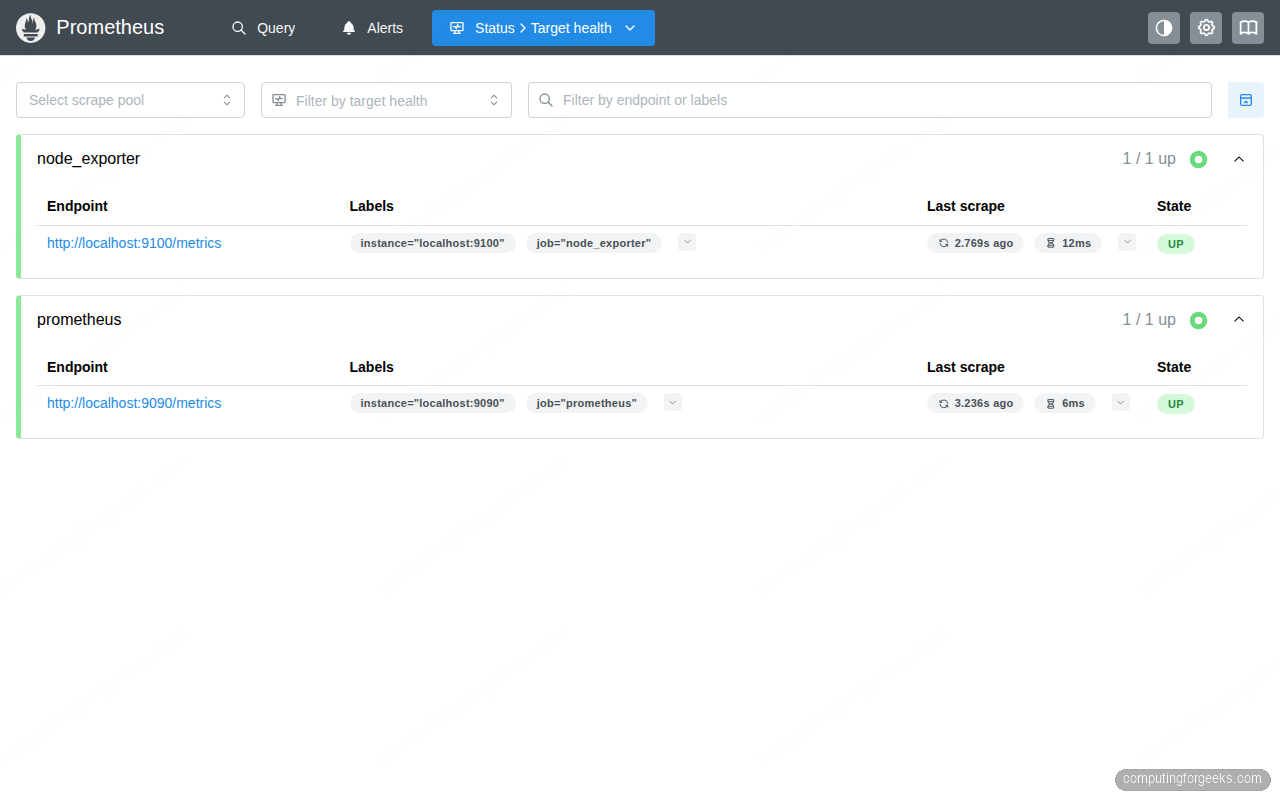
You can also query targets from the command line using the Prometheus API.
curl -s http://localhost:9090/api/v1/targets | python3 -c "
import sys, json
data = json.load(sys.stdin)
for t in data['data']['activeTargets']:
    print(f\"{t['labels']['job']:20s} {t['health']:5s}\")
"
The output confirms both targets are healthy:
node_exporter        up
prometheus           up
Run PromQL Queries
PromQL is the query language built into Prometheus. You can run queries from the web UI at http://10.0.1.50:9090/graph or via the API. Here are some essential queries to get started.
Check which targets are currently reachable:
curl -s 'http://localhost:9090/api/v1/query?query=up' | python3 -c "
import sys, json
data = json.load(sys.stdin)
for r in data['data']['result']:
    print(f\"{r['metric']['job']}: {r['value'][1]}\")
"
A value of 1 means the target is up:
prometheus: 1
node_exporter: 1
Query available memory in megabytes:
curl -s 'http://localhost:9090/api/v1/query?query=node_memory_MemAvailable_bytes' | python3 -c "
import sys, json
data = json.load(sys.stdin)
for r in data['data']['result']:
    val = float(r['value'][1])
    print(f\"Available memory: {val/1024/1024:.0f} MB\")
"
On the test VM this returned:
Available memory: 2745 MBCalculate average CPU usage over the last 5 minutes:
curl -s 'http://localhost:9090/api/v1/query?query=100-(avg(rate(node_cpu_seconds_total{mode="idle"}[5m]))*100)' | python3 -c "
import sys, json
data = json.load(sys.stdin)
for r in data['data']['result']:
    print(f\"CPU usage: {float(r['value'][1]):.1f}%\")
"
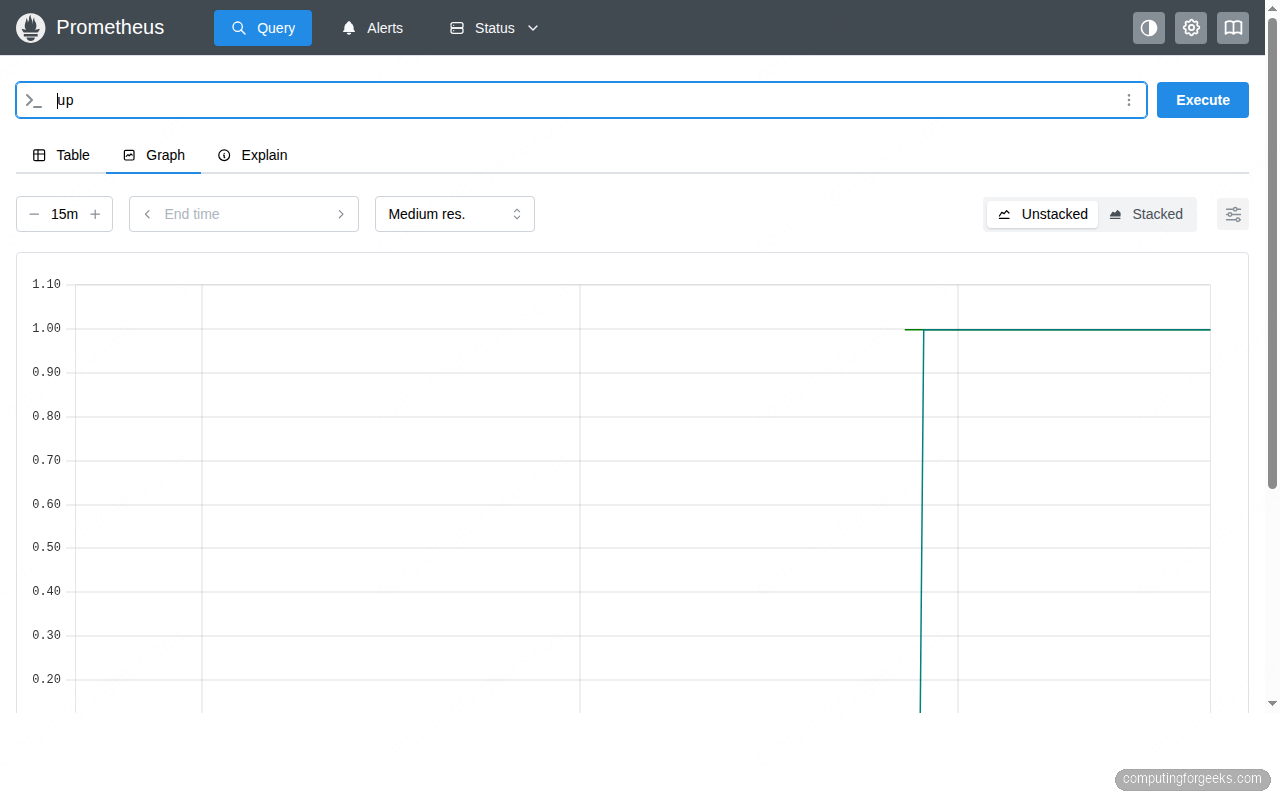
In the web UI, the Graph tab visualizes these queries over time. For production dashboarding, most teams connect Grafana to Prometheus for richer graphs and alerting. Navigate to http://10.0.1.50:9090/graph, enter up in the query field, and click Execute.
Useful PromQL Queries Reference
Here are some production-ready queries to bookmark. These work with the Node Exporter metrics collected by the setup above.
| Metric | PromQL Query | What It Shows |
|---|---|---|
| CPU Usage % | 100 - (avg by(instance)(rate(node_cpu_seconds_total{mode="idle"}[5m])) * 100) | Average CPU usage across all cores |
| Memory Usage % | (1 - node_memory_MemAvailable_bytes / node_memory_MemTotal_bytes) * 100 | Percentage of memory in use |
| Disk Usage % | (1 - node_filesystem_avail_bytes{mountpoint="/"} / node_filesystem_size_bytes{mountpoint="/"}) * 100 | Root filesystem usage |
| Network Received | rate(node_network_receive_bytes_total{device="eth0"}[5m]) | Bytes per second received |
| System Load | node_load1 | 1-minute load average |
| Open File Descriptors | node_filefd_allocated | Number of allocated file descriptors |
Performance Tuning
Prometheus stores data in a custom time-series database (TSDB) that compacts write-ahead log (WAL) entries into compressed blocks. Understanding these internals helps you size storage and tune performance.
TSDB compaction runs automatically every two hours by default. Each compaction merges smaller blocks into larger ones, which reduces the number of files Prometheus needs to scan during queries. On systems with high cardinality (thousands of unique label combinations), compaction can temporarily spike CPU and I/O. If you notice query latency spikes every two hours, check whether compaction is competing with heavy queries using the prometheus_tsdb_compactions_total metric.
Scrape interval trade-offs directly affect storage and query performance. The default 15-second interval works well for most use cases. Reducing it to 5 seconds quadruples the number of samples ingested, which means faster disk growth and slower range queries. In production, keep 15s for infrastructure metrics and only use shorter intervals for application-specific targets that genuinely need sub-15s granularity. You can set per-job scrape intervals in prometheus.yml:
scrape_configs:
  - job_name: "high_frequency_app"
    scrape_interval: 5s
    static_configs:
      - targets: ["localhost:8080"]
Retention sizing depends on ingestion rate. The --storage.tsdb.retention.time=30d flag in the systemd service keeps 30 days of data. You can also cap by size with --storage.tsdb.retention.size=10GB. When both are set, whichever limit is hit first triggers deletion of the oldest blocks. Monitor actual disk usage with:
du -sh /var/lib/prometheus/Federation is worth considering when you run Prometheus on multiple servers. Rather than scraping the same targets from two instances, set up a central Prometheus that federates (pulls aggregated metrics) from leaf instances. This keeps local retention short (2-7 days) and centralizes long-term storage. The federation endpoint is built in at /federate. For setups beyond a handful of servers, consider Kubernetes-based deployments with Thanos or Cortex for horizontally scalable long-term storage.
For the reverse proxy and TLS setup in front of Prometheus, see the Nginx with Let’s Encrypt guide for Ubuntu 26.04. Running Prometheus behind a reverse proxy with basic auth or OAuth2 is strongly recommended for any internet-facing deployment.
If you plan to run containerized workloads alongside Prometheus, Docker CE on Ubuntu 26.04 integrates well. The cAdvisor exporter gives you container-level CPU, memory, and network metrics that complement Node Exporter’s host-level data.





