Zabbix 8.0 LTS is Zabbix’s latest long-term support release, backed by five years of support through 2029. On Ubuntu 26.04 (Resolute Raccoon), it pairs natively with PostgreSQL 18 and PHP 8.5 from the default repositories, which makes for a clean installation with no third-party runtime dependencies.
This guide walks through a complete Zabbix 8.0 deployment on Ubuntu 26.04 LTS: database setup with PostgreSQL 18, web frontend configuration with Apache, Zabbix Agent 2 for host monitoring, and the initial steps to get your first host reporting data. By the end, you will have a working monitoring server ready for production tuning.
Tested April 2026 on Ubuntu 26.04 LTS, Zabbix 8.0.0alpha2 LTS, PostgreSQL 18.3, PHP 8.5.4
Prerequisites
Before starting, make sure you have the following ready:
- Ubuntu 26.04 LTS server with at least 4 GB RAM (6 GB recommended for production)
- Root or sudo access
- A working initial server setup (hostname, timezone, firewall basics)
- Tested on: Ubuntu 26.04 LTS (kernel 7.0), Zabbix 8.0.0alpha2, PostgreSQL 18.3
Install PostgreSQL 18
Zabbix needs a database backend. PostgreSQL 18 ships in the Ubuntu 26.04 default repos, so there is no need to add external repositories. If you need a deeper dive into PostgreSQL configuration, see our dedicated PostgreSQL 18 guide.
Install the PostgreSQL server package:
sudo apt update
sudo apt install -y postgresql
Verify PostgreSQL is running:
systemctl status postgresqlThe output should show active (exited) with no errors, confirming PostgreSQL 18 started successfully.
Add the Zabbix 8.0 Repository
Zabbix maintains official packages for Ubuntu 26.04 under the “resolute” codename. Download and install the repository configuration package:
wget https://repo.zabbix.com/zabbix/8.0/release/ubuntu/pool/main/z/zabbix-release/zabbix-release_latest_8.0+ubuntu26.04_all.deb
sudo dpkg -i zabbix-release_latest_8.0+ubuntu26.04_all.deb
sudo apt update
This adds the Zabbix 8.0 LTS release repository to your APT sources. The latest meta-package ensures you always pull the most recent 8.0.x point release.
Install Zabbix Server, Frontend, and Agent 2
Install all the core Zabbix components in one command:
sudo apt install -y zabbix-server-pgsql zabbix-frontend-php zabbix-apache-conf zabbix-sql-scripts zabbix-agent2 php-pgsqlHere is what each package provides:
zabbix-server-pgsql: the Zabbix server daemon compiled with PostgreSQL supportzabbix-frontend-php: the web interface (PHP application)zabbix-apache-conf: Apache virtual host and PHP-FPM configuration for the frontendzabbix-sql-scripts: database schema and initial data import scriptszabbix-agent2: the modern Go-based agent for host-level monitoringphp-pgsql: PHP PostgreSQL driver required by the frontend
The Apache module proxy_fcgi is required by the Zabbix Apache configuration. Enable it before starting Apache:
sudo a2enmod proxy proxy_fcgiYou will see confirmation that both modules are enabled.
Create the Zabbix Database
Switch to the postgres system user and create a dedicated database user and database for Zabbix:
sudo -u postgres psql -c "CREATE USER zabbix WITH PASSWORD 'YourSecurePassword';"
sudo -u postgres psql -c "CREATE DATABASE zabbix OWNER zabbix;"
Replace YourSecurePassword with a strong password of your choice. You will need this password again when configuring the Zabbix server.
Import the Zabbix schema and initial data. This populates all the tables, default templates, and built-in monitoring items:
zcat /usr/share/zabbix/sql-scripts/postgresql/server.sql.gz | sudo -u zabbix psql zabbixThe import takes about 30 seconds and ends with a series of INSERT and COMMIT statements. No errors should appear.
Configure Zabbix Server
Edit the main Zabbix server configuration file to set the database password:
sudo vi /etc/zabbix/zabbix_server.confFind the DBPassword line and set it to match the password you created earlier:
DBPassword=YourSecurePasswordThe other database settings (DBHost, DBName, DBUser) default to localhost, zabbix, and zabbix respectively, which is exactly what we need. Save and close the file.
Start and Enable All Services
Start the Zabbix server, agent, and Apache, then enable them to survive reboots:
sudo systemctl restart zabbix-server zabbix-agent2 apache2
sudo systemctl enable zabbix-server zabbix-agent2 apache2
Confirm all three services are running:
systemctl is-active zabbix-server zabbix-agent2 apache2All three should return active:
active
active
active
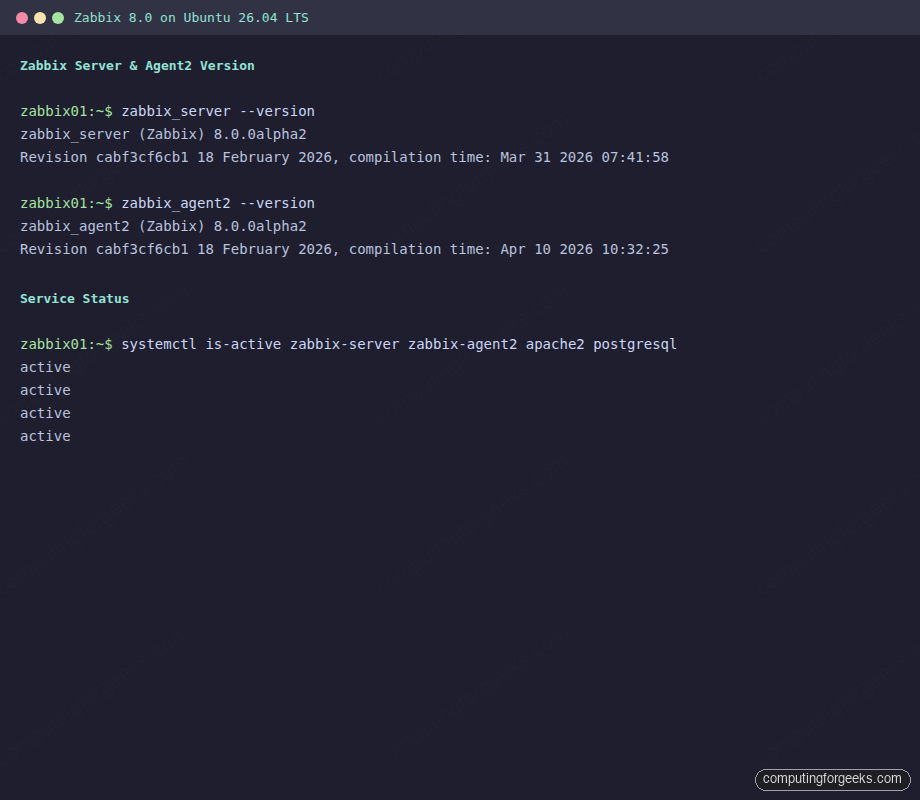
Check the Zabbix server version to confirm the installation:
zabbix_server --versionYou should see output confirming Zabbix 8.0:
zabbix_server (Zabbix) 8.0.0alpha2
Revision cabf3cf6cb1 18 February 2026, compilation time: Mar 31 2026 07:41:58
The terminal screenshot below shows the Zabbix server and agent2 versions along with all services confirmed active.
With all services running, the next step is to open the necessary firewall ports.
Configure the Firewall
If UFW is active on your server, open the ports for Zabbix server (10051), Zabbix agent (10050), and Apache (80):
sudo ufw allow 80/tcp
sudo ufw allow 10050/tcp
sudo ufw allow 10051/tcp
sudo ufw reload
Verify the rules are in place:
sudo ufw statusYou should see all three ports listed as ALLOW.
Complete the Web Setup
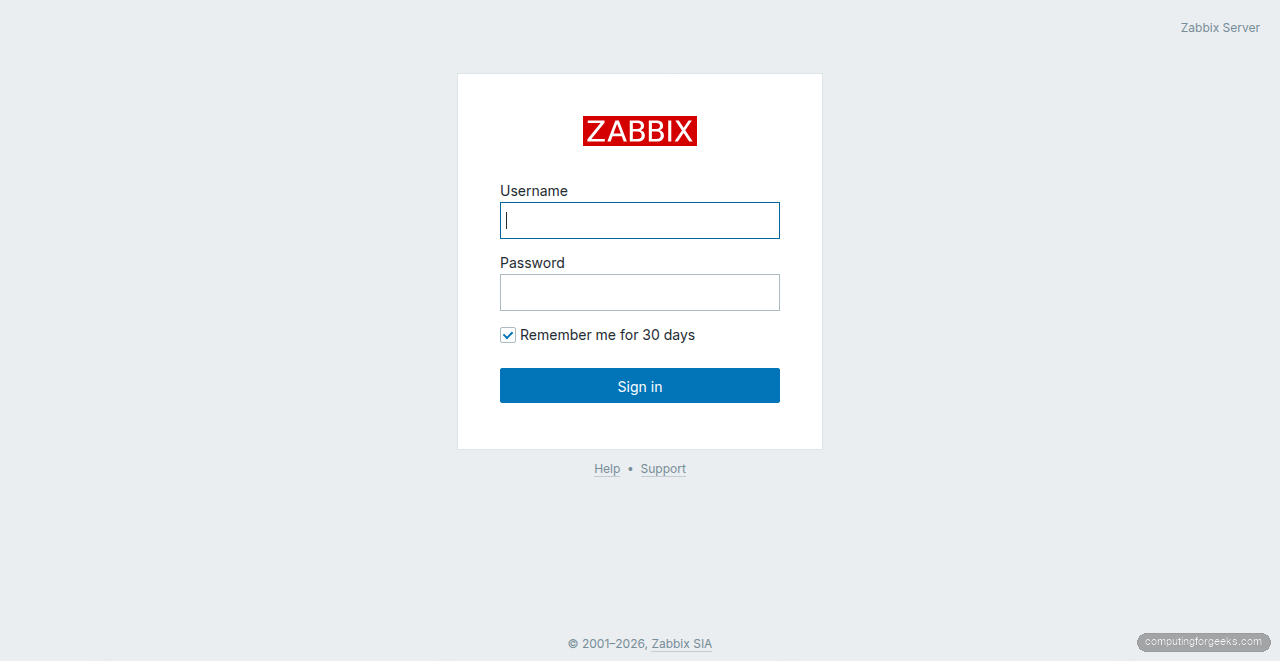
Open your browser and navigate to http://10.0.1.50/zabbix/ (replace with your server’s IP). The Zabbix installation wizard appears.
Walk through the wizard steps:
- Welcome: Select English (en_US) and click “Next step”
- Check of pre-requisites: All items should show OK. If any PHP requirement fails, install the missing extension and restart Apache
- Configure DB connection: Select PostgreSQL, set Database host to
localhost, Database name tozabbix, User tozabbix, and enter the password you created earlier - Settings: Set a name for your Zabbix server (e.g., “Zabbix Server”) and the default timezone
- Pre-installation summary: Review and click “Next step”
- Install: Click “Finish” to complete the setup
Alternatively, you can skip the wizard by creating the configuration file directly:
sudo vi /etc/zabbix/web/zabbix.conf.phpAdd the following content:
<?php
global $DB;

$DB["TYPE"]     = "POSTGRESQL";
$DB["SERVER"]   = "localhost";
$DB["PORT"]     = "0";
$DB["DATABASE"] = "zabbix";
$DB["USER"]     = "zabbix";
$DB["PASSWORD"] = "YourSecurePassword";
$DB["SCHEMA"]   = "";

$ZBX_SERVER      = "localhost";
$ZBX_SERVER_PORT = "10051";
$ZBX_SERVER_NAME = "Zabbix Server";

$IMAGE_FORMAT_DEFAULT = IMAGE_FORMAT_PNG;
After saving, reload the page. You should see the Zabbix login screen.
Log In and Explore the Dashboard
Log in with the default credentials: username Admin (capital A) and password zabbix. Change the default password immediately after your first login by navigating to User settings in the top-right menu.
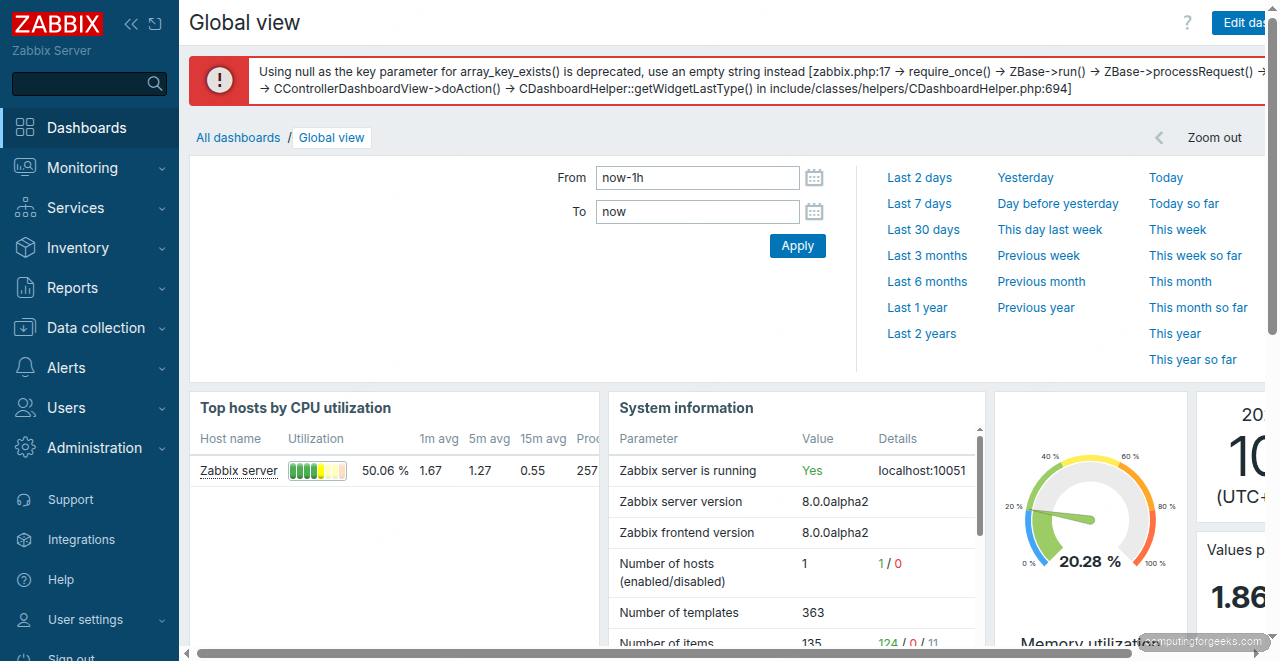
The default “Global view” dashboard shows system information, host availability, and top hosts by CPU utilization. Within a few minutes of starting the services, you should see the “Zabbix server” host reporting data.
Configure Zabbix Agent 2
Zabbix Agent 2 is already installed and running on the server itself, configured to report to 127.0.0.1 by default. The agent configuration lives in /etc/zabbix/zabbix_agent2.conf. The key settings are:
Server=127.0.0.1
ServerActive=127.0.0.1
Hostname=Zabbix server
The Server directive controls which Zabbix server can query this agent (passive checks). ServerActive is where the agent pushes data (active checks). For remote hosts, you would change both to the Zabbix server’s IP address.
If you change the agent configuration, restart the service:
sudo systemctl restart zabbix-agent2Verify the agent is communicating with the server by checking the agent log:
tail -20 /var/log/zabbix/zabbix_agent2.logLook for lines showing successful active check connections and data submissions. No “connection refused” or timeout errors should appear.
Verify Host Monitoring
Navigate to Monitoring > Hosts in the Zabbix web interface. The “Zabbix server” host should appear with a green “Available” status in the Availability column, which means Agent 2 is communicating properly.
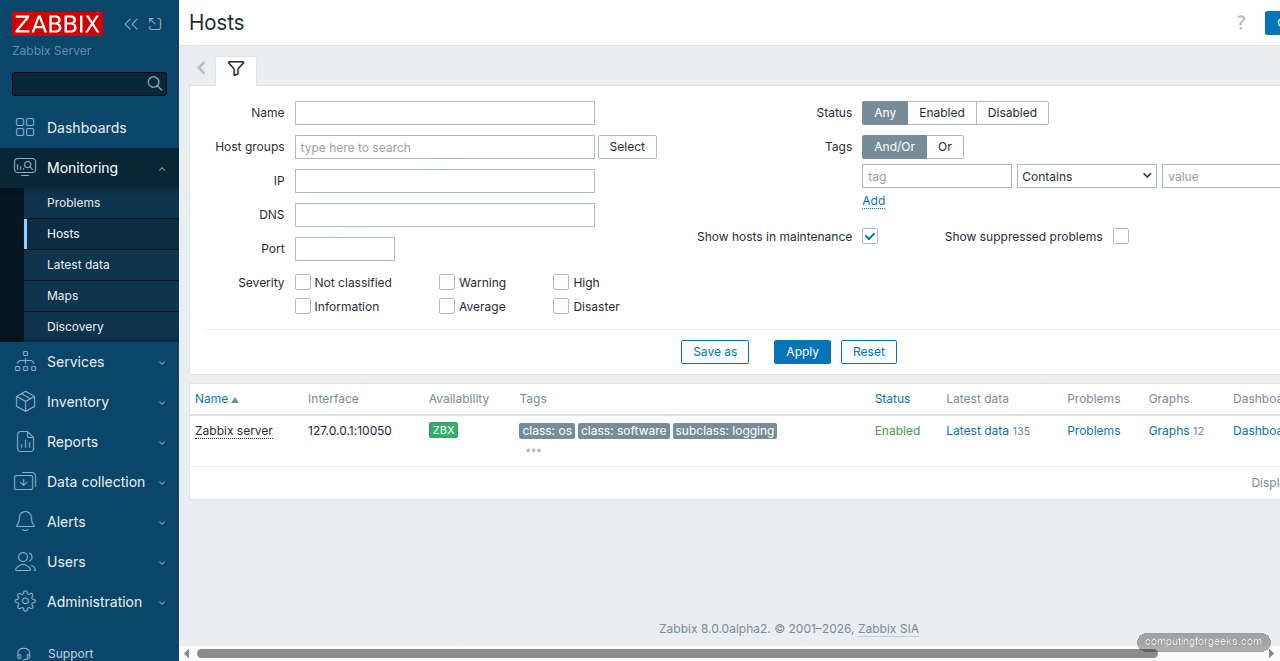
Click “Latest data” next to the Zabbix server host to see all collected metrics: CPU load, memory usage, disk I/O, network traffic, and Zabbix internal statistics. This data starts populating within the first five minutes after the agent connects.
Add a Remote Host
To monitor additional servers, install Zabbix Agent 2 on the target machine and point it to your Zabbix server. On the remote Ubuntu host:
wget https://repo.zabbix.com/zabbix/8.0/release/ubuntu/pool/main/z/zabbix-release/zabbix-release_latest_8.0+ubuntu26.04_all.deb
sudo dpkg -i zabbix-release_latest_8.0+ubuntu26.04_all.deb
sudo apt update
sudo apt install -y zabbix-agent2
Edit the agent configuration on the remote host:
sudo vi /etc/zabbix/zabbix_agent2.confSet the Server and ServerActive directives to point to your Zabbix server IP:
Server=10.0.1.50
ServerActive=10.0.1.50
Hostname=web01
The Hostname value must match exactly what you enter in the Zabbix web interface when adding this host. Start and enable the agent:
sudo systemctl enable --now zabbix-agent2Back in the Zabbix web UI, go to Data collection > Hosts and click “Create host”. Set the hostname to web01, add it to a host group (e.g., “Linux servers”), and under Interfaces, add an Agent interface with the remote host’s IP. Assign the “Linux by Zabbix agent” template to get a full set of monitoring items out of the box.
Set Up Email Notifications
Zabbix can send alert notifications via email, Slack, PagerDuty, and many other channels. For basic email alerts, go to Alerts > Media types and click on “Email”. Configure your SMTP server settings:
- SMTP server: your mail server hostname (e.g.,
smtp.example.com) - SMTP server port: 587 for TLS, 465 for SSL
- SMTP email: the sender address (e.g.,
[email protected]) - Connection security: STARTTLS
- Authentication: Username and password
After saving the media type, assign it to your user. Go to Users > Users, click “Admin”, open the “Media” tab, and add an Email media entry with your recipient address. Set the severity levels you want to receive (Warning and above is a good starting point).
Zabbix ships with built-in trigger actions that fire on specific severity thresholds. Go to Alerts > Actions > Trigger actions to review and enable “Report problems to Zabbix administrators”. This action sends notifications to the “Zabbix administrators” user group whenever a problem triggers.
Production Hardening
The installation above gets Zabbix running, but a production deployment serving 500+ hosts needs additional tuning.
Database Housekeeping and Partitioning
Zabbix stores historical data in the history and trends tables, which grow fast. The built-in housekeeper deletes old records row by row, which creates heavy database load at scale. For production deployments, switch to PostgreSQL table partitioning by time range. Create monthly partitions for history tables and yearly partitions for trends. This makes cleanup a simple DROP TABLE on expired partitions instead of millions of DELETE queries.
Review the housekeeping settings in Administration > Housekeeping. For environments with over 100 hosts, reduce history retention to 7-14 days and trends to 365 days. The defaults (90 days history, 365 days trends) generate significant I/O on busy servers.
Zabbix Proxy for Remote Sites
If you monitor hosts across multiple data centers or cloud regions, deploy a Zabbix proxy at each remote site. The proxy collects data locally and forwards it to the central server in bulk. For richer metric visualization, many teams pair Zabbix with Grafana using the official Zabbix data source plugin. This reduces WAN traffic, provides resilience during network outages (the proxy buffers data), and offloads data collection from the central server. Install the proxy with apt install zabbix-proxy-pgsql and point it at a local PostgreSQL instance.
TLS Encryption Between Components
By default, Zabbix server, proxy, and agent communicate over unencrypted connections on ports 10050/10051. For production, enable TLS with pre-shared keys (PSK) or certificates. In zabbix_agent2.conf, set TLSConnect=psk and TLSAccept=psk, then configure matching PSK values on the server side through the web interface. Certificate-based TLS is stronger but requires PKI infrastructure. If you are already running Nginx with Let’s Encrypt, you can reuse the same CA workflow.
Monitoring the Monitoring
Zabbix monitors itself via the “Zabbix server” host and the “Zabbix server health” template. Keep an eye on the internal metrics, especially “Queue” (items waiting for data collection) and “Preprocessing queue”. If the queue grows beyond a few hundred items, increase the StartPollers and StartPreprocessors values in zabbix_server.conf. For large environments, also consider deploying Prometheus alongside Zabbix for complementary metrics coverage. If you are migrating from a legacy setup, our Nagios Core guide for Ubuntu 26.04 may help you compare the two approaches.
What port does Zabbix use?
Zabbix server listens on TCP port 10051 for incoming agent connections. Zabbix Agent 2 listens on TCP port 10050 for passive checks from the server. Both ports must be open in firewalls between the server and all monitored hosts. The web frontend runs on the standard HTTP port (80) or HTTPS port (443) if you configure a reverse proxy with TLS termination.
Error: “Get value from agent failed: cannot connect to [[127.0.0.1]:10050]”
This error appears in Monitoring > Latest data when the Zabbix server cannot reach the agent. Verify that zabbix-agent2 is running with systemctl status zabbix-agent2. If the service is active, check that the Server directive in zabbix_agent2.conf includes the Zabbix server’s IP. On remote hosts, also confirm that port 10050 is open in the firewall and that no SELinux or AppArmor policy is blocking the connection.