Nagios Core has been monitoring infrastructure since before Kubernetes existed. It’s not the flashiest dashboard, but it catches failures that fancier tools miss because it checks from the outside in. While newer monitoring stacks like Prometheus with Grafana focus on metrics and time-series data, Nagios excels at binary pass/fail checks: is this service up, is the disk full, is the process running.
This guide walks through compiling Nagios Core 4.5.12 from source on Ubuntu 26.04 LTS, installing plugins, configuring the web interface, setting up localhost monitoring, and adding remote hosts. Every command was tested on a fresh Ubuntu 26.04 minimal install with Apache 2.4.66 and PHP 8.5.
Last verified: April 2026 | Ubuntu 26.04 LTS, Nagios Core 4.5.12, Nagios Plugins 2.5, Apache 2.4.66, PHP 8.5.4
Prerequisites
Before starting, make sure your server meets these requirements:
- Ubuntu 26.04 LTS with initial server setup completed (sudo user, firewall)
- At least 1 GB RAM and 10 GB disk space
- Root or sudo access
- Tested on: Ubuntu 26.04 LTS (kernel 7.0), Apache 2.4.66, PHP 8.5.4
Install Build Dependencies
Nagios Core compiles from source, so you need development tools, libraries for the CGI web interface, and a web server. Install everything in one shot:
sudo apt update
sudo apt install -y build-essential gcc make unzip libgd-dev libssl-dev apache2 php libapache2-mod-php php-gd openssl wget curl autoconf gettext
This pulls in GCC for compiling, libgd for status map CGI graphics, OpenSSL libraries for HTTPS checks, and Apache with PHP for the web interface.
Create the Nagios User and Group
Nagios runs under its own service account. Create the user, a command group, and add the Apache user to it:
sudo useradd -m -s /bin/bash nagios
sudo groupadd nagcmd
sudo usermod -aG nagcmd nagios
sudo usermod -aG nagcmd www-data
The nagcmd group allows the web interface to submit external commands (acknowledging alerts, scheduling downtime) through the Nagios command pipe.
Download and Compile Nagios Core
Grab the latest Nagios Core release from GitHub. The version detection command pulls the current tag automatically, so this stays accurate when future versions ship:
cd /tmp
NAGIOS_VER=$(curl -sL https://api.github.com/repos/NagiosEnterprises/nagioscore/releases/latest | grep tag_name | head -1 | sed 's/.*"nagios-\([^"]*\)".*/\1/')
echo "Downloading Nagios Core $NAGIOS_VER"
wget -q "https://github.com/NagiosEnterprises/nagioscore/releases/download/nagios-${NAGIOS_VER}/nagios-${NAGIOS_VER}.tar.gz"
tar xzf nagios-${NAGIOS_VER}.tar.gz
cd nagios-${NAGIOS_VER}
At the time of writing, this downloads Nagios Core 4.5.12 (released March 2026). Configure the build with Apache integration and the command group:
./configure --with-httpd-conf=/etc/apache2/sites-enabled --with-command-group=nagcmdThe configure output confirms the install paths and web interface URLs:
 General Options:
 -------------------------
        Nagios executable:  nagios
        Nagios user/group:  nagios,nagios
       Command user/group:  nagios,nagcmd
             Event Broker:  yes
        Install ${prefix}:  /usr/local/nagios
   Check result directory:  /usr/local/nagios/var/spool/checkresults
           Init directory:  /lib/systemd/system
  Apache conf.d directory:  /etc/apache2/sites-enabled

 Web Interface Options:
 ------------------------
                 HTML URL:  http://localhost/nagios/
                  CGI URL:  http://localhost/nagios/cgi-bin/
Compile everything:
make all -j$(nproc)On a 2-core VM, compilation takes about 30 seconds. Now install the compiled binaries, init scripts, sample configs, command mode, and Apache config:
sudo make install
sudo make install-init
sudo make install-config
sudo make install-commandmode
sudo make install-webconf
Each make install-* target handles a different piece: install puts the Nagios binary in /usr/local/nagios/bin/, install-init creates the systemd unit, install-config drops sample configs into /usr/local/nagios/etc/, install-commandmode sets up the external command pipe, and install-webconf drops the Apache config for the /nagios/ URL path.
Download and Install Nagios Plugins
Without plugins, Nagios can’t actually check anything. The plugins package provides check_disk, check_load, check_ssh, check_http, and dozens more:
cd /tmp
PLUGIN_VER=$(curl -sL https://api.github.com/repos/nagios-plugins/nagios-plugins/releases/latest | grep tag_name | head -1 | sed 's/.*"release-\([^"]*\)".*/\1/')
echo "Downloading Nagios Plugins $PLUGIN_VER"
wget -q "https://github.com/nagios-plugins/nagios-plugins/releases/download/release-${PLUGIN_VER}/nagios-plugins-${PLUGIN_VER}.tar.gz"
tar xzf nagios-plugins-${PLUGIN_VER}.tar.gz
cd nagios-plugins-${PLUGIN_VER}
Configure with the nagios user and command group, then compile and install:
./configure --with-nagios-user=nagios --with-nagios-group=nagcmd
make -j$(nproc)
sudo make install
Plugins land in /usr/local/nagios/libexec/. Verify they’re there:
ls /usr/local/nagios/libexec/ | head -20You should see files like check_disk, check_http, check_load, check_ping, check_procs, and check_ssh among others.
Create the Web Interface Admin User
The Nagios web UI uses Apache HTTP basic authentication. Create the nagiosadmin user (this username is hardcoded in the default CGI config):
sudo htpasswd -c /usr/local/nagios/etc/htpasswd.users nagiosadminEnter a strong password when prompted. The -c flag creates the file. If you add more users later, drop the -c flag to avoid overwriting existing entries.
Enable Apache Modules and Start Nagios
Nagios CGIs require the Apache cgi module. Enable it along with rewrite:
sudo a2enmod cgi rewrite
sudo systemctl restart apache2
Before starting Nagios, validate the configuration. This catches typos in config files before they prevent Nagios from starting:
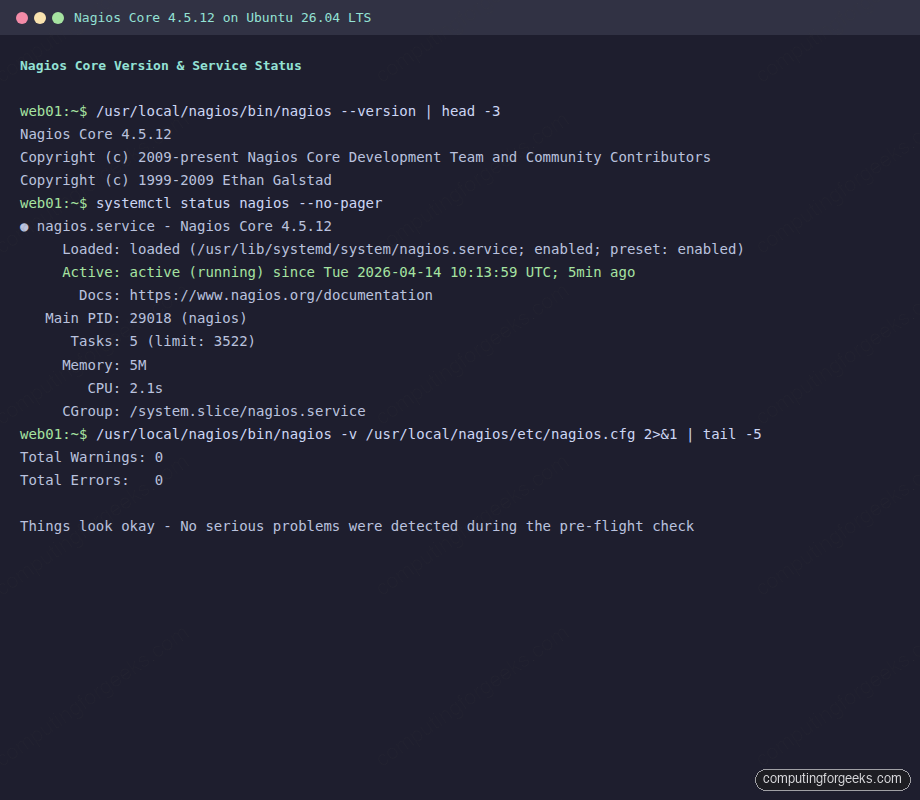
sudo /usr/local/nagios/bin/nagios -v /usr/local/nagios/etc/nagios.cfgThe output should end with zero warnings and zero errors:
Total Warnings: 0
Total Errors:   0

Things look okay - No serious problems were detected during the pre-flight check
Start and enable the Nagios service:
sudo systemctl enable --now nagiosVerify it’s running:
sudo systemctl status nagios --no-pagerThe service should show active (running) with the Nagios Core version in the description:
● nagios.service - Nagios Core 4.5.12
     Loaded: loaded (/usr/lib/systemd/system/nagios.service; enabled; preset: enabled)
     Active: active (running) since Tue 2026-04-14 10:13:59 UTC; 5min ago
       Docs: https://www.nagios.org/documentation
   Main PID: 29018 (nagios)
      Tasks: 5 (limit: 3522)
     Memory: 5M
        CPU: 2.1s
     CGroup: /system.slice/nagios.service
Also confirm Apache is running on port 80:
sudo systemctl status apache2 --no-pager | head -5Both services need to be active for the web interface to work.
Configure the Firewall
If UFW is enabled, allow HTTP traffic:
sudo ufw allow 80/tcp
sudo ufw reload
For production setups behind a reverse proxy with SSL, allow port 443 as well.
Access the Nagios Web Interface
Open your browser and navigate to http://10.0.1.50/nagios/ (replace with your server’s IP). You’ll see an HTTP authentication dialog. Log in with nagiosadmin and the password you set earlier.
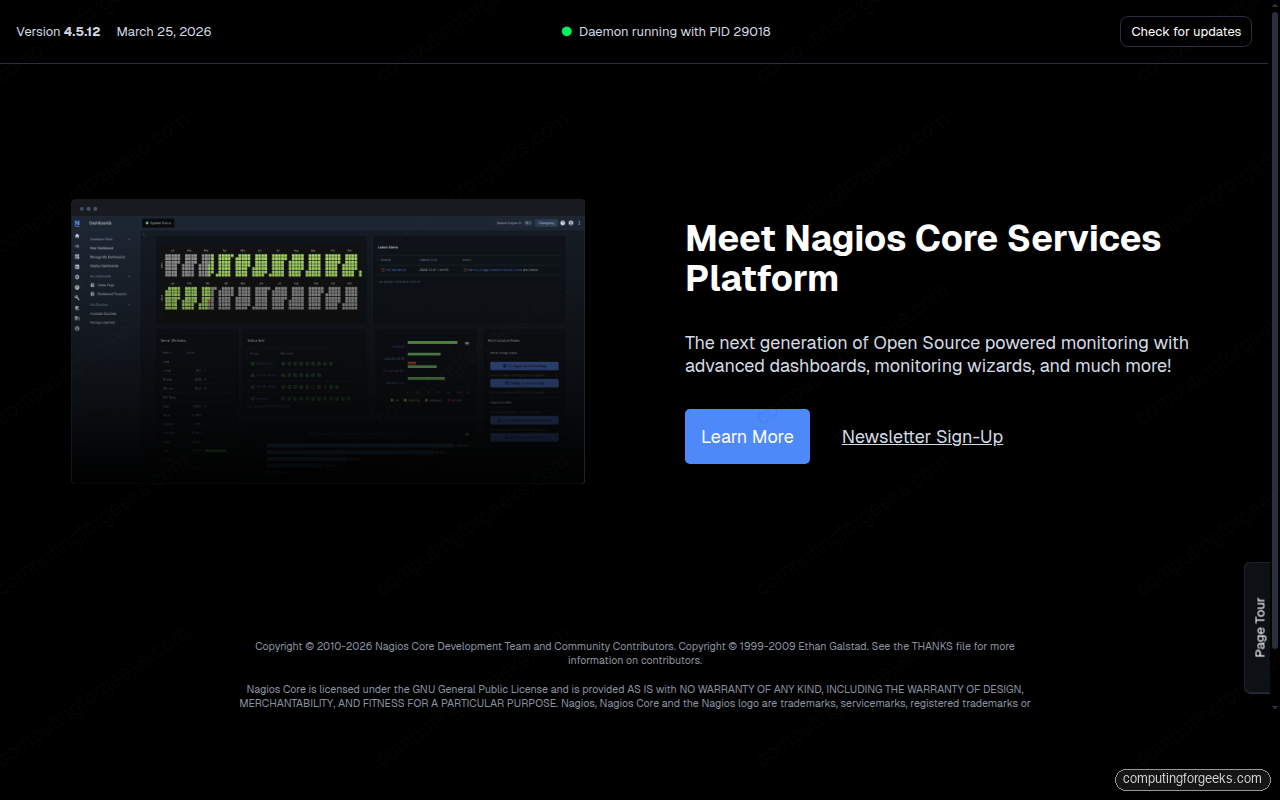
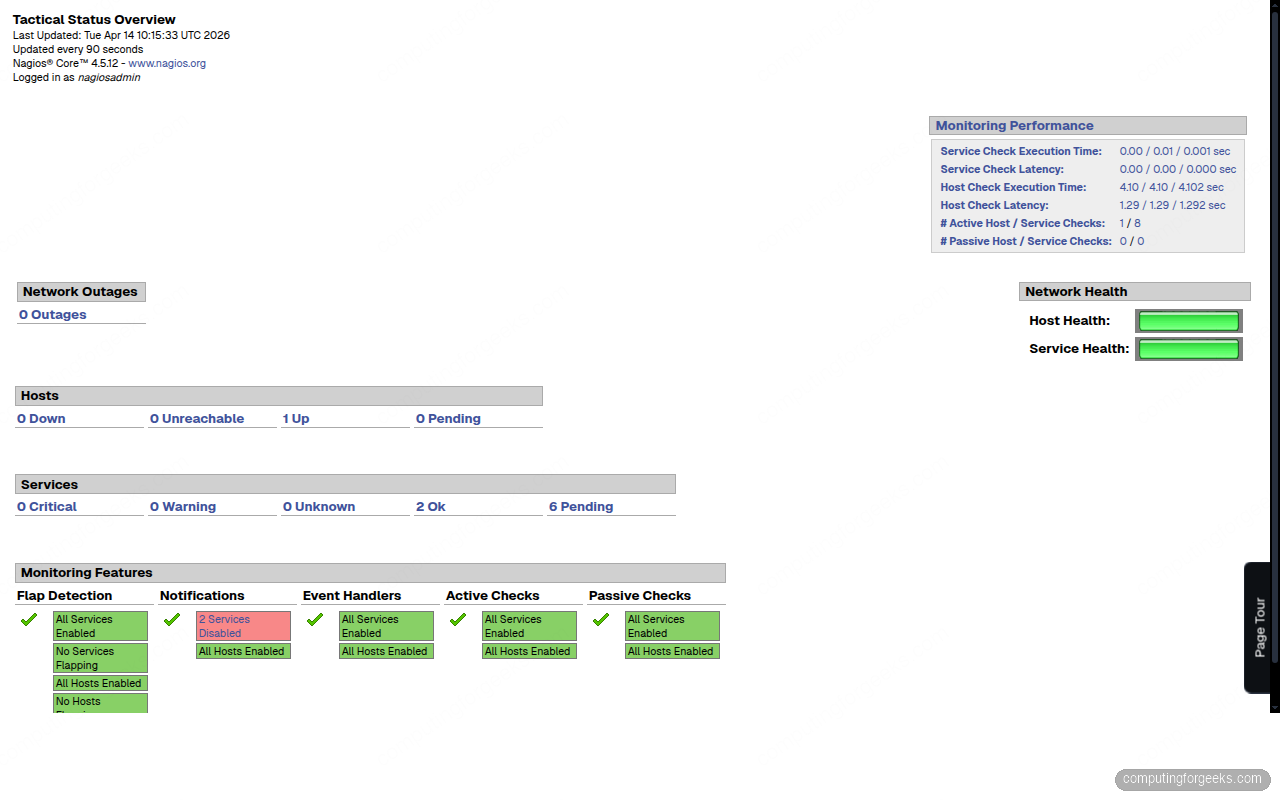
Click “Hosts” or “Services” in the left navigation to see the monitoring status. The Tactical Overview gives you a quick summary of all hosts and services:
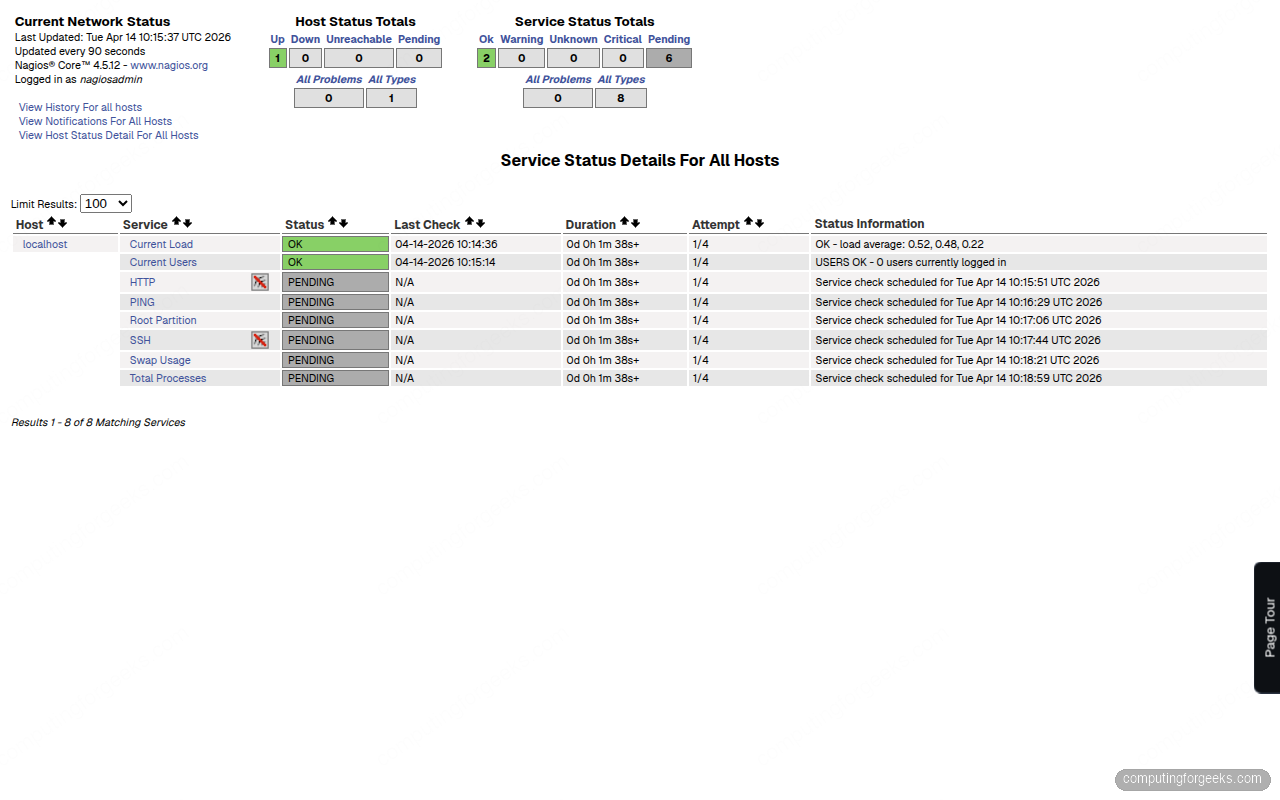
The service status page shows all checks running against localhost. Give Nagios a few minutes after startup for all checks to execute their first run:
Understanding the Default Localhost Monitoring
The sample configuration already monitors the local machine with these checks:
- PING: checks host reachability (warning at 100ms/20% loss, critical at 500ms/60%)
- Root Partition: disk usage on
/(warning at 80%, critical at 90%) - Current Users: logged-in users (warning above 20, critical above 50)
- Total Processes: running process count (warning above 250, critical above 400)
- Current Load: system load average (warning at 5/4/3, critical at 10/6/4 for 1/5/15 min)
- Swap Usage: swap consumption (warning at 80%, critical at 90%)
- SSH: SSH daemon availability on port 22
- HTTP: Apache HTTP response on port 80
These configs live in /usr/local/nagios/etc/objects/localhost.cfg. You can adjust thresholds by editing the check_command arguments in each service definition.
Add a Remote Host to Monitor
Monitoring localhost is just the beginning. To add a remote Linux server, create a config file under the objects directory. First, tell Nagios to load configs from a dedicated directory:
sudo mkdir -p /usr/local/nagios/etc/serversEdit the main config to include this directory:
sudo vi /usr/local/nagios/etc/nagios.cfgFind the cfg_dir section and add this line (or uncomment it if it already exists):
cfg_dir=/usr/local/nagios/etc/serversNow create a host definition for the remote server:
sudo vi /usr/local/nagios/etc/servers/webserver.cfgAdd the following host and service definitions:
define host {
    use                     linux-server
    host_name               webserver
    alias                   Production Web Server
    address                 10.0.1.51
    max_check_attempts      5
    check_period            24x7
    notification_interval   30
    notification_period     24x7
}

define service {
    use                     generic-service
    host_name               webserver
    service_description     PING
    check_command           check_ping!100.0,20%!500.0,60%
}

define service {
    use                     generic-service
    host_name               webserver
    service_description     SSH
    check_command           check_ssh
}

define service {
    use                     generic-service
    host_name               webserver
    service_description     HTTP
    check_command           check_http
}
Validate and reload:
sudo /usr/local/nagios/bin/nagios -v /usr/local/nagios/etc/nagios.cfg
sudo systemctl reload nagios
The new host appears in the web interface within a minute. These are “agentless” checks that test from the Nagios server’s perspective. For deeper metrics (disk usage, CPU load, running processes on the remote machine), you need the NRPE agent.
Set Up NRPE for Remote System Checks
NRPE (Nagios Remote Plugin Executor) runs on the monitored host and executes local plugins on demand. This lets the Nagios server request checks that can only run locally, like check_disk or check_load.
On the Nagios Server
Install the NRPE check plugin so the server can talk to remote NRPE agents:
cd /tmp
wget -q https://github.com/NagiosEnterprises/nrpe/releases/download/nrpe-4.1.3/nrpe-4.1.3.tar.gz
tar xzf nrpe-4.1.3.tar.gz
cd nrpe-4.1.3
./configure
make check_nrpe
sudo make install-plugin
This installs check_nrpe into /usr/local/nagios/libexec/. Define the command in Nagios so service definitions can use it:
sudo vi /usr/local/nagios/etc/objects/commands.cfgAdd at the bottom of the file:
define command {
    command_name    check_nrpe
    command_line    $USER1$/check_nrpe -H $HOSTADDRESS$ -c $ARG1$
}
On the Remote Host
Install NRPE and the Nagios plugins on the machine you want to monitor:
sudo apt install -y nagios-nrpe-server nagios-pluginsEdit the NRPE config to allow connections from the Nagios server:
sudo vi /etc/nagios/nrpe.cfgFind the allowed_hosts line and add your Nagios server IP:
allowed_hosts=127.0.0.1,::1,10.0.1.50Restart NRPE:
sudo systemctl enable --now nagios-nrpe-serverAdd NRPE Service Checks
Back on the Nagios server, add NRPE-based services to the remote host config:
define service {
    use                     generic-service
    host_name               webserver
    service_description     Disk Usage
    check_command           check_nrpe!check_disk
}

define service {
    use                     generic-service
    host_name               webserver
    service_description     System Load
    check_command           check_nrpe!check_load
}

define service {
    use                     generic-service
    host_name               webserver
    service_description     Total Processes
    check_command           check_nrpe!check_total_procs
}
Validate the config and reload Nagios to pick up the changes:
sudo /usr/local/nagios/bin/nagios -v /usr/local/nagios/etc/nagios.cfg
sudo systemctl reload nagios
Configure Email Notifications
Nagios sends alerts by email using /bin/mail. Install a mail transfer agent if one isn’t already present:
sudo apt install -y mailutilsEdit the contacts config to set the notification email address:
sudo vi /usr/local/nagios/etc/objects/contacts.cfgChange the email field in the nagiosadmin contact definition:
define contact {
    contact_name            nagiosadmin
    use                     generic-contact
    alias                   Nagios Admin
    email                   [email protected]
}
For production use, configure Postfix or an external SMTP relay so emails actually get delivered. Without a properly configured MTA, notifications go nowhere. Test it with:
echo "Test alert from Nagios" | mail -s "Nagios Test" [email protected]Check your inbox. If nothing arrives, check /var/log/mail.log for delivery errors.
Nagios Core vs Nagios XI vs Prometheus
Choosing between Nagios Core, Nagios XI, Zabbix, and Prometheus depends on your budget, team size, and monitoring philosophy. Here’s a practical comparison based on running all three in production environments:
| Feature | Nagios Core (Free) | Nagios XI (Commercial) | Prometheus (Free) |
|---|---|---|---|
| License | GPL v2, fully open source | Proprietary, starts at ~$2,000/year | Apache 2.0, fully open source |
| Configuration | Text files, full control | Web UI wizard, easier setup | YAML files, Kubernetes-native |
| Monitoring model | Pull (active checks from server) | Pull (same engine as Core) | Pull (scrapes /metrics endpoints) |
| Best for | Traditional infra, network devices, uptime checks | Teams wanting GUI config, reports, dashboards | Cloud-native, containers, Kubernetes, microservices |
| Alerting | Built-in (email, scripts) | Built-in + escalations + dashboards | Alertmanager (separate component) |
| Dashboards | Basic CGI web UI | Modern web UI with graphs | Grafana (separate) |
| Scaling | Single server, distributed via DNX | Multi-server with load balancer | Federation, Thanos, Cortex |
| Agent | NRPE, NSClient++ (Windows) | NCPA (cross-platform) | Node Exporter, cAdvisor, custom exporters |
| Service discovery | Manual (config files) | Auto-discovery plugins | Native (Kubernetes, Consul, DNS, file-based) |
| Learning curve | Steep (config file syntax) | Moderate (GUI helps) | Moderate (PromQL, YAML) |
| Community plugins | 4,000+ on Nagios Exchange | Includes Core plugins + commercial add-ons | Hundreds of exporters |
Nagios Core still makes sense when you need reliable up/down checks for traditional infrastructure: physical servers, network switches, printers, UPS devices. Prometheus wins for anything containerized or cloud-native where you need dimensional metrics and PromQL queries. Nagios XI targets teams that want Nagios’ checking engine but don’t want to manage config files by hand.
For a LAMP stack hosting environment, Nagios Core with NRPE covers the bases without introducing the operational complexity of a Prometheus stack. For a Kubernetes cluster, Prometheus is the clear choice since it integrates natively with the container ecosystem.