Vagrant creates identical development environments from a single file. Whether you’re onboarding a new developer or spinning up a test lab, every team member gets the exact same setup. On Ubuntu 26.04, the Docker provider works without nested virtualization, which makes it practical for cloud VMs and containers alike.
This guide covers installing Vagrant 2.4.9 on Ubuntu 26.04 LTS from the official HashiCorp repository, configuring the Docker provider, building Vagrantfiles with provisioning, and running multi-machine environments. HashiCorp doesn’t publish packages for the “resolute” release yet, so we use the “noble” repository (binary-compatible with 26.04).
Tested April 2026 | Ubuntu 26.04 LTS (Resolute Raccoon), Vagrant 2.4.9, Docker 29.4.0
Prerequisites
Before starting, make sure your server meets these requirements:
- Ubuntu 26.04 LTS with root or sudo access (initial server setup guide)
- Docker Engine installed and running (install Docker CE on Ubuntu 26.04)
- At least 2 GB RAM and 10 GB free disk space
- Tested on: Ubuntu 26.04 LTS (kernel 7.0.0-10-generic), Docker 29.4.0
Install Vagrant from HashiCorp Repository
The official HashiCorp APT repository provides the latest Vagrant packages. Since Ubuntu 26.04 (resolute) isn’t listed in their repository yet, we use the “noble” (24.04) packages, which are fully compatible.
Import the HashiCorp GPG signing key:
wget -qO- https://apt.releases.hashicorp.com/gpg | sudo gpg --dearmor -o /usr/share/keyrings/hashicorp-archive-keyring.gpgAdd the repository using the “noble” release name:
echo "deb [signed-by=/usr/share/keyrings/hashicorp-archive-keyring.gpg] https://apt.releases.hashicorp.com noble main" | sudo tee /etc/apt/sources.list.d/hashicorp.listUpdate the package index and install Vagrant:
sudo apt-get update && sudo apt-get install -y vagrantConfirm the installation:
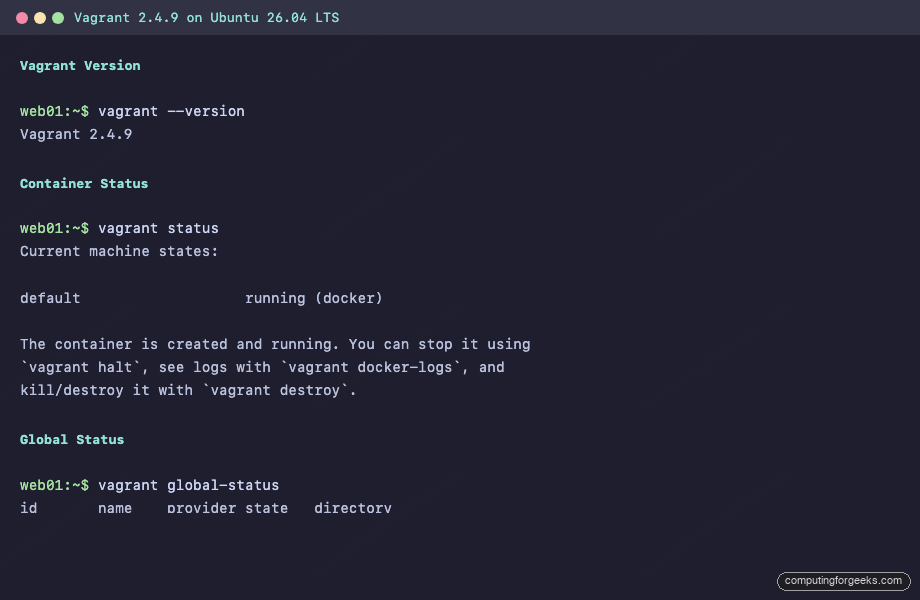
vagrant --versionYou should see the installed version:
Vagrant 2.4.9Vagrant is now installed. The binary lives at /usr/bin/vagrant and manages environments through provider plugins.
Configure the Docker Provider
Vagrant supports multiple providers (VirtualBox, VMware, Docker, libvirt). The Docker provider is ideal when running inside a VM because it doesn’t require nested virtualization. Make sure Docker is installed and the service is active before proceeding.
Verify Docker is running:
systemctl is-active dockerThe output should read active. No additional Vagrant plugin is needed for the Docker provider since it ships with Vagrant out of the box.
Create Your First Vagrantfile
Every Vagrant project starts with a Vagrantfile that describes the environment. Create a project directory and initialize it:
mkdir -p ~/vagrant-demo && cd ~/vagrant-demoYou can generate a boilerplate Vagrantfile with vagrant init:
vagrant init ubuntu/jammy64This creates a commented Vagrantfile configured for VirtualBox. For Docker, replace the contents with a Docker-specific configuration:
sudo vi ~/vagrant-demo/VagrantfileAdd the following configuration:
Vagrant.configure("2") do |config|
  config.vm.provider "docker" do |d|
    d.image = "ubuntu:24.04"
    d.remains_running = true
    d.has_ssh = false
    d.cmd = ["tail", "-f", "/dev/null"]
  end
end
This tells Vagrant to pull the ubuntu:24.04 Docker image and keep the container running. The tail -f /dev/null command prevents the container from exiting immediately.
Bring the environment up:
vagrant up --provider=dockerVagrant pulls the image, creates the container, and starts it:
Bringing machine 'default' up with 'docker' provider...
==> default: Creating and configuring docker networks...
==> default: Creating the container...
    default:   Name: vagrant-demo_default_1776159325
    default:  Image: ubuntu:24.04
    default:    Cmd: tail -f /dev/null
    default: Volume: /root/vagrant-demo:/vagrant
    default:
    default: Container created: 1cb8823ddb1de2f6
==> default: Enabling network interfaces...
==> default: Starting container...
Check the machine state:
vagrant statusThe container shows as running:
Current machine states:

default                   running (docker)

The container is created and running. You can stop it using
`vagrant halt`, see logs with `vagrant docker-logs`, and
kill/destroy it with `vagrant destroy`.
Execute a command inside the container using vagrant docker-exec:
vagrant docker-exec default -- cat /etc/os-releaseThe output confirms the Ubuntu 24.04 container is running:
==> default: PRETTY_NAME="Ubuntu 24.04.4 LTS"
==> default: NAME="Ubuntu"
==> default: VERSION_ID="24.04"
==> default: VERSION="24.04.4 LTS (Noble Numbat)"
==> default: VERSION_CODENAME=noble
Manage Machine Lifecycle
Vagrant provides a consistent set of commands for controlling environments regardless of the provider.
Stop the container without destroying it:
vagrant haltThe container transitions to a stopped state:
==> default: Stopping container...
Current machine states:

default                   stopped (docker)
Start it again with vagrant up (no need to specify the provider after the first run). When you’re done, destroy the container completely:
vagrant destroy -fThe -f flag skips the confirmation prompt:
==> default: Deleting the container...Use vagrant global-status to see all Vagrant environments across your system:
vagrant global-statusThis lists every environment with its provider, state, and directory:
id       name    provider state   directory
---------------------------------------------------------------------
a3f7c2d  default docker   running /root/vagrant-demo
Prune stale entries from this list with vagrant global-status --prune.
Build with a Dockerfile
The Docker provider can build images from a Dockerfile instead of pulling a pre-built image. This is useful for creating reproducible environments with custom packages pre-installed.
Create a new project directory:
mkdir -p ~/vagrant-nginx && cd ~/vagrant-nginxCreate the Dockerfile:
sudo vi DockerfileAdd the following content:
FROM ubuntu:24.04
RUN apt-get update -qq && apt-get install -y -qq nginx
RUN echo "<h1>Provisioned by Vagrant</h1>" > /var/www/html/index.html
EXPOSE 80
CMD ["nginx", "-g", "daemon off;"]
Create the Vagrantfile that references the Dockerfile:
sudo vi VagrantfileAdd this configuration:
Vagrant.configure("2") do |config|
  config.vm.provider "docker" do |d|
    d.build_dir = "."
    d.remains_running = true
    d.has_ssh = false
    d.ports = ["8080:80"]
  end
end
The build_dir option tells Vagrant to build the image from the current directory’s Dockerfile. Port 8080 on the host maps to port 80 inside the container.
Bring up the environment:
vagrant up --provider=dockerVagrant builds the Docker image and starts the container. The build output shows each Dockerfile layer being processed:
==> default: Building the container from a Dockerfile...
    default: #1 [internal] load build definition from Dockerfile
    default: #2 [internal] load metadata for docker.io/library/ubuntu:24.04
    default: #5 [2/3] RUN apt-get update -qq && apt-get install -y -qq nginx
    default: #5 DONE 20.6s
    default: #6 [3/3] RUN echo "..." > /var/www/html/index.html
    default: #7 exporting to image
==> default: Creating the container...
    default:   Port: 8080:80
    default: Container created: 436b8164bcfb780e
==> default: Starting container...
Test the Nginx server:
curl http://localhost:8080The response confirms provisioning worked:
<h1>Provisioned by Vagrant</h1>Clean up when done:
vagrant destroy -fThis stops the container, deletes it, and removes the built image.
Multi-Machine Environments
Real applications rarely run on a single machine. Vagrant’s multi-machine feature lets you define multiple containers in one Vagrantfile, simulating a web server plus database setup.
Create a project directory for the multi-machine setup:
mkdir -p ~/vagrant-multi && cd ~/vagrant-multiCreate the Vagrantfile:
sudo vi VagrantfileDefine two machines, a web server and a database:
Vagrant.configure("2") do |config|
  config.vm.define "web" do |web|
    web.vm.provider "docker" do |d|
      d.image = "nginx:alpine"
      d.name = "web-server"
      d.remains_running = true
      d.has_ssh = false
      d.ports = ["8080:80"]
    end
  end

  config.vm.define "db" do |db|
    db.vm.provider "docker" do |d|
      d.image = "postgres:17-alpine"
      d.name = "db-server"
      d.remains_running = true
      d.has_ssh = false
      d.ports = ["5432:5432"]
      d.env = {
        "POSTGRES_PASSWORD" => "secretpass",
        "POSTGRES_DB" => "appdb"
      }
    end
  end
end
Bring up both machines:
vagrant up --provider=dockerVagrant creates both containers in parallel:
Bringing machine 'web' up with 'docker' provider...
Bringing machine 'db' up with 'docker' provider...
==> web: Creating the container...
    web:   Name: web-server
    web:  Image: nginx:alpine
    web:   Port: 8080:80
==> db: Creating the container...
    db:   Name: db-server
    db:  Image: postgres:17-alpine
    db:   Port: 5432:5432
==> web: Starting container...
==> db: Starting container...
Check the status of all machines:
vagrant statusBoth containers appear as running:
Current machine states:

web                       running (docker)
db                        running (docker)

This environment represents multiple VMs. The VMs are all listed
above with their current state.
Target a specific machine by name when running commands. For example, vagrant halt web stops only the web container, while vagrant destroy db -f removes only the database. To tear down everything at once:
vagrant destroy -fManage Vagrant Plugins
Vagrant extends its functionality through plugins. The vagrant-docker-compose plugin, for example, adds Docker Compose integration.
Install a plugin:
vagrant plugin install vagrant-docker-composeThe plugin downloads and installs within seconds:
Installing the 'vagrant-docker-compose' plugin. This can take a few minutes...
Installed the plugin 'vagrant-docker-compose (1.5.1)'!
List installed plugins:
vagrant plugin listThe output shows all active plugins with their versions:
vagrant-docker-compose (1.5.1, global)Remove a plugin when you no longer need it:
vagrant plugin uninstall vagrant-docker-composeManage Vagrant Boxes
Boxes are the base images for VirtualBox and other hypervisor-based providers. While the Docker provider uses Docker images directly, you’ll work with boxes when using VirtualBox or libvirt.
Add a box manually:
vagrant box add ubuntu/jammy64List downloaded boxes:
vagrant box listRemove a box to free disk space:
vagrant box remove ubuntu/jammy64Update all boxes to their latest versions:
vagrant box updateBrowse the full catalog at HashiCorp’s Vagrant Cloud.
Useful Vagrant Commands Reference
Here is a quick reference for the most common Vagrant operations:
| Command | Description |
|---|---|
vagrant init | Generate a new Vagrantfile in the current directory |
vagrant up | Create and start the environment |
vagrant halt | Stop the running machine |
vagrant destroy -f | Remove the machine completely |
vagrant status | Show the state of machines in the current project |
vagrant global-status | Show all Vagrant environments system-wide |
vagrant reload | Restart the machine (halt + up) |
vagrant provision | Re-run provisioners without restarting |
vagrant ssh | SSH into the machine (requires SSH-enabled provider) |
vagrant docker-exec | Execute a command in a Docker container |
vagrant plugin list | List installed plugins |
vagrant box list | List downloaded boxes |
Vagrant vs Docker Compose vs Terraform
These three tools overlap but serve different purposes. Vagrant is designed for local development environments: you describe a machine (or set of machines), bring it up, work in it, and tear it down. It abstracts the provider, so the same Vagrantfile can target VirtualBox, Docker, VMware, or cloud providers.
Docker Compose manages multi-container applications. If your project is already containerized with Dockerfiles, Compose is more natural. It handles networking, volumes, and service dependencies natively. Vagrant with the Docker provider essentially wraps Docker with a different CLI, so for container-only workflows, Compose is lighter weight.
Terraform (and OpenTofu) provisions cloud infrastructure: VPCs, load balancers, databases, Kubernetes clusters. It doesn’t create local dev environments. Where Vagrant gives you a local VM to test your app, Terraform gives you the production infrastructure to deploy it.
A common pattern in DevOps teams: Ansible handles configuration management, Vagrant provides throwaway test environments for Ansible playbooks, and Terraform deploys the real infrastructure. Each tool fits a different layer of the stack.