ArgoCD watches a Git repository and keeps your Kubernetes cluster in sync with it. That’s GitOps in one sentence. When a commit lands in your repo, ArgoCD detects the change and reconciles your cluster to match the declared state, no manual kubectl apply required.
This guide walks through installing ArgoCD v3.3.6 on Ubuntu 26.04 LTS using K3s as the underlying Kubernetes distribution. We’ll deploy a sample application from a public Git repository and verify the full GitOps loop through both the CLI and the ArgoCD web dashboard.
Verified working: April 2026 on Ubuntu 26.04 LTS, ArgoCD 3.3.6, K3s v1.34.6
Prerequisites
Before starting, confirm you have the following ready:
- An Ubuntu 26.04 LTS server with at least 2 CPU cores and 4 GB RAM
- Root or sudo access
- Tested on: Ubuntu 26.04 LTS (kernel 7.0), K3s v1.34.6, ArgoCD v3.3.6
Install K3s (Lightweight Kubernetes)
ArgoCD runs on Kubernetes, so we need a cluster first. K3s is a lightweight Kubernetes distribution that installs in seconds and works perfectly for single-node setups. If you already have a Kubernetes cluster running (via kubeadm or another method), skip ahead to the ArgoCD installation step.
Install K3s with the official installer script:
curl -sfL https://get.k3s.io | sh -K3s handles everything: the API server, kubelet, kube-proxy, and a built-in containerd runtime. For a deeper look at K3s options and configuration, see the dedicated K3s installation guide on Ubuntu 26.04.
Verify the node is ready:
kubectl get nodesThe output should show your node with Ready status:
NAME           STATUS   ROLES           AGE   VERSION
u2604-argocd   Ready    control-plane   30s   v1.34.6+k3s1
Install ArgoCD on the Cluster
Create a dedicated namespace for ArgoCD and apply the official installation manifest:
kubectl create namespace argocd
kubectl apply -n argocd -f https://raw.githubusercontent.com/argoproj/argo-cd/stable/manifests/install.yaml
This deploys the ArgoCD API server, repo server, application controller, Redis cache, Dex (SSO), notifications controller, and applicationset controller. All components land in the argocd namespace.
Wait for every pod to reach the Running state:
kubectl -n argocd wait --for=condition=Ready pod --all --timeout=120sConfirm all pods are healthy:
kubectl -n argocd get podsYou should see seven pods, all showing 1/1 Running:
NAME                                               READY   STATUS    RESTARTS   AGE
argocd-application-controller-0                    1/1     Running   0          2m
argocd-applicationset-controller-cf6df4d44-69nl4   1/1     Running   0          2m
argocd-dex-server-694c74cbb8-5ztsm                 1/1     Running   0          2m
argocd-notifications-controller-67dd6d74b5-llppx   1/1     Running   0          2m
argocd-redis-85b9d55dc4-jwsrk                      1/1     Running   0          2m
argocd-repo-server-6fd5c47689-8crfv                1/1     Running   0          2m
argocd-server-79fdfd7f5b-tcbjc                     1/1     Running   0          2m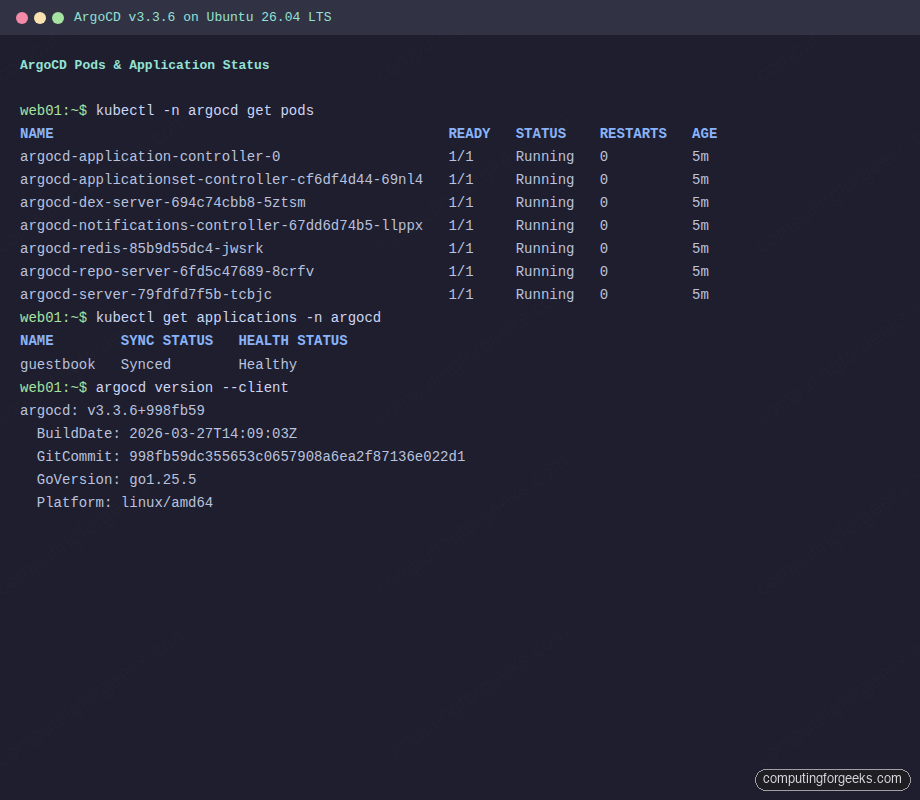
Expose the ArgoCD Server
By default, the ArgoCD server service is a ClusterIP, which means it’s only reachable from inside the cluster. To access the web UI from your browser, patch it to use NodePort:
kubectl -n argocd patch svc argocd-server --type='json' -p='[{"op": "replace", "path": "/spec/type", "value": "NodePort"}]'Check which port was assigned:
kubectl -n argocd get svc argocd-serverThe HTTPS port appears in the output next to port 443:
NAME            TYPE       CLUSTER-IP     EXTERNAL-IP   PORT(S)                      AGE
argocd-server   NodePort   10.43.57.174   <none>        80:31118/TCP,443:30515/TCP   4m
In this example, port 30515 maps to ArgoCD’s HTTPS endpoint. Open your browser at https://10.0.1.50:30515 (replacing 10.0.1.50 with your server’s IP).
For production environments, consider using an Ingress controller or a LoadBalancer service instead of NodePort. kubectl port-forward is another option for quick local access:
kubectl port-forward svc/argocd-server -n argocd 8443:443 --address 0.0.0.0 &Retrieve the Admin Password
ArgoCD generates a random password for the admin account during installation. Extract it from the Kubernetes secret:
kubectl -n argocd get secret argocd-initial-admin-secret -o jsonpath="{.data.password}" | base64 -d; echoSave this password. You’ll use it to log in both via the web UI and the CLI. After your first login, it’s good practice to change this password and delete the initial secret:
kubectl -n argocd delete secret argocd-initial-admin-secretAccess the ArgoCD Web UI
Open https://10.0.1.50:30515 in your browser (accept the self-signed certificate warning). You’ll see the ArgoCD login page with the signature octopus mascot.
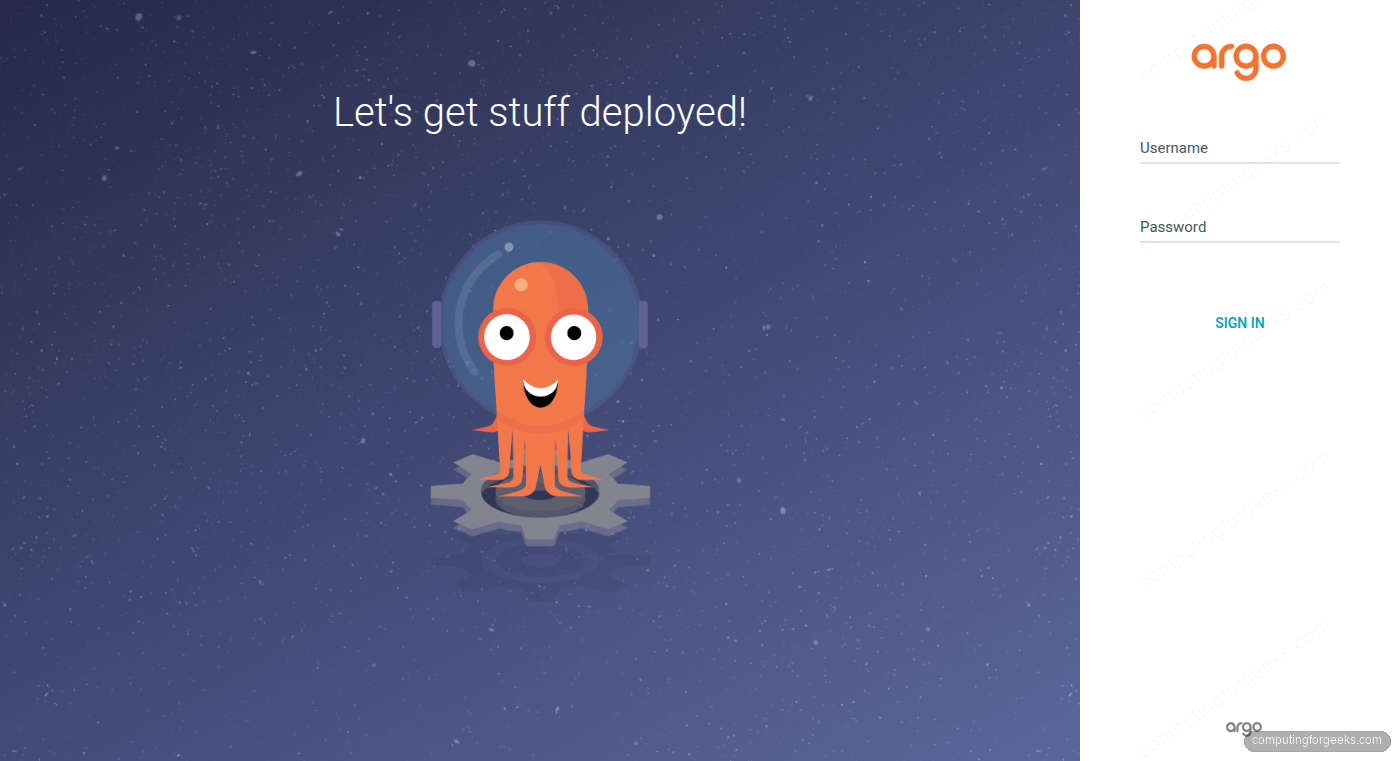
Log in with username admin and the password you retrieved in the previous step. After successful authentication, you’ll land on the empty Applications dashboard.
Install the ArgoCD CLI
The CLI gives you full control over ArgoCD from the terminal. Download the latest release:
ARGOCD_VERSION=$(curl -sL https://api.github.com/repos/argoproj/argo-cd/releases/latest | grep tag_name | head -1 | sed 's/.*"v\?\([^"]*\)".*/\1/')
echo "Installing ArgoCD CLI v${ARGOCD_VERSION}"
curl -sSL -o /tmp/argocd "https://github.com/argoproj/argo-cd/releases/download/v${ARGOCD_VERSION}/argocd-linux-amd64"
sudo install -m 755 /tmp/argocd /usr/local/bin/argocd
Verify the installation:
argocd version --clientThe output confirms the installed version:
argocd: v3.3.6+998fb59
  BuildDate: 2026-03-27T14:09:03Z
  GitCommit: 998fb59dc355653c0657908a6ea2f87136e022d1
  GoVersion: go1.25.5
  Platform: linux/amd64
Log In via the CLI
Connect the CLI to your ArgoCD server. Use the NodePort address and the --insecure flag since we’re using a self-signed certificate:
argocd login localhost:30515 --username admin --password YOUR_PASSWORD --insecure --grpc-webA successful login returns:
'admin:login' logged in successfully
Context 'localhost:30515' updated
Replace localhost:30515 with your server’s IP and NodePort if connecting from a remote machine.
Deploy a Sample Application via GitOps
This is where GitOps becomes real. ArgoCD will pull Kubernetes manifests from a Git repository and apply them to your cluster automatically. We’ll use the official ArgoCD example guestbook app.
Create the application:
argocd app create guestbook \
  --repo https://github.com/argoproj/argocd-example-apps.git \
  --path guestbook \
  --dest-server https://kubernetes.default.svc \
  --dest-namespace default \
  --sync-policy automated
The --sync-policy automated flag tells ArgoCD to automatically sync whenever it detects a drift between the Git repo and the cluster state. Without this flag, you would need to trigger syncs manually.
Trigger the initial sync:
argocd app sync guestbookThe sync output shows each Kubernetes resource being applied:
TIMESTAMP                  GROUP        KIND   NAMESPACE   NAME          STATUS   HEALTH        HOOK  MESSAGE
2026-04-14T09:44:37+00:00            Service     default  guestbook-ui    Synced  Healthy
2026-04-14T09:44:37+00:00   apps  Deployment     default  guestbook-ui    Synced  Progressing
Verify the Application
Check the application status from the CLI:
argocd app get guestbookBoth the Sync Status and Health Status should show green:
Name:               argocd/guestbook
Project:            default
Server:             https://kubernetes.default.svc
Namespace:          default
Sync Status:        Synced to  (723b86e)
Health Status:      Healthy

GROUP  KIND        NAMESPACE  NAME          STATUS  HEALTH   HOOK  MESSAGE
       Service     default    guestbook-ui  Synced  Healthy        service/guestbook-ui unchanged
apps   Deployment  default    guestbook-ui  Synced  Healthy        deployment.apps/guestbook-ui unchanged
You can also verify through kubectl directly:
kubectl get applications -n argocdThe output confirms the app is synced and healthy:
NAME        SYNC STATUS   HEALTH STATUS
guestbook   Synced        Healthy
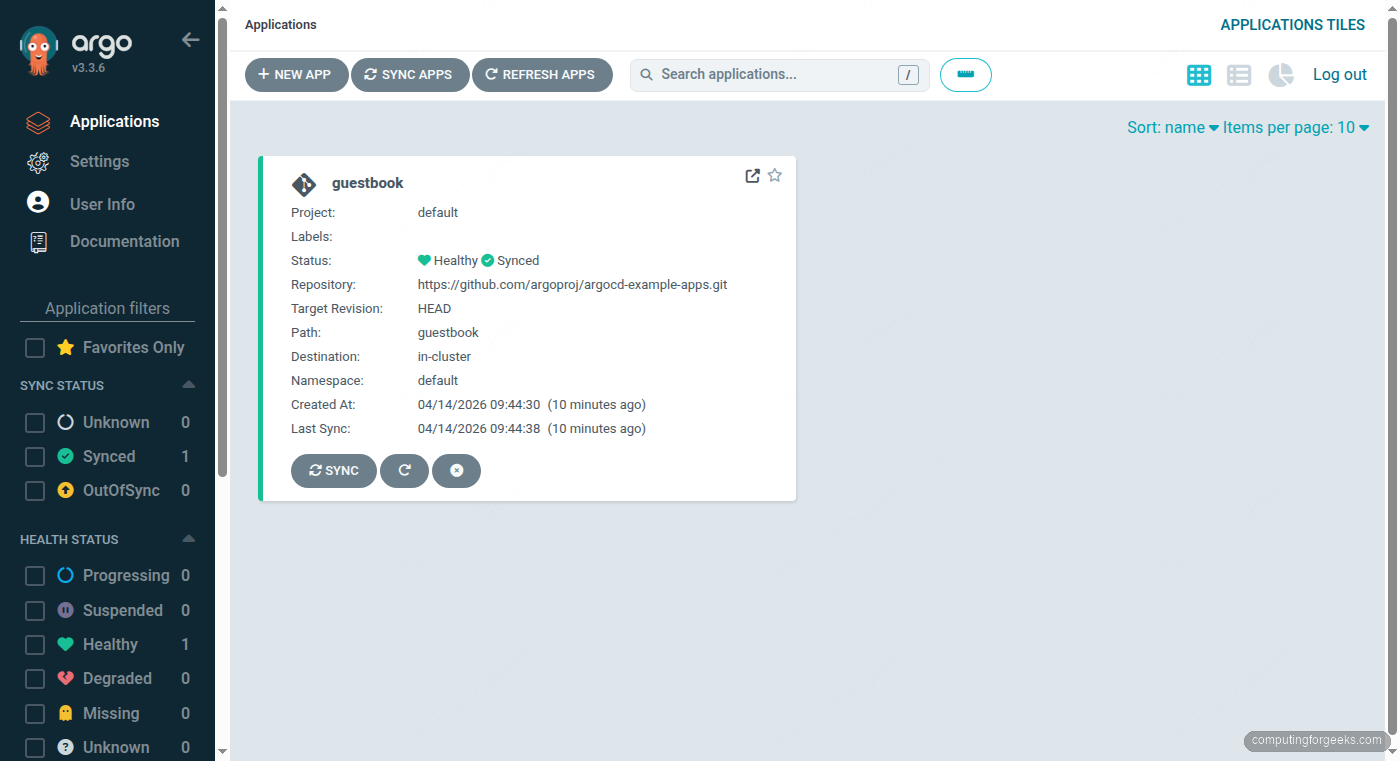
Back in the ArgoCD web UI, the dashboard now shows the guestbook application card with its sync and health status.
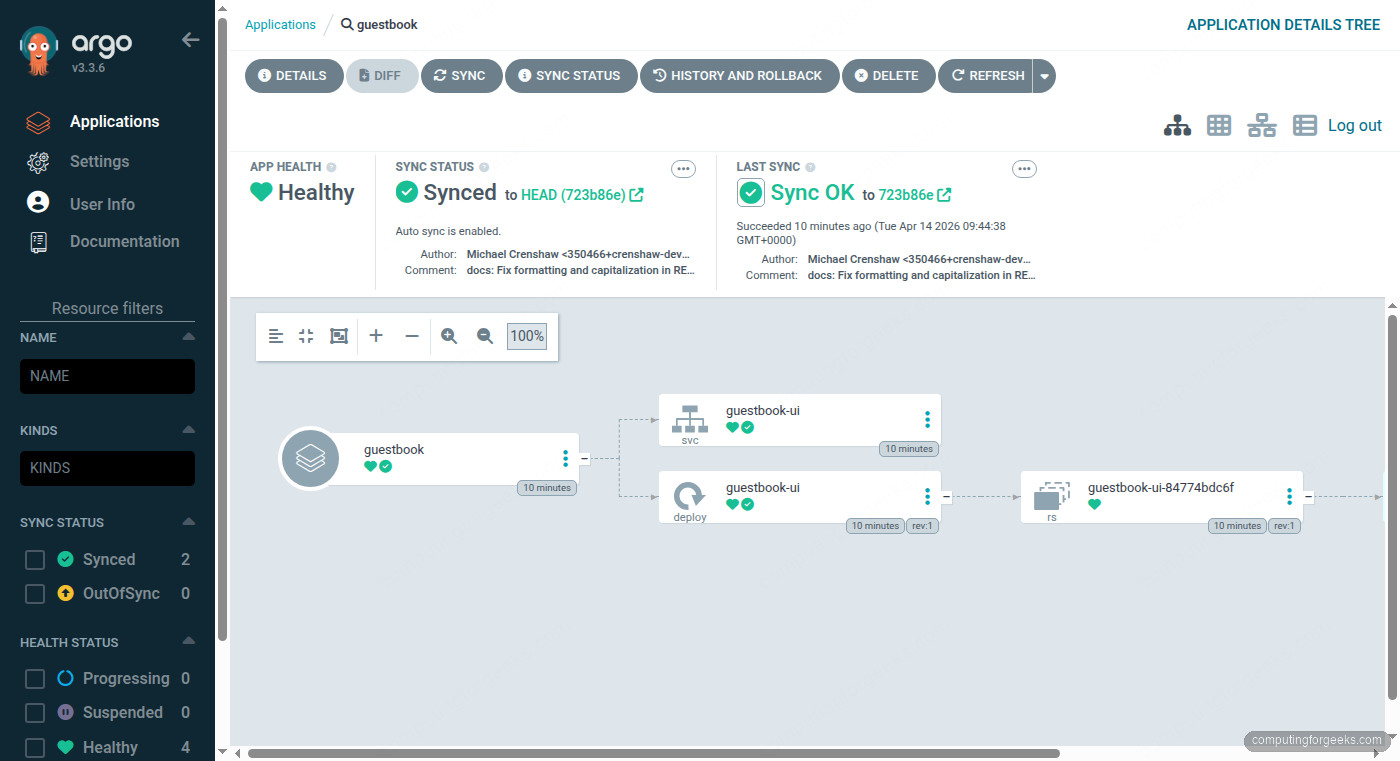
Clicking the guestbook application reveals the full resource tree, showing the Deployment, ReplicaSet, Pod, and Service that ArgoCD created from the Git manifests.
Useful ArgoCD CLI Commands
Once you’re comfortable with the basics, these commands become part of your daily workflow:
List all managed applications:
argocd app listView detailed application info including sync history:
argocd app get guestbookForce a manual sync when auto-sync is disabled:
argocd app sync guestbookCheck what would change before syncing (dry run):
argocd app diff guestbookDelete an application and its Kubernetes resources:
argocd app delete guestbookChange the admin password after first login:
argocd account update-passwordHow ArgoCD GitOps Works
Understanding the reconciliation loop helps when troubleshooting. ArgoCD continuously polls the configured Git repositories (every 3 minutes by default). When it detects a difference between the Git manifests and the live cluster state, it marks the application as OutOfSync.
With automated sync enabled, ArgoCD immediately applies the changes to bring the cluster back in line with Git. Without automated sync, the application stays OutOfSync until you manually trigger argocd app sync. This gives teams a review gate before changes hit the cluster.
ArgoCD also detects manual changes made directly to the cluster (someone running kubectl edit, for example). Since Git is the source of truth, ArgoCD can either ignore the drift, alert on it, or automatically revert it, depending on your sync policy settings.
Alternative: Flux CD
ArgoCD is not the only GitOps controller. Flux CD is another CNCF project that solves the same problem with a different architecture. Where ArgoCD gives you a rich web dashboard and an application-centric model, Flux takes a more Kubernetes-native approach using custom resources (GitRepository, Kustomization, HelmRelease) without a built-in UI.
For teams that want visual application management, rollback buttons, and RBAC through a web interface, ArgoCD is the stronger choice. For teams that prefer to manage everything through kubectl and Git with no additional UI, Flux fits more naturally. Both integrate with Helm and Kustomize, both support multi-cluster, and both are production-grade. The decision often comes down to whether your team values the dashboard enough to run the extra components ArgoCD requires.
If you’re running Docker workloads alongside Kubernetes, ArgoCD can manage those deployments too through Kubernetes manifests that reference your container images.