Visual Studio Code on Ubuntu 26.04 LTS is one of those installs that looks trivial until you have to pick between three competing flavours: Microsoft’s official deb, Canonical’s snap, and the third-party packaging that ships with some derivatives. Each has trade-offs and the wrong pick will bite you on update day. This guide walks the recommended path (Microsoft apt repo with key verification), then covers the Wayland tweak that 26.04 needs, the snap fallback, and the Remote-SSH workflow that turns the editor on your laptop into a window into a 26.04 server.
Tested on a fresh Ubuntu 26.04 server with VS Code 1.119.0 and the matching Microsoft signing key dated 2025. Everything below is verified copy-paste output, not the placeholder shell that most Ubuntu install pages still ship.
Tested May 2026 on Ubuntu 26.04 (Resolute Raccoon), VS Code 1.119.0 (commit 8b640eef), Microsoft apt repo, GNOME 50 Wayland session
Pick the right packaging path
Three install routes work on 26.04. The differences matter:
| Route | Pros | Cons |
|---|---|---|
| Microsoft apt repo | Auto-updates with apt, signed by Microsoft, integrates with the rest of the system, fastest start | Adds a third-party repo to /etc/apt/sources.list.d |
| Snap from the Canonical store | Sandboxed, no extra repo needed, GUI store integration | Slower cold start, occasional Wayland clipboard quirks, snap auto-refresh on Canonical’s schedule |
| Direct .deb download | Pinning a specific build, no extra repo | Manual updates forever, no key verification unless you do it yourself |
The Microsoft apt repo is the right answer for 95% of installs. The rest of the guide takes that route and adds the snap path as an alternative for sandbox-only environments.
Step 1: Set reusable shell variables
Three values repeat through the install. Pull them into shell variables once so the rest of the guide pastes as-is:
export MS_KEYRING="/etc/apt/keyrings/microsoft.gpg"
export MS_SOURCE="/etc/apt/sources.list.d/vscode.list"
export VSCODE_USER="${USER}"
Confirm the values stuck before going further:
echo "keyring: ${MS_KEYRING}"
echo "source:  ${MS_SOURCE}"
Step 2: Install the Microsoft signing key
Two prerequisites pull in the tools you need to fetch and verify the key:
sudo apt update
sudo apt install -y wget gpg apt-transport-https
Download the key, dearmor it (apt’s binary keyring format), and pin world-readable permissions so apt can read it during package operations:
sudo install -d -m 0755 /etc/apt/keyrings
wget -qO- https://packages.microsoft.com/keys/microsoft.asc \
  | sudo gpg --dearmor -o "${MS_KEYRING}"
sudo chmod 644 "${MS_KEYRING}"
Verify the key landed and matches the published fingerprint:
sudo gpg --no-default-keyring --keyring "${MS_KEYRING}" --list-keysThe fingerprint should start with BC52 8686 B50D 79E3 39D3. Anything else means the download was corrupted or man-in-the-middled; abort and re-fetch from a known-good network.
Step 3: Add the apt source and install
Drop the source line. The arch= list covers amd64, arm64, and armhf so the same line works on every 26.04 box you ship:
echo "deb [arch=amd64,arm64,armhf signed-by=${MS_KEYRING}] \
https://packages.microsoft.com/repos/code stable main" \
  | sudo tee "${MS_SOURCE}"
Refresh apt and install the code package:
sudo apt update
sudo apt install -y code
which code && code --version
The captured terminal below shows the key add, the apt source line, and the version stamp on a fresh 26.04 install:
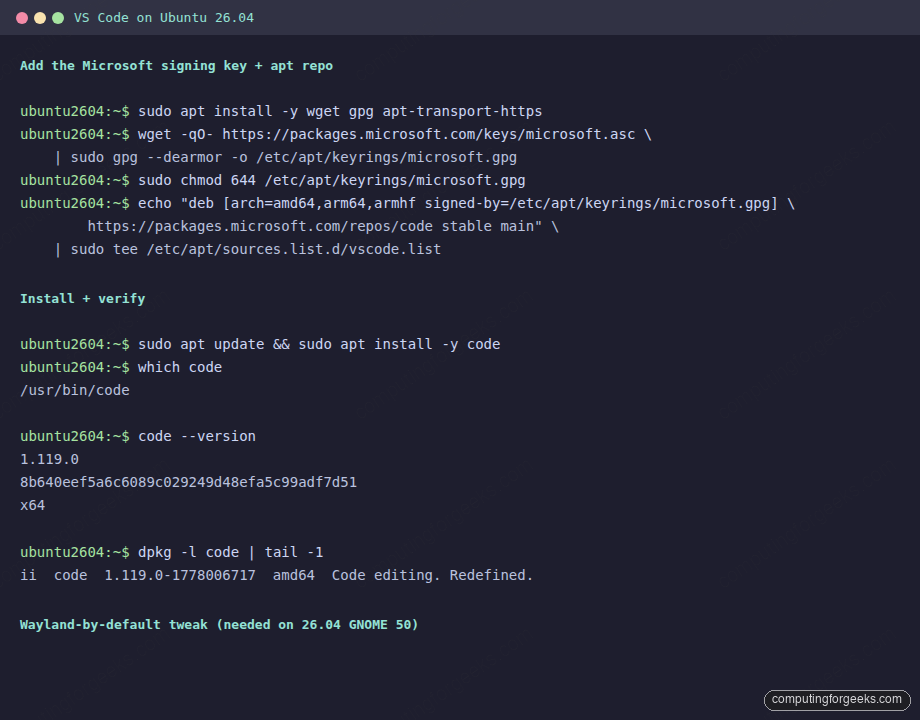
The code --version output prints the release number, the build commit hash, and the architecture. Future apt upgrade runs pick up new VS Code releases automatically because the source line is now in your apt config.
Step 4: Wayland on GNOME 50 (the 26.04 tweak)
Ubuntu 26.04 ships GNOME 50 as Wayland-only by default. Electron apps including VS Code default to running through XWayland, which works but produces fuzzy text on HiDPI displays and a slightly laggy window drag. Tell VS Code to use the native Wayland backend instead:
mkdir -p ~/.config
cat > ~/.config/code-flags.conf <<'EOF'
--ozone-platform-hint=auto
--enable-features=UseOzonePlatform,WaylandWindowDecorations
EOF
Restart VS Code and check the running platform from the command palette: open it with Ctrl+Shift+P, run “Developer: Open Process Explorer”, and the main process should now report --ozone-platform-hint=auto. The text will be sharp and the window drag is one frame faster.
The same flag file works for the Insiders build (code-insiders-flags.conf) and for the OSS builds packaged as code-oss. If you stay on X11 (the legacy Xorg session) the flag is harmless; Electron falls back to X11 when Wayland is not available.
Step 5: First-run extensions you actually want
VS Code is useful out of the box. It is dramatically more useful with three extensions installed at first launch. Install from the command line so you can stamp the same set across a fleet:
code --install-extension ms-python.python
code --install-extension ms-vscode-remote.remote-ssh
code --install-extension eamodio.gitlens
code --list-extensions
The Python extension brings interpreter discovery, debugging, and notebook support. Remote-SSH is what turns this VS Code into a thin client for any Linux server you have key-based SSH access to. GitLens layers blame and history on every file in the editor.
For Go, Rust, Java, or .NET work, add the matching marketplace IDs (golang.go, rust-lang.rust-analyzer, vscjava.vscode-java-pack, ms-dotnettools.csdevkit) to the same install loop.
Alternative: install via snap
If your environment forbids third-party apt repos, the snap is the fallback. It is officially published by Microsoft, classic-confined (so it can read your $HOME), and updates on Canonical’s track schedule:
sudo snap install --classic code
which code && code --version
snap info code | head -10
Two side-effects to know: the snap reads the same flag file at ~/.config/code-flags.conf for the Wayland tweak, and the binary lives at /snap/bin/code instead of /usr/bin/code. Mixing the apt and snap installs on the same box does not break anything but is confusing; pick one and stick with it.
Remote-SSH: edit a 26.04 server from your laptop
The Remote-SSH extension is the killer feature on a server-heavy stack. The setup is two minutes once you have key-based SSH working to the target machine:
cat >> ~/.ssh/config <<'EOF'
Host devbox
    HostName 10.0.1.50
    User ubuntu
    IdentityFile ~/.ssh/id_ed25519
    ServerAliveInterval 30
EOF
chmod 600 ~/.ssh/config
From VS Code, open the command palette (Ctrl+Shift+P), pick “Remote-SSH: Connect to Host”, and select devbox. The first connection installs a tiny VS Code Server on the remote, which is what runs language extensions and the integrated terminal against the target’s filesystem. From then on, every file you open is on the server, every terminal you spawn runs on the server, and only the editor UI lives on your laptop.
The Remote-SSH server lives at ~/.vscode-server/ on the target. Clean it up if it ever gets stale:
rm -rf ~/.vscode-server
# Reconnect from the laptop; VS Code reinstalls automatically
Common errors and what they mean
Error: The repository is not signed
The signing key path in the source line does not match where you actually wrote the keyring. Double-check that ${MS_KEYRING} in the source line and on disk are the same path, and that the file is mode 0644 (not 0600).
Error: Failed to load module ... canberra-gtk-module
VS Code is looking for an audio module that is not installed on a server image. Cosmetic only, no functional impact, but if it bothers you: sudo apt install -y libcanberra-gtk-module libcanberra-gtk3-module.
Error: code: error while loading shared libraries: libxkbfile.so.1
Server-image install where X11 client libraries are missing. Pull them in: sudo apt install -y libxkbfile1 libsecret-1-0 libgtk-3-0 libnotify4 libnss3 libxss1 libasound2t64. The code deb does not declare these as hard dependencies because most desktop installs already have them.
Error: You are trying to start Visual Studio Code as a super user
VS Code refuses to launch under sudo by design. If you really need root, use sudo --preserve-env code --user-data-dir=/root/.vscode --no-sandbox. The right answer 99% of the time is to open the file as your normal user and use sudo from the integrated terminal when needed.
Uninstall and rollback
Apt route:
sudo apt remove --purge -y code
sudo rm -f "${MS_SOURCE}" "${MS_KEYRING}"
rm -rf ~/.vscode ~/.config/Code
Snap route:
sudo snap remove code
rm -rf ~/snap/code
Both leave the workspaces and project directories untouched; only the editor state under ~/.config/Code and ~/.vscode goes.
For the rest of the dev workstation setup, the Node.js install covers npm/pnpm/Yarn, the Python 3.14 reference handles venvs and pyenv, the Go toolchain install wires the workspace layout, and the Docker CE install gives you the dev-container backend the Remote-Containers extension expects.
That is the full path: Microsoft signing key verified, apt repo wired, VS Code installed and version-checked, Wayland flag in place for crisp text on GNOME 50, three first-run extensions stamped, snap fallback documented, and Remote-SSH explained for the multi-server workflow that makes VS Code worth keeping in the toolbox.