Self-hosting GitLab gives you full control over your source code, CI/CD pipelines, and container registry. On Ubuntu 26.04 with 8GB RAM, the Omnibus package installs everything in one command.
The Omnibus installer bundles PostgreSQL, Redis, Nginx, Puma, Sidekiq, Gitaly, and Prometheus into a single package, so there is nothing to wire together manually. This guide walks through the full install on Ubuntu 26.04 LTS, from repo setup to your first project and backup.
Current as of April 2026. GitLab CE 18.10.3 on Ubuntu 26.04 LTS (Resolute Raccoon)
Prerequisites
Before starting, make sure you have:
- Ubuntu 26.04 LTS server with at least 8 GB RAM (4 GB absolute minimum, but performance will suffer)
- Root or sudo access
- A domain name or IP address for accessing the instance
- Ports 80 and 443 open in your firewall
- Tested on: Ubuntu 26.04 LTS, GitLab CE 18.10.3
If this is a fresh server, run through the Ubuntu 26.04 initial server setup first to harden SSH, set up a firewall, and configure automatic updates.
Install Required Dependencies
GitLab needs a few system packages for HTTPS, email, and SSH access. Install them:
sudo apt update
sudo apt install -y curl openssh-server ca-certificates tzdata perl
OpenSSH is required for Git operations over SSH. The ca-certificates package ensures HTTPS connections to external services work correctly.
Postfix handles outgoing email for notifications, password resets, and merge request alerts. Install it in “Internet Site” mode:
sudo apt install -y postfixWhen prompted, select Internet Site and enter your server’s FQDN. If you plan to use an external SMTP relay (Gmail, SendGrid, Mailgun), you can skip Postfix entirely and configure SMTP in GitLab later.
Add the GitLab CE Repository
GitLab provides an official script that adds the APT repository and signing keys. This is the recommended method from GitLab’s installation docs:
curl -fsSL https://packages.gitlab.com/install/repositories/gitlab/gitlab-ce/script.deb.sh | sudo bashAt the time of writing, GitLab does not yet ship packages specifically for Ubuntu 26.04 (resolute). If the script fails with a detection error, override the distribution to use the Ubuntu 24.04 (noble) packages, which work without issues on 26.04:
curl -fsSL https://packages.gitlab.com/install/repositories/gitlab/gitlab-ce/script.deb.sh | sudo os=ubuntu dist=noble bashThe repository is now configured and ready.
Install GitLab CE
Set the EXTERNAL_URL environment variable to your server’s address before installing. This tells the Omnibus installer how users will reach GitLab:
sudo EXTERNAL_URL="http://10.0.1.50" apt install -y gitlab-ceReplace 10.0.1.50 with your server’s IP or domain. If you have a domain with SSL, use https://gitlab.example.com and the installer will automatically request a Let’s Encrypt certificate.
The installation takes 3 to 5 minutes depending on disk speed. It downloads around 1 GB, installs the package, and runs gitlab-ctl reconfigure automatically. You will see output ending with:
GitLab should be available at http://10.0.1.50Retrieve the Initial Root Password
GitLab generates a random password for the root admin account during installation. Retrieve it from the auto-generated file:
sudo cat /etc/gitlab/initial_root_passwordLook for the Password: line in the output:
# WARNING: This value is valid only in the following conditions
#          1. If provided manually (either via `GITLAB_ROOT_PASSWORD` environment variable or via `gitlab_rails['initial_root_password']` setting in `gitlab.rb`, it was provided before database was seeded for the first time (usually, the first reconfigure run).
#          2. Password hasn't been changed manually, either via UI or via command line.
#
#          If the password shown here doesn't work, you must reset the admin password following https://docs.gitlab.com/ee/security/reset_user_password.html#reset-your-root-password.

Password: 3A4DmuG6wObJ8+ZobfEQDexvsREH8vIfXdnxQpPvOGI=

# NOTE: This file will be automatically deleted in the first reconfigure run after 24 hours.
Copy this password. The file auto-deletes after 24 hours, so save it somewhere safe or change the root password immediately after your first login.
Verify All Services Are Running
Check that every GitLab component started correctly:
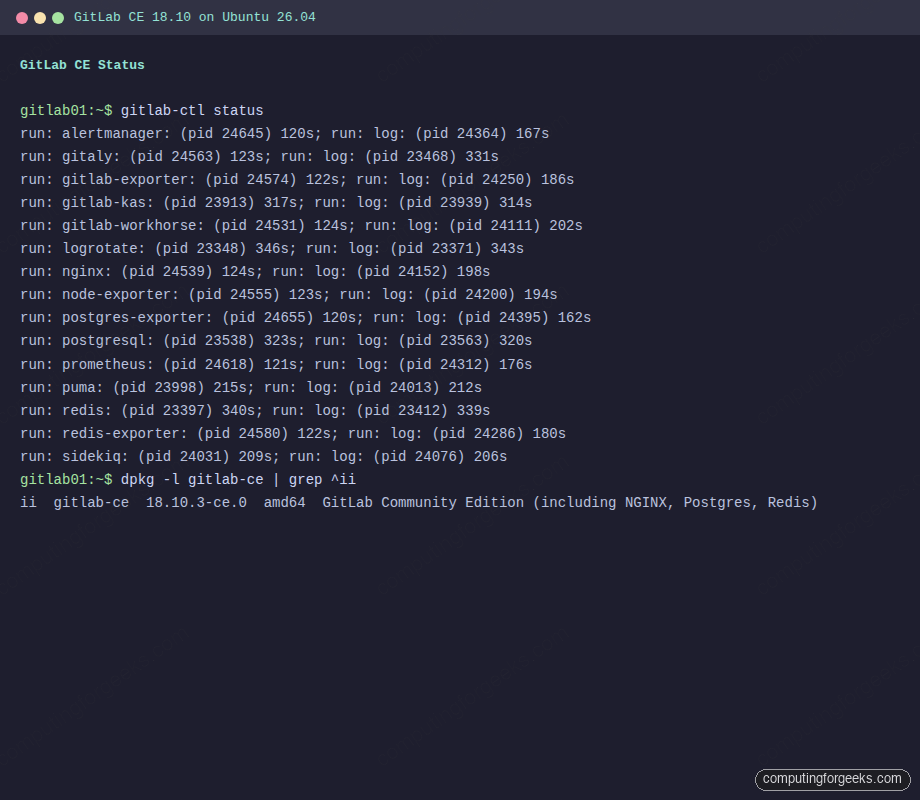
sudo gitlab-ctl statusAll services should show run with uptime in seconds:
run: alertmanager: (pid 24645) 120s; run: log: (pid 24364) 167s
run: gitaly: (pid 24563) 123s; run: log: (pid 23468) 331s
run: gitlab-exporter: (pid 24574) 122s; run: log: (pid 24250) 186s
run: gitlab-kas: (pid 23913) 317s; run: log: (pid 23939) 314s
run: gitlab-workhorse: (pid 24531) 124s; run: log: (pid 24111) 202s
run: logrotate: (pid 23348) 346s; run: log: (pid 23371) 343s
run: nginx: (pid 24539) 124s; run: log: (pid 24152) 198s
run: node-exporter: (pid 24555) 123s; run: log: (pid 24200) 194s
run: postgres-exporter: (pid 24655) 120s; run: log: (pid 24395) 162s
run: postgresql: (pid 23538) 323s; run: log: (pid 23563) 320s
run: prometheus: (pid 24618) 121s; run: log: (pid 24312) 176s
run: puma: (pid 23998) 215s; run: log: (pid 24013) 212s
run: redis: (pid 23397) 340s; run: log: (pid 23412) 339s
run: redis-exporter: (pid 24580) 122s; run: log: (pid 24286) 180s
run: sidekiq: (pid 24031) 209s; run: log: (pid 24076) 206s
If any service shows down, check its logs with sudo gitlab-ctl tail <service-name>. The most common cause is insufficient RAM (GitLab needs 4 GB minimum, 8 GB recommended).
Access the GitLab Web Interface
Open your browser and navigate to the address you set as EXTERNAL_URL. The GitLab login page appears:
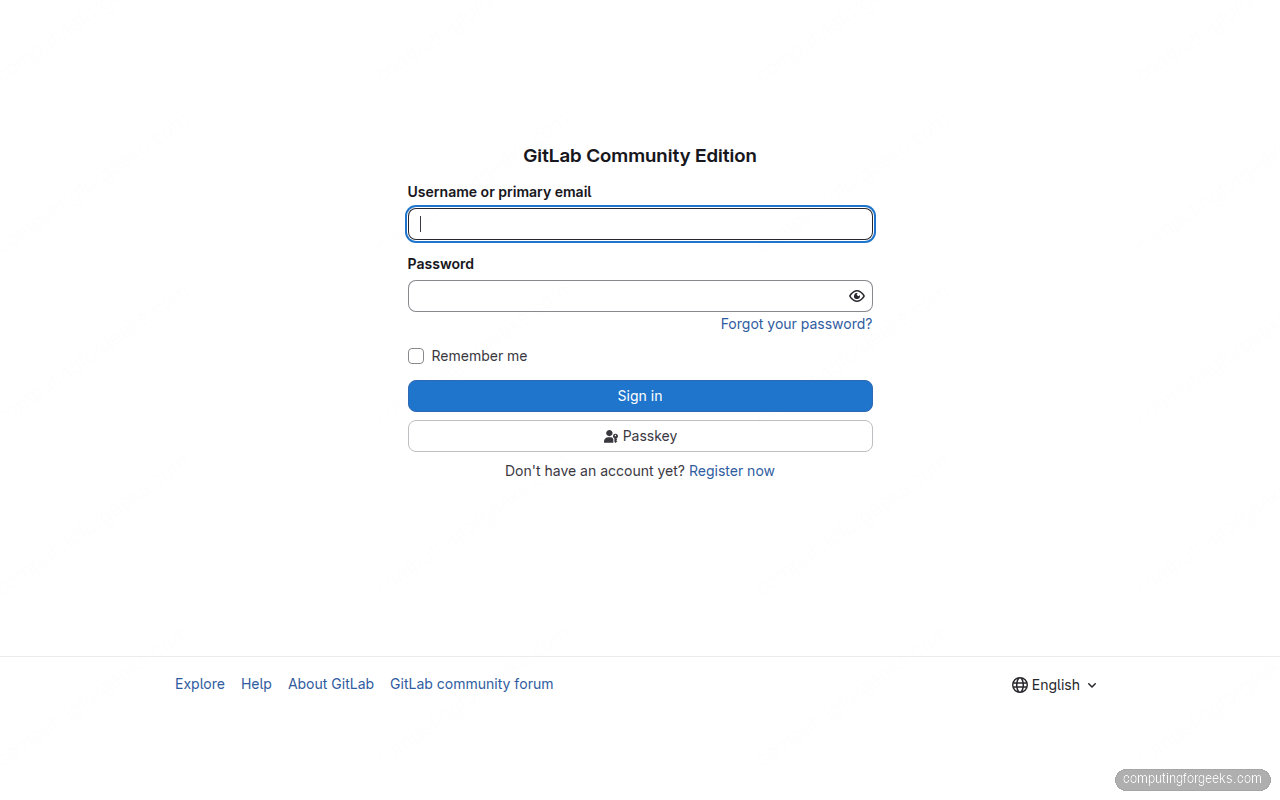
Sign in with username root and the password from the previous step. After logging in, change the root password immediately under User Settings > Password.
Create Your First Project
From the GitLab dashboard, click New project > Create blank project. Give it a name, set the visibility level, and click Create project.
You can also create projects via the API, which is useful for automation:
curl --header "PRIVATE-TOKEN: your-access-token" \
  -X POST "http://10.0.1.50/api/v4/projects" \
  -d "name=webapp-deploy&description=Web application deployment pipeline&visibility=public"
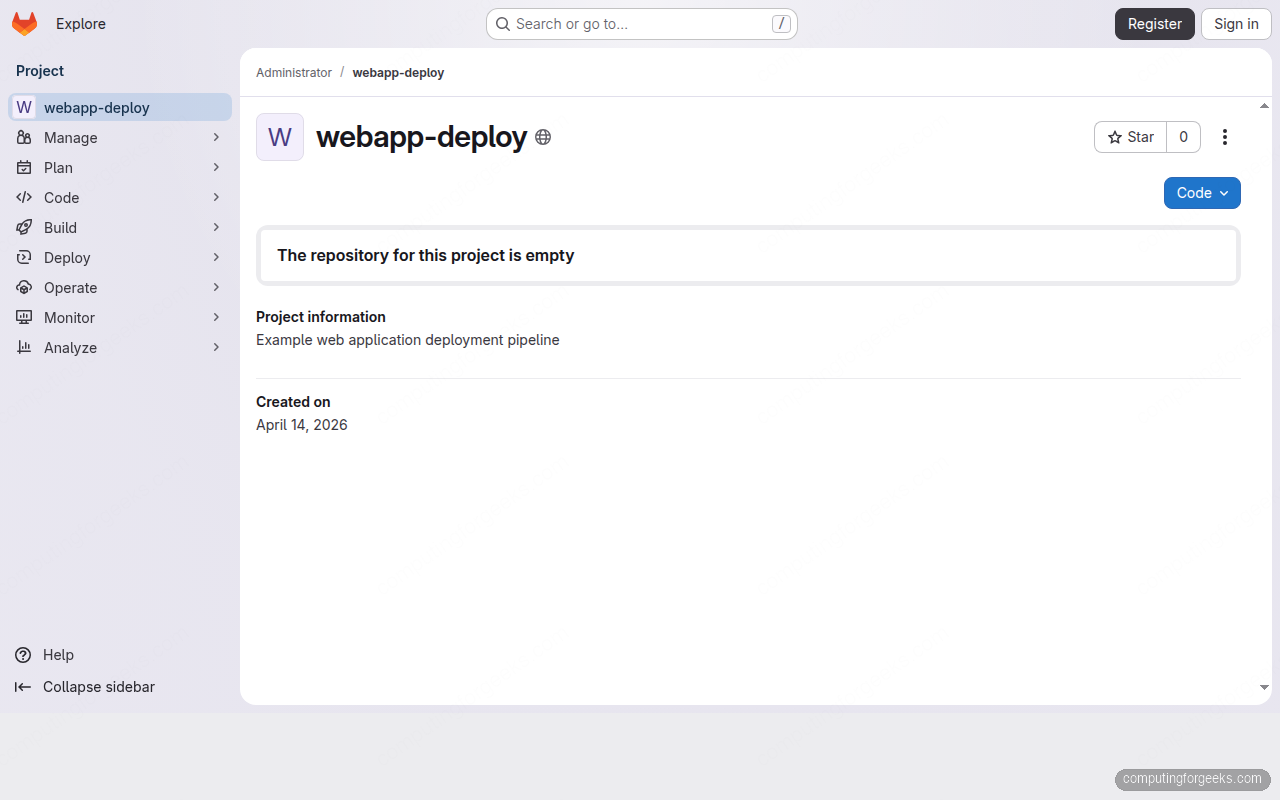
The API returns the project details including clone URLs:
{
  "id": 1,
  "name": "webapp-deploy",
  "path_with_namespace": "root/webapp-deploy",
  "ssh_url_to_repo": "[email protected]:root/webapp-deploy.git",
  "http_url_to_repo": "http://10.0.1.50/root/webapp-deploy.git",
  "web_url": "http://10.0.1.50/root/webapp-deploy",
  "visibility": "public"
}
Clone, Commit, and Push
Clone the new project and push your first commit. Start by configuring Git if you haven’t:
git config --global user.name "Admin"
git config --global user.email "[email protected]"
Clone the repository, add a file, and push:
git clone http://10.0.1.50/root/webapp-deploy.git
cd webapp-deploy
echo "# webapp-deploy" > README.md
git add README.md
git commit -m "Initial commit"
git push -u origin main
Git prompts for the root username and password (or personal access token if you created one). The push confirms that Git over HTTP is working correctly.
Configure the External URL
If you need to change the external URL after installation (switching from IP to domain, or enabling HTTPS), edit the main configuration file:
sudo vi /etc/gitlab/gitlab.rbFind and update the external_url line:
external_url 'https://gitlab.example.com'After saving, apply the configuration:
sudo gitlab-ctl reconfigureReconfigure takes 1 to 2 minutes. It regenerates Nginx configs, updates internal service URLs, and restarts affected components. If you switch to HTTPS with a valid domain, the installer requests a Let’s Encrypt certificate automatically.
Configure SMTP for Email Notifications
GitLab sends emails for merge request notifications, CI/CD pipeline failures, password resets, and user invitations. If you skipped Postfix, configure an external SMTP relay. Edit the GitLab configuration:
sudo vi /etc/gitlab/gitlab.rbAdd SMTP settings for your provider. This example uses a generic SMTP relay:
gitlab_rails['smtp_enable'] = true
gitlab_rails['smtp_address'] = "smtp.example.com"
gitlab_rails['smtp_port'] = 587
gitlab_rails['smtp_user_name'] = "[email protected]"
gitlab_rails['smtp_password'] = "your-smtp-password"
gitlab_rails['smtp_domain'] = "example.com"
gitlab_rails['smtp_authentication'] = "login"
gitlab_rails['smtp_enable_starttls_auto'] = true
gitlab_rails['gitlab_email_from'] = '[email protected]'
gitlab_rails['gitlab_email_reply_to'] = '[email protected]'
Apply the changes and test email delivery:
sudo gitlab-ctl reconfigureVerify email is working from the Rails console:
sudo gitlab-rails consoleInside the console, send a test email:
Notify.test_email('[email protected]', 'GitLab Test', 'Email from GitLab is working.').deliver_nowExit the console with exit. Check the recipient’s inbox for the test message.
Essential gitlab-ctl Commands
The gitlab-ctl utility manages all Omnibus services. These are the commands you will use most:
Check the status of all services:
sudo gitlab-ctl statusRestart all GitLab services:
sudo gitlab-ctl restartRestart a single service (useful after config changes):
sudo gitlab-ctl restart nginxFollow the logs for all services in real time:
sudo gitlab-ctl tailFollow logs for a specific service (handy when debugging):
sudo gitlab-ctl tail nginxCheck overall configuration health:
sudo gitlab-rake gitlab:check SANITIZE=trueCreate a Full Backup
GitLab’s built-in backup tool creates a tarball of all repositories, database contents, uploads, CI/CD artifacts, and LFS objects. Run it with:
sudo gitlab-backup create STRATEGY=copyThe STRATEGY=copy flag prevents locking repositories during the backup, which matters on busy instances. The backup file lands in /var/opt/gitlab/backups/:
ls -lh /var/opt/gitlab/backups/You will see a timestamped tarball like 1776160203_2026_04_14_18.10.3_gitlab_backup.tar. The backup does NOT include /etc/gitlab/gitlab.rb and /etc/gitlab/gitlab-secrets.json, both of which contain encryption keys and configuration. Back those up separately:
sudo cp /etc/gitlab/gitlab.rb /var/opt/gitlab/backups/
sudo cp /etc/gitlab/gitlab-secrets.json /var/opt/gitlab/backups/
For automated backups, add a cron job. This runs a backup daily at 2 AM and keeps 7 days of archives:
sudo vi /etc/gitlab/gitlab.rbAdd the backup retention setting:
gitlab_rails['backup_keep_time'] = 604800Apply it and add the cron job:
sudo gitlab-ctl reconfigure
echo "0 2 * * * /opt/gitlab/bin/gitlab-backup create STRATEGY=copy CRON=1" | sudo tee /etc/cron.d/gitlab-backup
Configure the Firewall
Ubuntu 26.04 includes UFW. Allow HTTP, HTTPS, and SSH traffic:
sudo ufw allow OpenSSH
sudo ufw allow 80/tcp
sudo ufw allow 443/tcp
sudo ufw enable
Verify the firewall rules are active:
sudo ufw statusPort 80 handles HTTP requests and Let’s Encrypt ACME challenges. Port 443 serves the GitLab web interface over HTTPS. If you are using Nginx as a reverse proxy in front of GitLab, disable the built-in Nginx by setting nginx['enable'] = false in gitlab.rb.
Disable Open Registration
By default, GitLab allows anyone to register an account. For a private instance, disable this immediately. Go to Admin Area > Settings > General > Sign-up restrictions and uncheck Sign-up enabled.
Alternatively, do it from the command line:
sudo gitlab-rails runner "ApplicationSetting.last.update(signup_enabled: false)"This is one of the first things to lock down. Open registrations on a public-facing GitLab instance invite spam accounts and abuse of CI/CD resources.
Production Hardening
The Omnibus install is a solid starting point, but for a production instance serving a team, there are several areas to tighten up.
External PostgreSQL: The bundled PostgreSQL works fine for small teams (under 50 users). For larger deployments, migrate to an external PostgreSQL server or managed database (RDS, Cloud SQL) for better backup control, replication, and resource isolation. Set postgresql['enable'] = false in gitlab.rb and configure the external database connection string.
External Redis: Sidekiq and the Rails cache rely heavily on Redis. An external Redis instance (or Redis Sentinel for HA) prevents memory contention with other GitLab components. Configure it via redis['enable'] = false and the gitlab_rails['redis_host'] settings.
Object Storage for Uploads: By default, GitLab stores uploads, artifacts, LFS objects, and container registry blobs on local disk. For durability and scalability, move these to S3-compatible object storage (AWS S3, MinIO, DigitalOcean Spaces). The configuration lives under gitlab_rails['object_store'] in gitlab.rb.
Built-in Prometheus Monitoring: GitLab ships with Prometheus and Grafana integration out of the box. Access the metrics at /admin/monitoring in the web UI. For deeper visibility, connect it to your existing Grafana instance by pointing it at http://localhost:9090 (the bundled Prometheus endpoint).
Container Registry: Enable the built-in container registry for storing Docker images alongside your source code. Add registry_external_url 'https://registry.example.com' to gitlab.rb and reconfigure. This integrates tightly with GitLab CI/CD pipelines.
CI/CD Runners: Install at least one GitLab Runner on a separate machine to execute CI/CD pipelines. Running pipelines on the same server as GitLab competes for RAM and CPU. A dedicated runner with Docker executor is the standard setup. You can combine this with Jenkins for hybrid CI/CD workflows if your team uses both tools.
FAQ
What are the minimum system requirements for GitLab CE?
GitLab CE requires a minimum of 4 GB RAM, but 8 GB is the recommended minimum for a responsive experience. With 4 GB, expect slow page loads and occasional 502 errors during peak usage. CPU is less critical since most operations are I/O bound, but 2 cores minimum is advisable. Storage depends on your repository sizes, but start with at least 50 GB.
How do I reset the root password if I lost it?
Use the Rails console to reset the password directly:
sudo gitlab-rails console
user = User.find_by_username('root')
user.password = 'NewSecurePassword123!'
user.password_confirmation = 'NewSecurePassword123!'
user.save!
This bypasses the web UI entirely. Replace the password with something strong.
How do I upgrade GitLab CE to a newer version?
Standard APT upgrade works because the package repository is already configured:
sudo apt update
sudo apt install gitlab-ce
Always check the GitLab upgrade path documentation before upgrading. Some major version jumps require intermediate upgrades. Back up first.