Jenkins remains the most widely deployed CI/CD server, with over 300,000 known installations and a plugin ecosystem that covers practically every tool in a modern delivery pipeline. Setting it up on Ubuntu 26.04 with OpenJDK takes about 10 minutes, and the result is a fully functional automation server ready for your first pipeline.
This guide walks through the full installation on Ubuntu 26.04 LTS, from Java prerequisites through the setup wizard, creating freestyle and pipeline jobs, and putting Nginx in front as a reverse proxy. By the end you will have Jenkins 2.541.3 LTS running with real jobs, ready for production hardening.
Current as of April 2026. Jenkins LTS 2.541.3 on Ubuntu 26.04 LTS with OpenJDK 25, Nginx 1.28.3
Prerequisites
Before starting, make sure you have the following in place.
- Ubuntu 26.04 LTS server with at least 4 GB RAM (6 GB recommended for comfortable plugin management)
- Root or sudo access
- Tested on: Ubuntu 26.04 LTS (Resolute Raccoon), Jenkins 2.541.3 LTS, OpenJDK 25.0.3
If you have not done initial server setup yet, follow the Ubuntu 26.04 initial server setup guide first.
Install OpenJDK (Java Runtime)
Jenkins is a Java application and needs a JVM to run. Ubuntu 26.04 ships with OpenJDK 25 in the default repos.
sudo apt update
sudo apt install -y fontconfig openjdk-25-jre-headless
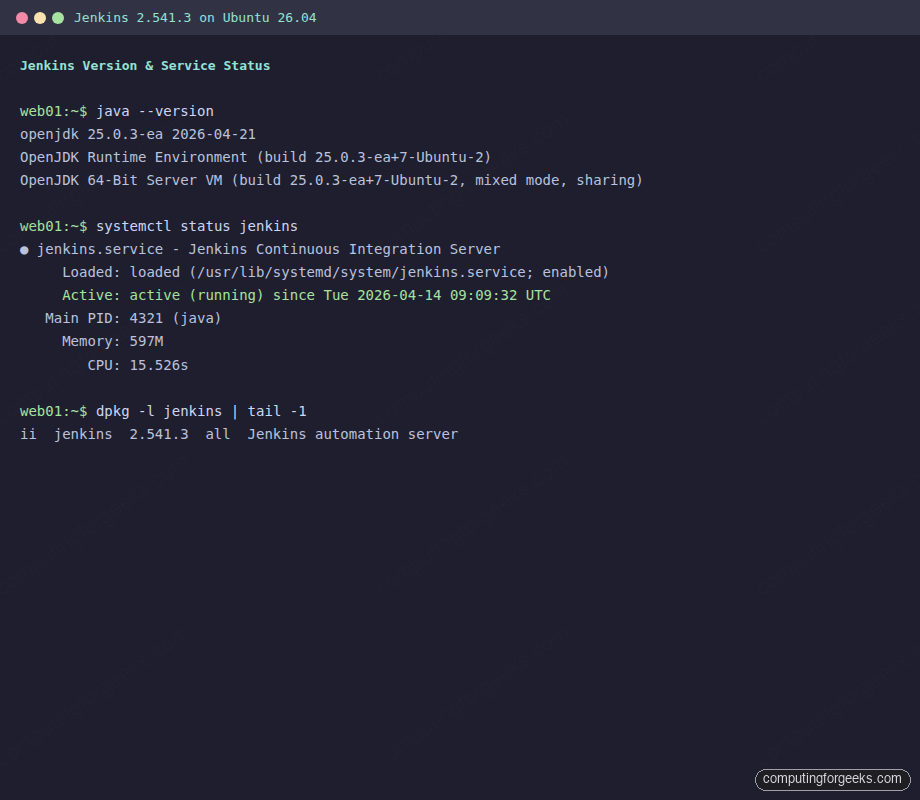
Confirm the installed version:
java --versionYou should see something like this:
openjdk 25.0.3-ea 2026-04-21
OpenJDK Runtime Environment (build 25.0.3-ea+7-Ubuntu-2)
OpenJDK 64-Bit Server VM (build 25.0.3-ea+7-Ubuntu-2, mixed mode, sharing)
For a deeper look at Java options on this release, see the OpenJDK installation guide for Ubuntu 26.04. Jenkins officially supports Java 17, 21, and 25.
Add the Jenkins Repository
The Jenkins project maintains its own APT repository with the latest LTS releases. The version in Ubuntu’s universe repo tends to lag behind, so adding the official repo is the way to go.
Import the Jenkins GPG signing key from the Ubuntu keyserver:
sudo gpg --keyserver keyserver.ubuntu.com --recv-keys 7198F4B714ABFC68
sudo gpg --export 7198F4B714ABFC68 | sudo tee /usr/share/keyrings/jenkins-keyring.gpg > /dev/null
Add the stable release repository:
echo "deb [signed-by=/usr/share/keyrings/jenkins-keyring.gpg] https://pkg.jenkins.io/debian-stable binary/" | sudo tee /etc/apt/sources.list.d/jenkins.listInstall Jenkins
Update the package index and install:
sudo apt update
sudo apt install -y jenkins
The installer creates a jenkins system user, sets up /var/lib/jenkins as the home directory, and registers a systemd service. Jenkins starts automatically after installation.
Verify the service is running:
systemctl status jenkinsThe output should show active (running):
● jenkins.service - Jenkins Continuous Integration Server
     Loaded: loaded (/usr/lib/systemd/system/jenkins.service; enabled; preset: enabled)
     Active: active (running) since Tue 2026-04-14 09:09:32 UTC
   Main PID: 4321 (java)
     Memory: 597M
        CPU: 15.526s
The service is already enabled to start on boot. Jenkins listens on port 8080 by default.
Configure the Firewall
If UFW is active, open port 8080 for the initial setup. You can close it later once Nginx is in front.
sudo ufw allow 8080/tcp
sudo ufw reload
Confirm the rule is in place:
sudo ufw statusComplete the Setup Wizard
Open a browser and navigate to http://10.0.1.50:8080. Jenkins displays the Unlock screen on first access.
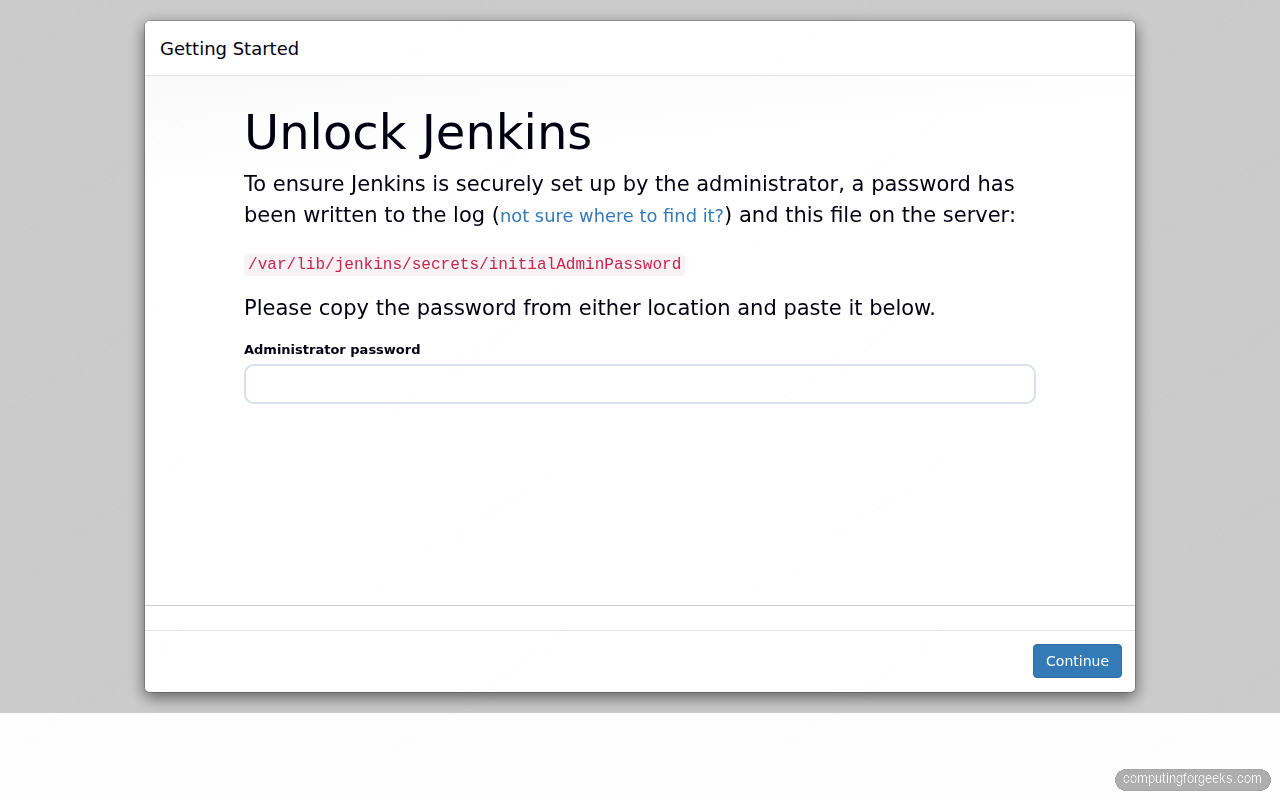
Retrieve the initial admin password from the server:
sudo cat /var/lib/jenkins/secrets/initialAdminPasswordPaste the password into the unlock field and click Continue. On the next screen, select Install suggested plugins. This pulls in Git integration, Pipeline, Credentials, and the other essentials. The installation takes a couple of minutes depending on your connection speed.
Once plugins are installed, Jenkins prompts you to create the first admin user. Fill in the username, password, full name, and email address. After that, confirm the Jenkins URL and click Start using Jenkins.
Create a Freestyle Job
Freestyle jobs are the simplest build type. They work well for shell scripts, scheduled tasks, and anything that does not need a multi-stage pipeline.
From the Jenkins dashboard, click New Item, enter a name (e.g., system-health-check), select Freestyle project, and click OK.
Scroll down to Build Steps, click Add build step, and choose Execute shell. Add the following script:
echo "System Health Check - $(date)"
echo "Hostname: $(hostname)"
echo "Uptime: $(uptime)"
echo "Disk Usage:"
df -h /
echo "Memory:"
free -h
echo "All checks passed!"
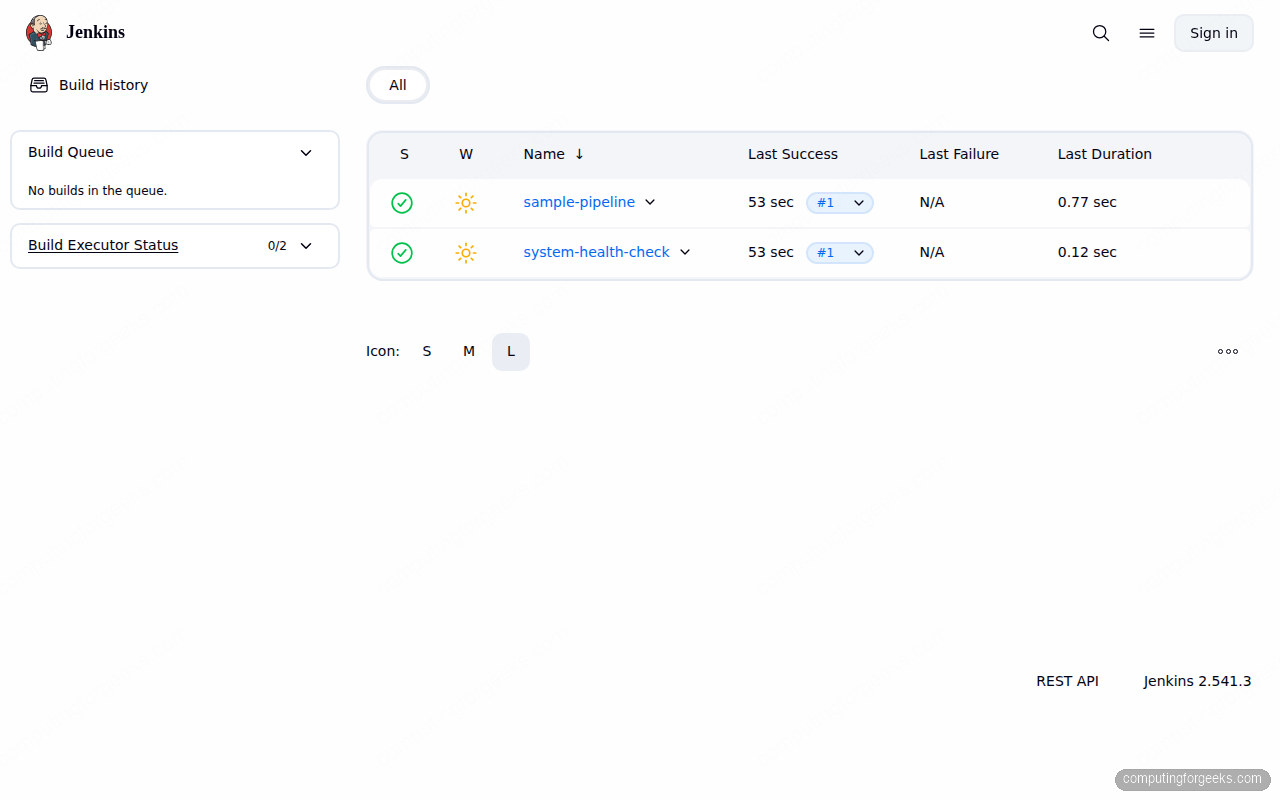
Save the job and click Build Now. The build should complete in under a second with a green checkmark.
Create a Pipeline Job
Pipeline jobs define the build process as code using a Jenkinsfile. This is the preferred approach for anything beyond simple scripts because the pipeline definition lives in version control alongside the application code. If you want source control and CI/CD in a single platform, GitLab CE on Ubuntu 26.04 is worth evaluating.
Click New Item, enter sample-pipeline as the name, select Pipeline, and click OK.
In the Pipeline section, select Pipeline script and paste the following:
pipeline {
    agent any
    stages {
        stage("Build") {
            steps {
                echo "Building application..."
                sh "mkdir -p build"
                sh "echo v1.0.${BUILD_NUMBER} > build/version.txt"
                sh "cat build/version.txt"
            }
        }
        stage("Test") {
            steps {
                echo "Running tests..."
                sh "echo All 42 tests passed"
            }
        }
        stage("Deploy") {
            steps {
                echo "Deploying to staging..."
                sh "echo Deployment complete"
            }
        }
    }
    post {
        success {
            echo "Pipeline completed successfully!"
        }
        failure {
            echo "Pipeline failed."
        }
    }
}
Save and click Build Now. The pipeline runs through Build, Test, and Deploy stages sequentially.
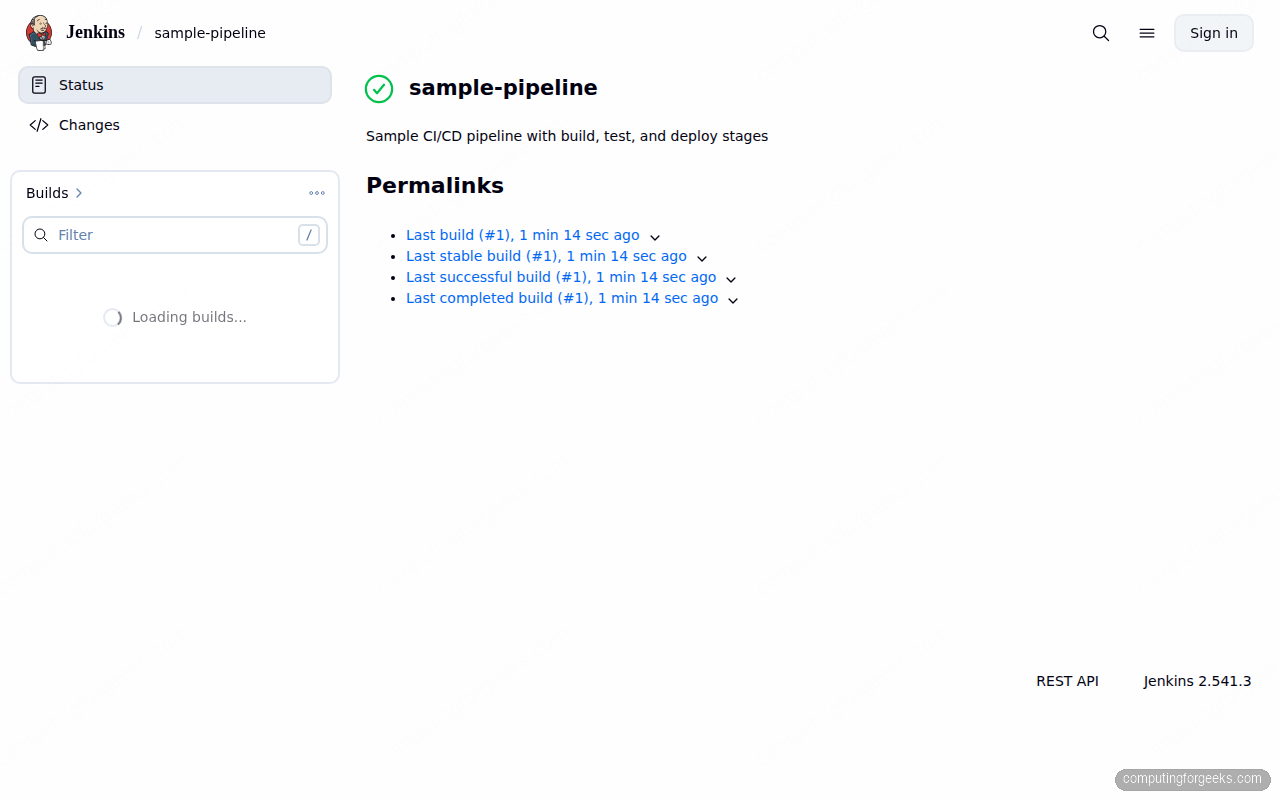
After both jobs complete successfully, the dashboard shows green status indicators across the board:
Manage Jenkins Plugins
Jenkins ships with a minimal set of plugins. The setup wizard installs the suggested ones, but you will likely need more as your projects grow.
Navigate to Manage Jenkins > Plugins > Available plugins. Use the search box to find what you need. Common additions include:
- Docker Pipeline for building and pushing container images
- Blue Ocean for a modern pipeline visualization UI
- GitHub Integration for webhook-triggered builds
- Slack Notification for build alerts
- Role-based Authorization Strategy for granular access control
After selecting plugins, click Install and restart Jenkins when prompted. You can also install plugins from the CLI using the Jenkins API. If you plan to run container-based builds, the Docker CE installation guide for Ubuntu 26.04 covers setting up the Docker engine on the same host.
Set Up Nginx Reverse Proxy
Running Jenkins behind Nginx gives you proper HTTP handling, the ability to add SSL termination later, and keeps port 8080 off the public interface. For a complete Nginx setup with Let’s Encrypt, see the Nginx installation guide for Ubuntu 26.04.
Install Nginx:
sudo apt install -y nginxCreate the Jenkins site configuration:
sudo vi /etc/nginx/sites-available/jenkinsAdd the following reverse proxy configuration:
upstream jenkins {
    keepalive 32;
    server 127.0.0.1:8080;
}

server {
    listen 80;
    server_name jenkins.example.com;

    ignore_invalid_headers off;

    location / {
        proxy_pass http://jenkins;
        proxy_set_header Host $host;
        proxy_set_header X-Real-IP $remote_addr;
        proxy_set_header X-Forwarded-For $proxy_add_x_forwarded_for;
        proxy_set_header X-Forwarded-Proto $scheme;
        proxy_max_temp_file_size 0;
        proxy_connect_timeout 150;
        proxy_send_timeout 100;
        proxy_read_timeout 100;
        proxy_request_buffering off;
        proxy_http_version 1.1;
        proxy_set_header Connection "";
    }
}
Enable the site, remove the default configuration, and test:
sudo ln -sf /etc/nginx/sites-available/jenkins /etc/nginx/sites-enabled/jenkins
sudo rm -f /etc/nginx/sites-enabled/default
sudo nginx -t
The syntax check should return OK:
nginx: the configuration file /etc/nginx/nginx.conf syntax is ok
nginx: configuration file /etc/nginx/nginx.conf test is successful
Reload Nginx to apply the changes:
sudo systemctl reload nginxUpdate the Jenkins URL in Manage Jenkins > System > Jenkins URL to match your domain. Open port 80 (and 443 when you add SSL) and close port 8080:
sudo ufw allow 'Nginx Full'
sudo ufw delete allow 8080/tcp
sudo ufw reload
Jenkins is now accessible through Nginx on port 80.
Jenkins System Information
To check system details and JVM configuration, go to Manage Jenkins > System Information. This page shows environment variables, system properties, Java version, and installed plugin versions.
From the command line, you can query the Jenkins API for version and plugin data:
curl -s -u admin:YOUR_PASSWORD http://localhost:8080/api/json?pretty=true | head -20For a count of installed plugins:
curl -s -u admin:YOUR_PASSWORD 'http://localhost:8080/pluginManager/api/json?depth=1' | python3 -c "import sys,json; data=json.load(sys.stdin); print(f'Installed plugins: {len(data[\"plugins\"])}')"Production Hardening
A default Jenkins install is functional but not secure enough for production. These are the areas to address before exposing Jenkins to a team or the internet.
Disable the Script Console for Non-Admins
The Groovy Script Console at /script gives full system access. In production, restrict it to a single admin account. Install the Role-based Authorization Strategy plugin and create roles that exclude script console access for regular users.
Enforce CSRF Protection
Jenkins enables CSRF protection by default in recent versions, but verify it under Manage Jenkins > Security. The crumb issuer should be set to Default Crumb Issuer. Never disable this, even if a plugin complains about it.
Configure LDAP or Active Directory Authentication
The built-in user database works for small teams, but production environments should integrate with LDAP or Active Directory. Go to Manage Jenkins > Security > Security Realm and configure your directory server. This centralizes user management and enforces your organization’s password policies.
Set Up Automated Backups
The entire Jenkins state lives in /var/lib/jenkins. Back it up regularly. At minimum, archive these directories:
/var/lib/jenkins/config.xml(main configuration)/var/lib/jenkins/jobs/(job definitions and build history)/var/lib/jenkins/users/(user accounts)/var/lib/jenkins/secrets/(encryption keys)/var/lib/jenkins/plugins/(installed plugins)
The ThinBackup plugin automates this with scheduled backups and retention policies.
Enable Monitoring
Jenkins exposes metrics at /prometheus when the Prometheus plugin is installed. Monitor JVM heap usage, build queue length, executor availability, and job success rates. Set alerts for disk space on /var/lib/jenkins because build artifacts accumulate fast.
Add SSL/TLS
The Nginx reverse proxy configuration above listens on port 80. For production, add a TLS certificate using Let’s Encrypt:
sudo apt install -y certbot python3-certbot-nginx
sudo certbot --nginx -d jenkins.example.com --non-interactive --agree-tos -m [email protected]
Certbot modifies the Nginx configuration to handle HTTPS and sets up automatic certificate renewal.
FAQ
What Java versions does Jenkins support?
Jenkins LTS 2.541.x officially supports Java 17, 21, and 25. OpenJDK 21 is the safest choice for production since it is a long-term support release. OpenJDK 25 works but is still in early access on Ubuntu 26.04.
How do I change the Jenkins port from 8080?
Edit the systemd override file rather than modifying the main service unit:
sudo systemctl edit jenkinsAdd the following to change the port to 9090, for example:
[Service]
Environment="JENKINS_PORT=9090"
Then reload and restart:
sudo systemctl daemon-reload
sudo systemctl restart jenkins
Error: “FATAL: Peer authentication failed” when connecting to PostgreSQL from Jenkins
If you configure Jenkins to use a PostgreSQL database backend and see this error, the issue is in pg_hba.conf. Change the authentication method from peer to md5 or scram-sha-256 for the Jenkins database user, then reload PostgreSQL.