Minikube runs a single-node Kubernetes cluster inside a Docker container (or VM). It’s the fastest way to test manifests, Helm charts, and cluster features locally without provisioning cloud infrastructure. If you’ve worked with Docker Compose for multi-container setups, Minikube is the next logical step when you need actual Kubernetes primitives like Deployments, Services, Ingress, and RBAC. For a lightweight production-ready cluster (not just local testing), K3s installs in under 30 seconds with a single binary.
This guide walks through installing Minikube on Ubuntu 26.04 LTS with Docker as the container runtime, deploying a test application, enabling popular addons, and managing cluster profiles. Everything here was tested on a fresh Ubuntu 26.04 server with 4 GB RAM.
Tested April 2026 | Ubuntu 26.04 LTS, Minikube v1.38.1, Kubernetes v1.35.1, Docker 29.4.0
Prerequisites
Before starting, make sure your system meets these requirements:
- Ubuntu 26.04 LTS server or desktop with initial setup completed
- Minimum 2 CPUs, 2 GB RAM (4 GB recommended), and 20 GB free disk space
- Root or sudo access
- Internet connectivity for pulling container images
Step 1: Install Docker CE
Minikube supports multiple drivers (Docker, KVM2, VirtualBox, Podman), but Docker is the simplest and most widely used. Install Docker CE on Ubuntu 26.04 by adding the official Docker repository:
sudo apt-get update
sudo apt-get install -y ca-certificates curl gnupg
sudo install -m 0755 -d /etc/apt/keyrings
curl -fsSL https://download.docker.com/linux/ubuntu/gpg -o /etc/apt/keyrings/docker.asc
sudo chmod a+r /etc/apt/keyrings/docker.asc
echo "deb [arch=$(dpkg --print-architecture) signed-by=/etc/apt/keyrings/docker.asc] https://download.docker.com/linux/ubuntu $(. /etc/os-release && echo "$VERSION_CODENAME") stable" | sudo tee /etc/apt/sources.list.d/docker.list > /dev/null
sudo apt-get update
sudo apt-get install -y docker-ce docker-ce-cli containerd.io docker-buildx-plugin docker-compose-plugin
Confirm Docker is running:
docker --versionExpected output:
Docker version 29.4.0, build 9d7ad9fIf you plan to use Docker Compose alongside Minikube for hybrid setups, the plugin is already included in the packages above.
Step 2: Install Minikube
Download the latest minikube binary directly from Google’s storage bucket. This approach uses a stable URL that always points to the current release:
curl -Lo /usr/local/bin/minikube https://storage.googleapis.com/minikube/releases/latest/minikube-linux-amd64
sudo chmod +x /usr/local/bin/minikube
Verify the installed version:
minikube versionYou should see the version and commit hash:
minikube version: v1.38.1
commit: c93a4cb9311efc66b90d33ea03f75f2c4120e9b0
Step 3: Install kubectl
kubectl is the command-line tool for interacting with Kubernetes clusters. Minikube bundles its own copy (minikube kubectl), but installing it standalone is more convenient:
curl -Lo /usr/local/bin/kubectl "https://dl.k8s.io/release/$(curl -L -s https://dl.k8s.io/release/stable.txt)/bin/linux/amd64/kubectl"
sudo chmod +x /usr/local/bin/kubectl
Check the client version:
kubectl version --clientThe output confirms kubectl v1.35.3:
Client Version: v1.35.3
Kustomize Version: v5.7.1
Step 4: Start the Minikube Cluster
Launch a single-node Kubernetes cluster using Docker as the driver. If you’re running as root (common on servers), add the --force flag because Minikube normally warns against running as root:
minikube start --driver=docker --forceMinikube pulls a base image, downloads the Kubernetes binaries, and configures networking. This takes a minute or two on the first run:
* minikube v1.38.1 on Ubuntu 26.04 (kvm/amd64)
* Using the docker driver based on user configuration
* Using Docker driver with root privileges
* Starting "minikube" primary control-plane node in "minikube" cluster
* Pulling base image v0.0.50 ...
* Downloading Kubernetes v1.35.1 preload ...
* Configuring bridge CNI (Container Networking Interface) ...
* Verifying Kubernetes components...
  - Using image gcr.io/k8s-minikube/storage-provisioner:v5
* Enabled addons: default-storageclass, storage-provisioner
* Done! kubectl is now configured to use "minikube" cluster and "default" namespace by default
For non-root users, omit --force and add your user to the docker group instead: sudo usermod -aG docker $USER, then log out and back in.
Step 5: Verify the Cluster
Check the cluster status with minikube:
minikube statusAll components should show Running:
minikube
type: Control Plane
host: Running
kubelet: Running
apiserver: Running
kubeconfig: Configured
Confirm kubectl can talk to the cluster:
kubectl cluster-infoThe output shows the control plane and CoreDNS endpoints:
Kubernetes control plane is running at https://192.168.49.2:8443
CoreDNS is running at https://192.168.49.2:8443/api/v1/namespaces/kube-system/services/kube-dns:dns/proxy
List the cluster nodes:
kubectl get nodes -o wideThe single control-plane node should be Ready:
NAME       STATUS   ROLES           AGE   VERSION   INTERNAL-IP    EXTERNAL-IP   OS-IMAGE                         KERNEL-VERSION     CONTAINER-RUNTIME
minikube   Ready    control-plane   3m    v1.35.1   192.168.49.2   <none>        Debian GNU/Linux 12 (bookworm)   7.0.0-10-generic   docker://29.2.1
Step 6: Deploy a Test Application
Create an Nginx deployment to verify the cluster handles workloads correctly:
kubectl create deployment nginx --image=nginxThe deployment is created immediately:
deployment.apps/nginx createdExpose the deployment as a NodePort service so it’s reachable from the host:
kubectl expose deployment nginx --port=80 --type=NodePortCheck that the pod is running and the service has an assigned port:
kubectl get pods,svc,deployYou should see the nginx pod in Running state with a NodePort mapped:
NAME                         READY   STATUS    RESTARTS   AGE
pod/nginx-56c45fd5ff-tk9dd   1/1     Running   0          2m59s

NAME                 TYPE        CLUSTER-IP      EXTERNAL-IP   PORT(S)        AGE
service/kubernetes   ClusterIP   10.96.0.1       <none>        443/TCP        3m16s
service/nginx        NodePort    10.98.184.142   <none>        80:30697/TCP   2m53s

NAME                    READY   UP-TO-DATE   AVAILABLE   AGE
deployment.apps/nginx   1/1     1            1           2m59s
Get the service URL and test it:
minikube service nginx --urlThis returns the accessible URL:
http://192.168.49.2:30697Verify with curl:
curl -s -o /dev/null -w "HTTP Status: %{http_code}\n" $(minikube service nginx --url)A 200 status confirms the deployment is serving traffic:
HTTP Status: 200Clean up the test resources when done:
kubectl delete deployment nginx
kubectl delete service nginx
Step 7: Enable Minikube Addons
Minikube ships with optional addons for common Kubernetes components. List all available addons:
minikube addons listTwo of the most useful addons for local development are metrics-server (enables kubectl top) and ingress (NGINX Ingress Controller). Enable them:
minikube addons enable metrics-server
minikube addons enable ingress
The ingress addon takes a moment to pull its images:
* metrics-server is an addon maintained by Kubernetes. For any concerns contact minikube on GitHub.
  - Using image registry.k8s.io/metrics-server/metrics-server:v0.8.1
* The 'metrics-server' addon is enabled
* ingress is an addon maintained by Kubernetes. For any concerns contact minikube on GitHub.
  - Using image registry.k8s.io/ingress-nginx/controller:v1.14.3
  - Using image registry.k8s.io/ingress-nginx/kube-webhook-certgen:v1.6.7
* Verifying ingress addon...
* The 'ingress' addon is enabled
To enable the Kubernetes dashboard:
minikube addons enable dashboardOn a headless server you can’t open a browser directly. Use minikube dashboard --url to get the URL, then access it through an SSH tunnel or port forward from your workstation.
Step 8: Manage Profiles and Resources
Minikube profiles let you run multiple independent clusters on the same machine. Each profile has its own Kubernetes version, driver, and resource allocation.
List current profiles:
minikube profile listThe default profile called “minikube” is shown:
|----------|--------|---------|--------------|---------|--------|-------|----------------|
| Profile  | VM     | Runtime |      IP      | Port    | Status | Nodes | Active Profile |
|----------|--------|---------|--------------|---------|--------|-------|----------------|
| minikube | docker | docker  | 192.168.49.2 | v1.35.1 | OK     | 1     | *              |
|----------|--------|---------|--------------|---------|--------|-------|----------------|
Create a second cluster with custom resources. The --cpus, --memory, and --disk-size flags control resource allocation:
minikube start -p dev-cluster --driver=docker --cpus=2 --memory=2048 --disk-size=10g --forceSwitch between profiles:
minikube profile minikubeDelete a profile when you no longer need it:
minikube delete -p dev-clusterStep 9: Useful Minikube Commands
SSH into the Minikube node to inspect its internals:
minikube sshThis drops you into the container running Kubernetes. The node runs Debian 12 (bookworm) inside Docker. Type exit to return.
View cluster logs for debugging startup or component issues:
minikube logs --file=cluster.logStop the cluster without deleting it (preserves all data):
minikube stopStart it again later with:
minikube startCompletely remove the cluster and all associated data:
minikube deleteTo blow away everything, including all profiles, cached images, and configuration:
minikube delete --purge --all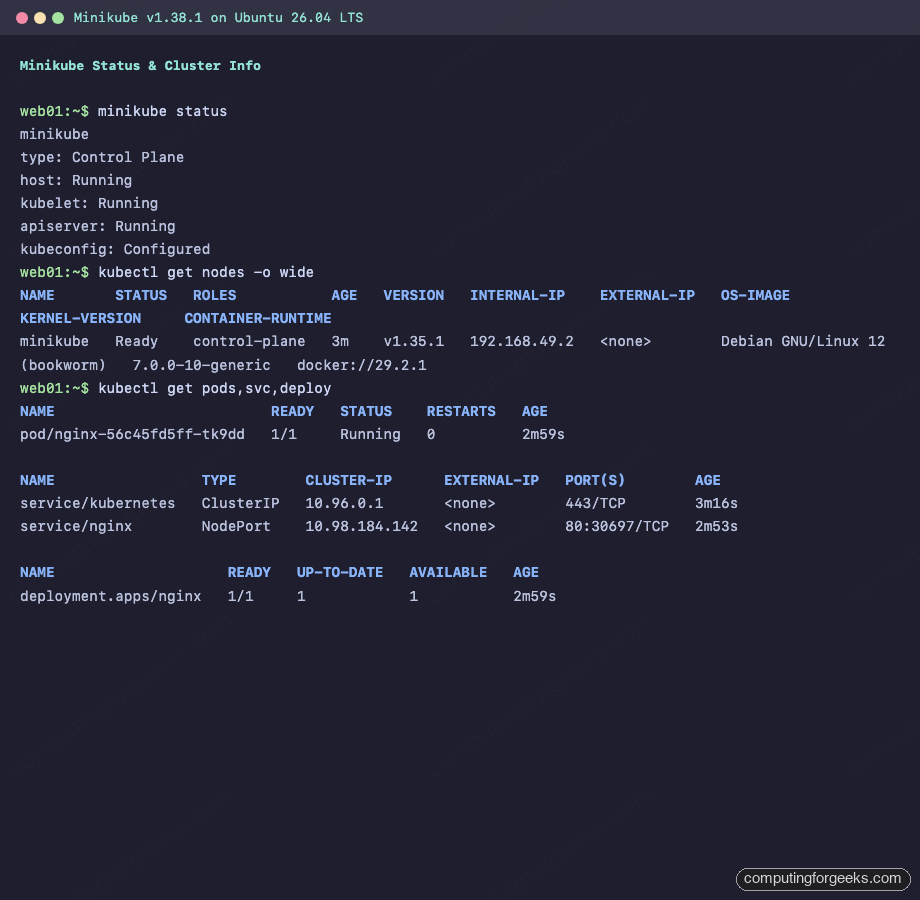
Troubleshooting
Error: “Cannot connect to the Docker daemon”
This means the Docker service isn’t running. Start it and verify:
sudo systemctl enable --now docker
sudo systemctl status docker
Error: “Exiting due to DRV_AS_ROOT” when running as root
Minikube refuses to run as root by default because it’s a security risk. For servers and CI environments where root is standard, pass the --force flag:
minikube start --driver=docker --forceFor regular user accounts, add your user to the docker group instead:
sudo usermod -aG docker $USER
newgrp docker
minikube start --driver=docker
Insufficient memory errors
Minikube requires at least 1.8 GB of free memory. If your system has less, reduce the allocation with the --memory flag. Kubernetes 1.35 runs reasonably well with 2 GB:
minikube start --driver=docker --memory=2048 --forcecgroup v2 compatibility
Ubuntu 26.04 uses cgroup v2 by default. Minikube v1.38.1 fully supports cgroup v2 with the Docker driver, so no extra configuration is needed. If you encounter cgroup-related errors with older Minikube versions, upgrade to the latest release.
Cluster won’t start after reboot
If the host was rebooted, Docker containers (including the Minikube node) are stopped. Restart with:
minikube startMinikube detects the existing cluster and resumes it. All deployments and services are preserved because the data lives inside the Docker volume.
Go is often needed for building Kubernetes-related tools and operators. If your workflow requires it, here’s how to install Go on Ubuntu 26.04.