Running a server without a SIEM in 2026 is a losing game. Logs scroll past, failed logins pile up, and the first time anyone notices a compromise is when a backup fails or a customer complains. Wazuh closes that gap on a modest budget: it’s open source, it bundles log analysis, file integrity monitoring, vulnerability detection, and MITRE ATT&CK mapping into one stack, and the all-in-one installer lands a working SOC on a single Ubuntu box in under ten minutes.
This guide walks through deploying Wazuh 4.12 on Ubuntu 26.04 LTS using the official installation assistant. You get the Wazuh indexer (an OpenSearch fork), the Wazuh server (the manager and rules engine), and the Wazuh dashboard (the web UI on port 443). We cap it off with a real Let’s Encrypt certificate via Cloudflare DNS, enroll an agent, trigger SSH brute-force alerts, and verify they land as rule 5710 and 5712 in Security Events. Wazuh beats rolling your own ELK + Sigma stack for most teams because the rules, decoders, and dashboards come curated out of the box. If you want the blow-by-blow ELK comparison, see our ELK stack on Ubuntu 26.04 guide.
Tested April 2026 on Ubuntu 26.04 LTS with Wazuh 4.12.0, Wazuh Indexer (OpenSearch) 4.12, Filebeat 7.10.2
Architecture in one paragraph
Wazuh ships as three services that normally live on three hosts but happily share one box for small deployments. The Wazuh indexer is an OpenSearch fork that stores alerts and inventory data. The Wazuh server runs the ossec-analysisd daemon, receives events from agents, evaluates rules, and ships alerts to the indexer via Filebeat. The Wazuh dashboard is the OpenSearch Dashboards-based web UI that sits on port 443 and talks to both the indexer and the Wazuh API on port 55000. Agents connect to the server over TCP 1514 for events and TCP 1515 for enrollment.
Prerequisites
- Ubuntu 26.04 LTS (or 24.04 LTS) server, fresh install
- 4 GB RAM minimum, 8 GB recommended (the indexer alone wants 2 GB heap)
- At least 40 GB disk. Alert retention eats storage quickly
- Root or sudo access
curlinstalled- A DNS record pointing at the server if you want a real TLS certificate
- Open ports: 443/tcp (dashboard), 1514/tcp (agent events), 1515/tcp (enrollment), 55000/tcp (API, optional external)
The installer really does want a clean box. If a previous OpenSearch, Elasticsearch, or MongoDB install is kicking around, purge it first. I’ve watched the installer fight a leftover Elastic repo for 20 minutes before erroring out.
Step 1: Add the initial server hardening basics
Before pointing a security tool at the network, make sure the host itself is sane. If you have not already, walk through our Ubuntu 26.04 initial server setup and Ubuntu 26.04 hardening guide. Update the package index and install helpers:
sudo apt update
sudo apt install -y curl gnupg ca-certificates
Enable UFW and open the ports Wazuh needs. If you prefer a deeper walkthrough on UFW, that guide covers reloads and profile files.
sudo ufw allow 22/tcp
sudo ufw allow 443/tcp
sudo ufw allow 1514/tcp
sudo ufw allow 1515/tcp
sudo ufw --force enable
Step 2: Download the installation assistant
Wazuh publishes a single shell installer that handles repos, packages, certificates, and service configuration. Fetch it and the default node config into /root:
cd /root
curl -sO https://packages.wazuh.com/4.12/wazuh-install.sh
curl -sO https://packages.wazuh.com/4.12/config.yml
ls -la wazuh-install.sh config.yml
The config.yml is only needed for multi-node deployments where you split indexer, server, and dashboard onto separate hosts. For an all-in-one install it’s ignored, but it’s worth reading once to understand the moving parts:
cat config.ymlYou’ll see three node types: indexer, server, and dashboard. The single-server installer wires all three under the same hostname automatically.
Step 3: Run the all-in-one installer
The -a flag triggers the unattended all-in-one install. The -i flag skips the hardware check, which matters on Ubuntu 26.04 because the installer’s supported-OS list is conservative and throws a warning otherwise.
sudo bash wazuh-install.sh -a -iExpect 10 to 15 minutes of installation time. The installer prints progress to the console and logs verbose output to /var/log/wazuh-install.log. Here’s what a successful run looks like:
14/04/2026 22:00:34 INFO: Starting Wazuh installation assistant. Wazuh version: 4.12.0
14/04/2026 22:00:34 INFO: Verbose logging redirected to /var/log/wazuh-install.log
14/04/2026 22:00:38 INFO: Wazuh web interface port will be 443.
14/04/2026 22:01:15 INFO: Created wazuh-install-files.tar. It contains the Wazuh cluster key, certificates, and passwords necessary for installation.
14/04/2026 22:01:15 INFO: --- Wazuh indexer ---
14/04/2026 22:02:11 INFO: wazuh-indexer service started.
14/04/2026 22:02:15 INFO: Wazuh indexer cluster initialized.
14/04/2026 22:02:15 INFO: --- Wazuh server ---
14/04/2026 22:04:07 INFO: wazuh-manager service started.
14/04/2026 22:04:17 INFO: filebeat service started.
14/04/2026 22:04:17 INFO: --- Wazuh dashboard ---
14/04/2026 22:06:05 INFO: wazuh-dashboard service started.
14/04/2026 22:06:49 INFO: --- Summary ---
14/04/2026 22:06:49 INFO: You can access the web interface https://<wazuh-dashboard-ip>:443
    User: admin
    Password: StrongPass123
14/04/2026 22:06:49 INFO: Installation finished.
The admin password at the end is randomly generated and only printed once. Copy it somewhere safe before moving on. If you miss it, the next step shows how to pull it back out.
Step 4: Retrieve all service passwords
The installer stashes every generated password inside wazuh-install-files.tar. Extract just the passwords file to stdout:
sudo tar -O -xvf wazuh-install-files.tar wazuh-install-files/wazuh-passwords.txtYou’ll get one block per internal user, which looks like this (real values masked):
# Admin user for the web user interface and Wazuh indexer
  indexer_username: 'admin'
  indexer_password: 'StrongPass123'

# Wazuh dashboard user for establishing the connection with Wazuh indexer
  indexer_username: 'kibanaserver'
  indexer_password: 'StrongPass123'

# Filebeat user for CRUD operations on Wazuh indices
  indexer_username: 'logstash'
  indexer_password: 'StrongPass123'

# Password for wazuh-wui API user
  api_username: 'wazuh-wui'
  api_password: 'StrongPass123'
Treat this file as sensitive. Store it in a password manager, then delete or encrypt the local copy.
Step 5: Verify the three Wazuh services
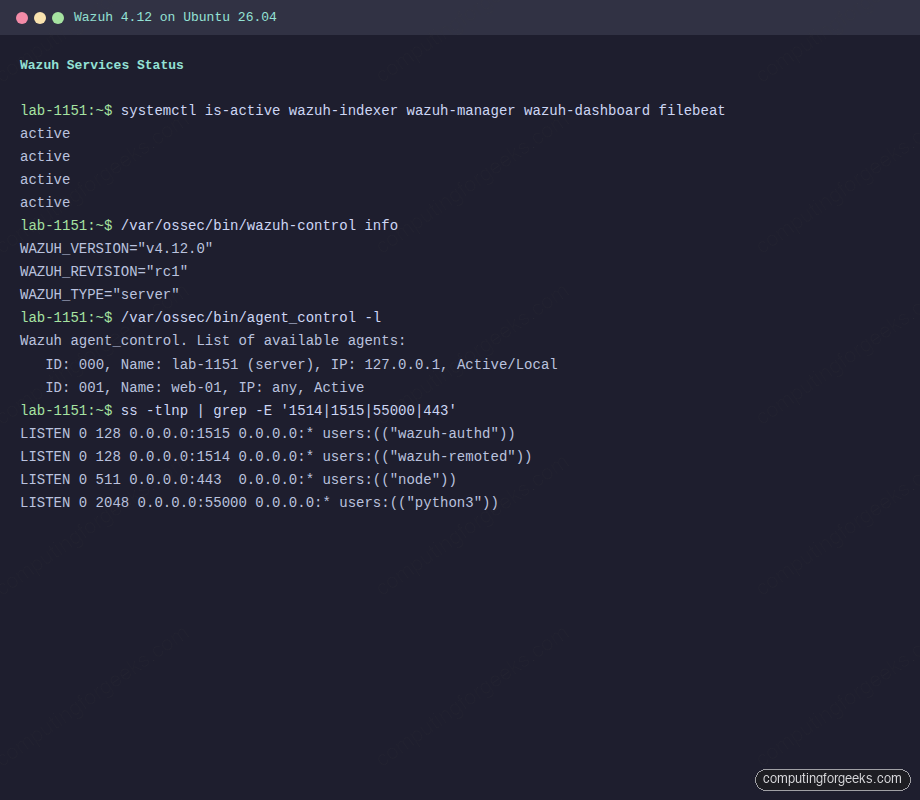
Confirm the indexer, manager, and dashboard are all running:
sudo systemctl is-active wazuh-indexer wazuh-manager wazuh-dashboard filebeatAll four should report active:
active
active
active
active
The manager also exposes an info command:
sudo /var/ossec/bin/wazuh-control infoWhich prints the exact version and build:
WAZUH_VERSION="v4.12.0"
WAZUH_REVISION="rc1"
WAZUH_TYPE="server"
Here’s what the service state looks like on a freshly installed box with the agent already enrolled:
Step 6: Access the dashboard on self-signed TLS
Point a browser at https://10.0.1.50 using the server’s IP. The dashboard ships with self-signed certificates that the browser will flag. Accept the warning to get to the login screen, then authenticate with admin and the password from step 4.
For a home lab that’s fine. For anything you’ll actually use, carry on to step 7 and swap in a real certificate.
Step 7: Install a Let’s Encrypt certificate via Cloudflare DNS
When the dashboard lives on a private network, HTTP-01 challenges won’t work because Let’s Encrypt can’t reach port 80. The DNS-01 challenge solves it: certbot publishes a TXT record via the Cloudflare API, Let’s Encrypt verifies the record, then removes it. No inbound traffic needed.
First, create an A record in Cloudflare (or your DNS provider) pointing wazuh.example.com at the Wazuh host’s IP. Leave it DNS-only, not proxied.
On the Wazuh server, install certbot with the Cloudflare plugin:
sudo apt install -y certbot python3-certbot-dns-cloudflareStore the Cloudflare API token that has DNS edit permission for the zone. Create the credentials file with tight permissions:
echo "dns_cloudflare_api_token = your-token-here" | sudo tee /etc/letsencrypt/cloudflare.ini
sudo chmod 600 /etc/letsencrypt/cloudflare.ini
Request the certificate:
sudo certbot certonly --dns-cloudflare \
  --dns-cloudflare-credentials /etc/letsencrypt/cloudflare.ini \
  --dns-cloudflare-propagation-seconds 30 \
  -d wazuh.example.com \
  --non-interactive --agree-tos -m [email protected]
A successful issue looks like this:
Successfully received certificate.
Certificate is saved at: /etc/letsencrypt/live/wazuh.example.com/fullchain.pem
Key is saved at:         /etc/letsencrypt/live/wazuh.example.com/privkey.pem
This certificate expires on 2026-07-13.
Drop the Let’s Encrypt cert into the dashboard’s cert directory, replacing the self-signed pair:
sudo cp /etc/letsencrypt/live/wazuh.example.com/fullchain.pem /etc/wazuh-dashboard/certs/dashboard.pem
sudo cp /etc/letsencrypt/live/wazuh.example.com/privkey.pem /etc/wazuh-dashboard/certs/dashboard-key.pem
sudo chown wazuh-dashboard:wazuh-dashboard /etc/wazuh-dashboard/certs/dashboard.pem /etc/wazuh-dashboard/certs/dashboard-key.pem
sudo chmod 440 /etc/wazuh-dashboard/certs/dashboard.pem /etc/wazuh-dashboard/certs/dashboard-key.pem
Restart the dashboard and confirm it picks up the new cert:
sudo systemctl restart wazuh-dashboard
curl -sI https://wazuh.example.com/ | head -3
You should see an HTTP/1.1 302 Found response (the dashboard redirects to the login path), and openssl s_client -connect wazuh.example.com:443 will show the Let’s Encrypt chain instead of the Wazuh self-signed CA.
Certbot installs a systemd timer for auto-renewal. Sanity-check it:
sudo certbot renew --dry-runNote that renewal refreshes the files under /etc/letsencrypt/live/ but does not automatically copy them into /etc/wazuh-dashboard/certs/. Add a deploy hook so the dashboard picks up the renewed cert. Create /etc/letsencrypt/renewal-hooks/deploy/wazuh-dashboard.sh with the four copy and chown lines above, then chmod +x it.
Step 8: First login and dashboard tour
Browse to https://wazuh.example.com. The login shows the Wazuh logo and accepts the admin credentials from step 4. After login you land on the Overview page showing agent summary, critical and high severity alerts, and shortcuts to the main capability groups: Endpoint Security, Threat Intelligence, Security Operations, and Cloud Security.
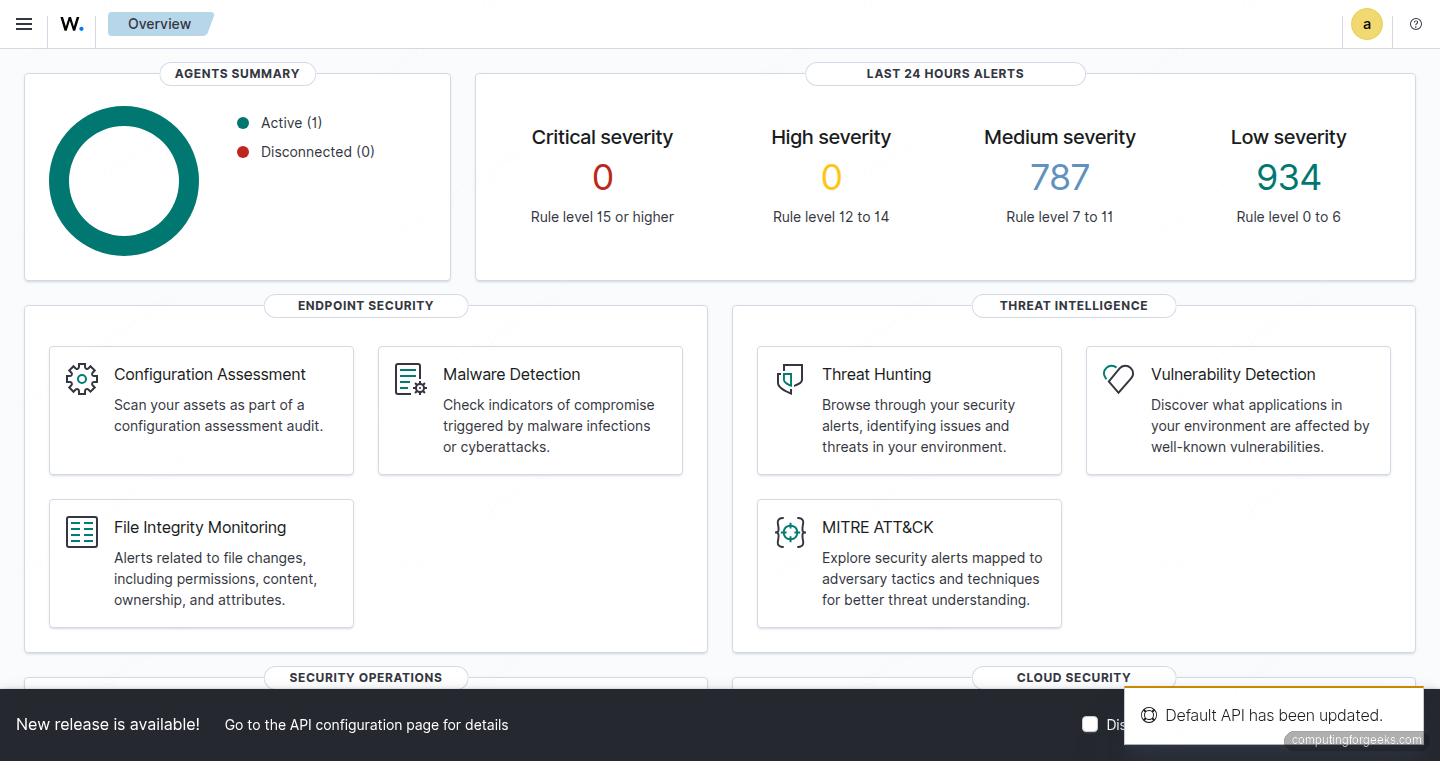
A few tiles worth knowing about on first touch:
- Agents lists enrolled endpoints, their OS, and last-seen status
- Threat Hunting is the generic alerts explorer, keyword search and filter by rule ID or level
- MITRE ATT&CK groups alerts by tactic and technique for one-click triage
- Vulnerability Detection runs a package-to-CVE database match on each agent’s installed software
- File Integrity Monitoring tracks changes to files and directories you configure (defaults include /etc and /usr/bin)
A heads up: if you see a banner reading “API and dashboard version mismatch” it means your wazuh-manager package installed at a different minor version than wazuh-dashboard. The APT repo serves the latest 4.x by default. Fix it by pinning both to the same version (covered in troubleshooting).
Step 9: Enroll your first agent
Agents do the actual work: reading syslog, running rootcheck, computing file hashes, reporting to the manager. The agent package is small and runs on Linux, Windows, and macOS.
On the endpoint you want to monitor, add the Wazuh repo, then install the agent pre-configured with the manager’s address:
curl -s https://packages.wazuh.com/key/GPG-KEY-WAZUH | sudo gpg --no-default-keyring \
  --keyring gnupg-ring:/usr/share/keyrings/wazuh.gpg --import
sudo chmod 644 /usr/share/keyrings/wazuh.gpg
echo "deb [signed-by=/usr/share/keyrings/wazuh.gpg] https://packages.wazuh.com/4.x/apt/ stable main" \
  | sudo tee /etc/apt/sources.list.d/wazuh.list
sudo apt update
sudo WAZUH_MANAGER="10.0.1.50" WAZUH_AGENT_NAME="web-01" apt install -y wazuh-agent=4.12.0-1
The WAZUH_MANAGER env var is read by the postinst script and written into /var/ossec/etc/ossec.conf. The WAZUH_AGENT_NAME sets a friendly name that shows in the dashboard. Pin the exact version with =4.12.0-1 so the agent matches the manager.
Start and enable the agent service:
sudo systemctl daemon-reload
sudo systemctl enable --now wazuh-agent
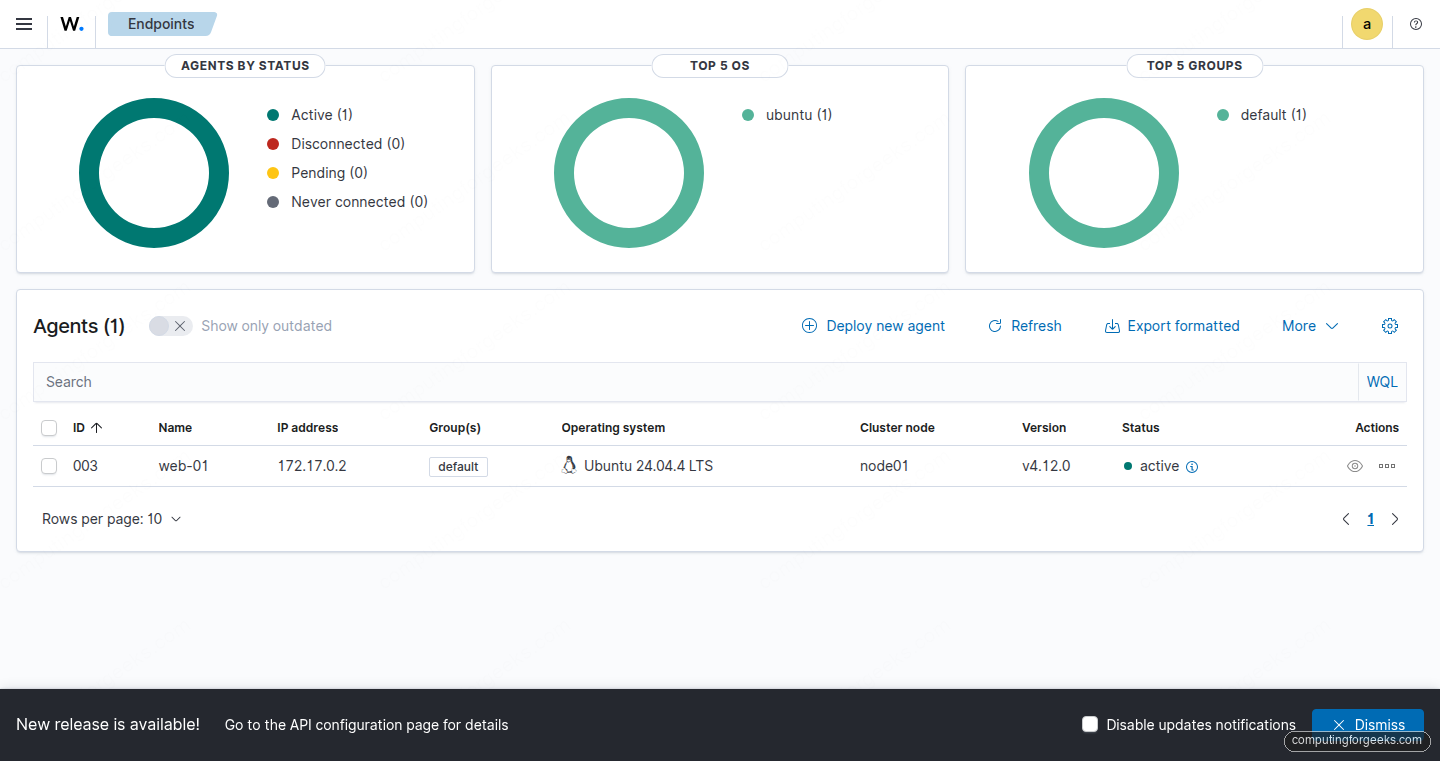
Within about 20 seconds the agent requests a key from the enrollment service on port 1515, the manager registers it, and the dashboard shows it as Active. Confirm from the server side:
sudo /var/ossec/bin/agent_control -lThe output lists every agent known to the manager along with its current state:
Wazuh agent_control. List of available agents:
   ID: 000, Name: lab-1151 (server), IP: 127.0.0.1, Active/Local
   ID: 003, Name: web-01, IP: any, Active

List of agentless devices:
And the same list rendered in the web UI:
Step 10: Trigger a real SSH brute-force alert
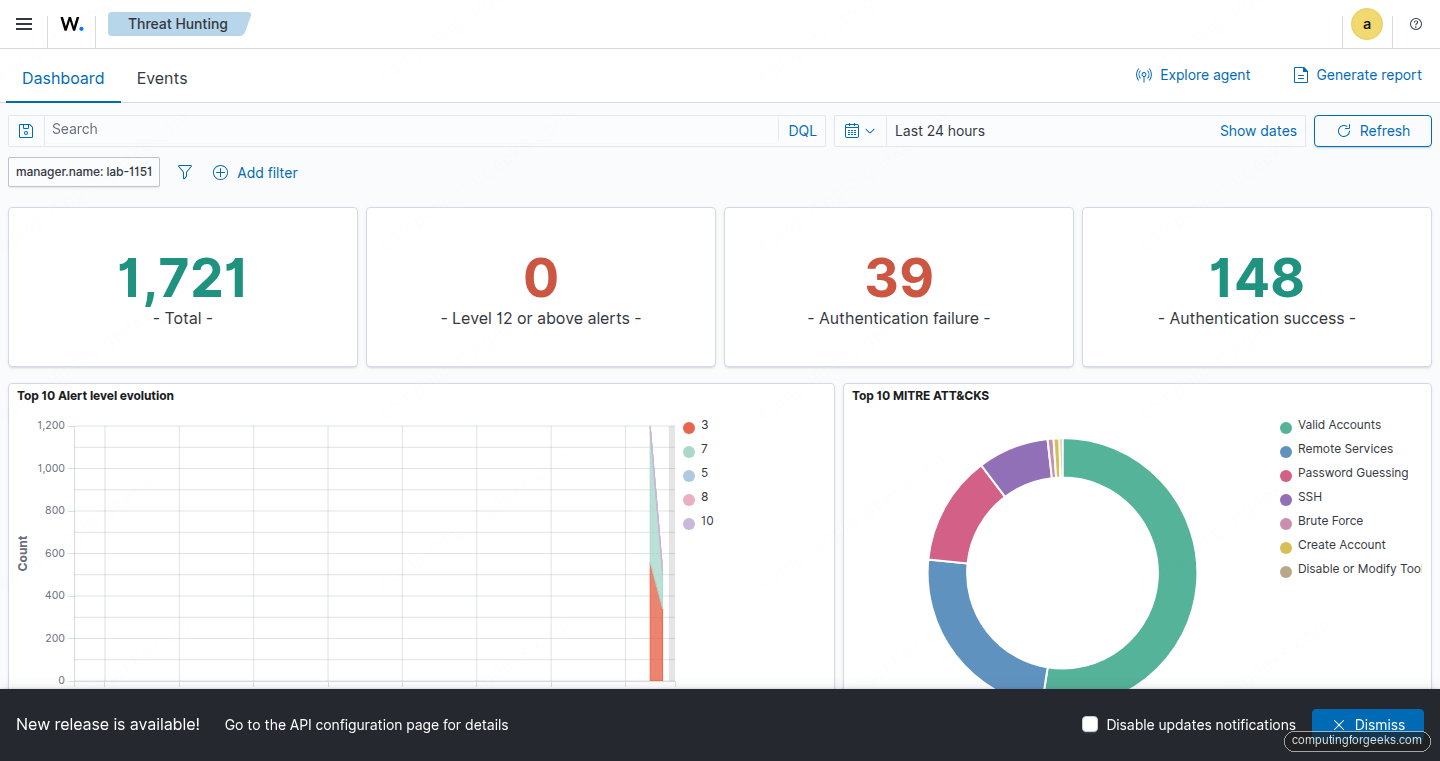
The default ruleset catches SSH authentication failures with rule ID 5710 and escalates repeated failures to rule 5712 (brute force). Generate some failed logins to see it work. From any machine that can reach the Wazuh server’s SSH port:
for i in 1 2 3 4 5 6 7 8; do
  sshpass -p "wrong$i" ssh -o PreferredAuthentications=password \
    -o PubkeyAuthentication=no -o StrictHostKeyChecking=no \
    [email protected] whoami 2>/dev/null
done
Check the manager’s alert log a few seconds later:
sudo grep -E 'Rule: (5710|5712)' /var/ossec/logs/alerts/alerts.log | tail -10You should see a mix of the two rules, with 5712 firing once the sliding-window threshold is crossed:
Rule: 5710 (level 5) -> 'sshd: Attempt to login using a non-existent user'
Rule: 5710 (level 5) -> 'sshd: Attempt to login using a non-existent user'
Rule: 5710 (level 5) -> 'sshd: Attempt to login using a non-existent user'
Rule: 5710 (level 5) -> 'sshd: Attempt to login using a non-existent user'
Rule: 5710 (level 5) -> 'sshd: Attempt to login using a non-existent user'
Rule: 5712 (level 10) -> 'sshd: brute force trying to get access to the system. Non existent user.'
Rule: 5710 (level 5) -> 'sshd: Attempt to login using a non-existent user'
Rule: 5710 (level 5) -> 'sshd: Attempt to login using a non-existent user'
The dashboard renders the same events under Threat Hunting, with a time-series chart, an alert breakdown, and the MITRE ATT&CK techniques mapped to each rule:
For layered defence, pair Wazuh detection with an active blocker. Our fail2ban guide and CrowdSec guide cover the blocking side. Wazuh sees everything and correlates across hosts, but it does not drop packets on its own unless you configure Active Response.
Step 11: Storage and log rotation
The indexer rolls alert indices daily: wazuh-alerts-4.x-YYYY.MM.DD. By default they never expire, which will fill your disk. Check current usage:
curl -sk -u admin:StrongPass123 \
  https://127.0.0.1:9200/_cat/indices/wazuh-alerts-*?v \
  | head -10
Set an Index State Management policy to roll over and delete old indices. Wazuh ships a sample policy under /etc/wazuh-indexer/. For most single-server deployments, 30 days of alerts with 7 days hot and 23 days warm is a reasonable starting point. The raw logs on the manager side sit under /var/ossec/logs/archives/ and also need rotation via the bundled logrotate rules.
If you push alerts to long-term storage, Filebeat can ship to an S3-compatible bucket or a remote Elastic cluster. Plenty of teams use a local indexer for real-time triage and offload older alerts to cold storage.
Troubleshooting
“API and dashboard version mismatch” banner
The Wazuh APT repo serves the latest 4.x packages by default. If you installed at different times, the manager may be 4.14.x while the dashboard stayed at 4.12.0. Pin both to the same version. To downgrade the manager from 4.14.4 to 4.12.0:
sudo systemctl stop wazuh-manager
sudo apt install -y --allow-downgrades wazuh-manager=4.12.0-1
sudo systemctl start wazuh-manager
After the downgrade, you may hit configuration errors in /var/ossec/logs/ossec.log like ERROR: No such tag 'users' at module 'syscollector'. The config file was written by the newer version with tags that 4.12 does not recognise. Remove the offending tags:
sudo sed -i 's|<users>yes</users>||g; s|<groups>yes</groups>||g; s|<services>yes</services>||g; s|<browser_extensions>yes</browser_extensions>||g' /var/ossec/etc/ossec.conf
sudo systemctl start wazuh-manager
To prevent drift, pin the repo to the 4.12 minor with an APT preferences file under /etc/apt/preferences.d/wazuh.
Error: “Invalid credentials” when API connection fails
If the dashboard home page shows an API connection error and curl -sk -u wazuh-wui:<password> -X POST https://127.0.0.1:55000/security/user/authenticate returns {"title": "Unauthorized", "detail": "Invalid credentials"}, the password stored in /usr/share/wazuh-dashboard/data/wazuh/config/wazuh.yml does not match the manager’s actual API password. The all-in-one installer does not always rotate the API user password even though it writes a rotated value into wazuh-install-files.tar. Reset the file to the default wazuh-wui:
sudo sed -i 's|password: ".*"|password: "wazuh-wui"|' /usr/share/wazuh-dashboard/data/wazuh/config/wazuh.yml
sudo systemctl restart wazuh-dashboard
Then rotate the API password properly via /var/ossec/bin/wazuh-passwords-tool.sh and update wazuh.yml to the new value.
Error: “Duplicate agent name: web-01 (from manager)”
Re-enrolling an agent after a reinstall triggers this. The old agent entry still holds the name. Remove it on the manager, then let the agent re-enroll:
sudo /var/ossec/bin/manage_agentsPick R, enter the agent ID, confirm with y, then Q to exit. On the agent side, clear the stale key and restart:
sudo rm -f /var/ossec/etc/client.keys
sudo touch /var/ossec/etc/client.keys
sudo chown wazuh:wazuh /var/ossec/etc/client.keys
sudo systemctl restart wazuh-agent
Indexer won’t start after reboot
The indexer needs vm.max_map_count at 262144 or higher. The installer sets it, but a sysctl restore can wipe the value. Check:
sudo sysctl vm.max_map_countIf it’s below 262144, add a drop-in:
echo 'vm.max_map_count=262144' | sudo tee /etc/sysctl.d/99-wazuh.conf
sudo sysctl --system
Clock skew breaks agent enrollment
Certificate validation fails if agent and manager clocks drift more than a few minutes apart. Both sides should run chronyd or systemd-timesyncd pointed at a reliable NTP pool. chronyc tracking tells you how far off you are.
Where to go next
A single-server Wazuh deployment gets you solid detection on dozens of agents. Once you push past that, the next move is splitting the three components onto separate hosts. The config.yml from step 2 and the -g and -s installer flags handle distributed certificate generation and deploy. Worth knowing about when you outgrow one box:
- Cluster the indexer across at least three nodes for high availability
- Run multiple managers behind a load balancer with a shared
client.keysviacluster.dsync - Point Grafana at the indexer for custom dashboards beyond what the built-in UI offers
- Feed Wazuh alerts into Prometheus via the Wazuh exporter to consolidate SIEM signals with infrastructure metrics
- Write custom decoders and rules under
/var/ossec/etc/decoders/local_decoder.xmland/var/ossec/etc/rules/local_rules.xmlto parse your own application logs
The Wazuh documentation at documentation.wazuh.com covers the ruleset reference, API, and cluster deployments in depth.