Ubuntu 26.04 ships Redis 8.0 straight from the official repos, and that’s a bigger deal than it sounds. Redis 8.0 is the first release under the new dual SSPL/RSALv2 license (no longer BSD-3-Clause), and it brings hash field expiration, per-key threading improvements, and better memory efficiency for small objects. If you’re running caching or session stores on Ubuntu, you now get Redis 8.0.5 with a single apt install.
This guide walks through a full Redis 8.0 deployment on Ubuntu 26.04 LTS: installation, authentication, persistence configuration (both RDB snapshots and AOF), benchmarking, firewall rules, and production tuning. Every command and output was captured on a real system.
Tested April 2026 | Ubuntu 26.04 LTS, Redis 8.0.5
Prerequisites
Before starting, make sure you have:
- Ubuntu 26.04 LTS server with root or sudo access (initial server setup guide)
- Tested on: Ubuntu 26.04 LTS (kernel 7.0.0-10-generic), Redis 8.0.5
- At least 1 GB RAM (Redis itself uses very little, but you need headroom for your dataset)
Install Redis on Ubuntu 26.04
Redis 8.0.5 is available in the default Ubuntu 26.04 repositories. Update the package index and install it.
sudo apt update
sudo apt install -y redis-server
Confirm the installed version:
redis-server --versionThe output should show Redis 8.0.5 with jemalloc memory allocator:
Redis server v=8.0.5 sha=00000000:0 malloc=jemalloc-5.3.0 bits=64 build=9729964261b8fc0fUbuntu automatically enables and starts the Redis service after installation. Verify it:
sudo systemctl status redis-serverYou should see active (running) and “Ready to accept connections”:
● redis-server.service - Advanced key-value store
     Loaded: loaded (/usr/lib/systemd/system/redis-server.service; enabled; preset: enabled)
     Active: active (running) since Tue 2026-04-14 00:46:51 UTC; 10s ago
       Docs: http://redis.io/documentation,
             man:redis-server(1)
   Main PID: 2398 (redis-server)
     Status: "Ready to accept connections"
      Tasks: 6 (limit: 3522)
     Memory: 4M (peak: 4M)
        CPU: 76ms
     CGroup: /system.slice/redis-server.service
             └─2398 "/usr/bin/redis-server 127.0.0.1:6379"
A quick connectivity test with redis-cli:
redis-cli pingA successful response returns:
PONGConfigure Redis
The default configuration works for local testing, but production use requires authentication, memory limits, and network binding changes. The main configuration file is /etc/redis/redis.conf.
Back up the original configuration before making changes:
sudo cp /etc/redis/redis.conf /etc/redis/redis.conf.bakOpen the configuration file:
sudo vi /etc/redis/redis.confApply the following changes. Each setting is explained below.
Bind Address
By default, Redis only listens on 127.0.0.1. To allow connections from other servers (for example, your application tier), change the bind directive:
bind 0.0.0.0If you only need to accept connections from specific hosts, bind to both localhost and your server’s private IP instead: bind 127.0.0.1 10.0.1.50.
Authentication
Redis without a password is an open door. Set a strong password with the requirepass directive:
requirepass StrongRedisP@ss2026After this change, every redis-cli connection must authenticate with -a or the AUTH command.
Memory Limit
Without a memory cap, Redis will consume all available RAM and eventually get killed by the OOM killer. Set a sane limit based on your available memory:
maxmemory 256mb
maxmemory-policy allkeys-lru
The allkeys-lru policy evicts the least recently used keys when memory is full. This is the right choice for caching workloads. For session stores where you never want data silently dropped, use noeviction and monitor memory usage closely.
Persistence (AOF)
Enable the Append Only File for durability. RDB snapshots are already enabled by default, but AOF provides point-in-time recovery:
appendonly yesSave the file and restart Redis to apply all changes:
sudo systemctl restart redis-serverVerify Redis is listening on all interfaces:
ss -tlnp | grep 6379The output confirms Redis is now bound to 0.0.0.0:6379:
LISTEN 0 511 0.0.0.0:6379 0.0.0.0:* users:(("redis-server",pid=2812,fd=8))Test Redis Operations
With authentication enabled, connect using the -a flag. Here are the core data operations you’ll use most often.
Set and retrieve a string value:
redis-cli -a StrongRedisP@ss2026 SET server:name "web01.example.com"
redis-cli -a StrongRedisP@ss2026 GET server:name
The GET command returns the stored value:
"web01.example.com"Store structured data with a hash:
redis-cli -a StrongRedisP@ss2026 HSET user:1001 name "Alice" role "admin" email "[email protected]"
redis-cli -a StrongRedisP@ss2026 HGETALL user:1001
HGETALL returns all fields and values in the hash:
1) "name"
2) "Alice"
3) "role"
4) "admin"
5) "email"
6) "[email protected]"
Work with lists using LPUSH and LRANGE:
redis-cli -a StrongRedisP@ss2026 LPUSH tasks "deploy-app" "run-tests" "build-image"
redis-cli -a StrongRedisP@ss2026 LRANGE tasks 0 -1
The list stores items in reverse push order:
1) "build-image"
2) "run-tests"
3) "deploy-app"
Set a key with an expiration (useful for sessions). This creates a key that auto-expires in 3600 seconds:
redis-cli -a StrongRedisP@ss2026 SET session:abc123 "user:1001" EX 3600
redis-cli -a StrongRedisP@ss2026 TTL session:abc123
TTL returns the remaining seconds before expiration:
(integer) 3600Delete a key and list all remaining keys:
redis-cli -a StrongRedisP@ss2026 DEL server:name
redis-cli -a StrongRedisP@ss2026 KEYS '*'
After deleting server:name, the remaining keys are:
1) "session:abc123"
2) "tasks"
3) "user:1001"
Check Redis Server Information
The INFO command gives you a full snapshot of Redis internals. To see server details:
redis-cli -a StrongRedisP@ss2026 INFO serverKey fields from the output:
# Server
redis_version:8.0.5
redis_git_sha1:00000000
redis_mode:standalone
os:Linux 7.0.0-10-generic x86_64
arch_bits:64
multiplexing_api:epoll
gcc_version:15.2.0
process_id:2812
tcp_port:6379
uptime_in_seconds:15
config_file:/etc/redis/redis.conf
listener0:name=tcp,bind=0.0.0.0,port=6379
Memory usage is equally important to monitor:
redis-cli -a StrongRedisP@ss2026 INFO memoryWith a few test keys, Redis uses barely any memory:
# Memory
used_memory:1307808
used_memory_human:1.25M
used_memory_rss:16228352
used_memory_rss_human:15.48M
used_memory_peak:2180944
used_memory_peak_human:2.08M
total_system_memory:4100751360
total_system_memory_human:3.82G
Verify Persistence Configuration
Redis 8.0 supports two persistence mechanisms that can run simultaneously. RDB creates point-in-time snapshots, while AOF logs every write operation for more granular recovery.
Check the current RDB snapshot schedule:
redis-cli -a StrongRedisP@ss2026 CONFIG GET saveThe default schedule triggers a snapshot after 3600 seconds (1 hour) with 1 change, 300 seconds (5 minutes) with 100 changes, or 60 seconds with 10000 changes:
1) "save"
2) "3600 1 300 100 60 10000"
The persistence files live in /var/lib/redis/:
ls -la /var/lib/redis/Both the RDB dump and AOF directory should be present:
total 16
drwxr-x---  3 redis redis 4096 Apr 14 00:47 .
drwxr-xr-x 46 root  root  4096 Apr 14 00:46 ..
drwxr-x---  2 redis redis 4096 Apr 14 00:47 appendonlydir
-rw-rw----  1 redis redis   88 Apr 14 00:47 dump.rdb
Redis 8.0 uses a multi-part AOF format with a manifest file. Check the AOF directory:
ls -la /var/lib/redis/appendonlydir/You’ll see the base RDB file, the incremental AOF, and the manifest:
total 716
drwxr-x--- 2 redis redis   4096 Apr 14 00:47 .
drwxr-x--- 3 redis redis   4096 Apr 14 00:47 ..
-rw-rw---- 1 redis redis     88 Apr 14 00:47 appendonly.aof.1.base.rdb
-rw-r----- 1 redis redis 716423 Apr 14 00:47 appendonly.aof.1.incr.aof
-rw-r----- 1 redis redis    102 Apr 14 00:47 appendonly.aof.manifest
Run Redis Benchmark
Redis ships with redis-benchmark for quick performance testing. Run a short benchmark with 1000 requests to get baseline numbers:
redis-benchmark -a StrongRedisP@ss2026 -q -n 1000Results on a 2-vCPU, 4 GB RAM virtual machine:
PING_INLINE: 66666.67 requests per second, p50=0.367 msec
PING_MBULK: 71428.57 requests per second, p50=0.367 msec
SET: 47619.05 requests per second, p50=0.391 msec
GET: 58823.53 requests per second, p50=0.439 msec
INCR: 66666.67 requests per second, p50=0.383 msec
LPUSH: 66666.67 requests per second, p50=0.359 msec
RPUSH: 66666.67 requests per second, p50=0.367 msec
LPOP: 62500.00 requests per second, p50=0.383 msec
RPOP: 66666.67 requests per second, p50=0.351 msec
SADD: 62500.00 requests per second, p50=0.375 msec
HSET: 66666.67 requests per second, p50=0.391 msec
SPOP: 55555.56 requests per second, p50=0.447 msec
ZADD: 66666.67 requests per second, p50=0.383 msec
ZPOPMIN: 58823.53 requests per second, p50=0.407 msec
LRANGE_100 (first 100 elements): 40000.00 requests per second, p50=0.599 msec
LRANGE_300 (first 300 elements): 18518.52 requests per second, p50=1.303 msec
LRANGE_500 (first 500 elements): 12195.12 requests per second, p50=2.007 msec
LRANGE_600 (first 600 elements): 14285.71 requests per second, p50=1.727 msec
MSET (10 keys): 71428.57 requests per second, p50=0.471 msec
XADD: 76923.08 requests per second, p50=0.367 msec
These numbers are from a modest VM. On bare metal with fast memory, expect 200K+ ops/sec for simple commands.
Configure the Firewall
If your server runs UFW, open port 6379 for Redis traffic:
sudo ufw allow 6379/tcp comment "Redis"
sudo ufw status
The firewall rules should show Redis port allowed:
Status: active

To                         Action      From
--                         ------      ----
6379/tcp                   ALLOW       Anywhere
OpenSSH                    ALLOW       Anywhere
6379/tcp (v6)              ALLOW       Anywhere (v6)
OpenSSH (v6)               ALLOW       Anywhere (v6)
In production, restrict access to only your application servers. For example, to allow only 10.0.1.20:
sudo ufw allow from 10.0.1.20 to any port 6379 proto tcp comment "App server"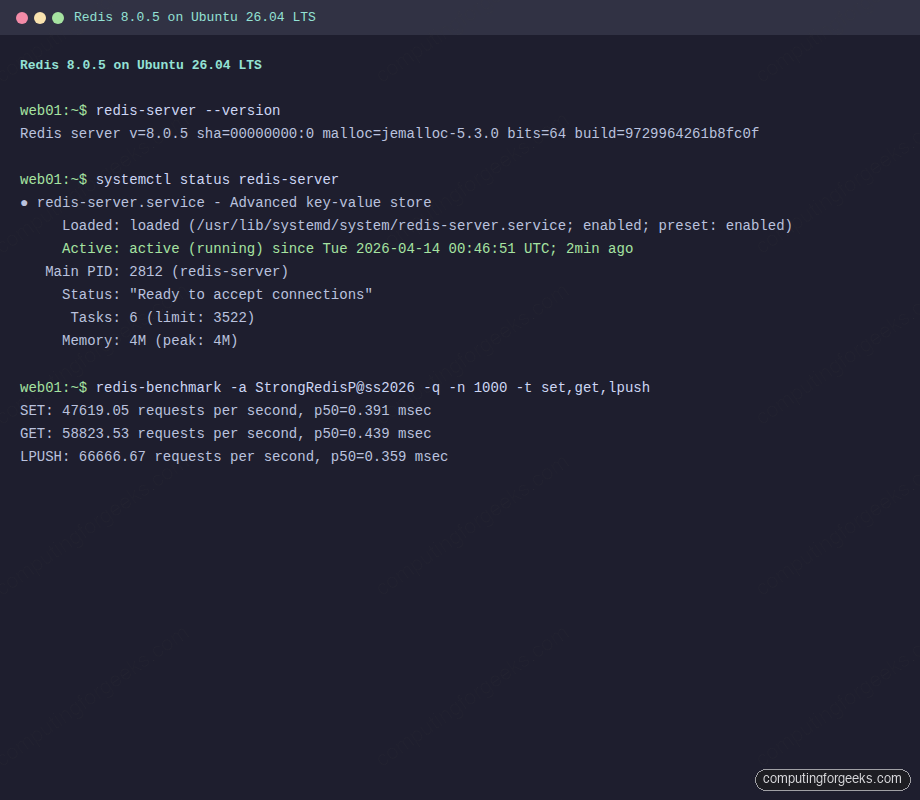
Production Tuning
A default Redis install works fine for development, but production workloads need kernel and Redis-level tuning to avoid latency spikes and data loss.
Memory Overcommit
Redis uses fork() for background persistence (RDB snapshots and AOF rewrites). Linux needs to overcommit memory for fork to succeed when Redis is using a large portion of RAM:
sudo sysctl vm.overcommit_memory=1Make it persistent across reboots:
echo "vm.overcommit_memory=1" | sudo tee -a /etc/sysctl.confWithout this setting, background saves can fail with “Can’t save in background: fork: Cannot allocate memory” when Redis is under heavy memory pressure.
Disable Transparent Huge Pages
THP causes latency spikes and increased memory usage with Redis. Redis logs a warning at startup if THP is enabled. Disable it:
echo never | sudo tee /sys/kernel/mm/transparent_hugepage/enabledTo persist this across reboots, create a systemd service:
sudo vi /etc/systemd/system/disable-thp.serviceAdd the following unit configuration:
[Unit]
Description=Disable Transparent Huge Pages
Before=redis-server.service

[Service]
Type=oneshot
ExecStart=/bin/sh -c 'echo never > /sys/kernel/mm/transparent_hugepage/enabled'

[Install]
WantedBy=multi-user.target
Enable the service:
sudo systemctl daemon-reload
sudo systemctl enable disable-thp
Maxmemory Policy Selection
The eviction policy you choose depends entirely on your use case. Here’s when to use each one:
| Policy | Behavior | Best for |
|---|---|---|
allkeys-lru | Evicts least recently used keys | General caching |
volatile-lru | Evicts LRU keys that have an expiry set | Mixed cache + persistent data |
allkeys-lfu | Evicts least frequently used keys | Caching where popular items must stay hot |
noeviction | Returns errors when memory is full | Session stores, queues (data must not be silently dropped) |
volatile-ttl | Evicts keys with shortest TTL first | Time-sensitive caching |
Latency Monitoring
Redis has a built-in latency monitor. Enable it by setting a threshold in milliseconds (any command slower than this gets logged):
redis-cli -a StrongRedisP@ss2026 CONFIG SET latency-monitor-threshold 100Check for latency events with:
redis-cli -a StrongRedisP@ss2026 LATENCY LATESTAn empty result means no commands exceeded the threshold, which is what you want to see. If events show up, investigate with LATENCY HISTORY <event-name> and check for slow commands using SLOWLOG GET 10.
TCP Backlog
Redis defaults to a TCP backlog of 511, but the kernel’s net.core.somaxconn may be lower. For high-connection environments, increase it:
sudo sysctl net.core.somaxconn=65535
echo "net.core.somaxconn=65535" | sudo tee -a /etc/sysctl.conf
This prevents connection drops under burst traffic when many clients connect simultaneously.
Redis 8.0 on Ubuntu 26.04 gives you a production-grade key-value store with minimal setup. For applications that need Redis alongside a web stack, check out the LEMP stack guide or the Docker CE installation for containerized Redis deployments. The official Redis documentation covers advanced topics like clustering, Sentinel for high availability, and ACL-based access control.