You have a docker-compose.yaml that runs your stack on a laptop, and now it needs to live on Kubernetes. Rewriting every service into Deployments, Services and PersistentVolumeClaims by hand is tedious and easy to get wrong. Kompose (the name blends Kubernetes and Compose) reads a Compose file and emits the equivalent Kubernetes objects, so you get a working starting point in seconds instead of an afternoon of YAML.
This guide converts Docker Compose to Kubernetes with Kompose, end to end, using a real two service application. We take a WordPress and MariaDB stack, run it under Docker Compose, convert it with kompose convert, fix the one thing the conversion always misses, then deploy the generated manifests and load the running site. Along the way we cover Kompose labels, Helm chart output, the useful conversion flags, and the parts of a Compose file that Kompose cannot translate.
Everything below was run in June 2026 with Kompose 1.38 against a single node k3s cluster on Ubuntu 24.04.
What Kompose actually does
Kompose parses a Compose file and maps each piece to a Kubernetes resource. A service becomes a Deployment, a published port becomes a Service, a named volume becomes a PersistentVolumeClaim, and environment variables carry across into the container spec. It does not run a cluster or manage state. It is a translator that hands you manifests.
One thing trips up readers following older tutorials. Kompose used to ship kompose up and kompose down to deploy straight to a cluster. Those subcommands were removed. The current tool has exactly one job that matters, convert, and you deploy the output yourself with kubectl apply. Here is the full command list on the version tested:
kompose --helpOnly four commands exist, and convert is the one you will use:
Available Commands:
  completion  Output shell completion code
  convert     Convert a Compose file
  help        Help about any command
  version     Print the version of Kompose
If a guide tells you to run kompose up, it predates this change. The convert plus apply flow below is the supported path.
Install Kompose on Linux, macOS, and Windows
Kompose is a single static binary with no runtime dependencies. On Linux, pull the latest release straight from the GitHub API so the command keeps working when a new version ships:
curl -s https://api.github.com/repos/kubernetes/kompose/releases/latest \
  | grep browser_download_url | grep linux-amd64 \
  | cut -d '"' -f 4 | wget -qi -
chmod +x kompose-linux-amd64
sudo mv kompose-linux-amd64 /usr/local/bin/kompose
On macOS, Homebrew is the cleanest route:
brew install komposeOn Windows, use Chocolatey or Scoop:
choco install kubernetes-kompose
# or
scoop install kompose
Confirm the binary is on your path before moving on:
kompose versionIt prints the installed version and commit hash:
1.38.0 (a8f5d1cbd)You also need a Kubernetes cluster and kubectl pointing at it. Any cluster works. For a quick lab the fastest options are a single node k3s install or Minikube. For a multi node setup, follow the kubeadm cluster guide. The walkthrough here uses k3s because it ships a default StorageClass and a built in load balancer, which means the PersistentVolumeClaims and the exposed Service just work without extra setup.
The Docker Compose application we will migrate
A toy single container demo would hide the interesting parts. Instead we migrate a stack that exercises everything you hit in real life: two services that talk to each other, environment driven configuration, and persistent storage. WordPress in front, MariaDB behind it. Save this as docker-compose.yaml:
services:
  db:
    image: mariadb:11.4
    restart: always
    environment:
      MARIADB_ROOT_PASSWORD: SuperSecretRoot
      MARIADB_DATABASE: wordpress
      MARIADB_USER: wordpress
      MARIADB_PASSWORD: wordpressPass
    volumes:
      - db_data:/var/lib/mysql
    labels:
      kompose.volume.size: 1Gi

  wordpress:
    depends_on:
      - db
    image: wordpress:php8.3-apache
    restart: always
    ports:
      - "8080:80"
    environment:
      WORDPRESS_DB_HOST: db:3306
      WORDPRESS_DB_USER: wordpress
      WORDPRESS_DB_PASSWORD: wordpressPass
      WORDPRESS_DB_NAME: wordpress
    volumes:
      - wp_data:/var/www/html
    labels:
      kompose.service.type: loadbalancer
      kompose.volume.size: 2Gi

volumes:
  db_data:
  wp_data:
The kompose.* labels are hints Kompose reads during conversion. They are ignored by Docker Compose, so the same file runs in both worlds. We will come back to them. First, prove the stack works under Compose so we have a known good baseline:
docker compose up -dCheck that both containers are running:
docker compose psWordPress answers on port 8080 and serves its installation screen:
NAME                        IMAGE                     STATUS         PORTS
wordpress-app-db-1          mariadb:11.4              Up 11 seconds   3306/tcp
wordpress-app-wordpress-1   wordpress:php8.3-apache   Up 11 seconds   0.0.0.0:8080->80/tcp
With the baseline confirmed, tear the Compose stack down. We rebuild it on Kubernetes next, and leaving it running would clash with the port:
docker compose downIf you do not have Docker Compose installed, the Docker Compose setup guide covers it. The baseline run is optional, but it saves you from blaming Kubernetes for a bug that was in the Compose file all along.
Convert Docker Compose to Kubernetes manifests
Run the conversion and send the output to a directory so the manifests stay tidy:
mkdir -p k8s
kompose convert -f docker-compose.yaml -o k8s/
Kompose prints each file as it writes it and lists the generated manifests:
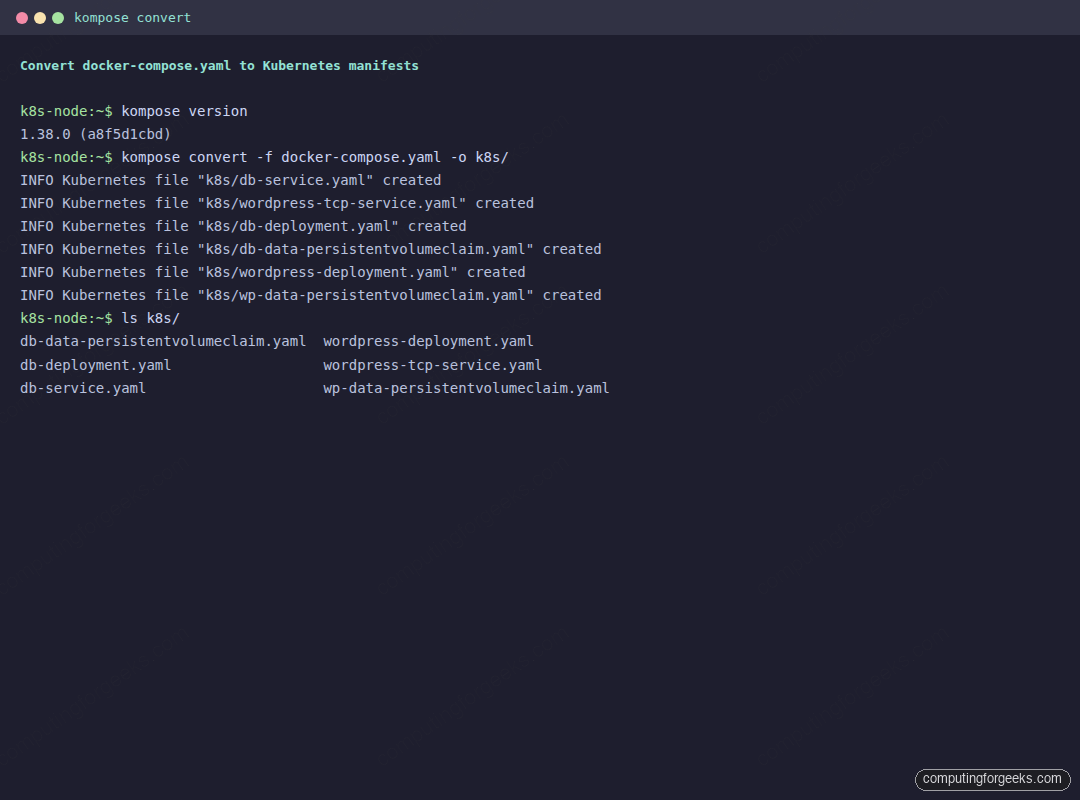
Each Compose concept landed on the matching Kubernetes object. The two services became Deployments, the published WordPress port became a Service, and the two named volumes became PersistentVolumeClaims. Open the WordPress Deployment to see how the translation reads:
cat k8s/wordpress-deployment.yamlThe environment variables, the container port, and the volume mount all carried over, and the volume is wired to the PVC Kompose created:
    spec:
      containers:
        - env:
            - name: WORDPRESS_DB_HOST
              value: db:3306
            - name: WORDPRESS_DB_NAME
              value: wordpress
            - name: WORDPRESS_DB_PASSWORD
              value: wordpressPass
            - name: WORDPRESS_DB_USER
              value: wordpress
          image: wordpress:php8.3-apache
          name: wordpress
          ports:
            - containerPort: 80
          volumeMounts:
            - mountPath: /var/www/html
              name: wp-data
      volumes:
        - name: wp-data
          persistentVolumeClaim:
            claimName: wp-data
Fix the missing database Service
Look closely at the conversion output and you will spot a warning that bites almost every migration:
WARN Service "db" won't be created because 'ports' is not specifiedThis is the single most common reason a migrated app cannot reach its database. Under Docker Compose, every service on the same network resolves the others by name even with no published ports, so db is reachable automatically. Kubernetes does not work that way. Name resolution between pods needs a Service object, and Kompose only creates one when the Compose service declares a port. The db service had none, so WordPress would start, look up db:3306, and find nothing.
The fix is to tell Compose the database listens on a port without publishing it to the host. Add an expose stanza to the db service:
  db:
    image: mariadb:11.4
    restart: always
    environment:
      MARIADB_ROOT_PASSWORD: SuperSecretRoot
      MARIADB_DATABASE: wordpress
      MARIADB_USER: wordpress
      MARIADB_PASSWORD: wordpressPass
    expose:
      - "3306"
    volumes:
      - db_data:/var/lib/mysql
    labels:
      kompose.volume.size: 1Gi
Convert again, and this time a ClusterIP Service for the database appears in the output:
rm -rf k8s && mkdir k8s
kompose convert -f docker-compose.yaml -o k8s/
ls k8s/
The new db-service.yaml is what lets WordPress find MariaDB by name inside the cluster:
db-data-persistentvolumeclaim.yaml  wordpress-deployment.yaml
db-deployment.yaml                  wordpress-tcp-service.yaml
db-service.yaml                     wp-data-persistentvolumeclaim.yaml
Deploy the converted manifests to Kubernetes
Apply the whole directory at once. kubectl reads every manifest and creates the objects:
kubectl apply -f k8s/Wait for both Deployments to finish rolling out:
kubectl rollout status deployment/db
kubectl rollout status deployment/wordpress
Now look at the full picture. Pods running, the database Service resolving, the WordPress Service holding an external IP, and both PersistentVolumeClaims bound to real storage:
kubectl get deploy,svc,pods,pvcThe migrated stack is live, with every object in the state you want:
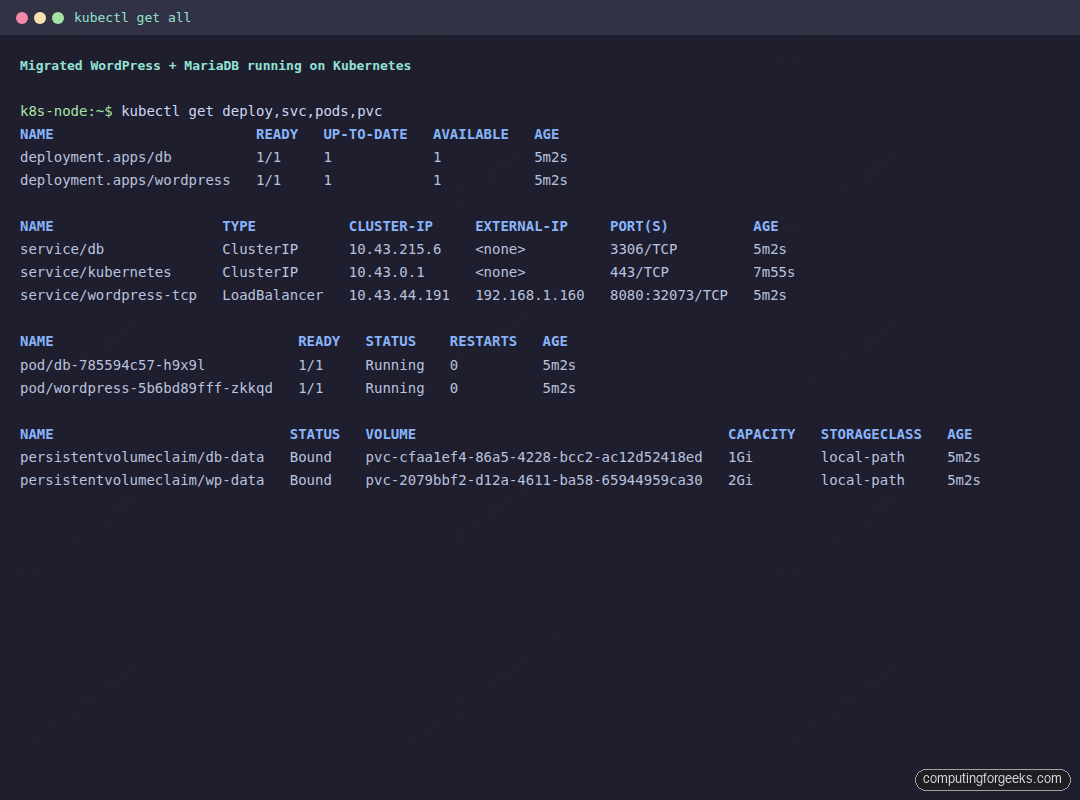
The wordpress-tcp Service shows up as type LoadBalancer with an external IP because the Compose file carried the kompose.service.type: loadbalancer label, and k3s assigns the node address through its built in load balancer. On a cloud cluster you would get a real cloud load balancer IP here instead. Both PVCs reached the Bound state on the default local-path StorageClass, which is the proof that the volume translation worked.
Open the external IP on the Service port and the migrated site loads. After the one time WordPress setup, the default theme renders from the Kubernetes pod, served by MariaDB running in its own pod with persistent storage behind it:
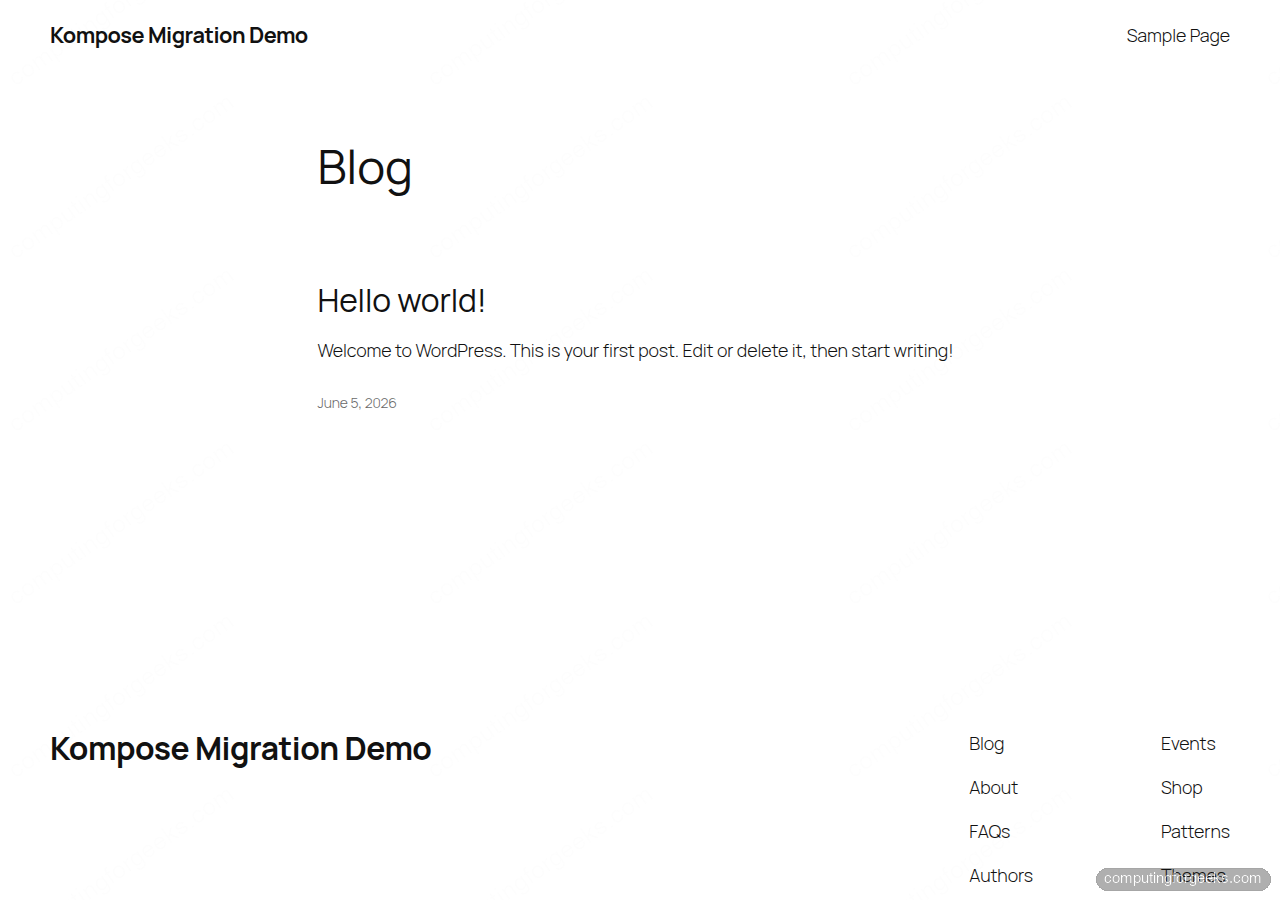
That round trip, from a Compose file to a live site on Kubernetes, is the whole point of Kompose. The PersistentVolumeClaims only bind because the cluster has a StorageClass. k3s ships one. On a bare kubeadm cluster you must install a storage provisioner first, otherwise the claims sit in Pending and the pods never start. The Kubernetes storage guide walks through adding one.
Tune the output with Kompose labels
By default Kompose makes safe, conservative choices. Every service becomes a ClusterIP Service, volumes become PVCs of a default size, and one replica is created. Compose labels let you steer the conversion without hand editing the generated YAML. We already used two of them. The kompose.service.type label turned the WordPress Service into a LoadBalancer, and kompose.volume.size set each PVC request. These are the labels worth knowing:
| Label | What it controls |
|---|---|
kompose.service.type | Service kind: nodeport, clusterip, loadbalancer, or headless |
kompose.service.expose | Create an Ingress and set its host |
kompose.service.expose.tls-secret | TLS secret name for the generated Ingress |
kompose.volume.type | Volume kind: persistentVolumeClaim, emptyDir, hostPath, or configMap |
kompose.volume.size | Storage request for the generated PVC |
kompose.controller.type | Workload kind: deployment, daemonset, or statefulset |
kompose.image-pull-policy | Container image pull policy |
kompose.image-pull-secret | Secret used to pull from a private registry |
kompose.service.healthcheck.readiness.* | Readiness probe settings |
kompose.service.group | Pack several Compose services into one pod |
A common pattern is to expose the front end through an Ingress instead of a load balancer. Swap the WordPress label for the two below and Kompose generates an Ingress resource pointing at your host:
    labels:
      kompose.service.expose: "wordpress.example.com"
      kompose.service.expose.tls-secret: "wordpress-tls"
Because the database is stateful, kompose.controller.type: statefulset on the db service is often a better fit than the default Deployment. It gives the pod a stable identity and a more predictable volume lifecycle.
Generate a Helm chart from Docker Compose
If you deploy with Helm, Kompose can emit a chart skeleton instead of loose manifests. Pass the -c flag:
kompose convert -f docker-compose.yaml -cIt builds a directory named after the project with a Chart.yaml, a README.md, and every manifest under templates/:
docker-compose/Chart.yaml
docker-compose/README.md
docker-compose/templates/db-deployment.yaml
docker-compose/templates/db-service.yaml
docker-compose/templates/db-data-persistentvolumeclaim.yaml
docker-compose/templates/wordpress-deployment.yaml
docker-compose/templates/wordpress-tcp-service.yaml
docker-compose/templates/wp-data-persistentvolumeclaim.yaml
Treat it as a head start, not a finished chart. The templates are static copies of the manifests with no values wired up, so the next job is to lift hard coded settings into values.yaml. Once that is done you install it like any other chart:
helm install wordpress ./docker-composeFor a fuller Helm workflow on a real application, the Prometheus and Grafana on Kubernetes guide shows charts driven by proper values files.
Useful kompose convert flags
A handful of flags cover most of what you will reach for after the basic conversion:
| Flag | Effect |
|---|---|
-o, --out FILE | Write everything to one file or a directory instead of many files |
--stdout | Print the manifests to the terminal so you can pipe straight into kubectl apply -f - |
--replicas N | Set the replica count on generated workloads (default 1) |
--controller TYPE | Force deployment, daemonSet, or replicationController |
--volumes TYPE | Choose persistentVolumeClaim, emptyDir, hostPath, or configMap |
-n, --namespace NS | Stamp a target namespace onto the resources |
--provider openshift | Emit OpenShift objects instead of plain Kubernetes |
For a one liner that converts and applies in a single step, --stdout is the cleanest:
kompose convert -f docker-compose.yaml --stdout | kubectl apply -f -What Kompose does not convert
Kompose gets you most of the way, but the output is a draft, not a production manifest. These are the gaps to close by hand after a conversion, drawn from running the migration above.
- Secrets stay in plain text. The database password landed in the Deployment as an environment value, exactly as it sat in the Compose file. Move credentials into a Kubernetes Secret and reference them with
valueFrom.secretKeyRefbefore this goes anywhere real. - depends_on does not enforce ordering. Kubernetes starts pods in parallel. WordPress will crash loop for a few seconds while MariaDB initializes, then recover on its own once the database answers. If you need strict ordering, add a readiness probe or an init container that waits for the database.
- Services with no ports get no Service. The database gotcha from earlier. Any backend that other services reach by name needs a port declared with
exposeso Kompose generates a Service for it. - PVCs need a StorageClass. The generated claims assume the cluster can provision storage. Without a default StorageClass they stay
Pendingand the pods never schedule. - Local builds are not handled by default. A Compose service with a
buildsection needs--build localplus a registry to push to, since Kubernetes pulls images rather than building them.
None of these are reasons to skip Kompose. They are the short list of edits that turn a fast, mechanical conversion into something you would actually run. Start with kompose convert, deploy it, then tighten the manifests. Keep the kubectl cheat sheet handy while you iterate on the result.