Claude Code is Anthropic’s AI-powered CLI tool that reads your codebase, edits files, runs commands, and manages git workflows directly from the terminal. It operates as an agentic coding assistant: you describe what you want in plain English, and it figures out which files to read, what commands to run, and what changes to make. This cheat sheet covers every command, shortcut, configuration option, and workflow pattern you need to be productive with Claude Code.
This guide tracks the current release. As of July 2026 that is Claude Code 2.1.215, which ships Opus 4.8 for complex work, the new Sonnet 5 as the daily default with a native 1M-token context, the top-end Fable 5 for the hardest jobs, and Haiku 4.5 for quick tasks. Recent additions covered below include the reworked /fork (it now launches a background session) and its in-session replacement /subtask, per-session safety caps on subagent spawns and web searches, the /checkup setup command, dynamic workflows, and /code-review. Every command, flag, and shortcut here was run against that build.
This cheat sheet is also available as a GitHub repository you can star, fork, and reference offline. Contributions and suggestions are welcome there. For the official changelog and new features, check the Claude Code releases on GitHub.
Installation
Install Claude Code on macOS, Linux, or Windows (WSL):
curl -fsSL https://claude.ai/install.sh | bashOn macOS via Homebrew:
brew install --cask claude-codeOn Windows (PowerShell):
irm https://claude.ai/install.ps1 | iexVerify and authenticate:
claude --version
claude auth login
Keyboard Shortcuts
These work in the interactive Claude Code terminal. This is the most-referenced section, so bookmark it.
Essential Shortcuts
| Shortcut | Action |
|---|---|
Ctrl+C | Interrupt a running operation. If nothing is running, first press clears input, second exits |
Esc | Interrupt Claude mid-turn, keeping the work done so far |
Esc + Esc | Clear the input draft, or (when input is empty) open the rewind menu to restore a checkpoint |
Ctrl+D | Exit Claude Code |
Ctrl+L | Redraw the screen to recover a garbled display |
Ctrl+R | Reverse search command history |
Shift+Tab | Cycle permission modes (manual, acceptEdits, plan, plus any enabled like auto or bypassPermissions) |
Ctrl+G | Open input in external editor (also Ctrl+X Ctrl+E) |
Ctrl+O | Toggle the transcript viewer (detailed tool usage, expands collapsed MCP calls) |
Ctrl+T | Toggle the task list |
Ctrl+B | Move a running bash command or agent to the background (tmux: press twice) |
Ctrl+X Ctrl+K | Kill all running background subagents (press twice within 3 seconds) |
Input and Editing
| Shortcut | Action |
|---|---|
\ + Enter | New line, works in every terminal |
Ctrl+J | New line, works in any terminal with no configuration |
Option+Enter (Mac) / Alt+Enter (Linux/Win) | New line (platform default) |
Shift+Enter | New line in iTerm2, WezTerm, Ghostty, Kitty, Warp, Apple Terminal, Windows Terminal. Run /terminal-setup for VS Code, Cursor, Zed |
Ctrl+A / Ctrl+E | Move cursor to start / end of line |
Ctrl+K | Delete to end of line |
Ctrl+U | Delete from cursor to line start |
Ctrl+W | Delete the previous word |
Ctrl+Y | Paste text deleted with Ctrl+K/U/W |
Alt+B / Alt+F | Move cursor back/forward one word (macOS needs Option set as Meta) |
Cmd+V (Mac) / Ctrl+V or Alt+V (Linux/Win/WSL) | Paste image from clipboard |
Up/Down | Move cursor, then navigate command history at the edges |
Model and Mode Switching
| Shortcut | Action |
|---|---|
Option+P (Mac) / Alt+P (Linux/Win) | Switch model (Sonnet/Opus/Haiku) |
Option+T (Mac) / Alt+T (Linux/Win) | Toggle extended thinking |
Option+O (Mac) / Alt+O (Linux/Win) | Toggle fast mode |
Shift+Tab / Alt+M | Cycle permission mode (all platforms) |
? | Show all shortcuts (in the transcript viewer) |
Quick Prefixes
| Prefix | Action |
|---|---|
/ | Open slash command menu |
! | Run bash command directly |
@ | Autocomplete file path mention |
Slash Commands Reference
Session and Context Management
| Command | What It Does |
|---|---|
/clear | Wipe conversation history and free context window |
/compact [focus] | Summarize conversation to free context – optionally focus on specific topic |
/cost | Show token usage and API cost for current session |
/context | Visualize what is consuming your context window |
/resume | Pick and resume a previous session |
/rename [name] | Name current session for easy resuming later |
/rewind | Rewind to a previous checkpoint |
/diff | View interactive diff of all changes made |
/copy | Copy last response to clipboard |
/export [file] | Export conversation as text file |
/cd [path] | Move this session to a new working directory, keeping the prompt cache |
/background / /bg | Detach the whole session to keep running as a background agent |
/tasks | View and manage everything running in the background (alias /bashes) |
Configuration and Model
| Command | What It Does |
|---|---|
/model [name] | Switch model (opus, sonnet, haiku, fable) and save it as the default for new sessions |
/effort [level] | Set reasoning effort (low, medium, high, xhigh, max). Sonnet 5, Opus 4.8, and Fable 5 default to high; Opus 4.7 to xhigh |
/config [key=value] | Open settings, or set a key inline (/config theme=dark, /config model=sonnet). Vim editor mode now lives here. Run /config --help for keys |
/permissions | View and manage tool permissions and review recent auto-mode denials |
/mcp | Manage MCP server connections and OAuth |
/terminal-setup | Configure terminal keybindings for your shell |
/keybindings | Open your keyboard shortcuts file to rebind keys |
/theme | Change color theme (light, dark, auto, colorblind-safe, custom) |
/tui [fullscreen] | Switch the terminal renderer; fullscreen enables the flicker-free view |
Project and Code Tools
| Command | What It Does |
|---|---|
/init | Initialize project, generating a CLAUDE.md with project context |
/memory | View and edit CLAUDE.md files and auto-memory |
/code-review [level] [--fix] [--comment] | Review the diff for bugs and cleanups. --fix applies findings, --comment posts inline PR comments, ultra runs a cloud multi-agent review |
/simplify [target] | Cleanup-only review (reuse, simplification, efficiency) that auto-applies fixes. Use /code-review to hunt bugs |
/review [PR] | Review a pull request locally in the current session |
/security-review | Scan pending changes for security vulnerabilities |
/run | Launch and drive your app to confirm a change actually works, not just that tests pass |
/verify | Build, run, and observe the app to confirm a change does what it should. Claude no longer runs this (or /code-review) on its own; invoke it explicitly |
/advisor [model] | Consult a second model for guidance at key moments during a task |
/add-dir [path] | Add another directory to the working context |
/plan | Enter plan mode, a read-only exploration before making changes |
/branch [name] | Branch the current conversation to try a different direction without losing this one |
/fork [directive] | Copy the conversation into a new background session (its own row in claude agents) while you keep working in the original |
/subtask [directive] | Spawn an in-session subagent that inherits the full conversation and reports back when done (the previous /fork behavior) |
/goal [condition] | Keep working across turns until a stated condition is met |
/batch [task] | Decompose a large change into 5 to 30 units and run each in its own parallel worktree |
/debug [description] | Troubleshoot problems in the current session |
System and Account
| Command | What It Does |
|---|---|
/help | Show all available commands |
/doctor / /checkup | Full setup checkup: diagnoses install, settings, auth, and MCP, then press f to have Claude fix what it finds |
/insights | Generate session analysis report – patterns, efficiency, suggestions |
/status | Show version, model, and account info |
/login / /logout | Sign in or out |
/bug | Submit a bug report with session logs |
/stats | View usage patterns, daily streaks, and session history |
/usage | Show plan usage and rate limits |
/release-notes | View changelog for current version |
/loop [interval] [prompt] | Run a prompt or command on a recurring schedule |
/voice | Toggle push-to-talk voice dictation (hold Space) |
/schedule | Create, update, list, or run scheduled remote agents (cron tasks) |
/fast | Toggle fast mode (same model, faster output) |
/hooks | View and manage configured hooks |
/desktop | Hand off current session to the Desktop app |
/teleport | Pull a web/iOS session into your terminal |
/remote-control | Continue this local session from claude.ai or the Claude app on another device |
/reload-skills | Re-scan skill and command directories so on-disk changes apply without a restart |
/sandbox | Toggle sandbox mode (supported platforms only) |
/recap | Summarize what has happened in the session so far |
/statusline | Configure the status line from a description or your shell prompt |
/privacy-settings | View and update privacy settings (Pro and Max) |
/focus | Toggle the focus view: only your last prompt, a one-line tool summary, and the final response |
/powerup | Learn Claude Code features through quick interactive lessons with animated demos |
/dataviz | Design charts and dashboards with colorblind-safe, contrast-checked palettes |
/deep-research [question] | Fan out web searches, cross-check sources, and synthesize a cited report |
/ultraplan [prompt] | Draft a plan in the cloud, review it in your browser, then run it remotely or in your terminal |
/autofix-pr [prompt] | Spawn a cloud session that watches your PR and pushes fixes when CI fails or reviewers comment |
/fewer-permission-prompts | Scan your transcripts and pre-approve common read-only commands to cut prompt fatigue |
/team-onboarding | Generate a team onboarding guide from your last 30 days of Claude Code usage |
CLI Flags – Non-Interactive and Automation
Starting Sessions
Claude Code reads your current directory as the project root. Launch it from the repo where you want work to happen:
# Start interactive session
claude

# Start with initial prompt
claude "refactor the auth module"

# Continue most recent session
claude -c

# Resume specific session by name
claude -r "auth-refactor"

# Name a session for later
claude -n "feature-payments"

# Run in isolated git worktree
claude -w feature-branch

# Run in worktree with tmux panes
claude -w feature-branch --tmux

# Resume session linked to a GitHub PR
claude --from-pr 42

# Fork a session (new ID, keeps context)
claude -c --fork-session

# Enable auto mode (AI decides permissions)
claude --permission-mode auto

# Skip all permission prompts (sandboxes and containers only)
claude --dangerously-skip-permissions

# Add bypassPermissions to the Shift+Tab cycle without starting in it
claude --permission-mode plan --allow-dangerously-skip-permissions

# Bare mode (skip hooks, plugins, auto-memory) for fast scripted calls
claude --bare

# Safe mode: start with ALL customizations disabled to troubleshoot a broken config
claude --safe-mode

# Continue this local session from claude.ai or the Claude app on another device
claude --remote-control
Print Mode (Non-Interactive / Piping)
The -p flag runs Claude Code non-interactively: it processes the prompt and exits. This is the key to integrating Claude Code into scripts, CI/CD pipelines, and Unix pipes:
# Simple query
claude -p "explain this error in server.log"

# Pipe input
cat error.log | claude -p "what caused this crash?"

# Git diff review
git diff main | claude -p "review for security issues"

# JSON output for scripting
claude -p "list all TODO comments" --output-format json

# Structured output with schema validation
claude -p "extract function names from auth.py" \
  --output-format json \
  --json-schema '{"type":"object","properties":{"functions":{"type":"array","items":{"type":"string"}}}}'

# Auto-approve tools (careful with this)
claude -p "run tests and fix failures" --allowedTools "Bash,Read,Edit"

# Set spending limit
claude -p "refactor the API layer" --max-budget-usd 5.00

# Limit turns
claude -p "fix the bug" --max-turns 3

# Fallback model when primary is overloaded
claude -p "review this code" --fallback-model haiku

# Restrict available tools
claude -p "analyze this" --tools "Read,Grep,Glob"

# Block specific tools (deny list)
claude -p "refactor auth module" --disallowedTools "Bash(rm:*),Bash(sudo:*)"

# Override system prompt entirely
claude -p "review this code" --system-prompt "You are a security auditor. Focus only on vulnerabilities."

# Append to default system prompt
claude -p "explain this function" --append-system-prompt "Always include time complexity analysis."

# Load MCP servers from external config file
claude -p "check open issues" --mcp-config ./ci-mcp.json

# Disable session persistence (ephemeral, for CI/CD)
claude -p "run lint check" --no-session-persistence

# Debug mode (logs API calls, tool usage, timings)
claude -p "fix the build" --debug

# Debug with category filter
claude -p "fix the build" --debug "api,hooks"

# Write debug output to a file
claude -p "fix the build" --debug-file /tmp/claude-debug.log

# Select a specific agent
claude -p "review auth.py" --agent code-reviewer

# Streaming JSON output (realtime events for SDK and automation)
claude -p "fix the build" --output-format stream-json --verbose

# Streaming JSON input
claude -p --input-format stream-json --output-format stream-json

# Pin a specific session ID (must be a valid UUID)
claude -p "run lint" --session-id 550e8400-e29b-41d4-a716-446655440000

# Load extra settings inline or from a file (overrides matching keys for this run)
claude -p "audit deps" --settings ./ci-settings.json

# Only load specific setting sources
claude -p "check types" --setting-sources user,project

# Replace the default system prompt from a file
claude -p "review" --system-prompt-file ./reviewer.txt

# Improve prompt-cache reuse across users and machines in scripted runs
claude -p "lint" --exclude-dynamic-system-prompt-sections

# Enable Chrome browser integration
claude --chrome
Model and Effort Flags
Pick a model and reasoning budget up front instead of toggling mid-session. Flags stick for the session they start:
# Use specific model
claude --model opus
claude --model sonnet
claude --model haiku

# Set reasoning effort
claude --effort high    # More thorough (costs more)
claude --effort low     # Faster, cheaper

# Custom system prompt
claude --append-system-prompt "Always use TypeScript. Never use any."

# Load system prompt from file
claude --append-system-prompt-file ./coding-rules.txt
CLAUDE.md – Project Instructions
CLAUDE.md is the single most important file for customizing Claude Code behavior on a per-project basis. It is loaded automatically at the start of every session. For a deep dive into the full directory structure, including rules, agents, skills, and settings, see the .claude directory guide.
File Locations and Scope
| Location | Scope | Shared with Team? |
|---|---|---|
./CLAUDE.md | This project only | Yes (commit to git) |
./.claude/CLAUDE.md | This project only | Yes (commit to git) |
~/.claude/CLAUDE.md | All your projects | No (personal) |
.claude/rules/*.md | Path-specific rules | Yes (commit to git) |
Example CLAUDE.md
Create the file at the project root. Claude Code reads it on every session start in that directory:
vi CLAUDE.mdAdd your project instructions:
# My Project

## Build and Test
- Run tests: `npm test`
- Build: `npm run build`
- Lint: `npm run lint`

## Code Style
- Use TypeScript strict mode
- Prefer functional components in React
- All API responses must include error handling
- Never commit .env files

## Architecture
- Backend: Express.js + PostgreSQL
- Frontend: React + TailwindCSS
- Auth: JWT tokens stored in httpOnly cookies

See @README.md for project overview.
See @package.json for available scripts.
The @filename syntax imports content from other files, and Claude reads them automatically.
Path-Specific Rules
Rules that only apply to certain files. Create .claude/rules/api.md:
vi .claude/rules/api.mdAdd frontmatter with path patterns:
---
paths:
  - "src/api/**/*.ts"
---

# API Rules
- All endpoints must validate input with Zod
- Return proper HTTP status codes
- Include rate limiting on public endpoints
Generate a CLAUDE.md automatically for any project with /init.
Permission Modes
Claude Code asks permission before running commands or editing files. Toggle between modes with Shift+Tab. For production lockdown configurations, see the DevOps setup guide which covers permission rules, safety hooks, and CLAUDE.md hardening for infrastructure work.
| Mode | Behavior | Use Case |
|---|---|---|
| manual (was default) | Prompts on first use of each tool. A grey pause badge in the footer shows when it is active | Normal interactive work |
| plan | Read-only – no edits, no commands | Safe exploration and planning |
| acceptEdits | Auto-approves file edits, prompts for commands | Trusted editing sessions |
| dontAsk | Auto-denies unless pre-approved | Strict control |
| auto | AI classifier decides allow/deny per tool call | Trusted projects with clear CLAUDE.md rules |
| bypassPermissions | Skips all prompts (dangerous) | Containers/sandboxes only |
Pre-Approve Specific Tools
In .claude/settings.json or via the CLI:
# Allow git commands and file reads without prompting
claude --allowedTools "Read,Bash(git *)"

# Block dangerous tools explicitly
claude --disallowedTools "Bash(rm:*),Bash(sudo:*),Bash(chmod:*)"

# Combine both: allow some, block others
claude --allowedTools "Bash(git:*),Read,Edit" --disallowedTools "Bash(rm -rf:*)"
Or in settings:
vi .claude/settings.jsonAdd permission rules:
{
  "permissions": {
    "allow": [
      "Read",
      "Bash(git *)",
      "Bash(npm run *)",
      "Bash(docker compose *)"
    ],
    "deny": [
      "Bash(rm -rf *)"
    ]
  }
}
Models and Effort Levels
| Alias | Resolves To | Best For |
|---|---|---|
| opus | Claude Opus 4.8 | Complex architecture, long agentic runs, hard multi-file refactors. The default on Max, Team Premium, and API tiers |
| sonnet | Claude Sonnet 5 | Daily coding: edits, refactors, tests. Ships a native 1M-token context. The default on Pro, Team Standard, and Enterprise seats |
| haiku | Claude Haiku 4.5 | Simple tasks, quick questions, cheap background work |
| fable | Claude Fable 5 | The most capable model. Hardest, longest-running, multi-sitting tasks. Not a default; pick it with /model fable |
| opusplan | Opus, then Sonnet | Opus reasoning during plan mode, then auto-switches to Sonnet for execution |
| opus[1m] / sonnet[1m] | 1M-token context | Long sessions over large codebases. Opus 1M is included on Max, Team, and Enterprise. Sonnet 5 already runs 1M natively, so the suffix is unneeded |
| default / best | Tier default / most capable | default reverts to your account’s recommended model; best picks Fable 5 where your org has access, otherwise the latest Opus |
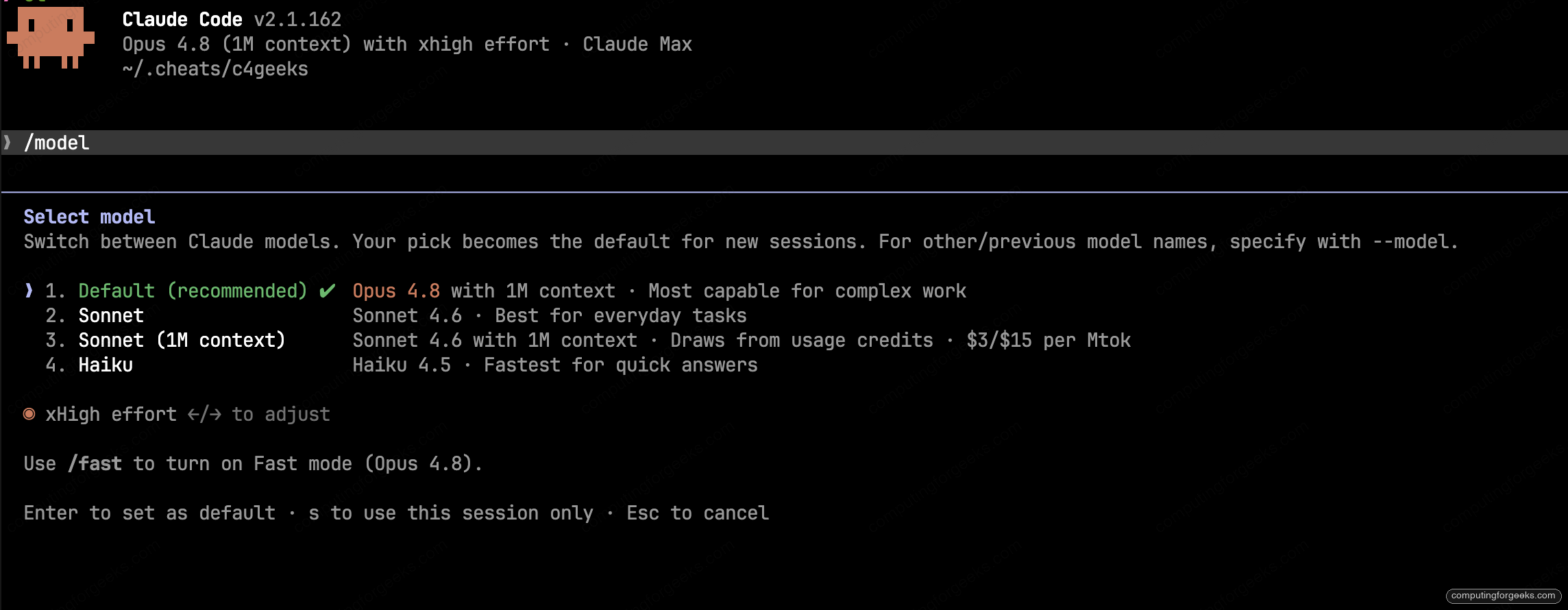
Switch models mid-session with /model opus or Option+P (Mac) / Alt+P (Linux/Windows). The /model picker saves your choice as the default for new sessions (press s to switch for the current session only). Aliases like opus always point to the latest release, so pin a full name (claude-opus-4-8) when you need a fixed version. Sonnet 5 needs Claude Code 2.1.197 or later, Fable 5 needs 2.1.170, and Opus 4.8 needs 2.1.154, so run claude update if /model does not list one.
Effort levels control how much adaptive reasoning Claude applies. The available levels depend on the model: Fable 5, Sonnet 5, Opus 4.8, and Opus 4.7 support all five, while Sonnet 4.6 and Opus 4.6 support all of them except xhigh (an xhigh request on those falls back to high).
| Level | Use Case |
|---|---|
/effort low | Short, scoped, latency-sensitive tasks that are not intelligence-sensitive |
/effort medium | Routine refactors, single-file changes, test generation |
/effort high | Multi-file edits, debugging, non-trivial work. Default on Sonnet 5, Opus 4.8, Fable 5, Opus 4.6, and Sonnet 4.6. |
/effort xhigh | Design decisions, tricky cross-module refactors, gnarly bugs. Default on Opus 4.7. Available on Fable 5, Sonnet 5, Opus 4.8, and Opus 4.7 |
/effort max | The hardest problem of the week. Deepest reasoning, no token cap, session-only, and prone to overthinking |
/effort ultracode | A Claude Code setting rather than a model level. Sends xhigh per message and has Claude orchestrate a dynamic workflow of background agents for substantive tasks. Session-only |
Set effort for a single session at launch with claude --effort high, or globally with the CLAUDE_CODE_EFFORT_LEVEL environment variable, which overrides every other source. Run /effort auto to reset to the model default.
For one-off deep reasoning without changing your session effort, put the word ultrathink anywhere in your prompt. Claude Code recognizes it and adds an in-context instruction for that turn only. Note that the older “think”, “think hard”, and “think harder” phrases are no longer special keywords; they are passed through as ordinary prompt text, so ultrathink is the one to remember.
MCP Servers – Extend Claude Code
MCP (Model Context Protocol) lets Claude Code connect to external tools and data sources. Configure servers in .mcp.json at the project root or ~/.claude/.mcp.json for all projects.
vi .mcp.jsonExample configuration with GitHub and PostgreSQL servers:
{
  "mcpServers": {
    "github": {
      "type": "stdio",
      "command": "npx",
      "args": ["@modelcontextprotocol/server-github"],
      "env": {
        "GITHUB_PERSONAL_ACCESS_TOKEN": "$GITHUB_TOKEN"
      }
    },
    "postgres": {
      "type": "stdio",
      "command": "npx",
      "args": ["@modelcontextprotocol/server-postgres"],
      "env": {
        "DATABASE_URL": "postgresql://user:pass@localhost:5432/mydb"
      }
    }
  }
}
You can also add servers from the command line instead of hand-editing JSON. Claude Code writes the config for you:
# Add an HTTP server
claude mcp add --transport http sentry https://mcp.sentry.dev/mcp

# Add a stdio server with environment variables
claude mcp add github -e GITHUB_PERSONAL_ACCESS_TOKEN=$GITHUB_TOKEN -- npx @modelcontextprotocol/server-github

# List, inspect, or remove a server
claude mcp list
claude mcp get github
claude mcp remove github

# Log in or out of a server that uses OAuth
claude mcp login github
claude mcp logout github
Manage MCP connections with /mcp in the interactive session or pass a config file on the CLI:
# Load MCP servers from an external config
claude --mcp-config ./team-mcp.json

# Load multiple configs
claude --mcp-config ./github-mcp.json ./db-mcp.json

# Ignore all other MCP sources, only use this config
claude --mcp-config ./ci-mcp.json --strict-mcp-config
The --mcp-config flag is useful in CI/CD where you need consistent MCP server configuration across runs. --strict-mcp-config ensures only the specified servers are loaded, ignoring any from .mcp.json or user settings.
Custom Skills – Your Own Slash Commands
Skills are reusable prompts that show up as slash commands. Create them at .claude/skills/ (project) or ~/.claude/skills/ (personal).
Example, create a deploy skill:
mkdir -p .claude/skills/deploy
vi .claude/skills/deploy/SKILL.md
Add the skill definition:
---
name: deploy
description: Deploy the application to production
argument-hint: "[environment]"
user-invocable: true
---

Deploy the application to the $0 environment (default: staging).

Steps:
1. Run the test suite
2. Build the production bundle
3. Deploy using the deploy script
4. Verify the deployment health check
Now use it: /deploy production
Custom Subagents
Subagents are specialized AI agents that Claude can delegate tasks to. Create them at .claude/agents/:
mkdir -p .claude/agents/code-reviewer
vi .claude/agents/code-reviewer/AGENT.md
Define the agent:
---
name: code-reviewer
description: Expert code reviewer. Use proactively after code changes.
tools: Read, Grep, Glob, Bash
model: sonnet
---

You are a senior code reviewer. When reviewing code:
- Check for security vulnerabilities (SQL injection, XSS, etc.)
- Verify error handling is complete
- Flag any hardcoded secrets or credentials
- Suggest performance improvements
- Check for proper input validation
Claude automatically delegates code review tasks to this agent, or you can invoke it directly with @code-reviewer check my latest changes.
From the CLI, select an agent for the entire session:
# Use a named agent from .claude/agents/
claude --agent code-reviewer

# In print mode (CI/CD)
claude -p "review the latest commit" --agent code-reviewer

# Define agents inline (no files needed)
claude --agents '{"qa": {"description": "QA tester", "prompt": "You are a QA engineer. Write test cases for every change."}}'
Hooks – Automation Triggers
Hooks run shell commands automatically in response to Claude Code events. Configure in .claude/settings.json:
{
  "hooks": {
    "PostToolUse": [
      {
        "matcher": "Edit|Write",
        "hooks": [
          {
            "type": "command",
            "command": "npx prettier --write $(jq -r '.tool_input.file_path')"
          }
        ]
      }
    ],
    "Notification": [
      {
        "matcher": "",
        "hooks": [
          {
            "type": "command",
            "command": "osascript -e 'display notification \"Claude needs input\" with title \"Claude Code\"'"
          }
        ]
      }
    ]
  }
}
Common hook events: SessionStart, PreToolUse, PostToolUse, Stop, Notification, UserPromptSubmit. For real-world hook examples that enforce safety on production servers, see the SSH server management guide.
Context Window Management
Claude Code has a finite context window. Managing it well is the difference between a productive session and hitting walls.
Key Commands
| Command | When to Use |
|---|---|
/compact | Summarize conversation to free space mid-task |
/compact Focus on auth module | Summarize but keep specific context intact |
/clear | Complete reset between unrelated tasks |
/context | See what is consuming your context |
Tips for Long Sessions
- Use
/clearbetween unrelated tasks – do not carry old context into new work - Run
/compactproactively when you notice slowdowns - Use subagents for verbose operations (test runs, log analysis) – their output stays in the subagent context
- Move detailed instructions to skills instead of typing them every time
- Keep CLAUDE.md under 200 lines – move details to separate files and import with
@filename
Git Worktrees – Parallel Work
Work on multiple tasks simultaneously without branch switching conflicts:
# Start Claude in a new worktree
claude -w feature-auth

# Batch changes across many files in parallel
/batch migrate all components from class-based to functional
The -w flag creates an isolated git worktree. Changes happen in the worktree without affecting your main working directory. When the agent finishes, merge the worktree branch back.
Background Agents and Dynamic Workflows
Background agents are full Claude Code sessions that run detached from your terminal, so you can fire off a long task and keep working in the foreground. They keep running after you close the terminal and are managed from a small set of subcommands. This is the largest addition to Claude Code since the cheat sheet first shipped.
Start one from the shell with --bg. It prints a session ID and returns immediately:
# Launch a background agent and get its ID back
claude --bg "investigate the flaky test in tests/auth"

# Run a shell command as a background job instead of a session
claude --bg --exec 'pytest -x'

# Run a specific subagent in the background
claude --bg --agent code-reviewer "review the open PR"

# Background agents can commit, push, and open a draft PR when they finish
claude --bg "fix the failing CI checks, then commit and open a PR"
From inside an interactive session, detach the whole thing with /background (alias /bg) and list what is running with /tasks. /fork works the other way around: it copies the current conversation into a new background session and leaves you working in the original, so a side investigation can run with full context without stealing your terminal (reach for /subtask when you want that fork to run inside the session instead). To watch and dispatch background sessions in a live view, open the agent manager:
claude agentsManage individual background sessions from the shell by ID. The agent view shows the IDs, or you can list them as JSON for scripting:
# List live background sessions as JSON
claude agents --json

# Attach a background session to this terminal
claude attach 7c5dcf5d

# Tail its recent output
claude logs 7c5dcf5d

# Stop, restart (keeps the conversation), or remove from the list
claude stop 7c5dcf5d
claude respawn 7c5dcf5d
claude rm 7c5dcf5d
Background sessions run under a supervisor process. If the agent view reports that the background service did not respond, inspect or reset it:
# Show supervisor state, version, and worker count
claude daemon status

# Stop the supervisor but keep workers so the next one reconnects
claude daemon stop --any --keep-workers
Dynamic workflows take this further. A single instruction is decomposed into tens or hundreds of background subagents that run in parallel. Trigger one for a substantive task by setting the ultracode effort level, then run /workflows to watch progress live. For a codebase-wide change, /batch splits the work into independent units and runs each in its own git worktree with its own pull request.
Runaway delegation is capped by default: a session gets 200 subagent spawns and 200 web searches before further calls are refused, and /clear resets both budgets. Any MCP tool call that runs past two minutes moves to the background automatically so the session stays usable. All three limits are tunable through the environment variables in the table below.
Want a leaner session? Set CLAUDE_CODE_DISABLE_AGENT_VIEW=1 to turn off background agents and CLAUDE_CODE_DISABLE_WORKFLOWS=1 to turn off dynamic workflows.
Settings File Reference
| File | Scope |
|---|---|
.claude/settings.json | Project (shared via git) |
.claude/settings.local.json | Project (gitignored, personal) |
~/.claude/settings.json | All projects (personal) |
Common settings:
{
  "model": "opus",
  "effortLevel": "high",
  "autoMemoryEnabled": true,
  "permissions": {
    "defaultMode": "manual",
    "allow": ["Read", "Bash(git *)"],
    "deny": ["Bash(rm -rf *)"]
  }
}
Environment Variables
| Variable | Purpose |
|---|---|
ANTHROPIC_MODEL | Default model (e.g., opus) |
ANTHROPIC_API_KEY | API key for direct API access |
CLAUDE_CODE_EFFORT_LEVEL | Default effort (low/medium/high/xhigh/max) |
CLAUDE_CODE_DISABLE_AUTO_MEMORY | Set to 1 to disable auto-memory |
CLAUDE_CODE_DISABLE_1M_CONTEXT | Set to 1 to disable 1M token context |
MAX_THINKING_TOKENS | Custom thinking budget (default varies) |
HTTPS_PROXY | HTTP proxy for corporate networks |
CLAUDE_CODE_NO_FLICKER | Set to 1 to use the fullscreen TUI renderer (same as tui: "fullscreen"): smooth, flicker-free output with mouse support |
ENABLE_TOOL_SEARCH | Set to true to enable MCP tool search, loading large MCP tool sets on demand instead of all into context. Needed behind a non-first-party proxy that forwards tool_reference blocks |
CLAUDE_CODE_SUBAGENT_MODEL | Model used for all subagents and agent teams (set to inherit for normal resolution) |
CLAUDE_CODE_MAX_SUBAGENTS_PER_SESSION | Cap on subagent spawns per session (default 200, reset by /clear) |
CLAUDE_CODE_MAX_WEB_SEARCHES_PER_SESSION | Cap on WebSearch tool calls per session (default 200) |
CLAUDE_CODE_MCP_AUTO_BACKGROUND_MS | How long an MCP call runs before moving to the background (default 2 minutes) |
CLAUDE_CODE_DISABLE_AGENT_VIEW | Set to 1 to turn off background agents |
CLAUDE_CODE_DISABLE_WORKFLOWS | Set to 1 to turn off dynamic workflows |
CLAUDE_CODE_DISABLE_BACKGROUND_TASKS | Set to 1 to disable background bash tasks |
CLAUDE_CODE_TASK_LIST_ID | Share a task list across sessions via a named directory in ~/.claude/tasks/ |
DISABLE_AUTOUPDATER | Set to 1 to disable automatic updates entirely |
ANTHROPIC_DEFAULT_FABLE_MODEL | Pin which model the fable alias resolves to |
CLAUDE_CODE_AUTO_COMPACT_WINDOW | Token threshold to auto-compact before the window fills (Sonnet 5 defaults to about 967K) |
CLAUDE_CODE_RETRY_WATCHDOG | Set to 1 to raise the API retry count and lift the 15-attempt cap |
The CLAUDE_CODE_NO_FLICKER variable is worth calling out. By default, the terminal renderer redraws the entire output with each token, causing visible flashing in code blocks and tables. With CLAUDE_CODE_NO_FLICKER=1, output streams line-by-line without screen jumps, syntax highlighting stays stable, and table columns stay aligned while populating. It also enables mouse event support (clicking and scrolling). Add it to your shell profile for a noticeably smoother experience:
echo 'export CLAUDE_CODE_NO_FLICKER=1' >> ~/.zshrc
source ~/.zshrc
Or use it in an alias that bundles your preferred defaults:
alias c="CLAUDE_CODE_NO_FLICKER=1 claude --effort max"This is the same renderer you can turn on permanently with "tui": "fullscreen" in settings. The fullscreen view also unlocks transcript-viewer shortcuts: press ? for the full shortcut panel and { / } to jump between prompts.
File Structure Reference
Claude Code reads configuration from two scopes: your home directory for personal defaults and the project root for repo-specific rules. The tree below maps the files you’ll touch most:
# User-level (personal, all projects)
~/.claude/
  settings.json          # Global settings
  keybindings.json       # Custom keyboard shortcuts
  CLAUDE.md              # Personal instructions
  rules/                 # Personal rules
  agents/                # Personal subagents
  skills/                # Personal skills
  .mcp.json              # Global MCP servers

# Project-level (shared with team)
.claude/
  settings.json          # Project settings (git tracked)
  settings.local.json    # Local overrides (gitignored)
  CLAUDE.md              # Project instructions
  rules/                 # Path-specific rules
  agents/                # Project subagents
  skills/                # Project skills
.mcp.json                # Project MCP servers
CLAUDE.md                # Project instructions (alternative location)
Practical Workflow Tips
Start Every Project Right
The two-minute ritual that makes every subsequent session faster: seed a CLAUDE.md at the project root so Claude knows your conventions without being told each time:
# In your project root
claude
/init
This scans your project and generates a CLAUDE.md with build commands, test instructions, and code conventions. Review and edit it, because this file shapes every future interaction.
Plan Before You Build
Press Shift+Tab to enter plan mode before asking Claude to make changes. In plan mode, Claude reads and analyzes but cannot edit anything. Once you approve the plan, switch back to default mode and say “implement the plan”.
Undo Mistakes Instantly
Press Esc + Esc to open the rewind menu. Choose “Restore code and conversation” to undo both the code changes and the conversation that led to them. This is faster than git stash for quick experiments.
Pipe Everything
Claude Code is a normal Unix citizen on stdin/stdout. Anything you can pipe into grep, you can pipe into claude -p:
# Analyze logs
tail -500 /var/log/app.log | claude -p "find the root cause of errors"

# Review a PR
gh pr diff 42 | claude -p "security review this PR"

# Generate commit message
git diff --staged | claude -p "write a conventional commit message" --model haiku

# Translate
cat README.md | claude -p "translate to Japanese" > README.ja.md

# Docker container analysis
docker ps --format json | claude -p "which containers are using the most resources?"

# Kubernetes pod debugging
kubectl logs deployment/api --tail=200 | claude -p "why are requests failing?"

# Database structure review
pg_dump --schema-only mydb | claude -p "suggest index improvements"

# Summarize recent commits
git log --oneline -20 | claude -p "write release notes from these commits"

# Find config issues
cat /etc/nginx/nginx.conf | claude -p "check for misconfigurations"
For deeper walkthroughs of Docker and Kubernetes workflows with Claude Code, see the Docker guide and Kubernetes guide.
Automation Scripts
Chain multiple claude -p calls in a bash script for repeatable workflows:
#!/bin/bash
# Automated PR review pipeline
git diff HEAD~1 > /tmp/diff.txt
cat /tmp/diff.txt | claude -p "review for security issues" --model sonnet > security_review.md
cat /tmp/diff.txt | claude -p "check for performance regressions" --model sonnet > perf_review.md
cat /tmp/diff.txt | claude -p "write a one-paragraph summary" --model haiku > summary.md
Batch process multiple files:
#!/bin/bash
# Generate docstrings for all Python files missing them
for f in $(grep -rL '"""' src/*.py); do
  claude -p "add docstrings to functions missing them in $f" \
    --allowedTools "Read,Edit" --max-turns 3
done
Generate a changelog from git tags:
git log v1.0.0..v2.0.0 --oneline | \
  claude -p "create a changelog grouped by feature, fix, and chore" \
  --output-format text > CHANGELOG.md
Side Questions with /btw
Need to ask something without derailing the current task? Use /btw:
/btw what was the name of that config file we edited earlier?The response is ephemeral (not saved to context), low-cost (uses cache), and does not use any tools.
Cost Control
- Use
/costto check spend at any time - Use Sonnet for most work, Opus only for complex problems
- Use
/effort lowfor simple tasks - Run
/compactto reduce context size (fewer tokens per request) - Be specific in prompts – vague requests cause more back-and-forth
- Use
--max-budget-usd 5.00in CI/CD to prevent runaway costs
Prompting Tips – Get Better Results
The quality of Claude Code’s output depends heavily on how you prompt it. These patterns consistently produce better results.
Be Specific, Not Vague
| Bad Prompt | Good Prompt |
|---|---|
| “fix the bug” | “the login endpoint returns 500 when email contains a plus sign – fix the input validation in src/auth/login.ts” |
| “make it faster” | “the /api/users endpoint takes 3s on 10k rows – add database indexing and pagination” |
| “write tests” | “write unit tests for the calculateDiscount function in src/pricing.ts covering edge cases: zero price, negative quantity, expired coupon” |
| “clean up the code” | “extract the duplicate validation logic in src/api/orders.ts and src/api/returns.ts into a shared validator” |
Use Plan Mode First
For complex tasks, switch to plan mode (Shift+Tab) and ask Claude to explore before coding:
# In plan mode:
"I need to add OAuth2 login with Google. Look at the existing auth flow
in src/auth/ and propose where to add the Google provider without
breaking the current email/password login."
Review the plan, then switch back to default mode and say “implement the plan”.
Give Verification Targets
Tell Claude how to verify its own work:
"Add rate limiting to the /api/auth endpoints. After implementing,
run npm test to make sure nothing breaks, and verify the rate limiter
works by checking the middleware is registered in the Express app."
Use @file Mentions for Context
Point Claude at specific files instead of making it search:
"look at @src/db/schema.ts and @src/api/users.ts - the User model
has a new 'role' field in the schema but the API doesn't expose it.
Add the role field to the GET /users/:id response."
Course-Correct Early
If you see Claude going in the wrong direction, press Ctrl+C to stop and redirect. Do not wait for it to finish a large wrong change. Interrupt and clarify. If it already made bad changes, press Esc + Esc to rewind.
Break Large Tasks Into Steps
Instead of “build a user management system”, split it:
- “Create the User database schema with id, email, name, role, created_at”
- “Add CRUD API endpoints for users with input validation”
- “Write tests for the user endpoints”
- “Add role-based access control middleware”
Each step gets verified before moving to the next. This avoids wasting tokens on a bad foundation.
Token Saving Strategies
Every message sent to Claude includes the full conversation context. Larger context means higher cost and slower responses. These strategies keep your sessions efficient.
Context Hygiene
| Strategy | How | Savings |
|---|---|---|
| Clear between tasks | /clear when switching to unrelated work | Biggest impact – resets to zero |
| Compact proactively | /compact Focus on the auth module changes | Keeps relevant context, drops noise |
| Check context usage | /context to see what is consuming space | Identifies bloat sources |
| Use @file mentions | @src/auth.ts instead of “find the auth file” | Avoids exploratory file reads |
| Use subagents | Delegate verbose tasks (test runs, log analysis) | Output stays in subagent context |
Model Selection
| Task | Model | Effort |
|---|---|---|
| Simple edits, renames, formatting | Sonnet | /effort low |
| Standard coding, tests, refactoring | Sonnet | /effort medium |
| Complex debugging, architecture | Opus | /effort high |
| Quick questions | Haiku (via /btw) | N/A |
CLAUDE.md Optimization
- Keep the main CLAUDE.md under 200 lines – it loads on every message
- Move detailed instructions into skills – they only load when invoked
- Use
@fileimports for large reference docs instead of pasting content - Put path-specific rules in
.claude/rules/– they only load when Claude touches matching files
MCP and Tool Optimization
- Disable unused MCP servers with
/mcp– each server adds tool definitions to context - Use CLI tools (
gh,aws,gcloud) instead of MCP when a single command works - Set
ENABLE_TOOL_SEARCH=trueto search large MCP tool sets on demand instead of loading every definition into context
CI/CD Budget Controls
Any Claude Code invocation in CI should have a dollar cap and a fallback model, which matters more now that the priciest option is the top-tier Claude Fable 5. Skip these and one bad prompt can drain your monthly budget in a single failing pipeline:
# Hard spending limit
claude -p "fix failing tests" --max-budget-usd 2.00

# Limit agentic turns
claude -p "review this file" --max-turns 3

# Use cheapest model for simple CI tasks
claude -p "check for linting errors" --model haiku
Diagnostics – /doctor and /insights
Three tools for seeing exactly what Claude Code is doing during a session:
–debug – Verbose Logging
When you need to see exactly what Claude Code is doing (API calls, tool invocations, timing), use --debug:
# Full debug output to stderr
claude --debug

# Filter to specific categories
claude --debug "api,hooks"

# Write debug logs to a file (keeps terminal clean)
claude --debug-file /tmp/claude-debug.log
This is especially useful when MCP servers are not connecting, hooks are not firing, or API calls are failing silently.
/doctor and /checkup – Full Setup Checkup
Run /doctor, or its alias /checkup, when something is not working right or when you want to tidy up your setup. It is no longer a read-only report. It runs a full checkup, and where it finds problems you press f to have Claude fix them. It confirms with you before changing anything. The checkup covers:
- Claude Code version and auto-updater status, and updating to the latest release
- Authentication state, token validity, and API connectivity
- Settings file syntax and conflicts
- MCP server health, plus removing unused skills, MCP servers, and plugins to save context
- De-duplicating your personal CLAUDE.md against the project one, and splitting an overgrown root CLAUDE.md into nested files and skills
- Turning off slow hooks, enabling auto mode, and pre-approving frequently denied read-only commands
/insights – Session Analysis
Run /insights after a long session to get an analysis report covering:
- Token usage breakdown by category
- Most expensive operations in the session
- Patterns in how you use Claude Code
- Suggestions for improving efficiency
- Time spent waiting vs. actively working
Use this to identify habits that waste tokens and adjust your workflow.
IDE Integrations
Claude Code integrates with VS Code and JetBrains IDEs for inline diffs, context sharing, and side-by-side conversations. Wondering how it stacks up against other AI coding tools? See the OpenCode vs Claude Code vs Cursor comparison.
VS Code
- Install the “Claude Code” extension from the VS Code marketplace
- Open Command Palette (
Cmd+Shift+Pon Mac /Ctrl+Shift+Pon Linux/Windows) and search “Claude Code” - Works with Cursor editor too
JetBrains (IntelliJ, PyCharm, WebStorm, etc.)
- Install “Claude Code” from the JetBrains Marketplace
- Works across all JetBrains IDEs
- Supports interactive diffs and context sharing
Start Claude with IDE auto-detection:
claude --ideQuick Reference Card
The 20 commands and shortcuts you will use every day:
| Action | How |
|---|---|
| Start new session | claude |
| Continue last session | claude -c |
| Initialize project | /init |
| Switch to plan mode | Shift+Tab |
| Switch model | /model opus or Option+P / Alt+P |
| Undo changes | Esc + Esc |
| Free context space | /compact |
| Start fresh | /clear |
| Check costs | /cost |
| Review changes | /diff |
| Security scan | /security-review |
| Name session | /rename my-feature |
| Resume session | /resume or claude -r |
| Mention a file | @path/to/file |
| Run bash directly | !ls -la |
| Multiline input | \ + Enter |
| Cancel generation | Ctrl+C |
| Exit | Ctrl+D |
| Non-interactive | claude -p "query" |
| Show all commands | /help |
Auto Mode
Auto mode uses an AI classifier to decide whether each tool call needs your approval. Instead of prompting on every command, it allows safe operations (reads, git status, test runs) and blocks risky ones (force push, rm -rf, production deploys) automatically. Enable it with --permission-mode auto or press Shift+Tab to cycle to it.
Inspect the classifier rules with the claude auto-mode subcommand:
# View current auto-mode config
claude auto-mode config

# View default allow/deny rules
claude auto-mode defaults

# Get AI feedback on your custom rules
claude auto-mode critique
Customize rules in .claude/settings.json or ~/.claude/settings.json under the autoMode key with allow, soft_deny, and environment arrays. The classifier reads these plus the defaults to make per-tool-call decisions.
/loop – Recurring Tasks
The /loop slash command runs a prompt or another slash command on a repeating interval within your session. Useful for polling deploy status, watching test results, or checking a service health endpoint.
# Check deploy status every 5 minutes
/loop 5m check if the deploy on staging is complete

# Run tests every 10 minutes (default interval)
/loop /test

# Custom interval with a slash command
/loop 2m /security-review
The loop runs in the background until you stop it or end the session. Each iteration gets its own context, so long-running loops do not bloat the conversation.
Subcommands Reference
Claude Code provides subcommands for management tasks outside of interactive sessions:
| Subcommand | What It Does |
|---|---|
claude agents | Open the agent view to monitor and dispatch parallel background sessions (--json for scripting) |
claude attach <id> | Attach a background session to this terminal |
claude logs <id> | Print recent output from a background session |
claude stop <id> | Stop a background session (also claude kill) |
claude respawn <id> | Restart a background session with its conversation intact |
claude rm <id> | Remove a background session from the list (transcript stays on disk) |
claude daemon status | Show the background-session supervisor state and worker count |
claude auth | Manage authentication (login, logout, status) |
claude auto-mode config | Print effective auto-mode classifier rules |
claude auto-mode defaults | Show default allow/deny rules |
claude auto-mode critique | Get AI feedback on your custom auto-mode rules |
claude auto-mode reset | Restore the default auto-mode configuration (add --yes to skip the confirmation) |
claude doctor | Health check for auto-updater, auth, MCP, settings |
claude install [target] | Install a specific version (stable, latest, or a version number) |
claude mcp | Configure and manage MCP servers from the CLI |
claude plugin | Manage plugins (alias claude plugins) |
claude project purge [path] | Delete all local Claude Code state for a project (transcripts, tasks, history) |
claude remote-control | Run a Remote Control server to drive Claude Code from claude.ai or the Claude app |
claude ultrareview [target] | Run a cloud-hosted multi-agent code review and print the findings (--json, --timeout) |
claude setup-token | Set up a long-lived auth token (requires subscription) |
claude update | Check for and install updates |
Claude Code for DevOps – Full Guide Series
This cheat sheet covers the commands and configuration. The DevOps series goes deeper with real-world demos, tested on actual infrastructure:
- Set Up Claude Code for DevOps Engineers – CLAUDE.md rules, permission lockdowns, hooks, and safety configuration for production use
- Manage Servers with Claude Code via SSH – multi-server health checks, log analysis, config audits, and incident response over SSH
- Build and Debug Docker Containers with Claude Code – Dockerfile generation, multi-stage builds, Compose workflows, and container debugging
- Deploy Infrastructure with Claude Code and Terraform – HCL generation, plan review, state management, and module refactoring
- Generate and Debug Ansible Playbooks with Claude Code – playbook generation, role scaffolding, multi-OS support, and Vault integration
- Deploy and Debug Kubernetes Apps with Claude Code – manifest generation, pod debugging, Helm chart management, and cluster troubleshooting
- Set Up Claude Code in GitHub Actions for Infrastructure Review – automated PR reviews, Terraform plan analysis, and CI/CD integration
Frequently Asked Questions
What is Claude Code and how does it differ from ChatGPT or Copilot?
Claude Code is Anthropic’s agentic CLI tool that operates directly in your terminal. Unlike ChatGPT (chat interface) or GitHub Copilot (IDE autocomplete), Claude Code reads your entire codebase, runs shell commands, edits files, and manages git workflows autonomously. You describe what you want in plain English, and it executes multi-step tasks including debugging, refactoring, and deploying. It supports four model families: Opus 4.8 for complex work, Sonnet 5 (with a native 1M-token context) for daily coding, Haiku 4.5 for quick tasks, and Fable 5 for the hardest, longest-running jobs.
How do I install Claude Code?
Run curl -fsSL https://claude.ai/install.sh | bash on macOS or Linux. On macOS you can also use brew install --cask claude-code. On Windows, use PowerShell: irm https://claude.ai/install.ps1 | iex. After installation, authenticate with claude auth login. Requires a Claude Pro, Max, or Team subscription, or an Anthropic API key.
What are the most important Claude Code keyboard shortcuts?
The essential shortcuts are: Esc + Esc to undo changes (rewind), Shift+Tab to switch permission modes, Ctrl+C to cancel generation, Ctrl+L to clear screen, Option+P (Mac) or Alt+P to switch models, \ + Enter for multiline input, and @filename to mention files. Press ? to see all available shortcuts in any session.
What is CLAUDE.md and why do I need it?
CLAUDE.md is a project-level instruction file that Claude Code reads automatically at the start of every session. It tells Claude your project’s build commands, coding conventions, architecture, and rules. Without it, Claude guesses. With it, Claude follows your team’s standards consistently. Place it in your project root or .claude/CLAUDE.md and commit it to git so the whole team benefits. Generate one automatically with the /init command.
How do I use Claude Code in CI/CD pipelines?
Use print mode (-p) for non-interactive usage: claude -p "review this PR for security issues" --model sonnet --max-budget-usd 2.00. Key flags: --max-budget-usd sets a spending cap, --max-turns limits agent iterations, --output-format json for structured output, and --allowedTools restricts which tools Claude can use. Pipe git diffs, logs, or test output directly into Claude with Unix pipes.
How do I reduce Claude Code costs and token usage?
Use /clear between unrelated tasks, run /compact proactively to summarize context, use /effort low for simple tasks, switch to Sonnet for routine work (reserve Opus for complex problems), keep CLAUDE.md under 200 lines, use @file mentions instead of letting Claude search, delegate verbose tasks to subagents, and disable unused MCP servers. Check spending anytime with /cost.
What does CLAUDE_CODE_NO_FLICKER do?
Setting CLAUDE_CODE_NO_FLICKER=1 enables the fullscreen TUI renderer that eliminates terminal flickering during streaming responses. By default, the renderer redraws the entire output with each token, causing visible flashing in code blocks and tables. With this variable set, output streams line-by-line without screen jumps, syntax highlighting stays stable, and table columns stay aligned. Add export CLAUDE_CODE_NO_FLICKER=1 to your shell profile for a permanently smoother experience.
Can Claude Code manage servers and infrastructure?
Yes. Claude Code can SSH into servers, run health checks, analyze logs, audit configurations, and manage infrastructure through tools like Terraform, Ansible, Docker, and Kubernetes. Use permission modes and hooks to enforce safety rules. For detailed workflows, see the Claude Code DevOps series covering SSH server management, Docker containers, Terraform infrastructure, Ansible playbooks, Kubernetes deployments, and GitHub Actions integration.
Conclusion
Claude Code replaces a large part of the manual terminal workflow for developers and sysadmins. The key to getting the most out of it: set up CLAUDE.md for every project, use plan mode before making changes, keep context clean with /compact and /clear, and use print mode (-p) to integrate it into your existing scripts and CI/CD pipelines. If you need multi-provider support, check out OpenCode (75+ providers), Aider (git-native AI pair programming), or Claw Code (open-source Claude Code alternative in Rust). For the latest features and documentation, visit the official Claude Code docs.