A self-hosted Frigate NVR appliance is five parts working together: a small Intel mini PC to run the software, a Hailo accelerator to do the object detection, a PoE switch to power the cameras over one cable each, a surveillance hard drive to hold the footage, and the cameras themselves. Put those together and you own the whole pipeline. The video never leaves your network, there is no monthly subscription, and nobody else holds your recordings.
This is the build to reach for when a Synology or UniFi NVR feels closed and a cloud camera plan feels like renting your own driveway. It costs more up front than a single cloud cam, but it scales to a yard full of cameras with local AI detection and no recurring bill. Below is the exact parts list, why each part is chosen for Frigate specifically, how the pieces wire together, and the Docker and detector config to bring it up. If you have not stood up the base software yet, our guide to installing Frigate in Docker covers that side; this one is about the hardware appliance around it.
Every part spec below was verified against the manufacturer datasheets, and every config block against Frigate’s documentation, in June 2026.
What goes into the appliance
Here is the full parts list as a shopping cart. The prices are bands because hardware moves, so treat them as a guide and check the live price before you buy. Everything here is a concrete, currently-buyable pick, not a category placeholder.
| Part | What we use | Role in the build | Approx price |
|---|---|---|---|
| Mini PC | Beelink EQ14 (Intel N150) | Runs Frigate; iGPU decodes the camera streams | $200 to 260 |
| Accelerator | Hailo-8 M.2 (26 TOPS) | Object detection, the replacement for a Coral | $180 to 210 |
| PoE switch | TP-Link TL-SG1008P | One cable carries data and power to each camera | $40 to 60 |
| Recording drive | WD Purple 8TB | Continuous recordings, surveillance-rated | $150 to 200 |
| Boot and cache | WD Blue SN580 1TB | OS, Frigate, and clip cache on fast NVMe | $70 to 100 |
| Camera (each) | EmpireTech IPC-T5442T-ZE | What Frigate actually sees | $105 to 135 |
A mid build with one camera lands around $745 to $965 fully loaded. You can start nearer $400 to $550 by skipping the Hailo at first (the mini PC’s Intel iGPU detects for free, more on that below), dropping to a 4TB drive, and running a single camera. The appliance grows from there, one camera and one drive at a time.
How the pieces connect
The data path is short. Each PoE camera runs a single Ethernet cable back to the TP-Link switch, which powers the camera and carries its video. The switch links to the mini PC, which runs Frigate in Docker. Frigate pulls each camera’s RTSP stream once through its built-in go2rtc restreamer, hands a small low-resolution copy to the Hailo for detection, and writes the full-resolution stream to the WD Purple drive for recording. The fast NVMe holds the operating system and Frigate’s working cache.
From there Frigate slots into the rest of a smart home. Point a Home Assistant instance at it for notifications and automations, whether you run Home Assistant in Docker on the same box or on a separate host. The whole appliance sits happily alongside the rest of an open-source homelab.
The mini PC: an Intel box with two M.2 slots
The host has two jobs that pull in different directions. It decodes several camera streams continuously, which wants Intel QuickSync, and it has to physically hold both an NVMe boot drive and the Hailo accelerator, which both want an M.2 slot. The Beelink EQ14 is picked for the second reason more than the first.
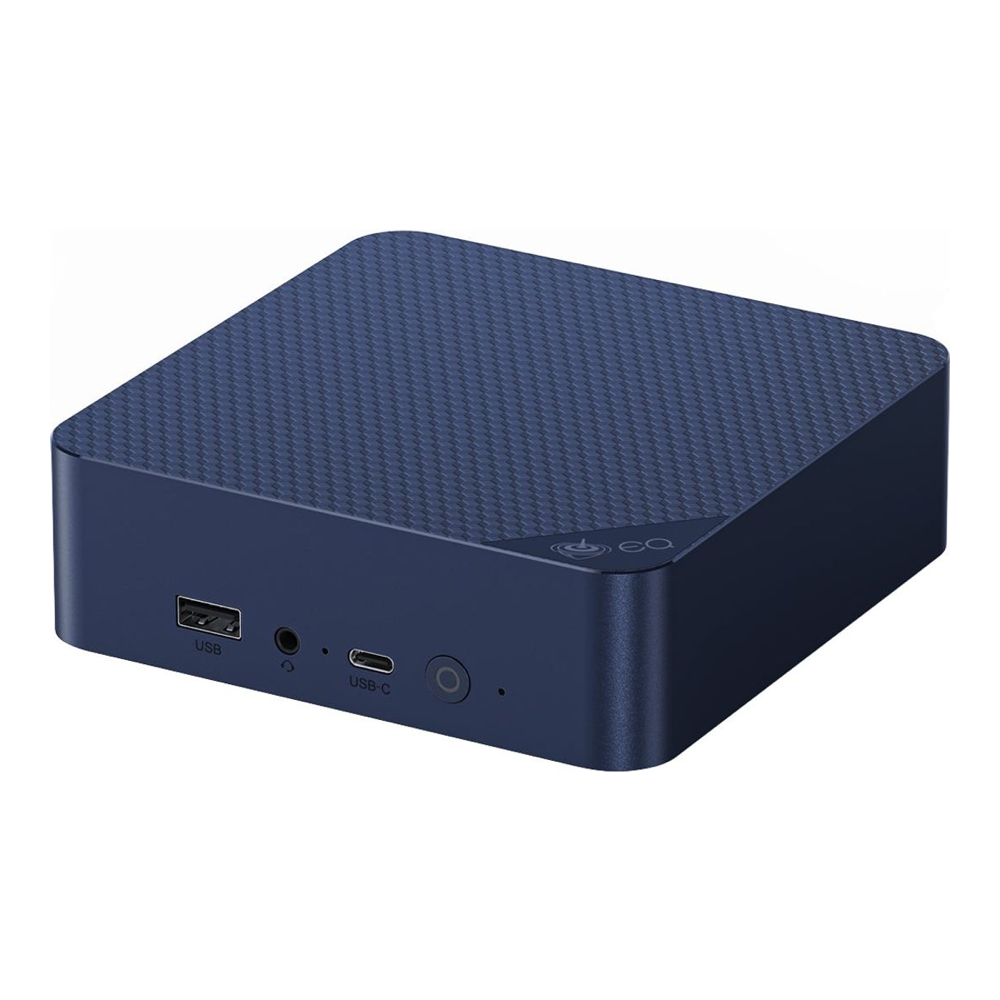
The N150’s Intel UHD graphics handle hardware decode for several streams, and that same iGPU runs Frigate’s OpenVINO detector, so a fresh EQ14 can detect objects with no accelerator at all. The reason this model earns the slot is its two M.2 2280 PCIe slots. The NVMe goes in one and the Hailo M.2 goes in the other, with no fight over a single connector. The two slots are not identical: one is PCIe 3.0 x4 and the other x1, so put the fast NVMe in the x4 slot and the Hailo in the x1 slot, where roughly a gigabyte per second is far more than a two-watt detector needs. That split is the gotcha that catches people on single-slot boxes, where the accelerator and the boot drive want the same hole.
Who it’s for: anyone who wants one quiet, low-power box that can both decode streams and host a Hailo M.2 (around $200 to $260, check the live price). Skip it if: you need ECC memory or more than 16GB of RAM, since the N150 tops out at 16GB. Confirm the exact SKU’s second slot is wired for PCIe and not occupied by a SATA SSD, because Beelink configurations vary. If you want the wider field on which small machines have the spare slots and lanes, our notes on choosing a mini PC for a homelab go deeper.
The accelerator: a Hailo-8 M.2 for detection
Frigate’s own hardware documentation no longer recommends the Google Coral for new installs, and the practical replacement is a Hailo. The full reasoning, and the one config edit that switches Frigate from a Coral to a Hailo, sit in their own guide. For this build the short version is: drop a bare Hailo-8 M.2 module into the mini PC’s second slot.
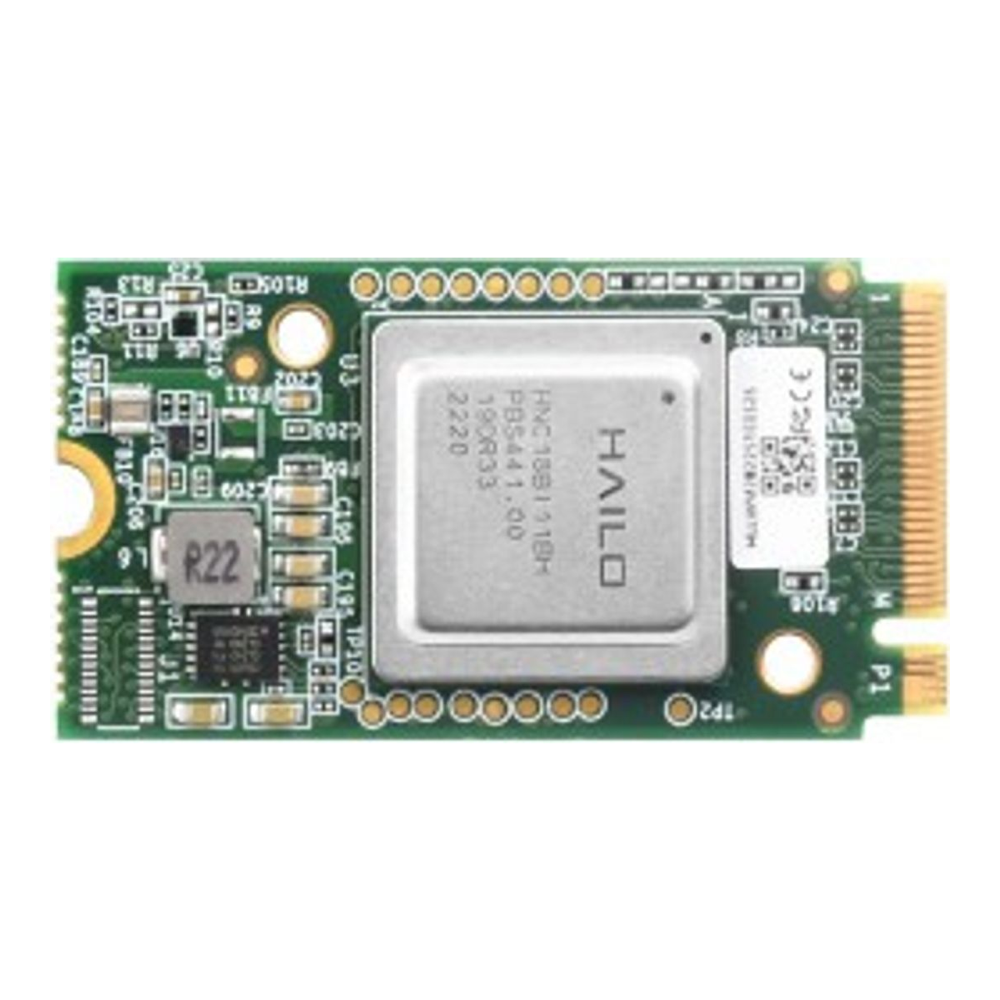
The 26 TOPS Hailo-8 draws only a couple of watts, fits the same M.2 slot a Coral M.2 used, and Frigate supports it first-class. It presents to Linux as /dev/hailo0 once the HailoRT driver is loaded, and Frigate auto-downloads a compatible YOLOv6n model on first start, so there is no model to train or convert. The cheaper Hailo-8L (13 TOPS) is plenty for a couple of cameras; the 26 TOPS part buys headroom to add streams later. If you want the numbers behind that choice, the Hailo-8 versus Hailo-8L versus Coral comparison lays out the inference times.
Who it’s for: any x86 Frigate box that needs a maintained, low-watt detector (around $180 to $210, check the live price). Skip it if: the only free M.2 slot on your mini PC is SATA-keyed or lacks PCIe lanes, because the Hailo needs PCIe. And skip it entirely at first if your box has an Intel iGPU and you only run a few cameras, since OpenVINO on that iGPU detects for free and you can add the Hailo when you scale.
Building on a Raspberry Pi 5 instead of a mini PC? The cleanest route there is the official AI HAT+, which solders the Hailo onto a board that sits on the Pi’s connector, so there is no separate module to seat.
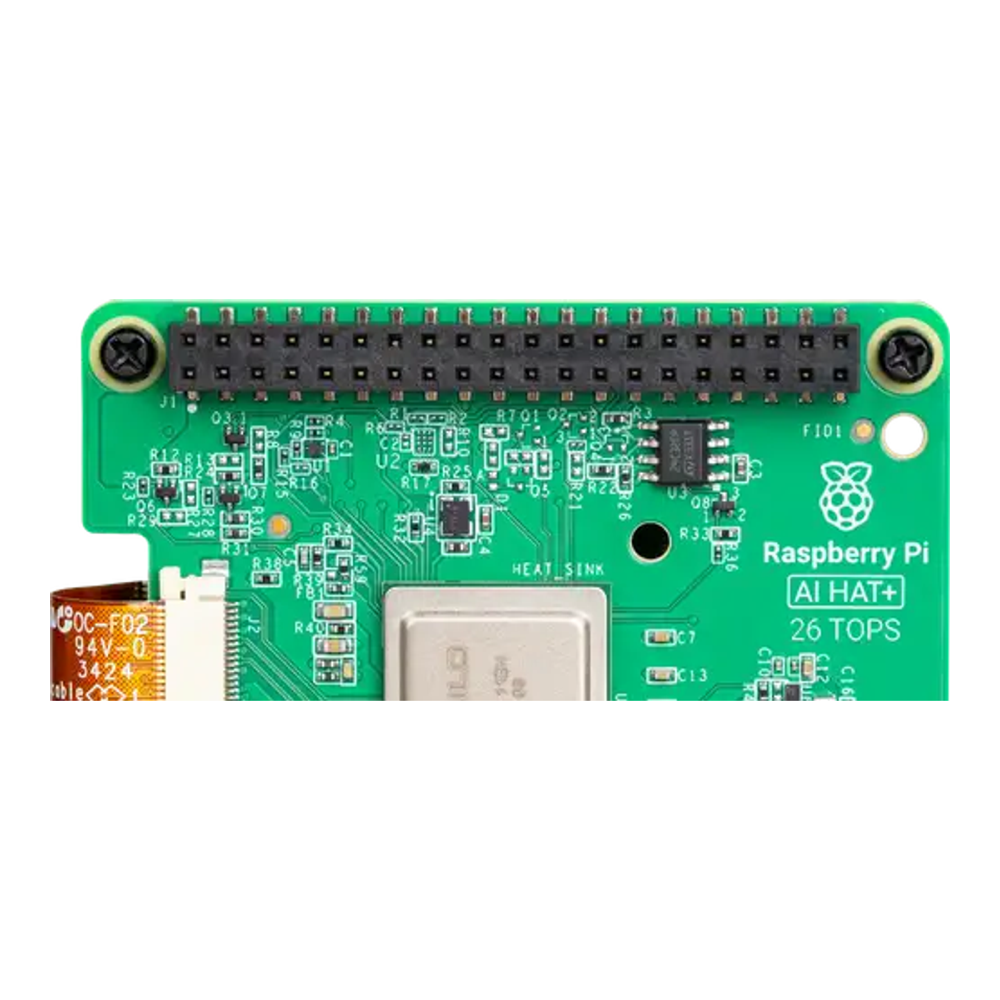
The Pi route makes the most compact, lowest-power appliance, but a Pi has one camera-recording weakness: storage. You still need a real surveillance drive hanging off it over USB or a HAT, and the x86 box handles more cameras and recordings comfortably. The AI HAT+ comes in a 26 TOPS version (around $110, check the live price) and a 13 TOPS sibling (around $70, check the live price).
The PoE switch: one cable per camera
PoE is the reason this build stays tidy. Each camera takes a single Ethernet run that carries both its video and its power, so there is no wall adapter at every camera location. A small unmanaged PoE+ switch is all the appliance needs.
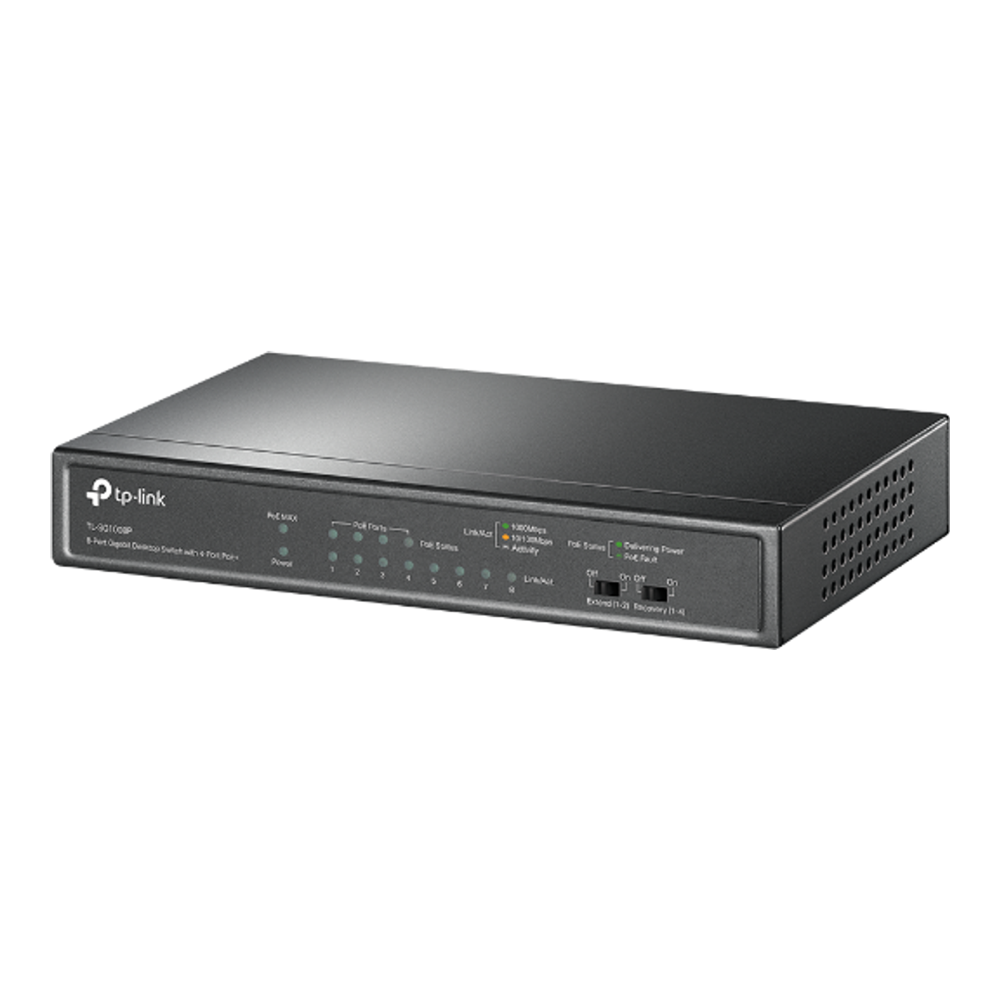
The TL-SG1008P gives you four PoE+ ports on a 64W power budget, with the other four ports plain gigabit for the uplink to the mini PC and anything else. The math that matters is the budget: 64W across four cameras is about 16W each, and a typical fixed turret or bullet camera draws four to nine watts, so four cameras fit with room to spare. It is fanless, so it makes no noise on a shelf.
Who it’s for: a four-camera appliance that wants the simplest possible cabling (around $40 to $60, check the live price). Skip it if: you plan to run pan-tilt-zoom cameras, whose motors and infrared can pull 15 to 25W each, or you want five or more PoE cameras. Both cases overrun the 64W budget, so step up to a switch with more PoE ports and a bigger power budget.
Storage: a surveillance drive plus an NVMe
Surveillance recording is a punishing workload: several streams writing continuously, all day, every day. That is exactly what surveillance-rated drives are built for, and it is why a desktop drive or a shingled (SMR) drive is the wrong choice here.
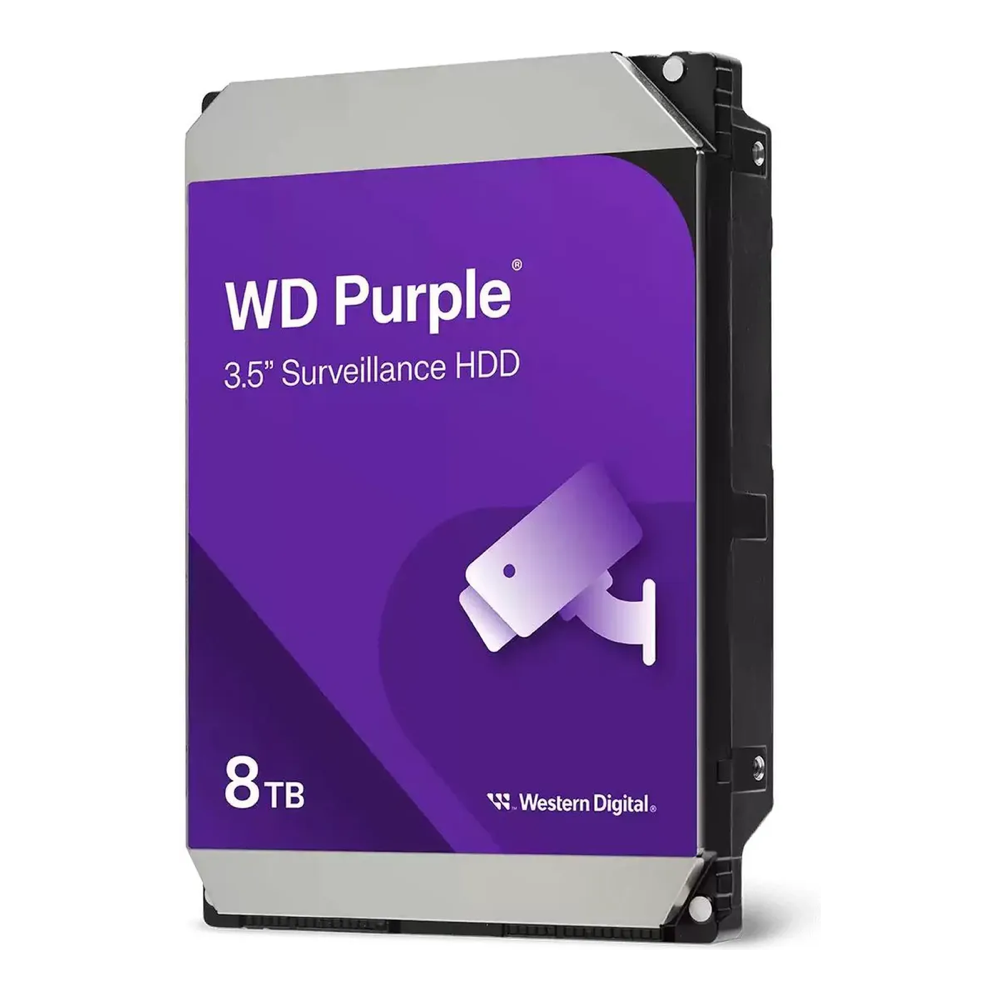
The WD Purple 8TB is a CMR drive (conventional recording, not the slower shingled kind), rated for a 180TB-per-year workload and continuous duty across many camera streams. CMR matters because shingled drives slow to a crawl under the sustained random writes that a multi-camera NVR produces, and some bare desktop drives quietly ship as SMR. WD lists the Purple line as CMR, which is the spec to insist on for any NVR drive. The Seagate SkyHawk 8TB (also CMR) is an equal alternative if it is cheaper on the day.
The operating system, Frigate itself, and its working cache live on a fast NVMe instead, which keeps the slow spinning drive free to do nothing but record. A mainstream 1TB Gen4 drive is plenty.
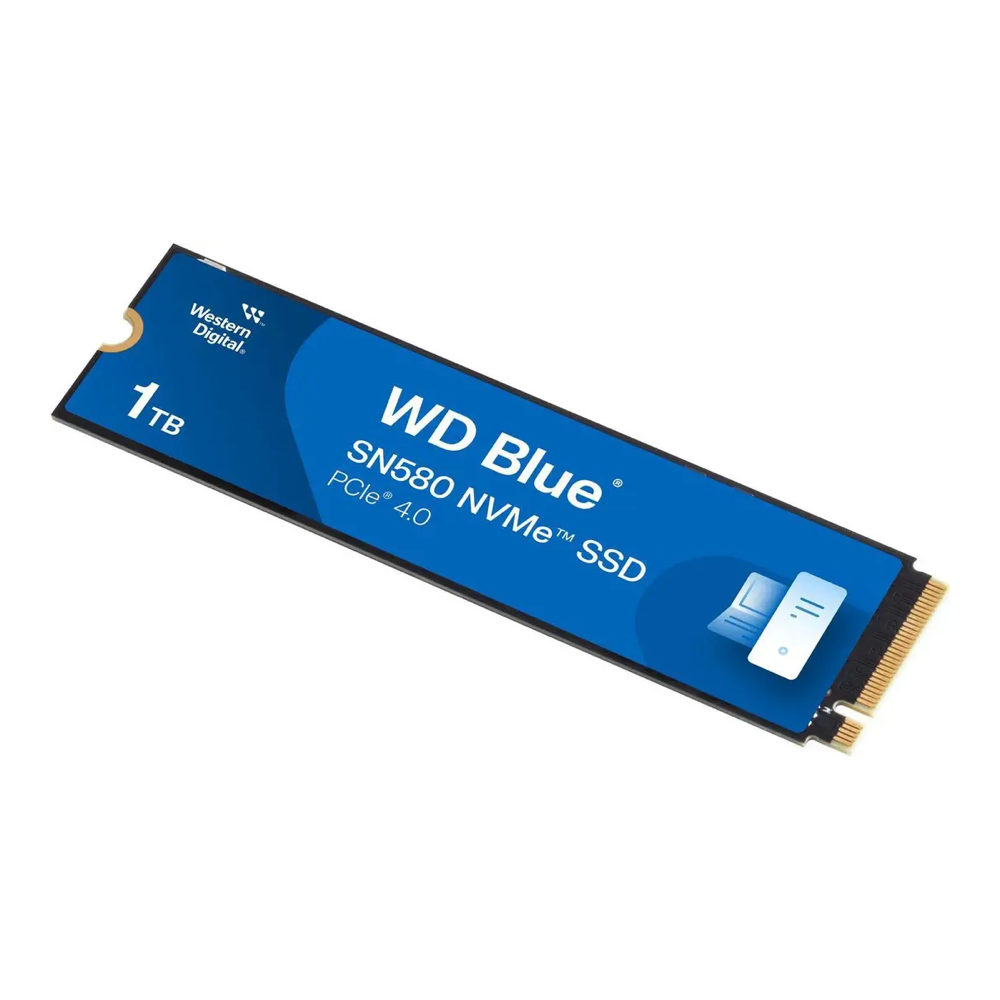
Who it’s for: the WD Purple suits anyone recording more than a camera or two continuously (8TB around $150 to $200, check the live price); the SN580 1TB is the boot drive (around $70 to $100, check the live price). Skip it if: you only record one low-bitrate camera, where a 4TB Purple saves money, or you intend to push heavy clip caching onto the NVMe, where a drive with onboard DRAM holds write speed better than the DRAM-less SN580. NVMe pricing is also running high right now, so check the band before you commit.
The cameras: what Frigate actually sees
Frigate runs detection on whatever the camera hands it, so the camera sets the ceiling on the whole system. The traits that matter are a configurable substream (a small second stream Frigate uses for detection), an H.264 main stream for compatibility, and a larger sensor for usable night images. The EmpireTech IPC-T5442T-ZE hits all three and is the camera most often recommended in Frigate circles.
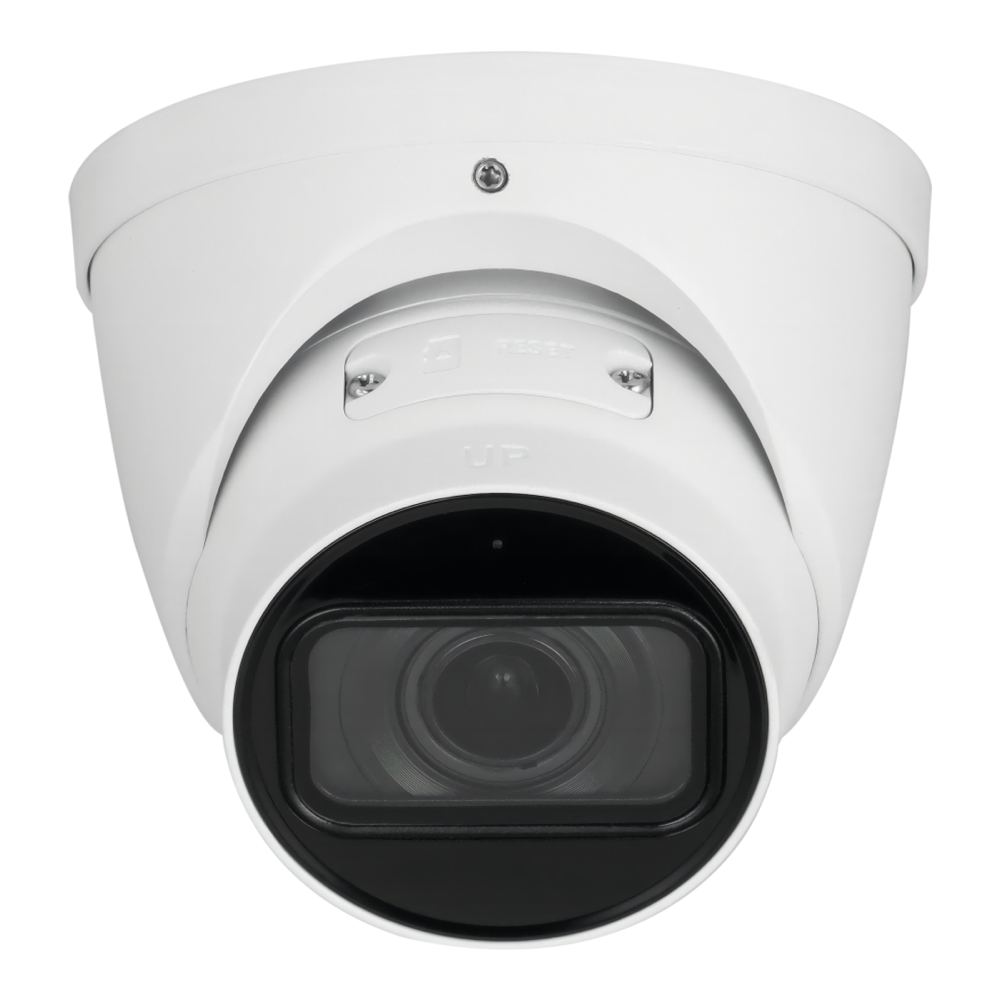
One camera is enough to prove the build out, then you add the rest as the budget allows. Picking the right camera for each spot (varifocal versus fixed, turret versus bullet, doorbell, color-at-night) is its own decision, so the full lineup lives in our guide to the best PoE cameras for a Frigate NVR. For this appliance, any camera with a configurable substream and an H.264 stream will slot into the config below (around $105 to $135 each, check the live price).
Assemble the appliance
The physical build is short. With the mini PC powered off and opened, seat the NVMe in one M.2 slot and the Hailo-8 module in the second, each held by its single retention screw. Close the case. Boot it once to confirm both M.2 devices appear in the firmware, then install your Linux distribution and Docker onto the NVMe.
Mount the camera, run one Ethernet cable from it to a PoE port on the TP-Link switch, and link a plain port on the switch to the mini PC. Give the camera a static lease on your network so its address does not move under Frigate. Install the surveillance drive (internally if the chassis has a bay, otherwise in a USB or SATA enclosure) and mount it where the recordings will live:
sudo mkdir -p /mnt/recordings
sudo mount /dev/sda1 /mnt/recordings
Add it to /etc/fstab so it remounts on boot. With the drive in place and Docker installed, the appliance is ready for software.
Bring up Frigate on the box
Frigate runs as a single container. The full base install, including the complete Compose file and the web UI setup, is covered in the Frigate on Docker guide; what follows are the parts specific to this appliance. First the Compose file, which passes the Hailo device through to the container and points recordings at the surveillance drive. Open it:
sudo vim ~/frigate/docker-compose.ymlThe device and volume lines are the ones that matter here:
services:
  frigate:
    container_name: frigate
    image: ghcr.io/blakeblackshear/frigate:stable
    restart: unless-stopped
    privileged: true
    shm_size: "256mb"
    devices:
      - /dev/hailo0
    volumes:
      - ./config:/config
      - /mnt/recordings:/media/frigate
    ports:
      - "8971:8971"
      - "8554:8554"
The shm_size of 256MB shown here is enough for one or two cameras; raise it as you add more, following Frigate’s per-camera shared-memory formula, or detection will fail with shared-memory errors. Next the Frigate config, where the Hailo detector and the camera streams are defined. Open it:
sudo vim ~/frigate/config/config.ymlDeclare the Hailo as the detector and add the matching model block. Use hailo8 for the 26 TOPS module or hailo8l for the 13 TOPS part:
detectors:
  hailo:
    type: hailo8
    device: PCIe

model:
  width: 320
  height: 320
  input_tensor: nhwc
  input_pixel_format: rgb
  input_dtype: int
  model_type: yolo-generic
  labelmap_path: /labelmap/coco-80.txt
Now the camera. The pattern that keeps detection cheap is to let Frigate’s go2rtc pull both streams from the camera once, then feed the small substream to detection and the full stream to recording. Define the two streams and the camera that uses them:
go2rtc:
  streams:
    front_door:
      - rtsp://admin:[email protected]:554/cam/realmonitor?channel=1&subtype=0
    front_door_sub:
      - rtsp://admin:[email protected]:554/cam/realmonitor?channel=1&subtype=1

cameras:
  front_door:
    ffmpeg:
      inputs:
        - path: rtsp://127.0.0.1:8554/front_door
          input_args: preset-rtsp-restream
          roles:
            - record
        - path: rtsp://127.0.0.1:8554/front_door_sub
          input_args: preset-rtsp-restream
          roles:
            - detect
    detect:
      width: 1280
      height: 720
      fps: 5
    record:
      enabled: true
      retain:
        days: 7
        mode: motion
The subtype=0 stream is the camera’s full-resolution main feed, used for recording; subtype=1 is the low-resolution substream, used for detection. That RTSP path is the Dahua and EmpireTech format; other brands use a different path, so check your camera’s documentation. Detection runs at 1280×720 and five frames per second because Frigate’s model only sees a 320×320 region anyway, so a bigger detect stream wastes CPU without improving accuracy. This config records video only; if you want the camera’s microphone in the recordings, the Frigate install guide shows the audio preset to add. Recordings land on the WD Purple through the /media/frigate volume mapped in Compose. Recreate the container and Frigate comes up with the Hailo detector active.
Confirm detection is running on the Hailo
Before trusting the appliance, confirm the accelerator is actually doing the work. On the host, check that the Hailo device exists:
ls -l /dev/hailo0If the device node is missing, the HailoRT driver is not loaded, and Frigate will fall back to the CPU or fail to start the detector. Frigate’s installation documentation covers installing the driver and disabling the in-kernel one so its version is the one in use. Once the container is running, open the Frigate web UI and look at the System metrics page: the detector should be listed as the Hailo with an inference time of a few milliseconds, not tens of milliseconds. A low, steady inference time is the sign the Hailo is carrying detection and the CPU is free for decoding and recording. If detection runs slower than expected, Frigate may have cached a model compiled for the other Hailo variant (a common Hailo-8 versus Hailo-8L mismatch); delete the cached model under /config/model_cache/hailo and restart so it fetches the right one.
From here, wire the appliance into Home Assistant for notifications, expose a camera card on a dashboard, and add the next camera by copying the two go2rtc streams and the camera block with a new name and address.
What it costs, and where to spend or save
A one-camera appliance with everything on this list runs roughly $745 to $965, and most of that is fixed regardless of how many cameras you eventually run, so the cost per camera drops fast as you grow. If the up-front number is too high, there are two honest places to cut and two places not to.
Cut the Hailo first. With a handful of cameras the mini PC’s Intel iGPU detects perfectly well through OpenVINO at no cost, and you can add the Hailo M.2 later when you outgrow it. Cut the drive next: a 4TB surveillance drive instead of 8TB roughly halves recording cost if you keep fewer days of footage. That starter build lands closer to $400 to $550.
The two places not to save are the recording drive’s type and the PoE budget. A cheap desktop or shingled drive will choke under continuous multi-camera writes, so the surveillance-rated CMR drive is worth its premium. And undersizing the switch means a fifth camera or a single power-hungry pan-tilt-zoom unit silently fails to power up. When you do scale past four cameras, the switch and the drive are the two parts to upsize together: more PoE ports and budget, more recording capacity. Everything else in the appliance carries the extra cameras without changing.