

How do I Install GLPI on CentOS 8|RHEL 8|Rocky Linux 8 Linux system?. GLPI is a free and open source IT service management (ITSM) tool for planning and managing Assets in IT operations. With GLPI you can split entities based on their respective administrative policies and allowed expenditure.
For Ubuntu installation, use Install GLPI on Ubuntu guide, and for CentOS 7 / Fedora, check installation of GLPI on CentOS 7 / Fedora.
Features of GLPI
These are the core features of GLPI.
- Inventory Management – For computers, computers, peripherals, network printers e.t.c.
- Item lifecycle management
- Incidents, requests, problems and changes management
- Data Center Infrastructure Management (DCIM)
- Licenses management (ITIL compliant)
- Management of warranty and financial information (purchase order, warranty and extension, damping)
- Management of contracts, contacts, documents related to inventory items
- Knowledge base and Frequently-Asked Questions (FAQ)
- Asset reservation
Visit the features page to learn more.
Install GLPI on CentOS 8 / RHEL 8 / Rocky Linux 8
Let’s now dive into the installation of GLPI on CentOS 8 / RHEL 8 Linux distribution.The process involves installation of dependent packages such as database server.
Step 1: Install MariaDB Database server
GLPI requires a relational database to store its data. Let’s install MariaDB on our CentOS /RHEL 8 system using our guide below.
Confirm MariaDB service is in running state:
$ systemctl status mariadb
● mariadb.service - MariaDB 10.3 database server
   Loaded: loaded (/usr/lib/systemd/system/mariadb.service; enabled; vendor preset: disabled)
   Active: active (running) since Wed 2023-08-16 11:02:53 UTC; 5s ago
     Docs: man:mysqld(8)
           https://mariadb.com/kb/en/library/systemd/
  Process: 6340 ExecStartPost=/usr/libexec/mysql-check-upgrade (code=exited, status=0/SUCCESS)
  Process: 6205 ExecStartPre=/usr/libexec/mysql-prepare-db-dir mariadb.service (code=exited, status=0/SUCCESS)
  Process: 6181 ExecStartPre=/usr/libexec/mysql-check-socket (code=exited, status=0/SUCCESS)
 Main PID: 6308 (mysqld)
   Status: "Taking your SQL requests now..."
    Tasks: 30 (limit: 10843)
   Memory: 79.6M
   CGroup: /system.slice/mariadb.service
           └─6308 /usr/libexec/mysqld --basedir=/usr

Aug 16 11:02:53 cent8.mylab.io mysql-prepare-db-dir[6247]: See the MariaDB Knowledgebase at http://mariadb.com/kb or the
Aug 16 11:02:53 cent8.mylab.io mysql-prepare-db-dir[6247]: MySQL manual for more instructions.
Aug 16 11:02:53 cent8.mylab.io mysql-prepare-db-dir[6247]: Please report any problems at http://mariadb.org/jira
Aug 16 11:02:53 cent8.mylab.io mysql-prepare-db-dir[6247]: The latest information about MariaDB is available at http://mariadb.org/.
Aug 16 11:02:53 cent8.mylab.io mysql-prepare-db-dir[6247]: You can find additional information about the MySQL part at:
Aug 16 11:02:53 cent8.mylab.io mysql-prepare-db-dir[6247]: http://dev.mysql.com
Aug 16 11:02:53 cent8.mylab.io mysql-prepare-db-dir[6247]: Consider joining MariaDB's strong and vibrant community:
Aug 16 11:02:53 cent8.mylab.io mysql-prepare-db-dir[6247]: https://mariadb.org/get-involved/
Aug 16 11:02:53 cent8.mylab.io mysqld[6308]: 2023-08-16 11:02:53 0 [Note] /usr/libexec/mysqld (mysqld 10.3.28-MariaDB) starting as process 6308 ...
Aug 16 11:02:53 cent8.mylab.io systemd[1]: Started MariaDB 10.3 database server.
After installation of Database, Create GLPI database and account.
$ mysql -u root -p
CREATE USER 'glpi'@'%' IDENTIFIED BY 'glpiDBSecret';
GRANT USAGE ON *.* TO 'glpi'@'%' IDENTIFIED BY 'glpiDBSecret';
CREATE DATABASE IF NOT EXISTS `glpi` ;
GRANT ALL PRIVILEGES ON `glpi`.* TO 'glpi'@'%';
FLUSH PRIVILEGES;
exit
Check the database connection.
$ mysql -uglpi -pglpiDBSecret glpi

Welcome to the MariaDB monitor.  Commands end with ; or \g.
Your MariaDB connection id is 18
Server version: 10.3.28-MariaDB MariaDB Server

Copyright (c) 2000, 2018, Oracle, MariaDB Corporation Ab and others.

Type 'help;' or '\h' for help. Type '\c' to clear the current input statement.

MariaDB [glpi]> EXIT
Bye
Step 2: Install GLPI on CentOS 8|RHEL 8|Rocky Linux 8
Now we install the dependencies required and GLPI. Start by resetting PHP module
sudo dnf module reset -y phpList available PHP AppStream modules.
$ dnf module list php
Last metadata expiration check: 0:18:12 ago on Wed 16 Aug 2023 10:47:30 AM UTC.
CentOS Stream 8 - AppStream
Name                                   Stream                                    Profiles                                                     Summary
php                                    7.2 [d]                                   common [d], devel, minimal                                   PHP scripting language
php                                    7.3                                       common [d], devel, minimal                                   PHP scripting language
php                                    7.4                                       common [d], devel, minimal                                   PHP scripting language
php                                    8.0                                       common [d], devel, minimal                                   PHP scripting language

Hint: [d]efault, [e]nabled, [x]disabled, [i]nstalled
We’ll enable and use PHP 8.0
sudo dnf module install -y php:8.0Now install PHP and other dependencies.
sudo dnf install php php-{mysqlnd,gd,intl,ldap,apcu,opcache,zip,xml}Install, start and enable httpd service.
sudo dnf -y install httpd vim wget unzip
sudo systemctl enable --now httpd php-fpm
If you have firewalld service, allow http port.
sudo firewall-cmd --zone=public --add-service=http --permanent
sudo firewall-cmd --reload
Turn on some SELinux booleans required.
sudo setsebool -P httpd_can_network_connect on
sudo setsebool -P httpd_can_network_connect_db on
sudo setsebool -P httpd_can_sendmail on
Download GLPI tarball:
VERSION=$(curl --silent "https://api.github.com/repos/glpi-project/glpi/releases/latest" | grep '"tag_name"' | sed -E 's/.*"([^"]+)".*/\1/')
wget https://github.com/glpi-project/glpi/releases/download/${VERSION}/glpi-${VERSION}.tgz
Extract downloaded archive file.
tar xvf glpi-${VERSION}.tgzMove the glpi directory /var/www/html directory:
sudo mv glpi /var/www/htmlSet directory permissions
sudo chmod -R 755 /var/www/html/glpi
sudo chown -R apache:apache /var/www/html/glpi
Configure SELinux:
sudo dnf -y install policycoreutils-python-utils
sudo semanage fcontext -a -t httpd_sys_rw_content_t "/var/www/html/glpi(/.*)?"
sudo restorecon -Rv /var/www/html/glpi
Step 3: Configure Web Server for GLPI
Initial installation from the web browser is only allowed via local access (from the GLPI server). Add your IP address to allow remote installation.
Create Apache httpd configuration file:
sudo vim /etc/httpd/conf.d/glpi.confAdd add the
<VirtualHost *:80>
   ServerName glpi.example.com
   DocumentRoot /var/www/html/glpi

   ErrorLog "/var/log/httpd/glpi_error.log"
   CustomLog "/var/log/httpd/glpi_access.log" combined

   <Directory> /var/www/html/glpi/config>
           AllowOverride None
           Require all denied
   </Directory>
   <Directory> /var/www/html/glpi/files>
           AllowOverride None
           Require all denied
   </Directory>
</VirtualHost>
Then access GLPI web console to complete GLPI installation on CentOS 8 / RHEL 8.
http://ServerIP_or_Hostname/glpi/Step 4: Configure GLPI on Web Browser
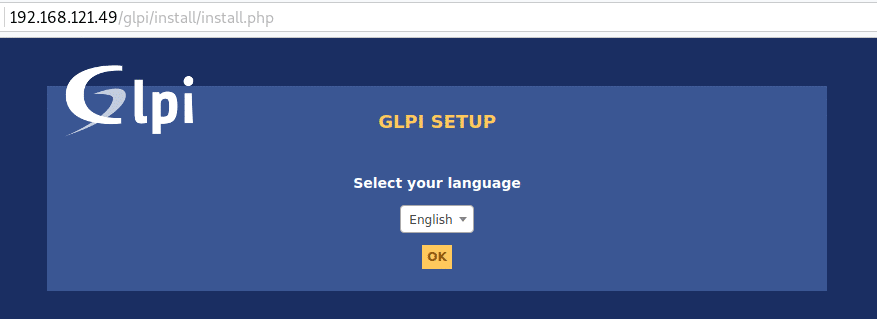
You can also access the installer on http://server_ip/glpi/install/install.php. Follow next installation steps to complete setup. If using DNS name then it can be accessed on http://glpi.example.com
Select Language and Accept License.
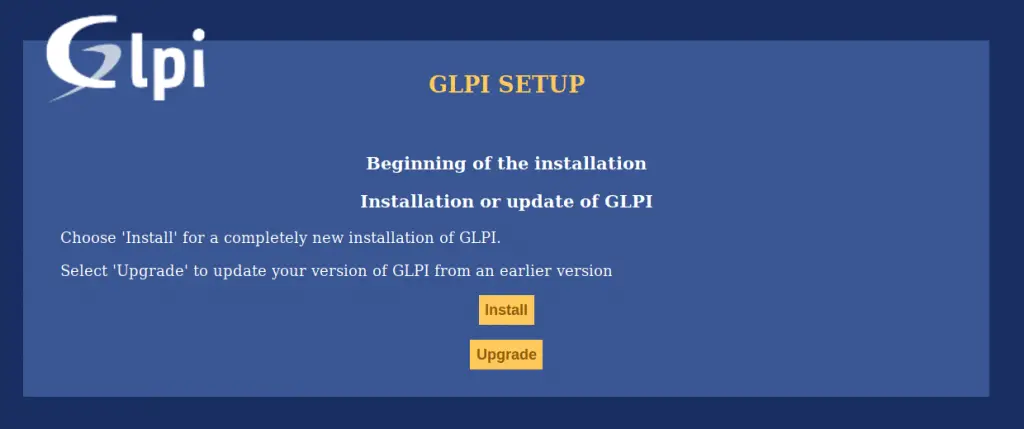
Choose install.
All compatibility checks of your environment with the execution of GLPI should pass.
Provide database access credentials for Data population.
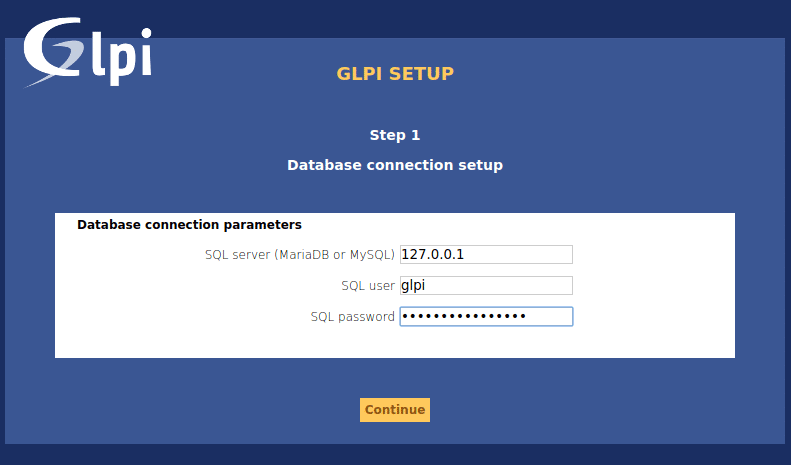
Select glpi existing database in your next screen.

Initialization should finish in few seconds.

Follow other prompts to get to the last page with access credentials.

Default initial logins / passwords are:
- glpi/glpi for the administrator account
- tech/tech for the technician account
- normal/normal for the normal account
- post-only/postonly for the postonly account
Login and change the default login credentials.


To this stage, GLPI is installed on CentOS 8|RHEL 8|Rocky Linux 8. The remaining bit is on customization and building up a database with all your company inventory – computer, servers, software, printers, cameras, alarms e.t.c.
Check official documentation on GLPI configuration to manage your Infrastructure assets.
Recommended Linux Books to read:
- Best Linux Books for Beginners & Experts
- Best Linux Kernel Programming Books
- Best Linux Bash Scripting Books
- Top RHCSA / RHCE Certification Study Books
- Best Top Rated CompTIA A+ Certification Books
- Best LPIC-1 and LPIC-2 certification study books
Similar guides:
