Running IT support without an asset tracker is guesswork. Tickets pile up in email, machines get lost between teams, license renewals go unnoticed until something breaks. GLPI is the free, self-hosted fix. It ships a full IT service management stack: assets, helpdesk, problems, changes, projects, contracts, a RESTful API, and an inventory agent that auto-discovers your hardware. On Rocky Linux 10 (and the RHEL 10 rebuilds) the install is clean because AppStream already ships the exact PHP, Apache, and MariaDB versions GLPI needs. No Remi repo, no source builds.
This guide walks through a production-shaped GLPI install on Rocky Linux 10. Apache 2.4 serves from GLPI’s own public/ directory (the recommended layout from the GLPI project), MariaDB 10.11 stores the data with timezone tables loaded, SELinux stays enforcing, firewalld gates the traffic, and certbot handles TLS with the HTTP-01 challenge. The same steps apply on AlmaLinux 10 and RHEL 10 because they share the AppStream module set. Every command was run on a fresh Rocky Linux 10.1 VM and the output captured as-is.
Verified working: April 2026 on Rocky Linux 10.1 (Red Quartz), Apache 2.4.63, PHP 8.3.29, MariaDB 10.11.15, GLPI 10.0.x, SELinux enforcing
Prerequisites
One Rocky Linux 10 host with root or sudo access. AlmaLinux 10 and RHEL 10 work the same way because GLPI’s PHP, database, and web server dependencies all live in AppStream. A minimum of 2 vCPU and 2 GB of RAM is enough for small teams (up to a few hundred assets). Plan for 4 GB once you turn on the inventory agent and start importing hardware.
- A public DNS A record (
glpi.example.com-> your server IP) reachable on port 80. The certbot HTTP-01 challenge works with any DNS provider. If the server sits on a private network with no public port 80, use the DNS-01 alternative covered under the SSL step. - SELinux in enforcing mode (the Rocky default). Do not disable it. Two boolean flips and one
fcontextrule below make GLPI work with enforcing. - A working firewall. Rocky 10 cloud images sometimes ship without
firewalld, so install it first ifsystemctl status firewalldsays “not found”.
If you are new to Rocky Linux 10, the Rocky Linux 10 post-install checklist is a good pre-read. It covers the handful of tweaks worth doing on a fresh box (hostname, timezone, EPEL, cockpit) before layering a service on top.
Step 1: Set reusable shell variables
Every command below uses shell variables so you change a handful of values once and paste the rest as-is. Pick a real hostname, a strong database password, and an admin email. Then export them at the top of your SSH session:
export GLPI_DOMAIN="glpi.example.com"
export GLPI_ROOT="/var/www/html/glpi"
export GLPI_DB="glpidb"
export GLPI_USER="glpiuser"
export GLPI_PASS="ChangeMe#Strong2026"
export DB_ROOT_PASS="RootPw#Strong2026"
export ADMIN_EMAIL="[email protected]"
Confirm the values land in the shell before running anything destructive:
echo "Domain: "
echo "Root:   "
echo "DB:      / "
echo "Admin:  "
The variables only hold for the current shell. If you reconnect or jump into sudo -i, re-run the export block. Keeping the database root password in the environment for the length of the session is fine for a first install, but wipe your history (history -c) once MariaDB is configured.
Step 2: Install Apache, PHP, and MariaDB
Rocky Linux 10 AppStream ships everything GLPI needs at the right version. PHP 8.3 is the current module stream, Apache 2.4 is the shipped HTTPD, and MariaDB 10.11 is the default database. No Remi repo, no third-party PPA, no source build. Pull the web and database tiers in with one dnf call:
sudo dnf install -y httpd php php-cli php-common php-mbstring php-xml php-ldap php-intl php-gd php-mysqlnd php-pecl-zip php-bcmath php-opcache php-fpm mariadb-server mariadbThe install pulls in the right set of PHP extensions for GLPI: mbstring, xml, ldap, intl, gd, mysqlnd, pecl-zip, and bcmath are all mandatory. The curl, openssl, and pdo extensions ship as part of core PHP on AppStream. Confirm the versions you ended up with:
php --version
mariadbd --version
httpd -v | head -1
The three versions should land on PHP 8.3.x, MariaDB 10.11.x, and Apache 2.4.63 on a fresh Rocky 10.1 box. PHP 8.3 is the current module stream and the one GLPI 10.0.x is tested against. If php-imap errors out on install, that is expected on Rocky 10 because the extension was removed from core PHP 8.3; GLPI does not require it for mail fetching (the mail collector falls back to the IMAP PHP library bundled in vendor).
Start and enable the three services so they come back after a reboot:
sudo systemctl enable --now httpd php-fpm mariadb
systemctl is-active httpd php-fpm mariadb
All three should report active. If mariadb fails to start on a freshly imaged VM, run journalctl -u mariadb -n 30 to see why. The most common cause is a stale data directory from a previous distro install; wiping /var/lib/mysql and re-running the systemd start resolves it.
Step 3: Secure MariaDB and create the GLPI database
Fresh MariaDB installs accept root with no password and keep an anonymous user around. The mariadb-secure-installation script is an interactive way to fix that, but a scripted equivalent is easier to audit. Set a strong root password, drop the anonymous rows, and remove the test database in one statement:
sudo mariadb -u root -e "
ALTER USER 'root'@'localhost' IDENTIFIED BY '';
DELETE FROM mysql.global_priv WHERE User='';
DELETE FROM mysql.global_priv WHERE User='root' AND Host NOT IN ('localhost','127.0.0.1','::1');
DROP DATABASE IF EXISTS test;
DELETE FROM mysql.db WHERE Db='test' OR Db='test\_%';
FLUSH PRIVILEGES;
"
Now create the GLPI schema and a dedicated application user. GLPI requires utf8mb4 collation for emoji support in ticket content and for proper sorting of non-Latin characters; pick utf8mb4_unicode_ci, not the older utf8_general_ci.
mariadb -u root -p"" -e "
CREATE DATABASE  CHARACTER SET utf8mb4 COLLATE utf8mb4_unicode_ci;
CREATE USER ''@'localhost' IDENTIFIED BY '';
GRANT ALL PRIVILEGES ON .* TO ''@'localhost';
FLUSH PRIVILEGES;
"
Confirm the database is visible and empty:
mariadb -u "" -p"" -e "SHOW DATABASES;"The reply lists glpidb along with information_schema. No other databases should be visible to this user.
Step 4: Load timezone data into MariaDB
GLPI 10 uses the mysql.time_zone_name table for its scheduling engine. Fresh MariaDB installs ship that table empty, and the GLPI installer’s pre-flight check will flag it as a hard failure. Load the system zoneinfo into MySQL and grant the GLPI user read access on it:
sudo mariadb-tzinfo-to-sql /usr/share/zoneinfo | mariadb -u root -p"" mysql
mariadb -u root -p"" mysql -e "
GRANT SELECT ON mysql.time_zone_name TO ''@'localhost';
FLUSH PRIVILEGES;
"
The first command populates around 1,792 rows (one per named zone on a current tzdata). Verify the count:
mariadb -u root -p"" mysql -e "SELECT COUNT(*) AS tz_rows FROM time_zone_name;"The result should be a four-digit count (exact value depends on the tzdata version). A zero here means the pipe to mariadb failed; re-run it after confirming the root password is right. If you later upgrade tzdata (Rocky rolls it into the yearly DST drops), re-run mariadb-tzinfo-to-sql to keep the table in sync.
Step 5: Download and extract GLPI
The GLPI project publishes release tarballs on GitHub. Fetch the current 10.0.x release at runtime so the same command survives point updates. The GitHub releases API returns tags newest first, and a short grep picks the latest 10.x line (avoiding the separate 11.x track, which is a larger migration):
GLPI_VER=
echo "Target version: "
curl -sL -o /tmp/glpi.tgz   "https://github.com/glpi-project/glpi/releases/download//glpi-.tgz"
ls -lh /tmp/glpi.tgz
The tarball is roughly 59 MB. Extract it under /var/www/html/, then set ownership to the apache user that Apache runs as on Rocky:
sudo tar -xzf /tmp/glpi.tgz -C /var/www/html/
sudo chown -R apache:apache ""
sudo chmod -R 755 ""
ls "" | head -8
The directory listing should include public/, config/, files/, install/, front/, and index.php. The public/ folder is the one Apache will serve; config/ and files/ stay outside the web root by virtue of that choice, which is the current upstream-recommended layout for GLPI 10.
Step 6: Fix SELinux contexts for GLPI
Rocky Linux 10 ships with SELinux in enforcing mode. Apache cannot write into files/ or config/ under the default httpd_sys_content_t context, and it cannot open a TCP socket to the MariaDB listener without the httpd_can_network_connect_db boolean. Disabling SELinux is the wrong fix; this is one of the things enforcing mode exists to prevent on a multi-tenant or exposed host.
Flip the boolean so Apache can reach MariaDB (even on the local socket this is required because the PHP PDO driver opens a TCP path first):
sudo setsebool -P httpd_can_network_connect_db 1Now set the read-write content context on the two directories GLPI writes into. The fcontext addition is persistent (it survives restorecon on the whole filesystem); restorecon -R applies it immediately to the existing files:
sudo semanage fcontext -a -t httpd_sys_rw_content_t "/files(/.*)?"
sudo semanage fcontext -a -t httpd_sys_rw_content_t "/config(/.*)?"
sudo restorecon -R "/files" "/config"
ls -lZ "" | grep -E 'files|config'
The ls -lZ output should show httpd_sys_rw_content_t on both directories. If you forget this step, GLPI’s install wizard throws silent permission errors on the “Initialize the database” screen and leaves the schema half-populated. If you think you hit an SELinux denial later, sudo ausearch -m avc -ts recent prints the exact path and context that was blocked.
Step 7: Write the Apache vhost for GLPI
Create a dedicated vhost that points DocumentRoot at /public. That layout keeps config/, files/, and install/migrations/ outside the web root, which closes off an entire class of “someone found my database password in a plain file” disclosures.
Open the vhost file with your editor of choice:
sudo vi /etc/httpd/conf.d/glpi.confPaste the following. The literal SITE_DOMAIN_HERE placeholder is replaced with the shell variable by a sed run straight after:
<VirtualHost *:80>
    ServerName SITE_DOMAIN_HERE
    DocumentRoot /var/www/html/glpi/public

    <Directory /var/www/html/glpi/public>
        Options FollowSymLinks
        AllowOverride All
        Require all granted

        RewriteEngine On
        RewriteCond %{REQUEST_FILENAME} !-f
        RewriteRule ^(.*)$ index.php [QSA,L]
    </Directory>

    ErrorLog /var/log/httpd/glpi_error.log
    CustomLog /var/log/httpd/glpi_access.log combined
</VirtualHost>
Substitute the real hostname from the shell variable, then validate the syntax and reload Apache:
sudo sed -i "s/SITE_DOMAIN_HERE//" /etc/httpd/conf.d/glpi.conf
sudo httpd -t
sudo systemctl restart httpd
The httpd -t line should reply Syntax OK. Any other output means a typo in the vhost; open the file and fix before restarting the service.
Step 8: Open the firewall
firewalld on Rocky ships with HTTP and HTTPS defined as named services. Add them to the default zone permanently and reload the ruleset so the change takes effect without dropping existing connections:
sudo firewall-cmd --add-service=http --permanent
sudo firewall-cmd --add-service=https --permanent
sudo firewall-cmd --reload
firewall-cmd --list-services
The listed services should now include http, https, and ssh. If firewall-cmd reports “command not found” the cloud image was built without firewalld; install it with sudo dnf install -y firewalld && sudo systemctl enable --now firewalld and re-run the two --add-service lines.
Confirm Apache answers on port 80 and redirects to the installer:
curl -sI http://localhost/ | head -5The response should be a HTTP/1.1 302 Found with Location: install/install.php and an X-Powered-By: PHP/8.3.x header. That confirms Apache is serving from public/, mod_rewrite is active, and PHP is executing.
With all three services active, a quick terminal check captures the state of the stack before the web installer takes over:
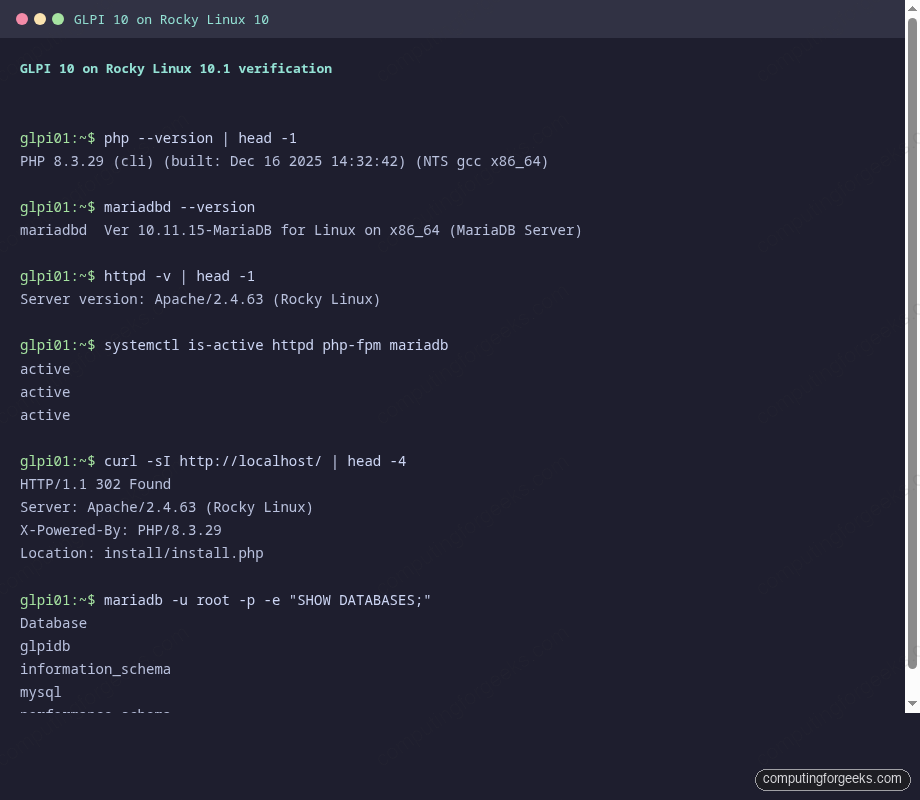
PHP 8.3.29, MariaDB 10.11.15, and Apache 2.4.63 all report active, curl resolves the installer redirect, and the glpidb database is visible from the mariadb CLI. Move on to the browser.
Step 9: Run the GLPI web installer
Open http://glpi.example.com (or the server’s IP during local testing) in a browser. The installer walks through six screens. The workflow is short enough to cover as a checklist:
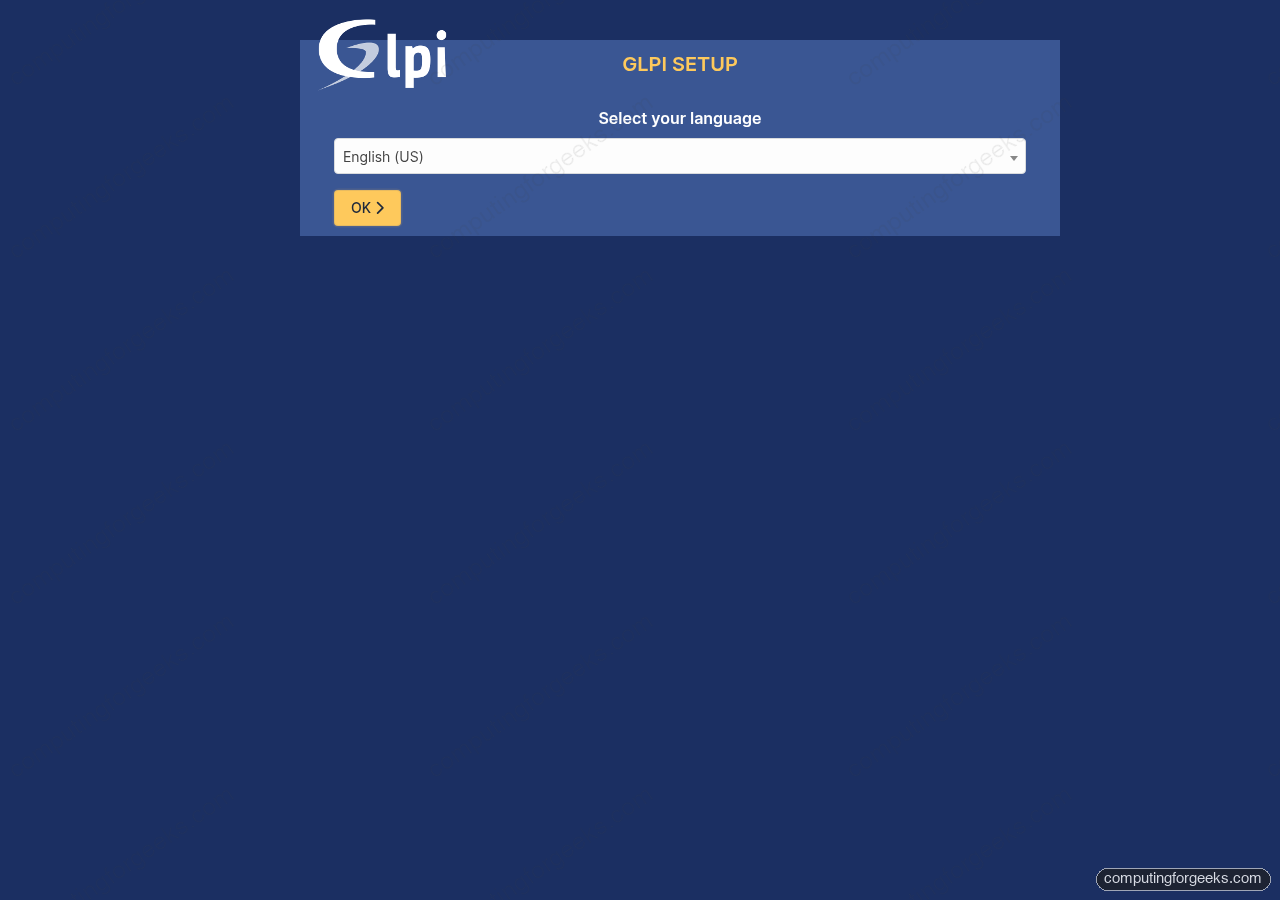
The first screen is the language picker above. Everything after that follows this order:
- Select your language. Pick English (or your preferred GLPI locale). This is the UI language, not the data locale.
- Agree to the GPL v3. Read the summary if this is your first open-source ITSM install, then tick “I have read and accept” and click Continue.
- Choose Install (not Upgrade, unless you are migrating an existing database).
- Check step. Every PHP extension, file permission, and MariaDB requirement should come up green. If
mbstringorintlis red, re-run thednf installline from Step 2 and refresh the browser. If the timezone table check fails, Step 4 did not complete. - Database connection. Enter
localhostas the server,glpiuseras the user, and the password from yourvariable. The next screen lists the available databases; pickglpidb(do not let the installer create a new one) and confirm. - Initialize the database. GLPI writes roughly 300 tables and seeds the default types, rules, and dictionaries. This takes 20 to 60 seconds depending on disk speed. The final screen lists the four default accounts (covered under hardening below).
Log in with glpi / glpi. The dashboard lands on an overview showing tickets, assets, and a yellow warning about the default passwords and the install/install.php file still being present. Both are addressed in Step 11.
Step 10: Add TLS with Let’s Encrypt
GLPI holds credentials, asset inventories, and ticket bodies that often include internal hostnames, IP addresses, and passwords pasted by users. Running it over plain HTTP on an internet-reachable box is an active data leak. certbot issues a free 90-day certificate and wires Apache to renew it automatically. The default path below uses the HTTP-01 challenge, which works with any DNS provider because the validation happens on port 80.
Point a public DNS A record at the server IP first, then install certbot and issue the certificate:
sudo dnf install -y certbot python3-certbot-apache
sudo certbot --apache -d ""   --non-interactive --agree-tos --redirect   -m ""
The --redirect flag rewrites the Apache vhost to force port 80 to 443. The new TLS vhost lands in /etc/httpd/conf.d/glpi-le-ssl.conf. Test the auto-renewal hook so you find out now if the challenge is broken, not when the certificate expires:
sudo certbot renew --dry-runThe dry-run output should finish with “Congratulations, all simulated renewals succeeded.” certbot also drops a systemd timer (certbot-renew.timer) that runs twice daily and only renews certificates with fewer than 30 days to expiry.
Alternative: DNS-01 for private or wildcard hosts
If the GLPI server sits on a private LAN with no public port 80, or you want a wildcard cert for multiple subdomains, use the DNS-01 challenge instead. certbot ships plugins for every major DNS provider. Pick the one your domain is on:
| DNS provider | certbot package |
|---|---|
| Cloudflare | python3-certbot-dns-cloudflare |
| Route 53 | python3-certbot-dns-route53 |
| DigitalOcean | python3-certbot-dns-digitalocean |
| Google Cloud DNS | python3-certbot-dns-google |
| Linode | python3-certbot-dns-linode |
| OVH | python3-certbot-dns-ovh |
| RFC2136 (self-hosted BIND) | python3-certbot-dns-rfc2136 |
The Cloudflare variant is shown as a worked example because the plugin is the most widely installed. Swap the package and credentials file format for whichever provider you use:
sudo dnf install -y python3-certbot-dns-cloudflare
sudo install -m 600 /dev/null /etc/letsencrypt/cloudflare.ini
sudo vi /etc/letsencrypt/cloudflare.ini
# Add one line: dns_cloudflare_api_token = <paste your token from the Cloudflare dashboard>

sudo certbot certonly --dns-cloudflare   --dns-cloudflare-credentials /etc/letsencrypt/cloudflare.ini   -d ""   --non-interactive --agree-tos -m ""
The certificate files land in /etc/letsencrypt/live//. Point your Apache TLS vhost at fullchain.pem and privkey.pem the same way --apache would have, then reload. Store real API tokens with a password manager such as 1Password; a leaked certbot token lets an attacker mint certs for your domain.
Step 11: Post-install hardening
A fresh GLPI install has four default accounts: glpi (full admin), tech, normal, and post-only. Every one of them has its username as its password. Every GLPI instance exposed to the internet with those defaults is one nmap scan away from being someone else’s helpdesk. Fix them first.
Log in as glpi, open Administration > Users, and for each of the four accounts either change the password to something strong or disable the account. Do not leave them at defaults “for now”.
Once the passwords are rotated, remove the installer. GLPI checks for install/install.php on every page load and shows a yellow banner until it is gone. Delete it:
sudo rm -f "/install/install.php"The install directory keeps the database migration scripts, which GLPI needs for future upgrades, so do not delete the whole install/ folder. Only the install.php entry point needs to go.
Next, turn off PHP error display. Stack traces leaked through the browser are a reconnaissance gift to anyone probing the login page:
sudo sed -i 's/^display_errors = .*/display_errors = Off/' /etc/php.ini
sudo sed -i 's/^;\?session.cookie_secure = .*/session.cookie_secure = 1/' /etc/php.ini
sudo sed -i 's/^;\?session.cookie_httponly = .*/session.cookie_httponly = 1/' /etc/php.ini
sudo systemctl restart php-fpm httpd
session.cookie_secure restricts the GLPI session cookie to HTTPS, and session.cookie_httponly blocks JavaScript access to it (blunts one common XSS path). Neither breaks the GLPI UI as long as you completed Step 10 and the site is reachable over TLS.
Finally, confirm GLPI’s built-in security audit is clean. From the admin UI go to Setup > General > System. The page should list all requirements in green and no longer mention the installer or default passwords.
What to do next
A fresh GLPI install is a skeleton. The value comes from connecting it to the rest of the environment. Two quick wins tend to repay the afternoon they take to set up:
The GLPI Inventory Agent (previously FusionInventory) runs on every Linux, macOS, and Windows machine and pushes hardware, software, and network data into GLPI on a schedule. Installing the agent on a Linux fleet via Ansible takes about ten minutes; the Windows MSI ships a silent-install flag that drops neatly into Intune or GPO deployments. Once it is in place, the Assets tab starts filling in automatically and you stop typing serial numbers into forms.
The LDAP / Active Directory connector under Setup > Authentication lets users log in with the same credentials they already use for email. It also groups them automatically by OU or security group, which means routing helpdesk tickets by department stops being a manual step. Configure it early; retrofitting user accounts once dozens of tickets reference the old local IDs is painful.
If you are running GLPI as part of a broader asset-management stack, the Snipe-IT install guide covers a complementary tool that some teams use alongside GLPI for licence tracking, and the GLPI on Ubuntu guide mirrors this article for Debian-family hosts.
For backups, dump the database and the files/ directory together. The database alone is not enough because GLPI stores uploaded ticket attachments on disk. A nightly cron of mariadb-dump plus a compressed tar of /files, pushed to Hetzner Storage Boxes or the object storage of your choice, covers a full restore on a new VM in well under an hour.
Troubleshooting
Error: “SQLSTATE[HY000] [1130] Host ‘localhost’ is not allowed”
The GLPI user was not granted privileges, or the anonymous-user cleanup from Step 3 removed the wrong row. Re-run the GRANT ALL PRIVILEGES line from Step 3 as root, then FLUSH PRIVILEGES.
Error: “The time zone table in mysql is not populated”
Step 4 did not complete. The most common cause is that the mariadb-tzinfo-to-sql output was not piped to the right database. Re-run it as root against the mysql system database and confirm the row count is non-zero with the SELECT COUNT(*) query from that step.
Error: certbot “Failed authorization procedure” on HTTP-01
Port 80 is not reachable from the public internet. Check from an external host with curl -v http://glpi.example.com/. Common causes: the DNS A record points at the wrong IP, firewalld did not actually open port 80 (re-check firewall-cmd --list-services), or a cloud security group is blocking inbound 80. If the server has no public IP at all, switch to the DNS-01 alternative under Step 10.
Error: certbot “Token scope does not permit dns_cloudflare”
The Cloudflare API token lacks Zone:DNS:Edit permission on the zone certbot is trying to validate. Regenerate the token from the Cloudflare dashboard with the correct scope, overwrite /etc/letsencrypt/cloudflare.ini, and re-run the DNS-01 command. Other DNS providers have their own equivalent scope checks; the failure always names the plugin, so the fix maps one-to-one to the provider’s API UI.
SELinux AVC: “denied { write } for path=/var/www/html/glpi/files”
The restorecon -R in Step 6 was skipped. Run sudo ausearch -m avc -ts recent to see the exact path and context, then re-apply:
sudo semanage fcontext -a -t httpd_sys_rw_content_t "/var/www/html/glpi/files(/.*)?"
sudo restorecon -R /var/www/html/glpi/files
If the denial points at a different directory GLPI writes into (for example a plugin creating its own cache path), repeat the fcontext addition for that path. The rule is: any directory GLPI needs to write into gets the httpd_sys_rw_content_t label.
If you run into an error that is not covered here, the GLPI community forum and the GLPI project site have an active set of maintainers who respond quickly to reproducible bug reports with version numbers and logs attached.
Related Rocky Linux 10 guides: Install LAMP on Rocky Linux covers the same Apache + MariaDB + PHP stack for generic web apps, and Install MariaDB 12 on Rocky Linux walks through the upstream MariaDB repo if you want a newer database branch than the AppStream default.