

Running IT support without an asset tracker turns every week into guesswork. Tickets scatter across email threads, laptops go missing between departments, and nobody notices the Microsoft 365 renewal until Finance emails the invoice. GLPI fixes that with a full IT service management stack: assets, helpdesk, problems, changes, projects, contracts, a REST API, and an inventory agent that auto-discovers hardware on the LAN. It is free, self-hosted, and ships the full feature set with no paywall.
This guide walks you through how to install GLPI on Ubuntu 24.04 LTS with Apache, PHP 8.3, and MariaDB. Apache serves from GLPI’s own public/ directory (the recommended layout that keeps config/ and files/ outside the web root), MariaDB stores the data with timezone tables loaded, UFW gates the traffic, and certbot handles TLS with the HTTP-01 challenge. The same steps apply on Ubuntu 26.04 LTS and on Debian 13, which ships an identical PHP 8.3 package set. Every command was run on a fresh Ubuntu 24.04.4 LTS VM and the output captured as-is.
Tested April 2026 | Ubuntu 24.04.4 LTS, Apache 2.4.58, PHP 8.3.6, MariaDB 10.11.14, GLPI 11.0.x
Prerequisites
One Ubuntu 24.04 LTS host with root or sudo access. Ubuntu 26.04 LTS and Debian 13 work with the same commands because all three ship PHP 8.3, Apache 2.4, and MariaDB 10.11 in the default repos. A minimum of 2 vCPU and 2 GB of RAM runs fine for a few hundred assets. Plan on 4 GB of RAM once the inventory agent starts pushing hardware data into the database and the helpdesk sees real ticket volume.
- A fresh Ubuntu 24.04 LTS server with SSH access. New to Ubuntu 24.04? The post-install checklist covers the security baseline first.
- A public DNS A record pointing at the server’s IP (for the Let’s Encrypt step). Any DNS provider works with the default HTTP-01 challenge.
- TCP ports 80 and 443 reachable from the internet (or the LAN, if you run an internal instance).
- Need a cloud VM to test? DigitalOcean’s $200 free trial gives you enough credit to run this lab for months without spending a cent.
Step 1: Set reusable shell variables
Every command in this guide references shell variables so you change one block at the top of your SSH session and paste the rest as-is. Export them now:
export GLPI_DOMAIN="glpi.example.com"
export GLPI_ROOT="/var/www/html/glpi"
export GLPI_DB="glpidb"
export GLPI_USER="glpiuser"
export GLPI_PASS="ChangeMe#Strong2026"
export DB_ROOT_PASS="Str0ngR00t#2026!"
export ADMIN_EMAIL="[email protected]"
Swap glpi.example.com for your real hostname, pick fresh database passwords, and confirm the values are set before running anything destructive:
echo "Domain: ${GLPI_DOMAIN}"
echo "Root:   ${GLPI_ROOT}"
echo "DB:     ${GLPI_DB} / ${GLPI_USER}"
These variables hold for the current shell session only. Re-export them if you reconnect or drop into a new sudo -i shell.
Step 2: Install Apache, PHP, and MariaDB
Ubuntu 24.04 ships everything GLPI needs in the default universe repo. PHP 8.3 is the default, which is exactly what GLPI 11 expects. No Ondřej PPA, no third-party sources. Refresh the index and pull the stack with every extension GLPI expects:
sudo apt update
sudo apt install -y apache2 mariadb-server mariadb-client \
  php php-cli php-common php-mbstring php-xml php-ldap php-intl \
  php-gd php-mysql php-zip php-bcmath php-imap php-opcache php-curl \
  libapache2-mod-php unzip wget curl
Confirm the versions you just pulled. GLPI 11 needs PHP 8.2 or newer, and Ubuntu 24.04 gives you 8.3 by default:
php --version | head -1
apache2 -v | head -1
mariadb --version
The output should match this shape:
PHP 8.3.6 (cli) (built: Mar 20 2026 02:32:55) (NTS)
Server version: Apache/2.4.58 (Ubuntu)
mariadb  Ver 15.1 Distrib 10.11.14-MariaDB, for debian-linux-gnu (x86_64) using  EditLine wrapper
Enable and start both services so they survive a reboot:
sudo systemctl enable --now apache2 mariadb
systemctl is-active apache2 mariadb
Both services should report active. If Apache complains about a conflicting ServerName, ignore it for now: we write a proper vhost in Step 6. For the LEMP alternative or a deeper walkthrough of the base stack, see the LAMP stack install guide for Ubuntu or the Apache + PHP + MariaDB setup on Ubuntu.
Step 3: Secure MariaDB and create the GLPI database
Skip the interactive mariadb-secure-installation and run the same operations non-interactively. This is faster on a fresh install and easier to automate across fleets:
sudo mariadb <<SQL
ALTER USER 'root'@'localhost' IDENTIFIED BY '${DB_ROOT_PASS}';
DELETE FROM mysql.user WHERE User='';
DELETE FROM mysql.user WHERE User='root' AND Host NOT IN ('localhost','127.0.0.1','::1');
DROP DATABASE IF EXISTS test;
DELETE FROM mysql.db WHERE Db='test' OR Db='test\\\\_%';
FLUSH PRIVILEGES;
SQL
Create the GLPI database and a dedicated application user. The utf8mb4 charset and utf8mb4_unicode_ci collation are required: GLPI stores Unicode ticket content, and the legacy utf8 charset truncates emoji and certain CJK glyphs:
sudo mariadb -u root -p"${DB_ROOT_PASS}" <<SQL
CREATE DATABASE ${GLPI_DB} CHARACTER SET utf8mb4 COLLATE utf8mb4_unicode_ci;
CREATE USER '${GLPI_USER}'@'localhost' IDENTIFIED BY '${GLPI_PASS}';
GRANT ALL PRIVILEGES ON ${GLPI_DB}.* TO '${GLPI_USER}'@'localhost';
FLUSH PRIVILEGES;
SQL
Verify the database and user exist before moving on:
sudo mariadb -u root -p"${DB_ROOT_PASS}" -e "SHOW DATABASES LIKE 'glpi%'; SELECT User,Host FROM mysql.user WHERE User='${GLPI_USER}';"Expected output:
Database (glpi%)
glpidb
User    Host
glpiuser        localhost
Step 4: Load timezone data into MariaDB
GLPI reads mysql.time_zone_name to support named timezones in ticket timestamps and SLA windows. Most guides skip this step, which is exactly why scheduled tickets drift an hour during daylight-saving transitions. Populate the table once and grant the GLPI user read access:
sudo mariadb-tzinfo-to-sql /usr/share/zoneinfo | sudo mariadb -u root -p"${DB_ROOT_PASS}" mysql
sudo mariadb -u root -p"${DB_ROOT_PASS}" -e "GRANT SELECT ON mysql.time_zone_name TO '${GLPI_USER}'@'localhost'; FLUSH PRIVILEGES;"
Confirm the GLPI user can see named timezones:
mariadb -u "${GLPI_USER}" -p"${GLPI_PASS}" mysql -e "SELECT COUNT(*) AS zones FROM time_zone_name;"A healthy load returns ~1800 timezone names depending on your tzdata package.
Step 5: Download and extract GLPI
The latest release lives on GitHub. Use the release API so the version you install is always current instead of pinning to a stale tarball URL. Check what’s on offer first, then download:
GLPI_VER=$(curl -sL https://api.github.com/repos/glpi-project/glpi/releases/latest | grep '"tag_name"' | head -1 | cut -d '"' -f4)
echo "Installing GLPI ${GLPI_VER}"
cd /tmp
wget -q "https://github.com/glpi-project/glpi/releases/download/${GLPI_VER}/glpi-${GLPI_VER}.tgz" -O glpi.tgz
ls -lh glpi.tgz
The tarball is around 85 MB. Extract it to /var/www/html/ and confirm the public/ directory is present (GLPI’s recommended DocumentRoot):
sudo tar -xzf /tmp/glpi.tgz -C /var/www/html/
ls -d "${GLPI_ROOT}"
ls "${GLPI_ROOT}/public" | head -5
You should see index.php inside public/. Set ownership to the Apache user so GLPI can write to its config, cache, and files directories:
sudo chown -R www-data:www-data "${GLPI_ROOT}"
sudo find "${GLPI_ROOT}" -type d -exec chmod 755 {} \;
sudo find "${GLPI_ROOT}" -type f -exec chmod 644 {} \;
sudo chmod -R +X "${GLPI_ROOT}/bin"
Step 6: Write the Apache vhost
Point DocumentRoot at ${GLPI_ROOT}/public. This is the layout the GLPI project recommends because it keeps config/ (database credentials, secret keys) and files/ (uploads, logs, cache) out of the web root. Open the vhost file in your editor:
sudo vi /etc/apache2/sites-available/glpi.confPaste the following configuration, replacing SITE_DOMAIN_HERE with your real hostname:
<VirtualHost *:80>
    ServerName SITE_DOMAIN_HERE
    ServerAdmin [email protected]
    DocumentRoot /var/www/html/glpi/public

    <Directory /var/www/html/glpi/public>
        Require all granted
        AllowOverride All
        Options FollowSymLinks
        FallbackResource /index.php
    </Directory>

    ErrorLog ${APACHE_LOG_DIR}/glpi_error.log
    CustomLog ${APACHE_LOG_DIR}/glpi_access.log combined
</VirtualHost>
Swap the placeholder for your real domain and validate the syntax:
sudo sed -i "s/SITE_DOMAIN_HERE/${GLPI_DOMAIN}/g" /etc/apache2/sites-available/glpi.conf
sudo apache2ctl configtest
Expect Syntax OK. Disable the default vhost, enable the new one, turn on mod_rewrite (GLPI needs it for clean URLs), and reload Apache:
sudo a2dissite 000-default.conf
sudo a2ensite glpi.conf
sudo a2enmod rewrite
sudo systemctl reload apache2
Step 7: Open the firewall
Ubuntu ships UFW for host-level firewalling. Allow HTTP and HTTPS, then enable the firewall. If SSH is not already whitelisted, add it first or you will lock yourself out:
sudo ufw allow OpenSSH
sudo ufw allow 80/tcp
sudo ufw allow 443/tcp
sudo ufw --force enable
sudo ufw status numbered
Confirm the services respond locally before the installer step:
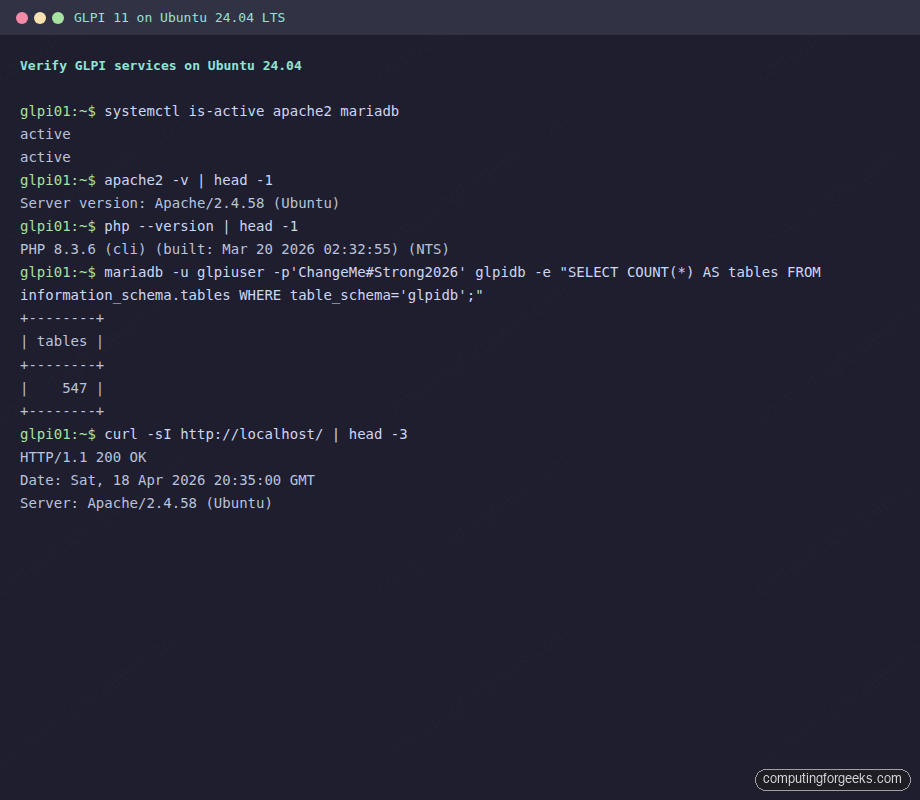
curl -sI http://localhost/ | head -3The response should be HTTP/1.1 200 OK with the GLPI Apache server banner. The terminal capture below shows the stack running cleanly on the test VM, with a quick table count against glpidb after the installer finishes:
Step 8: Install GLPI on Ubuntu via the wizard or CLI
GLPI ships two ways to install: a browser wizard and a CLI console command. Both end in the same working install, so pick whichever fits your workflow. On fleet rollouts or Ansible runs, the CLI version is scriptable and idempotent.
Option A: Browser wizard
Open http://glpi.example.com/install/install.php in a browser. The first page asks for a language:
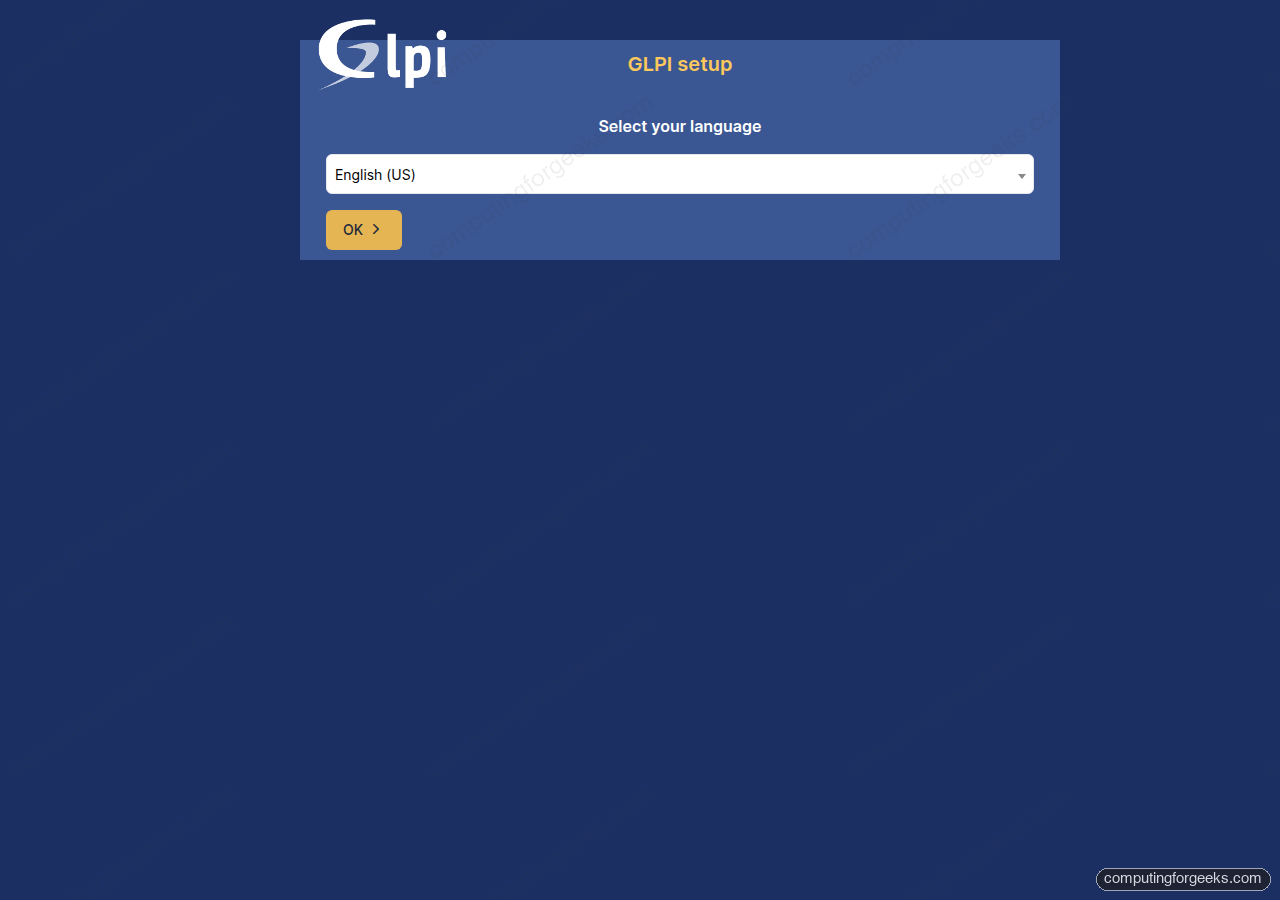
Pick a language, accept the GPLv3 licence, and click through to the database configuration screen. Use these values:
- SQL server:
localhost - SQL user:
glpiuser(from${GLPI_USER}) - SQL password: the value of
${GLPI_PASS} - Database:
glpidb
The installer creates roughly 547 tables, imports default forms, seeds the ITIL rule sets, and writes config/config_db.php. On a 2 vCPU VM this takes 20 to 30 seconds.
Option B: CLI console install (scriptable)
Skip the browser entirely and run the install as the Apache user:
sudo -u www-data php "${GLPI_ROOT}/bin/console" db:install \
  --db-name="${GLPI_DB}" \
  --db-user="${GLPI_USER}" \
  --db-password="${GLPI_PASS}" \
  --default-language=en_US \
  --force --no-interaction --reconfigure
The output streams progress bars while each phase runs:
[==============>-------------]  50%
Importing default data…
[================>-----------]  60%
Importing default data…
[===================>--------]  70%
Importing default data…
[======================>-----]  80%
Importing default data…
> Default data imported.
[=========================>--]  90%
Creating default forms…
> Default forms created.
[===========================>]  98%
Initializing default rules…
> Default rules initialized.
> Security keys generated.
[============================] 100%
Defining configuration defaults…
> Configuration defaults defined.
> Installation done.
Whichever option you picked, GLPI is installed and ready for login.
Step 9: Log in and change the default passwords
Point your browser at http://glpi.example.com/. The login page loads:
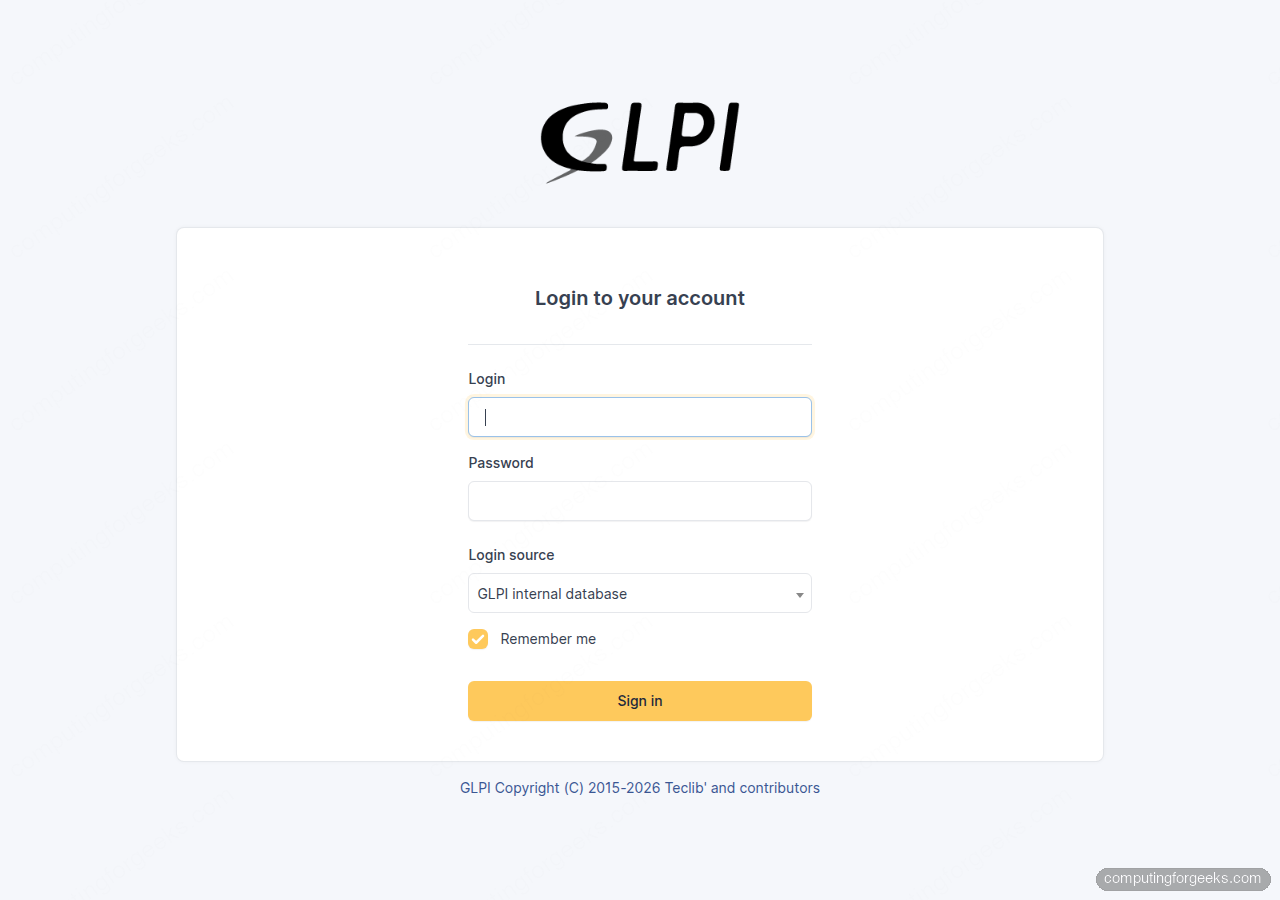
GLPI ships with four default accounts: all of them must have their passwords rotated before the server goes public:
glpi/glpi: super-admintech/tech: techniciannormal/normal: standard userpost-only/postonly: post-only user
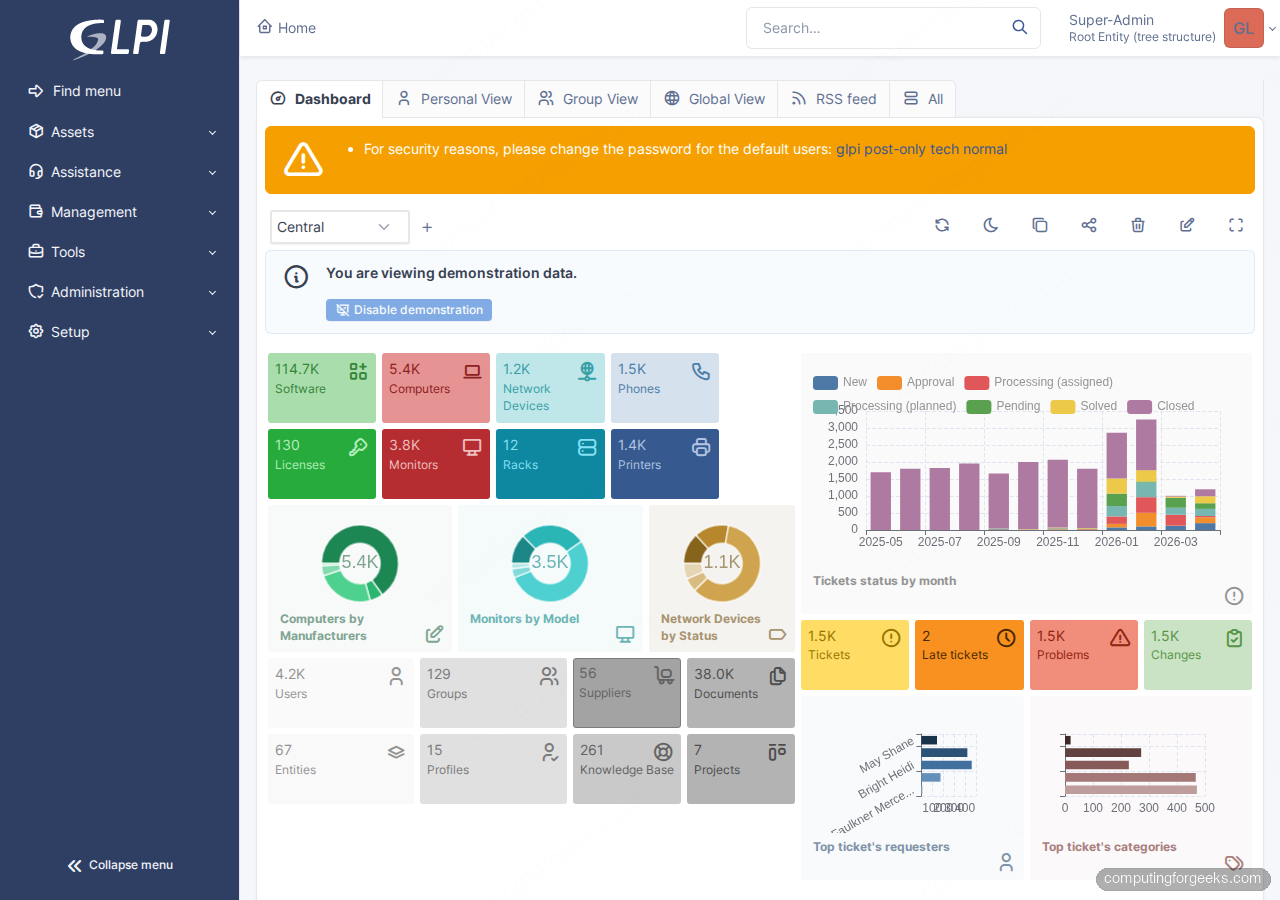
Sign in as glpi/glpi, then navigate to Administration > Users and rotate each default. GLPI prints a warning banner across every page until all four are changed. After login the Central dashboard loads with the asset, ticket, and SLA widgets:
Need somewhere to keep the new GLPI super-admin credentials alongside every other infra secret? 1Password for Business has per-vault access controls that fit small ops teams well.
Step 10: Enable HTTPS with Let’s Encrypt
Plain HTTP is fine for a quick lab check. For any server that stores ticket history or hardware inventory, enable TLS before you log in a second time. The default path uses certbot with the HTTP-01 challenge, which works with every DNS provider because it proves ownership by serving a file over port 80:
sudo apt install -y certbot python3-certbot-apache
sudo certbot --apache -d "${GLPI_DOMAIN}" --non-interactive --agree-tos --redirect -m "${ADMIN_EMAIL}"
certbot rewrites the vhost to listen on 443, installs the certificate, and adds a 301 redirect from HTTP to HTTPS. Confirm the cert is valid and the systemd timer for auto-renewal is active:
sudo certbot renew --dry-run
systemctl status certbot.timer --no-pager | head -10
curl -sI "https://${GLPI_DOMAIN}/" | head -3
Alternative: DNS-01 for private or wildcard hosts
If the server is on a private LAN with no inbound port 80, or you want a wildcard certificate, use a DNS-01 plugin. certbot has first-party plugins for Cloudflare, Route 53, DigitalOcean DNS, Google Cloud DNS, Linode, OVH, and RFC2136 dynamic updates. Pick the one for your provider:
| Provider | Package |
|---|---|
| Cloudflare | python3-certbot-dns-cloudflare |
| Route 53 | python3-certbot-dns-route53 |
| DigitalOcean | python3-certbot-dns-digitalocean |
| Google Cloud DNS | python3-certbot-dns-google |
| Linode | python3-certbot-dns-linode |
| OVH | python3-certbot-dns-ovh |
| BIND / dynamic DNS | python3-certbot-dns-rfc2136 |
A Cloudflare run looks like this. Substitute the plugin and credentials format for your own provider if you’re on something else:
sudo apt install -y python3-certbot-dns-cloudflare
echo "dns_cloudflare_api_token = your-token-here" | sudo tee /etc/letsencrypt/cloudflare.ini
sudo chmod 600 /etc/letsencrypt/cloudflare.ini
sudo certbot certonly --dns-cloudflare \
  --dns-cloudflare-credentials /etc/letsencrypt/cloudflare.ini \
  -d "${GLPI_DOMAIN}" \
  --non-interactive --agree-tos -m "${ADMIN_EMAIL}"
Production hardening
The installer leaves a few defaults that are fine for a demo but dangerous on a live box. Run through this checklist before the GLPI URL sees real users.
Delete install.php
GLPI shows a yellow warning banner until you remove the installer. An exposed install.php lets anyone who reaches the URL reset the database configuration:
sudo rm -f "${GLPI_ROOT}/install/install.php"
curl -sI "https://${GLPI_DOMAIN}/install/install.php" | head -1
A 404 response confirms the file is gone.
Tighten config file permissions
The database credentials live in config/config_db.php and the cryptographic key in config/glpicrypt.key. Make them readable only by the Apache user:
sudo chmod 640 "${GLPI_ROOT}/config/"*.php
sudo chmod 640 "${GLPI_ROOT}/config/glpicrypt.key"
sudo chown root:www-data "${GLPI_ROOT}/config/"*.php "${GLPI_ROOT}/config/glpicrypt.key"
Disable display_errors in php.ini
Verbose PHP errors on a public page leak file paths and stack traces. On Ubuntu 24.04 the Apache handler config is /etc/php/8.3/apache2/php.ini:
sudo sed -i 's/^display_errors = On/display_errors = Off/' /etc/php/8.3/apache2/php.ini
sudo sed -i 's/^;expose_php = On/expose_php = Off/' /etc/php/8.3/apache2/php.ini
sudo systemctl reload apache2
Set a daily GLPI cron
GLPI relies on a scheduled task runner for notifications, automatic ticket rules, LDAP sync, and the task queue. Without it, e-mail notifications queue up and nothing ever flushes. Add a cron entry for the Apache user that hits the task runner every minute:
echo "* * * * * www-data /usr/bin/php ${GLPI_ROOT}/front/cron.php >/dev/null 2>&1" | sudo tee /etc/cron.d/glpiOnce done, GLPI’s built-in health check at Setup > General > System should show the cron as running within a minute.
GLPI 11 gotcha on fresh installs
If you open the GLPI URL right after installation and hit a blank 500 Internal Server Error, check files/_log/php-errors.log. A known GLPI 11 issue surfaces this exception:
Uncaught Exception: The parameter "kernel.secret" has a dependency on a
non-existent parameter ...
The cause is a random byte in config/glpicrypt.key that happens to be an ASCII % (0x25). Symfony’s container interprets that character as the start of a parameter placeholder and fails to resolve it. The fix is to regenerate the key before any passwords or API tokens are encrypted with it, then clear the compiled container cache:
sudo rm -rf "${GLPI_ROOT}/files/_cache/"*
while true; do
  head -c 32 /dev/urandom > /tmp/newkey
  if ! hexdump -C /tmp/newkey | head -3 | grep -q '25'; then
    break
  fi
done
sudo cp /tmp/newkey "${GLPI_ROOT}/config/glpicrypt.key"
sudo chown www-data:www-data "${GLPI_ROOT}/config/glpicrypt.key"
sudo chmod 640 "${GLPI_ROOT}/config/glpicrypt.key"
sudo systemctl reload apache2
Do this before you run the installer or immediately after on a fresh database. Regenerating the key later invalidates any LDAP binds, plugin tokens, or stored passwords that were encrypted with the old one.
Next step: push inventory in automatically
With the server up, the next logical step is to stop typing asset data by hand. GLPI Agent is the free, official inventory collector: it reports hardware, software, network configuration, and running services from every machine you deploy it on. Install it on a Linux fleet with Ansible, or ship the MSI to Windows laptops via GPO. Each agent pushes JSON to /front/inventory.php and GLPI creates or updates the Computer object with the correct manufacturer, serial, and LOM data.
For a pure configuration-management database (CMDB) alternative with a different data model, Ralph CMDB is worth a look. And if you run the RHEL-family equivalents, the Rocky Linux 10 GLPI install covers the same ground with SELinux and firewalld.
Running short on staff to maintain the server long-term? Hetzner Cloud CX22 runs this GLPI install for under EUR 4 a month with snapshots and automated backups, freeing you from hardware maintenance while keeping the data under your control.






good tutoriel !
Great we are happy to learn this was helpful.