openSUSE Leap 15.x is on the clock. The 15.6 release is the last of the 15 line, and Leap 16 is where the project is going next. There is one supported way to get there, and it is not a fresh reinstall.
The path is the opensuse-migration-tool, a small utility that swaps your 15.6 repositories for Leap 16, disables the third-party repos that would otherwise break the upgrade, and runs a full distribution upgrade in place. This guide walks the whole thing end to end: the pre-flight checks that actually matter, the exact zypper commands the tool runs for you, the third-party-repo trap that sinks most upgrades, and how to roll back if it goes wrong. The upgrade below was run on a real Leap 15.6 server moved to Leap 16.0 in June 2026.
Before you upgrade openSUSE Leap 15 to Leap 16
Four things decide whether this upgrade is clean or painful. Check all of them before you touch the migration tool.
- You must be on a fully updated Leap 15.6. If you are still on 15.5 or earlier, update to 15.6 first. The tool migrates from the current release, not across two of them.
- Your CPU must support x86-64-v2. Leap 16 raised the baseline, so anything older than roughly a 2009 Intel or AMD chip is out. The tool checks this and refuses to continue if the flags are missing, which saves you from a half-finished upgrade.
- Take a snapshot first. On the default Btrfs root, Leap already takes Snapper snapshots, so you have a rollback target. Confirm it exists before you start.
- Know your third-party repos. Packman, NVIDIA, hardware vendor repos, and OBS home projects are the number one cause of failed upgrades. The tool offers to disable them, and you should let it.
The whole process takes 30 to 60 minutes depending on your mirror and disk, most of which is unattended download and install. You need root, and the box needs working network access to download.opensuse.org and get.opensuse.org. If you would rather start clean than upgrade in place, the fresh openSUSE Leap 16 install takes about the same time.
Update Leap 15.6 to the latest patch level
Refresh the repositories and pull every pending update so you are migrating from a known-good state:
sudo zypper ref
sudo zypper up
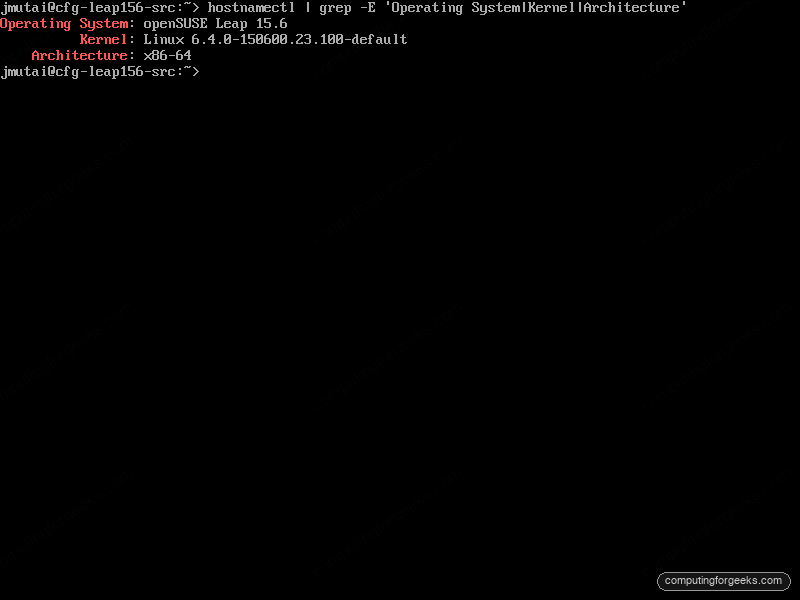
Reboot if the update pulled a new kernel. Then confirm where you are starting from:
hostnamectlThe Operating System line should read Leap 15.6:
Install the openSUSE migration tool
The tool ships in the regular Leap 15.6 repositories, so one command pulls it in:
sudo zypper install opensuse-migration-toolBefore committing, run it in dry-run mode. This prints every command it would execute without changing anything, including the repository swaps and the final zypper dup. It shows the commands it will run, not the full list of packages that will change:
sudo opensuse-migration-tool --dry-runReading that output once is the fastest way to understand exactly what the migration does to your system.
Run the migration to Leap 16
Start the tool for real:
sudo opensuse-migration-toolIt pulls the live product list from openSUSE and presents the targets you can migrate to. From Leap 15.6 you can move to SUSE Linux Enterprise, Tumbleweed, or a newer Leap. Pick openSUSE Leap 16.0.
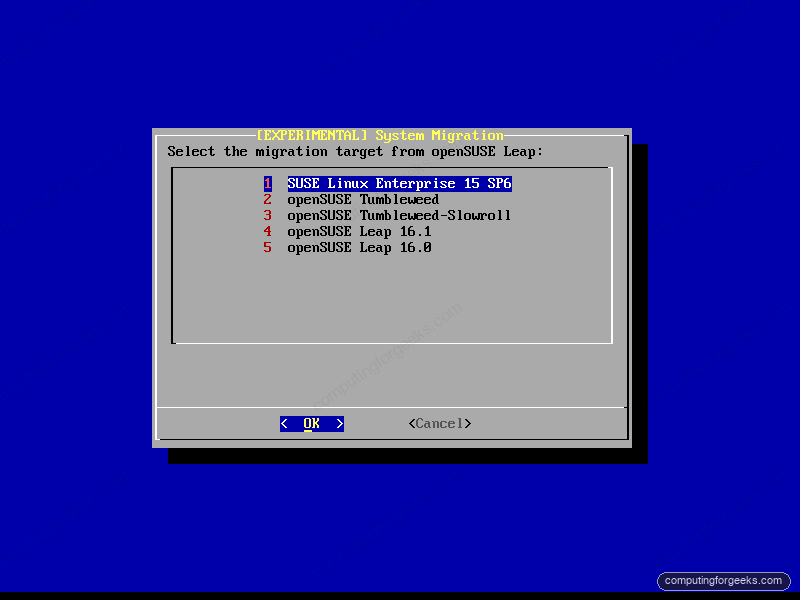
You may also see openSUSE Leap 16.1 in the list. At the time of writing 16.1 is still Beta, so choose 16.0 for a production machine unless you specifically want to test the next release.
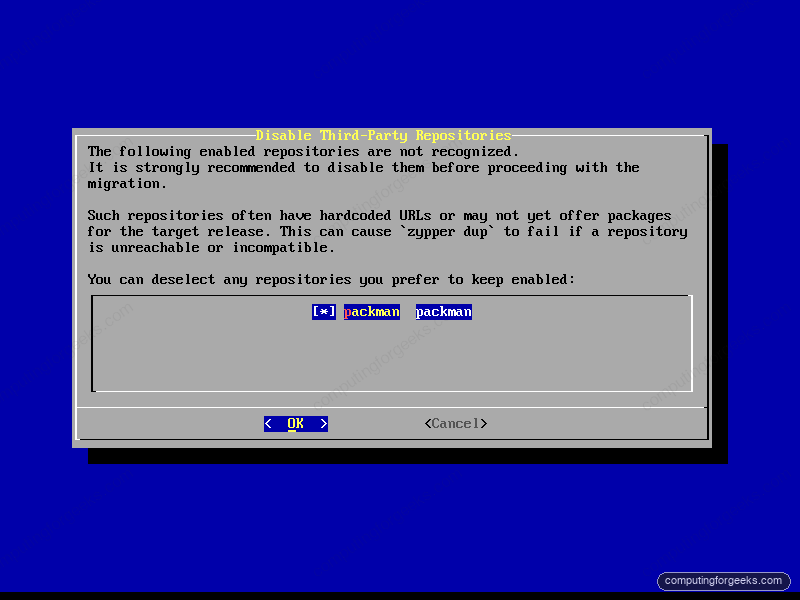
Next the tool scans your enabled repositories and flags any it does not recognize. This is the step that matters most. Third-party repos often pin a hardcoded 15.6 URL or have no Leap 16 build yet, so leaving them on makes zypper dup fail on an unreachable or incompatible package. Leave the flagged repos checked so the tool disables them:
Once you confirm, the tool installs the Leap 16 repository definitions, runs the distribution upgrade, and downloads every package in advance before it starts replacing anything:
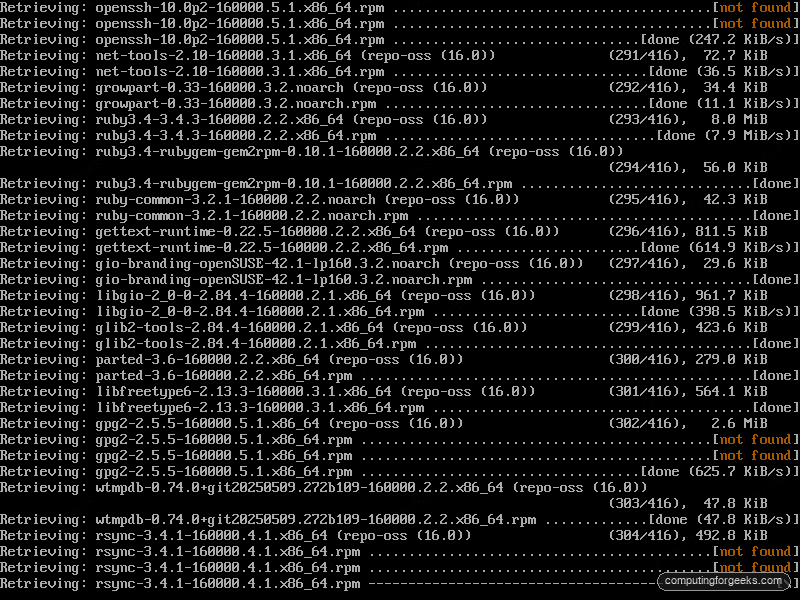
This is the long part. The download size depends on how much you had installed. This minimal server pulled 416 packages from the Leap 16 repository; a desktop pulls far more. Let it run without interrupting it.
Choose the post-migration defaults
When the upgrade finishes, the tool offers a short checklist of optional changes that bring your system in line with Leap 16 defaults. The two that matter on most systems:
- Security module. Leap 16 ships SELinux in enforcing mode as the default. A migrated 15.x system keeps AppArmor unless you opt to switch. If you want the new default, let it switch to SELinux; if you have AppArmor profiles you depend on, keep AppArmor. Note that keeping AppArmor is an upgrade-path option only. A fresh Leap 16 install no longer offers it, so SELinux is the path the rest of the platform is built around.
- Audio. The PipeWire option replaces PulseAudio with the current default. Take it on a desktop.
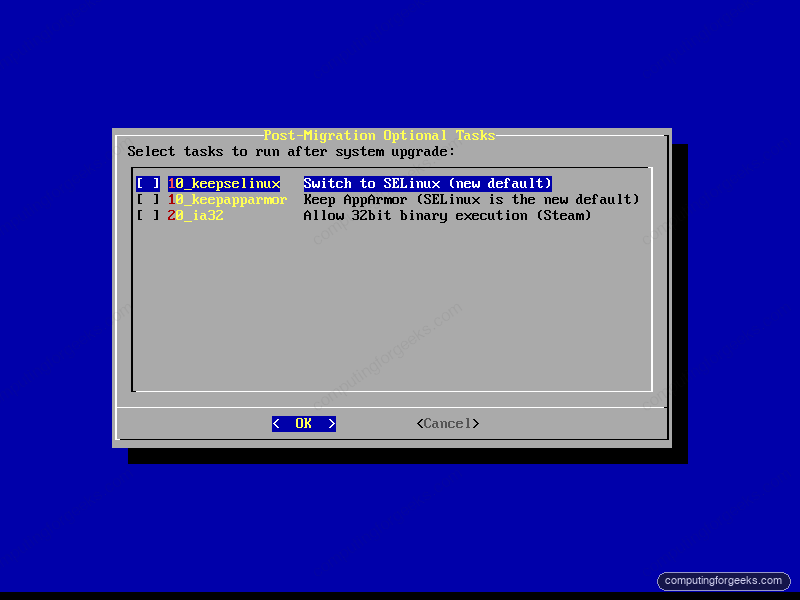
On this upgrade we took the SELinux switch. The tool installs the SELinux policy, flags the filesystem for relabeling, and drops the AppArmor boot options. The relabel runs automatically on the next boot, so the first reboot takes a little longer than usual.
Reboot into the new system:
sudo rebootVerify the upgrade to Leap 16
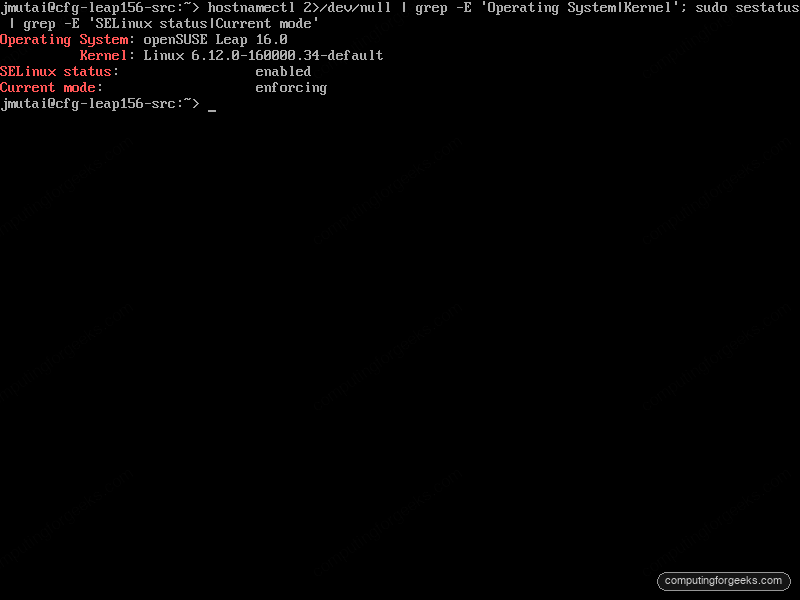
After the reboot, confirm the release, kernel, and security module:
hostnamectl
sudo sestatus
The Operating System now reads Leap 16.0 on the 6.12 kernel, with SELinux enforcing because we took the switch. Note that getenforce is not installed by default on Leap 16, so use sestatus:
For more ways to confirm the distribution and kernel from the command line, the usual /etc/os-release and uname -r checks work the same on Leap 16. Now look at the repository list to confirm it points at Leap 16 with nothing left over from 15.6:
zypper lrEvery official repository now carries the 16.0 label, and the Packman line the tool disabled sits there switched off:
# | Alias                       | Name                      | Enabled | GPG Check | Refresh
--+-----------------------------+---------------------------+---------+-----------+--------
1 | openSUSE:repo-non-oss       | repo-non-oss (16.0)       | No      | ----      | ----
3 | openSUSE:repo-openh264      | repo-openh264 (16.0)      | Yes     | (r ) Yes  | Yes
4 | openSUSE:repo-oss           | repo-oss (16.0)           | Yes     | (r ) Yes  | Yes
7 | packman                     | packman                   | No      | ----      | ----
If you used Packman or other third-party repos, add them back now pointing at the Leap 16 paths, not the old 15.6 ones. The migration disabled them precisely because the 15.6 URLs no longer apply. Your installed services carry across the upgrade untouched, though it is worth a quick health check on anything stateful; a MariaDB instance on openSUSE, for example, keeps its data directory and starts straight back up.
What the migration tool actually runs
The tool is a wrapper around plain zypper. For a Leap 16.0 target it runs roughly this sequence, which is worth understanding if you ever need to debug a stuck upgrade or do it by hand:
zypper install --force-resolution openSUSE-repos
zypper modifyrepo -d packman
zypper addrepo -f https://download.opensuse.org/distribution/leap/16.0/repo/oss tmp-migration-tool-repo
zypper install --from tmp-migration-tool-repo openSUSE-repos-Leap
zypper removerepo tmp-migration-tool-repo
zypper refresh-services
zypper --releasever 16.0 dup --allow-vendor-change --download-in-advance
The --releasever 16.0 and --allow-vendor-change flags are what make this a release upgrade rather than a normal update. The vendor change is required because packages move from the SLE 15 vendor to the SLE 16 vendor. Running this by hand without the surrounding repository swap is how people end up with a broken mix of 15.6 and 16.0 packages, which is exactly what the tool exists to prevent.
Roll back if the upgrade breaks
On the default Btrfs layout, Leap snapshots the system before the upgrade writes anything, so a bad result is recoverable. Reboot, and at the GRUB menu choose Start bootloader from a read-only snapshot, then pick the snapshot taken just before the migration. Once you have booted into it and confirmed the old system works, make it permanent. Because you are already running the snapshot you want to keep, a bare rollback does it:
sudo snapper rollbackIf you are still booted in the broken Leap 16 system instead, run sudo snapper list to find the pre-migration snapshot number and pass it explicitly with sudo snapper rollback <number>. Either way you end up back on Leap 15.6 as if the upgrade never ran. Fix whatever caused the failure, usually a third-party repo you left enabled, and try again. For the mechanics of how these snapshots work and how to manage them day to day, see the guide on automatic rollback with Snapper. With the upgrade verified and a rollback path proven, your server is on Leap 16 with another two years of support ahead of it.