

By the end of this guide you’ll have openSUSE Leap 16 installed and running, with a desktop, your own user account, and a system that’s ready to update. Leap is the community release built on the same code base as SUSE Linux Enterprise Server, so it is a calm, slow-moving distribution you can leave on a laptop or a server for a couple of years without surprises.
This release is a bigger jump than the usual point update. openSUSE Leap 16 ships a brand new graphical installer called Agama, turns on SELinux by default, and retires the old YaST installer you may remember from earlier versions. This walkthrough covers the whole openSUSE Leap 16 installation from the download to your first login: booting the installer, picking a desktop, setting up the disk, creating a user, and the first commands to run once you are in. Every screenshot below comes from a real install.
Installed start to finish on openSUSE Leap 16.0 in June 2026, so every screen here matches what you’ll see.
What’s new in openSUSE Leap 16
openSUSE Leap 16.0 was released on 1 October 2025 and is built on SUSE Linux Enterprise Server 16. A few changes are worth knowing before you start, because they change how the install looks and how the system behaves once it is running.
- New Agama installer. The graphical YaST installer is gone. Agama is a modern installer that can set up Leap or Leap Micro from the same image, and it keeps every setting on one overview page.
- SELinux by default. New installs run SELinux in enforcing mode, and it is the only security module the installer offers. AppArmor can be switched on by hand after installation, but SELinux is the supported default.
- Modern base. Leap 16 runs Linux kernel 6.12 LTS, uses systemd only, and defaults to a Wayland session.
- Three desktops. You can pick GNOME, KDE Plasma, or an experimental Xfce on Wayland during the install.
- Faster Zypper. The package manager now downloads packages and metadata in parallel, which makes refreshes and updates noticeably quicker.
- x86-64-v2 required. Leap 16 needs a 64-bit CPU from 2008 or later, and 32-bit support is switched off by default.
- 24 months of support. Each release gets two years of free maintenance and security updates, with annual point releases planned through 2031 and the Leap 16 line maintained into the 2030s.
If you want the full list, the official Leap 16 release notes go into detail. For everyone else, the points above are what actually affect the install.
What you need
The hardware bar is low, with one catch around the CPU. Make sure you have:
- A 64-bit machine with an x86-64-v2 CPU. In practice that is almost any PC or laptop from 2008 on, and any modern virtual machine. Leap 16 will stop early on older chips.
- At least 2 GB of RAM. Give it 4 GB or more for a comfortable GNOME or KDE desktop.
- 40 GB of free disk space. The base system is small, but a desktop plus room to actually work wants more.
- A USB stick of 8 GB or larger for a real machine, or a virtual machine if you are just testing.
An internet connection is optional when you use the offline image, which is the one this guide uses.
Download openSUSE Leap 16
openSUSE offers Leap 16 as two installer images on the official download page. Pick the one that fits how you plan to install:
| Image | Size | Best for |
|---|---|---|
| Offline installer | ~4.2 GiB | A clean, repeatable install with no network needed (used here) |
| Network (online) installer | ~652 MiB | A small download that pulls packages during install over the network |
Grab the offline image and its .sha256 checksum file into the same folder, then confirm the download is intact before you write it anywhere. Run this from the folder that holds both files:
sha256sum -c Leap-16.0-offline-installer-x86_64.install.iso.sha256A good download prints a single OK:
Leap-16.0-offline-installer-x86_64.install.iso: OKWrite the installer to a USB stick
If you are installing on real hardware, write the image to a USB stick. First find the device name so you don’t overwrite the wrong disk:
lsblkYour USB stick shows up as something like /dev/sdb. Write the image to it, replacing /dev/sdX with that device. This erases the stick, so check the name twice:
sudo dd if=Leap-16.0-offline-installer-x86_64.install.iso of=/dev/sdX bs=4M status=progress oflag=syncOn Windows, a tool like balenaEtcher or the Fedora Media Writer does the same job with a graphical interface. Installing in a virtual machine? Skip the USB step entirely and attach the ISO to the VM’s CD/DVD drive instead.
Boot the installer
Boot from the USB stick or the ISO. On a UEFI machine you may need to open the firmware boot menu and pick the USB drive by hand. You’ll land on the openSUSE boot screen:
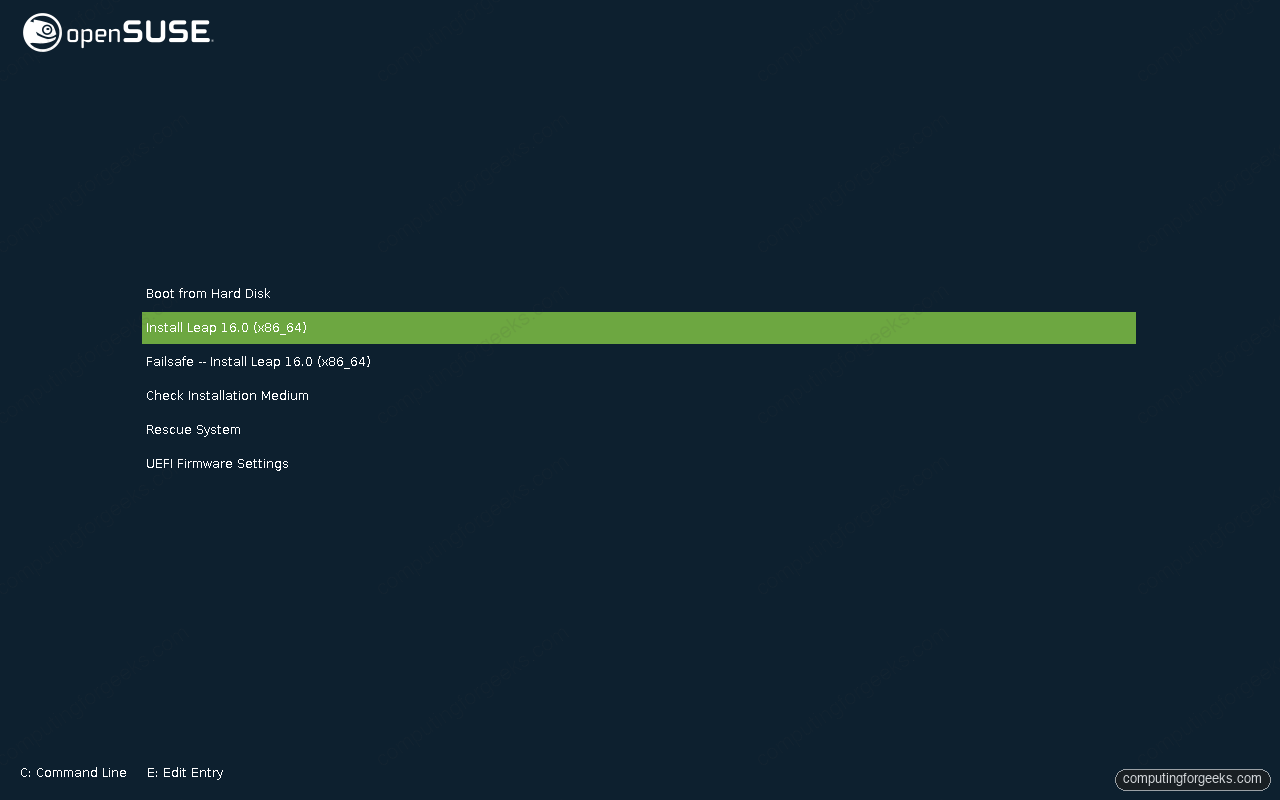
Choose Install Leap 16.0 and press Enter. The Failsafe entry is there for hardware that struggles with the defaults, and Check Installation Medium verifies the image if you suspect a bad download. The installer takes a minute or two to load, then drops you into Agama.
Walk through the Agama installer
Agama keeps everything on a single overview page with a menu down the left side. You can visit the sections in any order, and the green Install button stays disabled until the one required setting is in place. Here is each step.
Select the product
Agama can install more than one product from this image, so it asks which one you want first:
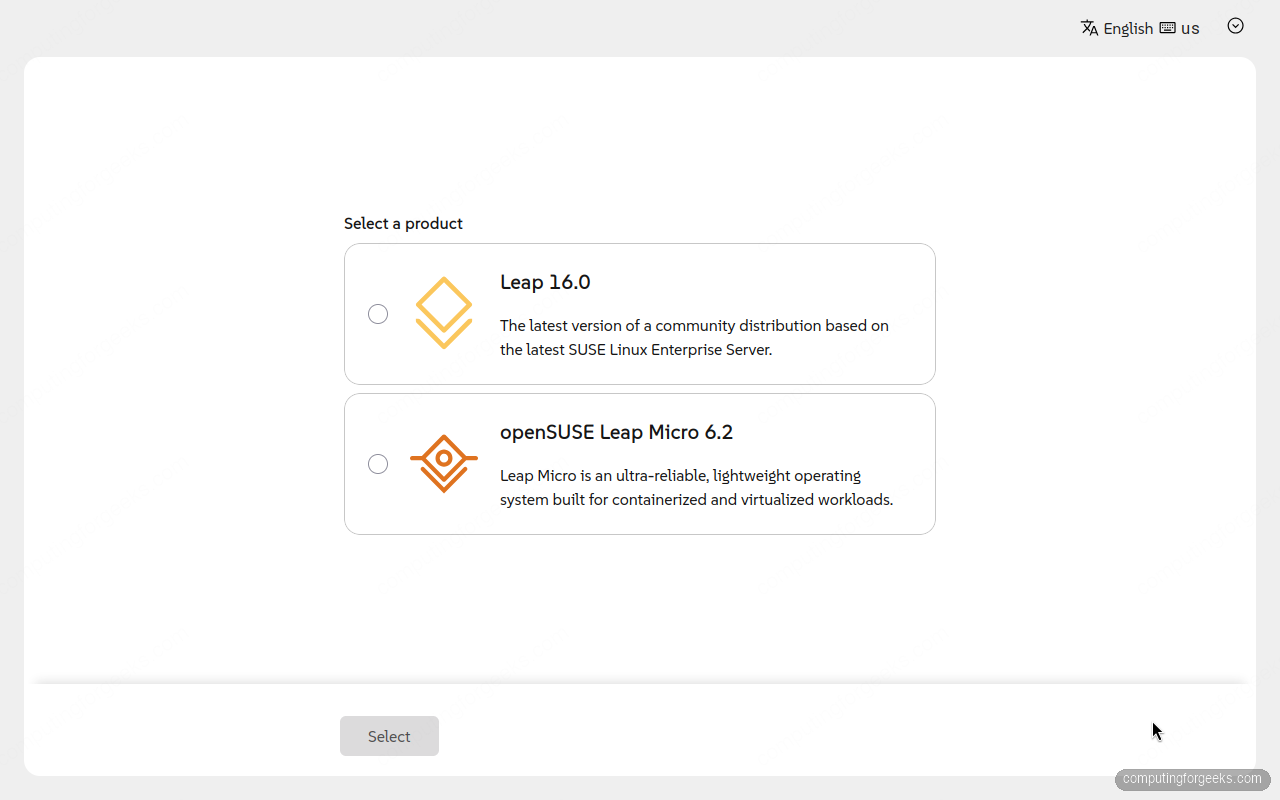
Pick Leap 16.0 and click Select. The other choice, openSUSE Leap Micro, is a minimal immutable system aimed at containers and edge devices, which is not what we are doing here.
Review the installation overview
The overview page sums up what Agama plans to do: the language, the target disk, and the software it will install.
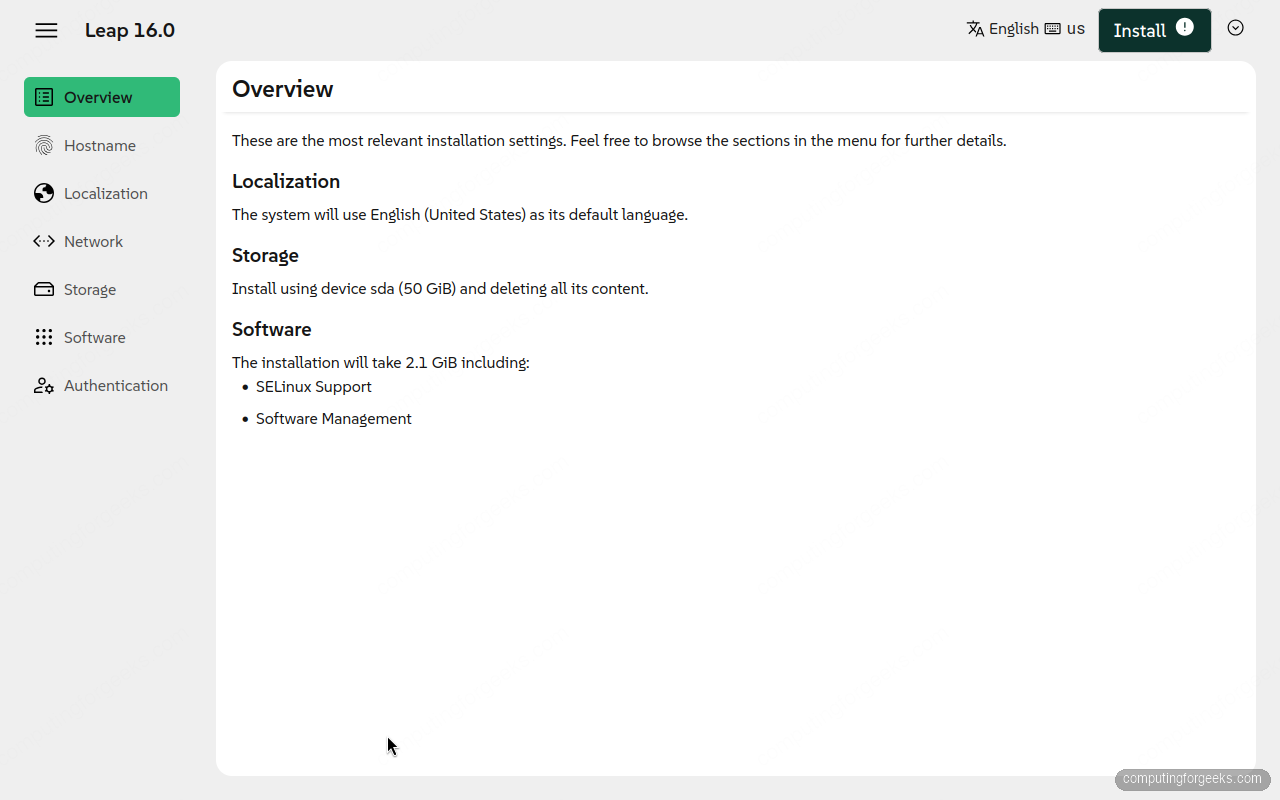
Notice that SELinux Support is already on the software list. That is the Leap 16 default. Everything on this page is editable from the menu on the left, so you only need to open the sections you actually want to change.
Choose your desktop and software
By default Agama installs a small text-only system. Open the Software section and click Change selection to add a desktop:
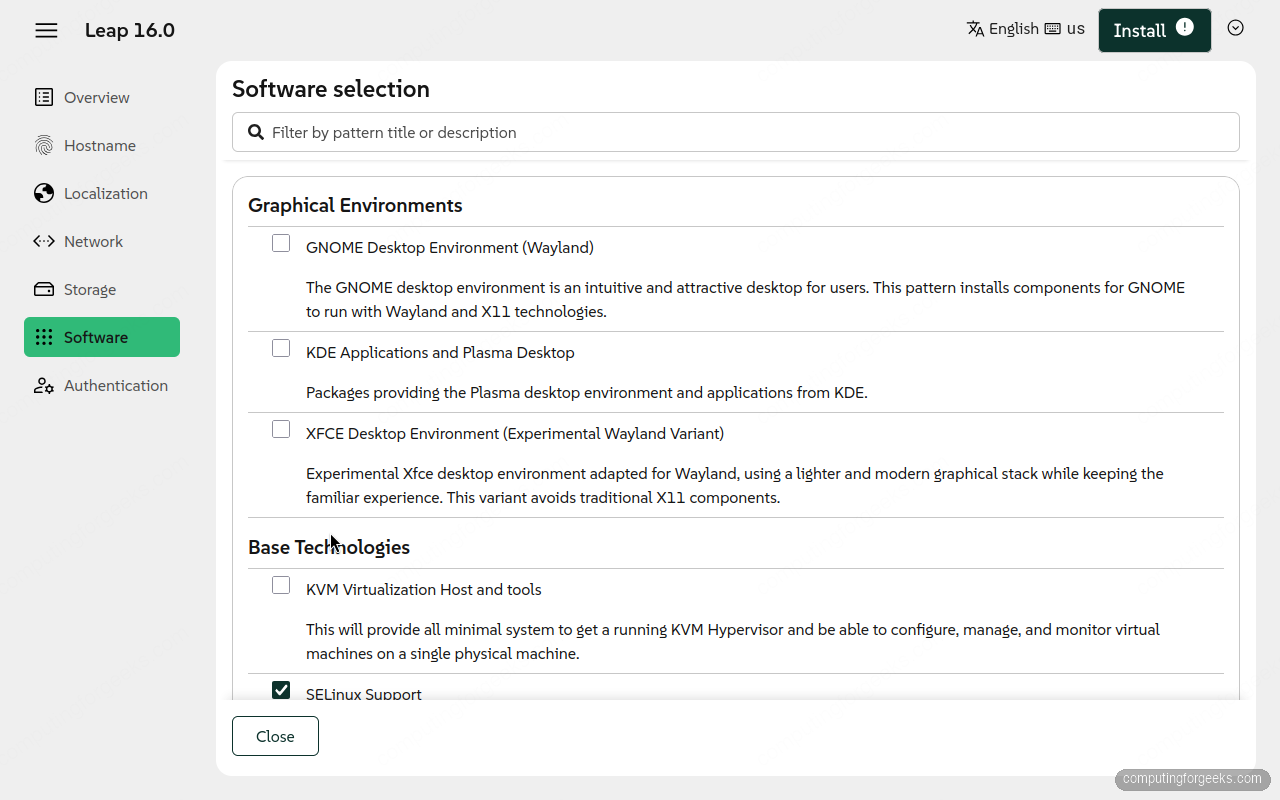
openSUSE Leap 16 gives you three desktops: GNOME on Wayland, KDE Plasma, and an experimental Xfce on Wayland. This guide picks GNOME. Tick the one you want and close the panel. Building a server instead? Leave the desktops unchecked and the install stays lean.
Set up the disk
The Storage section shows exactly what Agama will do to your disk before it touches anything.
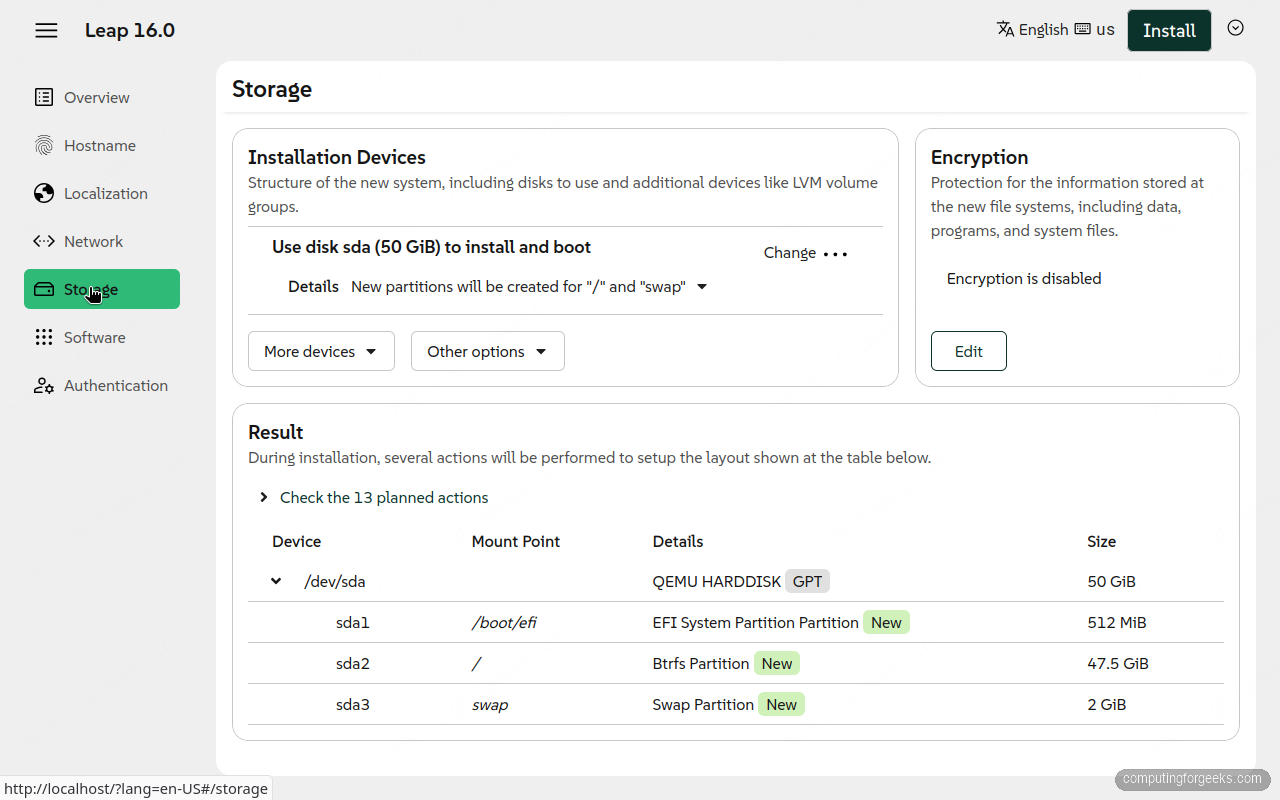
On an empty disk, Agama creates a 512 MiB EFI partition, a Btrfs root, and a small swap. Btrfs is the default root filesystem, which gives you automatic snapshots you can roll back to after a bad update. Installing alongside another OS, or want LVM or full-disk encryption? This is where you change it. On a dedicated disk, the defaults are a sensible starting point.
Create your user
Agama needs at least one login before it will install. Open Authentication and define your first user:
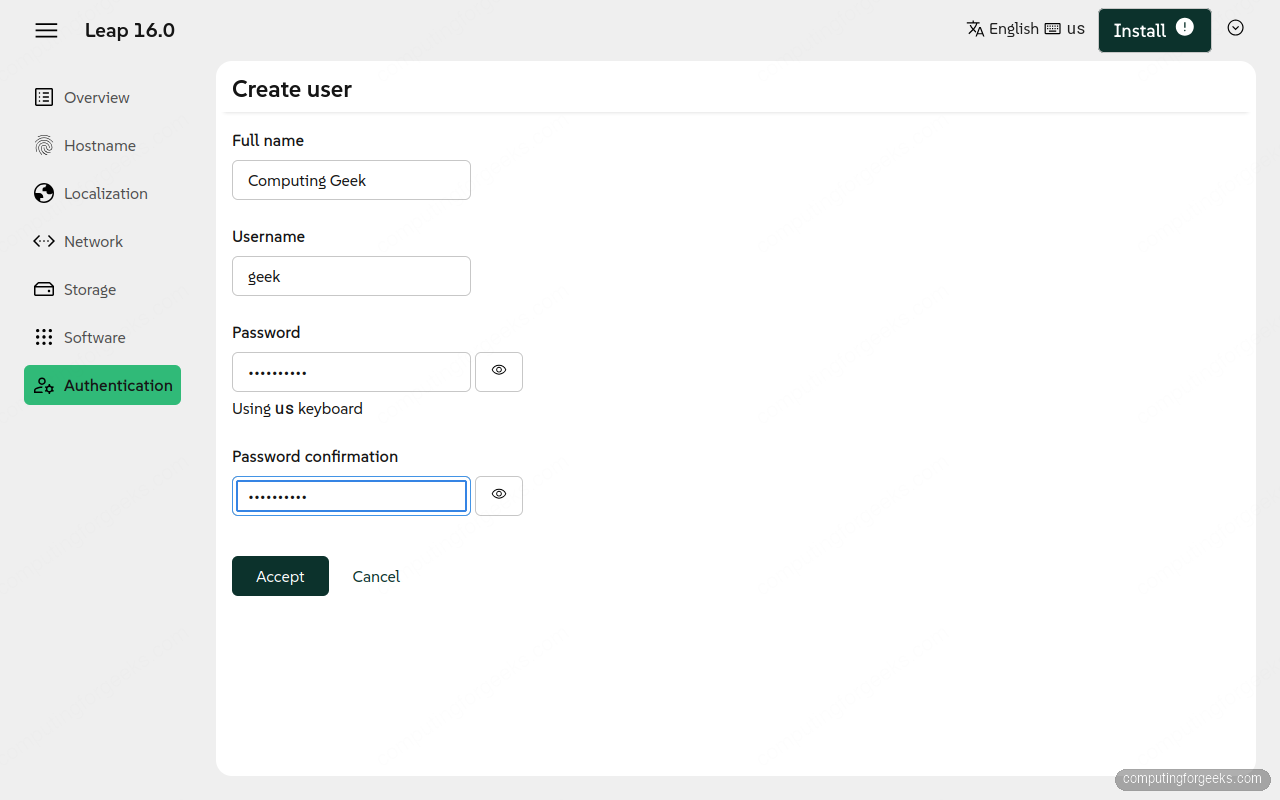
The first user you create gets sudo rights, so you don’t have to set a separate root password. Fill in a full name, a username, and a password, then click Accept. This is the part that trips people up: the Install button stays greyed out until you define a user or a root password here. Once the user is set, the warning clears and Install lights up.
Start the installation
With a user in place, click Install in the top right. Agama asks you to confirm, because the next step writes to the disk:
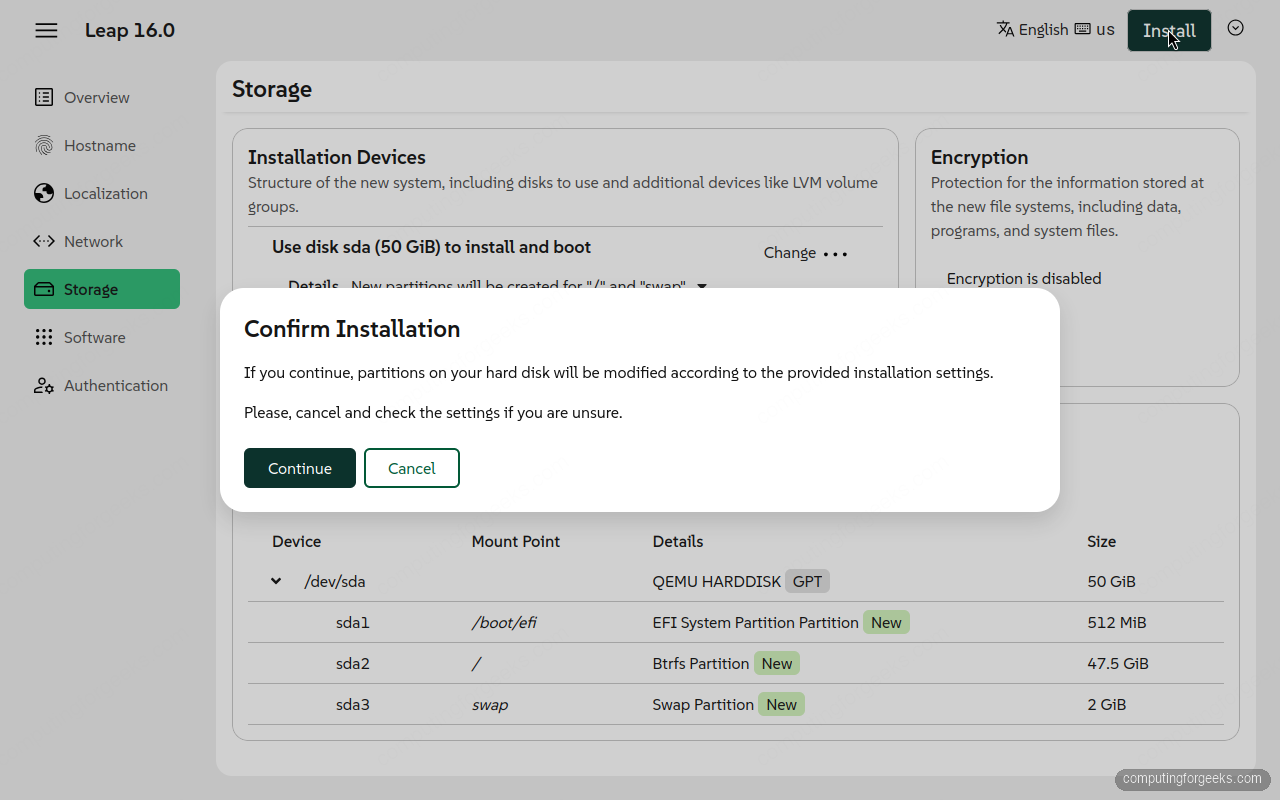
Click Continue. Agama partitions the disk and installs the packages. With a desktop selected, expect several minutes here:
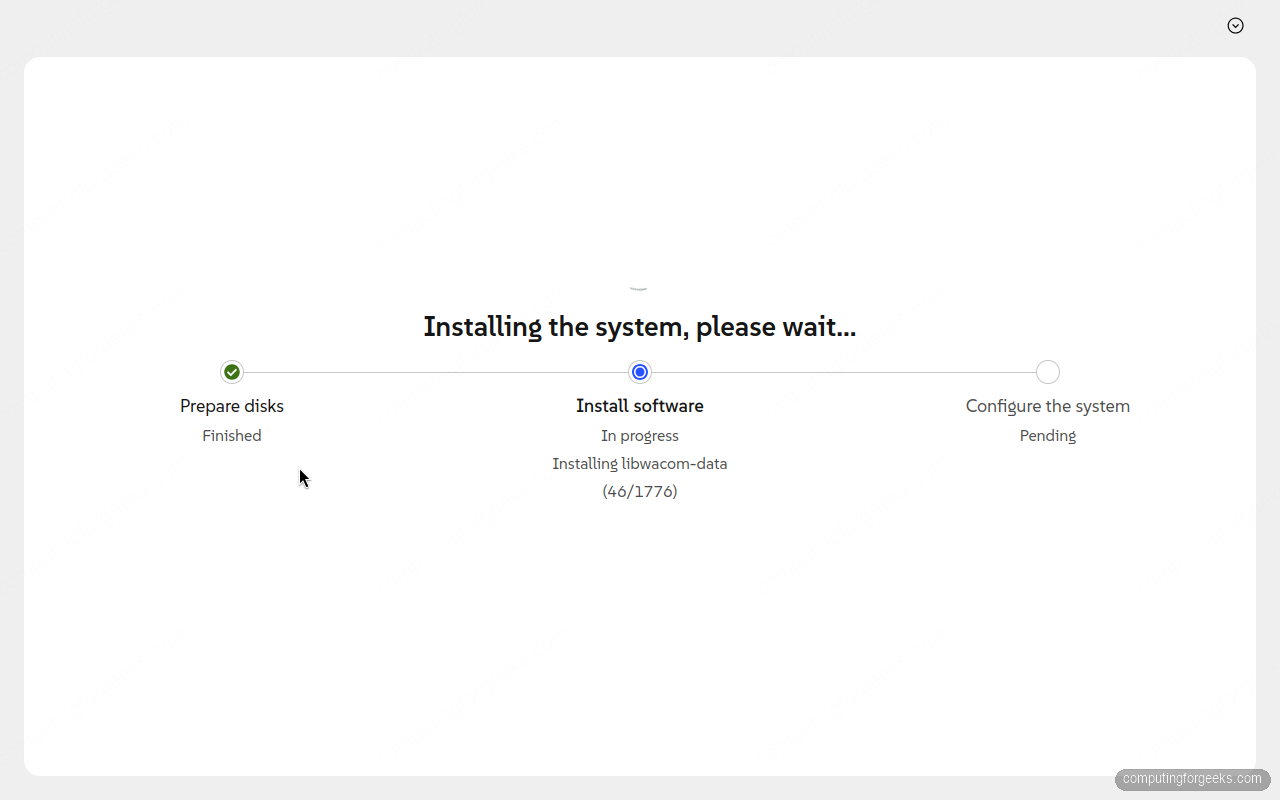
When it finishes, Agama prompts you to reboot. Remove the USB stick, or detach the ISO if you are in a VM, so the machine boots from disk instead of the installer.
First boot and login
After the reboot the openSUSE boot menu flashes by, then you reach the GNOME login screen:
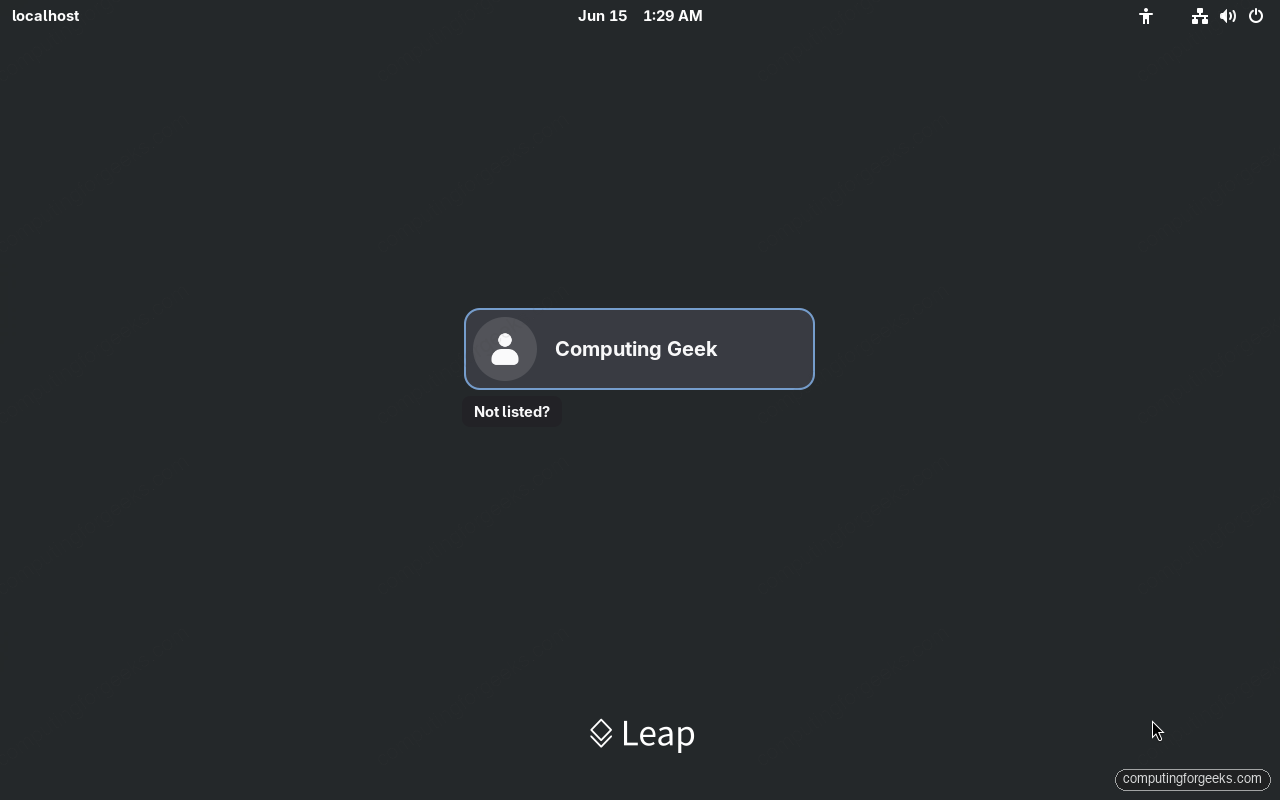
Pick your user, type the password you set during install, and you are in. Here is the GNOME desktop on a fresh openSUSE Leap 16 system:
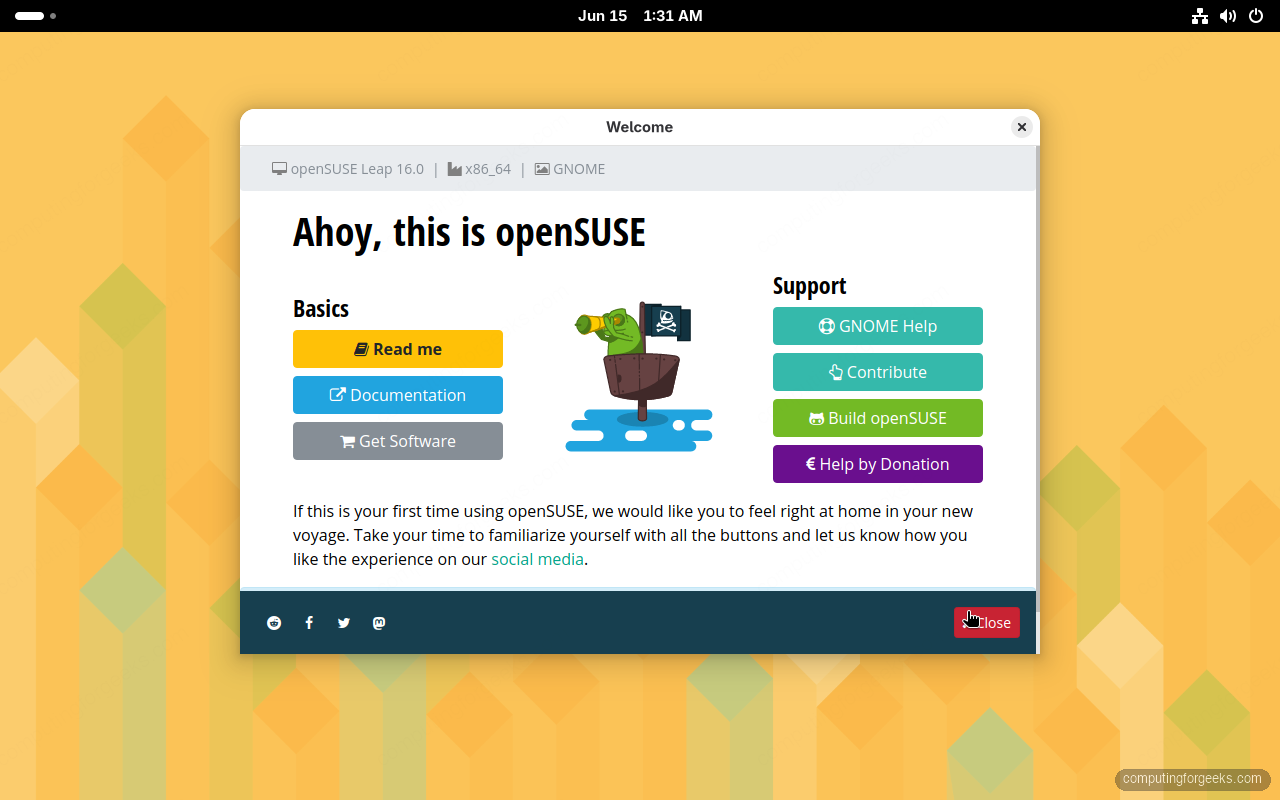
openSUSE Leap greets you with its amber geometric wallpaper and a Welcome window that names the version and desktop, which is handy confirmation that everything installed correctly. Close it when you are ready. From here the system behaves like any other GNOME setup, with Activities in the top left and the system menu in the top right.
Verify your openSUSE Leap 16 install
Open a terminal and confirm what you are running. Start with the release and kernel:
cat /etc/os-releaseThe PRETTY_NAME confirms Leap 16.0 with its SLES 16 base:
NAME="openSUSE Leap"
VERSION="16.0"
ID="opensuse-leap"
ID_LIKE="suse opensuse sle"
PRETTY_NAME="openSUSE Leap 16.0"
VERSION_ID="16.0"
Check the kernel next. Leap 16 ships the 6.12 LTS series:
uname -rNow confirm SELinux is on and enforcing, which is the headline security change in this release:
sudo sestatusYou should see enabled and enforcing with the targeted policy loaded:
SELinux status:                 enabled
SELinuxfs mount:                /sys/fs/selinux
Current mode:                   enforcing
Loaded policy name:             targeted
Here is the same check on the freshly installed system, version, kernel, and SELinux together:
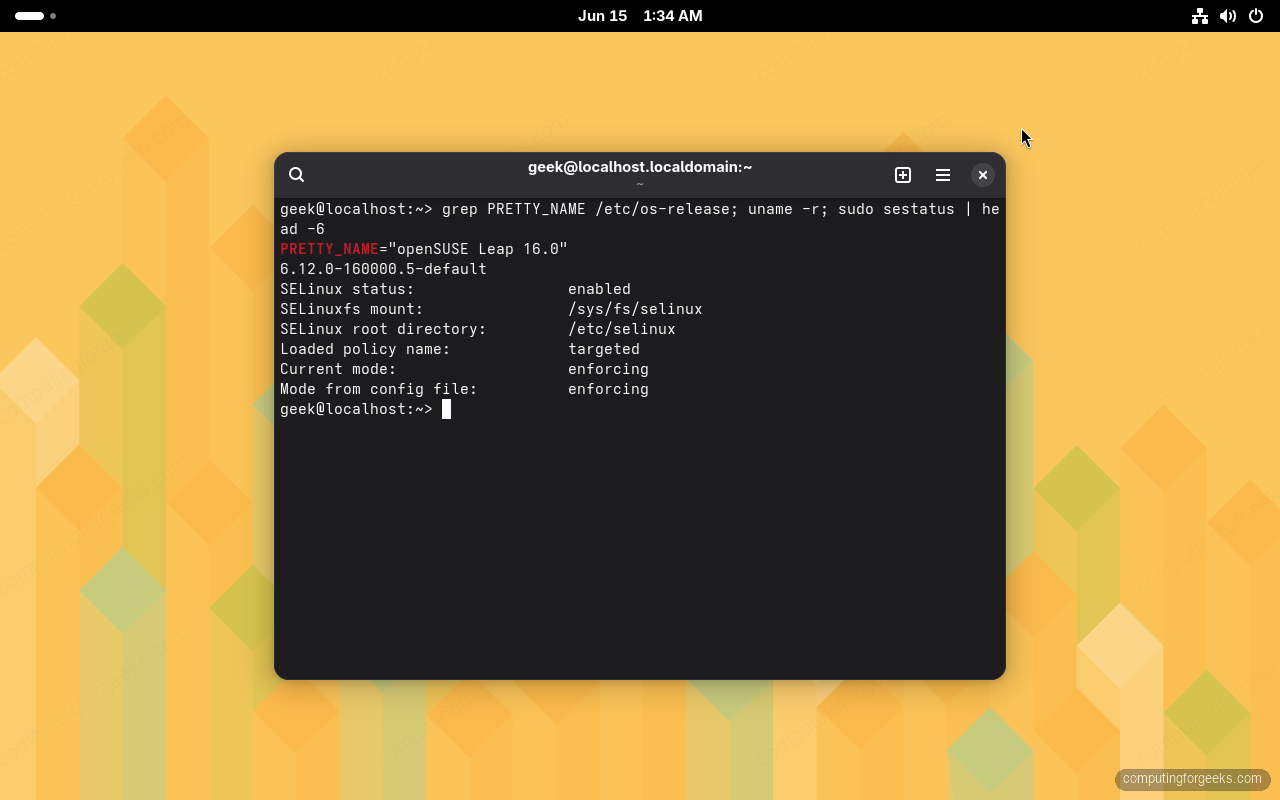
First things to do after installing openSUSE Leap 16
A fresh install is a starting point, not the finish line. Run these first.
Refresh the repositories and apply any pending updates. Leap 16 folds the SLE and community open-source packages into repo-oss and drops the old separate update repository, and Zypper’s parallel downloads make this quick:
sudo zypper refresh
sudo zypper update
openSUSE ships firewalld and turns it on by default. Confirm it is running and see which zone is active:
sudo firewall-cmd --state
sudo firewall-cmd --get-active-zones
If this machine is a server you will reach over the network, enable SSH so you can log in remotely:
sudo systemctl enable --now sshdOne habit worth keeping on Leap 16: when something gets blocked unexpectedly, the cause is often SELinux, not a broken config. Check the recent denials with sudo ausearch -m avc -ts recent and add the right rule rather than turning SELinux off. With the base in place, you can move on to real work, like a MariaDB database, PostgreSQL, a PHP and php-fpm stack, or Node.js.
Common questions
Is openSUSE Leap 16 free?
Yes. openSUSE Leap 16 is free to download and use, with no account or subscription required. Each release comes with 24 months of free maintenance and security updates from the openSUSE community.
Can I upgrade from Leap 15.6 to Leap 16?
Yes, but not with a plain zypper dup. Because the package stack changed so much, openSUSE provides a dedicated opensuse-migration-tool that handles the jump from Leap 15.6 to 16. On older or heavily customized systems, a clean install like the one above is often the calmer path.
Should I keep SELinux or switch to AppArmor?
Keep SELinux. It is the only security module the Leap 16 installer offers, it ships with a working targeted policy, and most packaged services run under it without any tuning. AppArmor can be enabled by hand after installation if you have profiles you depend on, but SELinux is the supported default and where the project is putting its effort.
What’s the difference between Leap and Tumbleweed?
Leap is a fixed release: stable, slow-moving, and supported for two years per version, which suits servers and people who want to install once and forget it. Tumbleweed is a rolling release that always has the newest packages, which suits desktops and developers who want the latest software. If you prefer the rolling model, see our guide on running openSUSE Tumbleweed in a VM.



Just running through an install of 16.0 after a 15.6 upgrade failed miserably whether using the migration tool or not. Agama is an absolute pain to use if you are trying to set the partitions up, especially if you are trying to maintain the prior drive and its contents. The old yast based partition editor was a fine beast which did its job well which is more than I can say for this new thing which tries too hard to force its own settings Thankfully the system I installed is a system that can be easily restored and isn’t a daily runner but I am not looking forward to updating my main system.
Agreed, the Agama storage flow is a real adjustment from the old YaST partitioner, especially when you want to keep an existing layout. In the Storage section, move off the guided proposal to the manual configuration: that lets you reuse existing partitions and mount them without reformatting, so their contents survive. Partitioning the disk beforehand with GParted and then pointing Agama at those mount points is the other reliable way to stay in control. YaST itself is still installed for post-install management; it is only the install-time partitioner that is gone.
This is scary. I have tried 3 times now to upgrade from Leap 15.6 to Leap 16.0 and opensuse-migration-tool fails. I have had system gurus look at these failed attempts and finally one said I must do a fresh install. But I have my disk partitions already strictly set up and don’t want any changes done to them.
Suppose I let the installer come up with a fresh KDE Plasma desktop. Then how do I overlay my old desktop onto the new one?
There is no supported way to overlay the old desktop onto a fresh system, but you rarely need to: your desktop settings live in your home directory (.config and friends), so the goal is to carry /home across. If /home is its own partition, switch Agama’s Storage section from the guided proposal to the custom setup, leave your partitions as do not modify, format only the root partition, and assign /home its mount point without formatting. Create the same username on first boot, reinstall your applications, and KDE picks your settings back up. If /home lives inside the root partition, back it up to external storage first and restore it after the install. Agama gives you less partitioning control than YaST did, so if it fights your layout, partition with GParted beforehand and point Agama at the result. Either way take a full backup before touching the disk, especially after three failed migration attempts.