A fresh Azure Linux 4.0 install is deliberately bare. It boots, it picks up an address over DHCP, and that is about it. There is no desktop, no editor you are used to, and almost nothing running that you did not ask for. That minimalism is the point, but it does mean the first half hour after the installer finishes is yours to shape into something you actually want to use.
This guide covers the things to do after installing Azure Linux 4.0: updating the base, creating a sudo user, locking down SSH, setting the hostname and network, installing a working toolkit, opening only the ports you need, and getting along with SELinux instead of fighting it. If you have not installed it yet, start with our step-by-step install guide, and if you are still weighing it up, the full review covers where it fits.
Everything below was run on a fresh Azure Linux 4.0 install (kernel 6.18.31) on a Proxmox VM in June 2026.
1. Update the system first
Before anything else, pull in whatever has shipped since the ISO was built. Azure Linux gives you tdnf and dnf, both of which are dnf5 here, and Microsoft now steers 4.0 users toward dnf. Either one updates the box:
sudo dnf -y updateOn a fresh beta image this usually grabs the release files and the bootloader and finishes in well under a minute. The dnf5 commands from the Fedora world apply unchanged, so dnf search, dnf info, and dnf history all behave the way you expect.
2. Create a user with sudo
If you created an administrator during the install, this is already done and you can skip ahead. If you only set a root password, make yourself a regular account now and use root only when you have to. Set a username once as a shell variable so the rest of the commands read cleanly:
export NEWUSER="geek"
sudo useradd -m -s /bin/bash "${NEWUSER}"
sudo passwd "${NEWUSER}"
Membership of the wheel group is what grants sudo on Azure Linux, exactly as on Fedora and RHEL. Add the account to it:
sudo usermod -aG wheel "${NEWUSER}"Confirm the account landed in the group, then test that sudo actually works for it:
id "${NEWUSER}"
sudo -u "${NEWUSER}" sudo whoami
The second command should prompt for the user’s password and print root, which means the account can elevate. From here on, log in as this user rather than as root.
3. Lock down SSH
Azure Linux already makes a sensible choice here. Out of its shipped drop-in config, root can log in over SSH only with a key, never a password. You can see it for yourself:
grep -r PermitRootLogin /etc/ssh/sshd_config.d/It reports the shipped default, which is key-only for root:
/etc/ssh/sshd_config.d/50-permit-root-login.conf:PermitRootLogin prohibit-passwordNotice the path. Azure Linux reads its SSH settings from drop-in files under /etc/ssh/sshd_config.d/, so you add your own changes as a new file there rather than editing the main config. Once you have copied your key across with ssh-copy-id and confirmed you can log in with it, turn password logins off for everyone. Create a hardening drop-in:
sudo vim /etc/ssh/sshd_config.d/99-hardening.confAdd these two lines:
PasswordAuthentication no
KbdInteractiveAuthentication no
Because you created the file on the running system, it picks up the right SELinux label automatically, so there is nothing extra to do. Check the config is valid and reload the service:
sudo sshd -t
sudo systemctl restart sshd
Keep your current session open while you test a new one. Locking yourself out of a headless box because of a typo is the classic way to ruin an afternoon, and an open session is your safety net.
4. Set the hostname and check the network
A fresh install answers to the generic name azurelinux. Give it something meaningful:
sudo hostnamectl set-hostname azl-node01Networking is handled by systemd-networkd, not NetworkManager, which catches people coming from other RHEL-family distros. The default profile simply takes a DHCP lease on the first wired interface. For a server you usually want a fixed address instead. Create a network file for your interface:
sudo vim /etc/systemd/network/10-static.networkMatch your interface name (it uses predictable naming such as ens18, which you can confirm with ip -br addr) and set the address, gateway, and DNS you want:
[Match]
Name=ens18

[Network]
Address=10.0.1.50/24
Gateway=10.0.1.1
DNS=10.0.1.1
DNS=1.1.1.1
The 10- prefix matters: systemd-networkd applies the first matching file in alphanumeric order, so naming yours 10-static.network sorts it ahead of the shipped 20-wired-dhcp.network and your static config wins. Apply it by reloading systemd-networkd, then confirm the interface took the new address:
sudo networkctl reload
networkctl status ens18
DNS resolution runs through systemd-resolved, so resolvectl status is where you confirm which servers are in use if anything looks off.
5. Install a working toolkit
This is the part that surprises people most. The base image is so lean that tools you treat as always-present are not installed, and the default editor is nano rather than vim. None of that is a problem, because the repositories carry what you need. Install vim alongside the rest of a normal working set in one go:
sudo dnf install -y vim git tmux bash-completion tar lessThat pulls in vim (the package is vim-enhanced), Git, tmux, and shell completion. Log out and back in afterwards so bash-completion takes effect. A couple of familiar tools genuinely are absent: htop is not packaged, so reach for the built-in top when you want a quick process view, and the classic wget is not installed, though curl ships by default and the wget2 package provides a wget command if you prefer it. For most server work, this short list of installs is all you need to feel at home.
6. Open only the ports you need
firewalld is active from first boot, which is a good default. Look at what is already allowed:
sudo firewall-cmd --list-allOn a clean install the public zone allows just SSH and the DHCPv6 client, and nothing else:
public (default, active)
  target: default
  services: dhcpv6-client ssh
  ports:
  protocols:
Add a service when you actually deploy something. For a web server, open HTTP and HTTPS, then reload so the change takes effect:
sudo firewall-cmd --permanent --add-service=http --add-service=https
sudo firewall-cmd --reload
The mechanics are identical to any other firewalld system, so our notes on working with firewalld carry over directly. The rule of thumb is the same everywhere: open a service only when something is listening behind it.
7. Get comfortable with SELinux
Azure Linux runs SELinux in enforcing mode from the first boot, and you should leave it that way. The temptation to set it permissive the moment a service misbehaves is exactly the habit worth breaking, because the tools to work with it are easy once they are installed. The management commands live in a package that is not in the base set:
sudo dnf install -y policycoreutils-python-utilsThat gives you semanage, which is what you reach for when a service needs a non-standard port. Say you want to run SSH on a second port; you label it first so SELinux allows it:
sudo semanage port -a -t ssh_port_t -p tcp 2222You can list what a type already covers to see why something is or is not allowed:
sudo semanage port -l | grep ssh_port_tThe default shows port 22 already labelled, with your addition alongside it:
ssh_port_t tcp 2222, 22A fresh box ships the three security checks that matter in a good state by default, which is the baseline you build on:
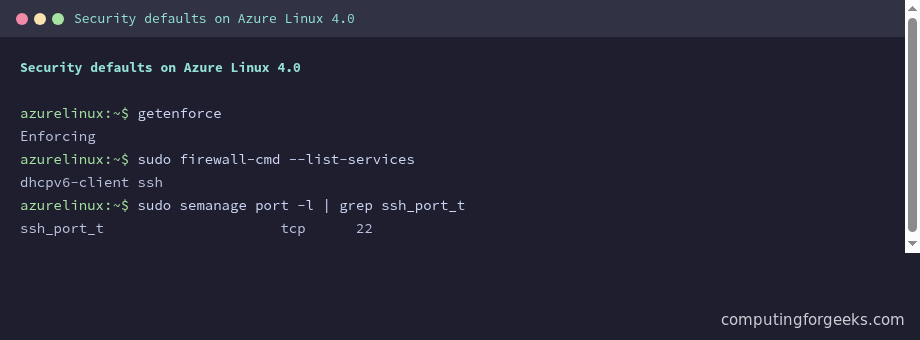
When you move or restore files into a service directory and access mysteriously breaks, restorecon -Rv /path re-applies the correct labels and fixes it. That one command solves the majority of day-to-day SELinux puzzles. For the deeper details, the SELinux command reference is worth a bookmark.
8. Set the time zone and confirm time sync
A new install sits on UTC, which is fine for servers but not always what you want for logs you read by hand. Set your zone:
sudo timedatectl set-timezone America/New_YorkTime synchronisation is handled by chrony, which is installed and enabled by default. Confirm it is actually talking to a time source:
timedatectl
chronyc sources
The timedatectl output should show your zone and an active NTP service. If chronyc sources lists no servers, your network may be blocking outbound NTP, which is the usual cause.
9. Review what’s running
One upside of a minimal base is that there is very little to audit. Take a look at what is actually running:
systemctl list-units --type=service --state=runningA fresh install reports only about fifteen services, and each one earns its place:
auditd.service
chronyd.service
dbus-broker.service
firewalld.service
sshd.service
systemd-journald.service
systemd-logind.service
systemd-networkd.service
systemd-resolved.service
systemd-timedated.service
There are no stray daemons to switch off, which is exactly what you want from a host whose job is to disappear under your workload. While you are here, a quick scan of the boot log for errors is a good habit:
journalctl -p err -bOn a clean install that turns up only a handful of harmless entries, usually firmware or virtio probes, and nothing that needs your attention.
10. Run your first containers
Containers are what Azure Linux is built for, and the base ships no runtime, so install Podman when you are ready to use it:
sudo dnf install -y podmanPodman here speaks the Docker image format and runs rootless without extra setup, so you can pull and run images from Docker Hub straight away. When you want a container to start at boot and behave like any other service, wire it up with Quadlet and systemd the same way you would on Fedora. The container experience is the strongest part of the distribution, and it is covered in more depth in our Azure Linux 4.0 review.
11. Keep it patched automatically
On a box you do not log into every day, automatic updates are worth the two minutes they take to set up. The dnf5 automatic plugin handles it:
sudo dnf install -y dnf5-plugin-automaticBy default it downloads updates but does not apply them. To have it install them on its own, open the config:
sudo vim /etc/dnf/automatic.confUnder the [commands] section, set it to apply what it finds:
[commands]
upgrade_type = default
apply_updates = yes
Then enable the timer so it runs on a schedule:
sudo systemctl enable --now dnf5-automatic.timerWith that in place you have a tidy, current, sensibly locked-down Azure Linux box: a real user with sudo, key-only SSH, a fixed address, the tools you actually use, a closed firewall, SELinux left enforcing, and updates that look after themselves. That is a solid foundation for whatever container workload you put on it next.