If you have ever run a container long-term with podman run -d, you have written a deployment with no lifecycle, no logging integration, and no obvious way to restart on host reboot. Quadlet is Podman’s answer to that gap: drop a small declarative file in the right systemd directory, run systemctl daemon-reload, and Podman generates a proper systemd unit that integrates with the journal, supports restart policies, plays nicely with systemctl enable, and survives reboots cleanly. Both rootful and rootless flavors work the same way.
This guide walks through running Podman 5 containers as systemd services on Fedora 44 using Quadlet. You will deploy a real Nginx container as a rootful systemd unit, a Caddy container as a rootless unit under your own user, see the generated systemd unit, and walk through the additional Quadlet file types (.network, .volume, .build, .pod) that compose into multi-container deployments. The same syntax works on Fedora 43 and Fedora 42 because Podman 5 has shipped as the default on every release since F40. Container basics like image pulls and image listing come from the DNF5 cheatsheet install path that gives you Podman.
Verify Podman 5 ships Quadlet
Quadlet has been part of the Podman package since Podman 4.4 and became the recommended deployment style starting with Podman 5. Fedora 44 ships Podman 5.8.x as the default; no extra install required:
podman --version
rpm -q podman containers-common
ls /usr/libexec/podman/quadlet
The third command is the proof that Quadlet is actually present on disk; it is the binary the systemd generator invokes when it sees a .container file. Expected output on F44 is:
podman version 5.8.2
podman-5.8.2-1.fc44.x86_64
containers-common-0.67.0-1.fc44.noarch
/usr/libexec/podman/quadlet
Quadlet uses two well-known directory paths. Rootful units live in /etc/containers/systemd/; rootless units under the current user live in ~/.config/containers/systemd/. The first one already exists on a default install (owned by the podman package); the second you create on demand:
ls -ld /etc/containers/systemd/
mkdir -p ~/.config/containers/systemd/
The rootful directory is the one most setups start with; the rootless directory becomes important when you want containers tied to a user account rather than the host machine.
Deploy a rootful container with a .container file
The minimal Quadlet unit type is .container. It declares one container with its image, ports, and lifecycle. Create a unit file for an Nginx demo:
sudo vi /etc/containers/systemd/web.containerPaste the following. Three sections matter: [Container] is Quadlet-specific (image, ports, name, environment), [Service] is standard systemd (restart policy, resource limits), and [Install] determines what systemctl enable hooks into:
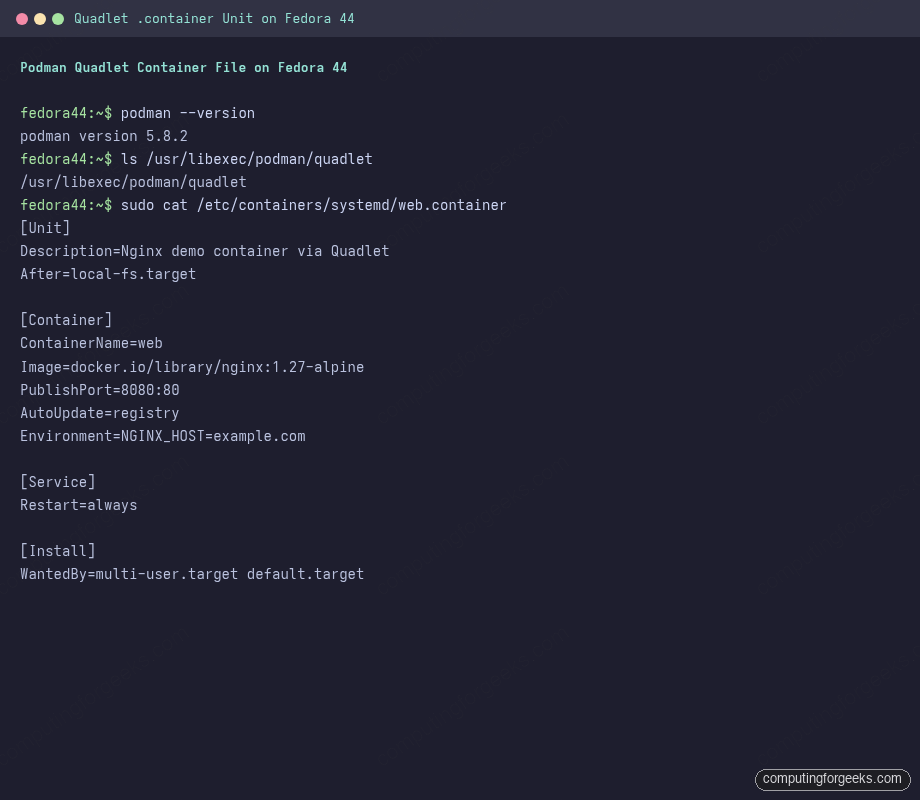
The plain-text version, same content:
[Unit]
Description=Nginx demo container via Quadlet
After=local-fs.target

[Container]
ContainerName=web
Image=docker.io/library/nginx:1.27-alpine
PublishPort=8080:80
AutoUpdate=registry
Environment=NGINX_HOST=example.com

[Service]
Restart=always

[Install]
WantedBy=multi-user.target default.target
Reload systemd to trigger the Quadlet generator. It scans the well-known directory, sees the new file, and writes a translated .service unit to /run/systemd/generator/:
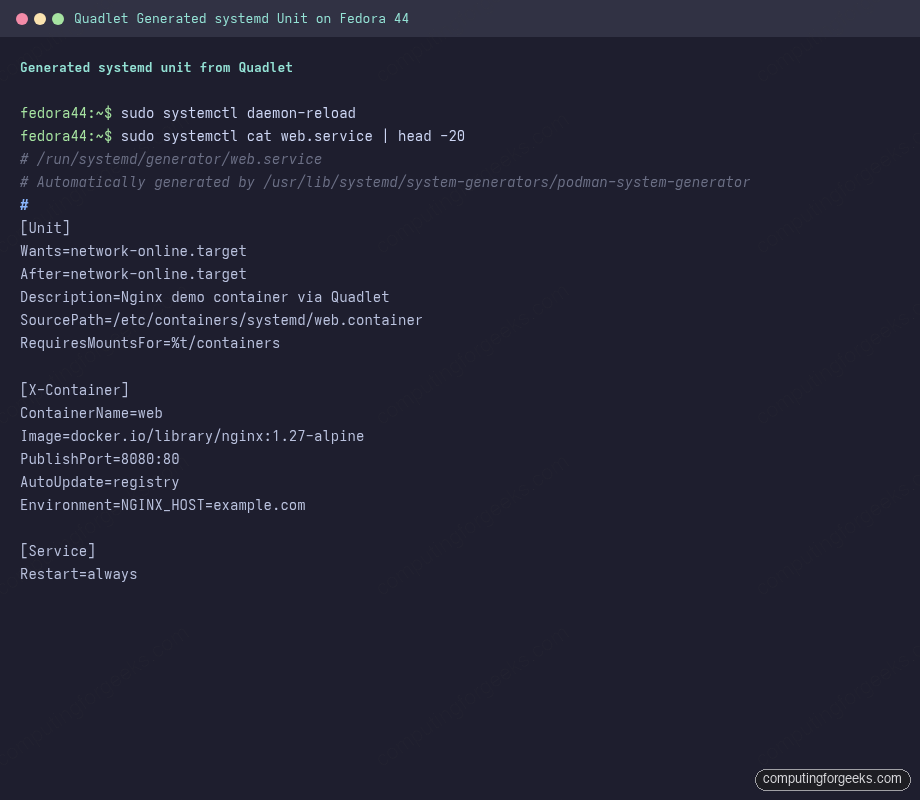
sudo systemctl daemon-reloadInspect what was generated. The output is annotated with the source file path so you can tell at a glance that this unit came from a Quadlet, not from a hand-written systemd file:
sudo systemctl cat web.service | head -25You will see something like the following. The SourcePath directive points back at the original .container file; the ExecStop commands handle clean shutdown via podman rm:
Start the unit. Pulling the Nginx image (about 20 MB) takes a few seconds the first time; subsequent starts use the cached image:
sudo systemctl start web.service
sudo systemctl status web.service --no-pager | head -10
The status line should read Active: active (running). Confirm the container is up via the Podman CLI and curl the published port to validate the network plumbing:
sudo podman ps
curl -sI http://localhost:8080/
Nginx responds HTTP/1.1 200 OK. The before-and-after sequence on a live F44 box:
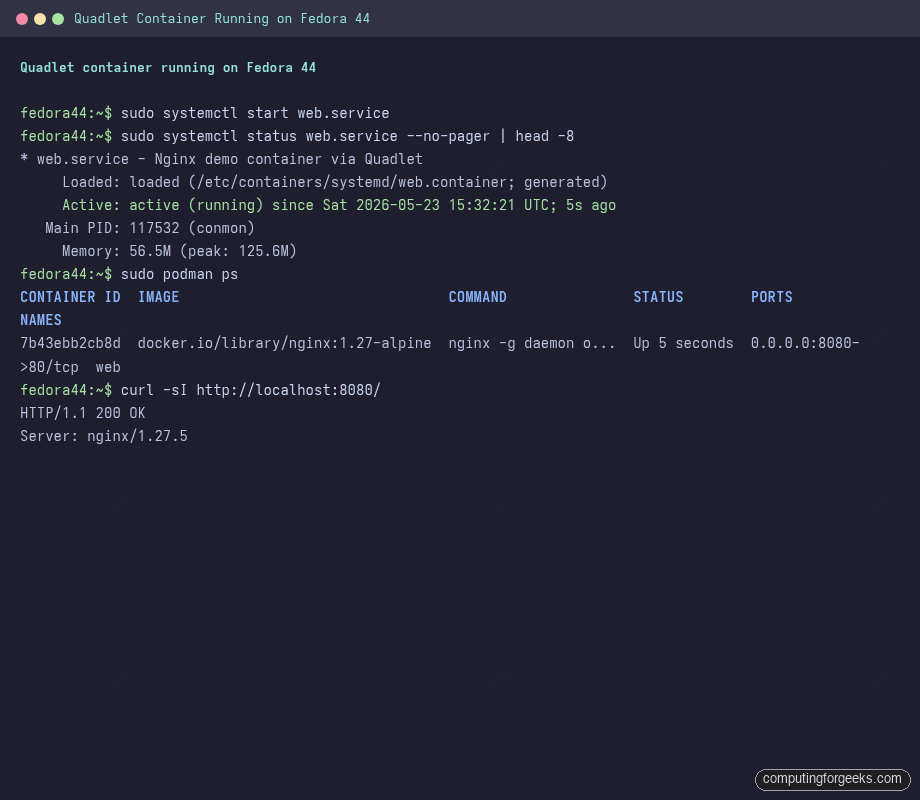
The container is now a real systemd citizen: journalctl -u web.service shows the container logs, systemctl enable web.service would normally hook it into a target for boot, but Quadlet auto-handles this when WantedBy is in the [Install] section.
Deploy a rootless container under your user
The rootless flow is the same, with three differences: the unit file lives in ~/.config/containers/systemd/, you talk to systemd with systemctl --user, and you need lingering enabled if you want the unit to survive logout:
mkdir -p ~/.config/containers/systemd ~/caddy-data
loginctl enable-linger $USER
vi ~/.config/containers/systemd/api.container
The %h token expands to the user’s home directory inside the Volume mapping (a Quadlet-specific convenience), and the :Z suffix tells Podman to relabel the mount so SELinux lets the container write to it:
[Unit]
Description=Caddy demo (rootless) via Quadlet

[Container]
ContainerName=api
Image=docker.io/library/caddy:2.10-alpine
PublishPort=8081:80
Volume=%h/caddy-data:/data:Z

[Service]
Restart=on-failure

[Install]
WantedBy=default.target
Reload the user systemd, start the unit, verify:
systemctl --user daemon-reload
systemctl --user start api.service
systemctl --user status api.service --no-pager | head -10
podman ps
curl -sI http://localhost:8081/
Same drill: status reads active, podman ps lists the container, and curl returns 200. The crucial difference is the user namespace: the container’s UID 0 is your user’s UID on the host, so files the container writes to ~/caddy-data are owned by you, not root. The SELinux survival guide covers what the :Z mount option actually does at the policy layer.
Compose containers with .network, .volume, and .pod
Real deployments need more than one container plus a shared volume and network. Quadlet supports four file types beyond .container:
| File type | Defines | Refer to it in .container as |
|---|---|---|
.network |
A user-defined Podman network | Network=mynet.network |
.volume |
A named Podman volume | Volume=mydata.volume:/data |
.pod |
A Podman pod (multiple containers, shared netns) | Pod=mypod.pod |
.build |
An image to build from a Containerfile/Dockerfile | Image=myimage.build |
A two-tier app (Postgres + a Node API) usually maps to one .network, one .volume (the database files), and two .container files referencing them. Example database side:
sudo vi /etc/containers/systemd/app-net.networkNetwork unit content:
[Network]
NetworkName=app-net
DisableDNS=false
DNS=1.1.1.1
Volume unit at /etc/containers/systemd/app-db-data.volume:
[Volume]
VolumeName=app-db-data
Container unit at /etc/containers/systemd/app-db.container, referencing the above by their unit names:
[Container]
ContainerName=app-db
Image=docker.io/library/postgres:17-alpine
Network=app-net.network
Volume=app-db-data.volume:/var/lib/postgresql/data:Z
Environment=POSTGRES_PASSWORD=changeme
Environment=POSTGRES_DB=app

[Service]
Restart=always

[Install]
WantedBy=multi-user.target
Reload and start; the generator brings the network and volume up first, then the container that depends on them:
sudo systemctl daemon-reload
sudo systemctl start app-db.service
sudo podman ps
sudo podman network ls
sudo podman volume ls
The output of podman network ls shows app-net in the list, podman volume ls shows app-db-data, and the Postgres container reports listening on its standard port inside the network.
Auto-update images with AutoUpdate=registry
One of Quadlet’s biggest selling points over hand-written systemd units is image auto-update. Add a single line to the [Container] section, plus a system-wide systemd timer, and Podman pulls the new image on every check and restarts the container if a newer tag of the same digest exists:
AutoUpdate=registryEnable the auto-update timer for the host. It runs once per day by default; check current state with:
sudo systemctl enable --now podman-auto-update.timer
sudo systemctl list-timers podman-auto-update --no-pager
Force an immediate check (useful when validating the workflow) with sudo podman auto-update. The command reports which containers were checked, whether a new image was pulled, and whether the unit was restarted. Containers without AutoUpdate=registry in their Quadlet definition are silently skipped, which is exactly the opt-in behavior you want.
Convert existing docker-compose files
For teams migrating from Docker Compose or Kubernetes manifests, the cleanest path is one .container file per service. There is no auto-conversion tool that handles the full Compose feature set; the manual mapping is straightforward enough:
| Compose key | Quadlet equivalent |
|---|---|
image |
Image= in [Container] |
ports |
PublishPort=8080:80 |
volumes |
Volume=path-or-volume.volume:/in/container:Z |
environment |
Environment=KEY=value (one per line) |
env_file |
EnvironmentFile=/path/to/file |
depends_on |
[Unit] After=other.service |
restart: always |
[Service] Restart=always |
networks |
Network=mynet.network + matching .network file |
healthcheck |
HealthCmd=, HealthInterval=, HealthRetries= |
For the few Compose features without a clean mapping (build dependencies across services, profiles, the extends keyword), use podman-compose as a stop-gap and migrate one service at a time as you touch it.
Troubleshoot common Quadlet errors
Error: “Unit web.service not found” after daemon-reload
The Quadlet generator did not pick up your file. Most common causes: the file is not under one of the watched directories (/etc/containers/systemd/, /usr/share/containers/systemd/, or ~/.config/containers/systemd/ for rootless), or the filename is missing the .container extension. Verify with:
sudo /usr/libexec/podman/quadlet -dryrun /etc/containers/systemd/ 2>&1 | head -20Dry-run mode prints what would be generated for each file, plus any parse errors. Fix the warnings before re-running daemon-reload.
Error: “ContainerName ‘web’ is already in use”
A previous run of the same container left a dangling container with the same name. The Quadlet-generated ExecStopPost tries to clean this up, but a SIGKILL or sudden host reboot can leave one behind. Remove it manually:
sudo podman rm -f web
sudo systemctl start web.service
Once the dangling container is gone, the unit starts cleanly and Podman recreates the container with the desired name.
Error: rootless container fails to write to a host-mounted volume
SELinux is blocking the write because the volume is not labelled container_file_t. Add the :Z mount option (or :z for shared, when multiple containers need access). If you cannot edit the volume line, label the path manually:
sudo semanage fcontext -a -t container_file_t "/path/to/data(/.*)?"
sudo restorecon -Rv /path/to/data
Restart the container after relabelling and the writes succeed; the label change is persistent across reboots.
Error: rootless unit stops when you log out
Lingering is not enabled for your user, so systemd kills the user manager when you log out. Enable lingering (once, persistent) with loginctl enable-linger $USER; check the status with loginctl show-user $USER | grep Linger.
Error: image pull fails with “no such host” or DNS errors
The container is starting before the network is up. The Quadlet generator adds Wants=network-online.target automatically, but very fast-booting hosts can still race. Add an explicit retry in the [Service] section:
[Service]
Restart=on-failure
RestartSec=10s
The image pull happens once on first start, then the cached image is used; transient DNS failures recover on the next restart attempt.
With Quadlet, the line between “a container running” and “a service running” disappears. The integration with systemd is real, the rootless path actually works, and the auto-update behavior makes long-running deployments much less of a babysit. Pair this with the Distrobox and Toolbox guide for interactive container dev environments, the Podman Compose setup for the migration path from docker-compose.yml, and the firewalld walkthrough for the host-side network policy that should sit in front of the published ports.