Distrobox and Toolbox solve the same problem in different ways: they let you run a different Linux distribution inside a container, with full home-directory integration, audio, microphone, GPU passthrough, and SSH keys, without leaving your Fedora host. Distrobox is the more flexible of the two and pulls images from any OCI registry. Toolbox is the Fedora-native option and pulls only Fedora toolbox images, but it ships with the polish of being maintained as part of the upstream Fedora project.
This guide installs both tools on Fedora, walks the practical commands for creating an Ubuntu container with Distrobox and a Fedora container with Toolbox, demonstrates the shared-home and shared-display integration, and lays out when to pick each tool. Every command was executed on a real Fedora install and the output you see in the screenshots is what your terminal will show.
Distrobox vs Toolbox: when to use which
Both tools wrap Podman to create rootless containers, but they differ in scope and ecosystem:
- Distrobox handles any base image. You can run Ubuntu, Debian, Arch, openSUSE, Alma, Rocky, Kali, Alpine, NixOS, or even another Fedora release. Distrobox is the right pick when you need a specific distro for a project (an Ubuntu LTS for an Ansible role, an Arch container for AUR access, a Debian box to test a Debian package).
- Toolbox is Fedora-only. Its container images are tracked in the Fedora release schedule and tend to be smaller and faster to enter. Toolbox is the right pick when you want a clean Fedora sandbox to install development packages without polluting the host, especially on Silverblue or Kinoite where dnf cannot reach the host filesystem at all.
You can install both on the same host and pick the right one per project. The companion post-install guide in this series uses Distrobox as the default; this article shows the install and basic workflow for both.
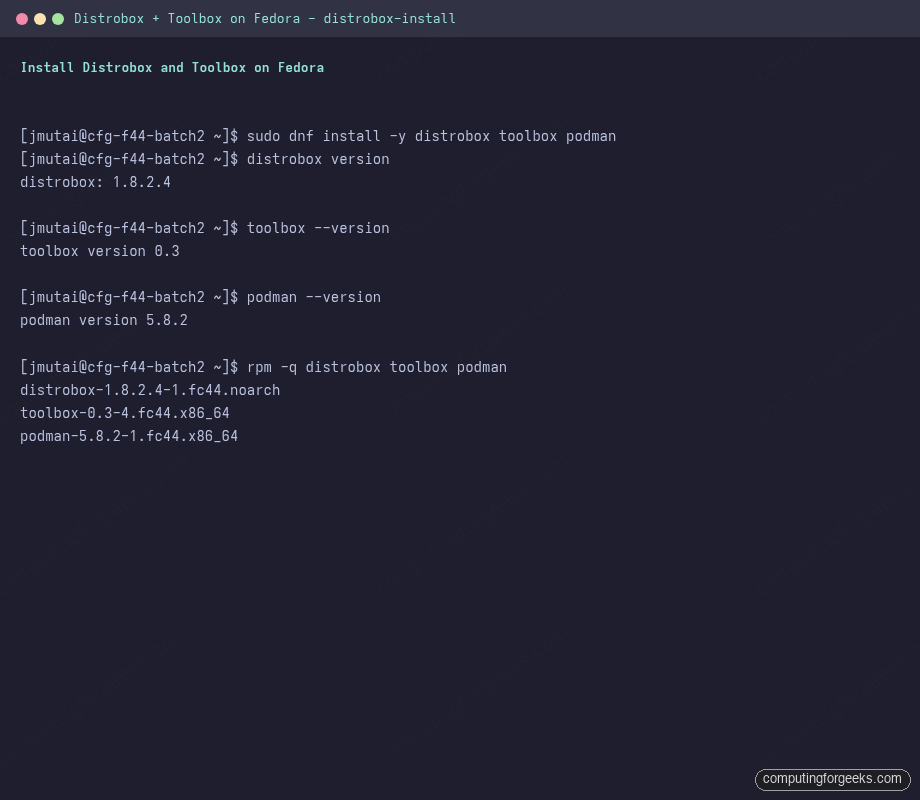
Install Distrobox, Toolbox, and Podman
All three are in the official Fedora repository. One transaction:
sudo dnf install -y distrobox toolbox podmanVerify the versions Fedora ships with on your release:
distrobox version
toolbox --version
podman --version
rpm -q distrobox toolbox podman
Distrobox is a shell script and has no daemon. Toolbox is a Go binary and also has no daemon. Podman is the actual container runtime both tools call out to. On Fedora Workstation, rootless Podman is already configured for your user account; you do not need to add yourself to a docker group.
Create and enter an Ubuntu container with Distrobox
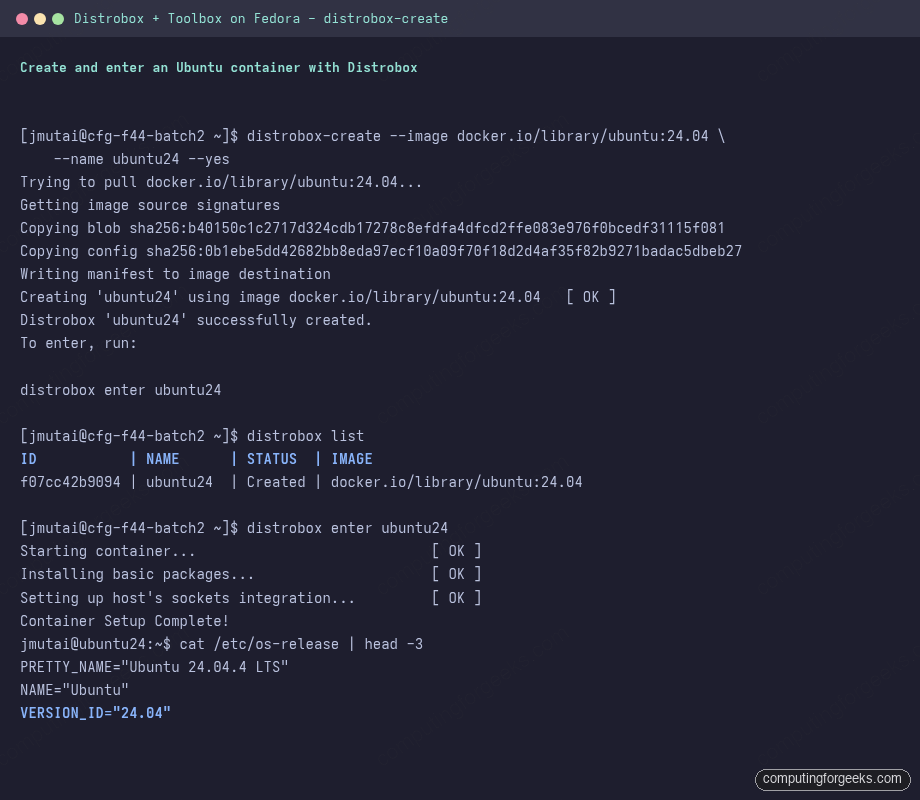
The interesting workflow is creating a non-Fedora environment. Pull Ubuntu 24.04 and create a Distrobox container named ubuntu24 in one command:
distrobox-create --image docker.io/library/ubuntu:24.04 --name ubuntu24 --yes
distrobox list
distrobox enter ubuntu24
The first call pulls the image and runs the post-create setup (host socket integration, themes, sudo, user home). The second call enters the container; your shell prompt changes and you are now inside Ubuntu, with your Fedora home directory still mounted at the same path. Edit a file in Ubuntu, see it on the host. Install apt packages, they live inside the container.
Run apt as you would on a real Ubuntu host:
jmutai@ubuntu24:~$ sudo apt update && sudo apt install -y build-essential python3-dev
jmutai@ubuntu24:~$ python3 --version
Python 3.12.3
jmutai@ubuntu24:~$ exit
[jmutai@cfg-f44 ~]$ # back on the Fedora host, with /home untouched
Stop, remove, or recreate the container any time:
distrobox stop ubuntu24
distrobox rm ubuntu24
distrobox-create --image docker.io/library/ubuntu:24.04 --name ubuntu24 --yes
Export a GUI app or CLI from the container to the host
Distrobox’s killer feature is the export command. Install a GUI app (say, GIMP) or a CLI tool inside Ubuntu and surface it as if it were native on Fedora:
jmutai@ubuntu24:~$ sudo apt install -y gimp jq
jmutai@ubuntu24:~$ distrobox-export --app gimp
jmutai@ubuntu24:~$ distrobox-export --bin /usr/bin/jq --export-path ~/.local/bin
jmutai@ubuntu24:~$ exit
[jmutai@cfg-f44 ~]$ jq --version
jq-1.7.1
[jmutai@cfg-f44 ~]$ # GIMP also appears in the GNOME Activities overview
That is the practical day-to-day shape of Distrobox. Install heavy tools or distro-specific apps once inside a container, export them, use them from the Fedora desktop without thinking about the container layer.
Create a Fedora Toolbox container
Toolbox is Fedora’s own container helper. The default image tracks the current Fedora release:
toolbox create -y
toolbox list
toolbox enter
The command output is shown above.
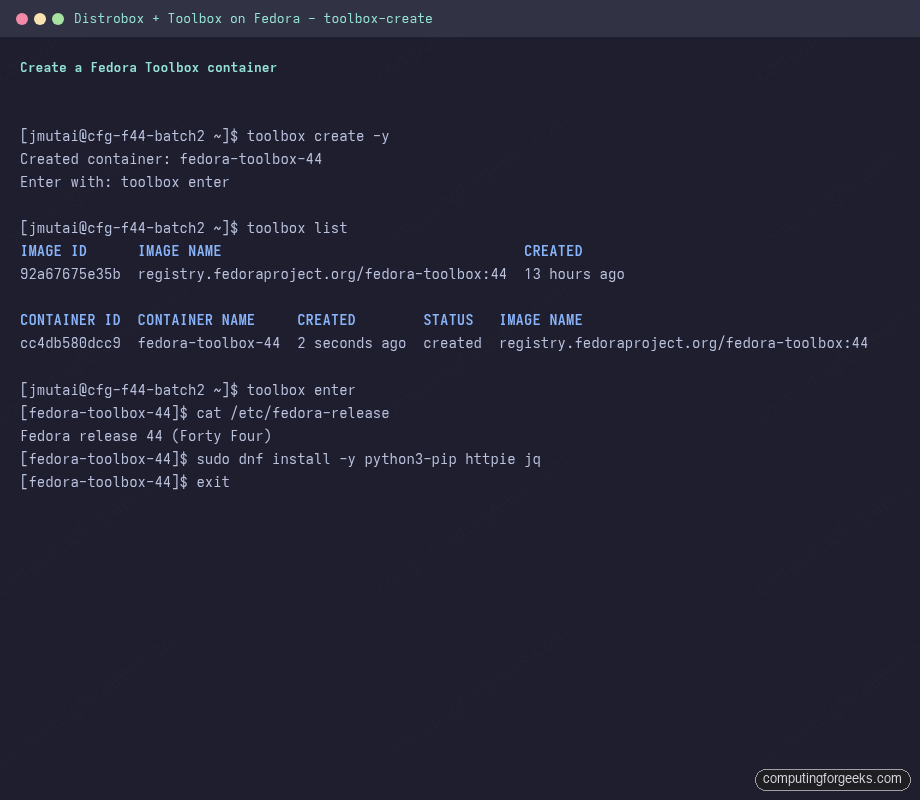
Inside the toolbox you can install development packages without changing the host:
[fedora-toolbox-44]$ sudo dnf install -y python3-pip httpie jq gcc-c++ make
[fedora-toolbox-44]$ pip3 install --user httpx rich
[fedora-toolbox-44]$ exit
This is the canonical Silverblue / Kinoite workflow: keep the host pristine via rpm-ostree, do all development inside Toolbox, and burn the toolbox to the ground any time it gets crufty.
Pin a specific image for an older Fedora or for a different distro
Toolbox accepts --image to use a specific Fedora release container or any compatible image:
# A Fedora 42 toolbox for testing F42-only behavior
toolbox create --release 42 --container fedora-toolbox-42

# An Arch toolbox via Distrobox
distrobox-create --image docker.io/library/archlinux:latest --name arch --yes

# A Debian sid sandbox for Debian package work
distrobox-create --image docker.io/library/debian:sid --name debian-sid --yes
List, enter, and remove containers behave the same regardless of the base image:
distrobox list
distrobox enter arch
distrobox stop debian-sid
distrobox rm debian-sid
Shared resources: home, sockets, audio, GPU
Both tools transparently bridge:
- Home directory: the same
~/Documents,~/.ssh,~/.configon host and inside the container. - Wayland and X sockets: GUI apps inside the container open windows on your Fedora desktop.
- PipeWire audio: applications inside can play sound and read your microphone.
- D-Bus user bus: notifications, secret service, keyring all work transparently.
- USB and serial devices: passed through to the container, useful for hardware tinkering.
- NVIDIA and AMD GPUs: Distrobox detects libnvidia-container and mounts the GPU into the container automatically. CUDA workloads run with no extra flags.
This is why Distrobox works so well as a dev environment: every host capability your editor and tools rely on (clipboard, SSH agent, secrets, hardware access) is already wired up.
VS Code dev containers and Distrobox
If you live in VS Code, the Distrobox container can be your VS Code “Remote: Distrobox” target. Install the code RPM (or the Code Insiders Flatpak) on the host, then inside the container:
distrobox enter ubuntu24
sudo apt install -y curl
distrobox-export --bin /usr/bin/code --export-path ~/.local/bin --extra-flags "--no-sandbox"
The exported binary launches VS Code with the container as its environment, so debugger, language servers, and the integrated terminal all run inside Ubuntu while the editor UI renders on Fedora.
Cleanup and removal
Each container is a regular Podman container under the hood. The Distrobox and Toolbox commands are friendlier wrappers, but Podman commands work the same:
# Distrobox-level cleanup
distrobox stop ubuntu24
distrobox rm ubuntu24

# Toolbox-level cleanup
toolbox rm fedora-toolbox-44

# Or via Podman directly
podman ps -a
podman rm -f ubuntu24 fedora-toolbox-44
podman image prune -af
Where this fits next to plain Podman
Plain rootless Podman is the right call for production-shaped workloads: ephemeral runs, CI builds, single-purpose containers behind a Quadlet systemd unit, multi-container stacks via Compose. Distrobox and Toolbox are interactive development environments where you want to live inside the container with your editor and shell. They are complementary, not competing. The Podman Compose on Fedora guide in this series covers the multi-container production angle.
Pair this with the post-install checklist for a complete development setup that uses Distrobox for cross-distro work and Toolbox for clean Fedora sandboxes.