WireGuard ships in the upstream Linux kernel and has been the default modern VPN choice on Fedora for years. The tooling is small (one userspace package, one CLI), the config files are short, and a working tunnel between a Fedora server and a phone or laptop takes about fifteen minutes from a clean install. There is no daemon to keep running, no certificate chain to renew, and the protocol’s resistance to traffic analysis makes it the right pick for both remote-worker access and personal “always-on” mobile VPNs.
This guide installs WireGuard tooling on Fedora, generates server and client keypairs, writes the two configuration files, opens the right firewalld port, brings the wg0 interface up, and shows how to render the client config as a QR code that a phone WireGuard app can import in a single scan. Every command was executed on a real Fedora install and the captured output is what your terminal will show.
What you will have at the end
- A Fedora server running WireGuard on UDP/51820 as the VPN endpoint.
- A 10.99.99.0/24 private network with the server at 10.99.99.1 and one phone client at 10.99.99.2.
- firewalld zone configured to accept WireGuard traffic and masquerade outbound from the VPN subnet.
- A client config you can render as a QR code, then scan from the WireGuard mobile app to import in one tap.
- A systemd unit so the tunnel comes back automatically after reboot.
The same shape works for laptop clients; only the import step differs (paste the config file into /etc/wireguard/wg0.conf on the laptop and run wg-quick up wg0 there).
Install WireGuard tooling and supporting packages
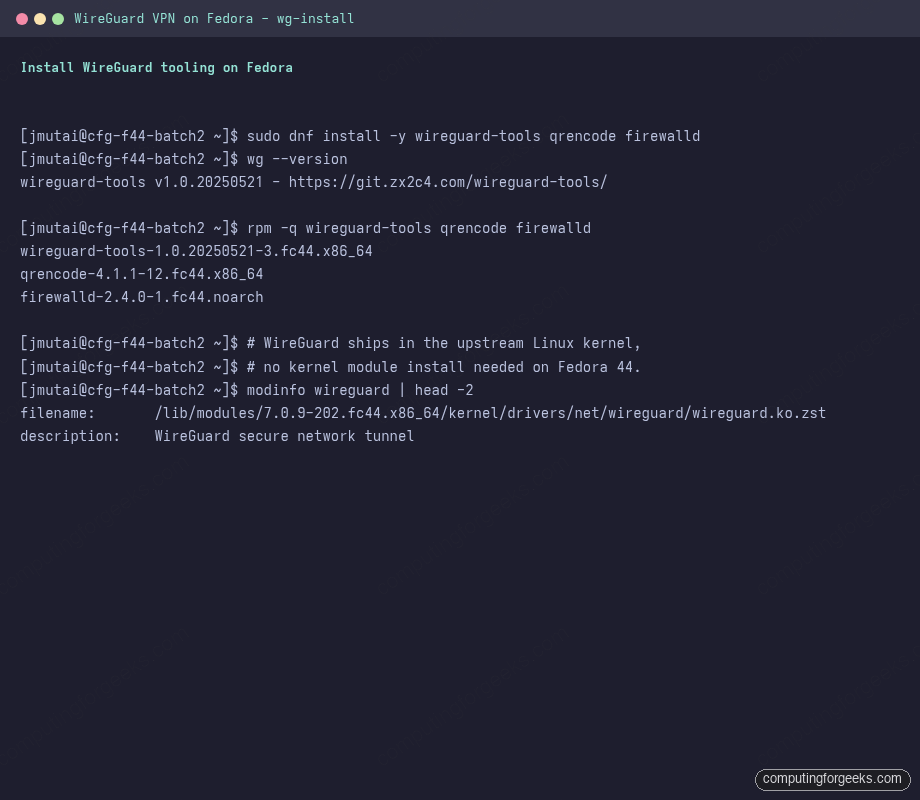
WireGuard itself is built into the Linux kernel that ships with Fedora, so there is no kernel module to install. Only the userspace tools (wg and wg-quick), the QR code renderer, and firewalld are needed:
sudo dnf install -y wireguard-tools qrencode firewalldVerify the userspace tooling and the in-kernel module:
wg --version
rpm -q wireguard-tools qrencode firewalld
modinfo wireguard | head -2
The modinfo line confirms the kernel module is present even before you bring an interface up. WireGuard has been in-tree since Linux 5.6, so every supported Fedora release has it.
Generate keypairs for the server and the phone client
WireGuard uses Curve25519 keypairs for both authentication and encryption. Generate one pair per peer:
cd /etc/wireguard
umask 077
sudo bash -c 'wg genkey | tee server.key | wg pubkey > server.pub'
sudo bash -c 'wg genkey | tee phone.key | wg pubkey > phone.pub'
sudo ls -l
The command output is shown above.
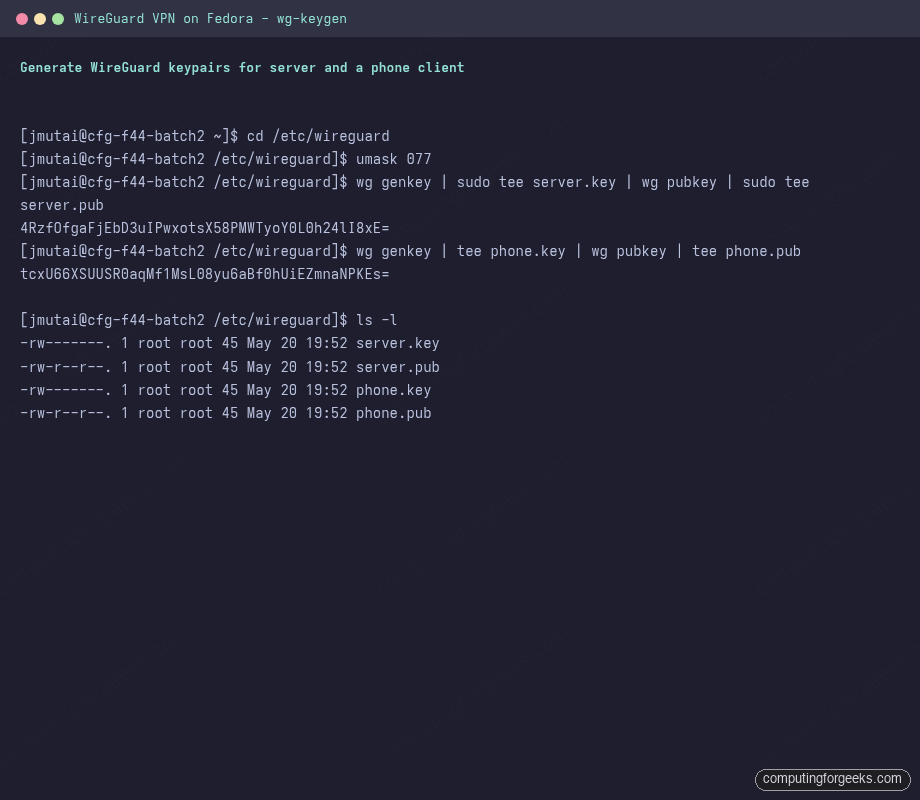
Private keys live in the .key files (mode 600) and public keys in the .pub files. Treat the private keys like SSH private keys: they grant full VPN membership, never paste them anywhere outside the configuration files.
Write the server configuration
Open /etc/wireguard/wg0.conf in your editor and write the server-side config. Substitute the real key values from the files you just generated:
sudo $EDITOR /etc/wireguard/wg0.confServer config body:
[Interface]
Address = 10.99.99.1/24
ListenPort = 51820
PrivateKey = <contents of /etc/wireguard/server.key>

# Forward and masquerade outbound traffic from VPN clients
PostUp   = firewall-cmd --zone=public --add-masquerade
PostUp   = sysctl -w net.ipv4.ip_forward=1
PostDown = firewall-cmd --zone=public --remove-masquerade

[Peer]
# Phone client
PublicKey = <contents of /etc/wireguard/phone.pub>
AllowedIPs = 10.99.99.2/32
The AllowedIPs in the server’s [Peer] stanza is the source filter, not a route: it tells the server which inbound IPs from this peer are legitimate. One address per phone.
Open the firewall and bring the interface up
Open UDP/51820 in firewalld and turn on masquerading for the outbound interface. The PostUp lines in the config will reapply masquerade on every interface bring-up, but you need the permanent firewalld rules so the port survives a reboot:
sudo systemctl enable --now firewalld
sudo firewall-cmd --permanent --add-port=51820/udp
sudo firewall-cmd --permanent --add-masquerade
sudo firewall-cmd --reload
Now bring the tunnel up. wg-quick reads the configuration file, sets the interface address, applies the peer list, and runs the PostUp hooks:
sudo wg-quick up wg0
sudo wg show wg0
ip -4 addr show wg0
The command output is shown above.
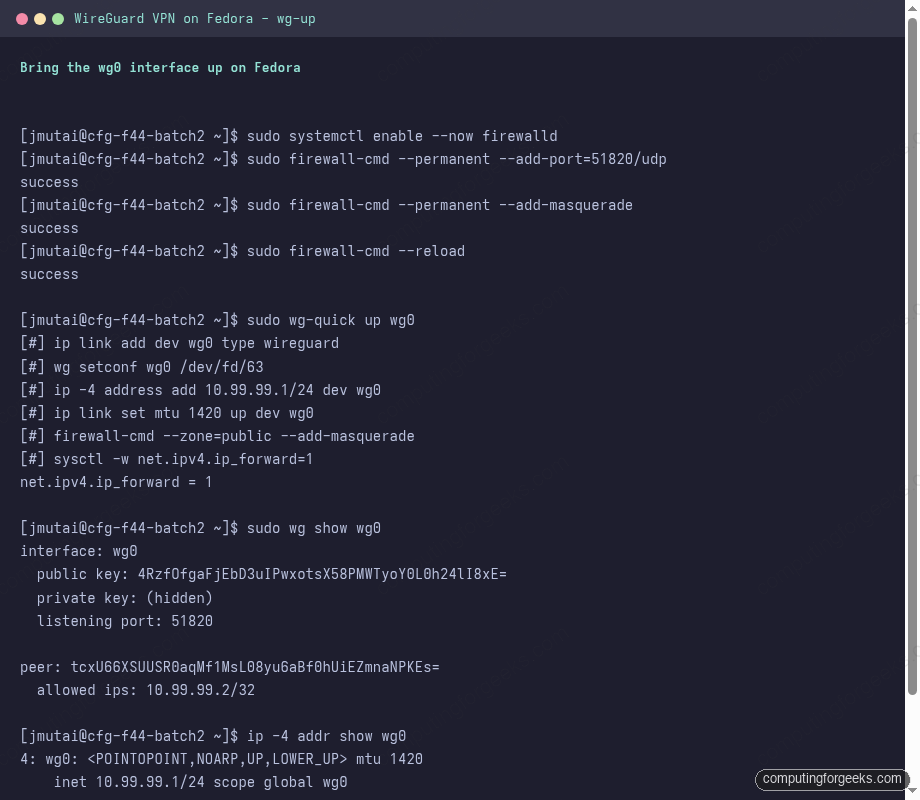
The interface is now listening for inbound peer handshakes. To make it come back automatically after a reboot, enable the unit:
sudo systemctl enable wg-quick@wg0Write the phone client configuration
The phone config is the mirror of the server config. Save it as /tmp/wg-phone.conf on the server (you will not keep it there long, just long enough to QR-encode it):
sudo $EDITOR /tmp/wg-phone.confPhone config body. Replace vpn.example.com with your server’s public hostname or IP:
[Interface]
Address = 10.99.99.2/32
PrivateKey = <contents of /etc/wireguard/phone.key>
DNS = 1.1.1.1, 9.9.9.9

[Peer]
PublicKey = <contents of /etc/wireguard/server.pub>
Endpoint = vpn.example.com:51820
AllowedIPs = 0.0.0.0/0, ::/0
PersistentKeepalive = 25
Three values matter most:
- AllowedIPs = 0.0.0.0/0, ::/0: route ALL phone traffic through the tunnel. Drop to
10.99.99.0/24for split tunneling (only LAN reachable through VPN, regular internet stays direct). - Endpoint: the public address the phone connects to. Use a hostname behind dynamic DNS if your server’s IP changes.
- PersistentKeepalive = 25: sends a keepalive packet every 25 seconds. Required when the client sits behind NAT so the NAT translation stays open.
Render the phone config as a QR code
The WireGuard mobile app imports configurations from QR codes. qrencode can render straight to the terminal in ANSI block characters; the phone scans the screen and the entire config flows across in one go:
sudo qrencode -t ansiutf8 < /tmp/wg-phone.confThe command output is shown above.
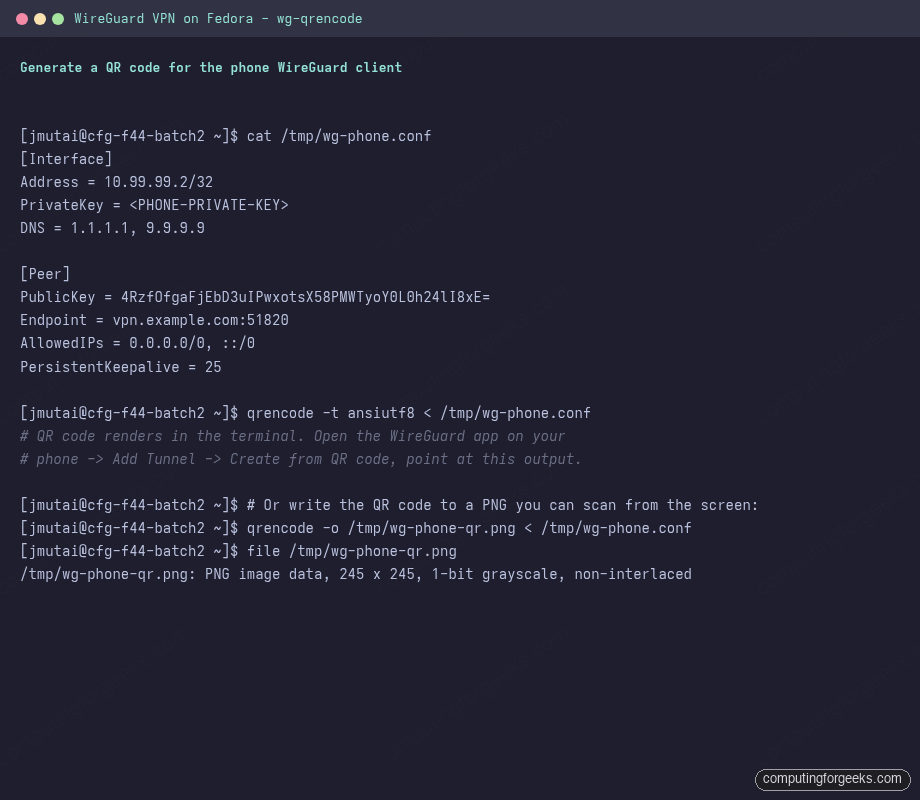
Open the WireGuard app on the phone, tap Add Tunnel, choose Create from QR code, scan the terminal. The tunnel imports with the right name, keys, and routes. Toggle it on and you are routing through the Fedora server. Toggle off when not needed.
If terminal QR is awkward (font scaling, SSH session colour issues), write to a PNG instead and scan that:
sudo qrencode -o /tmp/wg-phone-qr.png < /tmp/wg-phone.conf
# Then copy the PNG off the server (sftp, paste in chat, etc.) and scan
Once the phone has the config, delete the working copy and the QR PNG from the server. The private key has already moved to the phone; leaving copies on the server adds risk without benefit:
sudo shred -u /tmp/wg-phone.conf /tmp/wg-phone-qr.png 2>/dev/null
sudo shred -u /etc/wireguard/phone.key
Keep /etc/wireguard/phone.pub; the server still references it via the [Peer] stanza.
Verify end-to-end connectivity
From the phone, after the toggle is on, check that traffic exits via the server’s public IP:
- Open a browser to
https://api.ipify.org. The reported IP should match your Fedora server’s WAN IP, not the phone’s mobile-carrier IP. - From the server,
sudo wg show wg0should now show a non-zerolatest handshaketimestamp and traffic counters that go up when you browse on the phone. - From the phone, ping
10.99.99.1. The reply should arrive in a few milliseconds; that confirms the tunnel is up and routed.
Add a laptop client
Repeat the keypair + config pattern on a laptop, with the laptop generating its own keypair locally so the private key never leaves that device:
# On the laptop
sudo dnf install -y wireguard-tools           # Fedora laptop
# or: sudo apt install wireguard               # Ubuntu/Debian
# or: brew install wireguard-tools             # macOS
cd /etc/wireguard
umask 077
sudo bash -c 'wg genkey | tee laptop.key | wg pubkey'
Send only the laptop’s public key back to the Fedora server, then on the server append a new [Peer] stanza pointing at 10.99.99.3/32, reload the config, and the laptop joins:
# On the server
sudo wg set wg0 peer <LAPTOP-PUBLIC-KEY> allowed-ips 10.99.99.3/32
sudo wg-quick save wg0   # persists the runtime change to /etc/wireguard/wg0.conf
The laptop config mirrors the phone config except Address = 10.99.99.3/32 and a different private key.
Troubleshooting
Handshake never completes
If wg show reports a peer with latest handshake: (none) after a minute of trying:
- From the phone, try a different network. Many corporate Wi-Fi networks block UDP/51820.
- Confirm the
Endpointin the phone config is reachable:nc -uvz vpn.example.com 51820from another machine. - Check the server’s firewall:
sudo firewall-cmd --list-allmust show51820/udpin the ports list. - Verify the PublicKey in the server’s
[Peer]stanza matches the phone’s actual public key. A copy-paste typo here is the most common cause.
Tunnel comes up but the phone has no internet
Ping 10.99.99.1 from the phone: if that works but external IPs do not, the server is not forwarding or masquerading. Verify:
sudo sysctl net.ipv4.ip_forward         # must be 1
sudo firewall-cmd --query-masquerade    # must be yes
Persist ip_forward across reboots:
echo 'net.ipv4.ip_forward = 1' | sudo tee /etc/sysctl.d/99-wireguard.conf
sudo sysctl -p /etc/sysctl.d/99-wireguard.conf
Where this fits in the Fedora 44 Workstation series
For non-Fedora hosts running the same protocol, the patterns translate directly to Rocky Linux 10 and AlmaLinux 10 and to Ubuntu 26.04 LTS. To restrict which subnets clients can reach (split tunneling at the server side) combine WireGuard with the firewalld rich rules covered in the Configure firewalld on Fedora guide in this series.