Fedora Linux 44 shipped on April 28, 2026 with GNOME 50, KDE Plasma 6.6, kernel 6.19, and a quietly important Anaconda change for network profile handling. If you’re already on Fedora 43, you don’t need to reinstall: the in-place upgrade flow has stayed reliable across releases and the DNF5 system-upgrade command does most of the work for you. This guide walks through the exact commands, the package counts you should expect, and the cleanup that closes out a clean upgrade.
The whole process runs in two phases: an online download of the F44 packages while F43 is still live, then a reboot into an offline transaction where dnf swaps the running system out from under itself. On a typical cloud or laptop install the full upgrade is done in 20-30 minutes; bare-metal desktops with a lot of installed packages can run closer to 45 minutes.
Tested May 2026 upgrading Fedora 43 Cloud Base (kernel 6.17.1-300.fc43) to Fedora 44 (kernel 7.0.8-200.fc44 after post-upgrade updates) using DNF5 5.4.2.0
What changes after the upgrade to Fedora 44
Before you start, a quick recap of what your system looks like once it lands on Fedora 44:
- Kernel bumps from the 6.17 line on F43 to 6.19.14-300.fc44 on a fresh F44 install, with kernel 7.0.x landing via dnf updates within the first few weeks. Our test box ended on 7.0.8-200.fc44 after a single
dnf upgradecycle. - GNOME 50 replaces GNOME 49 on Workstation, with refinements to accessibility, color management, and a new Wellbeing screen-time tracker.
- KDE Plasma 6.6 on KDE Plasma Desktop, with the new Plasma Login Manager replacing SDDM.
- Anaconda installer only creates NetworkManager profiles for devices configured at install time. Existing F43 systems aren’t affected (this only matters on fresh installs).
- MariaDB 11.8 is now the unversioned default. Upgrades preserve your pinned version; new installs of the meta package land on 11.8.
- Wine NTSYNC: the kernel ntsync module is compiled in-tree on kernel 7.0 (
CONFIG_NTSYNC=mafter the post-upgrade updates land), and the Fedora repos ship Wine 11.0 with first-class NTSYNC support, so Windows game and software compatibility improves out of the box once you install Wine. - OpenSSL ca-certificates moved to directory-hash loading, which trims process startup overhead.
For a full breakdown of the release, see our Install Fedora 44 step-by-step guide or the upstream Fedora 44 release announcement.
Prerequisites
- A running Fedora 43 Workstation, Server, KDE Plasma Desktop, or Cloud installation. Atomic editions (Silverblue, Kinoite) use
rpm-ostree rebaseinstead, which is covered in a separate guide. - At least 5 GB free on
/for the package download plus the offline transaction working area. The download itself is ~340 MB on a Cloud Base install; full Workstation with optional groups can easily double that. - A backup of
/homeand any critical config in/etc. The offline transaction is reliable but you’re swapping every core package at once; a backup is the difference between a stressful evening and a calm one. - Sudo or root access to run the upgrade. Every command here uses
sudo. - Network connectivity for the package download phase. The offline-transaction reboot itself runs without networking.
Step 1: Verify your Fedora 43 install
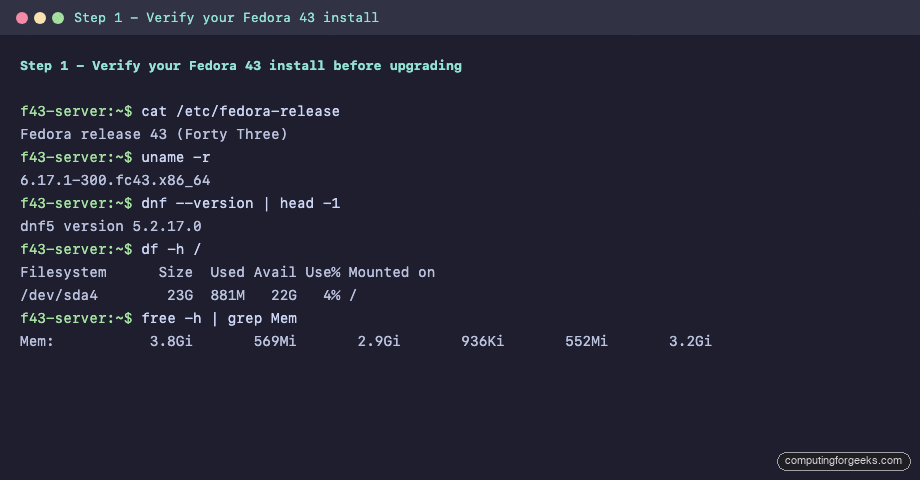
Confirm what you’re starting from before changing anything. The release version, kernel, DNF version, and free disk space tell you whether the upgrade has a chance of succeeding.
cat /etc/fedora-release
uname -r
dnf --version | head -1
df -h /
free -h | grep Mem
You should see Fedora 43, a 6.17 kernel, DNF5 5.x, and at least 5 GB free under /:
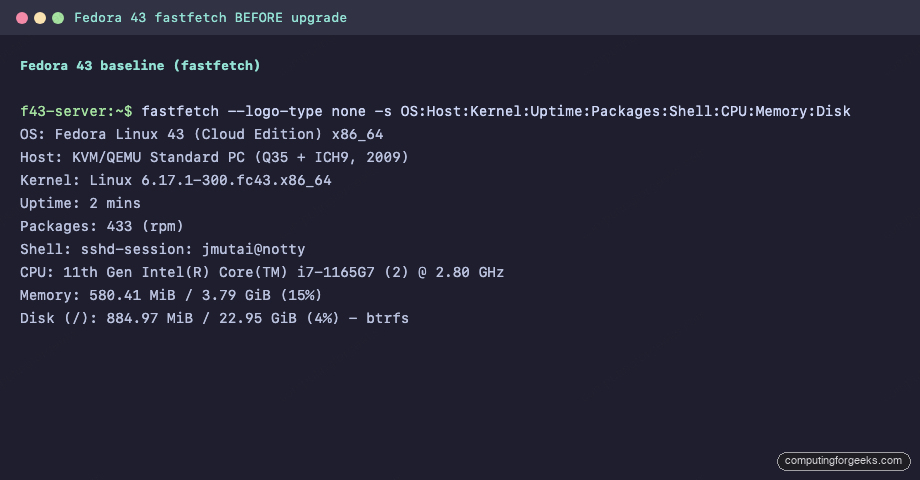
The single most compact view of your starting system is fastfetch (or neofetch on older boxes). Install it once on Fedora 43 and run it before and after the upgrade so you have a side-by-side comparison:
sudo dnf install -y fastfetch
fastfetch --logo-type none -s OS:Host:Kernel:Uptime:Packages:Shell:CPU:Memory:Disk
The Fedora 43 baseline looks like this on a fresh Cloud Base install:
If you have less than 5 GB free, run sudo dnf clean all and sudo journalctl --vacuum-size=200M to free space before continuing.
Step 2: Update Fedora 43 to the latest packages
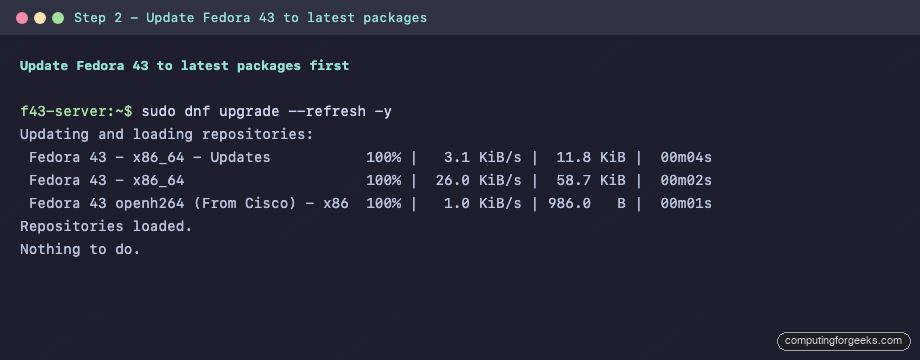
The DNF system-upgrade transaction expects your current Fedora to be fully up to date. Pull every available update first, then reboot if a new kernel or systemd landed:
sudo dnf upgrade --refresh -y
[ -f /var/run/reboot-required ] && sudo systemctl reboot
On a system that’s already current, dnf prints Nothing to do. and exits cleanly. On an older snapshot you’ll see hundreds of packages get pulled; in that case let it reboot before moving on.
If RPM Fusion or other third-party repos are enabled, also disable any that don’t yet ship Fedora 44 metadata. Modular repos pinned to F43 will block the download in step 4 if they have no F44 counterpart.
Step 3: DNF5 system-upgrade is built in (no plugin needed)
Older Fedora guides told you to install dnf-plugin-system-upgrade first. With DNF5, the default since Fedora 41, the system-upgrade flow is built into the main binary as the system-upgrade subcommand, with offline reboot as its companion. Confirm it’s available:
dnf system-upgrade --help | head -10You should see the download, reboot, status, log, and clean subcommands. No package install required. (If you’re still on DNF4 for some reason, run sudo dnf install dnf-plugin-system-upgrade first; the rest of this guide is identical.)
Step 4: Download Fedora 44 packages
This is the longest online step. DNF refreshes the F44 metadata, resolves the upgrade transaction, downloads every package it needs, and stages the offline transaction in /var/lib/dnf/system-upgrade/. On a Cloud Base install this pulls ~340 MB; on a full Workstation expect ~700 MB to 1 GB depending on installed groups.
sudo dnf system-upgrade download --refresh --releasever=44 -yThe --refresh flag forces fresh metadata. The --releasever=44 tells dnf which Fedora to target. The -y auto-accepts the transaction; drop it if you want to review the package list interactively.
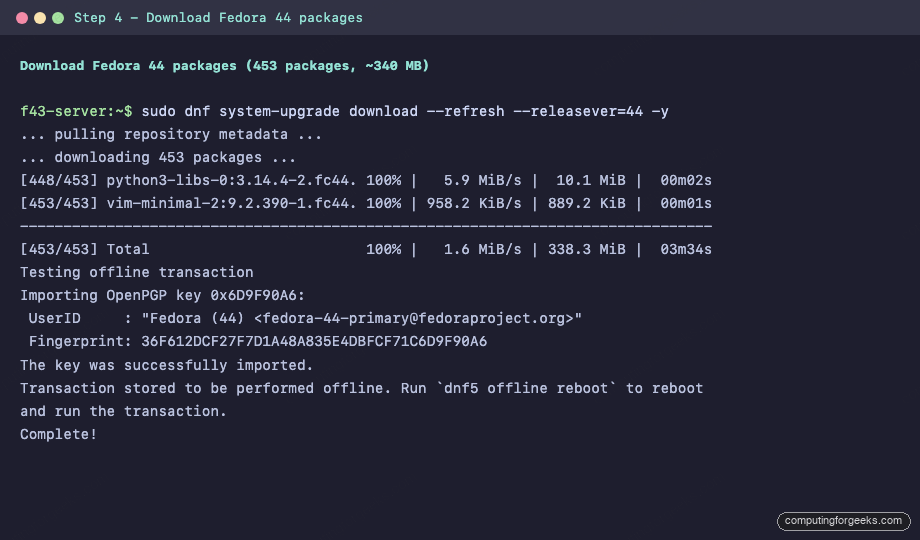
You’ll see a few hundred packages downloaded, the Fedora 44 OpenPGP key imported, and finally Transaction stored to be performed offline. That’s your green light to reboot.
If you hit dependency errors, the most common cause is a third-party package that has no F44 build. Either remove the conflicting package or add --allowerasing to let DNF replace it during the upgrade. Modular repos that haven’t shipped F44 streams yet will also block here, so disable those repos for the duration of the upgrade and re-enable after.
Step 5: Reboot to perform the offline upgrade
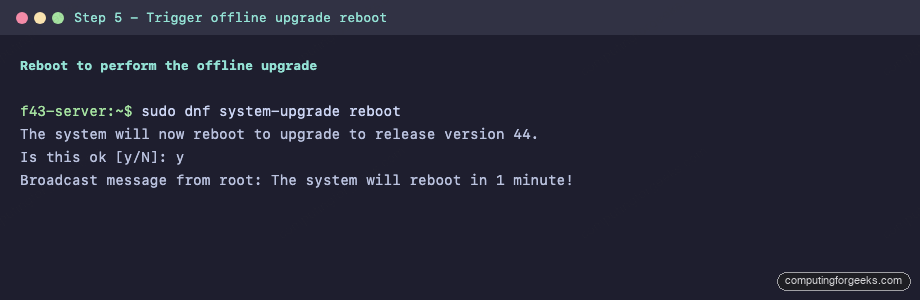
The offline transaction runs in initramfs without networking and without your user session, which is what makes it safe to swap out core libraries the live system depends on. Trigger it with:
sudo dnf system-upgrade rebootDNF prompts to confirm, then schedules the reboot. The system goes down within about a minute. On the next boot you’ll see Plymouth (the boot splash) tracking installation progress: packages are installed offline, the kernel is updated, GRUB is regenerated, and SELinux contexts are restored.
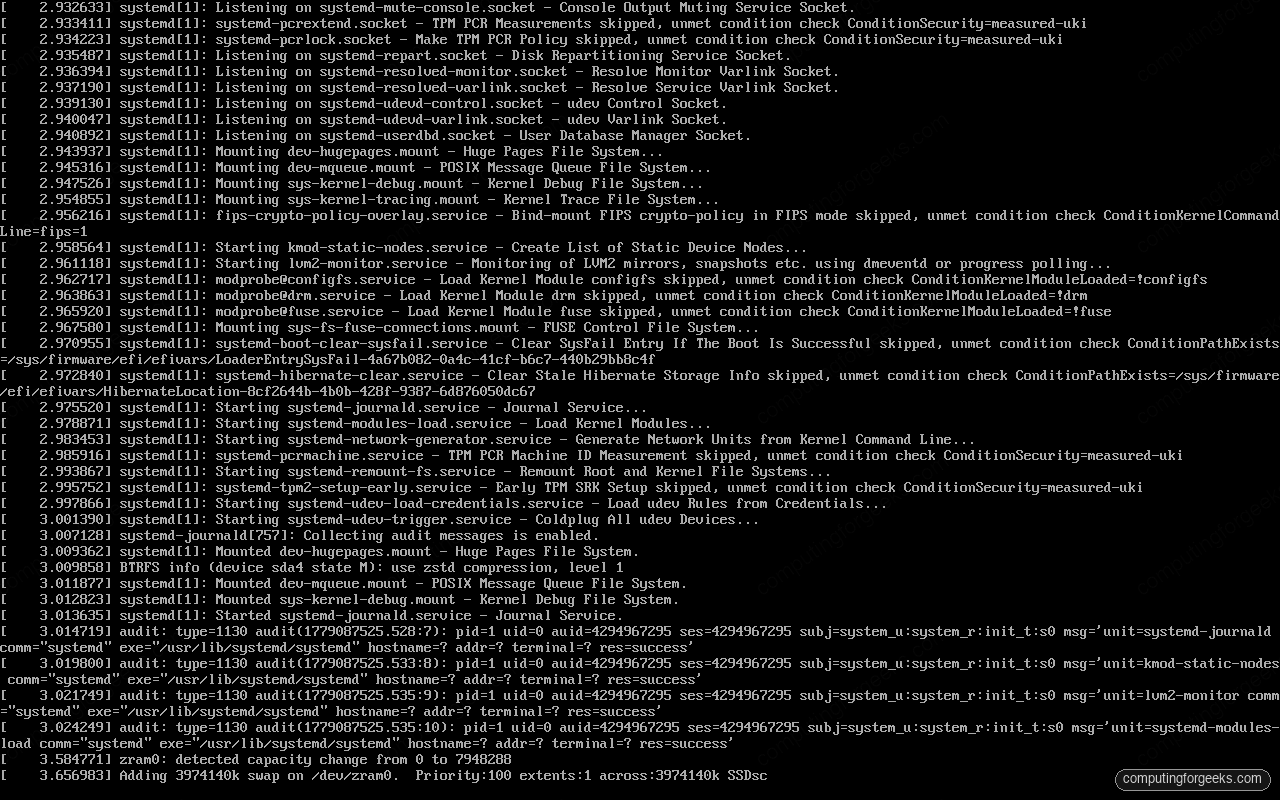
On a server or Cloud install with no graphical session, the upgrade phase looks like a wall of systemd and SELinux messages as services stop, packages install, contexts are restored, and the new kernel comes up:
On Workstation with Plymouth, you see a single Fedora logo with a small progress bar tracking package installation. Press Esc if you want to see the raw text behind the splash.
Total offline upgrade time depends on disk speed and package count. A Cloud Base on NVMe usually finishes in 5-8 minutes; a full Workstation on a SATA SSD takes 10-15 minutes. Bare-metal desktops with optional groups installed can take longer.
Step 6: Verify the upgrade succeeded
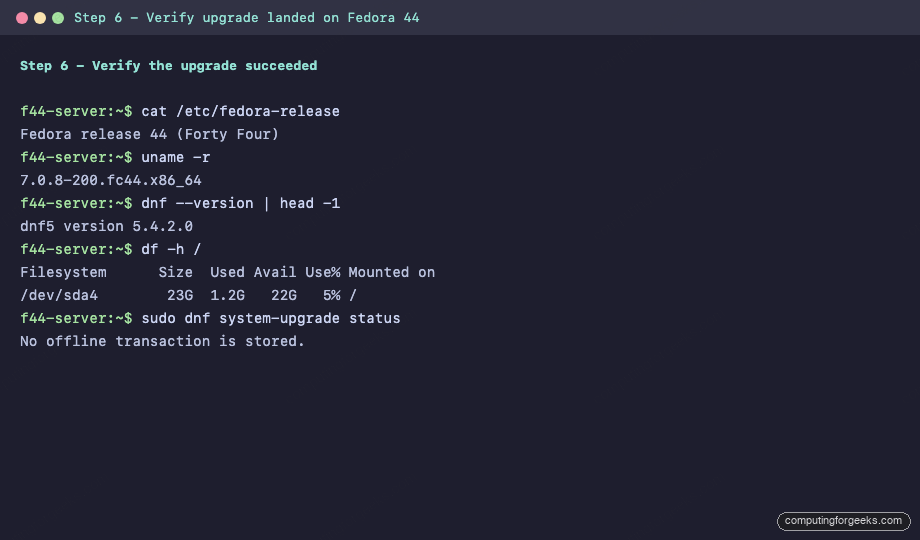
After the offline transaction completes, the system reboots one more time into the new Fedora 44 kernel and lands at the normal login or SSH prompt. Log in and confirm the new version:
cat /etc/fedora-release
uname -r
dnf --version | head -1
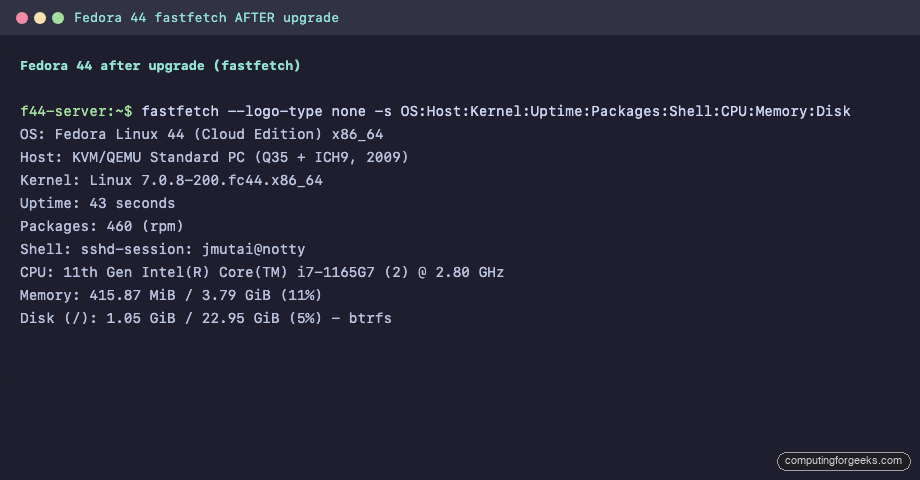
You should see Fedora 44, a 6.19 or 7.0 kernel (depending on how recently the updates ran), and DNF5 5.4.x or newer:
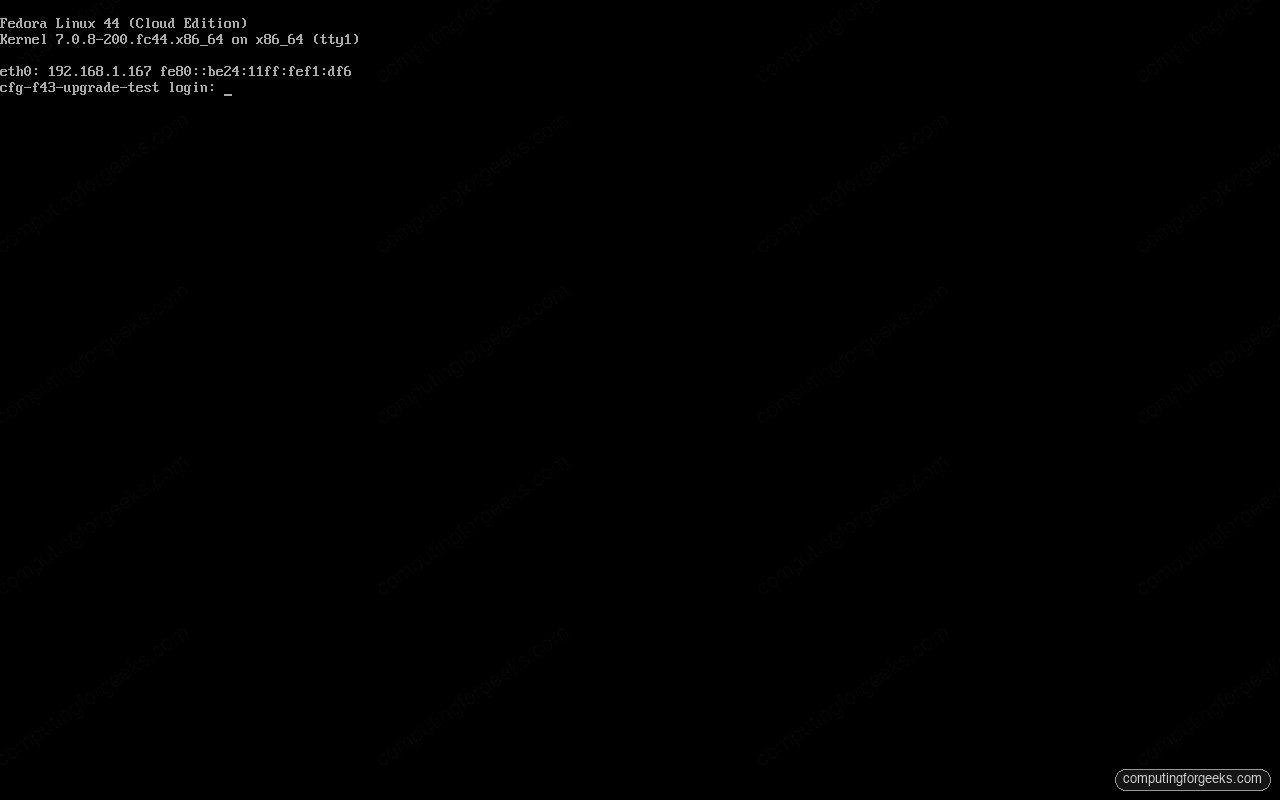
The console banner shows the new edition string and the running kernel. Log in (or SSH back in) and confirm everything with version commands plus a fresh fastfetch:
The fastfetch comparison is the cleanest single proof the upgrade landed. Same box, same hardware, different release. Kernel went from 6.17 to 7.0.x, package count climbed from 433 to 460, DNF jumped a feature version:
If the system boots into an older kernel, pick the F44 entry from the GRUB menu manually and then run sudo grub2-set-default 0 && sudo grub2-mkconfig -o /boot/grub2/grub.cfg so the new kernel becomes the default.
Step 7: Post-upgrade cleanup
The upgrade is technically done, but a few cleanup commands keep the system tidy and free up the disk space the staged transaction was holding.
Clean the system-upgrade cache
The offline transaction is held in /var/lib/dnf/system-upgrade/ until you clean it. On a Cloud install this is a few hundred MB; on a full Workstation it can be over a GB:
sudo dnf system-upgrade clean
sudo dnf clean all
Pull any post-release updates
Fedora 44 has been getting updates since release day. Grab them now:
sudo dnf upgrade --refresh -y
[ -f /var/run/reboot-required ] && sudo systemctl reboot
Remove orphaned and retired packages
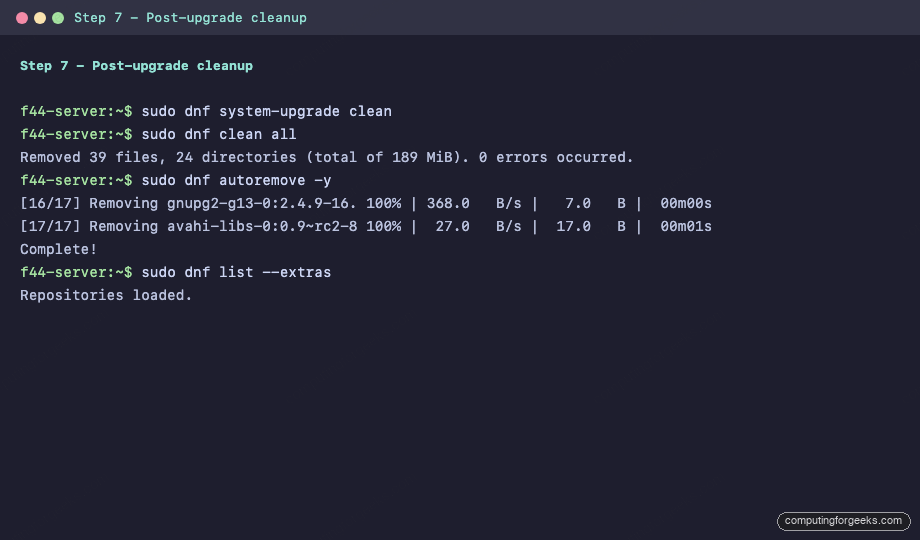
Across major releases Fedora retires packages that upstream stopped maintaining. Those linger as orphaned RPMs after the upgrade. Find and remove them:
sudo dnf autoremove
sudo dnf remove --duplicates
sudo dnf list extras
autoremove drops unused dependencies. --duplicates finds packages where multiple versions are installed (usually old kernels). list extras shows installed packages that no F44 repo provides; review the list and either remove them or accept that they’re third-party.
Refresh stale config files
RPM keeps old config files as .rpmsave and stages new defaults as .rpmnew. After a major upgrade you usually have a handful of each to merge:
sudo dnf install -y rpmconf
sudo rpmconf -a
For each conflicted file rpmconf shows you a diff and lets you keep the existing config, take the new default, or merge interactively. On a vanilla Cloud Base there’s usually nothing to do; on a heavily customised Workstation expect 5-15 prompts.
Update RPM Fusion if you use it
If you had the RPM Fusion repos enabled before, swap the release packages to the F44 versions so the repo URLs point at the right tree:
sudo dnf install -y \
  https://mirrors.rpmfusion.org/free/fedora/rpmfusion-free-release-44.noarch.rpm \
  https://mirrors.rpmfusion.org/nonfree/fedora/rpmfusion-nonfree-release-44.noarch.rpm
sudo dnf upgrade --refresh -y
Troubleshooting common upgrade issues
Error: “package conflicts with installed package”
This usually means a third-party RPM (Chrome, VS Code, NVIDIA driver, Microsoft repo) has no F44 build yet. Either remove the conflicting package and re-add it after the upgrade, or add --allowerasing to step 4 so DNF replaces it.
Error: “no match for argument: dnf-plugin-system-upgrade”
You’re on DNF5 (default since F41), which has the system-upgrade subcommand built in. Skip the plugin install and go straight to step 4.
System boots into the old F43 kernel after upgrade
The offline transaction installed F44 but the bootloader default wasn’t updated. Pick the F44 entry from the GRUB menu, then rebuild the bootloader config:
sudo grub2-set-default 0
sudo grub2-mkconfig -o /boot/grub2/grub.cfg
“Transaction stored to be performed offline” but nothing happens at reboot
Plymouth (the boot splash) hides the upgrade progress on some hardware. Press Esc at boot to see the actual install. If the offline transaction was lost (uncommon, but possible after a power cut), check status and either resume or clean and re-download:
sudo dnf system-upgrade status
sudo dnf system-upgrade log
If status reports no active transaction, repeat step 4 to re-download.
Out of disk space mid-download
Cancel the download with sudo dnf system-upgrade clean, free space (sudo dnf clean all, sudo journalctl --vacuum-size=200M, prune /var/cache), and re-run step 4.
From here the system is on Fedora 44 with the kernel 6.19 line. Hardware support, GNOME 50, Plasma 6.6, the new Wine NTSYNC kernel module, and DNF5 improvements all kick in. If anything in step 7’s cleanup surfaced retired packages you still need, install them from a Flatpak, COPR, or third-party RPM that targets F44.