Most “secure browser” guides hand you a privacy extension and call it a day. Trivalent takes a different route. It is a Chromium build for desktop Linux that carries the hardening patches from Vanadium, the browser GrapheneOS ships on hardened Android, and ports them to the desktop. The result is a Chromium that flips risky defaults to opt-in, strips telemetry, and turns on content filtering before you touch a single setting.
This guide covers how to install Trivalent on a normal Fedora 44 Workstation, shows the one install detail that trips up nearly every other guide online, and walks through the hardening toggles that ship disabled so you know what you are turning on. Trivalent comes from the secureblue project and is built for Fedora, so if you have already set up stock Google Chrome or Brave on Fedora, this slots in the same way, from the secureblue RPM repository.
Verified working: June 2026 on Fedora 44 Workstation (kernel 7.0.8), Trivalent 148.0.7778.215 from the secureblue repo.
What Trivalent actually changes
Trivalent is a security browser, not a privacy browser. That distinction matters and the project is blunt about it: anything that trades security for “privacy” is explicitly out of scope, which is why it refuses to re-enable the old Manifest V2 extension API. What you get instead is a Chromium with a smaller attack surface and saner defaults.
The concrete changes worth knowing before you install:
- Vanadium desktop hardening patches applied to the Chromium engine
- Content filtering on by default using Chromium’s built-in subresource filter, no extension required
- Secondary features like the password manager and search suggestions made opt-in instead of opt-out
- Opt-in metrics and data collection disabled at the source
- Extra security and privacy controls added to
chrome://settings/securitythat stock Chromium does not expose
None of this needs configuration to take effect. You install it, and the hardened defaults are already live.
Prerequisites
This guide targets the RPM side of the house. Trivalent is packaged for Fedora only.
- Fedora 42, 43, or 44 (Workstation, Silverblue, or a spin). Tested here on Fedora 44 Workstation
- x86_64 or aarch64 architecture, both are built
- A user account with
sudoprivileges
One thing to set expectations early: there is no Debian, Ubuntu, or Kali package, and no Flatpak build yet. There is also no EPEL or RHEL build, so Rocky Linux and AlmaLinux are out for now. If you are not on Fedora, your closest hardened alternative is running plain Chromium with your own policy, because Trivalent will not install outside the Fedora family.
Add the secureblue repository
This is where almost every other guide gets it wrong. Search around and you will find advice to run dnf copr enable secureblue/trivalent followed by dnf install trivalent-chromium. That COPR exists, but it only holds build inputs (the Chromium source tarball and the subresource filter lists). There is no browser binary in it. The actual package lives in the secureblue RPM repository.
Drop the repo file into place and import the signing key:
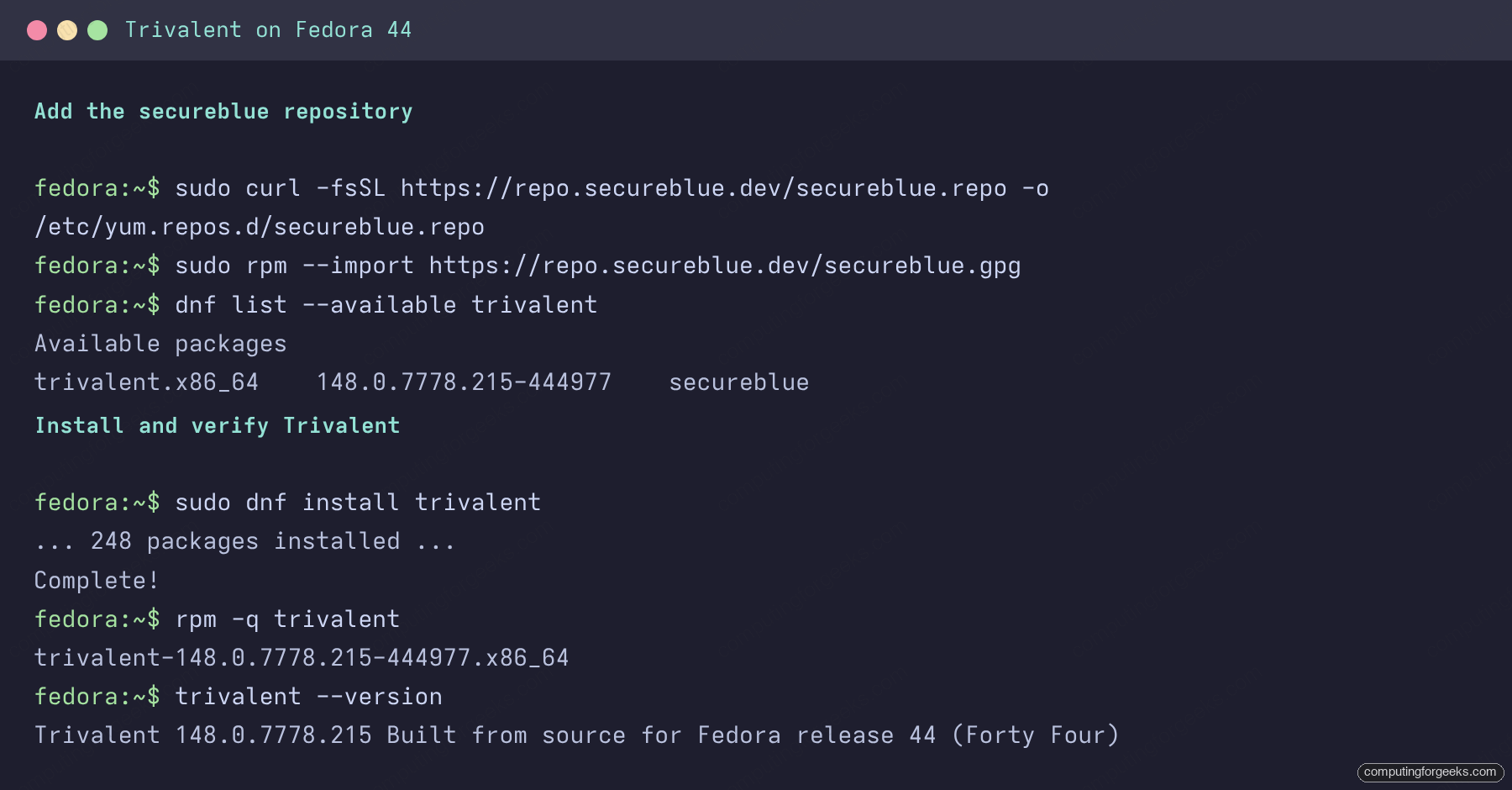
sudo curl -fsSL https://repo.secureblue.dev/secureblue.repo -o /etc/yum.repos.d/secureblue.repo
sudo rpm --import https://repo.secureblue.dev/secureblue.gpg
The repository is a flat repo signed by the secureblue maintainer key. Confirm the browser package is now visible:
dnf list --available trivalentYou should see the trivalent package resolve from the secureblue repo:
Available packages
trivalent.x86_64    148.0.7778.215-444977    secureblue
With the package resolving from the secureblue repo, the browser itself is one command away.
Install Trivalent
With the repo wired up, the install is a single command. The first run will ask you to accept the secureblue GPG key if you skipped the manual import above.
sudo dnf install trivalentThe download is sizeable because Trivalent bundles its own Chromium runtime rather than leaning on system libraries. Once it finishes, confirm the version that landed:
rpm -q trivalentThe query returns the exact build, so you can match it against the project’s GitHub releases:
trivalent-148.0.7778.215-444977.x86_64Here is the full sequence captured on the Fedora 44 test box, from adding the repository through to the version check:
If you run KDE Plasma or another Qt desktop and want native dialogs and theming, add the optional Qt 6 integration package:
sudo dnf install trivalent-qt6-uiOn GNOME the base package is all you need. Launch it from the Activities overview, or from a terminal with the trivalent command.
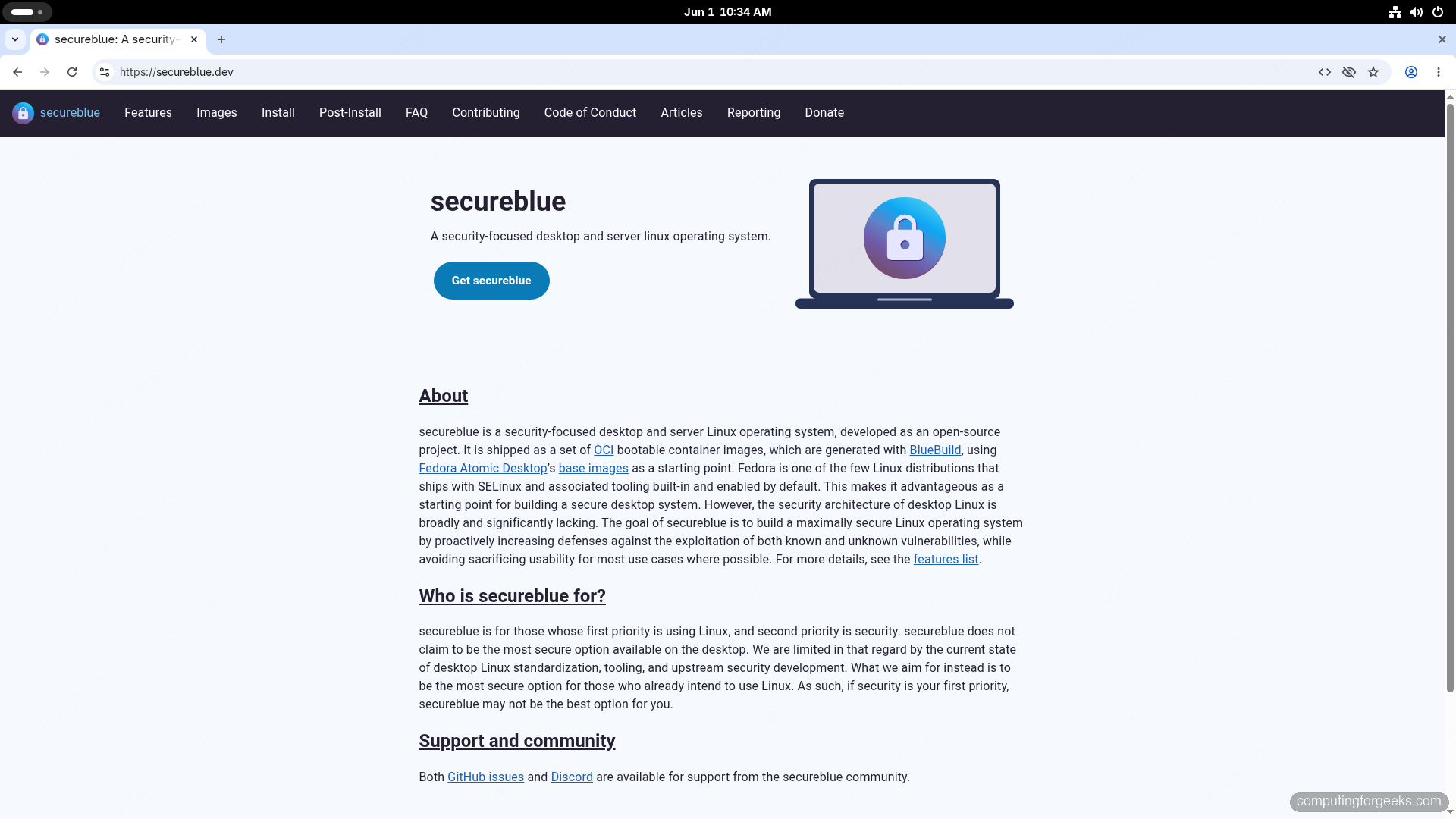
On the surface it is an ordinary Chromium browser. What sets it apart sits one settings page deep.
Hardening controls worth knowing about
Open chrome://settings/security and scroll to the Hardening section. That block does not exist in upstream Chromium, and it is where Trivalent’s posture becomes visible. Two defaults stand out.
Block 3D APIs is on by default. It blocks web-facing access to WebGL and the GPU, which is a frequent source of both browser exploits and fingerprinting. Just above it, JavaScript optimization ships off by default, and Trivalent spells out the trade in the description: leaving it off makes the V8 engine more resistant to attacks at a small cost to speed on heavy sites. Higher up the same page, secure DNS and “Always use secure connections” are both enabled, with the warning set to cover private sites as well as public ones.
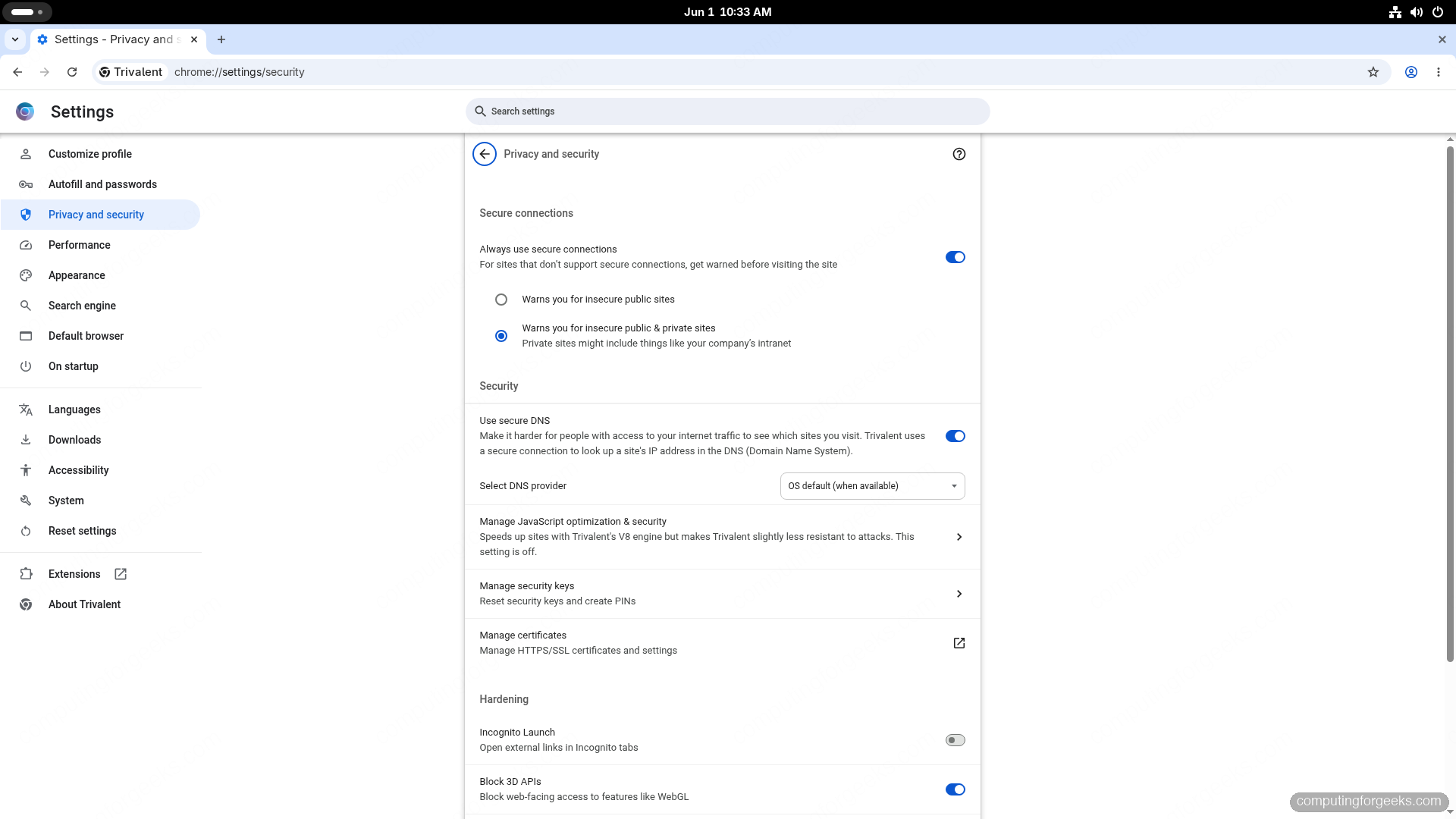
A few toggles ship disabled because they can break sites. The Network Service Sandbox tightens isolation around the network process but can clear cookies on exit on some setups, so it stays off until you opt in. There is also a Website Dark Mode preference under chrome://settings/appearance for forcing dark rendering on pages that do not offer it.
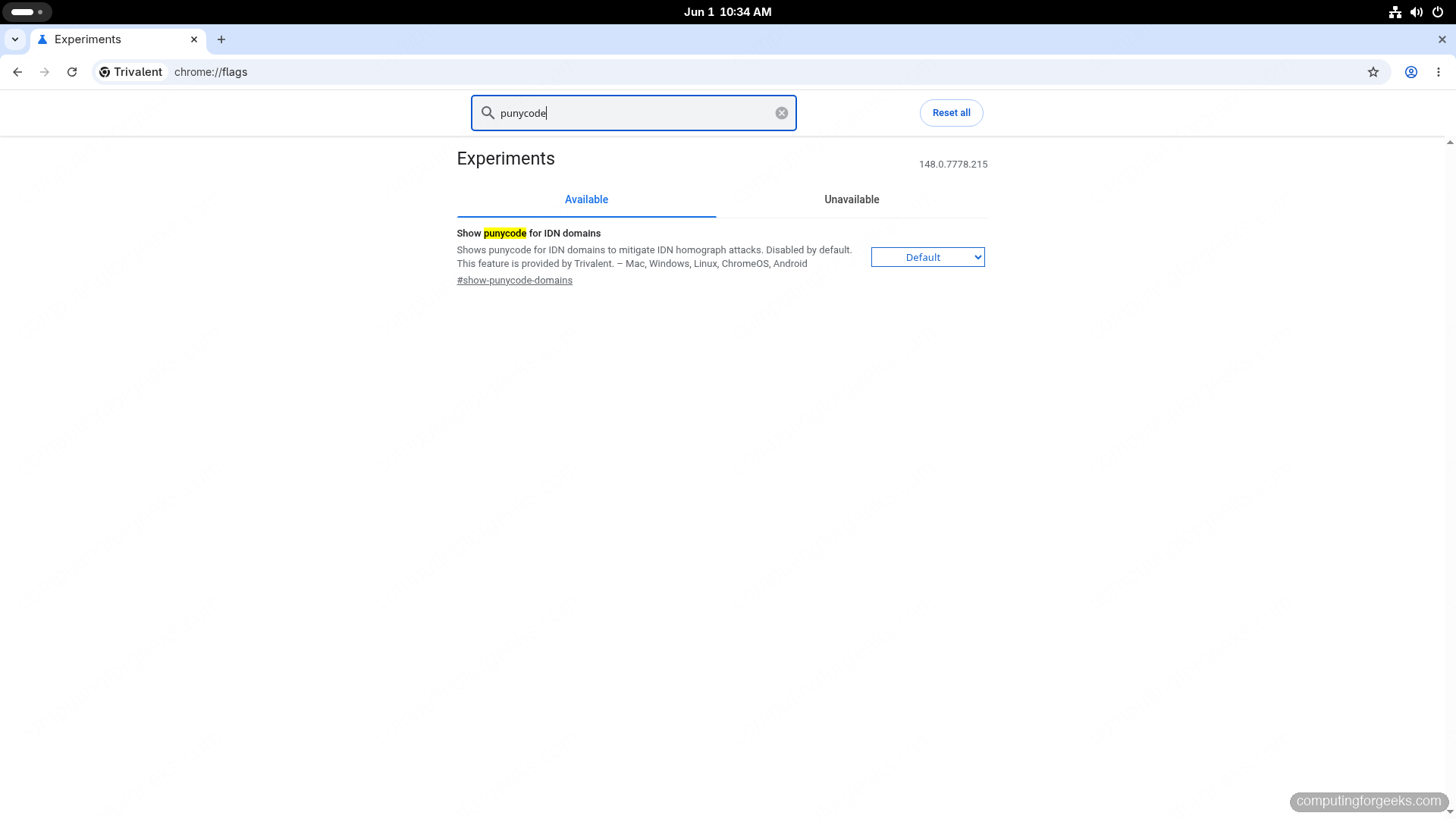
A second layer of hardening lives behind chrome://flags. These are off by default because they can cause breakage, but they are worth enabling if you want the strictest posture:
#show-punycode-domainsrenders internationalized domains as raw punycode, which kills a common phishing trick where a lookalike Unicode character impersonates a real domain#clear-cross-origin-referrersstrips the referrer on cross-origin requests so sites learn less about where you came from
The reverse case is covered too. Trivalent’s default pop-up blocker is aggressive, and if it gets in your way you can loosen it with #strict-popup-blocking rather than fighting individual sites.
The built-in content filter is the piece you do not have to configure at all. It uses Chromium’s internal subresource filter with lists maintained by the trivalent-subresource-filter project, so ads and trackers are blocked engine-side without a third-party extension that could read your browsing. If you have been bolting privacy extensions onto Brave or Chrome, that responsibility moves into the browser itself here.
Trivalent on Fedora Silverblue and atomic spins
Trivalent was built for secureblue, which is an atomic Fedora system, so the atomic path is a first-class option. On Silverblue, Kinoite, or any rpm-ostree based spin, the package layers in instead of installing through dnf. Add the same repo file, then layer the package:
sudo rpm-ostree install trivalentReboot to apply the new deployment, and Trivalent shows up in your app grid like any other layered package. Everything in the hardening section applies identically once it is running.
Keeping Trivalent updated
Trivalent tracks Chromium closely, and security fixes land fast, so updating promptly is the whole point of running a hardened browser. On a standard Fedora install it upgrades with the rest of your system:
sudo dnf upgrade --refresh trivalentOn an atomic spin it rides along with your next rpm-ostree upgrade. Because every GitHub release maps to an RPM in the repo, the version you see with rpm -q trivalent always lines up with an upstream tag, which makes it easy to confirm you are on a build that includes the latest Chromium security patches.
That is the trade Trivalent asks you to make. You give up Google sync, proprietary codecs, and a couple of conveniences that are now opt-in, and in return you get a Chromium that was hardened before you opened it. Set it up alongside your other first-day Fedora 44 tasks, and on a daily driver paired with a properly hardened base system, it is one of the few browsers where the secure choice is also the default one.