Fedora Linux 44 shipped on April 28, 2026, bringing GNOME 50 to Workstation, KDE Plasma 6.6 with the new Plasma Login Manager, and a kernel 6.19 base. The Anaconda installer also picked up a behavior change worth knowing about: it now only creates NetworkManager profiles for devices you actually configure during install instead of generating defaults for every interface on the box.
This guide walks through a Fedora 44 Workstation install end to end. We cover the ISO download, creating a bootable USB, the four-step Anaconda Web UI flow (Welcome, Installation method, Storage configuration, Review and install), and the GNOME 50 initial setup that runs on first boot. Every screenshot is from a real Fedora 44 Workstation install captured during testing.
Tested May 2026 on Fedora Workstation 44 (kernel 6.19.14-300.fc44, GNOME 50, Anaconda 44 Web UI)
What’s new in Fedora 44
Fedora 44 keeps the six-month cadence and pulls in the latest desktop, kernel, and toolchain stack. The user-visible changes worth flagging before you install:
- GNOME 50 on Workstation, with refinements to accessibility, color management, and remote desktop, plus updates to Document Viewer, Files, and Calendar.
- KDE Plasma 6.6 on the KDE Plasma Desktop edition, with the new Plasma Login Manager and Plasma Setup for a more cohesive first-boot flow.
- Anaconda network profiles are now only created for devices configured during installation (via boot options, kickstart, or the UI). Previously every device on the system got a default profile.
- MariaDB 11.8 is the new unversioned default. Existing users on upgrades keep their pinned version; only fresh installs of the meta package get 11.8.
- Wine NTSYNC: the ntsync kernel module is compiled in-tree on kernel 7.0 (which arrives via dnf updates within weeks of the F44 install), and the Fedora repos ship Wine 11.0 with first-class NTSYNC support, so installing Wine on F44 gives you an ntsync-aware Wine out of the box.
- OpenSSL ca-certificates now use directory-hash loading, cutting startup overhead on cert-heavy workloads.
- Fedora Cloud images use a Btrfs subvolume for
/bootinstead of a separate partition, which improves space utilization on small disks.
For the full list see the official Fedora 44 release announcement and the release notes.
Fedora 44 Editions, Spins, and Atomic Desktops
Fedora 44 ships in three families. Pick the one that matches the box you’re installing on:
- Editions: Workstation, KDE Plasma Desktop, Server, Cloud, CoreOS, IoT. These are the flagship images.
- Atomic Desktops: Silverblue, Kinoite, Cosmic Atomic, Budgie Atomic, Sway Atomic. Image-based, rpm-ostree managed, ideal for kiosks and developer workstations that want rollback.
- Spins: Cinnamon, Xfce, Sway, MATE, LXQt, and others. Community-maintained desktop variants on the same Fedora base.
This guide installs Fedora 44 Workstation (the GNOME flavor). The Anaconda Web UI flow is identical for KDE Plasma Desktop and the spins; only the desktop you boot into at the end differs.
Hardware requirements
Fedora Workstation 44 is comfortable on modern hardware. For a smooth GNOME 50 experience plan for:
- CPU: 64-bit x86 (x86_64-v2 baseline; older CPUs without SSE4.2 will refuse to boot), 2 cores minimum, 4+ recommended
- RAM: 2 GB minimum, 4 GB recommended for the live installer, 8 GB+ for daily desktop use
- Disk: 20 GB minimum, 30 GB+ recommended (Anaconda carves a 629 MB EFI partition, around 2 GB ext4
/boot, then Btrfs with subvolumes for/and/homeon the rest) - Network: not required for install (Live ISO is self-contained), but updates after first boot pull around 500 MB
- Architecture: also available for aarch64, ppc64le, and s390x; this guide uses x86_64
Step 1: Download the Fedora 44 ISO
Grab the Workstation Live ISO from the official Fedora download page. The Live ISO doubles as a try-before-you-install environment and the installer for permanent installs.
wget https://download.fedoraproject.org/pub/fedora/linux/releases/44/Workstation/x86_64/iso/Fedora-Workstation-Live-44-1.7.x86_64.isoIf you’re picking a different edition or architecture, the Fedora download page lists every flavor with mirror links. The Workstation ISO is roughly 2.85 GB.
Verify the download against the published checksums so you’re not booting tampered media:
wget https://fedoraproject.org/fedora.gpg
gpg --import fedora.gpg
wget https://download.fedoraproject.org/pub/fedora/linux/releases/44/Workstation/x86_64/iso/Fedora-Workstation-44-1.7-x86_64-CHECKSUM
gpg --verify-files Fedora-Workstation-44-1.7-x86_64-CHECKSUM
sha256sum -c Fedora-Workstation-44-1.7-x86_64-CHECKSUM 2>&1 | grep OK
Step 2: Create a bootable USB
The simplest path is the official Fedora Media Writer, which writes the ISO and verifies it in one shot. It’s available for Linux, macOS, and Windows from the downloads page.
If you prefer the command line on Linux, use dd. First identify your USB device with lsblk (use the disk node, not a partition):
lsblk -d -o NAME,SIZE,TYPE,MODELThen write the ISO. Double-check the target device; dd won’t ask twice:
export USB_DEV="/dev/sdX"
sudo dd if=Fedora-Workstation-Live-44-1.7.x86_64.iso of=${USB_DEV} bs=4M status=progress oflag=direct conv=fsync
On macOS use diskutil list to identify the USB, then diskutil unmountDisk /dev/diskN followed by sudo dd if=... of=/dev/rdiskN bs=4m (note the rdisk for raw device speed). On Windows, Rufus or balenaEtcher in DD mode both work.
Step 3: Boot the installer
Plug the USB into the target machine and boot from it. The boot key varies by vendor: F12 on most Lenovo and Dell, F9 on HP, F11 on MSI, Esc or F2 on older systems. On UEFI systems you may also need to disable Secure Boot first, though Fedora is signed and should work with Secure Boot enabled on most hardware.
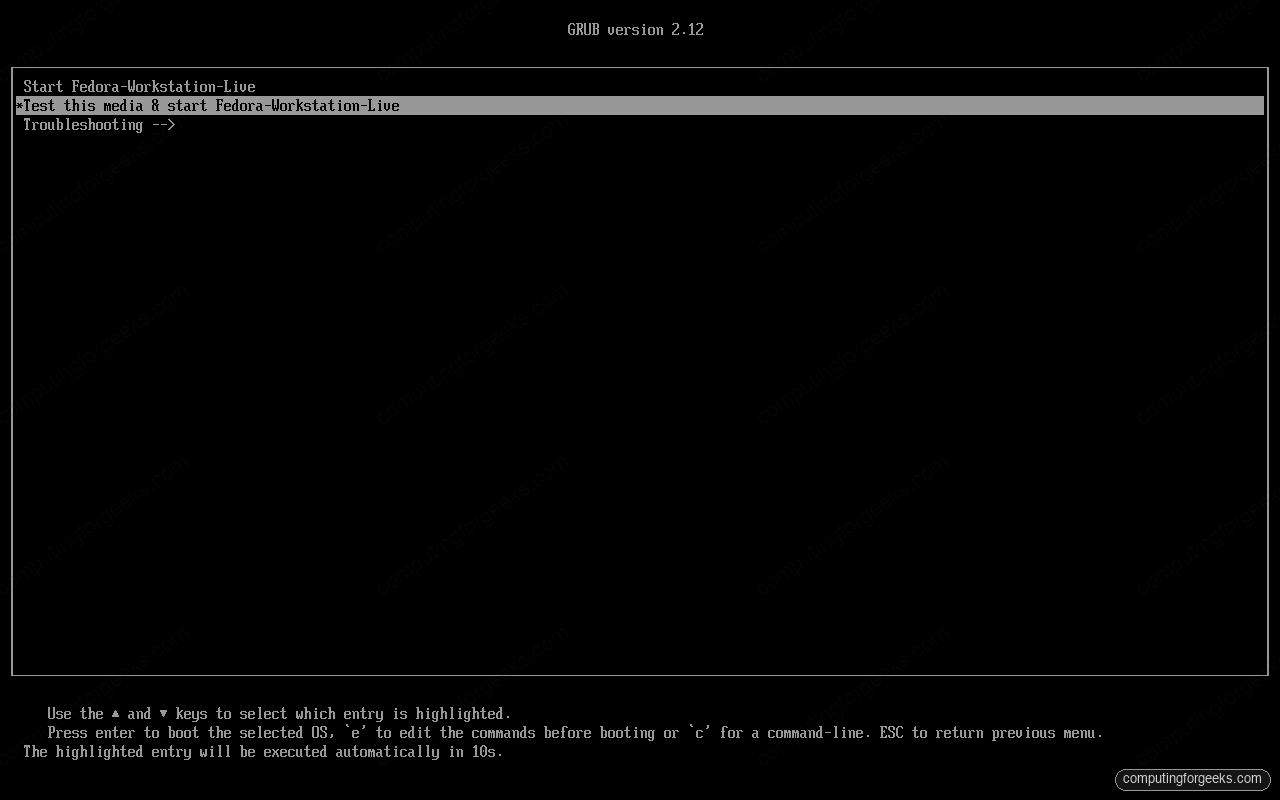
The Fedora 44 GRUB menu offers three options:
- Start Fedora-Workstation-Live – boot the live environment straight away
- Test this media & start Fedora-Workstation-Live – verify the USB before booting, useful on a freshly-written stick (this is the default selection)
- Troubleshooting – basic graphics mode and rescue options
For a brand-new USB, leave the media test default selected. For a known-good USB, press Up and select Start Fedora-Workstation-Live to skip the verification.
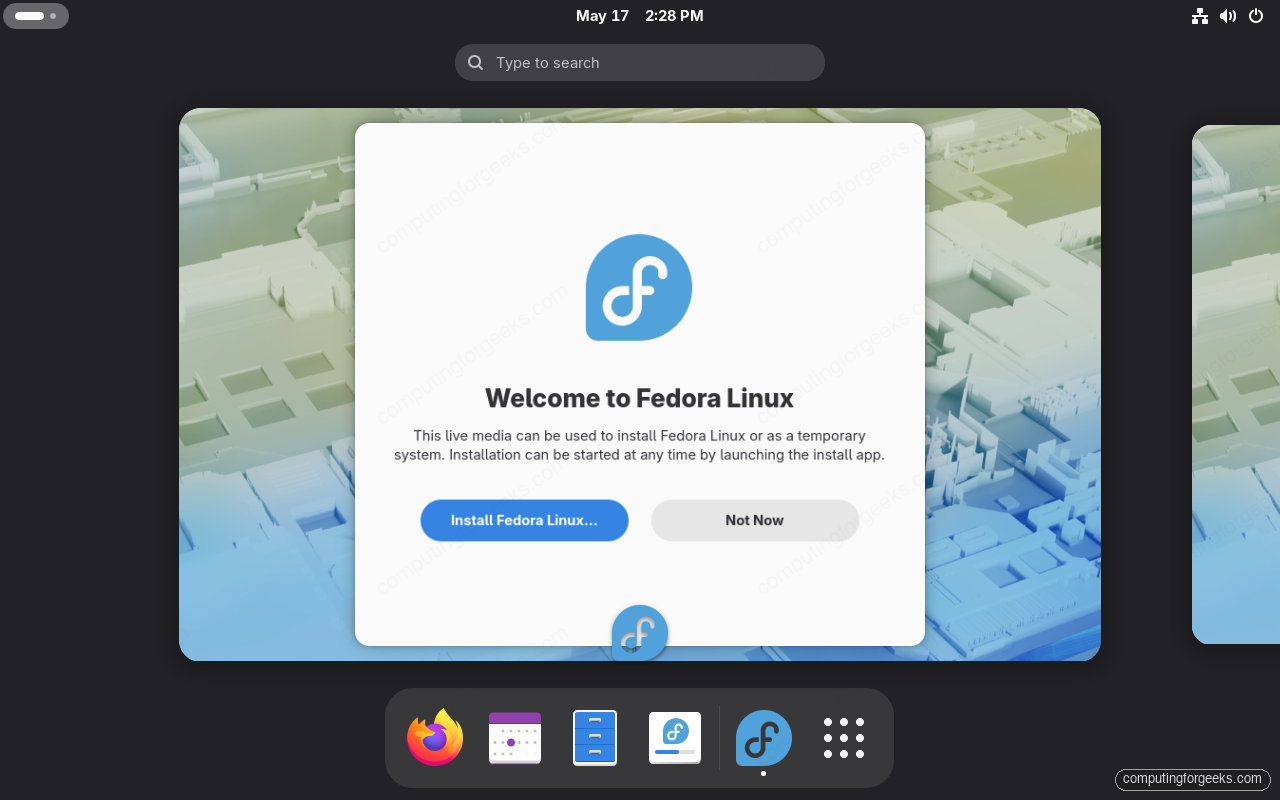
The live session boots into a GNOME 50 desktop with a welcome dialog asking whether you want to Install Fedora Linux… or Not Now. Click Install Fedora Linux… to launch Anaconda. If you dismissed the dialog, you can also launch it later by pressing the Super key and typing “Install”.
Step 4: Anaconda Web UI walkthrough
Fedora 44 ships the Anaconda Web UI, the wizard-based installer that replaced the old hub-and-spoke design. The flow is now four linear steps shown in the sidebar: Welcome, Installation method, Storage configuration, and Review and install. User accounts are no longer created here; that moved to the GNOME initial setup wizard that runs on first boot.
1. Welcome: pick a language and keyboard
The first screen asks for the install language and keyboard layout. The language you pick here becomes the system language after install. Click the language dropdown, type to filter, and pick your language. The keyboard layout defaults to us; click Change system keyboard layout to pick a different one.
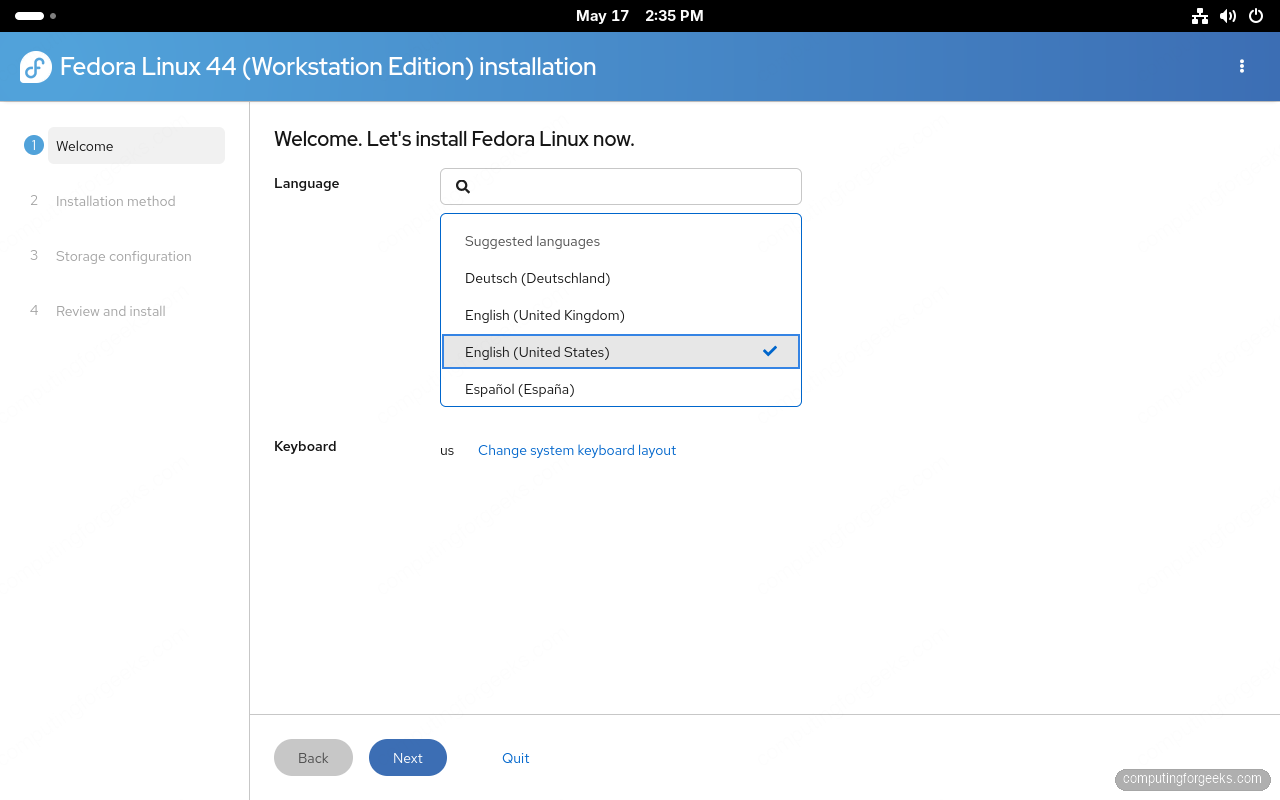
Click Next when done.
2. Installation method: pick the target disk
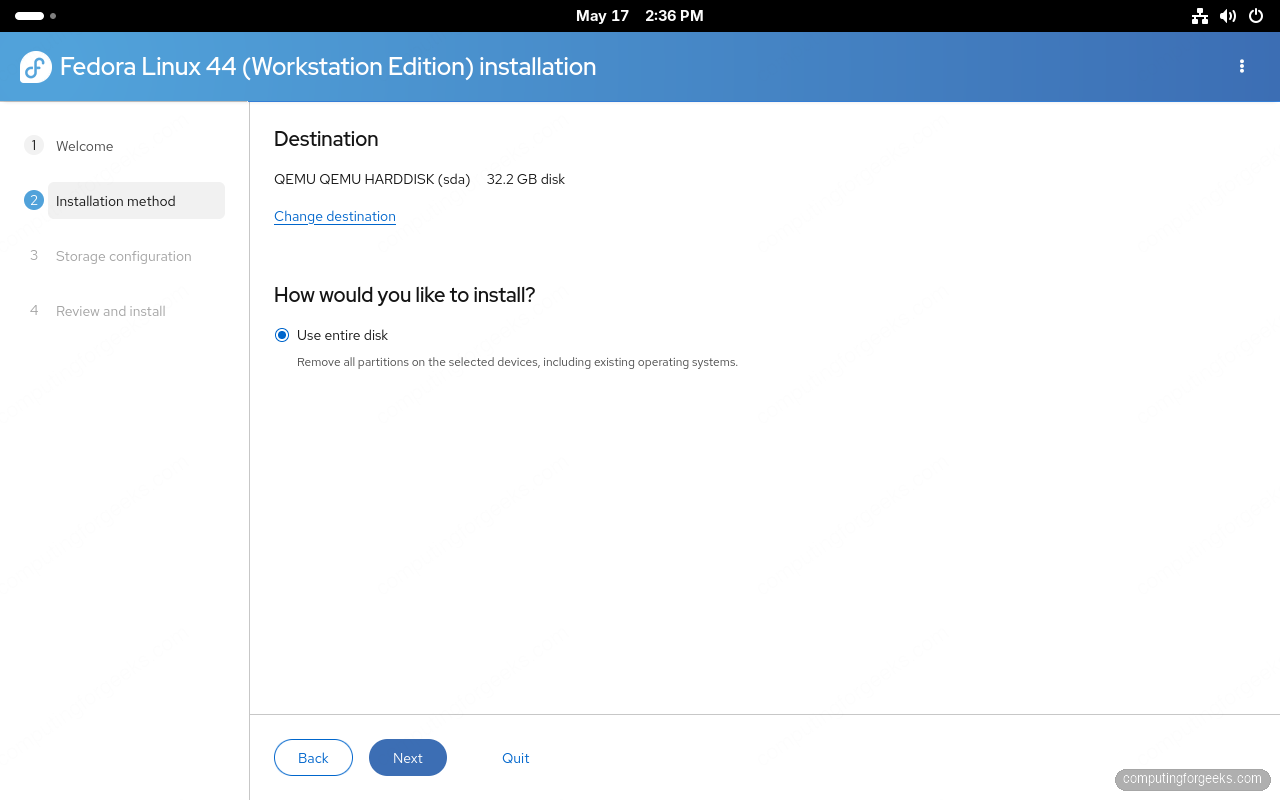
Anaconda lists the detected disks under Destination. The default is the first detected disk; click Change destination if you have multiple disks and want to install onto a different one.
Under How would you like to install? the default is Use entire disk, which wipes the selected disk and creates the Fedora layout from scratch. This is what you want for a clean install on a dedicated box. For dual-boot or to keep an existing /home, choose Mount point assignment from the same screen (collapsed by default).
3. Storage configuration: optional encryption
The storage step in Fedora 44 is short: a single Encrypt my data checkbox. Tick it to enable LUKS full-disk encryption (everything below /boot/efi and /boot gets encrypted) and Anaconda will prompt for a passphrase later. Leave it unticked for an unencrypted install.
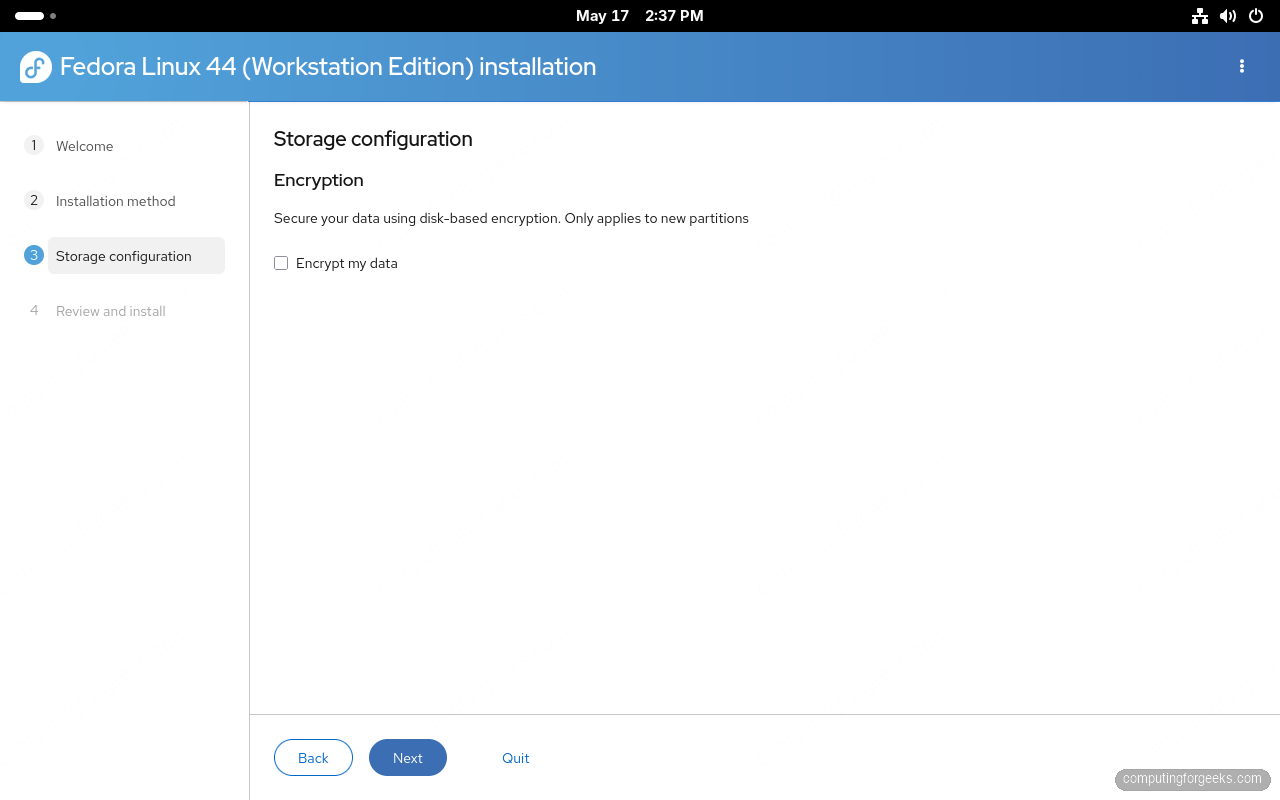
The partition layout itself isn’t picked here; Anaconda derives it from the disk size and the install method. For a typical 32 GB disk on the Use entire disk path, you’ll get:
sda1– 629 MB EFI System Partition, formatted FAT, mounted at/boot/efisda2– 2.15 GB ext4, mounted at/bootsda3– the rest, formatted Btrfs, with two subvolumes mounted at/and/home
4. Review and install: confirm and commit
The final step summarizes everything Anaconda is about to do: operating system, language, installation type, target disk, and the partition layout broken down by mount point. Take a look, especially the storage section, because the next click formats the disk and there’s no undo from this point.
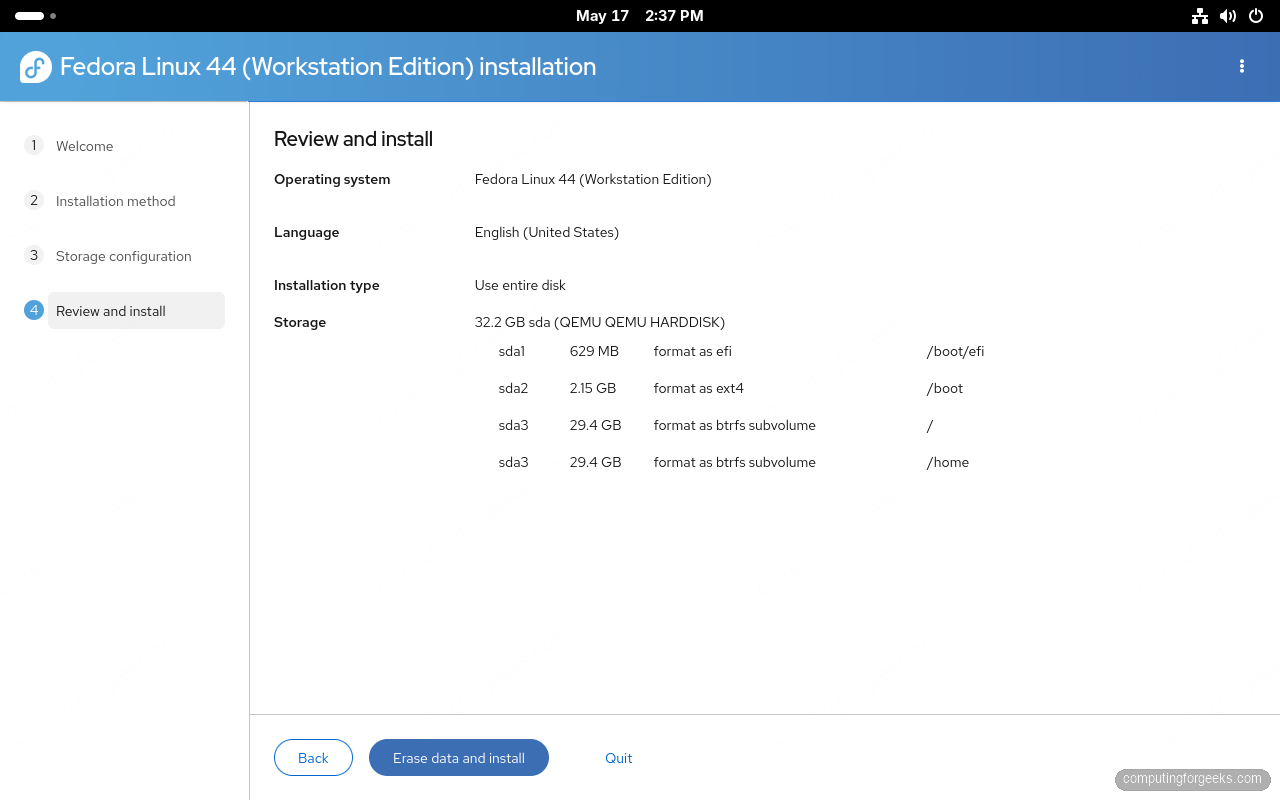
When you’re ready, click Erase data and install. Anaconda then runs through four phases:
- Storage configuration – partition and format the disk
- Software installation – copy the Fedora root filesystem and install packages
- System configuration – bootloader, fstab, initramfs, SELinux contexts
- Finalization – cleanup, post-install hooks
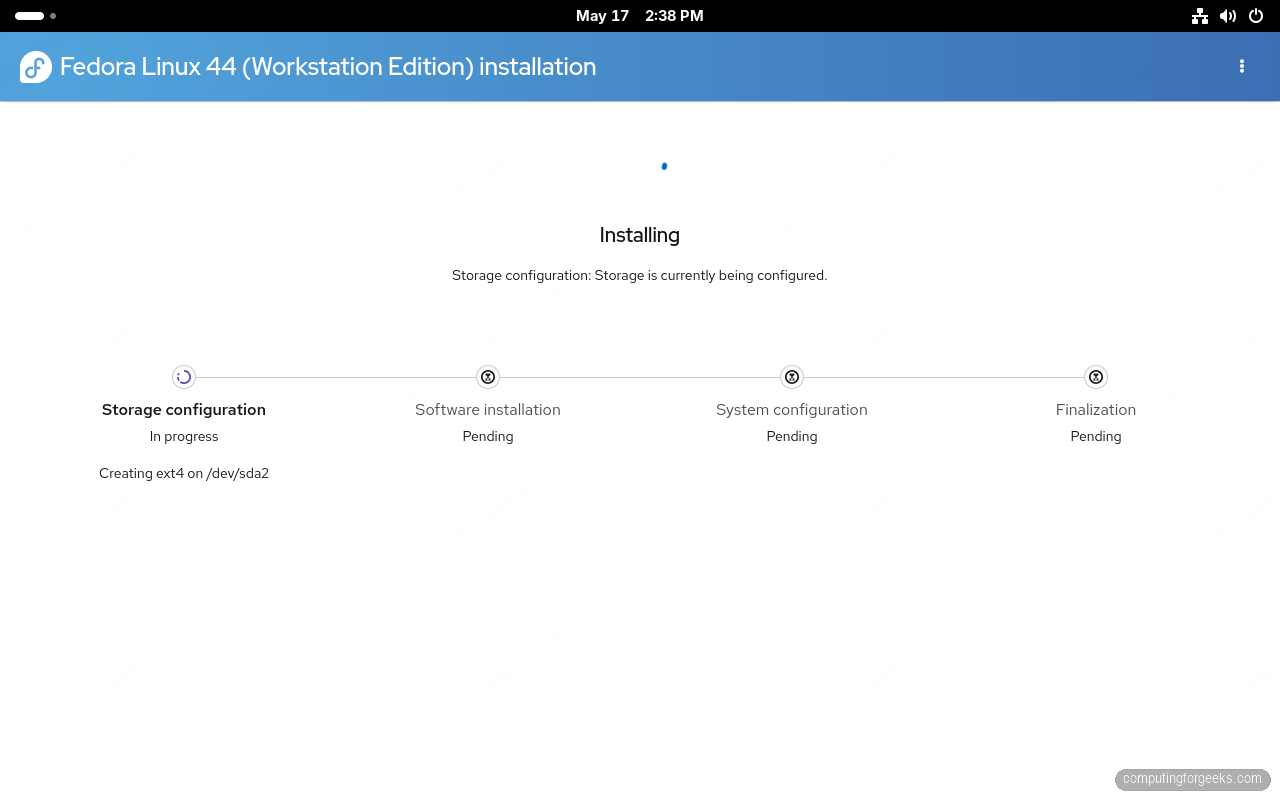
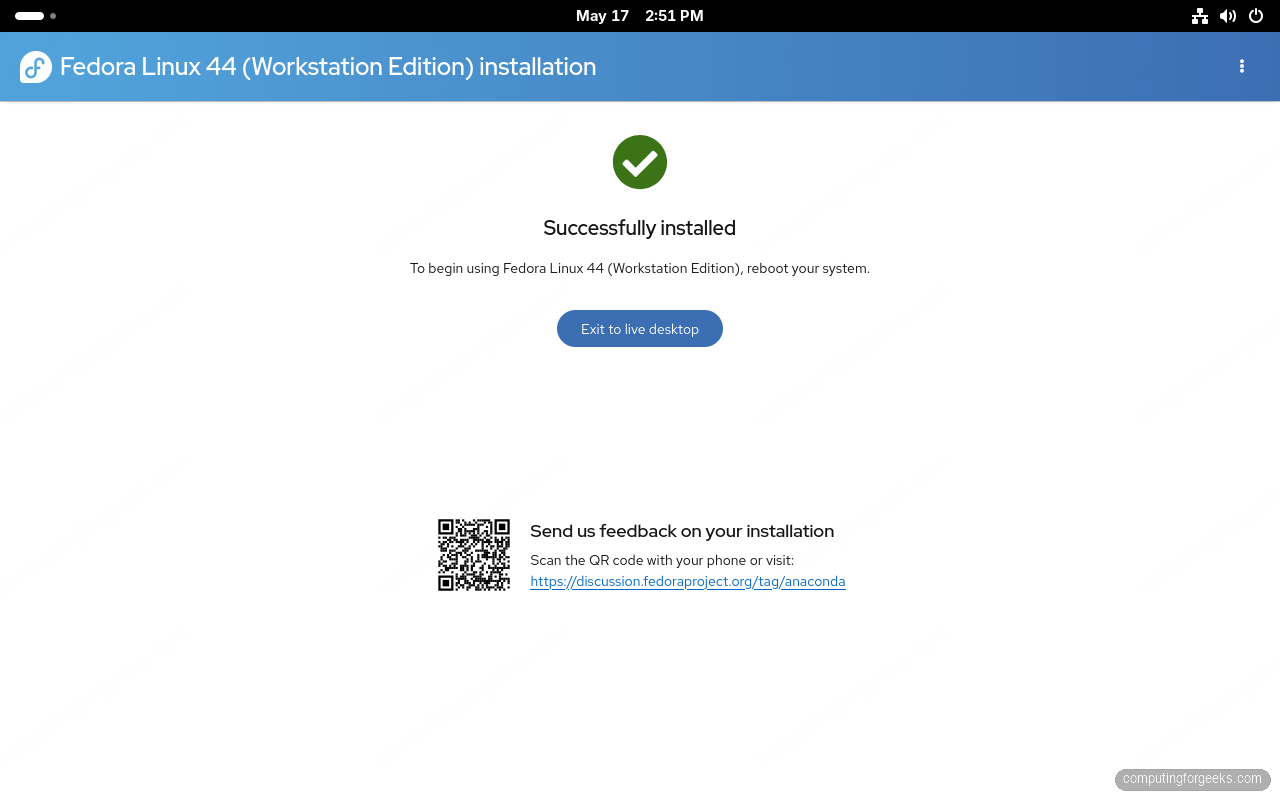
On a modern SSD this takes 4-8 minutes. On a USB target or spinning disk plan for 15-20 minutes. When done you’ll see a Successfully installed screen with an Exit to live desktop button. Click it to return to the live session, then shut down from the GNOME top-right menu and pull the USB before the firmware hands off to the disk so the next boot loads the installed Fedora.
Step 5: First boot – GNOME Initial Setup
After the first reboot the installed Fedora 44 runs GNOME Initial Setup, the wizard that creates your user account and walks through privacy and online accounts. Anaconda no longer asks for any of this on F44; it all happens here on first boot.
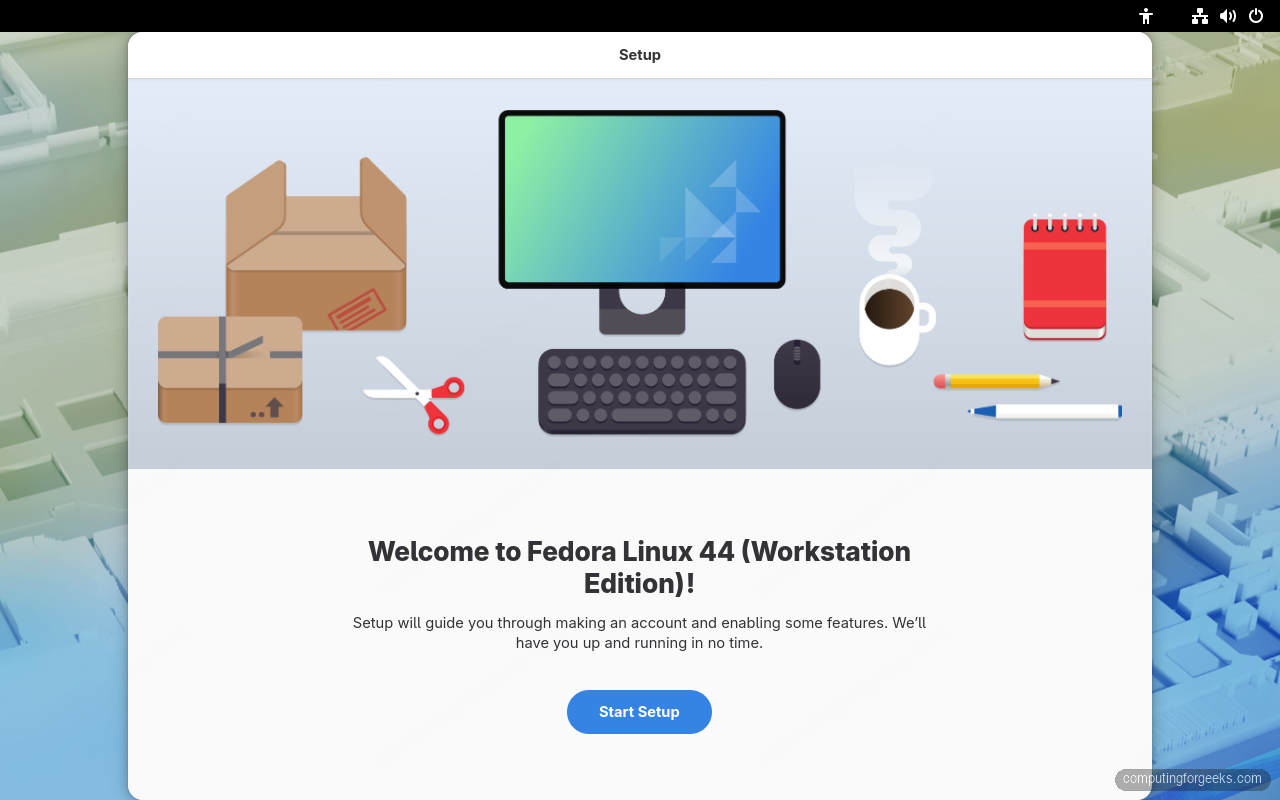
Click Start Setup and Initial Setup walks through these screens:
- Privacy – location services and automatic problem reporting toggles
- Wellbeing – the new GNOME 50 screen-time tracker, opt-in
- Third-party repositories – opt-in to enable repos that ship proprietary bits (NVIDIA, Chrome, Steam)
- Online accounts – Google, Microsoft 365, Nextcloud, Fedora Account; skip if you don’t need them
- About you – full name and username
- Password – account password and confirmation; Fedora 44 enforces a strong password policy by default
Once you land at the GNOME 50 desktop, confirm the install by checking the version markers in a terminal:
cat /etc/fedora-release
uname -r
gnome-shell --version
You should see Fedora 44, kernel 6.19.14-300.fc44 (or newer once dnf updates run), and GNOME Shell 50.
Pull in any post-release updates and reboot if a new kernel landed:
sudo dnf upgrade --refresh -y
[ -f /var/run/reboot-required ] && sudo systemctl reboot
From here Fedora 44 is a daily-driver Workstation. If you want media codecs and proprietary drivers, the next step is enabling RPM Fusion. Note that early Fedora 44 had a known RPM Fusion repo-detection quirk where the rawhide repo got picked up instead of the F44 one; the workaround is to install the F44 release packages directly:
sudo dnf install \
  https://mirrors.rpmfusion.org/free/fedora/rpmfusion-free-release-44.noarch.rpm \
  https://mirrors.rpmfusion.org/nonfree/fedora/rpmfusion-nonfree-release-44.noarch.rpm
Fedora 44 receives security updates and bug fixes until roughly one month after Fedora 46 ships (typical 13-month lifecycle). For long-running production workloads consider Fedora CoreOS or RHEL/Rocky/Alma. For a daily driver desktop, this is the best Fedora yet.