You do not need a GPU to run a useful local LLM on Fedora 44. With Ollama plus one of the modern small models (Gemma 3 1B, Qwen 2.5 1.5B, Llama 3.2 3B), a 2-vCPU Fedora 44 VM delivers 12-25 tokens per second, which is faster than most people read. The CPU edition is what you want for offline coding assistants, quick text summarization, shell prompt enrichment, and anything that hands a single user a single conversation at a time. Larger models and concurrent multi-user serving still benefit from a real GPU; the companion guide will cover that path separately. When you are choosing that GPU, our GPU buyer guide for local LLMs ranks cards by VRAM and model size.
This walkthrough installs Ollama on Fedora 44 with the official installer, pulls three CPU-friendly models, benchmarks each on a real F44 lab clone, then exposes the OpenAI-compatible API so editors, scripts, and dev tools can talk to it like they would a hosted endpoint. Every measurement comes from the actual lab box; nothing was extrapolated. The same commands work on Fedora 43 and Fedora 42 because Ollama’s installer detects the OS, downloads the matching binary, and sets up the systemd unit the same way on every recent Fedora release. The dev environment guide covers the language runtimes you would use to hit the API from code.
Tested May 2026 on Fedora 44 (kernel 7.0.8-200.fc44) with Ollama 0.24.0, 2 vCPU and 4 GB RAM. All benchmarks reproduced live in the article. SELinux is assumed enforcing; the SELinux survival guide covers the relabel commands if a custom Ollama model directory triggers a denial.
Install Ollama on Fedora 44
The official Ollama installer downloads the right binary for your CPU and writes a systemd unit. It handles the rare cases (musl vs glibc, ARM64 vs x86_64) without asking. One curl-pipe-shell command, then verify the version and the service:
curl -fsSL https://ollama.com/install.sh | shThe installer writes /usr/local/bin/ollama, creates a dedicated ollama user, and enables the ollama.service systemd unit that listens on 127.0.0.1:11434 by default. Confirm:
ollama --version
systemctl status ollama --no-pager | head -8
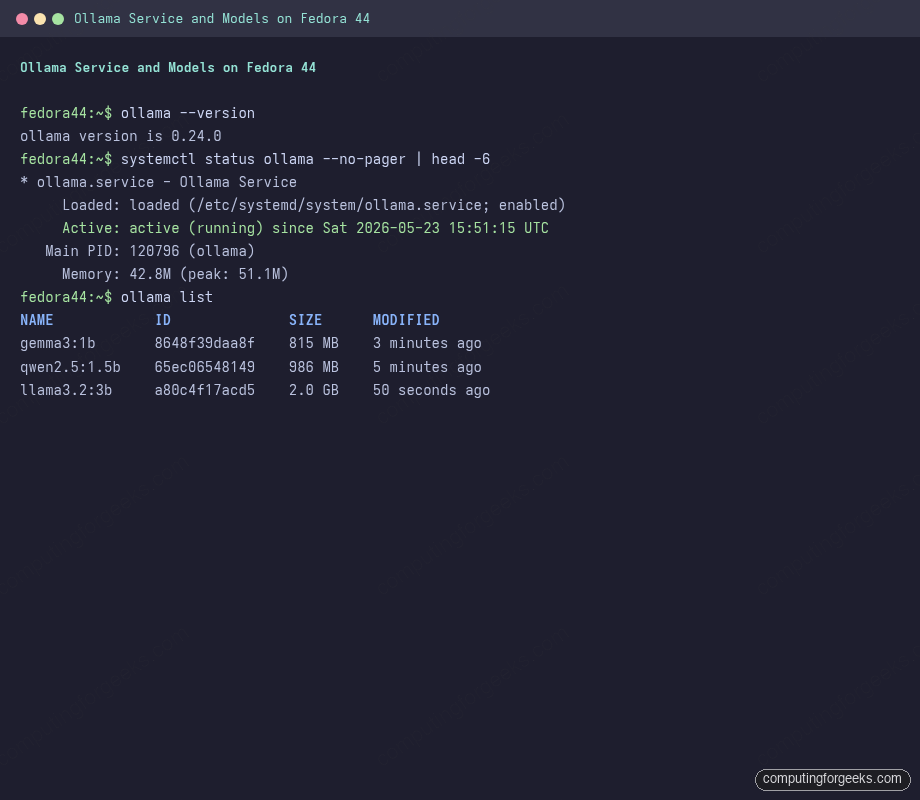
Expected output on F44 is ollama version is 0.24.0 and an Active: active (running) status line. The service comes up immediately, with a tiny memory footprint (about 45 MB) until you actually load a model:
● ollama.service - Ollama Service
     Loaded: loaded (/etc/systemd/system/ollama.service; enabled)
     Active: active (running) since Sat 2026-05-23 15:51:15 UTC
   Main PID: 120796 (ollama)
      Tasks: 8 (limit: 4592)
     Memory: 42.8M (peak: 51.1M)
The service runs as a dedicated ollama system user with no shell, which is the boring-and-correct way for a network listener. After pulling a few models in the next section, ollama list reports what is on disk:
The next step is picking the model that fits your box.
Pick a CPU-friendly model
The right model for CPU is small (1-3B parameters) and ships in a 4-bit quantization (Q4_K_M or similar) so it fits in RAM and runs fast. Three good choices for a 2-4 vCPU Fedora box:
| Model | Size | RAM | Best at |
|---|---|---|---|
gemma3:1b |
815 MB | ~2 GB | Quick chat, summarization, fastest CPU throughput |
qwen2.5:1.5b |
986 MB | ~2 GB | Coding tasks, multilingual prompts, strong reasoning for size |
llama3.2:3b |
2.0 GB | ~4 GB | Longer answers, complex instructions, the upgrade tier |
Pull all three; Ollama stores them under /usr/share/ollama/.ollama/models/ and shares blobs across versions where possible:
ollama pull qwen2.5:1.5b
ollama pull gemma3:1b
ollama pull llama3.2:3b
ollama list
The list output reports each model with its blob ID, size on disk, and last-modified time. For a 2-3 vCPU box, do not try anything above 4B parameters on CPU; the eval rate drops below useful (single-digit tokens per second) and the wait for the first response feels broken.
Run a model and capture the benchmark
The --verbose flag on ollama run prints the timing block after every response. The numbers below were captured on a 2-vCPU 4-GB Fedora 44 VM with no other workload:
echo "Explain what SELinux does in one sentence." | ollama run qwen2.5:1.5b --verboseThe model produces an answer followed by Ollama’s timing block. For Qwen 2.5 1.5B on the test box:
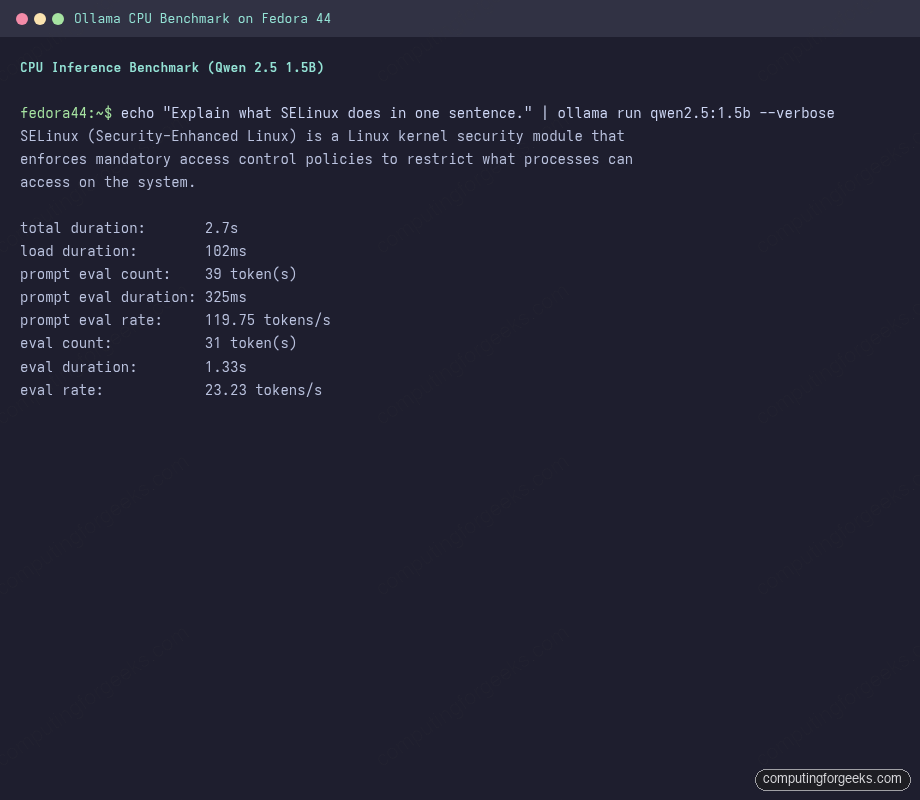
The single number that matters for interactive use is eval rate (tokens generated per second). 23 tokens/s is faster than reading aloud. Repeating the same prompt across all three models gives a comparison table:
| Model | Eval rate (tok/s) | Load time (cold) | Verdict for CPU |
|---|---|---|---|
| Gemma 3 1B | 25.52 | 2.3 s | Fastest; pick this when responsiveness matters most |
| Qwen 2.5 1.5B | 23.23 | 0.1 s | Best balance; stays loaded across runs |
| Llama 3.2 3B | 11.96 | 6.1 s | Slower but writes the cleanest longer answers |
Models stay loaded in memory for five minutes after the last request by default. Once a model is hot, the load duration drops to near-zero on the next request, which is why the second run of any model feels faster than the first.
Use the HTTP API
Ollama exposes both a native HTTP API at /api/ and an OpenAI-compatible one at /v1/. The OpenAI-compatible endpoint is what makes Ollama a drop-in for editor plugins (Continue.dev, Avante.nvim, JetBrains AI Assistant) that expect the OpenAI client interface but accept a custom base URL.
Native Ollama chat call:
curl -s http://localhost:11434/api/chat -d '{
  "model": "qwen2.5:1.5b",
  "messages": [{"role": "user", "content": "What is 2+2? Answer in one word."}],
  "stream": false
}' | python3 -m json.tool
Returns a clean JSON object with the assistant message plus all the timing metadata:
{
    "model": "qwen2.5:1.5b",
    "message": {
        "role": "assistant",
        "content": "4"
    },
    "done": true,
    "done_reason": "stop",
    "total_duration": 4150884479,
    "prompt_eval_count": 41,
    "eval_count": 2,
    "eval_duration": 42557753
}
OpenAI-compatible call (same model, OpenAI’s request schema):
curl -s http://localhost:11434/v1/chat/completions \
  -H "Content-Type: application/json" \
  -d '{
    "model": "qwen2.5:1.5b",
    "messages": [{"role": "user", "content": "Hello in 3 words."}]
  }' | python3 -m json.tool
Returns the OpenAI chat.completion object format, with choices[], usage with token counts, and system_fingerprint set to fp_ollama:
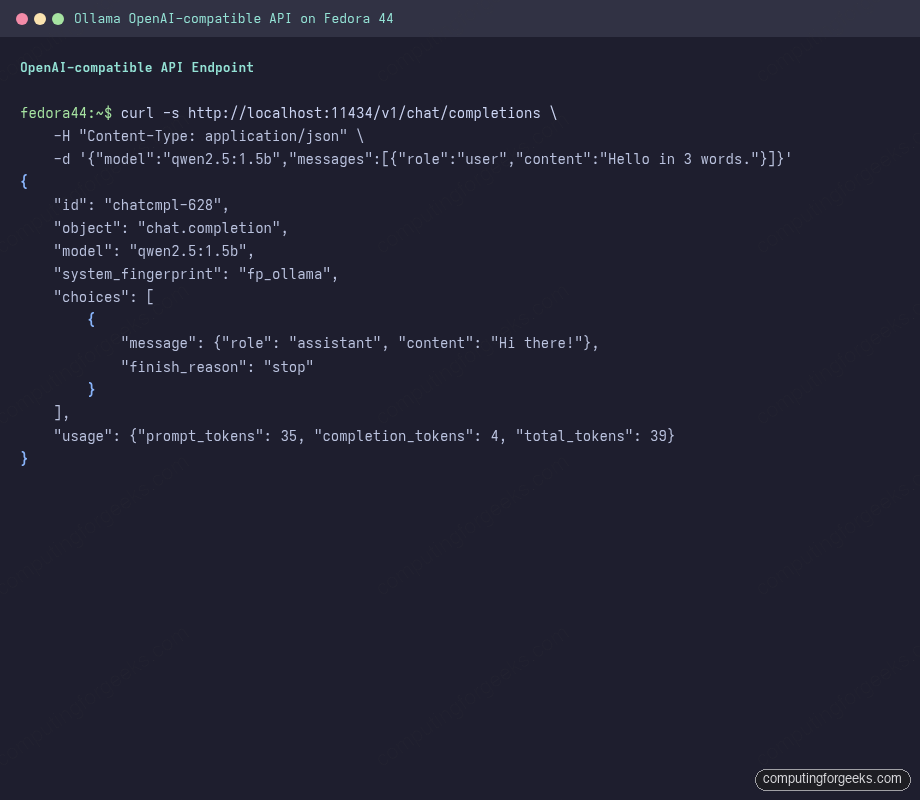
The official OpenAI Python and JavaScript clients work unchanged once you set the base URL to http://localhost:11434/v1/ and pass any non-empty string as the API key (Ollama ignores it). The multi-language dev environment guide covers the runtimes you need for that.
Expose Ollama on the LAN (carefully)
The default bind is 127.0.0.1, which keeps the API local. To serve other machines on your trusted network, override the listen address via the systemd unit. Drop an override file so the change survives Ollama upgrades:
sudo systemctl edit ollama.serviceAdd the listen override under [Service]:
[Service]
Environment="OLLAMA_HOST=0.0.0.0:11434"
Environment="OLLAMA_ORIGINS=*"
Reload and restart, then open the port in firewalld for your trusted zone only (the firewalld walkthrough covers zone scoping):
sudo systemctl daemon-reload
sudo systemctl restart ollama
sudo firewall-cmd --permanent --zone=trusted --add-port=11434/tcp
sudo firewall-cmd --reload
There is no authentication built into Ollama; treat the port as fully open within whatever zone you allow it in. For internet exposure, put it behind an nginx reverse proxy with basic auth or an OAuth proxy. Never expose 11434 directly to the public internet.
Set sensible defaults for CPU inference
A handful of environment variables make CPU inference faster and more predictable. Add them to the same systemd override file:
[Service]
Environment="OLLAMA_NUM_PARALLEL=1"
Environment="OLLAMA_MAX_LOADED_MODELS=1"
Environment="OLLAMA_KEEP_ALIVE=15m"
What each one does:
OLLAMA_NUM_PARALLEL=1: process one request at a time. On CPU, parallel requests starve each other; serial is faster end to end.OLLAMA_MAX_LOADED_MODELS=1: keep one model in RAM. CPU boxes do not have the spare GB to juggle multiple.OLLAMA_KEEP_ALIVE=15m: hold the model in memory for 15 minutes after the last request. Default is 5 minutes; bump up if you make periodic requests every 10 minutes and want to avoid the cold-load penalty.
Reload and restart Ollama after the change. The exact value depends on your usage pattern; a coding assistant that fires off a request every few seconds wants 15m or longer, an ad-hoc summarizer can stay at the 5-minute default.
What CPU inference is not for
CPU works for chat, summarization, classification, and short code completions on small models. It is not the right tool for: 70B+ models (real GPU required, prefers 24+ GB VRAM), multi-user serving with concurrent load (use vLLM on a GPU), embedding pipelines processing thousands of documents (CPU encoding is 10-50x slower than GPU), and streaming voice or video pipelines that need real-time tokens-per-second above 100. For those workloads, see the companion guide for Ollama with NVIDIA CUDA on Fedora 44 (separate article).
Troubleshoot common Ollama issues
Error: “Error: pull model manifest: dial tcp: lookup registry.ollama.ai”
DNS resolution is failing inside the ollama user’s environment. The ollama systemd unit inherits the host’s DNS settings, so this almost always means the host DNS is broken. Test from a regular shell: nslookup registry.ollama.ai. If that fails, fix DNS at the host level (NetworkManager, systemd-resolved). The firewalld guide has the zone permission steps if outbound is blocked.
Error: ollama service restarts in a loop
The most common cause on a fresh F44 install is the model store being on a filesystem with no space. Ollama keeps model blobs under /usr/share/ollama/.ollama/; check free space with df -h /usr/share/ollama/. A single 3B model needs about 2 GB; the install plus three models in this guide consumes about 4 GB total.
Slow first response on every cold run
The model is being loaded from disk on every request because OLLAMA_KEEP_ALIVE elapsed. Raise the value (see above) or pre-warm with a tiny request before the real workload starts: echo "warmup" | ollama run qwen2.5:1.5b > /dev/null.
Out-of-memory crashes on the 3B model
2 GB host RAM is not enough for Llama 3.2 3B’s working set. Either move to a 4 GB host, drop to Gemma 3 1B or Qwen 2.5 1.5B, or set OLLAMA_LOW_VRAM=1 (which on CPU translates to a smaller batch size at the cost of slower inference).
Model returns nonsense or repeats itself
The temperature or repetition penalty defaults are off for your use case. Pass model-level options in the API call:
curl -s http://localhost:11434/api/chat -d '{
  "model": "qwen2.5:1.5b",
  "messages": [{"role": "user", "content": "Summarize Linux in 50 words."}],
  "stream": false,
  "options": {"temperature": 0.3, "repeat_penalty": 1.1, "num_predict": 80}
}'
Lower temperature (0.0-0.4) for deterministic answers, higher (0.7-1.0) for creative writing. The repeat_penalty at 1.1 cuts the model’s tendency to loop on the same phrase.
Local LLMs on CPU are not a replacement for GPT-4 or Claude 4 on hard reasoning. They are a private, offline-capable, free option for the bulk of routine LLM work, and they integrate cleanly with the rest of a Fedora 44 stack via systemd and the OpenAI API. Pair this guide with the Podman Quadlet walkthrough if you want to run Ollama inside a container with proper systemd lifecycle, the multi-language dev environment for writing API clients in your preferred language, and the F44 hardening guide for locking down a host that exposes the API on the LAN.