By the end of this guide you will have Azure Linux 4.0 installed, booting, and sitting at a login prompt, with a sudo-capable user ready to go. The whole thing takes about fifteen minutes on a virtual machine, and the installer does most of the heavy work for you.
Azure Linux 4.0 (codenamed Four) is Microsoft’s own RPM-based distribution, the same lineage that runs AKS nodes and pieces of Azure itself. This release is built on a Fedora 43 snapshot, ships a modern 6.18 kernel, uses the dnf5 package manager, and keeps SELinux in enforcing mode by default. To install Azure Linux 4, you boot its ISO, run a small guided installer, and let it lay down a minimal base system. This guide walks through every screen so you know exactly what to expect.
Installed and verified on Azure Linux 4.0 (kernel 6.18.31) in June 2026, running as a virtual machine on Proxmox VE.
What you’ll need
Azure Linux 4.0 is still a public beta, and Microsoft only supports it running on Azure, so anywhere else is strictly for evaluation. Treat it as a lab system rather than something you put under production load. For a comfortable install you want:
- A 64-bit (x86_64) machine or virtual machine. Two vCPUs and 2 GB of RAM are enough to install and boot; 4 GB makes everything snappier once you start adding services.
- At least 20 GB of disk. The base system is tiny, but you want room to grow.
- The Azure Linux 4.0
x86_64ISO (the next step covers where to get it). - UEFI firmware. The installer lays down an EFI partition, so boot the media in UEFI mode rather than legacy BIOS.
Any hypervisor works: Proxmox VE, KVM, VirtualBox, Hyper-V, or bare metal. The screenshots here come from a Proxmox VM, but the installer screens are identical everywhere.
Step 1: Download and verify the Azure Linux 4.0 ISO
Microsoft publishes the 4.0 image, its checksum, and a GPG signature behind short aka.ms links rather than on the GitHub releases page. Pull all three with one block:
wget -O AzureLinux-4.0-x86_64.iso https://aka.ms/azurelinux-4.0-x86_64.iso
wget https://aka.ms/azurelinux-4.0-x86_64-iso-checksum
wget https://aka.ms/azurelinux-4.0-x86_64-iso-checksum-signature
The -O flag saves the image as AzureLinux-4.0-x86_64.iso, which is the exact name (capital letters included) that the checksum file refers to. Get that wrong and the check in a moment will not find the file. With all three pieces downloaded, import the Azure Linux signing key, confirm the checksum file is genuinely signed by Microsoft, then check the ISO against that signed checksum:
wget https://raw.githubusercontent.com/microsoft/azurelinux/refs/heads/4.0/base/comps/azurelinux-repos/RPM-GPG-KEY-azurelinux-4.0-primary
gpg --import RPM-GPG-KEY-azurelinux-4.0-primary
gpg --verify azurelinux-4.0-x86_64-iso-checksum-signature azurelinux-4.0-x86_64-iso-checksum
tr -d '\r' < azurelinux-4.0-x86_64-iso-checksum | sha256sum --check -
The gpg --verify step should report a good signature from the Azure Linux key, and the final command should print OK next to the ISO name. If either one fails, do not boot the image; download it again. The project landing page at aka.ms/azurelinux links to every image and the documentation.
If you are installing on a hypervisor, copy the ISO to wherever it stores installation media. On Proxmox VE that means uploading it under local > ISO Images. For bare metal, write it to a USB stick with a tool that preserves the hybrid ISO layout, such as dd or Rufus in DD mode.
Step 2: Create the virtual machine and boot the ISO
Create a VM with the specs above, set the firmware to UEFI (OVMF on Proxmox), attach the ISO as a CD-ROM, and put the CD-ROM first in the boot order. If you are new to building VMs on Proxmox, the steps in our Proxmox VM creation walkthrough apply here too; only the ISO changes.
One thing to set before you boot: the 4.0 preview ISOs are not signed for Secure Boot, so turn Secure Boot off in the VM’s firmware first or the media will refuse to start. On Proxmox, use a plain OVMF (UEFI) setup without Secure Boot; on Hyper-V Generation 2 VMs, untick Secure Boot in the VM settings; on a physical machine, disable it in the firmware.
Start the machine. Azure Linux boots into a small live environment and logs you in as root automatically. You are greeted with a short banner that tells you how to launch the installer.
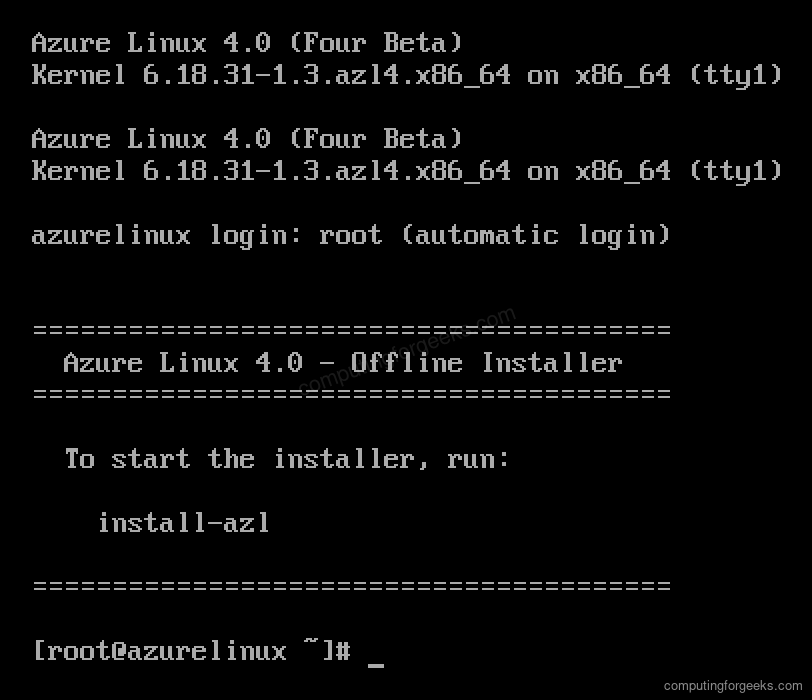
That banner is the whole entry point. There is no desktop, no graphical welcome wizard, just a prompt waiting for one command.
Step 3: Start the installer
Launch the guided installer with a single command:
install-azlThis is the part that trips people up if they go looking for a fancy GUI: Azure Linux ships a deliberately plain, keyboard-driven installer. The install-azl command wraps the standard Anaconda installer behind a short menu, so it is fast and it is the same on every machine.
Step 4: Choose the installation type
The first prompt asks how you want the disk set up. You get two choices: a standard install, or an encrypted disk using LUKS.
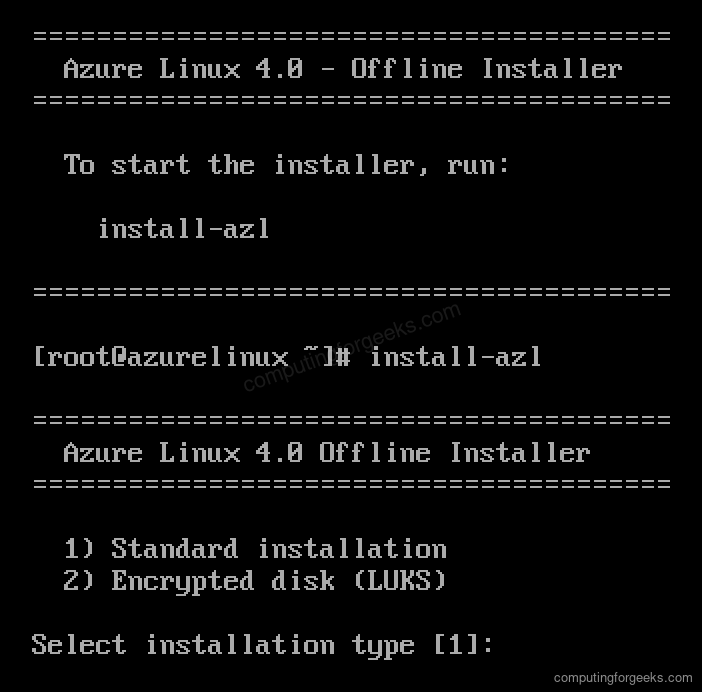
Press 1 and Enter for a standard install, or 2 if you want full-disk encryption (you will be asked for a passphrase at every boot). Either way, the installer prints the partition plan it is about to apply. It wipes the target disk and builds a sensible layout automatically:
- A 600 MB EFI system partition mounted at
/boot/efi - A 1 GB ext4
/bootpartition - An LVM volume group named
vg_azlfilling the rest of the disk, holding a 512 MB swap volume and an ext4 root volume that grows to fill the space
There is no manual partitioner in this flow. If you need custom partitioning you would script it with a kickstart file, but for an evaluation install the default layout is exactly what you want. After the disk plan, the installer hands off to a familiar text-mode setup menu, which is Anaconda doing the work.
Step 5: Set the root password and create a user
The setup menu lists everything the installer needs. Language, time zone, install source, software selection, and storage are already filled in for you. Two items start with a [!] marker, which means they need your attention before the install can run: the root password and user creation.
Press 6 to set the root password. You type it twice, and if it is short or simple the installer warns you and asks whether to use it anyway. Then press 7 to create a regular login. Toggle Create user on, set a username and password, and leave the Administrator option enabled so the account lands in the wheel group and can use sudo. When both items show a check mark, the menu looks like this:
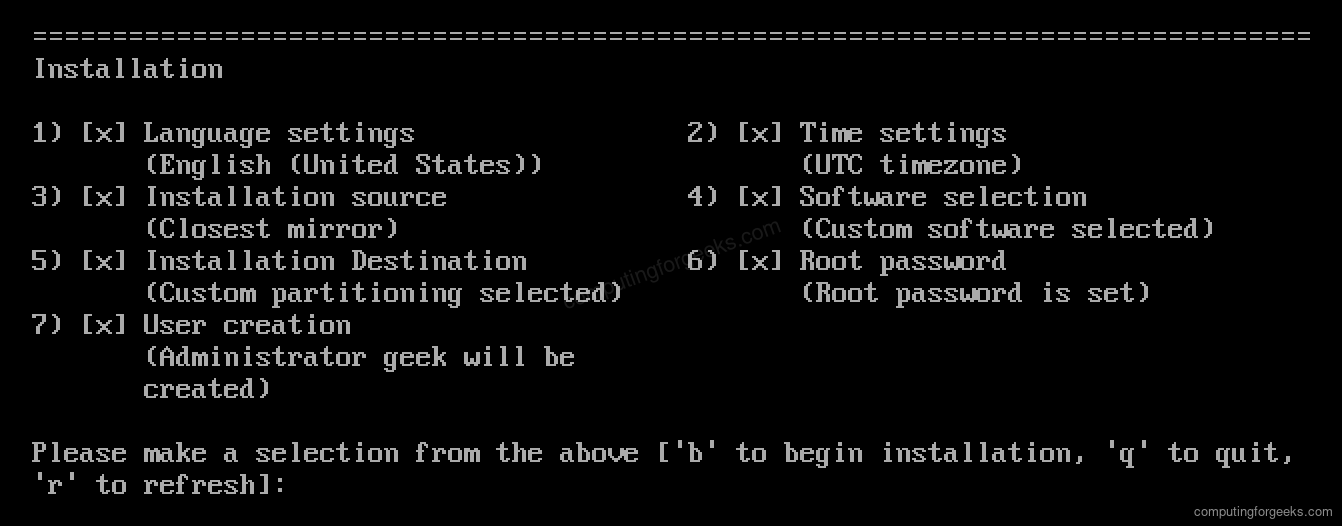
Creating an admin user now saves you a chore later, and it is good practice to log in as a normal account and reach for sudo rather than living as root.
Step 6: Begin the installation
With every line showing a check mark, press b to begin. The installer partitions the disk, formats the filesystems, and writes the base package set (about 270 RPMs) to the new root.
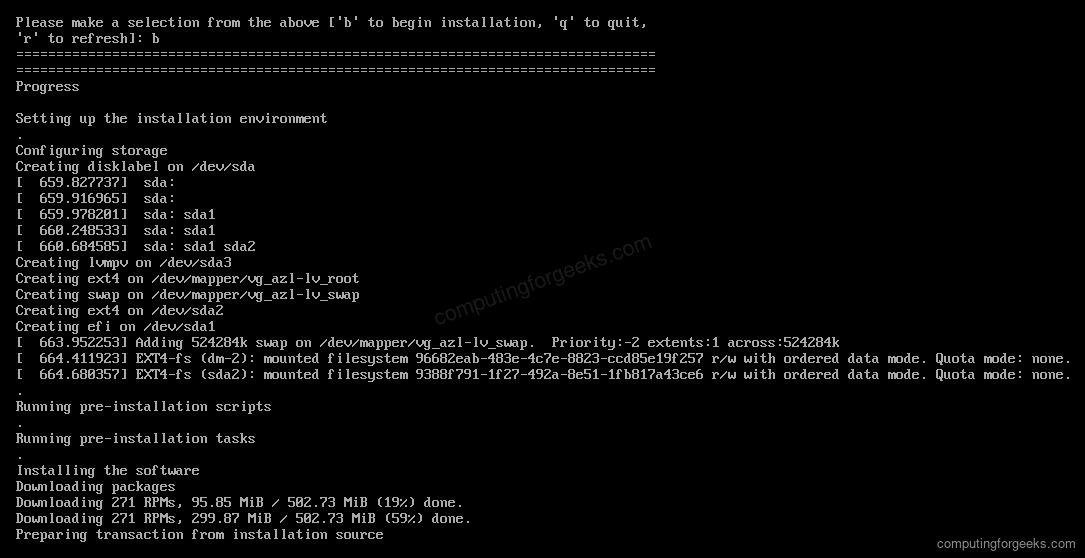
You can watch it create the vg_azl volume group, format root and swap, and stream the packages in. A network connection speeds this up because the installer can pull current packages; on a fresh machine the whole job finishes in a couple of minutes.
Step 7: Reboot into Azure Linux
When the package install finishes, the installer configures the bootloader, generates an initramfs, applies the SELinux labels, creates your user, and runs its post-install tasks. A Complete! line tells you it is done.
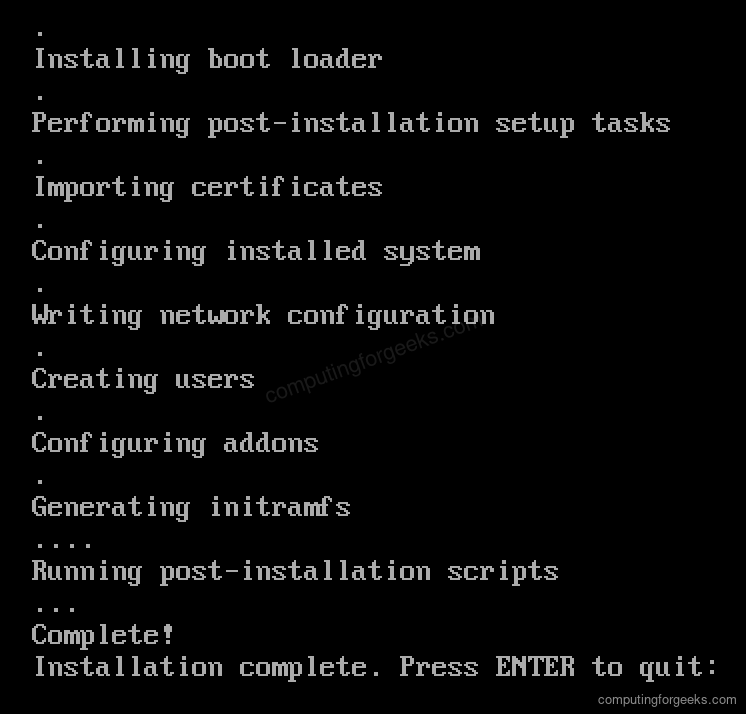
Press Enter to quit the installer, then remove the ISO from the VM (or pull the USB stick) and reboot so the machine boots from its new disk instead of the installer. After a quick boot you land at the login prompt.
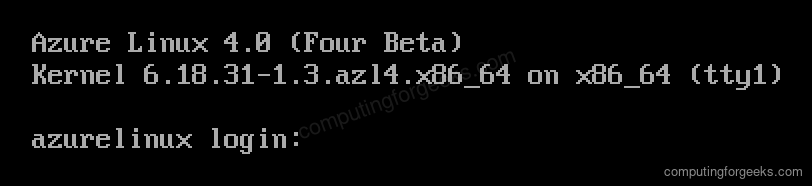
Log in with the username and password you set during the install. That account is in the wheel group, so it can run administrative commands with sudo.
Verify your installation
A few quick commands confirm you are on the release you expect. Check the distribution name and the running kernel:
cat /etc/os-release | grep PRETTY_NAME
uname -r
You should see the 4.0 release name and the 6.18 kernel:
PRETTY_NAME="Azure Linux 4.0 (Four Beta)"
6.18.31-1.3.azl4.x86_64
Confirm SELinux is active. Azure Linux ships it in enforcing mode, and unlike many distros that is the default you get on a fresh install:
getenforceIt returns the enforcing state:
EnforcingFinally, take a look at how the installer carved up the disk. The root volume lives on LVM and the boot partitions sit on their own slices:
df -h / /boot /boot/efiThe layout matches the plan the installer printed earlier:
Filesystem                  Size  Used Avail Use% Mounted on
/dev/mapper/vg_azl-lv_root   38G  988M   35G   3% /
/dev/sda2                   974M   60M  847M   7% /boot
/dev/sda1                   599M   12M  588M   2% /boot/efi
Check that networking came up too. Azure Linux uses systemd-networkd and brings the first interface up with DHCP, so you should already have an address:
ip -br addrThe interface uses predictable naming (ens18 on this VM, not eth0) and shows its leased address:
ens18 UP 10.0.1.50/24 metric 1024 fe80::be24:11ff:fe41:578f/64If you created an admin user, confirm it can act as root. The account should appear in the wheel group, which is what grants sudo access:
getent group wheelYour username is listed as a member:
wheel:x:10:geekRun your first update
Azure Linux gives you two front ends to the same package world. tdnf is the lightweight, fast resolver Microsoft built for the distribution, and dnf (which is dnf5 here) is the full-featured tool you know from Fedora. Both work on the current beta, though Microsoft now points 4.0 users toward dnf5 and dnf, so reach for those in anything you script. Two repositories are enabled by default, a base repo and a Microsoft repo:
tdnf repolistBoth point at packages.microsoft.com:
repo id              repo name
azurelinux-base      Azure Linux 4.0 - x86_64 - Base
azurelinux-microsoft Azure Linux 4.0 - x86_64 - Microsoft
See what has shipped since the ISO was cut, then apply the updates:
sudo tdnf check-update
sudo tdnf -y update
On a freshly cut beta image there are usually a handful of newer packages waiting, the bootloader and release files among them:
azurelinux-release.noarch                4.0-18.azl4      azurelinux-base
grub2-common.noarch                      1:2.12-45.azl4   azurelinux-base
grub2-efi-x64.x86_64                     1:2.12-45.azl4   azurelinux-base
That is a working Azure Linux 4.0 system, fully patched. From here the usual first moves are opening the ports you need with firewalld, and getting comfortable with how SELinux behaves. Because the base is so close to Fedora, the patterns in our post-install Fedora steps carry over almost directly, and a quick read of the SELinux reference pays off the first time a service misbehaves.
Common questions
Is there a graphical installer for Azure Linux?
No. Azure Linux is a server and container-host distribution, so the installer is text only. The install-azl command and the keyboard menu shown above are the entire experience, and there is no desktop in the base image.
Can I install Azure Linux 4.0 without an internet connection?
Yes. The ISO is an offline installer that carries the base packages, so it will complete on an isolated machine. A network connection is still worth having because it lets the installer fetch the newest packages and makes the first dnf update afterward much quicker.
Should I run the beta in production?
Not yet. The 4.0 “Four Beta” label means the release is still stabilising, so keep it to test machines, evaluation VMs, and CI runners while you get a feel for it. It is a great way to see where Microsoft is taking the distribution before the stable release lands.