Databases fail quietly. A MySQL connection pool creeps toward its limit, a MongoDB instance starts spilling its working set out of RAM, a disk fills at 3 a.m., and the first you hear of it is a pager alert from the application, not the database. The fix is boring and reliable: scrape both engines with Prometheus, draw the numbers in Grafana, and alert on the handful of metrics that actually predict trouble.
This guide covers monitoring MySQL and MongoDB by building that stack from scratch on a single host. You install three exporters (one for the Linux box, one for MySQL, one for MongoDB), point Prometheus at them, wire Grafana to Prometheus, import dashboards that show live query rates and memory pressure, and finally put Grafana behind Nginx with a real TLS certificate. Everything here was built and tested in June 2026 on Ubuntu 24.04 with Prometheus 3.12, Grafana 13, MySQL 8.0, and MongoDB 8.0. The commands and config files come straight off that test box.
If you came looking for Percona PMM, note that PMM is a packaged appliance that now stores metrics in VictoriaMetrics rather than Prometheus. It is excellent, but it hides the moving parts. The approach below is the do-it-yourself Prometheus and Grafana stack: more wiring, full control, and metrics you can query and alert on however you like.
How the monitoring stack fits together
Four processes do the work, and they only talk in one direction. Each exporter reads stats from the thing it watches and publishes them as plain text on an HTTP /metrics endpoint. Prometheus scrapes those endpoints on a timer and stores the samples in its time-series database. Grafana queries Prometheus and renders the panels. Nothing pushes; Prometheus pulls.
The components and their default ports:
| Component | Role | Default port |
|---|---|---|
| node_exporter | Host metrics (CPU, memory, disk, network) | 9100 |
| mysqld_exporter | MySQL server status and InnoDB metrics | 9104 |
| mongodb_exporter | MongoDB server status, ops, replication | 9216 |
| Prometheus | Scrapes exporters, stores time series | 9090 |
| Grafana | Dashboards and visualization | 3000 |
The lab runs all five on one VM to keep the walkthrough short. In production you would usually run Prometheus and Grafana on a dedicated monitoring host and install only the exporters on each database server. The only thing that changes is the target address in the Prometheus scrape config: swap localhost for the database host’s IP and open the exporter ports to the monitoring server.
Prerequisites
- A Linux server with sudo access. This guide was tested on Ubuntu 24.04 LTS; the exporter and Prometheus steps are distribution agnostic, only the package manager and firewall commands differ.
- MySQL and MongoDB already installed and running. If you need them, see the guides for installing MySQL and installing MongoDB.
- Outbound internet access to download the exporter and Prometheus release tarballs from GitHub.
- For the HTTPS step, a domain name whose A record points at the server and port 80 reachable, or a DNS provider API token if the host has no public address.
Create a monitoring user in MySQL
The MySQL exporter does not need an admin account. It needs to read server status and the performance schema, nothing more. Create a dedicated user with exactly those rights and cap its connections so a misbehaving exporter can never exhaust the server’s connection budget.
Open a MySQL shell as the administrator:
sudo mysqlCreate the account and grant the three privileges the exporter actually uses:
CREATE USER 'exporter'@'localhost' IDENTIFIED BY 'Change_This_Strong_Pass' WITH MAX_USER_CONNECTIONS 3;
GRANT PROCESS, REPLICATION CLIENT, SELECT ON *.* TO 'exporter'@'localhost';
FLUSH PRIVILEGES;
EXIT;
The MAX_USER_CONNECTIONS 3 clause is the part most tutorials skip. Without it, a stuck exporter can open connections until MySQL refuses everyone else. Confirm the grant landed before moving on:
mysql -u exporter -p -e "SHOW GRANTS;"You should see only the privileges you granted, scoped to exporter@localhost:
GRANT SELECT, PROCESS, REPLICATION CLIENT ON *.* TO `exporter`@`localhost`MySQL is ready to be scraped. MongoDB needs the same kind of read-only account, created a little differently.
Create a monitoring user in MongoDB
MongoDB ships a built-in role made for exactly this job: clusterMonitor. It grants read access to server status, replication state, and database stats without any write capability. Connect as an admin user (or through the localhost exception if you have not enabled authentication yet) and create the account:
mongosh -u admin -p --authenticationDatabase adminInside the shell, create the exporter user with the monitoring role:
db.getSiblingDB("admin").createUser({
  user: "exporter",
  pwd: "Change_This_Strong_Pass",
  roles: [
    { role: "clusterMonitor", db: "admin" },
    { role: "read", db: "local" }
  ]
})
The extra read on the local database lets the exporter see the oplog, which is what fills in the replication panels. If your MongoDB is a standalone node, those panels stay empty, which is expected. Production MongoDB should run as a replica set even with a single member, because that is what enables transactions, change streams, and oplog-based monitoring. Converting a standalone to a single-node replica set is a config change (replication.replSetName plus a keyfile) followed by one rs.initiate() call.
Install the Prometheus exporters
All three exporters are single Go binaries with no dependencies. The clean way to run them is under a dedicated unprivileged system user, started by systemd. Create that user first:
sudo useradd --no-create-home --shell /usr/sbin/nologin prometheusWith the service account in place, install each exporter in turn. Start with the host metrics.
node_exporter for host metrics
Detect the latest release tag at download time so this never goes stale, then install the binary:
cd /tmp
VER=$(curl -s https://api.github.com/repos/prometheus/node_exporter/releases/latest | grep tag_name | cut -d '"' -f4)
curl -LO "https://github.com/prometheus/node_exporter/releases/download/${VER}/node_exporter-${VER#v}.linux-amd64.tar.gz"
tar xzf node_exporter-${VER#v}.linux-amd64.tar.gz
sudo cp node_exporter-${VER#v}.linux-amd64/node_exporter /usr/local/bin/
sudo chown prometheus:prometheus /usr/local/bin/node_exporter
Create the service unit. Open the file:
sudo nano /etc/systemd/system/node_exporter.servicePaste the following:
[Unit]
Description=Prometheus Node Exporter
Wants=network-online.target
After=network-online.target

[Service]
User=prometheus
Group=prometheus
Type=simple
ExecStart=/usr/local/bin/node_exporter
Restart=on-failure

[Install]
WantedBy=multi-user.target
That is the host covered. The MySQL exporter follows the same shape, with database credentials added.
mysqld_exporter for MySQL
Install the binary the same way, pointing at the official Prometheus repository:
cd /tmp
VER=$(curl -s https://api.github.com/repos/prometheus/mysqld_exporter/releases/latest | grep tag_name | cut -d '"' -f4)
curl -LO "https://github.com/prometheus/mysqld_exporter/releases/download/${VER}/mysqld_exporter-${VER#v}.linux-amd64.tar.gz"
tar xzf mysqld_exporter-${VER#v}.linux-amd64.tar.gz
sudo cp mysqld_exporter-${VER#v}.linux-amd64/mysqld_exporter /usr/local/bin/
sudo chown prometheus:prometheus /usr/local/bin/mysqld_exporter
The exporter reads its database credentials from a .my.cnf file rather than the command line, which keeps the password out of the process list. Create a locked-down directory and file:
sudo mkdir -p /etc/mysqld_exporter
sudo nano /etc/mysqld_exporter/.my.cnf
Add the client section with the credentials you created earlier:
[client]
user=exporter
password=Change_This_Strong_Pass
host=localhost
Lock the file down so only the exporter user can read it:
sudo chown -R prometheus:prometheus /etc/mysqld_exporter
sudo chmod 600 /etc/mysqld_exporter/.my.cnf
Now the service unit. Open it:
sudo nano /etc/systemd/system/mysqld_exporter.serviceThe --collect.* flags turn on the collectors worth having: per-table I/O waits, the process list, and InnoDB internals. Paste this:
[Unit]
Description=Prometheus MySQL Exporter
Wants=network-online.target
After=network-online.target mysql.service

[Service]
User=prometheus
Group=prometheus
Type=simple
ExecStart=/usr/local/bin/mysqld_exporter \
  --config.my-cnf=/etc/mysqld_exporter/.my.cnf \
  --collect.global_status \
  --collect.info_schema.innodb_metrics \
  --collect.info_schema.processlist \
  --collect.info_schema.tables \
  --collect.perf_schema.tableiowaits \
  --collect.perf_schema.indexiowaits \
  --collect.perf_schema.eventswaits
Restart=on-failure

[Install]
WantedBy=multi-user.target
MySQL is wired up. The MongoDB exporter is the last of the three, and the one with the most fiddly connection string.
mongodb_exporter for MongoDB
The MongoDB exporter is maintained by Percona and lives in a separate repository. The release asset drops the leading v from the version, so the install line handles that:
cd /tmp
VER=$(curl -s https://api.github.com/repos/percona/mongodb_exporter/releases/latest | grep tag_name | cut -d '"' -f4)
curl -LO "https://github.com/percona/mongodb_exporter/releases/download/${VER}/mongodb_exporter-${VER#v}.linux-amd64.tar.gz"
tar xzf mongodb_exporter-${VER#v}.linux-amd64.tar.gz
sudo cp mongodb_exporter-${VER#v}.linux-amd64/mongodb_exporter /usr/local/bin/
sudo chown prometheus:prometheus /usr/local/bin/mongodb_exporter
This exporter takes its connection string from an environment variable. Because the MongoDB password contains a #, which a URI reads as a fragment marker, that character must be percent-encoded as %23. Create the environment file:
sudo mkdir -p /etc/mongodb_exporter
sudo nano /etc/mongodb_exporter/mongodb_exporter.env
Add the connection URI, percent-encoding any special characters in the password:
MONGODB_URI=mongodb://exporter:Change_This_Strong_Pass@localhost:27017/adminRestrict it, then create the unit:
sudo chown -R prometheus:prometheus /etc/mongodb_exporter
sudo chmod 600 /etc/mongodb_exporter/mongodb_exporter.env
sudo nano /etc/systemd/system/mongodb_exporter.service
The --compatible-mode flag is important. It makes the exporter publish the older mongodb_mongod_* metric names alongside the modern mongodb_ss_* ones, so a wider range of community dashboards work without edits. Paste the unit:
[Unit]
Description=Prometheus MongoDB Exporter
Wants=network-online.target
After=network-online.target mongod.service

[Service]
User=prometheus
Group=prometheus
Type=simple
EnvironmentFile=/etc/mongodb_exporter/mongodb_exporter.env
ExecStart=/usr/local/bin/mongodb_exporter \
  --collect-all \
  --compatible-mode \
  --discovering-mode
Restart=on-failure

[Install]
WantedBy=multi-user.target
All three units are written. Start them together and confirm each one actually scrapes its target.
Start all three and verify
Reload systemd, then enable and start the exporters in one command:
sudo systemctl daemon-reload
sudo systemctl enable --now node_exporter mysqld_exporter mongodb_exporter
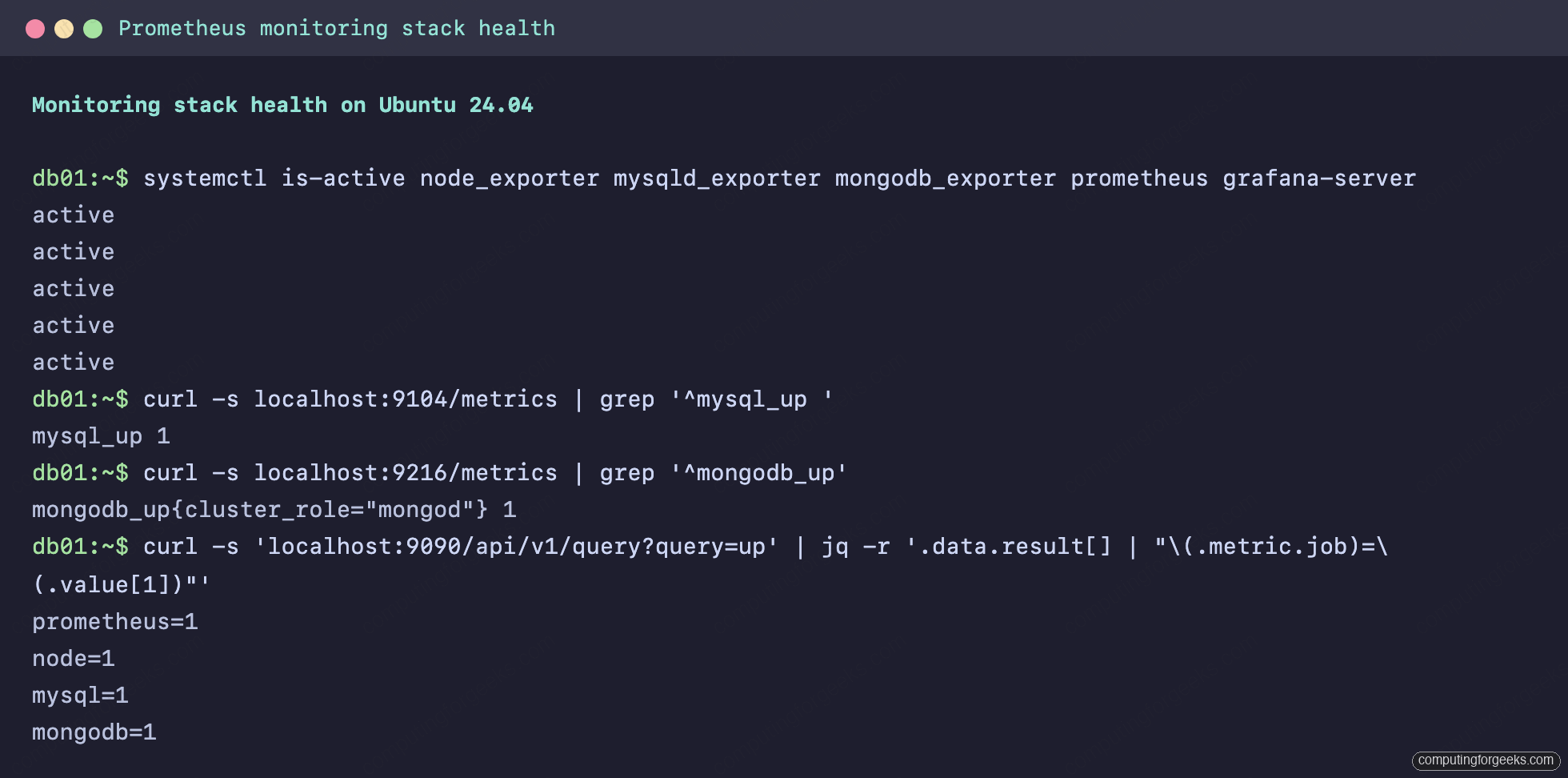
A healthy MySQL exporter exposes mysql_up 1, and the MongoDB exporter exposes mongodb_up 1. Curl each endpoint to confirm the scrape works end to end:
curl -s localhost:9104/metrics | grep '^mysql_up '
curl -s localhost:9216/metrics | grep '^mongodb_up'
Both should report a value of 1, which means each exporter authenticated against its database and read the status counters:
mysql_up 1
mongodb_up{cluster_role="mongod"} 1
A single check across all five services confirms the stack is live before Prometheus even enters the picture:
If the firewall is active and Prometheus will run on a different host, open the three exporter ports to the monitoring server’s address only. On Ubuntu that is UFW:
sudo ufw allow from 10.0.1.10 to any port 9100,9104,9216 proto tcpThe exporters are publishing metrics, but nothing is reading them yet. That is Prometheus’s job.
Install and configure Prometheus
Download the current Prometheus release the same version-agnostic way, and lay the binaries and directories out where the service expects them:
cd /tmp
VER=$(curl -s https://api.github.com/repos/prometheus/prometheus/releases/latest | grep tag_name | cut -d '"' -f4)
curl -LO "https://github.com/prometheus/prometheus/releases/download/${VER}/prometheus-${VER#v}.linux-amd64.tar.gz"
tar xzf prometheus-${VER#v}.linux-amd64.tar.gz
cd prometheus-${VER#v}.linux-amd64
sudo mkdir -p /etc/prometheus /var/lib/prometheus
sudo cp prometheus promtool /usr/local/bin/
sudo cp -r consoles console_libraries /etc/prometheus/
sudo chown -R prometheus:prometheus /usr/local/bin/prometheus /usr/local/bin/promtool /etc/prometheus /var/lib/prometheus
The scrape configuration is where you tell Prometheus what to watch. Open the config file:
sudo nano /etc/prometheus/prometheus.ymlEach job names one exporter. The instance label is what shows up in Grafana as the server identity, so give it something meaningful like the database host name. Paste this:
global:
  scrape_interval: 15s
  evaluation_interval: 15s

scrape_configs:
  - job_name: prometheus
    static_configs:
      - targets: ['localhost:9090']

  - job_name: node
    static_configs:
      - targets: ['localhost:9100']
        labels:
          instance: db01

  - job_name: mysql
    static_configs:
      - targets: ['localhost:9104']
        labels:
          instance: db01

  - job_name: mongodb
    static_configs:
      - targets: ['localhost:9216']
        labels:
          instance: db01
Validate the config before starting anything. promtool ships in the same tarball and catches indentation and syntax mistakes:
promtool check config /etc/prometheus/prometheus.ymlCreate the Prometheus service unit:
sudo nano /etc/systemd/system/prometheus.serviceThe retention flag controls how long samples are kept on disk. Fifteen days is a reasonable starting point for a single database host:
[Unit]
Description=Prometheus
Wants=network-online.target
After=network-online.target

[Service]
User=prometheus
Group=prometheus
Type=simple
ExecStart=/usr/local/bin/prometheus \
  --config.file=/etc/prometheus/prometheus.yml \
  --storage.tsdb.path=/var/lib/prometheus \
  --storage.tsdb.retention.time=15d \
  --web.listen-address=0.0.0.0:9090
Restart=on-failure

[Install]
WantedBy=multi-user.target
Reload, enable, and start it:
sudo systemctl daemon-reload
sudo systemctl enable --now prometheus
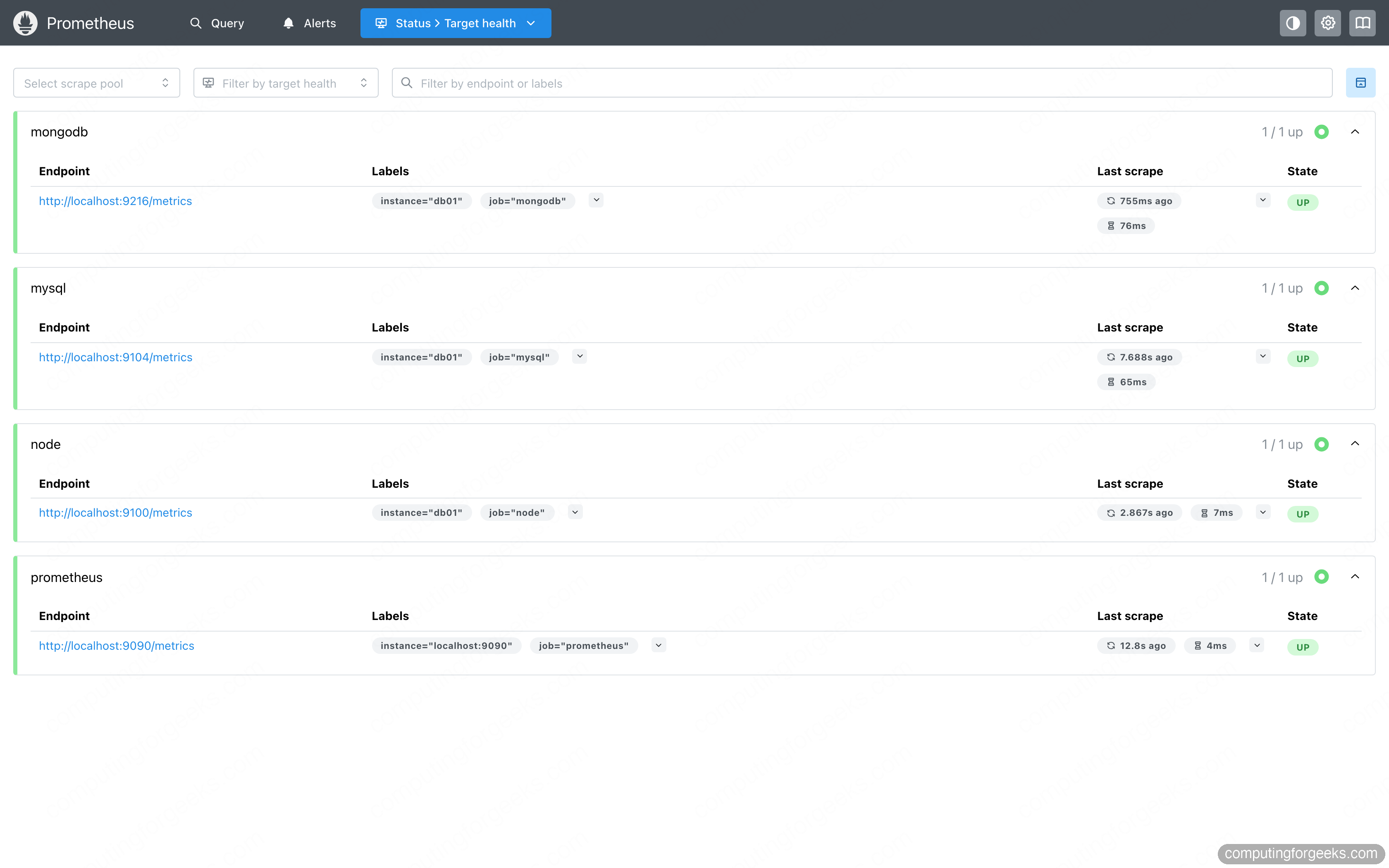
Open http://SERVER_IP:9090/targets in a browser. Every job should show a green UP state with a recent scrape time. This is the single most useful page in the stack: if a target is down here, no dashboard built on it will ever show data.
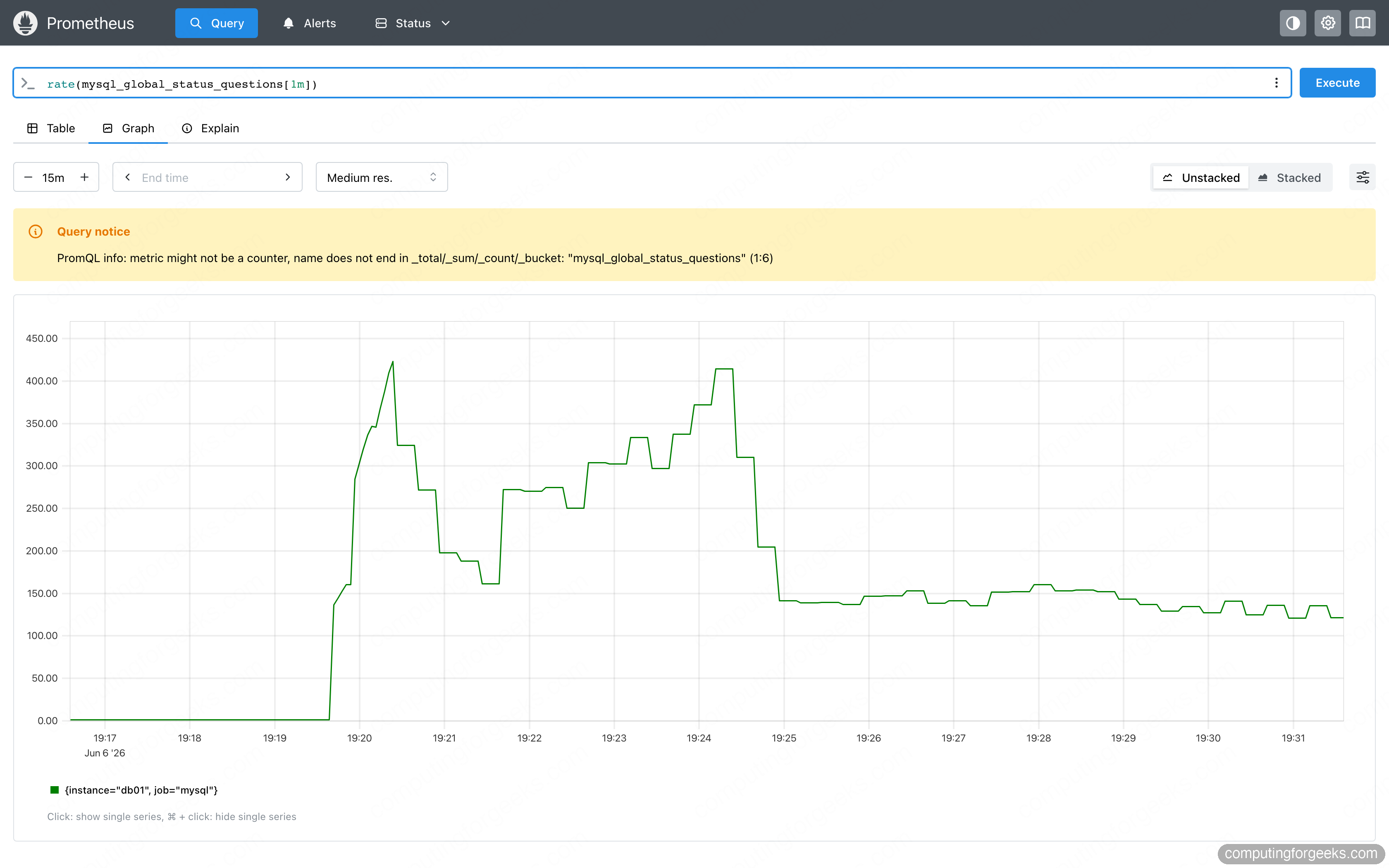
Before touching Grafana, confirm Prometheus is actually recording numbers. Switch to the Query tab and run a PromQL expression that turns the cumulative question counter into a per-second rate:
rate(mysql_global_status_questions[1m])Under load you get a live queries-per-second graph straight out of Prometheus, no Grafana required. This same expression becomes a Grafana panel and an alert threshold later.
Prometheus stores and serves the data, but its built-in graphs are deliberately bare. Grafana is where the real dashboards live.
Install Grafana and import the dashboards
Grafana publishes an APT repository, which keeps it patched through normal system updates. Add the key and repo, then install the OSS edition (the dedicated Grafana install guide covers other platforms):
sudo mkdir -p /etc/apt/keyrings/
wget -q -O - https://apt.grafana.com/gpg.key | sudo gpg --dearmor -o /etc/apt/keyrings/grafana.gpg
echo "deb [signed-by=/etc/apt/keyrings/grafana.gpg] https://apt.grafana.com stable main" | sudo tee /etc/apt/sources.list.d/grafana.list
sudo apt-get update
sudo apt-get install -y grafana
sudo systemctl enable --now grafana-server
Rather than click through the UI to add the data source, provision it from a file so the setup is reproducible. Create the provisioning file:
sudo nano /etc/grafana/provisioning/datasources/prometheus.ymlPoint it at the local Prometheus and give it a fixed UID so dashboard imports can reference it:
apiVersion: 1
datasources:
  - name: Prometheus
    type: prometheus
    access: proxy
    url: http://localhost:9090
    isDefault: true
    uid: prometheus
Restart Grafana so it reads the provisioning file:
sudo systemctl restart grafana-serverLog in at http://SERVER_IP:3000 with the default admin / admin and set a new password when prompted. Now import the dashboards. In Grafana, go to Dashboards, then New, then Import, and enter a dashboard ID from grafana.com.
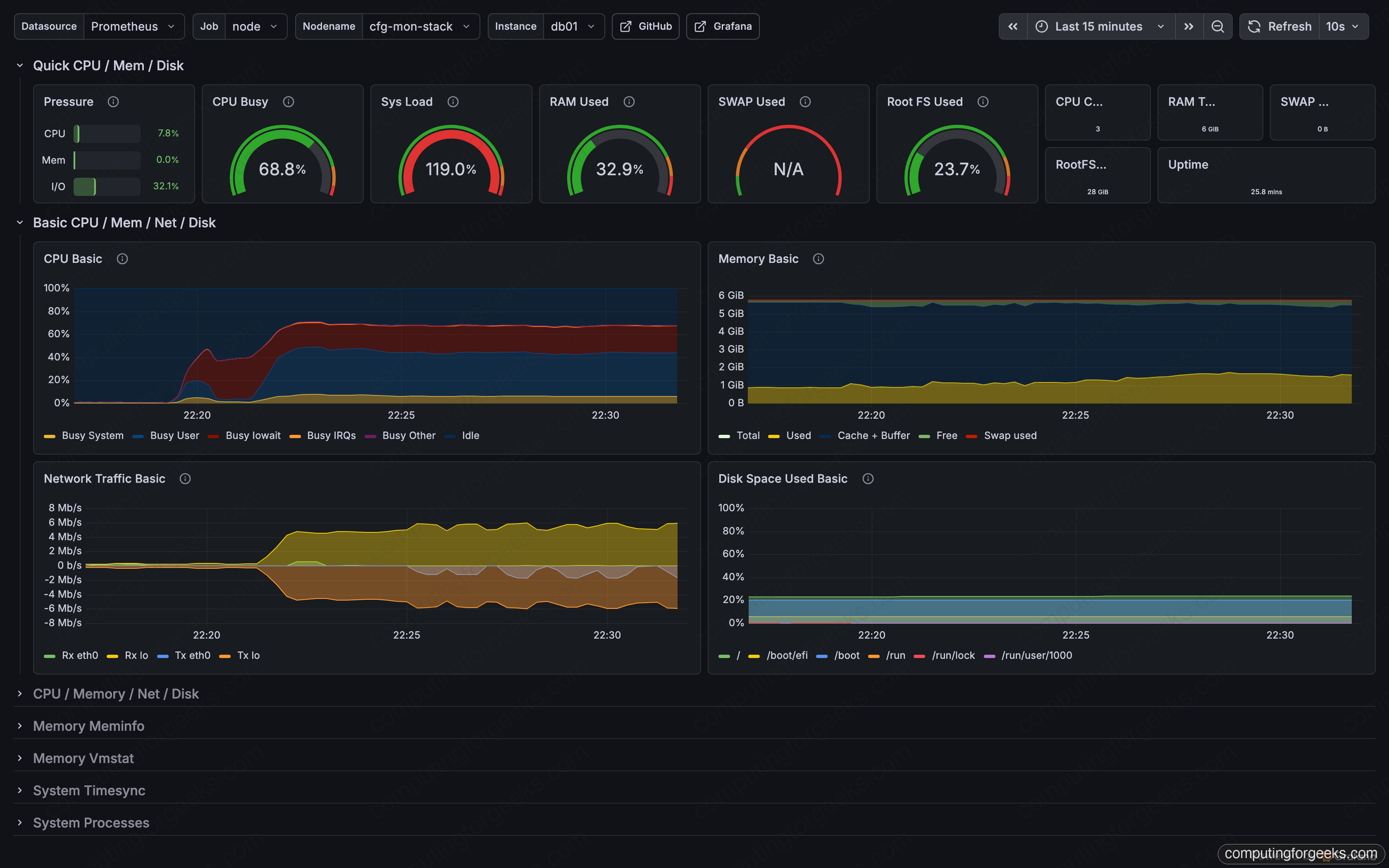
For host metrics, import dashboard ID 1860 (Node Exporter Full). It gives you CPU, memory, disk, and network for the box, and it matches the metric names node_exporter publishes with no edits:
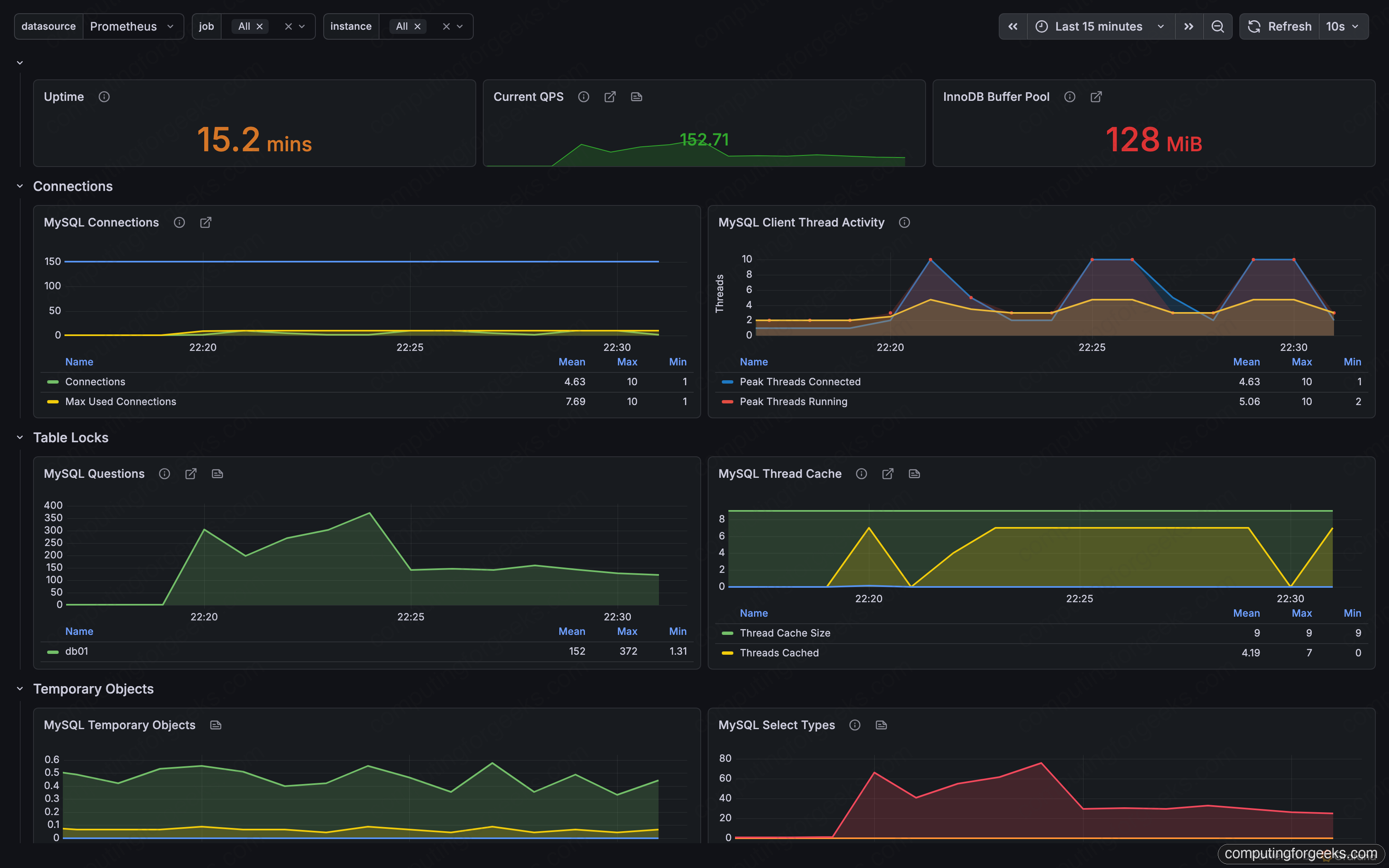
For MySQL, import dashboard ID 14057 (MySQL Exporter Quickstart and Dashboard). It is built for the official mysqld_exporter and renders queries per second, connection counts, the InnoDB buffer pool, and thread activity without any tweaking. With the demo load running, the panels fill in immediately:
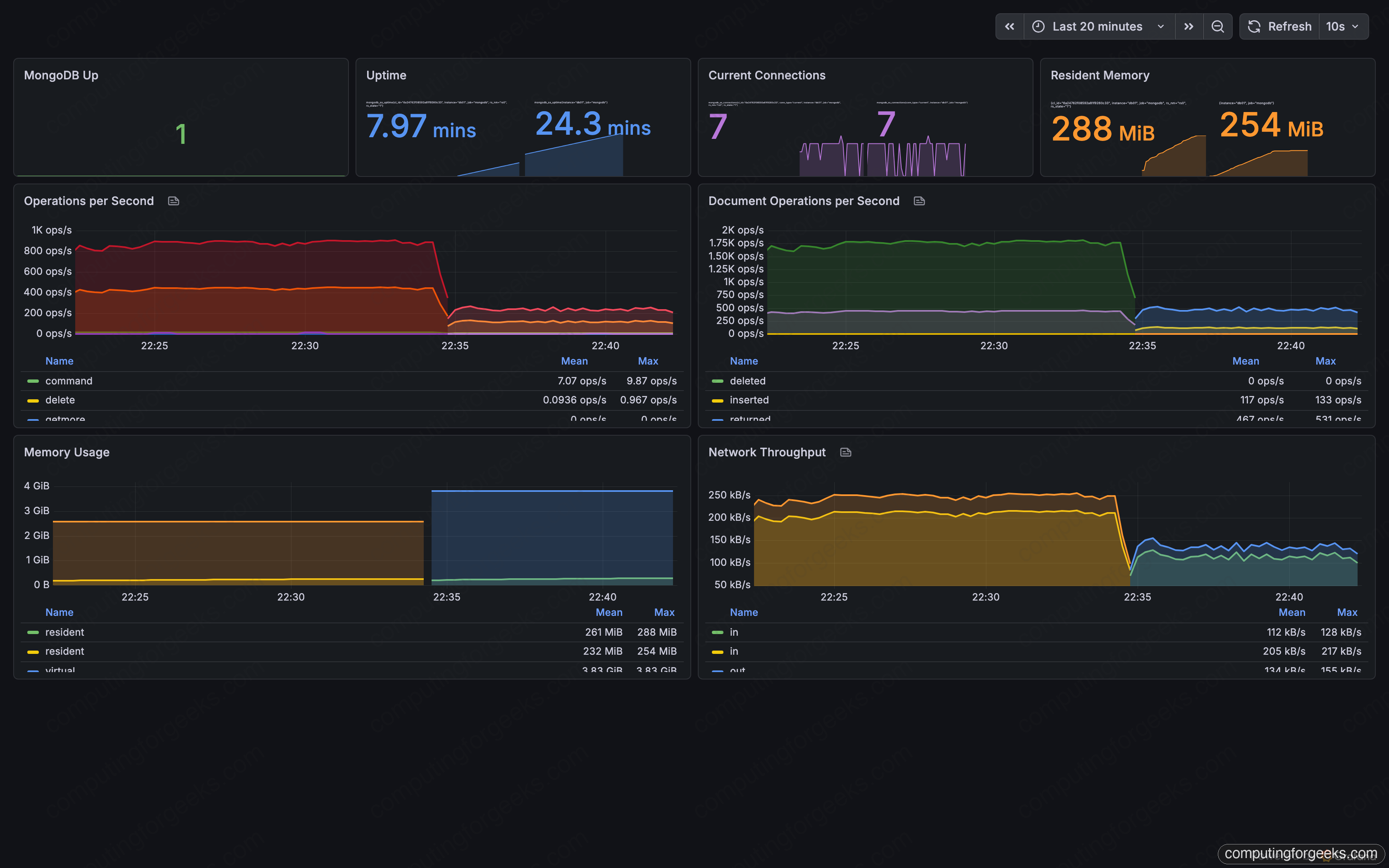
MongoDB is where the community dashboards disappoint. The popular ones (IDs 2583 and 14997) were written for older exporter releases and leave half their panels showing No data against the current Percona exporter, because the metric names changed. Rather than send you into that, this guide ships a small purpose-built dashboard that queries the modern mongodb_ss_* metrics directly: operations per second, document operations, connections, resident versus virtual memory, and network throughput. Grab grafana-mongodb-dashboard.json from the companion repository and import it with Dashboards, New, Import, Upload JSON file. Every panel populates:
That same repository also holds the exact prometheus.yml and the three systemd units used here, so you can clone it instead of copying blocks by hand.
Secure Grafana behind Nginx with HTTPS
Grafana on port 3000 over plain HTTP is fine for a first look, but you do not leave it that way. Put Nginx in front of it as a TLS-terminating reverse proxy and let Grafana keep listening only on localhost. Install Nginx and Certbot:
sudo apt-get install -y nginx certbot python3-certbot-nginxSet a shell variable for the hostname so the rest of the commands read cleanly. Use your real Grafana subdomain:
export GRAFANA_FQDN="grafana.example.com"Tell Grafana its public URL so links and redirects resolve correctly behind the proxy. Edit the main config:
sudo nano /etc/grafana/grafana.iniIn the [server] section, set the domain and root URL:
[server]
domain = grafana.example.com
root_url = https://grafana.example.com/
Create the Nginx site that proxies to Grafana and upgrades the live websocket Grafana uses for streaming panels. Open the file:
sudo nano /etc/nginx/sites-available/grafanaPaste this server block, substituting your hostname:
server {
    listen 80;
    server_name grafana.example.com;

    location / {
        proxy_pass http://127.0.0.1:3000;
        proxy_set_header Host $host;
        proxy_set_header X-Real-IP $remote_addr;
        proxy_set_header X-Forwarded-For $proxy_add_x_forwarded_for;
        proxy_set_header X-Forwarded-Proto $scheme;
    }
    location /api/live/ {
        proxy_http_version 1.1;
        proxy_set_header Upgrade $http_upgrade;
        proxy_set_header Connection "upgrade";
        proxy_set_header Host $host;
        proxy_pass http://127.0.0.1:3000;
    }
}
Enable the site, drop the default, and reload:
sudo ln -s /etc/nginx/sites-available/grafana /etc/nginx/sites-enabled/grafana
sudo rm -f /etc/nginx/sites-enabled/default
sudo nginx -t && sudo systemctl reload nginx
Now obtain the certificate. For a server with a public IP and port 80 reachable, the Nginx plugin does everything, including rewriting the config for SSL and adding the HTTP-to-HTTPS redirect:
sudo certbot --nginx -d "${GRAFANA_FQDN}" --non-interactive --agree-tos --redirect -m [email protected]That covers the common case. A server on a private network needs a different validation method.
When the host has no public IP
If Grafana runs on a private network where Let’s Encrypt cannot reach port 80, use the DNS-01 challenge instead. It proves domain ownership through a DNS TXT record, so the server never needs to be reachable from the internet. Certbot has plugins for most providers (Cloudflare, Route 53, DigitalOcean, Google Cloud DNS, and others). With the Cloudflare plugin the flow is:
sudo apt-get install -y python3-certbot-dns-cloudflare
echo "dns_cloudflare_api_token = YOUR_API_TOKEN" | sudo tee /etc/letsencrypt/cloudflare.ini
sudo chmod 600 /etc/letsencrypt/cloudflare.ini
sudo certbot certonly --dns-cloudflare \
  --dns-cloudflare-credentials /etc/letsencrypt/cloudflare.ini \
  -d "${GRAFANA_FQDN}" --non-interactive --agree-tos -m [email protected]
Swap dns-cloudflare for your provider’s plugin if you are on Route 53, DigitalOcean, or something else. Either way, the result is the same valid certificate. Confirm the proxy is serving Grafana over HTTPS:
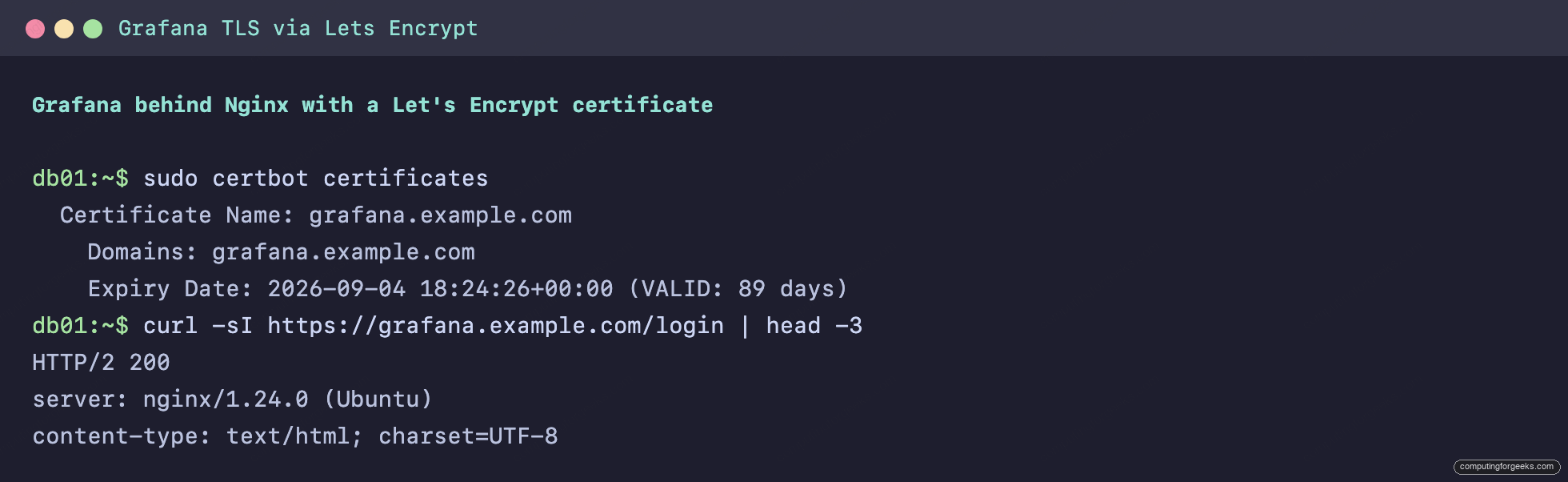
Grafana now answers on https://grafana.example.com with a trusted certificate, and the certbot systemd timer renews it automatically. Verify renewal works with sudo certbot renew --dry-run.
The queries worth alerting on
Dashboards are for investigating; alerts are for sleeping. A monitoring stack earns its keep only when it pages you before users notice. Prometheus evaluates alerting rules itself and hands firing alerts to Alertmanager for routing. Create a rules file and reference it from the rule_files section of prometheus.yml. These are the rules that have repeatedly proven their worth on database hosts:
groups:
  - name: database-health
    rules:
      - alert: MySQLDown
        expr: mysql_up == 0
        for: 1m
        labels: { severity: critical }
        annotations:
          summary: "MySQL exporter cannot reach {{ $labels.instance }}"

      - alert: MySQLConnectionsNearLimit
        expr: mysql_global_status_threads_connected / mysql_global_variables_max_connections > 0.8
        for: 5m
        labels: { severity: warning }
        annotations:
          summary: "MySQL on {{ $labels.instance }} is above 80% of max_connections"

      - alert: MongoDBDown
        expr: mongodb_up == 0
        for: 1m
        labels: { severity: critical }
        annotations:
          summary: "MongoDB exporter cannot reach {{ $labels.instance }}"

      - alert: HostDiskFillingUp
        expr: predict_linear(node_filesystem_avail_bytes{mountpoint="/"}[6h], 24*3600) < 0
        for: 30m
        labels: { severity: warning }
        annotations:
          summary: "Root filesystem on {{ $labels.instance }} will fill within 24h"
The MySQLConnectionsNearLimit rule is the one that catches the slow leak described at the top of this guide: it fires while there is still headroom, not after connections are refused. The HostDiskFillingUp rule uses predict_linear to project the disk trend forward, so it warns a day ahead of an actual full disk rather than at the moment writes start failing.
Wiring the firing alerts to email, Slack, or PagerDuty is Alertmanager's job. The setup is covered end to end in the guide on Prometheus Alertmanager, and the same exporter pattern here extends cleanly to monitoring any Linux server or other data stores like Valkey and Redis. With the dashboards reading live data and these four rules in place, both databases are now watched by something that does not sleep.