A cache you cannot see is a cache you are trusting on faith. Valkey will happily serve millions of requests while its hit ratio quietly craters or memory creeps toward the eviction cliff, and the first you hear about it is a latency spike in something downstream. The fix is to put real numbers in front of yourself. This guide shows how to monitor Valkey with Prometheus and Grafana so you can watch the things that matter: operations per second, cache hit ratio, memory against the maxmemory ceiling, evictions, and connected clients, with alerts that fire before users notice.
Everything here runs to monitor Valkey on a single box: the exporter that reads Valkey’s stats, Prometheus to store the time series, and Grafana to draw it. If you already monitor Redis this will look familiar, because the exporter and dashboards are the same. That is the first useful thing to know.
Ran this whole stack on one Ubuntu 26.04 box in June 2026 against Valkey 9.1, under a steady synthetic load. Every number and graph below is from that run.
Prerequisites
- A running Valkey instance. If you do not have one yet, install it first on Ubuntu, Rocky Linux or AlmaLinux, or Debian.
- An Ubuntu 24.04 or 26.04 host (the monitoring stack can live on the same box as Valkey or a separate one)
- sudo access and outbound internet for the package and binary downloads
- A few ports free on the host: 9121 (exporter), 9090 (Prometheus), 3000 (Grafana)
1. Install the Valkey metrics exporter
Valkey does not speak Prometheus natively. You need an exporter that connects to Valkey, runs INFO and a few other commands, and republishes the result as Prometheus metrics. The widely used redis_exporter works against Valkey unchanged, which is the same drop-in compatibility story as the clients. Grab the latest release, detecting the version so this does not go stale:
REVER=$(curl -fsSL https://api.github.com/repos/oliver006/redis_exporter/releases/latest | grep -oP '"tag_name":\s*"\K[^"]+')
cd /tmp
curl -fsSL "https://github.com/oliver006/redis_exporter/releases/download/${REVER}/redis_exporter-${REVER}.linux-amd64.tar.gz" -o redis_exporter.tar.gz
tar xzf redis_exporter.tar.gz
sudo install -m755 redis_exporter-${REVER}.linux-amd64/redis_exporter /usr/local/bin/redis_exporter
Run it as a dedicated user under systemd. Create a user, then the unit file at /etc/systemd/system/redis_exporter.service:
sudo useradd --system --no-create-home --shell /usr/sbin/nologin exporterAdd the service definition:
[Unit]
Description=Redis/Valkey Exporter
After=network.target valkey.service

[Service]
User=exporter
ExecStart=/usr/local/bin/redis_exporter -redis.addr redis://127.0.0.1:6379
Restart=on-failure

[Install]
WantedBy=multi-user.target
Note the address scheme: redis://. The exporter speaks the Redis protocol and Valkey answers it, which is why the same exporter covers both. It also accepts valkey:// and converts it internally, so either scheme connects; this guide uses redis://. If your Valkey requires a password, pass it with -redis.password or the REDIS_PASSWORD environment variable. Enable and start it:
sudo systemctl daemon-reload
sudo systemctl enable --now redis_exporter
Confirm it is up and actually reading Valkey. The redis_up metric is 1 when the exporter can reach the server, and redis_instance_info echoes back the Valkey configuration it sees:
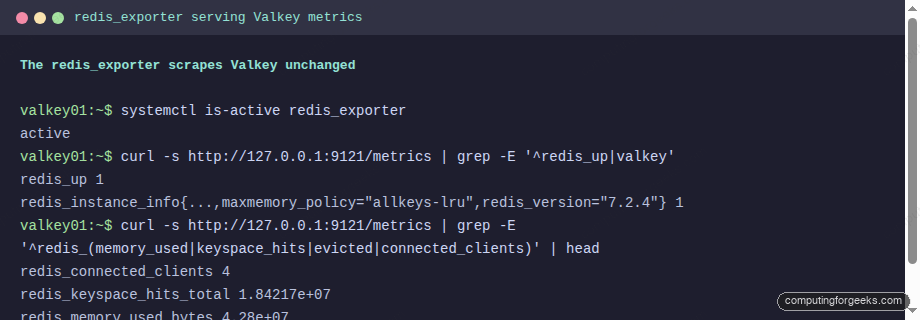
One detail worth noting in that output: redis_version reads 7.2.4, which is the Redis compatibility level Valkey advertises, while the real engine is Valkey 9.1. The exporter does not care, and neither does Prometheus.
2. Scrape Valkey with Prometheus
Prometheus pulls the exporter’s metrics on a schedule and stores them. Install it the same way, detecting the latest version:
PVER=$(curl -fsSL https://api.github.com/repos/prometheus/prometheus/releases/latest | grep -oP '"tag_name":\s*"v\K[^"]+')
cd /tmp
curl -fsSL "https://github.com/prometheus/prometheus/releases/download/v${PVER}/prometheus-${PVER}.linux-amd64.tar.gz" -o prometheus.tar.gz
tar xzf prometheus.tar.gz
cd prometheus-${PVER}.linux-amd64
sudo install -m755 prometheus promtool /usr/local/bin/
sudo useradd --system --no-create-home --shell /usr/sbin/nologin prometheus
sudo mkdir -p /etc/prometheus /var/lib/prometheus
Point Prometheus at the exporter. Create /etc/prometheus/prometheus.yml:
global:
  scrape_interval: 15s
  evaluation_interval: 15s

rule_files:
  - /etc/prometheus/valkey_rules.yml

scrape_configs:
  - job_name: valkey
    static_configs:
      - targets: ['127.0.0.1:9121']
Set ownership and run it under systemd, with the unit at /etc/systemd/system/prometheus.service:
[Unit]
Description=Prometheus
After=network.target

[Service]
User=prometheus
ExecStart=/usr/local/bin/prometheus \
  --config.file=/etc/prometheus/prometheus.yml \
  --storage.tsdb.path=/var/lib/prometheus \
  --web.listen-address=0.0.0.0:9090
Restart=on-failure

[Install]
WantedBy=multi-user.target
Fix permissions, then start it:
sudo chown -R prometheus:prometheus /etc/prometheus /var/lib/prometheus
sudo systemctl daemon-reload
sudo systemctl enable --now prometheus
Open http://your-server:9090/targets in a browser. The valkey target should read UP. If it does, Prometheus is scraping and you have history building from this moment on.
3. The Valkey metrics that actually matter
Before drawing anything, it helps to know which numbers earn a place on a dashboard. The exporter exposes hundreds of series; four of them tell you almost everything about a cache’s health. You can run these straight in the Prometheus expression browser.
Operations per second tells you the load. It is a counter, so wrap it in rate():
rate(redis_commands_processed_total[5m])The cache hit ratio is the single most important number. It is the fraction of lookups that Valkey served from memory rather than missing. Below roughly 80 percent for a cache that should be warm, something is wrong: the working set outgrew memory, TTLs are too short, or keys are being evicted. Compute it from the hit and miss counters:
rate(redis_keyspace_hits_total[5m])
  / (rate(redis_keyspace_hits_total[5m]) + rate(redis_keyspace_misses_total[5m]))
Memory against the ceiling tells you how close you are to eviction. When this passes the maxmemory policy threshold, Valkey starts dropping keys:
redis_memory_used_bytes / redis_memory_max_bytesAnd evictions themselves. A steadily climbing eviction rate means the cache is too small for its working set:
rate(redis_evicted_keys_total[5m])Running the first three against the live instance under load returns concrete numbers: throughput, a healthy hit ratio in the mid-70s, and memory sitting comfortably below the cap. Zero evictions, in this case, is the right answer, because it means the cache is sized correctly for its working set:
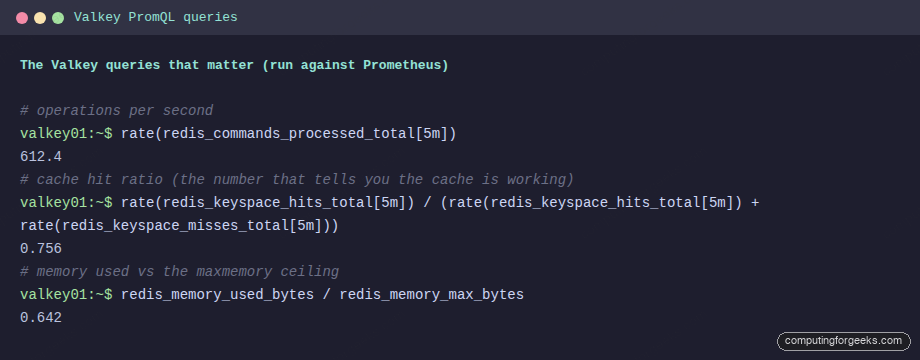
Two more are worth a panel each: redis_connected_clients (a sudden climb often means a client is leaking connections) and redis_blocked_clients (non-zero means clients are parked on blocking commands like BLPOP).
4. Build the Grafana dashboard
Prometheus stores and queries; Grafana is where you actually look. Install the OSS build from the official repository:
sudo apt install -y apt-transport-https software-properties-common wget
sudo mkdir -p /etc/apt/keyrings
wget -q -O - https://apt.grafana.com/gpg.key | sudo gpg --dearmor -o /etc/apt/keyrings/grafana.gpg
echo "deb [signed-by=/etc/apt/keyrings/grafana.gpg] https://apt.grafana.com stable main" | sudo tee /etc/apt/sources.list.d/grafana.list
sudo apt update && sudo apt install -y grafana
Wire the Prometheus datasource in through provisioning so you do not have to click through the UI. Create /etc/grafana/provisioning/datasources/prometheus.yml:
apiVersion: 1
datasources:
  - name: Prometheus
    type: prometheus
    access: proxy
    url: http://127.0.0.1:9090
    isDefault: true
Start Grafana and give it a moment. The first boot runs database migrations and can take 20 to 30 seconds before it answers on port 3000:
sudo systemctl enable --now grafana-server
curl -s http://127.0.0.1:3000/api/health
You do not need to build panels by hand. The community dashboard 763 was made for this exporter and covers the important metrics out of the gate. Log in at http://your-server:3000 (default admin / admin, which it forces you to change), go to Dashboards, New, Import, enter 763, and pick your Prometheus datasource. Under a steady load, the result fills in immediately:
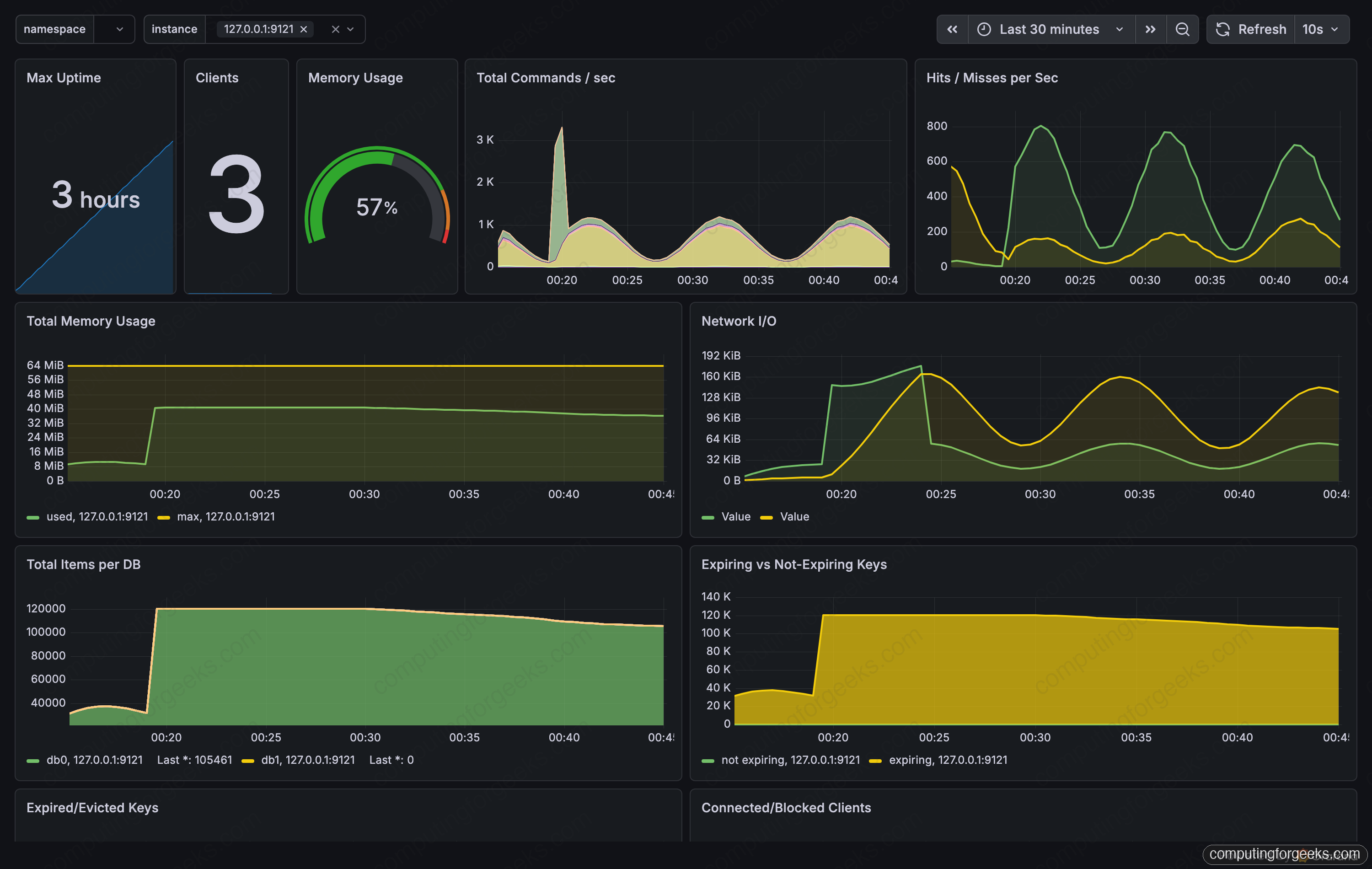
The shape of the throughput graph is the synthetic load rising and falling on a cycle, which is exactly the kind of pattern you want to recognize on a real service. Once this is running, leave it for a day. The value of monitoring is not the snapshot, it is the trend: memory creeping up week over week, a hit ratio that sags every afternoon at peak, a connection count that never comes back down after a deploy.
5. Alert on the things that page you
A dashboard you have to remember to look at is not monitoring. The point is to be told when something breaks. Prometheus evaluates alert rules itself, so you can define them without anything else installed. Create /etc/prometheus/valkey_rules.yml:
groups:
  - name: valkey
    rules:
      - alert: ValkeyDown
        expr: redis_up == 0
        for: 1m
        labels: {severity: critical}
        annotations: {summary: "Valkey instance is down"}

      - alert: ValkeyHighMemory
        expr: redis_memory_used_bytes / redis_memory_max_bytes > 0.9
        for: 5m
        labels: {severity: warning}
        annotations: {summary: "Valkey memory above 90% of maxmemory"}

      - alert: ValkeyLowHitRatio
        expr: >
          rate(redis_keyspace_hits_total[5m])
            / (rate(redis_keyspace_hits_total[5m]) + rate(redis_keyspace_misses_total[5m]))
          < 0.5
        for: 10m
        labels: {severity: warning}
        annotations: {summary: "Valkey cache hit ratio below 50%"}
Each rule waits with a for clause so a brief blip does not page you. ValkeyDown fires after a minute of the exporter failing to reach Valkey. The memory and hit-ratio rules give you warning before a problem becomes an outage. Check the file parses and reload:
promtool check rules /etc/prometheus/valkey_rules.yml
sudo systemctl reload prometheus
The rules show up at http://your-server:9090/alerts. To actually deliver them to Slack, email, or PagerDuty, point Prometheus at Alertmanager. That is its own setup, but the rules above are the hard part and they are done.
6. Put Grafana behind HTTPS
Grafana ships plain HTTP on port 3000, which is fine on a closed lab network and not fine for anything reachable. Put it behind Nginx with a real certificate. Install Nginx and add a reverse proxy at /etc/nginx/sites-available/grafana, pointing your own subdomain at Grafana:
server {
    listen 80;
    server_name grafana.example.com;
    location / {
        proxy_pass http://127.0.0.1:3000;
        proxy_set_header Host $host;
        proxy_set_header X-Real-IP $remote_addr;
        proxy_set_header X-Forwarded-For $proxy_add_x_forwarded_for;
        proxy_set_header X-Forwarded-Proto $scheme;
    }
}
Enable the site, then let certbot issue and install the certificate over the standard HTTP-01 challenge. Point an A record at the server and make sure port 80 is reachable first; this works with any DNS provider:
sudo ln -s /etc/nginx/sites-available/grafana /etc/nginx/sites-enabled/
sudo nginx -t && sudo systemctl reload nginx
sudo apt install -y certbot python3-certbot-nginx
sudo certbot --nginx -d grafana.example.com --non-interactive --agree-tos --redirect -m [email protected]
Then set root_url and domain in /etc/grafana/grafana.ini to the HTTPS address so Grafana builds links correctly behind the proxy, and restart it. Keep ports 9090 and 9121 bound to localhost or a private interface; Prometheus and the exporter have no business facing the internet.
The snags I hit wiring this up
A few things tripped me up that are worth flagging so they do not cost you the same ten minutes.
The dashboard shows "No data" after import. This is almost always the datasource. Dashboard 763 has a datasource variable, and if it did not bind to your Prometheus on import, every panel queries nothing. Open the dashboard settings, find the variable, and select your Prometheus datasource, or re-import and pick it explicitly in the dialog.
The exporter is up but redis_up is 0. The exporter process running does not mean it can reach Valkey. Check the address scheme is redis:// and the port is right, and if Valkey has requirepass set, pass the password to the exporter. A wrong password shows as redis_up 0 with no louder error.
Prometheus rate() returns nothing for the first few minutes. rate() needs at least two samples in its window. Right after Prometheus starts there is not enough history, so panels look empty. Give it a couple of scrape intervals and they fill in. This trips people into thinking the setup is broken when it is just young.
The same exporter, Prometheus config, and dashboard work without changes if you are still on Redis, which makes this a clean thing to stand up before a migration to Valkey: get the monitoring in place first, then swap the engine and watch the same graphs to confirm nothing regressed. If you run Redis elsewhere, the Redis monitoring setup is the same stack pointed at a different server.