A fresh Valkey install answers on its port the moment it starts, and by default it does so with no password. On a RHEL-family system the one thing standing between that and a careless bind to a public interface is SELinux, which is enforcing by default. This guide installs Valkey on Rocky Linux and AlmaLinux three ways, then locks it down before you put anything on it.
Tested June 2026 on Rocky Linux 10.1 with SELinux enforcing. The same packages and commands apply unchanged on AlmaLinux 10.
Valkey is the community fork of Redis and a drop-in replacement for it. The standard commands, the wire protocol, and the on-disk formats are identical, so existing Redis clients and tooling connect without changes. What differs across install methods is the version you get, which is the first thing to settle.
Prerequisites
- A Rocky Linux 10 or AlmaLinux 10 server with sudo access
- SELinux left enforcing (do not disable it; the steps below work with it on)
- Outbound internet for package and image downloads
Pick an install method
There are three ways to install Valkey here, and they are alternatives, not a sequence. Pick the one that fits and skip the other two. They differ mainly in the version you get:
| Method | Version | Use it when |
|---|---|---|
| dnf (AppStream) | 8.0 line | You want the distro-supported package with security updates and no extra setup |
Podman (docker.io/valkey/valkey:9.1) | Latest 9.x | You need the newest release, isolated in a container |
| Source build | Latest 9.x | You need the newest release as a native service with TLS compiled in |
Install from AppStream with dnf
On Rocky and AlmaLinux 10, Valkey is in the base AppStream repository. You do not need EPEL, despite what a lot of older guides claim. One command installs the server and the valkey-cli client:
sudo dnf install -y valkeyIt is a single package named valkey, not the split server-and-tools layout some distributions use. Enable and start the service, then confirm it answers:
sudo systemctl enable --now valkey
valkey-server --version
valkey-cli ping
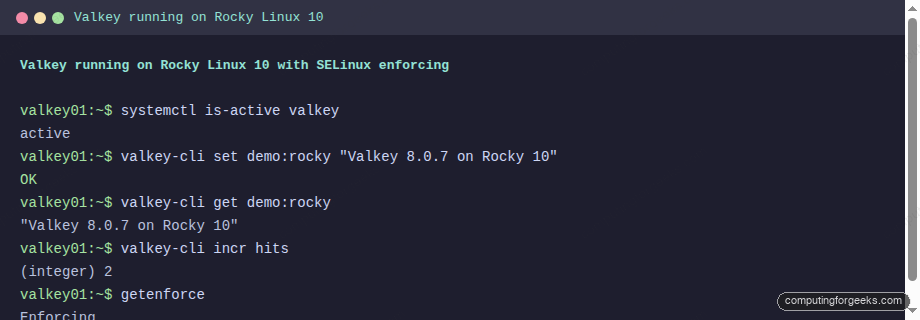
The service is valkey, the configuration file is /etc/valkey/valkey.conf, and the binaries live at /usr/bin/valkey-server and /usr/bin/valkey-cli. The AppStream package is a stable release one major line behind the very latest. It works fine under SELinux with no extra configuration, and a quick write confirms it:
Run the latest Valkey with Podman
When you need the newest release rather than the AppStream version, the official container image is the fastest route, and Podman is the native runtime on RHEL-family systems. Install Podman and run the image:
sudo dnf install -y podman
sudo podman run -d --name valkey -p 6379:6379 docker.io/valkey/valkey:9.1
The failure mode here trips almost everyone: Podman on RHEL does not assume Docker Hub. If you run the image as a short name like valkey/valkey:9.1 it errors out instead of pulling. Always give Podman the fully qualified name docker.io/valkey/valkey:9.1. Confirm the running version:
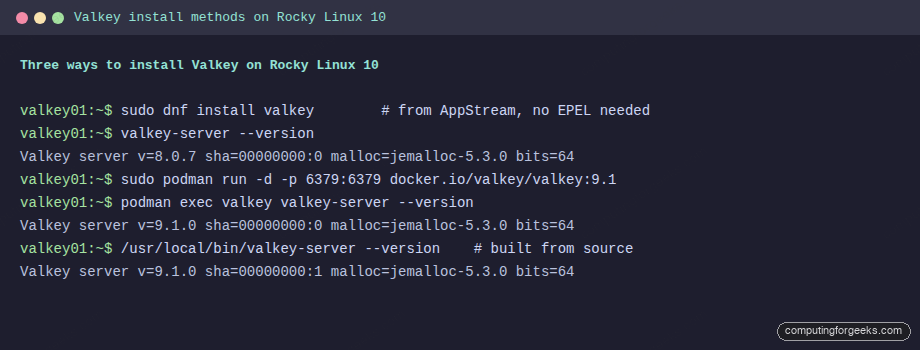
sudo podman exec valkey valkey-server --versionThat reports the current 9.x release. The screenshot below shows the version each of the three methods produces on the same box, so the gap between the AppStream package and the container is concrete:
Build the latest Valkey from source
For the newest release as a native service with TLS compiled in, build from source. Install the toolchain and the two development libraries that matter:
sudo dnf groupinstall -y "Development Tools"
sudo dnf install -y openssl-devel systemd-devel
Detect the latest release, download it, and compile with TLS and systemd notification support:
VER=$(curl -fsSL https://api.github.com/repos/valkey-io/valkey/releases/latest | grep -oP '"tag_name":\s*"\K[^"]+')
cd /usr/local/src
sudo curl -fsSL "https://github.com/valkey-io/valkey/archive/refs/tags/${VER}.tar.gz" -o "valkey-${VER}.tar.gz"
sudo tar xzf "valkey-${VER}.tar.gz"
cd "valkey-${VER}"
sudo make BUILD_TLS=yes USE_SYSTEMD=yes -j"$(nproc)"
sudo make install
The systemd-devel package is not optional if you intend to run this under a Type=notify unit. Omit it and the service starts the server but systemd never gets the ready signal, times out, and kills it. The full systemd unit, user, and config setup is the same as in the Valkey on Ubuntu guide; the only RHEL difference is the build-dependency command above.
Lock it down before you expose it
This is the step people skip, and it is the one that matters. Valkey binds to localhost by default, which is correct for a cache sitting next to its application. Leave it there unless you have a concrete reason not to. Check the bind and protected-mode lines in /etc/valkey/valkey.conf:
bind 127.0.0.1 -::1
protected-mode yes
If an application on another host genuinely needs access, require a password before you change the bind, not after. Set one and verify:
valkey-cli CONFIG SET requirepass 'a-long-random-secret'
valkey-cli -a 'a-long-random-secret' --no-auth-warning ping
Persist it by adding the requirepass line to the config file, then restart. SELinux allows Valkey on its default port 6379 with the shipped policy. If you move it to a non-standard port, SELinux will block the bind until you label the port, which is the correct behavior, not a reason to disable SELinux:
sudo semanage port -a -t redis_port_t -p tcp 6380Valkey reuses the redis_port_t SELinux type, so the Redis label is what you add. Never reach for setenforce 0 to make a port work. If you do open Valkey to another host, restrict the firewall to that host rather than the whole network:
sudo firewall-cmd --permanent --add-rich-rule='rule family="ipv4" source address="10.0.1.20" port port="6379" protocol="tcp" accept'
sudo firewall-cmd --reload
Put Valkey to work
With Valkey installed and locked down, the interesting part is using it. Rather than repeat it here, the Valkey install and integration guide walks through wiring it into a real application as a cache, with measured before-and-after latency, a rate limiter, the new database-level ACLs for multi-tenant isolation, and a live migration from a running Redis. Everything there applies identically on Rocky and AlmaLinux; only the install you just did differs by distribution.
Post-install security checklist
Before this instance carries anything real, confirm each of these. The failure mode for skipping any one of them is an open, unauthenticated data store.
- Bind is
127.0.0.1(or a private interface), never0.0.0.0without a firewall in front protected-modeisyes- A
requirepassor an ACL user with a real password is set, and the default user is restricted - SELinux is enforcing (
getenforcereturnsEnforcing), and any non-standard port was labeled withsemanage, not granted by disabling SELinux - If exposed beyond localhost, firewalld allows only the specific application host
maxmemoryand an eviction policy are set so a runaway client cannot exhaust host memory
Run through that list now, while the box is empty and the cost of a mistake is zero.