The File Browser web UI is the easy part. The CLI is where you actually run the thing: create the database, add users, scope them to a single folder, block files you do not want exposed, and hash passwords for scripted setups. This is the reference I keep open in a second terminal whenever I stand one up.
This FileBrowser CLI cheat sheet covers every command group in the classic File Browser binary: the config, users, rules, cmds, and hash commands, with the exact flags from --help and real output from each one. If you have not deployed it yet, start with the full File Browser install guide and come back here for the day-to-day administration.
These notes track File Browser v2.63.5, current as of June 2026. It is a single static Go binary, so the commands behave the same on Ubuntu, Debian, Rocky, or Fedora.
How the FileBrowser CLI is structured
One binary does two jobs. Run filebrowser with no subcommand and it starts the web server. Run it with a subcommand and it administers the database without ever starting the server. Every setting, user, and rule lives in a single BoltDB file, by default ./filebrowser.db.
That single file is the first thing to understand, because BoltDB allows exactly one writer. If the service is running, it holds a lock on the database and any CLI command that touches it fails with Error: timeout. Stop the service (or run the command against a copy) before editing users or config from the shell. The rest of this reference assumes the server is stopped.
These are the command groups you get:
| Group | What it does |
|---|---|
filebrowser (no subcommand) | Start the web server |
config | Initialize the database and edit global settings |
users | Create, scope, list, and remove accounts |
rules | Allow or deny access to paths and patterns |
cmds | Register event hooks (disabled by default) |
hash | Generate a bcrypt password hash |
completion | Generate a shell autocompletion script |
version | Print the version string |
Configuration resolves in a fixed order of precedence: command flags, then FB_ environment variables, then a config file, then values already in the database, then built-in defaults. A config file named .filebrowser.{json,toml,yaml,yml} is picked up automatically from the working directory, $HOME/, or /etc/filebrowser/. Only the server-level flags can be set that way; user defaults, branding, and rules live exclusively in the database.
Set reusable shell variables
Two values repeat in almost every command: the database path and the files root. Export them once so you can paste the rest of this guide as-is and only change one block. The database lives under /etc/filebrowser on a typical systemd install, so run these as root or with sudo.
export FB_DB="/etc/filebrowser/filebrowser.db"
export FB_ROOT="/srv/filebrowser"
Confirm the binary is on your path and check the version before anything else:
filebrowser versionYou should see the release and build hash:
File Browser v2.63.5/a1e442efIf you get “command not found” instead, the binary is not on your PATH. The official installer drops it at /usr/local/bin/filebrowser.
Global flags and serving
The bare filebrowser command starts the server. The flags below also apply to config init and config set, and every one of them has an FB_ environment variable equivalent (the flag name in UPPER_SNAKE_CASE).
| Flag | Default | Purpose |
|---|---|---|
-a, --address | 127.0.0.1 | Address to bind |
-p, --port | 8080 | Port to listen on |
-r, --root | . | Root prepended to every user scope |
-b, --baseURL | empty | Base path when behind a reverse proxy subpath |
-d, --database | ./filebrowser.db | Path to the BoltDB file |
-c, --config | empty | Explicit config file path |
-l, --log | stdout | Log destination |
-t, --cert / -k, --key | empty | TLS certificate and key for native HTTPS |
--socket | empty | Listen on a Unix socket instead of a port |
--disableExec | true | Command runner stays off (a security default) |
--tokenExpirationTime | 2h | Session token lifetime |
A foreground run for a quick test looks like this. In production you let systemd own it instead, but this is handy for checking that the root and port are right:
filebrowser -d "$FB_DB" -r "$FB_ROOT" -a 0.0.0.0 -p 8080The server prints the listen address and stays in the foreground:
Listening on 0.0.0.0:8080Press Ctrl+C to stop the foreground server, then build out the configuration and users from the same binary.
config: initialize and edit settings
The config group manages everything that is not a user or a rule. You initialize the database once, then change settings with config set.
| Command | Purpose |
|---|---|
config init | Create a fresh database with default settings |
config set [flags] | Change one or more settings, leaving the rest alone |
config cat | Print the current configuration |
config export <path> | Write the configuration to a JSON or YAML file |
config import <path> | Replace the entire configuration from a file |
Initialize a new database. This does not create any users yet, it only bootstraps the settings:
filebrowser -d "$FB_DB" config initFile Browser confirms the database and prints the full default config. Two values matter here: the 12-character minimum password length and the json auth method:
Congratulations! You've set up your database to use with File Browser.
Now add your first user via 'filebrowser users add' and then you just
need to call the main command to boot up the server.
Sign up:                  false
Hide Login Button:        false
Minimum Password Length:  12
Auth Method:              json
...
  Exec Enabled:              false
  Thumbnails Enabled:        true
Now set the address, port, files root, and a branding name in one shot. Each flag you pass is changed, everything else stays put:
filebrowser -d "$FB_DB" config set -a 0.0.0.0 -p 8080 -r "$FB_ROOT" \
  --branding.name "CFG Files" --auth.method json
The most useful config set flags group into a few areas:
| Flag | What it controls |
|---|---|
--auth.method | json, proxy, hook, or noauth |
--auth.header | Trusted header name for proxy auth |
--branding.name | Replace the “File Browser” title |
--branding.files | Directory holding a custom logo and CSS |
--branding.theme | Light or dark theme |
--branding.disableExternal | Strip outbound links from the UI |
--minimumPasswordLength | Password floor for new users (default 12) |
--scope | Default scope applied to new users |
--signup | Allow self-registration |
--createUserDir | Auto-create a home folder per user |
Read the live configuration back at any time with config cat:
filebrowser -d "$FB_DB" config catIt prints the same structured view, now reflecting your branding name and root:
Branding:
  Name:                                CFG Files
...
Server:
  Port:                      8080
  Root:                      /srv/filebrowser
  Address:                   0.0.0.0
  Exec Enabled:              false
To move a configuration between servers, export it to a file. The output is a JSON document with server, settings, and auther keys that you can version-control:
filebrowser -d "$FB_DB" config export /etc/filebrowser/settings.jsonOn the other host, config import /etc/filebrowser/settings.json reads it back and replaces the running configuration wholesale. If the target database does not exist yet, import generates a fresh signing key automatically.
users: add, scope, list, and remove
Accounts are positional: users add takes a username and a password, then flags for everything else. Scope is the single most important flag, because it pins a user to one subtree of the files root.
| Command | Purpose |
|---|---|
users add <user> <password> | Create an account |
users ls | List every account in a table |
users find <id|username> | Show one account |
users update <id|username> | Change perms, scope, password, or username |
users rm <id|username> | Delete an account |
users export <path> | Dump all users to JSON or YAML |
users import <path> | Load users from a file |
Create the first administrator. The --perm.admin flag grants the full permission set:
filebrowser -d "$FB_DB" users add admin 'Admin-StrongPass-2026' --perm.adminFile Browser echoes the new account as a one-row table with admin set to true:
ID  Username  Scope  Admin  Execute  Create  Rename  Modify  Delete  Share  Download  Pwd Lock
1   admin     /      true   true     true    true    true    true    true   true      false
Watch the password floor. Anything under 12 characters is rejected outright, which catches people off guard on the very first user:
filebrowser -d "$FB_DB" users add bob 'short'The command exits non-zero with a clear message:
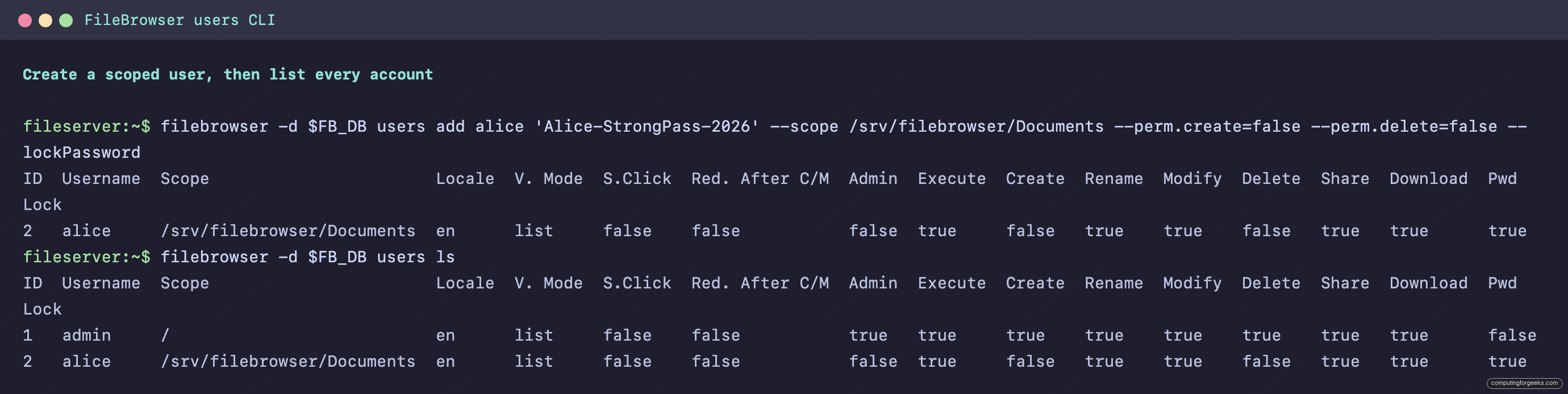
Error: password is too short, minimum length is 12Now add a restricted user. This one is locked to the Documents folder, cannot create or delete, can still share, and has a locked password so the user cannot change it:
filebrowser -d "$FB_DB" users add alice 'Alice-StrongPass-2026' \
  --scope "$FB_ROOT/Documents" --perm.create=false --perm.delete=false \
  --perm.share=true --lockPassword
List everyone to see how the permissions landed. The table is the quickest audit you have for who can do what:
Pull up a single account with users find, which accepts either the numeric ID or the username:
filebrowser -d "$FB_DB" users find aliceChange an existing user with update. The same permission and scope flags apply, plus -p for a new password and -u for a new username. Here we widen Alice’s scope to the whole root and let her create files:
filebrowser -d "$FB_DB" users update alice --perm.create=true --scope "$FB_ROOT"One thing that trips people up: update only changes the flags you pass, but boolean flags you omit keep their stored value, while lockPassword resets to false unless you pass it again. Re-add --lockPassword on every update where you want it to stick.
rules: allow and deny file access
Rules filter what shows up in a scope. A rule is either global (applies to everyone) or attached to one user with -u, and it is either an allow or a deny, matched as a literal path or a regular expression.
| Command | Purpose |
|---|---|
rules add <path|expr> | Add a rule (deny by default) |
rules add -a <path> | Add an allow rule |
rules add -r <expr> | Treat the argument as a regex |
rules add -u <user> ... | Scope the rule to one user |
rules ls | List global rules |
rules ls -u <user> | List one user’s rules |
rules rm <index> --index <index> | Remove a rule by its index |
Block every dotfile globally with a regex rule. The argument is the pattern, and -r marks it as a regex:
filebrowser -d "$FB_DB" rules add --regex '^\.'Deny a specific file by path. With no -a, a rule is a deny:
filebrowser -d "$FB_DB" rules add '/Documents/notes.txt'Attach an allow rule to a single user with --allow and --username:
filebrowser -d "$FB_DB" rules add --allow --username alice '/Documents'List the global set to see the index numbers, which you need for removal. The password floor, a couple of rules, and a freshly hashed password all show up in a normal admin session:
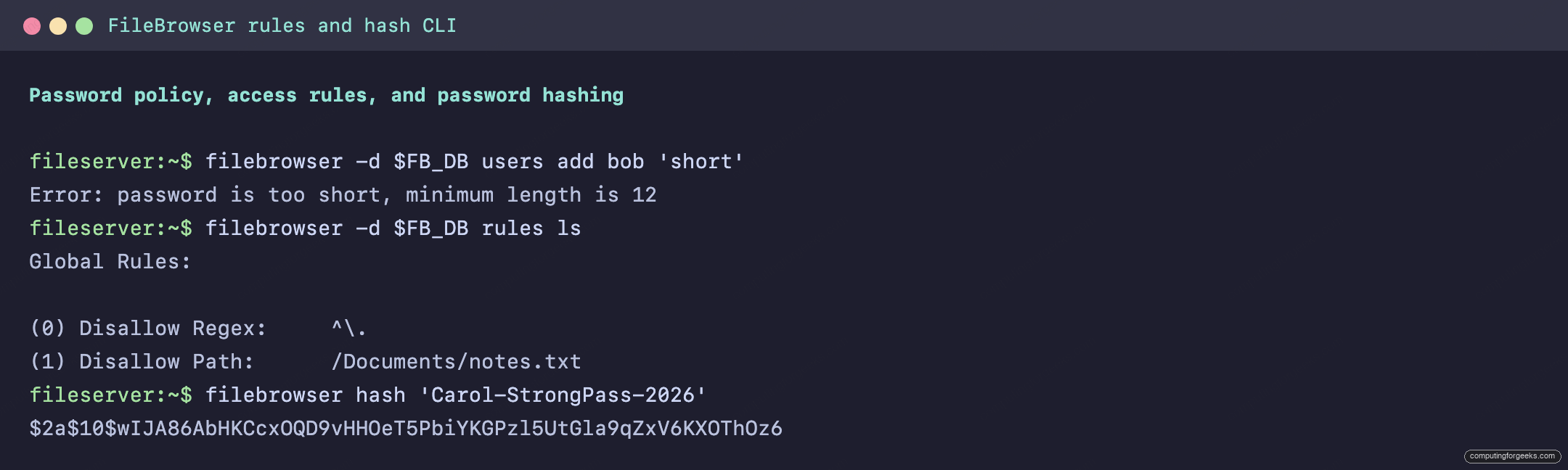
Removal is the one quirk in the whole CLI. The help text shows rules rm <index>, but in practice you must supply the index both as a positional argument and as the --index flag, or the command errors. To drop rule index 1:
filebrowser -d "$FB_DB" rules rm 1 --index 1Indexes renumber after every add or remove, so list again before each removal rather than assuming the old numbers still hold.
cmds: event hooks (disabled by default)
The cmds group registers shell commands that fire on file events such as upload, save, or delete. It is genuinely off by default: Exec Enabled reads false on a fresh database, and the command runner has shipped disabled since v2.33.8 because of past command-injection issues. Registering a hook does nothing until you explicitly re-enable execution.
| Command | Purpose |
|---|---|
cmds add <event> <command> | Register a hook on an event |
cmds ls | List all registered hooks |
cmds ls -e <event> | List hooks for one event |
cmds rm <event> <index> | Remove a hook by index |
Events are named as before_ or after_ plus one of five actions: copy, rename, upload, delete, or save. So after_upload and before_delete are both valid. When a hook fires, the command receives a handful of environment variables: FILE (the changed file’s absolute path), SCOPE (the user’s scope), TRIGGER (the event name), USERNAME, and DESTINATION (set only for copy and rename). Register a command that logs every upload:
filebrowser -d "$FB_DB" cmds add after_upload 'echo $FILE >> /var/log/fb-uploads.log'The hook is stored with its index for that event:
after_upload(0): echo $FILE >> /var/log/fb-uploads.logRemove it by event name and index. After removal, cmds ls returns nothing:
filebrowser -d "$FB_DB" cmds rm after_upload 0If you do turn the runner on, treat any hook command as code that runs with the server’s privileges. Keep the scope tight and never feed user-controlled values straight into a shell.
hash: generate a bcrypt password hash
The hash command turns a plaintext password into the bcrypt hash File Browser stores. There is no database flag involved, it just prints a hash, which is exactly what you need when scripting user imports.
filebrowser hash 'Carol-StrongPass-2026'The output is a standard bcrypt string starting with $2a$10$:
$2a$10$wIJA86AbHKCcxOQD9vHHOeT5PbiYKGPzl5UtGla9qZxV6KXOThOz6Bcrypt is salted, so hashing the same password twice gives two different strings. Both still validate against that password at login, which is why you can regenerate a hash any time without breaking the account.
completion: shell autocompletion
File Browser generates completion scripts for bash, zsh, fish, and powershell. Pipe the output into the right location for your shell. For bash on most systems:
filebrowser completion bash | sudo tee /etc/bash_completion.d/filebrowser >/dev/nullOpen a new shell and tab-completion works on subcommands and flags. Swap bash for zsh, fish, or powershell and redirect to that shell’s completion directory instead.
Bulk provision users from a script
The pattern that pays off on a real deployment is exporting users, editing the JSON, and importing it back. Combined with hash, it lets you create dozens of accounts with pre-set scopes and permissions without typing a single users add.
First, generate a bcrypt hash for the new account’s password using the hash command from the previous section. Copy the resulting string.
Now create an import file at /etc/filebrowser/new-users.json and paste the hash into the password field. An id of 0 tells File Browser this is a new user rather than an update to an existing one:
[
  {
    "id": 0,
    "username": "carol",
    "password": "$2a$10$wIJA86AbHKCcxOQD9vHHOeT5PbiYKGPzl5UtGla9qZxV6KXOThOz6",
    "scope": "/srv/filebrowser/Photos",
    "locale": "en",
    "lockPassword": true,
    "perm": { "admin": false, "create": true, "rename": true, "modify": true,
              "delete": false, "share": true, "download": true, "execute": false }
  }
]
Import the file. Add --overwrite to update accounts that share an id or username, or --replace to wipe the existing user base first:
filebrowser -d "$FB_DB" users import /etc/filebrowser/new-users.jsonVerify the result with users ls. Carol now exists as ID 3, scoped to Photos, with a locked password and no execute permission, exactly as the JSON specified:
ID  Username  Scope                    Admin  Create  Delete  Share  Download  Pwd Lock
1   admin     /                        true   true    true    true   true      false
2   alice     /srv/filebrowser         false  true    false   true   true      false
3   carol     /srv/filebrowser/Photos  false  true    false   true   true      true
The same trick works for backups. A nightly users export plus config export gives you two small JSON files that fully describe accounts and settings, so a rebuild is an import away.
Gotchas and where File Browser keeps its config
A handful of things bite people repeatedly. Keep these in mind and the CLI stays predictable:
- The database is single-writer. Stop the service before running any CLI command against its database, or you get
Error: timeoutfrom BoltDB’s lock. - Root and scope are different layers. The server
--rootis prepended to every user--scope. A user’s scope is always relative to that root, so a scope of/Documentsunder a root of/srv/filebrowserresolves to/srv/filebrowser/Documents. - Passwords have a 12-character floor by default. Lower it with
config set --minimumPasswordLengthonly if you have a good reason. - The command runner is off, on purpose.
Exec Enabledstays false until you turn it on, and re-enabling it brings back the attack surface that got it disabled in the first place. - Removing a rule needs the index twice. Pass it as a positional argument and as
--index, and re-list before each removal because indexes renumber.
Configuration lives in three predictable places. The database file holds users, rules, and most settings. An optional .filebrowser.{json,toml,yaml,yml} in the working directory, $HOME/, or /etc/filebrowser/ can override the server-level flags. And FB_ environment variables override both. When a setting refuses to change, that precedence order is almost always the reason.
With the commands here you can run File Browser entirely from the shell, which is what you want for automation and repeatable rebuilds. If you are still weighing it against the heavier options, see how it stacks up against Nextcloud, Seafile, and Cloudreve, and if you want a database-backed alternative with its own admin CLI, Cloudreve is the closest cousin. For a public deployment, put it behind Nginx with a Let’s Encrypt certificate and add a Fail2ban jail on the login endpoint.