You have a FileBrowser Quantum server, an identity provider, and an LDAP directory. This guide wires them together so the same file manager accepts single sign-on, directory logins, local accounts with two-factor, and reverse-proxy headers, all from one configuration file. Quantum is the actively developed fork of File Browser, and the auth handling is the main reason to reach for it.
We deploy Quantum with Docker Compose behind Nginx, then connect each login method in turn: password plus enforced 2FA, OpenID Connect through Authentik, LDAP against OpenLDAP, and trusted-header auth for a forward-auth proxy. Along the way we cover the multi-source setup, indexed search, thumbnails, sharing, group access control, and the developer API.
Confirmed working with FileBrowser Quantum v1.3.3-stable on Docker (Debian 13 host) in June 2026, wired to Authentik for OIDC and OpenLDAP for directory logins.
What FileBrowser Quantum changes
The classic File Browser is in maintenance mode: security and bug fixes only, no new features. Quantum (the gtsteffaniak fork, published as the gtstef/filebrowser image) is where active development happens. It keeps the lightweight single-binary model but rebuilds configuration around a single config.yaml instead of the classic CLI and database flags covered in the File Browser CLI cheat sheet.
The headline additions for anyone running this for a team:
- Auth methods: OIDC, LDAP, password with TOTP two-factor, and proxy-header, all enabled side by side.
- Multiple sources: serve several roots from one instance, each with its own default-enabled and scope rules.
- Indexed search: a SQLite index gives real-time results as you type, with type, size, and date filters.
- Richer thumbnails: image, video, office, and 3D-model previews in the listing.
- Sharing and ACLs: share links with expiry and passwords, plus directory-level access control scoped to a user or group.
- Developer API: long-lived API tokens and a Swagger page at
/swagger.
One thing is deliberately gone: the shell command runner and interactive terminal that classic File Browser shipped (disabled by default since 2.33.8) are removed from Quantum entirely. If you relied on event hooks, that workflow does not carry over.
Set reusable values
Two hostnames and an email repeat across the certificate, Nginx, and OIDC steps. Export them once so you change one block and paste the rest. Use real names you control; the directory and OIDC pieces only work over HTTPS.
export FBQ_DOMAIN="files.example.com"
export SSO_DOMAIN="sso.example.com"
export ADMIN_EMAIL="[email protected]"
Point an A record for each name at the host before issuing certificates. The FBQ_DOMAIN serves FileBrowser Quantum, and SSO_DOMAIN serves the identity provider that issues the OIDC tokens.
Deploy Quantum with Docker Compose
Quantum reads its config from /home/filebrowser/data/config.yaml and keeps the database next to it. Create a working directory with a data folder for the config and two folders to serve as sources:
mkdir -p ~/filebrowser/{data,documents,media}
cd ~/filebrowser
Write a minimal data/config.yaml to start. We expand the auth section in later steps; for now this gets the server running with a single admin account:
server:
  port: 80
  sources:
    - path: "/documents"
      name: "Documents"
auth:
  adminUsername: admin
  methods:
    password:
      enabled: true
      minLength: 8
frontend:
  name: "Team Files"
Now the Compose file. The container runs as UID 1000, so the mounted folders must be owned by your user (UID 1000 on most single-user hosts). The admin password comes from an environment variable rather than the config file:
services:
  filebrowser:
    image: gtstef/filebrowser:1.3.3-stable
    container_name: filebrowser
    user: "1000:1000"
    ports:
      - "8080:80"
    volumes:
      - ./data:/home/filebrowser/data
      - ./documents:/documents
      - ./media:/media
    environment:
      - FILEBROWSER_ADMIN_PASSWORD=ChangeMe-Strong-2026
    restart: unless-stopped
Bring it up and watch the startup log, which confirms the config path, the active auth methods, and the sources it indexed:
docker compose up -d
docker logs filebrowser
You should see the version, the config file in use, and the source index build:
[INFO ] Initializing FileBrowser Quantum (v1.3.3-stable)
[INFO ] Using Config file        : /home/filebrowser/data/config.yaml
[INFO ] Auth Methods             : [password]
[INFO ] Sources                  : [Documents: /documents]
[INFO ] Running at               : http://0.0.0.0/
That confirms the container is healthy on port 8080. It is only reachable locally for now, so the next step puts a TLS endpoint in front of it.
Put Quantum behind Nginx with HTTPS
OIDC redirects and directory logins should run over TLS, so we terminate HTTPS at Nginx and proxy to the container on port 8080. Issue a certificate first. The default HTTP-01 challenge works for any DNS provider once port 80 is reachable:
sudo certbot certonly --nginx -d "${FBQ_DOMAIN}" \
  --non-interactive --agree-tos -m "${ADMIN_EMAIL}"
If the host sits on a private network with no public port 80, use the DNS-01 challenge with your provider’s certbot plugin instead. The Nginx with Let’s Encrypt walkthrough covers both paths in detail.
Create the server block. The placeholder FBQ_DOMAIN_HERE gets substituted from your shell variable in the next command, and the WebSocket headers keep the live-update connection open:
server {
    listen 443 ssl;
    http2 on;
    server_name FBQ_DOMAIN_HERE;

    ssl_certificate     /etc/letsencrypt/live/FBQ_DOMAIN_HERE/fullchain.pem;
    ssl_certificate_key /etc/letsencrypt/live/FBQ_DOMAIN_HERE/privkey.pem;
    client_max_body_size 5000m;

    location / {
        proxy_pass http://127.0.0.1:8080;
        proxy_set_header Host $host;
        proxy_set_header X-Forwarded-Proto $scheme;
        proxy_set_header X-Real-IP $remote_addr;
        proxy_http_version 1.1;
        proxy_set_header Upgrade $http_upgrade;
        proxy_set_header Connection "upgrade";
    }
}
server {
    listen 80;
    server_name FBQ_DOMAIN_HERE;
    return 301 https://$host$request_uri;
}
Substitute the domain, enable the site, and reload. The X-Forwarded-Proto header is what lets Quantum build correct https OIDC redirect URLs behind the proxy:
sudo sed -i "s/FBQ_DOMAIN_HERE/${FBQ_DOMAIN}/g" /etc/nginx/sites-available/filebrowser.conf
sudo ln -s /etc/nginx/sites-available/filebrowser.conf /etc/nginx/sites-enabled/
sudo nginx -t && sudo systemctl reload nginx
Open https://files.example.com and you land on the Quantum login. With only the password method enabled so far, it shows the username and password fields and nothing else:
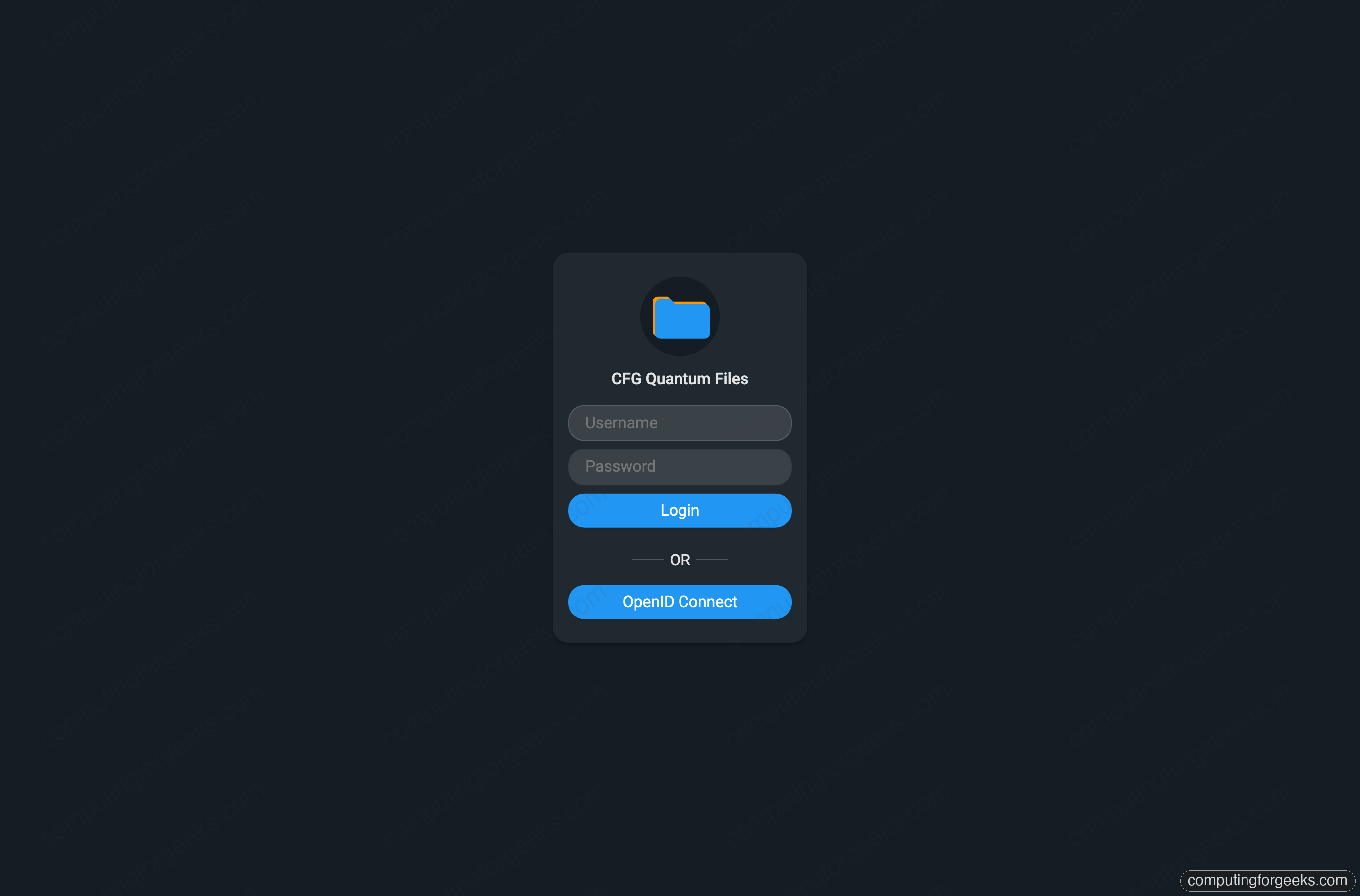
Local accounts work, but the reason to run Quantum is the methods we layer on next. They all live in the same file, so it helps to see how it is organized first.
Read the config.yaml layout
Everything in Quantum is driven by that one file. The top-level keys are server (port, sources, TLS), auth (the admin account and every login method), frontend (branding and links), and optional integrations (for example an OnlyOffice server). The whole file is read on startup, so a change means a restart of the container.
The piece that ties the auth methods together lives under auth.methods. Each method is its own block with an enabled flag, and they coexist: a user can sign in with OIDC while a service account uses LDAP and an admin keeps a local password. The login page renders a button or form for each enabled method automatically.
Serve multiple sources
A source is a root path Quantum indexes and serves. List more than one under server.sources, each with a display name and its own config. Mark the ones every user should see with defaultEnabled: true:
server:
  port: 80
  sources:
    - path: "/documents"
      name: "Documents"
      config:
        defaultEnabled: true
    - path: "/media"
      name: "Media Library"
      config:
        defaultEnabled: true
Mount each path in the Compose file (we already mapped ./media:/media above), then restart. Both sources now appear in the sidebar with their own usage bars, and the listing renders real thumbnails for images, video, and office files:
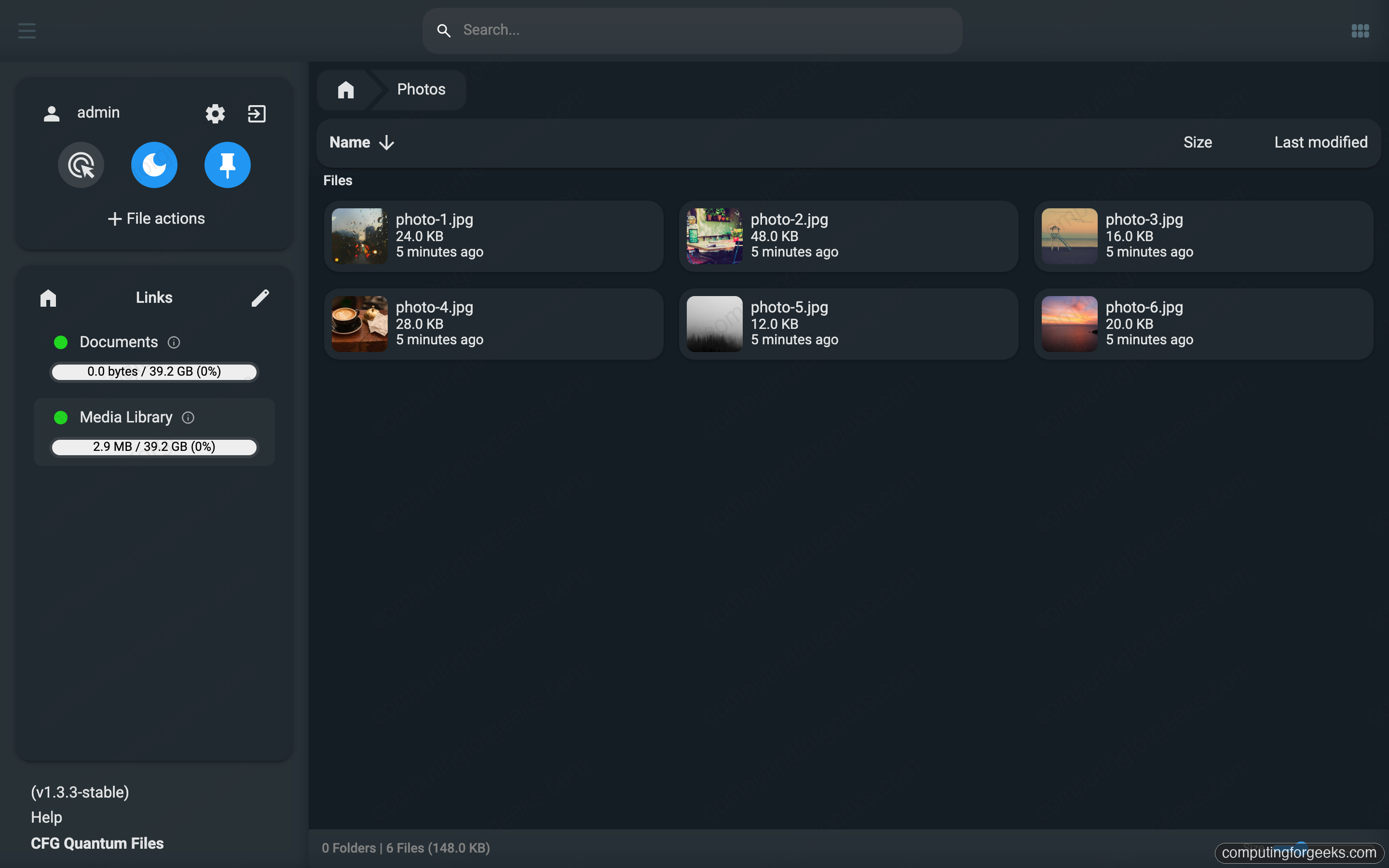
Each source can also carry createUserDir: true to give every user a private home folder, or private: true to keep it off the default list. That makes one instance serve shared and per-user storage at the same time.
Add password logins with enforced 2FA
The password method is the local-account path, and Quantum can require time-based 2FA on top of it. Two settings control this: enforcedOtp makes every password user enroll an authenticator, and totpSecret is the key Quantum uses to encrypt stored TOTP secrets.
The gotcha here is the secret length. Quantum base64-decodes totpSecret and the result must be exactly 32 bytes for AES-256, or OTP generation fails with a 500 and the enrollment screen shows “Generation Failed”. Generate a correct key with one command:
openssl rand -base64 32Pass that value through the environment and turn on enforcement in the config. Add the variable to the Compose environment list:
- FILEBROWSER_TOTP_SECRET=PASTE_BASE64_32_BYTE_KEY_HEREThen set the password block under auth.methods:
    password:
      enabled: true
      minLength: 8
      enforcedOtp: true
Restart the container and sign in as the admin. Because 2FA is enforced, Quantum interrupts the login with an enrollment screen: it shows a QR code and the otpauth URI to scan, then asks for the first six-digit code to confirm:
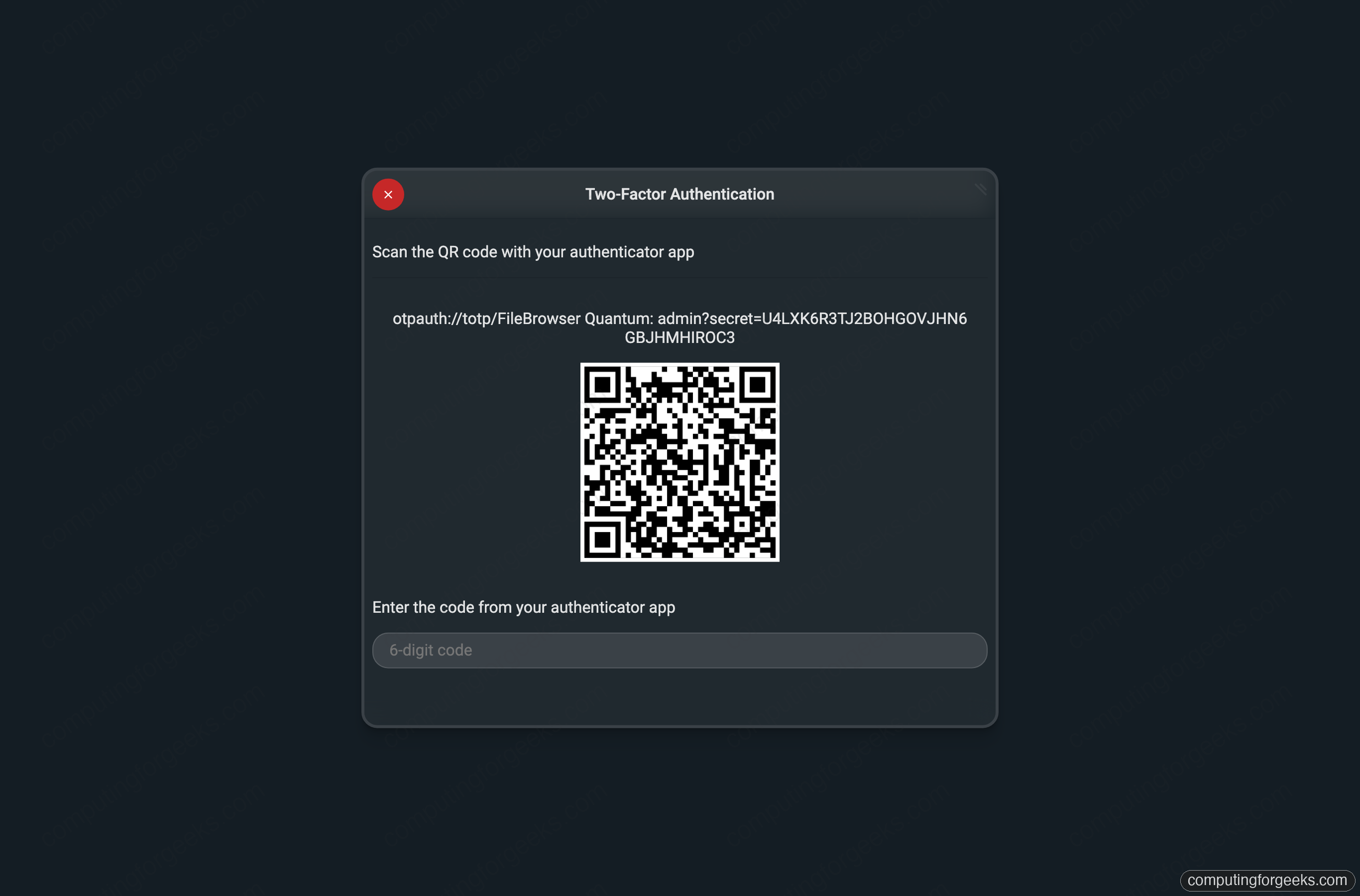
Scan it with any authenticator app, enter the code, and the account is protected from then on. Changing totpSecret later invalidates every enrolled user, so set it once and back it up.
Wire single sign-on with Authentik (OIDC)
OIDC is where Quantum earns its place for a team. We use Keycloak or Authentik as the provider; the examples here are Authentik because its issuer URL format is what the Quantum docs reference. The flow is the usual one: Quantum sends the browser to the provider, the user authenticates there, and the provider redirects back with a code Quantum exchanges for the user’s identity.
In Authentik, create an OAuth2/OpenID provider and an application bound to it. Three settings have to be right or the handshake breaks:
- Redirect URI (strict):
https://files.example.com/api/auth/oidc/callback - Grant types must include
authorization_code. If this list is empty, the authorize request bounces straight back withinvalid_requestand “The request is otherwise malformed”, before any login screen appears. - Scopes: the provider must expose
openid,email,profile, and agroupsmapping so Quantum can read group membership.
Copy the client ID and client secret from the provider, then add the oidc block. The adminGroup maps an IdP group to FileBrowser admin, and userIdentifier picks which claim becomes the username:
    oidc:
      enabled: true
      clientId: "filebrowser-client"
      clientSecret: "PASTE_OIDC_CLIENT_SECRET_HERE"
      issuerUrl: "https://sso.example.com/application/o/filebrowser/"
      scopes: "openid email profile groups"
      userIdentifier: "preferred_username"
      adminGroup: "filebrowser-admins"
Restart Quantum and the startup log now reports OIDC Auth configured successfully. The login page grows an “OpenID Connect” button below the password form. Click it and the browser hands off to Authentik, which authenticates the user and shows a consent screen before redirecting back:
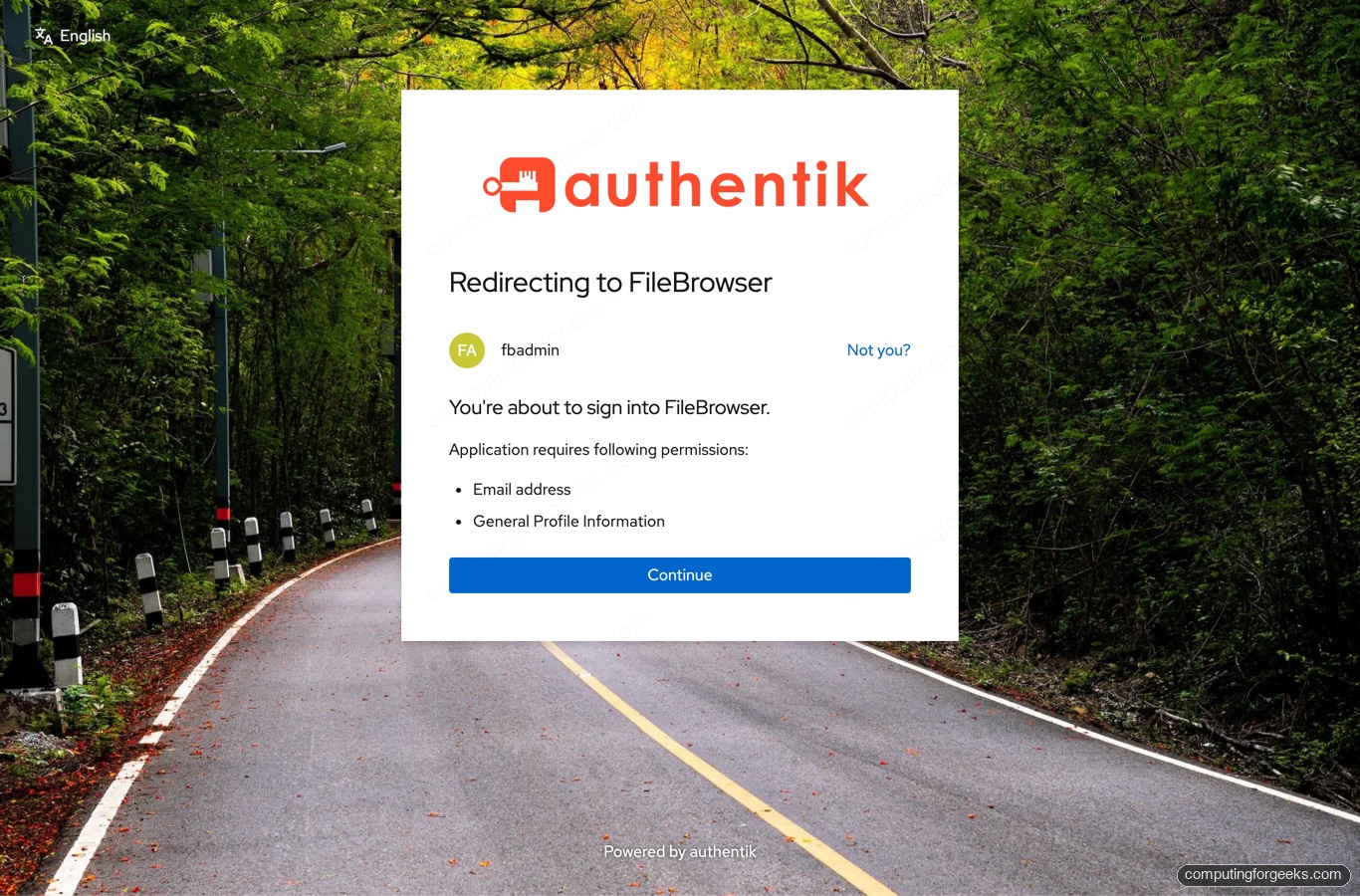
Now a user in the filebrowser-admins group lands in Quantum as an administrator with no local password ever created. Keep clientSecret out of the file in production by passing it through the environment and referencing a secret store.
Connect an LDAP directory
For an existing directory, the ldap method binds Quantum to your server with a service account and looks users up by a filter. The same username and password form handles it: Quantum tries the local database first, then falls through to LDAP. Set up the directory itself with the OpenLDAP and phpLDAPadmin guide if you do not already run one.
The config names the server, the search base, the bind account, and the filter that matches a login name to a directory entry:
    ldap:
      enabled: true
      server: "ldap://ldap.example.com:389"
      baseDN: "dc=example,dc=com"
      userDN: "cn=admin,dc=example,dc=com"
      userPassword: "PASTE_LDAP_BIND_PASSWORD_HERE"
      userFilter: "(&(uid=%s)(objectClass=inetOrgPerson))"
The %s in the filter is replaced with the login name. The example above is the OpenLDAP convention. For Active Directory, swap the filter to (sAMAccountName=%s) and point userDN at a domain service account. Use ldaps:// on port 636 for an encrypted bind once you confirm the plain bind works.
After a restart the log adds LDAP Auth configured successfully. A directory user such as jdoe now signs in with their LDAP password and no local account is needed.
Trust a reverse-proxy header
If you already run a forward-auth proxy such as Authelia, oauth2-proxy, or Traefik’s forward-auth middleware, Quantum can trust the username it injects. The proxy method reads a single header:
    proxy:
      enabled: true
      header: "X-Forwarded-User"
When that header arrives, Quantum logs the request in as the named user with no password prompt. That convenience is also the risk: anyone who can set the header is that user. Two rules make it safe. The reverse proxy must strip any client-supplied X-Forwarded-User and set its own after it authenticates the request, and the Quantum container must only be reachable through that proxy, never directly. Bind the container to localhost and let only Nginx reach it.
Verify every login method end to end
With all four methods enabled, the startup log reads Auth Methods: [password proxy oidc ldap]. The cleanest way to confirm the wiring is the user list under Settings, which records how each account authenticated. After signing in once through each path, the table shows a local admin on password, an OIDC user promoted to admin through the group mapping, an LDAP user, and a proxy user, all in one view:
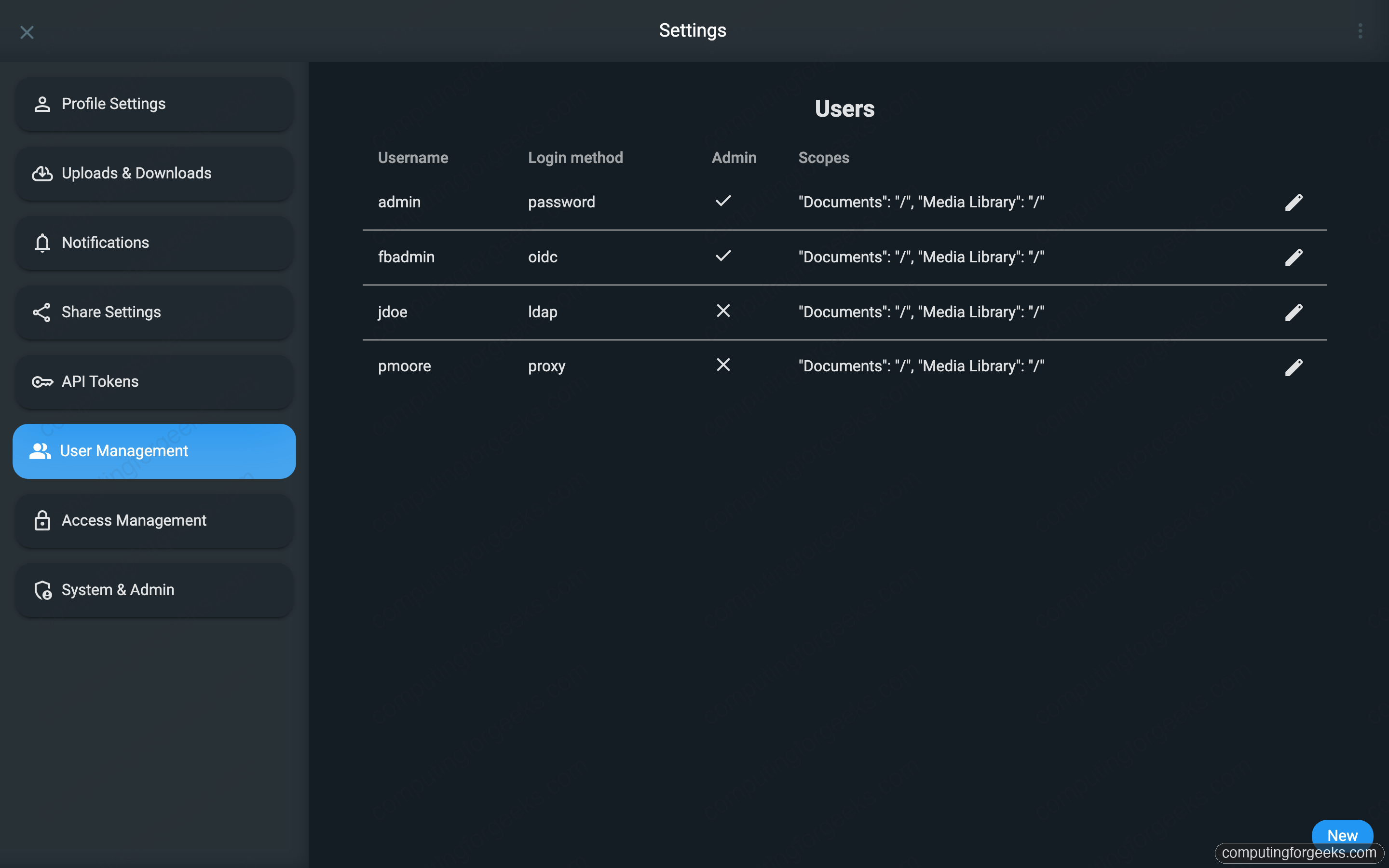
Accounts are provisioned on first login, so a user appears in this list only after they have signed in once. The “Login method” column is the quickest audit of which identity source each person came through, and the admin checkmark confirms the OIDC group mapping did its job.
Search, thumbnails, shares, and the API
Beyond auth, the indexed search is the feature people notice first. Quantum maintains a SQLite index per source, so a query returns matches as you type, scoped to the current source and narrowed by type, size, and date filters:
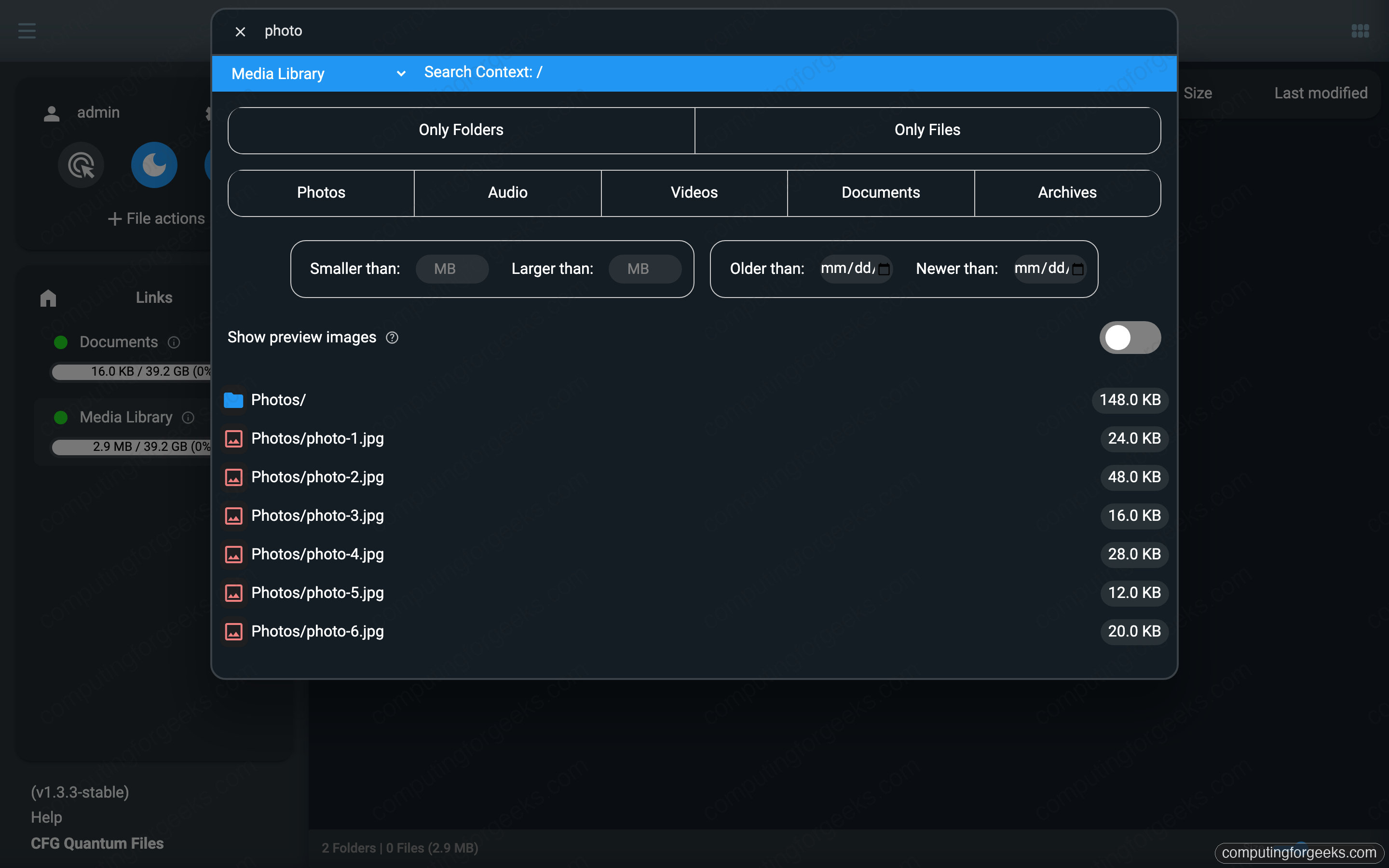
Sharing is configurable per link: set an expiry, a password, and whether anonymous visitors or only named users can open it. Directory-level access control sits alongside it, letting you allow or deny a path for a specific user or a whole group, which pairs naturally with the OIDC and LDAP groups you already wired.
For automation, an admin can mint long-lived API tokens under Settings, and every API-enabled user gets an interactive Swagger page at /swagger that documents the endpoints for access, shares, users, and resources:
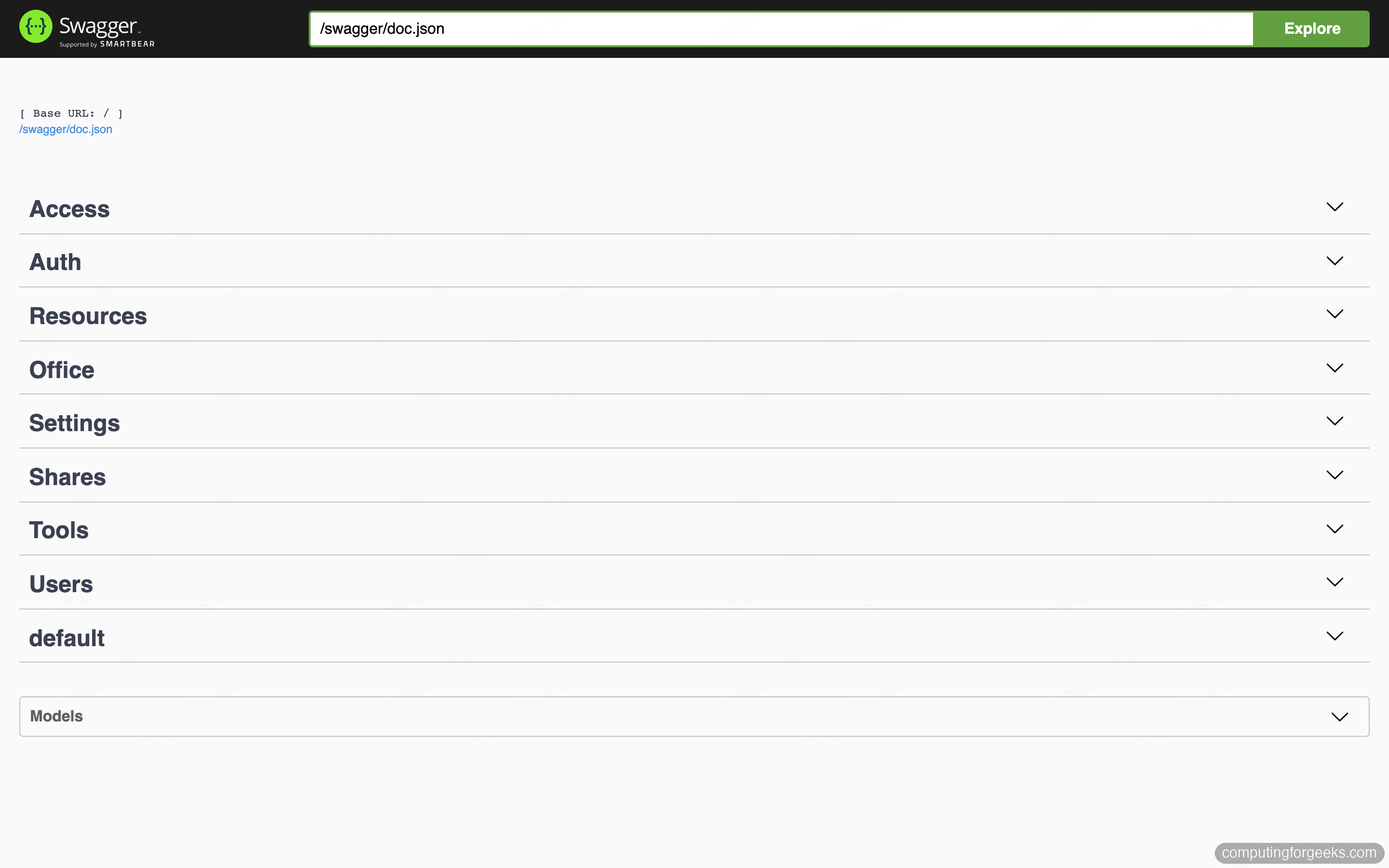
That API plus token model is what makes Quantum scriptable in a way the classic build never was, from bulk share creation to monitoring checks.
Classic File Browser or Quantum: which to run
Both are worth running; they target different needs. Classic is frozen but tiny and rock-steady for a single admin browsing files. Quantum is heavier and moving fast, and it earns that weight the moment more than one person needs access.
| Need | Classic File Browser | FileBrowser Quantum |
|---|---|---|
| Single admin, one folder | Ideal, smallest footprint | Works, more than you need |
| SSO / OIDC login | Not supported | Built in |
| LDAP / Active Directory | Not supported | Built in |
| Two-factor (TOTP) | Not supported | Built in, can be enforced |
| Multiple sources | One root | Many, with per-source rules |
| Search | Basic | Indexed, real-time, filtered |
| Shell command hooks | Present (off by default) | Removed |
| Configuration | CLI plus database flags | Single config.yaml |
| Development pace | Maintenance only | Active |
Run classic when one person needs a quick web view of a directory and you want the smallest possible image. Move to Quantum when you have real users to authenticate, several storage roots to expose, or a directory and identity provider you want files to plug into. Once the OIDC and LDAP handshakes are confirmed in the user list, Quantum behaves like any other service in your single sign-on estate.