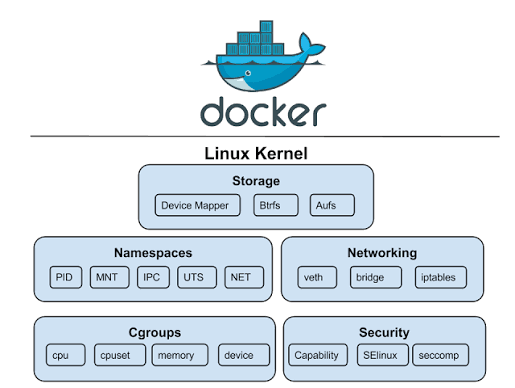
You bought TP-Link Omada gear because it is cheap, solid, and centrally managed. What you probably do not want is to leave a controller running on a Windows box in the corner, or to hand your network over to TP-Link’s cloud. Running the Omada controller in Docker fixes both: one container manages every access point, switch, and gateway on your network, it survives reboots, and it stays entirely on hardware you own.
The catch worth knowing up front: TP-Link does not publish an official Docker image. The one everybody actually uses is a community image maintained by Mathew Bentley, and it is genuinely good, but you are trusting a community maintainer to repackage TP-Link’s free software. This guide uses that image, explains the one networking decision that trips people up, puts the web UI behind HTTPS, and shows the first-run wizard end to end.
Ran through this in July 2026 on Docker with the community image on Omada 6.2.10.17; the controller comes up and the setup wizard works end to end.
Prerequisites
- A Linux host with Docker and the Compose plugin installed. If you need that first, our Docker install guide covers it, and a homelab mini PC is a fine place to run this.
- The host on the same Layer 2 network as your Omada devices, so the controller can discover and adopt them.
- A domain name with an A record pointing at the host if you want the HTTPS reverse proxy, plus port 80 reachable for the certificate.
Know the image, the ports, and the one gotcha
The image is mbentley/omada-controller. It bundles everything the controller needs, including its own MongoDB, so there is no separate database container to run (unlike the self-hosted UniFi setup, where you bolt on an external MongoDB, covered in our UniFi controller in Docker guide). The controller is a Java application and takes a minute or two to come up on first start.
It listens on a spread of ports: 8043 for the management web UI over HTTPS, 8088 for HTTP, 8843 for the captive portal, plus a set of discovery and adoption ports (29810/udp, 29811 to 29817, and 27001/udp) that the devices use to find and talk to the controller.
The gotcha here is device discovery. Omada devices find their controller with Layer 2 broadcasts, and those broadcasts do not cross a container’s bridge network. If you publish individual ports, the web UI works fine but your access points will never show up for adoption. The clean fix is to run the container with host networking so it shares the host’s network stack and sees the broadcasts. Skip this and adoption silently breaks.
Deploy with Docker Compose
Create a directory for the controller and open a Compose file:
sudo mkdir -p /opt/omada && cd /opt/omada
sudo vim docker-compose.yml
Use host networking so device adoption works, set your timezone, and put the data and logs on named volumes so an upgrade or recreate never loses your config:
services:
  omada-controller:
    image: mbentley/omada-controller:6.2
    container_name: omada-controller
    network_mode: host
    restart: unless-stopped
    stop_grace_period: 60s
    environment:
      - TZ=Etc/UTC
      - SMALL_FILES=false
    volumes:
      - omada-data:/opt/tplink/EAPController/data
      - omada-logs:/opt/tplink/EAPController/logs

volumes:
  omada-data:
  omada-logs:
Set TZ to your own zone, for example America/New_York or Africa/Nairobi, so the controller’s logs and scheduled tasks line up with your clock. Bring it up:
docker compose up -dIf your host runs a firewall, open the management port and the adoption ports. On a host using firewalld:
sudo firewall-cmd --permanent --add-port=8043/tcp
sudo firewall-cmd --permanent --add-port=29811-29817/tcp
sudo firewall-cmd --permanent --add-port=29810/udp
sudo firewall-cmd --permanent --add-port=27001/udp
sudo firewall-cmd --reload
Verify the controller is running
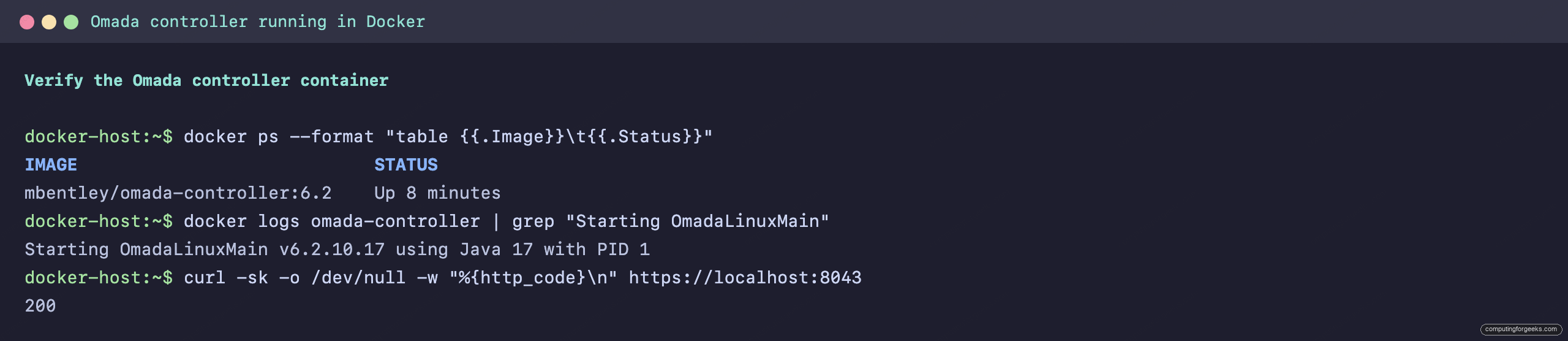
Give it a minute, then confirm the container is up and the web port is answering. The Java app logs its version as it starts, which is a handy way to see it finished booting:
docker ps --format "table {{.Image}}\t{{.Status}}"
docker logs omada-controller | grep "Starting OmadaLinuxMain"
curl -sk -o /dev/null -w "%{http_code}\n" https://localhost:8043
The container shows as up, the log line reports the running version, and the web UI answers with a 200:
mbentley/omada-controller:6.2    Up 8 minutes
Starting OmadaLinuxMain v6.2.10.17 using Java 17 with PID 1
200
The PORTS column is intentionally empty here: with host networking the container binds the host’s interfaces directly rather than mapping ports, so Docker has nothing to list. The version in the log line and the 200 from the curl check are what confirm the controller is up and serving on 8043.
With that confirmed, the rest of the setup happens in the browser.
Run the first-time setup wizard
Open https://your-host-ip:8043 and accept the self-signed certificate warning for now (the reverse proxy in the next step replaces it with a real one). The wizard opens on a sign-in screen. You can sign in with a TP-Link ID for cloud access, but for a self-hosted setup pick Create a Local Account so the controller answers to nobody but you.
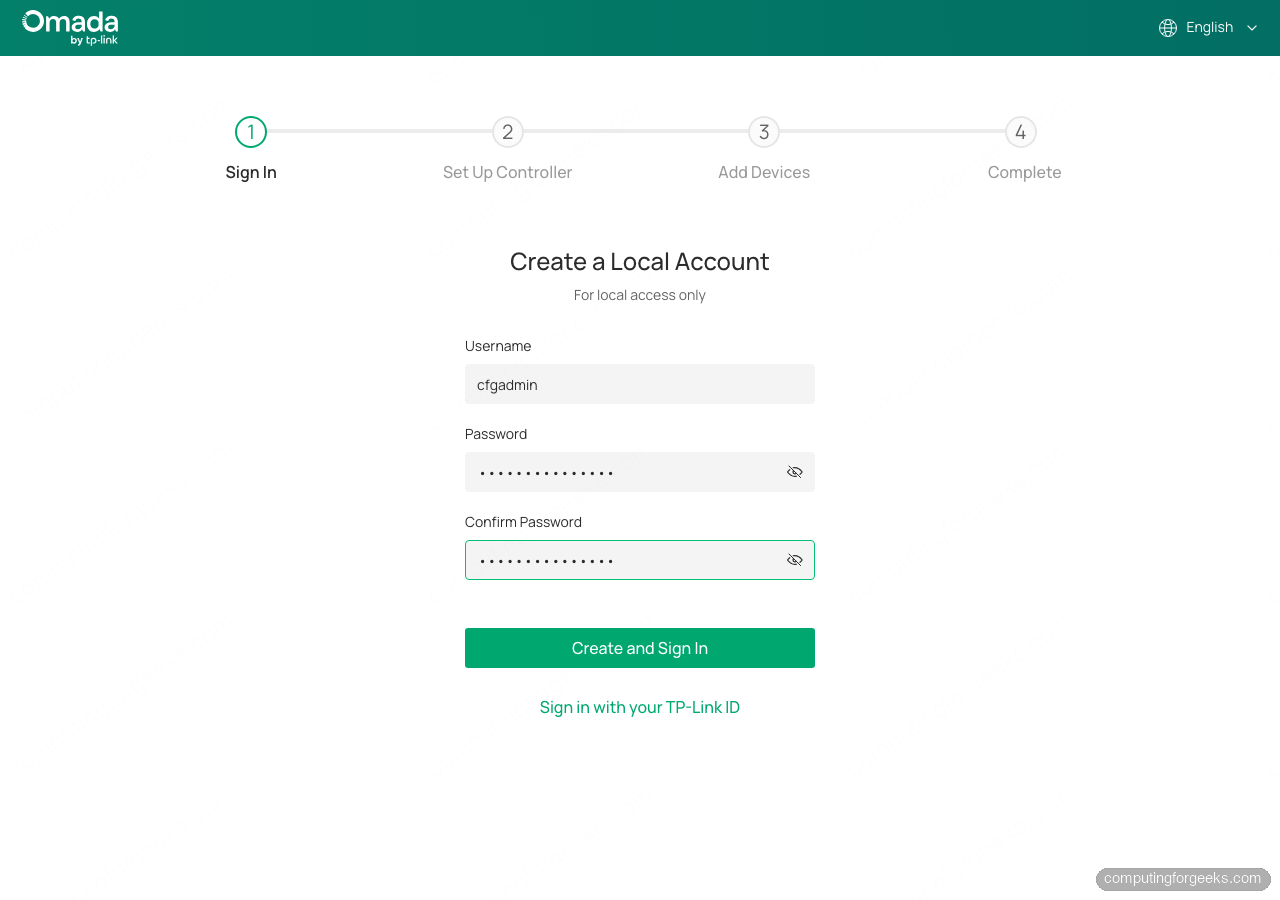
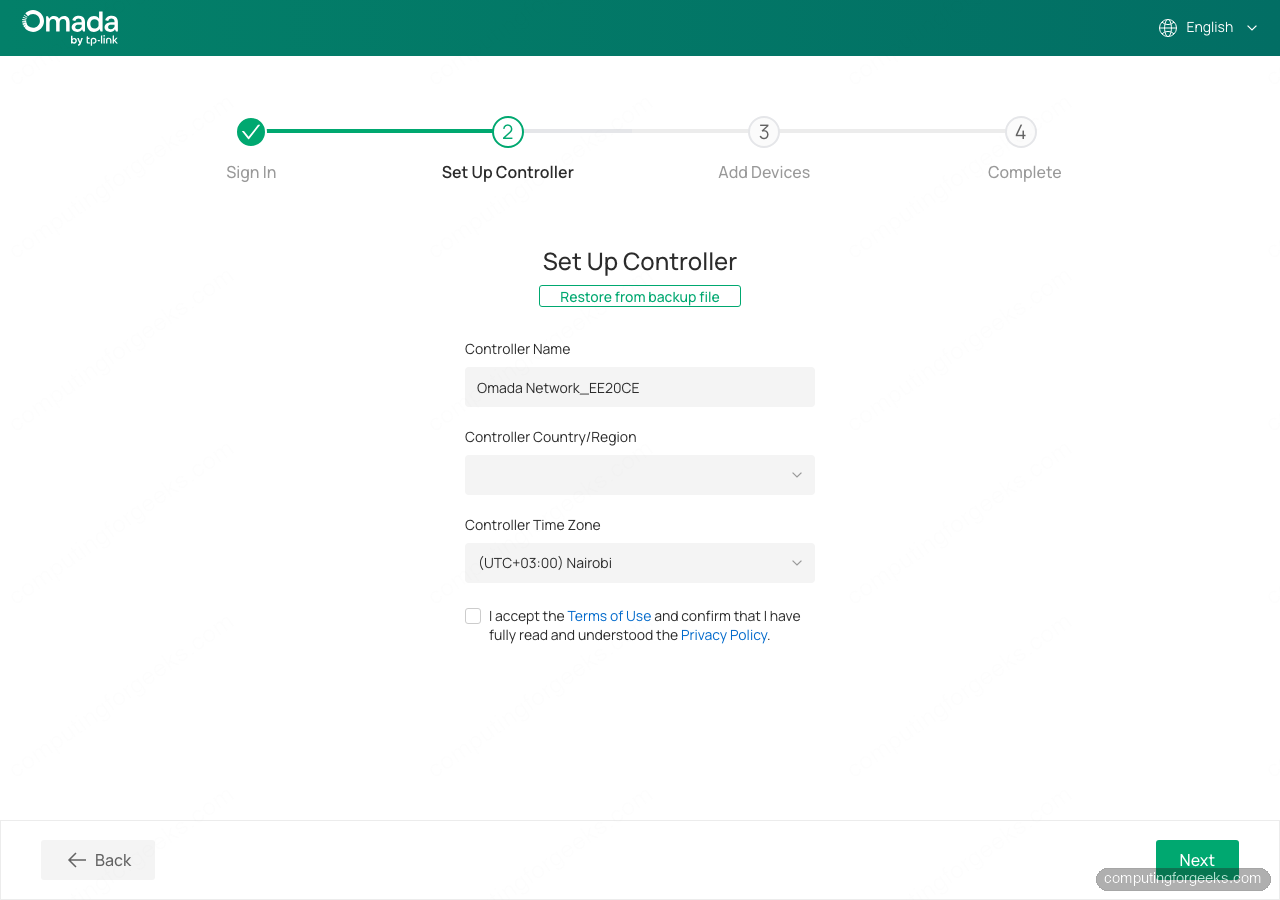
Set a username and a strong password. The next step names the controller and sets its region and time zone. The region matters more than it looks: it sets the legal wireless channels and transmit power for your country, so pick the one you actually operate in.
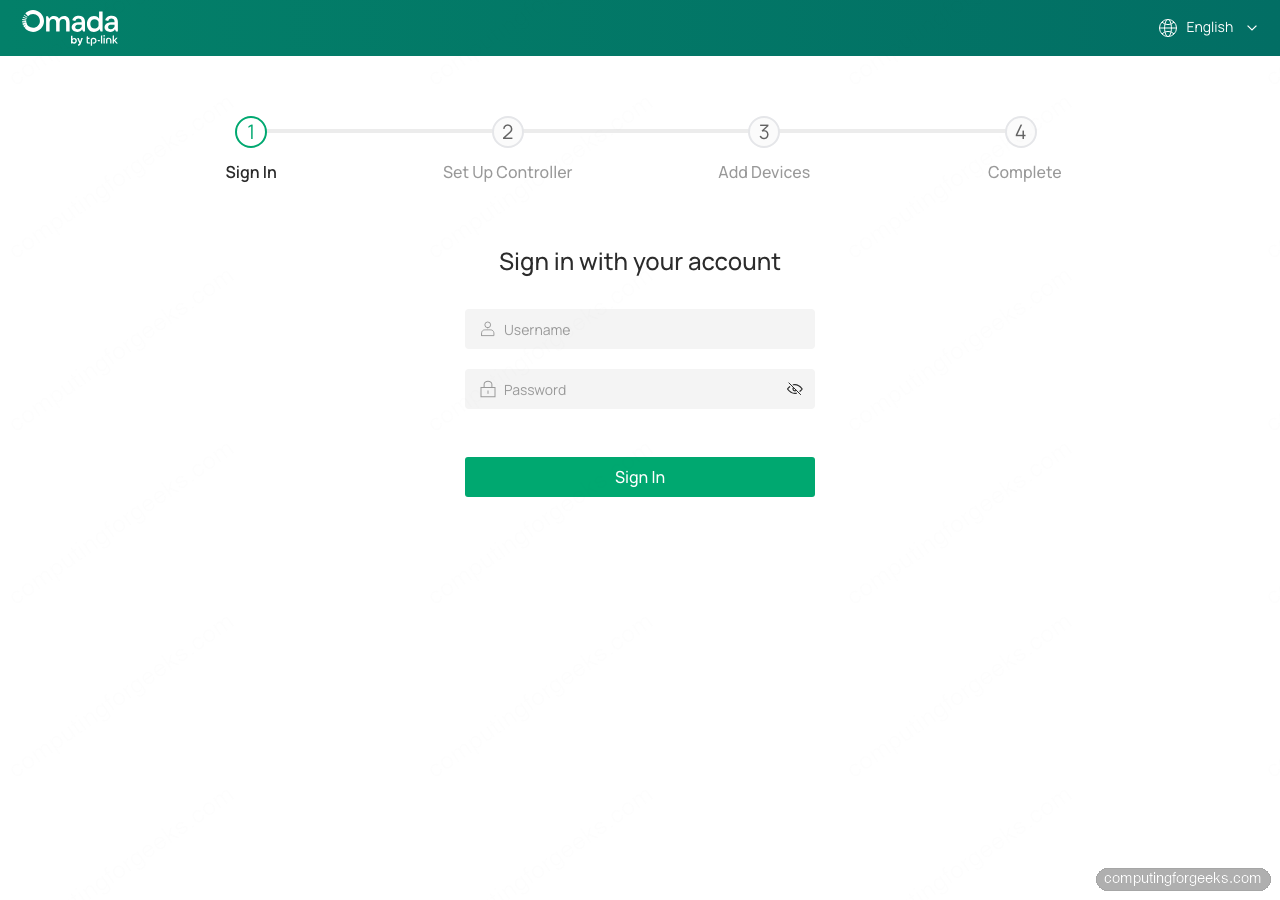
Finish the wizard and you land on the local account sign-in. From here on, this page is your front door to the controller:
Put the web UI behind HTTPS
The controller’s built-in certificate is self-signed, so every visit throws a browser warning. Front it with Nginx and a Let’s Encrypt certificate. Install Nginx and Certbot, then create a virtual host:
sudo vim /etc/nginx/conf.d/omada.confProxy to the controller on 8043 over HTTPS, and pass WebSocket upgrades through so the live dashboard works:
server {
    listen 80;
    server_name omada.example.com;

    location / {
        proxy_pass https://127.0.0.1:8043;
        proxy_ssl_verify off;
        proxy_set_header Host $host;
        proxy_set_header X-Real-IP $remote_addr;
        proxy_set_header X-Forwarded-For $proxy_add_x_forwarded_for;
        proxy_set_header X-Forwarded-Proto $scheme;
        proxy_set_header Upgrade $http_upgrade;
        proxy_set_header Connection "upgrade";
    }
}
Swap omada.example.com for your real hostname, test the config, and reload:
sudo nginx -t && sudo systemctl reload nginxNow issue the certificate. The default HTTP-01 challenge works with any DNS provider as long as port 80 is reachable, and Certbot rewrites the vhost for TLS automatically:
sudo certbot --nginx -d omada.example.com --non-interactive --agree-tos --redirect -m [email protected]The controller is now reachable at https://omada.example.com with a valid certificate and no browser warning. If the host sits on a private LAN with no public port 80, use Certbot’s DNS-01 challenge with your provider’s plugin instead, or reach the controller over a mesh VPN like Tailscale and skip the public certificate entirely.
Adopt your Omada devices
Because the container runs with host networking, any Omada device on the same subnet shows up under the controller’s Devices list within a minute or two, ready to adopt with a click. This is exactly why the host-networking decision from step 1 matters. If nothing appears, the device is almost always on a different VLAN or subnet from the controller, so the Layer 2 discovery never reaches it.
If you are still building out the network, a WiFi 6 access point like the TP-Link EAP650 is the easy adoption target: PoE powered, AX3000, and managed entirely from this controller. Pair it with a managed switch to power and segment everything, which our homelab switch guide covers.
Back up the controller
All the controller’s state lives in the omada-data volume, so a snapshot of that volume is a full backup. The cleaner habit is the controller’s own export, under Settings then Maintenance then Backup and Restore, which writes a single file you can restore into a fresh container. Grab a copy of the volume from the host too:
docker run --rm -v omada-data:/data -v $(pwd):/backup alpine \
  tar czf /backup/omada-data-$(date +%F).tar.gz -C /data .
That tarball plus the Compose file is everything you need to rebuild the controller on another host.
Troubleshooting the snags I hit
A few things trip people up on the first run.
- Devices never appear for adoption. This is the host-networking issue nine times out of ten. Confirm the container uses
network_mode: hostand that the devices are on the same subnet as the host. On a segmented network you can instead set the controller inform URL on each device, but same-subnet plus host networking is the painless path. - The container starts then exits. Usually a permissions or memory issue. Check
docker logs omada-controller. On a small host, cap the JVM heap with the image’s own knob,-e JAVA_MAX_HEAP_SIZE=1024min the environment, so it does not balloon. - Slow start on low-power hardware. The controller can take a couple of minutes on a small mini PC or Pi.
SMALL_FILES=trueis a legacy low-resource flag the image still accepts; it does little on modern MongoDB builds, so treat it as a harmless nudge for constrained hosts rather than a guaranteed space saving. - Upgrading. Because the config is on the
omada-datavolume, upgrading is just pulling a newer tag and recreating:docker compose pull && docker compose up -d. Take a backup first, and do not jump multiple major versions in one hop.