Two laptops, three home-lab servers, and a VPS in Frankfurt. Old me wired that together with WireGuard, an OpenVPN concentrator, a couple of iptables NAT rules, and a piece of paper taped to the desk listing which subnet each box was on. The whole thing fell over every time my home ISP rotated the public IP. Tailscale replaces all of that, with no port forwarding, no firewall holes punched into the router, and no “wait, what’s the gateway again” notebook scribbles.
The Tailscale agent runs on Ubuntu 26.04 LTS as a systemd service called tailscaled. It establishes peer-to-peer WireGuard tunnels between every device in your tailnet, falls back to encrypted DERP relays when NAT or firewalls block direct connections, and gives you a flat 100.x.y.z address space across every machine. This guide installs the agent, joins it to your tailnet, and walks through subnet routing, exit nodes, and Tailscale SSH so you can pick the right pattern for whatever you are connecting. If you have not done the initial server setup yet, run that first so the host is patched and SSH is on key auth before you wire it into a mesh.
Verified April 2026: Ubuntu 26.04 LTS (Resolute Raccoon, kernel 7.0), Tailscale 1.96.4, Go 1.26.1
Prerequisites
- Ubuntu 26.04 LTS server or desktop with sudo access
- A Tailscale account (the free Personal plan covers up to 100 devices and 3 users)
- Outbound TCP/443 and UDP/41641 reachable (most home networks already allow this)
- A second device on your tailnet for testing reachability (a phone with the Tailscale app works)
Step 1: Install Tailscale
The official one-liner adds the upstream apt repo, imports the signing key, and installs the latest stable release. Run it on the host you want to join to the tailnet:
curl -fsSL https://tailscale.com/install.sh | shThe script ends with Installation complete! and a hint to run sudo tailscale up. Confirm the daemon is enabled and active before going further:
tailscale version
sudo systemctl status tailscaled --no-pager | head -8
The status block should show Active: active (running) with Status: "Needs login: ". That last bit is normal because the daemon is up but the node has not joined a tailnet yet.
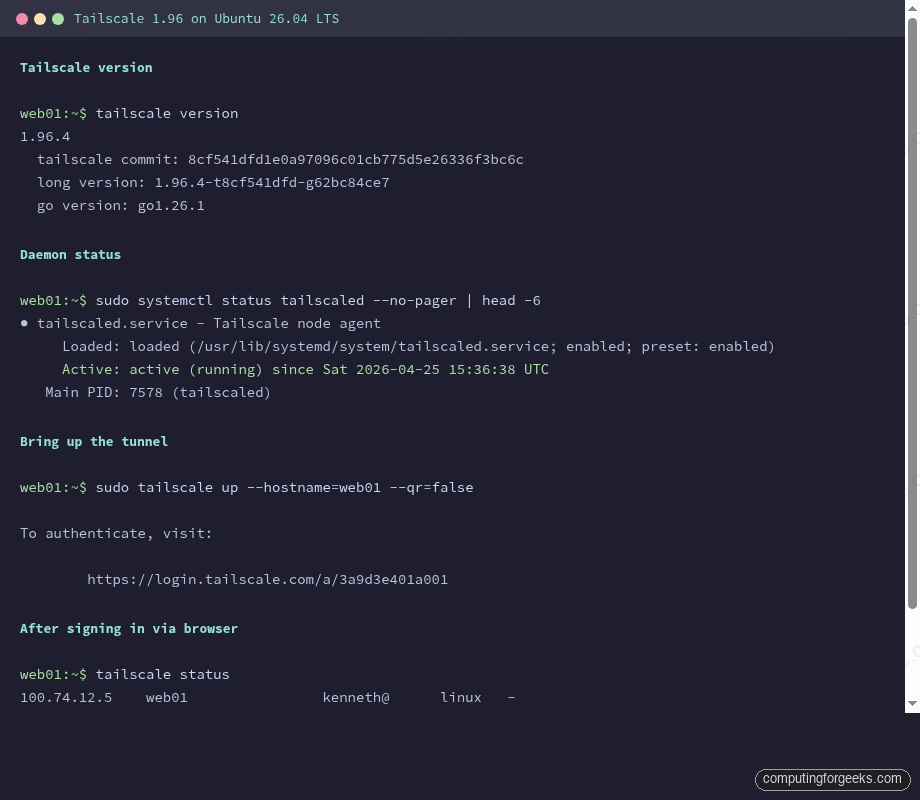
That capture shows what the command output looks like once the node has connected to a tailnet with three peers. Right after install, your tailscale status just prints Logged out. Step 2 fixes that.
Step 2: Authenticate to your tailnet
The first tailscale up invocation prints a one-time URL that you open in any browser to associate the node with your tailnet. Pick a hostname that you will recognize in the admin console. Skip the QR code (it is meant for headless machines you ssh into from your phone):
sudo tailscale up --hostname=web01 --qr=falseThe CLI hangs on this line until you complete the browser flow:
To authenticate, visit:

	https://login.tailscale.com/a/3a9d3e401a001
Open that URL on a machine where you are already signed in (your laptop is fine), pick the tailnet you want to add the node to, and approve. The CLI returns to a prompt, and the node is now part of the tailnet. Confirm by listing peers:
tailscale status
tailscale ip -4
The first command prints one line per device showing the tailnet IP, hostname, owning user, OS, and connection method (direct UDP, DERP relay, or active tunnel). The second prints the IPv4 address you can use to reach this box from anywhere else on the tailnet.
For unattended installs, swap the interactive flow for an auth key generated in the admin console under Settings → Keys. Mark the key reusable if you provision more than one node, and ephemeral if the node is short-lived. Then:
sudo tailscale up --hostname=web01 --auth-key=tskey-auth-XXXXXXXXXXXXAuth keys belong in a secrets manager or a one-time install script, not in your shell history. Rotate or delete them in the admin console once provisioning is done.
Step 3: Verify peer connectivity
Pick another device already in the tailnet (your phone or laptop). Ping it by its tailnet IP:
ping -c 3 100.92.18.117Round-trip time between two peers on the same continent is typically 30 to 80 ms. If tailscale status shows relay nyc next to a peer instead of direct ip:port, the two endpoints could not negotiate a direct UDP path and traffic is going through a DERP relay. That still works, just with extra latency. The netcheck command tells you which DERP region your node picked and whether your network supports direct connections:
sudo tailscale netcheckThe report includes DERP latency to every region, whether port mapping (UPnP, NAT-PMP, PCP) is available, and your public IPv4 endpoint. If UDP: false, your firewall is blocking outbound UDP and Tailscale will route everything via TCP/443 to DERP. Performance suffers but it still works.
Step 4: Advertise a subnet
Subnet routes let the Tailscale node bridge a non-tailnet network into the tailnet. Common use case: you have a NAS on 192.168.1.0/24 that cannot run Tailscale itself, but the Ubuntu box on the same LAN can advertise the subnet so peers can reach the NAS at its native IP.
Enable IP forwarding first; the kernel sysctls are off by default on Ubuntu Server:
echo 'net.ipv4.ip_forward = 1'   | sudo tee -a /etc/sysctl.d/99-tailscale.conf
echo 'net.ipv6.conf.all.forwarding = 1' | sudo tee -a /etc/sysctl.d/99-tailscale.conf
sudo sysctl -p /etc/sysctl.d/99-tailscale.conf
Now re-run tailscale up with the route flag. The hostname must stay the same as in Step 2 or you create a duplicate node entry:
sudo tailscale up --hostname=web01 --advertise-routes=192.168.1.0/24The route is advertised but not enabled until you approve it in the admin console. Open Machines → web01, click Edit route settings, and toggle on the 192.168.1.0/24 entry. Tag the machine as a subnet-router while you are there so ACLs can target it later.
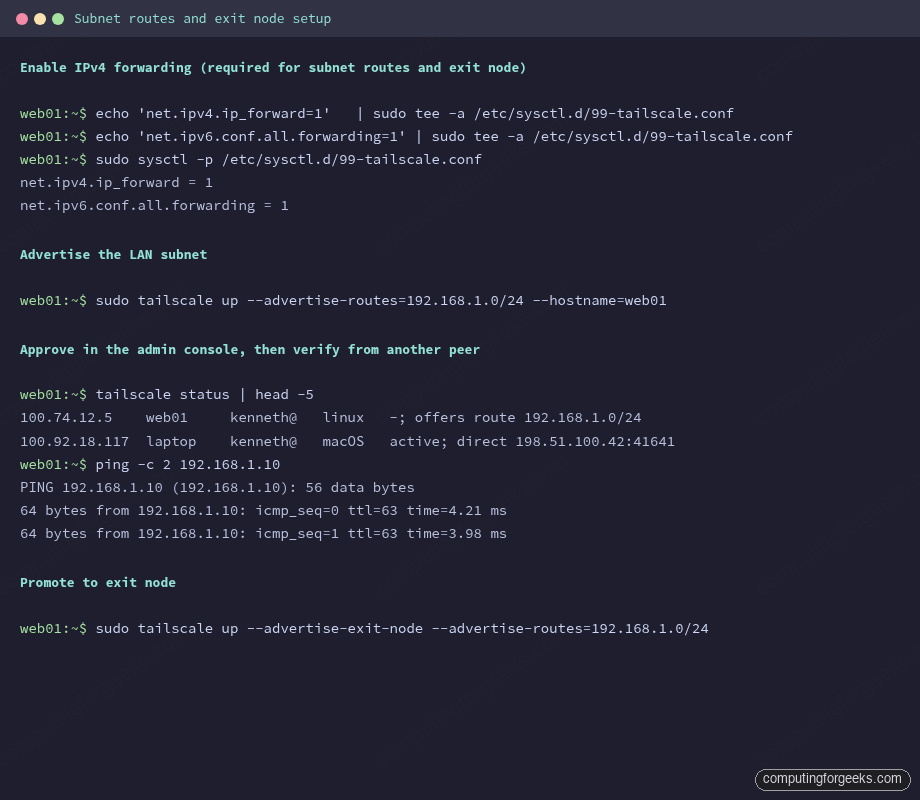
The screenshot above shows the full pattern: enable IP forwarding, advertise the route, then verify reachability with a ping to a non-Tailscale host inside that LAN. From any peer that has accepted the route, traffic to 192.168.1.x hops through your Ubuntu node transparently.
By default, peers do NOT use advertised routes. Each peer that wants the route has to opt in:
sudo tailscale up --accept-routesThis per-peer accept gate stops a misconfigured subnet router from accidentally re-routing every peer’s traffic.
Step 5: Promote the node to an exit node
An exit node sends ALL of a peer’s internet traffic through the Tailscale tunnel and out the exit node’s public IP. Use it when you want a phone on coffee-shop wi-fi to look like it is at home, or when you want a cloud VM in another region to be your “home base” for outbound traffic. The same flag stack works:
sudo tailscale up --hostname=web01 --advertise-exit-nodeApprove in the admin console under the same machine settings page (Edit route settings → Use as exit node). Then on the peer that wants to use it:
tailscale up --exit-node=web01 --exit-node-allow-lan-accessThe --exit-node-allow-lan-access flag preserves access to the peer’s local LAN (printer, NAS) while sending everything else through the exit node. Without it, the peer loses LAN connectivity for as long as the exit node is selected.
Combining subnet router + exit node on the same Ubuntu host is fine and common. The flags stack:
sudo tailscale up --hostname=web01 \
  --advertise-routes=192.168.1.0/24 \
  --advertise-exit-node
Approve both routes in the admin console once and you are done.
Step 6: Enable Tailscale SSH
Tailscale SSH replaces local SSH key management with tailnet-aware authentication. The Tailscale daemon answers SSH connections from peers on the tailnet, validates them against your ACL policy, and skips the OpenSSH layer entirely. No public keys to distribute, no ~/.ssh/authorized_keys to babysit:
sudo tailscale up --hostname=web01 --sshFrom any peer with permission in your ACL, ssh by tailnet hostname. Use the regular ssh client; Tailscale intercepts the connection at the daemon level. The key-based OpenSSH setup stays as a fallback only if you keep port 22 open on a public interface:
ssh ubuntu@web01The peer hops through the tailnet, and Tailscale matches the connecting tailnet identity to the ACL ssh rules. Default policy allows the same user on both ends, which is fine for solo home labs but too loose for shared tailnets. Lock it down by editing the policy in Access Controls:
{
  "ssh": [
    {
      "action": "accept",
      "src":    ["autogroup:admin"],
      "dst":    ["tag:server"],
      "users":  ["ubuntu", "root"]
    }
  ]
}
Save and the daemon picks up the new policy within a few seconds. Pair Tailscale SSH with regular OpenSSH on the same box (different listen ports, different auth methods) only if you need a fallback for non-tailnet emergency access. Most production setups disable OpenSSH entirely once Tailscale SSH is in place.
Step 7: Tour the admin console
The admin console at login.tailscale.com/admin/machines is where you spend most of your day-to-day Tailscale time. The Machines page lists every node with its tailnet IP, OS, last seen, and any tags applied. Click into a node to:
- Approve advertised subnet routes and exit-node status
- Set tags (used by ACL rules)
- Disable key expiry for long-lived servers
- Enable HTTPS certificates so the node can serve TLS at
https://web01.tail-scale.ts.net - Remove the device from the tailnet
The Access Controls page holds the ACL policy in HuJSON format. The default policy lets every user on the tailnet talk to every other device, which is fine for personal use and unsafe for any tailnet with multiple humans. The first thing to add on a shared tailnet is a deny-all baseline followed by explicit allows. The Settings page handles DNS (MagicDNS, search domains, custom DNS servers), key expiry defaults, and webhook integrations.
Step 8: Firewall and systemd considerations
Ubuntu’s ufw sits at the host firewall layer and does not need any inbound rules for Tailscale. The daemon punches outbound UDP/41641 and TCP/443 itself, and the tailscale0 wireguard interface bypasses ufw by virtue of being a different netfilter input chain. If you have configured ufw with a default-deny policy, peer-to-peer Tailscale traffic still flows because it arrives on tailscale0, not eth0.
The systemd unit tailscaled.service is enabled at install time. Useful management commands:
sudo systemctl restart tailscaled
sudo journalctl -u tailscaled -f
sudo tailscale down
sudo tailscale up
The first restarts the daemon (rarely needed; the agent self-recovers). The second tails the log live, useful when debugging route advertisement or DERP fallback. The last two pair: down disconnects from the tailnet without uninstalling, up reconnects with the previously stored credentials.
Pick the right Tailscale pattern for the problem
Tailscale ships three overlapping patterns: subnet routing, exit node, and Tailscale SSH. They solve different problems and you should not turn them all on by default. Use this decision flow when planning a deployment.
| If you want to | Use | Why not the others |
|---|---|---|
| Reach a NAS, IPMI, or printer that cannot run Tailscale | Subnet routes | Exit node would force ALL peer traffic through the gateway, which is overkill for one printer. Tailscale SSH does not solve non-SSH services. |
| Make a phone on hostile wi-fi look like it is at home | Exit node | Subnet routes only cover specific destinations. Tailscale SSH does not handle web traffic. |
| Replace OpenSSH key distribution across a fleet | Tailscale SSH | Subnet routes and exit nodes are network-layer; they do nothing about who can run a shell. ACLs scope SSH access by user identity. |
| Bridge a small home lab with one server | Subnet routes + exit node on the same Ubuntu host | Tailscale SSH is fine to add later when you bring on a second server. |
| Replace a site-to-site VPN between offices | Subnet routes on each side with selective --accept-routes | Exit node would tunnel everyone’s internet traffic across an office link, killing performance. |
| Provide internal apps to remote contractors | Tailscale SSH (for shells) + subnet routes (for HTTP) with tagged ACLs | Exit nodes share an IP across users; tagged ACLs give per-contractor scoping. |
For a home lab, start with subnet routes and one exit node on a stable host like an always-on mini PC. Add Tailscale SSH only after you have a second server worth federating, because the value of identity-aware SSH grows with fleet size, not with one box. If you already run a plain WireGuard VPN and are evaluating a switch, the migration usually goes: install Tailscale alongside WireGuard, move services to use the 100.x tailnet IPs over a couple of weekends, then turn off WireGuard. Tailscale’s free tier covers most home and small-team setups; the moment you need a second tailnet, custom DERP regions, or strict device approval workflows, the paid plans are worth pricing out. Whichever pattern you pick, pair the deployment with Fail2ban watching auth.log on the underlying host so brute-force probes against the public OpenSSH port (if you keep it) still get rate-limited.