A web server is only useful once three pieces line up: the nginx package, the firewall that lets traffic reach it, and the document root it serves. On openSUSE Leap 16 those pieces sit in slightly different places than they do on a Debian or RHEL box, and Leap 16 ships SELinux in enforcing mode for the first time, so a couple of steps behave in ways that catch people out. This guide walks through how to install nginx on openSUSE Leap 16, open the firewall, serve a real page, and add a name-based virtual host, with every command run on a live machine.
You will set up the nginx package from the official repo-oss repository, point firewalld at it, serve content from the SUSE document root, and host more than one site from a single server using vhosts.d. We also test how the new enforcing SELinux policy treats nginx, because it does not behave the way the RHEL family does.
Confirmed working on openSUSE Leap 16.0 (nginx 1.27.2) in June 2026.
Prerequisites
nginx itself is light. What you size for is the traffic and the content it fronts. A static site or a reverse proxy in front of an app is happy on 1 vCPU and 1 GB of RAM; the moment nginx caches responses or terminates TLS at volume, RAM and CPU follow connection count and the size of your cache, not the nginx binary. For a real public site, start at 2 vCPU and 2 GB and watch worker_connections and open file descriptors as the levers, then grow from there.
- A running openSUSE Leap 16 server with sudo access. The lab box here used 2 vCPU and 2 GB of RAM, which is a floor for following along, not a production recommendation.
- A non-root user in the
wheelgroup. If you have not done the base setup yet, work through the initial server setup and hardening first. - Network access to the openSUSE CDN so
zyppercan reachrepo-oss.
Install nginx from the OSS repository
nginx lives in the default repo-oss repository, so there is no third-party repo to add. Refresh the metadata and install the package:
sudo zypper refresh
sudo zypper install nginx
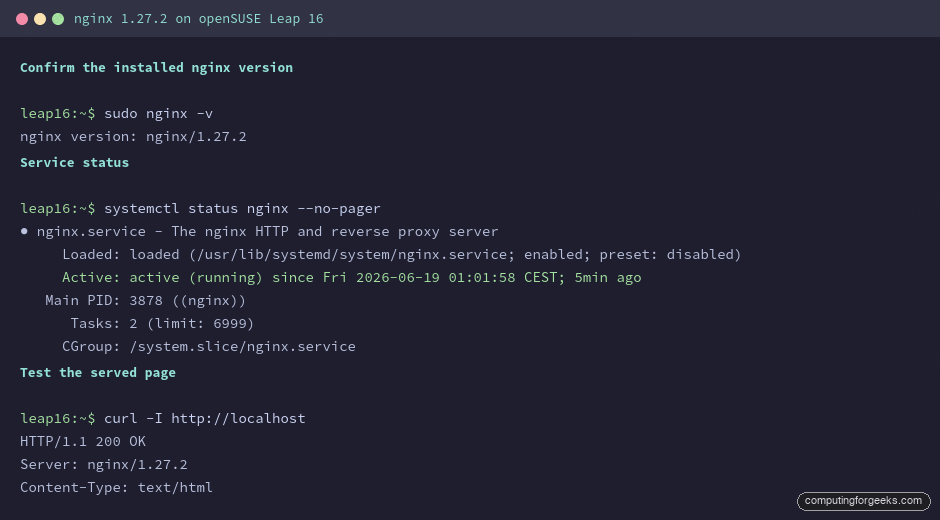
The package pulls in a small set of Lua and module dependencies and creates a dedicated nginx system user. Once it finishes, confirm the version. Here is the first Leap 16 quirk: the nginx binary lives in /usr/sbin, which is not on a normal user’s PATH, so call it through sudo or by full path:
sudo nginx -vThe version prints on stderr:
nginx version: nginx/1.27.2Start nginx and enable it at boot
The package does not start the service for you. Enable and start it in one step so it survives a reboot:
sudo systemctl enable --now nginxCheck that systemd reports it active:
systemctl status nginx --no-pagerThe status line should read active (running), and you will see that systemd runs an nginx -t config test before every start:
● nginx.service - The nginx HTTP and reverse proxy server
     Loaded: loaded (/usr/lib/systemd/system/nginx.service; enabled; preset: disabled)
     Active: active (running) since Fri 2026-06-19 01:01:58 CEST; 13ms ago
    Process: 3875 ExecStartPre=/usr/sbin/nginx -t (code=exited, status=0/SUCCESS)
   Main PID: 3878 ((nginx))
Open the firewall
Leap 16 runs firewalld, and the default zone blocks inbound HTTP and HTTPS. Add both services and reload so nginx is reachable from the network:
sudo firewall-cmd --permanent --add-service=http
sudo firewall-cmd --permanent --add-service=https
sudo firewall-cmd --reload
Confirm both services are now allowed in the active zone:
sudo firewall-cmd --list-servicesYou should see http and https alongside ssh and cockpit:
cockpit dhcpv6-client http https sshServe the first page from the SUSE document root
This is where openSUSE differs from almost every other distro. The default document root is /srv/www/htdocs/, not /var/www/html or /usr/share/nginx/html. By default that directory only holds a 50x.html error page, so a fresh install answers with a blunt 403 Forbidden until you give it an index file:
curl -I http://localhostBefore you add content, that request returns:
HTTP/1.1 403 Forbidden
Server: nginx/1.27.2
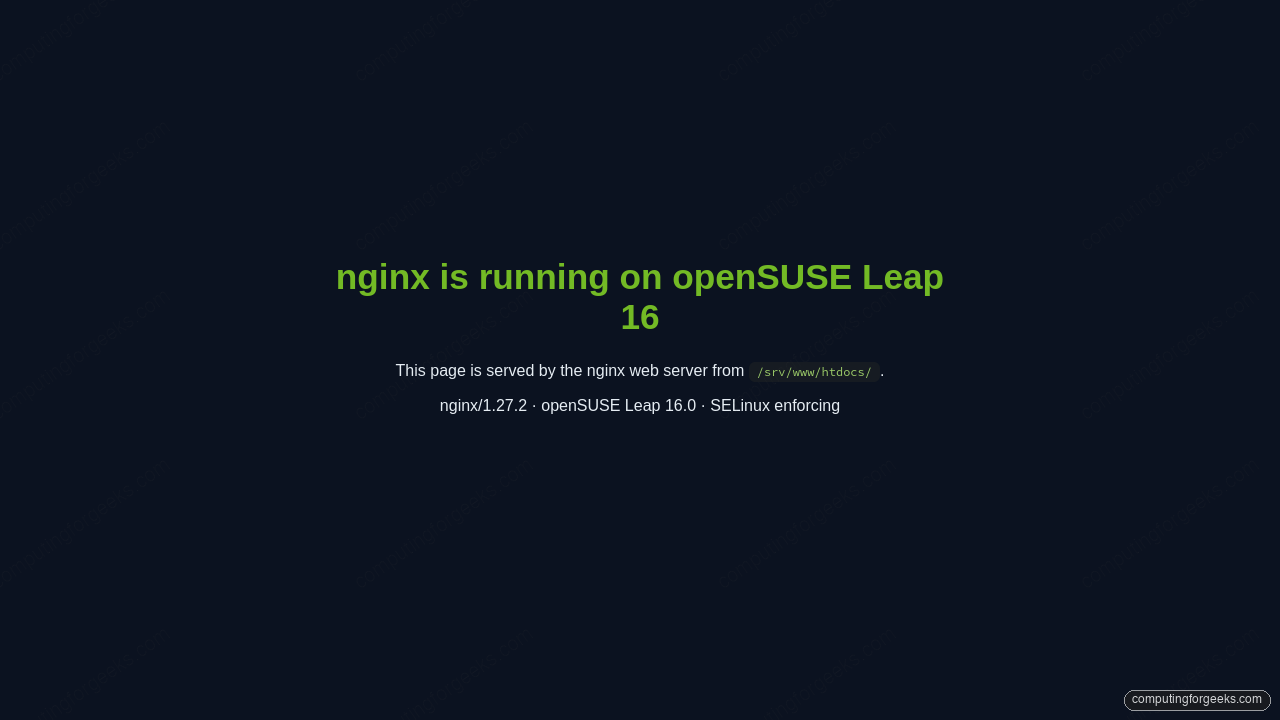
Drop an index page into the document root and the 403 turns into a 200:
echo '<h1>nginx is running on openSUSE Leap 16</h1>' | sudo tee /srv/www/htdocs/index.htmlRequest it again and nginx serves the file:
curl -I http://localhostThe status is now 200 OK. Point a browser at the server’s IP address and you get the page back.
Host multiple sites with name-based virtual hosts
nginx on Leap 16 reads extra server blocks from /etc/nginx/vhosts.d/. The main nginx.conf already pulls them in with include vhosts.d/*.conf;, so you never edit the shipped config to add a site. Each site gets its own file.
Because the same hostname and web root repeat across several commands, set them once as shell variables and reuse them. Change the two values to match your real domain:
export SITE_DOMAIN="example.com"
export WEB_ROOT="/srv/www/vhosts/${SITE_DOMAIN}"
Create the document root for the site and give it a landing page:
sudo mkdir -p "${WEB_ROOT}"
echo "<h1>${SITE_DOMAIN} served by nginx on Leap 16</h1>" | sudo tee "${WEB_ROOT}/index.html"
Now write the server block. Open a new file under vhosts.d:
sudo vim /etc/nginx/vhosts.d/example.com.confAdd the following, keeping the paths in line with the variables you set above:
server {
    listen 80;
    server_name example.com www.example.com;
    root /srv/www/vhosts/example.com;
    index index.html;

    access_log /var/log/nginx/example.com-access.log;
    error_log  /var/log/nginx/example.com-error.log;
}
Test the configuration before reloading. nginx -t catches a stray semicolon or a bad path before it can take the service down:
sudo nginx -tA clean config reports both lines as successful:
nginx: the configuration file /etc/nginx/nginx.conf syntax is ok
nginx: configuration file /etc/nginx/nginx.conf test is successful
Reload to apply the new site without dropping existing connections:
sudo systemctl reload nginxYou can prove the virtual host answers for its name by sending a matching Host header, which is what a browser does when it resolves the domain:
curl -s -H "Host: ${SITE_DOMAIN}" http://127.0.0.1/nginx returns the virtual host’s page rather than the default document root:
<h1>example.com served by nginx on Leap 16</h1>How SELinux treats nginx on Leap 16
Leap 16 is the first openSUSE release to ship SELinux in enforcing mode by default, so it is worth knowing exactly how strict it is with a web server. Check the process domain and you will see nginx runs confined as httpd_t, the same domain the RHEL family uses:
ps -eZ | grep nginxEach worker carries the confined label:
system_u:system_r:httpd_t:s0 3878 ? 00:00:00 nginxHere is the part that surprises anyone coming from Rocky or RHEL. We placed a document root outside the standard tree, at /opt/mysite with the generic usr_t label, pointed a server block at it, and requested it. On RHEL that earns an instant AVC denial. On this Leap 16 install the request returned 200 OK with no denial in the audit log. The reason becomes clear when you list the tunable SELinux booleans:
getsebool -aOn this release that command returns an empty list. There are none of the httpd_* toggles you would flip on RHEL, because the targeted policy shipped with Leap 16 does not constrain the web server’s file access the way the RHEL policy does. In practice that means you will not fight SELinux over document-root labels here, but treat it as how this release behaves rather than a permanent guarantee. Keep document roots under /srv/www as the clean habit, and if a future policy update tightens things, relabel a custom path the standard way:
sudo semanage fcontext -a -t httpd_sys_content_t "/opt/mysite(/.*)?"
sudo restorecon -Rv /opt/mysite
That keeps your layout portable if you ever move the site to a stricter distro.
Troubleshooting the first run
Three errors account for almost every failed first start on Leap 16, and all three have quick fixes.
nginx: command not found
Running nginx -v as your normal user fails because the binary is in /usr/sbin. Call it with sudo nginx -v or the full path /usr/sbin/nginx -v. The service itself is unaffected; this only bites interactive commands.
403 Forbidden on a brand new install
A fresh document root has no index.html, so nginx has nothing to return and answers 403 Forbidden. Add an index file to /srv/www/htdocs/ (or your virtual host root) and the error clears. This is expected behavior, not a broken install.
The site loads but ignores your server block
If a virtual host serves the default page instead of its own, the usual cause is that systemctl reload nginx was skipped after editing the file, or server_name does not match the host you requested. Run sudo nginx -t to confirm the file parsed, reload, and verify with the curl -H "Host: ${SITE_DOMAIN}" check above. With the config valid and reloaded, nginx routes the request to the right block end to end.
From here nginx is ready to front real applications. The natural next step is to put it behind a Let’s Encrypt certificate so it serves HTTPS, or to place it in front of a container workload from the Docker and Podman setup, or to manage the service and watch its logs from the browser using Cockpit, the YaST replacement. If you are still settling into the distro, the things to do after installing Leap 16 guide and the zypper command reference cover the groundwork around this setup.