openSUSE Leap 16 ships with Podman already installed and Docker one command away. The catch nobody warns you about is that both want to own the docker command, and SELinux runs in enforcing mode by default, so a careless setup leaves you with either a broken docker symlink or a container that cannot read its own volume.
This guide installs Docker and Podman on openSUSE Leap 16 from the distribution repositories, runs real containers under each, and walks through the two things that actually bite on Leap: SELinux volume labels and how Docker punches straight through firewalld. By the end you will know which engine to reach for, have Compose running a multi-container stack, and be able to manage containers from Cockpit in the browser.
Ran the whole thing on a clean openSUSE Leap 16 box in June 2026, with SELinux left enforcing the entire time. Docker 29.4 and Podman 5.4, both working end to end.
Docker or Podman on openSUSE Leap 16: which to install
Use Podman. It is the engine SUSE backs on Leap 16, it is already on the system, it runs rootless and daemonless, and it understands SELinux without any extra configuration. Reach for Docker when a specific tool expects the Docker daemon or its socket: a CI runner, a Compose file written against Docker behaviour, or a dev tool that talks to /var/run/docker.sock.
You can run both engines on the same host and most people end up doing exactly that. The one hard rule is that only a single package can provide the docker command, which is the first real decision this guide forces. Install the genuine Docker engine and you get the real docker. Install the podman-docker shim instead and docker becomes an alias for Podman. You cannot have both.
Prerequisites
You need a fresh openSUSE Leap 16 install, a regular user with sudo rights, and internet access to pull images. SELinux enforcing and an active firewalld are the Leap 16 defaults, and this guide keeps both on rather than switching them off.
Sizing follows the workload, not the engine. Both Docker and Podman idle in tens of megabytes; the containers you run set the real RAM, CPU, and disk needs. The lab here is a 2 vCPU / 4 GB VM, which is fine for following along but is a floor, not a recommendation for a production container host. A box that runs a database plus a few services wants RAM sized to the working set and disk sized to your images plus volumes plus headroom.
1. Update the system and confirm SELinux
Refresh the repositories and apply pending updates first, using the standard zypper commands:
sudo zypper refresh
sudo zypper update
Confirm SELinux is enforcing. Leap 16’s switch to SELinux enforcing by default is unusual for SUSE and shapes everything containers do with host files:
getenforceThe mode should come back as enforcing:
EnforcingThe policy that lets containers work under enforcing mode lives in the container-selinux package, which the container engines pull in as a dependency. You do not install it by hand, but it is the reason the volume-label step later actually has an effect.
2. Install and test Podman
Podman is part of the default Leap 16 install. On a minimal or server pattern it may be missing, so install it explicitly if needed:
sudo zypper install podmanCheck the version to confirm it is present:
podman --versionNow run a container as your normal user, with no sudo and no daemon:
podman run --rm hello-worldPodman resolves the short name, pulls the image, and prints its greeting:
Trying to pull quay.io/podman/hello:latest...
!... Hello Podman World ...!
That container ran rootless. Podman 5 on Leap uses the netavark network stack and pasta for rootless networking, with image storage under your home directory. Confirm it:
podman info | grep -iE "rootless|networkBackend|graphRoot"The output names the backend and shows that the store lives in your home, not in a system path:
  networkBackend: netavark
  rootlessNetworkCmd: pasta
    rootless: true
  graphRoot: /home/geek/.local/share/containers/storage
This rootless-by-default behaviour is Podman’s headline advantage on Leap. The full command set is documented in the official Podman documentation.
3. Install and test Docker
Docker is not installed by default. Pull the engine, the Compose plugin, and buildx from the openSUSE repository. Note that Docker’s own download.docker.com repository has no openSUSE Leap build, so the distribution package is the correct source here, not a third-party repo:
sudo zypper install docker docker-compose docker-buildxCheck the engine and Compose versions:
docker --version
docker compose version
Both report cleanly:
Docker version 29.4.0-ce, build daa0cb7f23
Docker Compose version 2.33.1
One detail trips people up: the docker-compose package on Leap installs the v2 plugin you call as docker compose (a space, not a hyphen). There is no standalone docker-compose binary, so old scripts that call the hyphenated command will fail until you update them.
Unlike Podman, Docker needs a running daemon. Enable and start it:
sudo systemctl enable --now dockerConfirm the service is active:
systemctl is-active dockerIt should report running:
activeTo run docker without sudo, add your user to the docker group:
sudo usermod -aG docker $USERThe gotcha here is that group membership only applies to new login sessions. Pick up the new group in your current shell with newgrp docker, or log out and back in, then run a container:
docker run --rm hello-worldDocker pulls the image and prints the familiar confirmation, which means both engines are now live on the same host. Adding the daemon to the picture is the practical difference from Podman; the rest of the workflow is documented in the Docker Engine documentation.
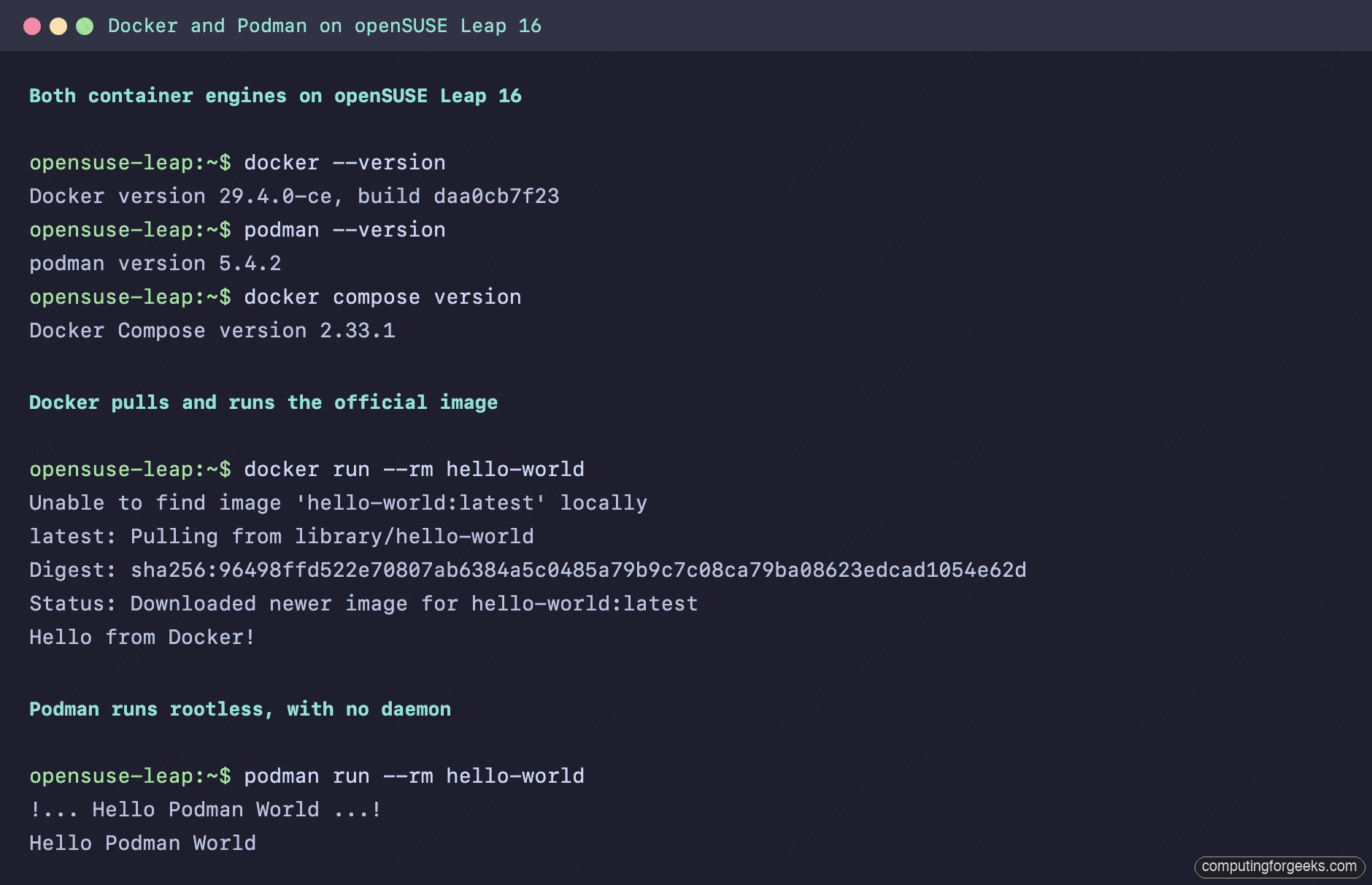
Both engines now respond on the same machine. The next question is what happens to the docker command itself when you want Podman to answer to it too.
4. Run both engines side by side
With both installed, podman drives Podman and docker drives Docker. They keep separate image stores and separate networks, so they coexist without stepping on each other. The only clash appears if you also want Podman to answer to the docker command through the podman-docker package. Try it on a host that already has the real Docker:
sudo zypper install podman-dockerzypper refuses, because both packages provide /usr/bin/docker:
Problem: 1: the to be installed podman-docker-5.4.2 conflicts with 'docker'
 provided by the installed docker-29.4.0_ce
 Solution 1: deinstallation of docker-29.4.0_ce
So decide up front. If you want the genuine Docker engine, keep the docker package and skip podman-docker. If you would rather run only Podman but keep typing docker out of habit, do not install the Docker engine at all; install podman-docker instead and it drops a thin /usr/bin/docker wrapper that forwards every command to Podman.
5. SELinux and container volumes
This is the section that costs people an afternoon. Leap 16 runs SELinux in enforcing mode, so a host directory you bind-mount into a container carries its home-directory label, and the container is not allowed to read it. The fix is one character, but only if you know it exists.
Create a file and look at its SELinux label:
echo "secret host page" > ~/denied.html
ls -Z ~/denied.html
The label is the generic home-directory type:
unconfined_u:object_r:user_home_t:s0 /home/geek/denied.htmlMount it into a container with no relabel flag and the read is blocked:
podman run --rm -v ~/denied.html:/data/index.html:ro alpine cat /data/index.htmlSELinux denies it, and the error is the one you will see in a hundred forum posts:
cat: can't open '/data/index.html': Permission deniedAdd the :Z suffix to the volume and the engine relabels the file with a container-private type so the container can read it:
podman run --rm -v ~/denied.html:/data/index.html:ro,Z alpine cat /data/index.htmlThis time the content comes through:
secret host pageUse lowercase :z when several containers share the same volume, and uppercase :Z when one container owns it exclusively. The difference matters: :Z stamps a private label that other containers cannot use. The same rule applies to Docker, because its daemon on Leap also runs with SELinux enabled, so reach for :z or :Z on every host bind-mount rather than disabling SELinux.
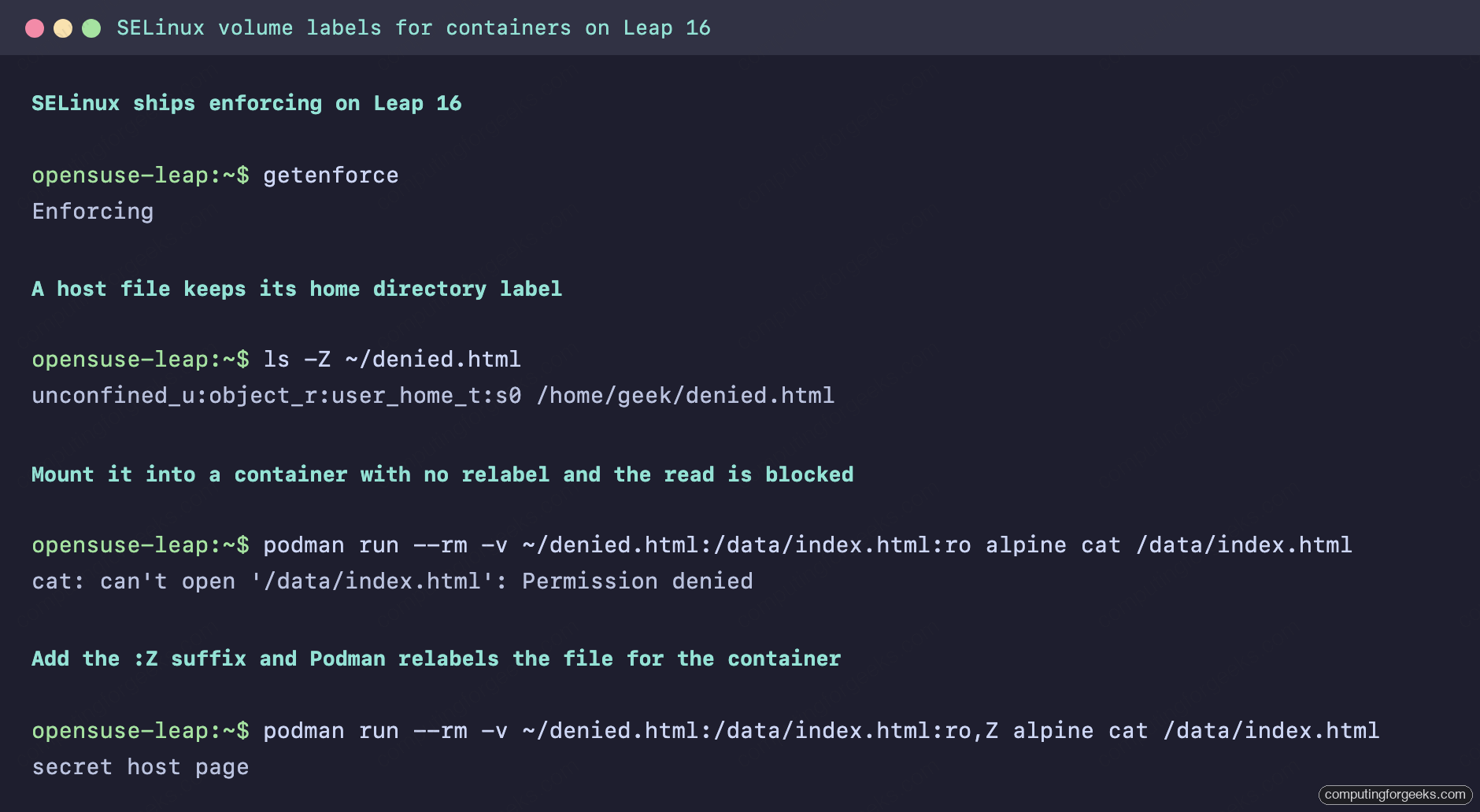
Volume labels are one of two Leap defaults that change how containers behave. The other one is the firewall.
6. Published ports and firewalld
firewalld is active by default on Leap 16, but Docker does not ask it for permission. Publish a port and the container is reachable immediately:
docker run -d --name web -p 8080:80 nginx:alpine
curl -s -o /dev/null -w "HTTP %{http_code}\n" http://localhost:8080/
The web server answers on the published port:
HTTP 200That works because Docker installs its own nftables DOCKER chain and a permissive docker firewalld zone, so container traffic is diverted before firewalld’s public-zone rules ever see it. You can see the chain it manages:
sudo nft list chain ip filter DOCKERDocker’s accept and drop rules sit in their own chain:
table ip filter {
	chain DOCKER {
		ip daddr 172.17.0.2 iifname != "docker0" oifname "docker0" tcp dport 80 accept
		iifname != "docker0" oifname "docker0" drop
	}
}
The practical consequence: a published Docker port is exposed to anything that can reach the host, even though firewalld’s public zone looks locked down. Bind sensitive containers to a specific interface with -p 127.0.0.1:8080:80, or put a reverse proxy in front, rather than trusting firewalld to gate the port. Rootless Podman behaves differently here, since it binds published ports as your user through pasta and never touches the system firewall rules. Clean up the test container when you are done:
docker rm -f webSingle containers are the building block. Compose stitches several of them into one definition you start and stop together.
7. Run a multi-container app with Compose
Compose ties several containers into one definition. Create a project directory and open a Compose file:
mkdir ~/composeapp && cd ~/composeapp
vim compose.yaml
Define a web server and a Redis cache:
services:
  web:
    image: nginx:alpine
    ports:
      - "8080:80"
  cache:
    image: redis:alpine
Bring the stack up in the background:
docker compose up -dBoth services start and Compose creates a network for them:
 Container composeapp-cache-1  Started
 Container composeapp-web-1  Started
Check what is running:
docker compose psBoth containers report up, with the web port published:
NAME                 IMAGE          STATUS         PORTS
composeapp-cache-1   redis:alpine   Up             6379/tcp
composeapp-web-1     nginx:alpine   Up             0.0.0.0:8080->80/tcp
Podman can borrow the same plugin. Running podman compose on a host that has the Docker Compose plugin installed delegates to it, printing a note that it is using the external provider, so your Compose files work under either engine. Tear the stack down when you are finished:
docker compose downEverything so far ran in a terminal. Leap 16 also gives you a browser view of your containers if you want one.
8. Manage containers from Cockpit
If you set up the Cockpit web console as the YaST replacement, the cockpit-podman add-on gives you a container view in the browser without leaving the dashboard. Install it and enable the Podman system socket it talks to:
sudo zypper install cockpit-podman
sudo systemctl enable --now podman.socket
Reload Cockpit and a Podman containers entry appears in the sidebar, listing your images and containers with live CPU and memory, plus buttons to start, stop, and create. It is a comfortable way to watch a host at a glance, and it pairs naturally with the rest of the Cockpit administration workflow on Leap 16.
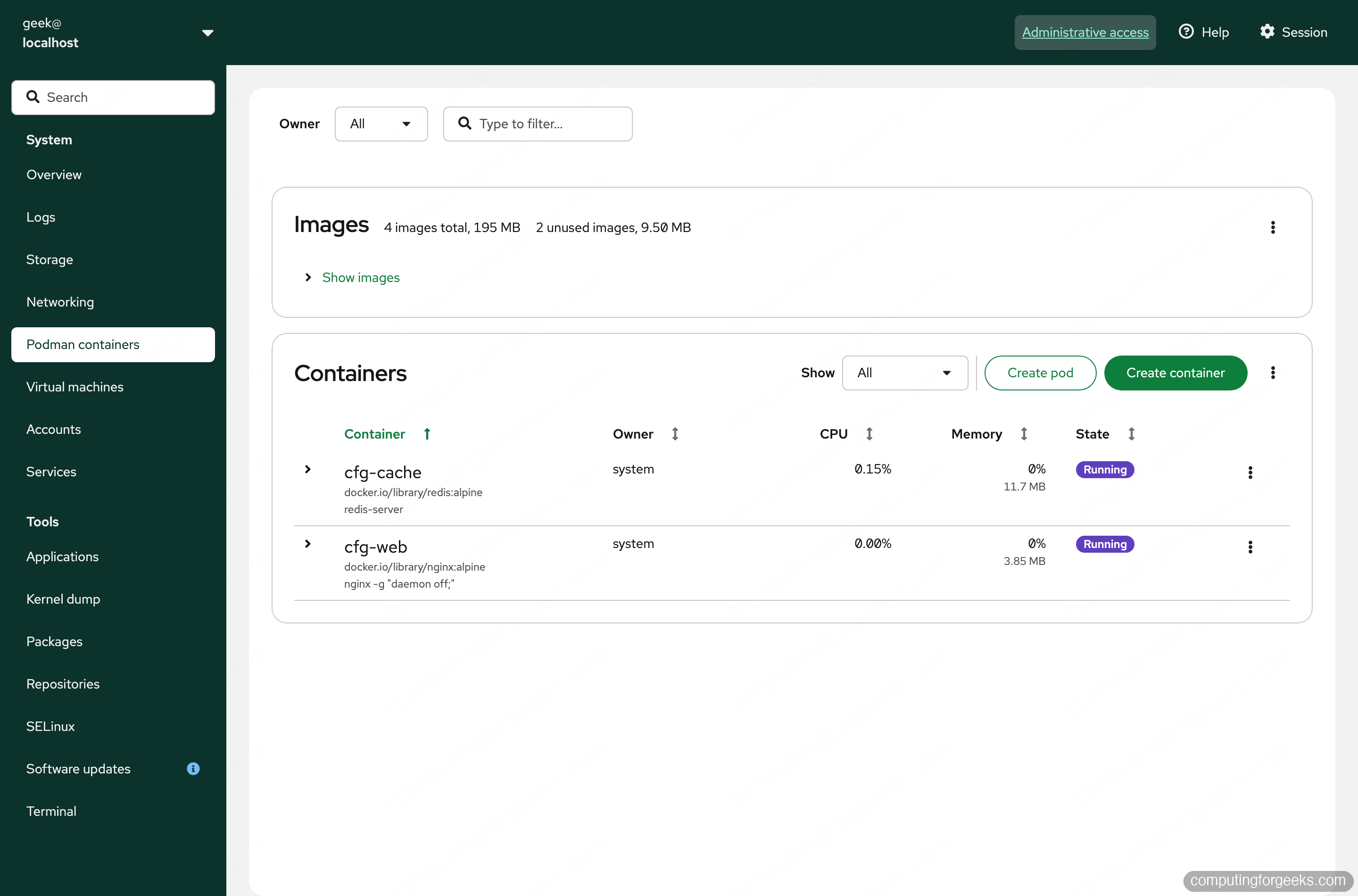
That covers the everyday workflow. A few errors come up often enough on Leap to call out directly.
Troubleshooting Docker and Podman on Leap 16
These are the three errors that actually came up while testing, with the fix for each.
permission denied while trying to connect to the Docker daemon socket
You added yourself to the docker group but kept using the same shell. Group changes only take effect in a new login session. Run newgrp docker in the current terminal, or log out and back in, then retry the command.
cat: can’t open … Permission denied on a mounted file
This is SELinux, not a file-permission problem. The host path you bind-mounted still carries its original label. Add :z (shared) or :Z (private) to the -v flag so the engine relabels it for container access, as shown in the SELinux section above.
podman-docker conflicts with ‘docker’
Both packages try to own /usr/bin/docker, so they cannot be installed together. Decide which command you want: keep the docker package for the real engine, or remove it and install podman-docker to make docker an alias for Podman.
One last note on rootless. Podman runs rootless with no extra steps, which is most of the reason to prefer it on Leap. Docker can run rootless too, through dockerd-rootless-setuptool.sh install from the docker-rootless-extras package, but it is a heavier setup involving a per-user daemon and lingering sessions. If running without root is the goal, Podman gets you there for free, and you can promote a tested container to a systemd-managed service once it earns a permanent home.