DNS turns names into addresses, so you can reach server1.lab.example.com without memorizing 10.0.0.1. A Cisco router handles names three ways: it can keep its own static name records with ip host, it can forward name queries to a real DNS server with ip name-server, and on the right platform it can answer queries itself with ip dns server. This guide configures and tests each one on real IOS, and is honest about which the common lab image actually runs.
The static-host method below was resolved end to end on a Cisco IOS 15.2 router in a GNS3 lab in June 2026; the same commands run in Packet Tracer and on real hardware. Before adding name resolution, the device should already have its base configuration and SSH access in place.
How name resolution works on Cisco IOS
When you type a name on a router, IOS resolves it in a fixed order. It checks its local ip host table first, and if the name is there it uses that address straight away, with no query on the wire. If the name is not in the table and ip domain-lookup is enabled with at least one ip name-server, the router sends a DNS query to that server and caches the answer for next time. Static records always win over a DNS lookup, which is useful for pinning a name locally and a trap when an old ip host entry you forgot about quietly overrides the real one.
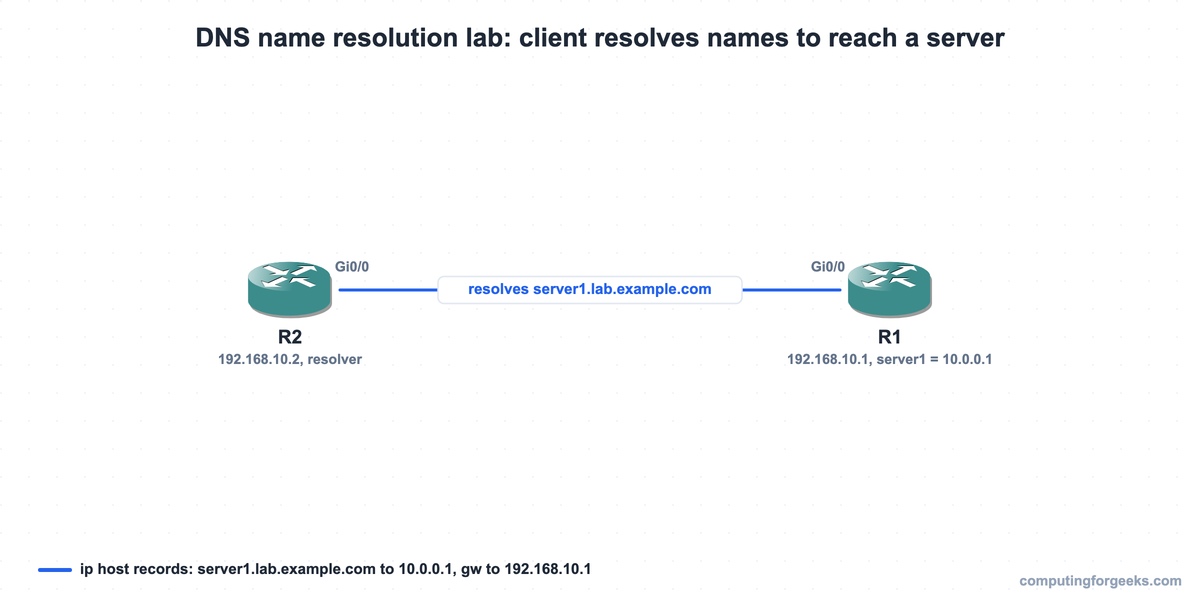
Every command below was captured from this lab on real Cisco IOS in GNS3, two c7200 routers cabled Gi0/0 to Gi0/0. Here it is on the GNS3 canvas:
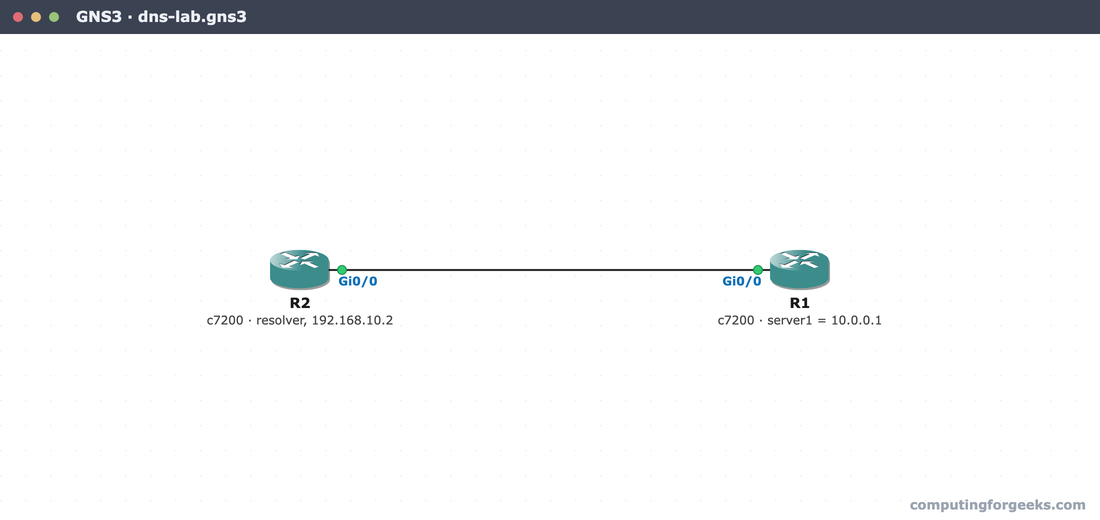
The lab is two routers on one subnet. R2 does the resolving, and R1 owns the addresses the names point to: its Gi0/0 interface and a loopback standing in for an internal server at 10.0.0.1.
Paste-ready R1 and R2 configs, the topology, and load steps for GNS3, Packet Tracer, and real gear, free on GitHub.
Get the configs on GitHubStatic name resolution with ip host
The simplest name resolution needs no server at all. An ip host entry is a static record on the device itself: a name and the address it maps to. The router checks that table whenever you type a name, so a short list of internal devices becomes reachable by name with two or three lines. Add the records:
configure terminal
ip host server1.lab.example.com 10.0.0.1
ip host gw.lab.example.com 192.168.10.1
end
Now ping the name rather than the address. The router resolves it from the local table and pings the result:
ping server1.lab.example.comThe name resolves to 10.0.0.1 and the ping lands, 100 percent success:
Type escape sequence to abort.
Sending 5, 100-byte ICMP Echos to 10.0.0.1, timeout is 2 seconds:
!!!!!
Success rate is 100 percent (5/5), round-trip min/avg/max = 4/12/24 ms
show hosts lists the table. Static entries show as perm (permanent), the ones you typed, as opposed to temp entries a DNS lookup would cache:
Host                      Port  Flags      Age Type   Address(es)
server1.lab.example.com   None  (perm, OK)  0   IP    10.0.0.1
gw.lab.example.com        None  (perm, OK)  0   IP    192.168.10.1
This is per-device: the records only help the router they are configured on. For a handful of devices that is fine, and it is the most reliable name resolution there is because nothing has to be running for it to work.
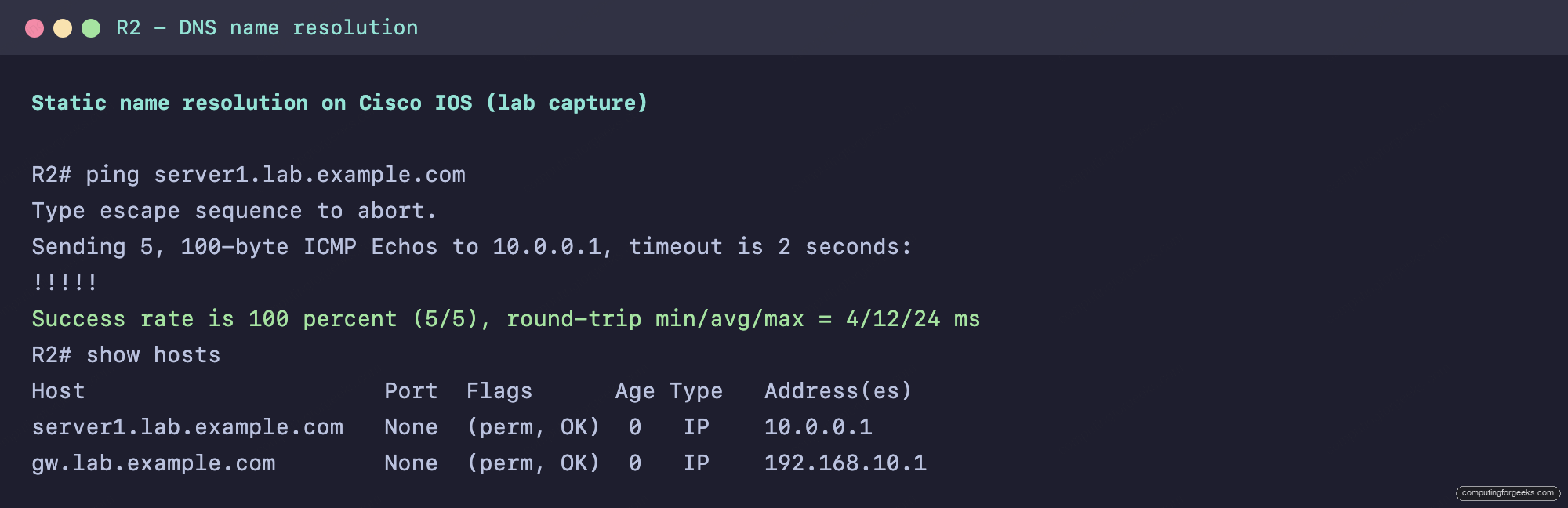
That is the whole static method: define the records, resolve the names, done. It stops scaling once the list grows past a handful of entries, which is where a real DNS server earns its place.
Point a router at a DNS server
Once the name list grows past a few entries, you stop maintaining it by hand and point the router at a real DNS server instead. Two commands do it: ip domain-lookup enables name lookups (it is on by default), and ip name-server sets where to send queries.
configure terminal
ip name-server 192.168.10.1
ip domain-lookup
ip domain-name lab.example.com
end
With this in place, any name the router does not have a static ip host record for is sent to 192.168.10.1 to resolve. The optional ip domain-name lets you type a short name like server1 and the router appends lab.example.com before querying. The query path is visible in the output: a name the router cannot resolve locally produces a Translating "name"...domain server (192.168.10.1) line as it asks the server. If lookups ever fail silently, the first thing to check is a stray no ip domain-lookup in the config, which disables resolution entirely.
Run a router as a small DNS server
A Cisco device can also answer queries for other devices, turning its ip host table into a tiny DNS zone. That is the ip dns server feature: enable it, and the router replies to DNS queries for the names it knows.
configure terminal
ip dns server
ip host server1.lab.example.com 10.0.0.1
end
One caveat that most guides skip: ip dns server is not on every image. It lives on ISR routers, IOSv, and IOS-XE, but the dynamips 7200 image that many GNS3 labs still use rejects it outright:
R1(config)# ip dns server
               ^
% Invalid input detected at '^' marker.
If you hit that error, the image does not carry the DNS server feature at all; switch the server role to an IOSv or ISR image, or use a Linux host running dnsmasq or BIND as the resolver and point the routers at it with ip name-server. The client side above works on every image, which is why static records and ip name-server are the dependable lab tools.
Drill the name-resolution commands until they are automatic. Flip the cards, then take the Anki deck with you.
Which method to use
Match the method to the size of the problem. For a lab or a few fixed devices, static ip host records are the most reliable choice and need nothing running. For anything that grows or changes, run a real DNS server (dnsmasq, BIND, Windows DNS, or a cloud resolver) and point the routers at it with ip name-server. Reserve ip dns server for the narrow case of a branch router that needs to answer a small, static set of names on a platform that supports it. DNS sits with gateway redundancy and IP routing as one of the LAN services in the CCNA 200-301 study guide, and on the exam the commands that matter most are the ones tested here: ip host, ip name-server, and ip domain-lookup.